Show back-in-stock dates on your Shopify store
When an item is out of stock, shoppers want to know when it will be back. SKU.io already knows: it can see your free stock and every open purchase order on its way. Turn on availability dates, and every hour SKU.io writes the date each Shopify variant can next ship to that variant in Shopify. Your theme can then show "Ships by 17 December" on the product page instead of a bare "Sold out".
SKU.io only writes the date. It never changes what Shopify sells or how much stock it shows.
Before you begin
- The Shopify store is connected, and its listings are linked to your SKU.io products. Only linked variants get a date.
- Your open purchase orders carry an Available ETA, or their inbound shipments carry one. A purchase order without an ETA can't give a date. See Keep the dates right.
- To show the date to shoppers, you (or your theme developer) can edit your Shopify theme.
Turn on availability dates
-
Go to Apps & Integrations, open Shopify, and pick your store from the selector at the top.
-
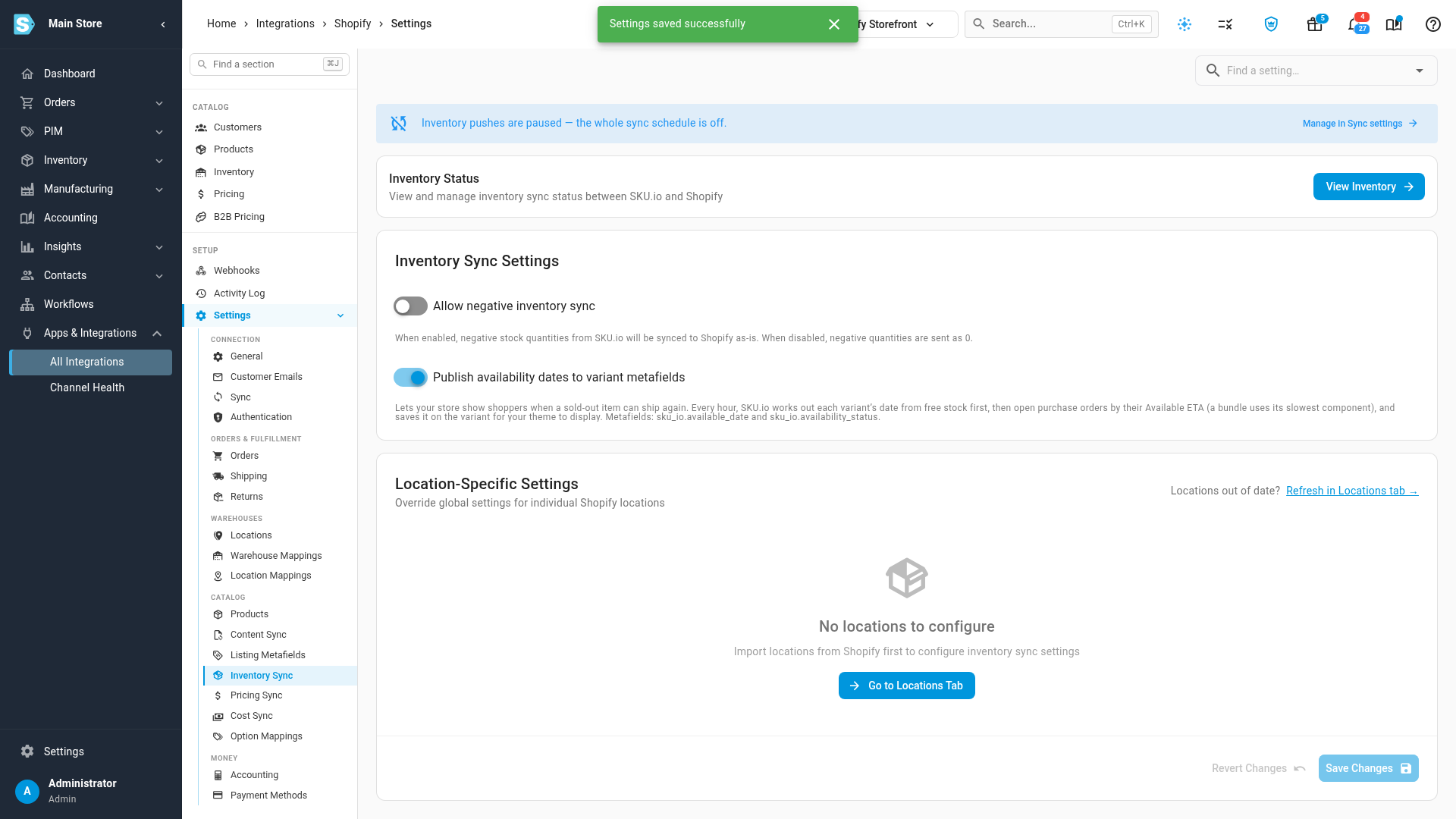
Open Settings, then Inventory Sync.
-
Turn on Publish availability dates to variant metafields. It's off until you turn it on.
-
Click Save Changes.
Within the hour, every linked variant gets its date. After that, SKU.io checks every hour and sends only the variants whose date or status changed.
What SKU.io writes to each variant
Each linked variant gets two metafields in the sku_io namespace:
| Metafield | What it holds |
|---|---|
sku_io.available_date | The date the variant can next ship, as a Shopify Date. It's removed when there's no date to give, so your theme never shows an old one. |
sku_io.availability_status | Why the date is what it is, as one of the values below. |
| Status | Means | Date |
|---|---|---|
in_stock | Free stock covers it today. | Today |
inbound | Open purchase orders cover it, and they all have an ETA. | The ETA of the order that covers it |
eta_unknown | An open purchase order covers it, but that order has no ETA yet. | None |
no_supply | Neither stock nor open purchase orders cover it. | None |
not_stocked | The listing is a parent product that holds no stock of its own. | None |
How the date is worked out
SKU.io works out the date for one unit of each variant:
- Free stock first. If there's stock that no other order has claimed, the date is today.
- Then open purchase orders, earliest ETA first. Orders already waiting for stock (your backorders) take their share of each incoming purchase order first. The date is the ETA of the first purchase order with stock left over for a new order.
- The ETA a purchase order line uses is the arrival date of its earliest open inbound shipment, or, if it has none, the order's own Available ETA.
- An ETA that has passed counts as today. The date is never in the past.
Bundles take the date of their slowest component. If one component is in stock and another arrives on 17 December, the bundle's date is 17 December. The bundle's status is the least available of its components' statuses, so a bundle with one component that has no supply shows no_supply.
Kits use their own stock first. When there isn't enough, SKU.io works out when the rest can be built from the kit's components, and uses whichever date is sooner.
Show the date on your storefront
To pick the metafields from your theme editor, first define them in your Shopify admin: go to Settings → Custom data → Variants, click Add definition, and add:
- Namespace and key
sku_io.available_date, type Date. - Namespace and key
sku_io.availability_status, type Single line text.
Defining them doesn't change their values. It only makes them available as dynamic sources in the theme editor, so you can add the date to a text block without code.
If you edit your theme's code, this snippet shows a "Ships by" line when the selected variant is out of stock and has a date:
{%- assign variant = product.selected_or_first_available_variant -%}
{%- assign ships_on = variant.metafields.sku_io.available_date.value -%}
{%- if variant.available == false and ships_on -%}
  <p class="ships-by">Ships by {{ ships_on | date: "%-d %B" }}</p>
{%- endif -%}
Use variant.metafields.sku_io.availability_status.value if you want a different message for each status, for example "Back soon" for eta_unknown.
Keep the dates right
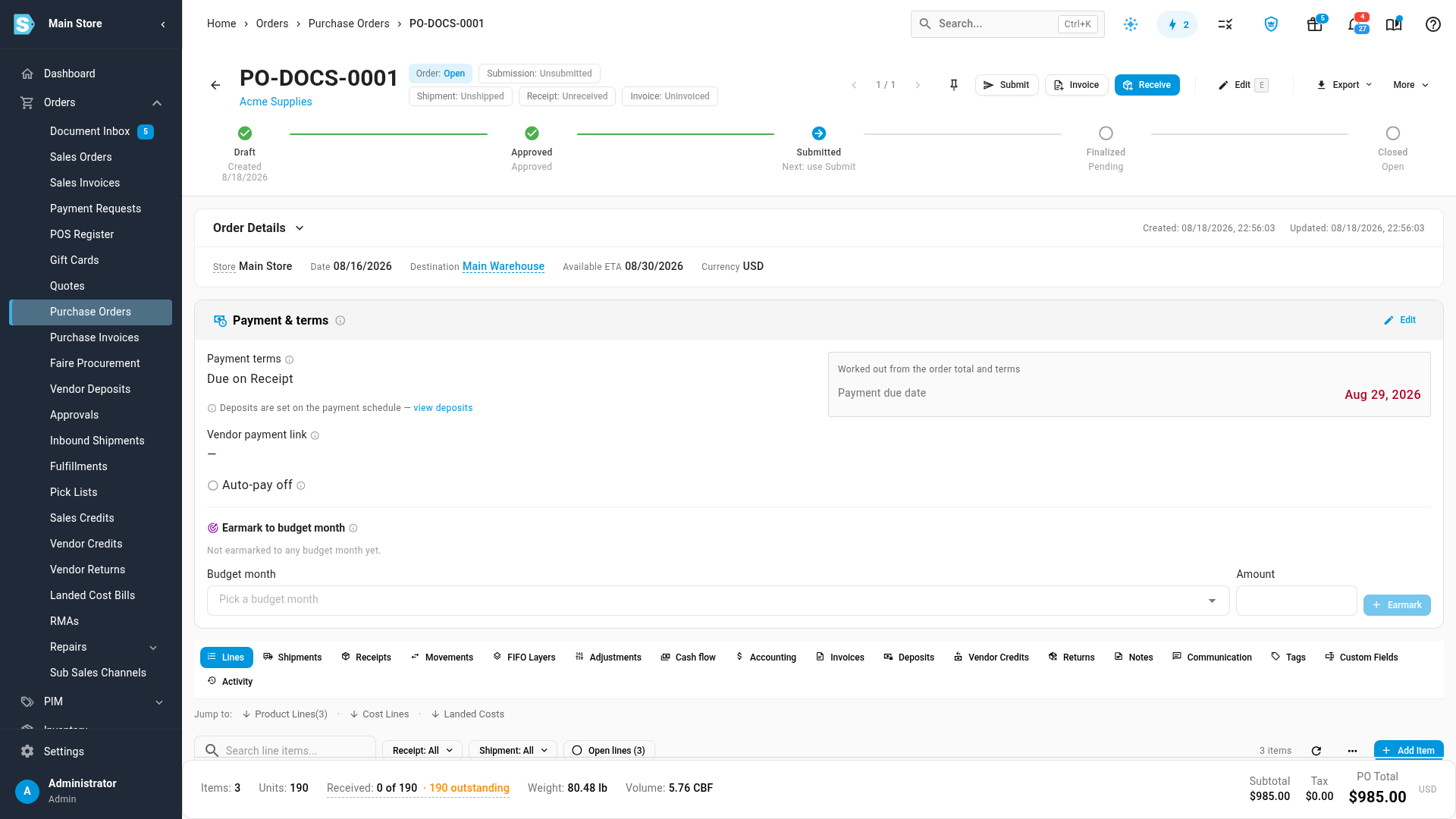
The dates are only as good as your purchase order ETAs.
- Set the Available ETA on every open purchase order. An order without one gives its products
eta_unknown, and their date is removed. - When an order ships in parts, set the arrival date on each inbound shipment. The earliest open shipment's date wins over the order's own ETA.
- Update the ETA when your supplier's date moves. The next hourly run sends the new date to Shopify.
Next steps
- Connect a Shopify store — the connection this depends on.
- Send product data to Shopify metafields — fill your store's other metafields from your product data.
- Push product costs to Shopify — another value SKU.io keeps up to date on each Shopify variant.
- Notify buyers when stock returns — tell wholesale buyers in your customer portal when an item is back.
Video transcript
SKU.io can tell your shoppers when a sold-out item will be back, based on your stock and your purchase orders. To set it up, open Apps and Integrations in the sidebar, then pick your Shopify store from the list. Each store you connect keeps its own settings. Open Settings, then choose Inventory Sync from the section menu on the left. Under Inventory Sync Settings, you will find the switch called Publish availability dates to variant metafields. Turn on the switch. Every hour, SKU.io works out the date each item can ship. It writes that date, and a status, to two metafields on the variant. Your theme reads them, and shows a Ships by message. The date uses free stock first, and after that, incoming purchase orders. A bundle takes the date of its slowest component, so one late part holds back the whole set. Then, at the bottom of the page, click Save Changes to store your choice. Those dates are only as good as each purchase order's ETA. To keep them current, go to Orders, then Purchase Orders. Search for an order you are waiting on, and open its page from the results. Its Available ETA is the date used for that order. Update it whenever your supplier's date moves.