Connect Amazon and choose your marketplaces
Amazon groups its marketplaces into three regions, and one Seller Central login reaches every marketplace in its region. In SKU.io you connect Amazon once per region: a North America connection covers the US, Canada, Mexico and Brazil, a Europe connection covers the UK and the EU marketplaces, and a Far East connection covers Japan, Australia, Singapore and India. To sell in more than one region, or from more than one seller account, add one connection for each.
Before you begin
- You can sign in to Amazon Seller Central as the account's primary user, or as a user who can authorize apps.
- At least one store exists under Settings. SKU.io posts Amazon orders to a store, and the setup stops with "Create at least one Store under Settings before adding an Amazon integration." if there isn't one.
- You have permission to manage integrations.
Connect a region
-
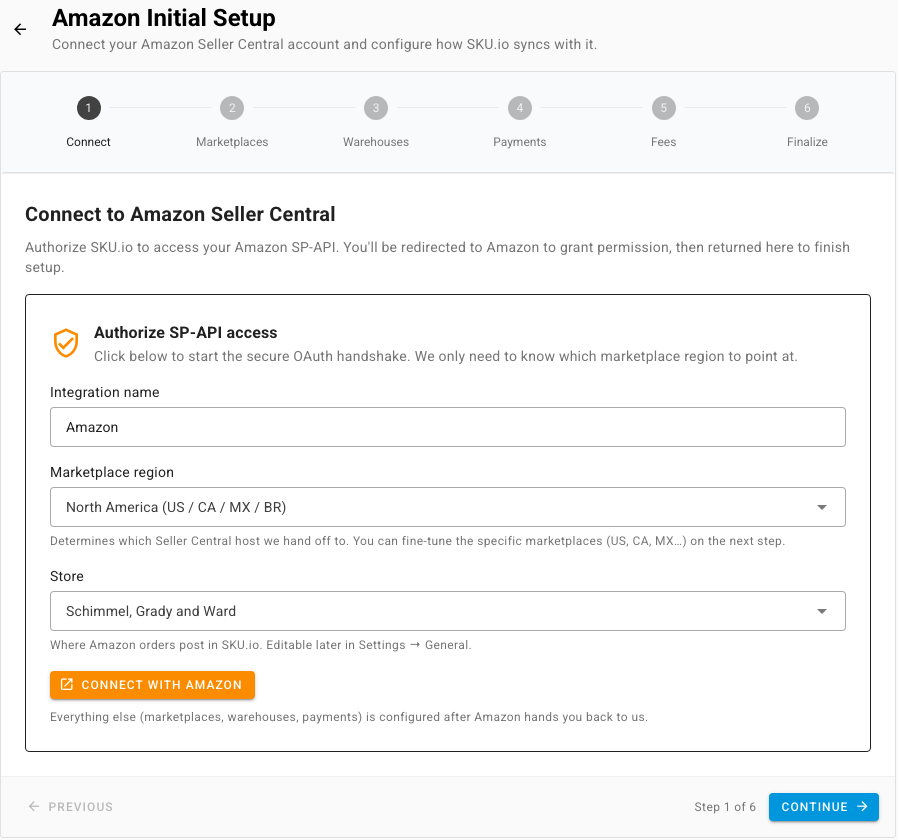
Go to Apps & Integrations, open Amazon, and click Add Instance. The Amazon Initial Setup page opens on its first step, Connect. The six steps along the top are Connect, Marketplaces, Warehouses, Payments, Fees and Finalize.
-
In Integration name, enter a name you'll recognize, for example Amazon US or Amazon EU. The name appears in every Amazon screen and on the stock locations SKU.io creates for this connection.
-
In Marketplace region, choose the region you sell in:
- North America (US / CA / MX / BR)
- Europe (UK / DE / FR / IT / ES / NL / PL / SE / TR / AE)
- Far East (JP / AU / SG / IN)
-
If you have more than one store, choose the Store that this connection's orders post to. You can change it later under Amazon Settings → General.
-
Click Connect with Amazon. Amazon asks you to sign in and approve SKU.io, then sends you back to the setup.
-
On Marketplaces, review the marketplaces SKU.io found for your account. The list holds every storefront your seller account takes part in, and all of them start selected.
-
Work through Warehouses (where returned FBA stock goes, by country), Payments (how Amazon disbursements and refunds are recorded) and Fees (how Amazon fees map to your accounts), then click Complete Setup on Finalize.
A connection syncs every marketplace your seller account takes part in within its region, whatever you leave selected on Marketplaces. If you don't want a marketplace in SKU.io, close it in Seller Central.
What changes per marketplace
| How it works | |
|---|---|
| Orders | Every order keeps the currency of the marketplace it was placed on. |
| Listings | Each listing belongs to one marketplace. |
| FBA stock | SKU.io keeps one FBA stock location for each country you hold FBA stock in, so stock in Amazon's US network and Amazon's Canadian network stay apart. See Read FBA stock by state. |
| Pricing and catalog | Features that need one home marketplace use the region's main one: Amazon.com for North America, Amazon.de for Europe, and Japan for the Far East. |
Work with more than one connection
Each connection appears as its own card under Apps & Integrations, and the Amazon row shows how many you have.
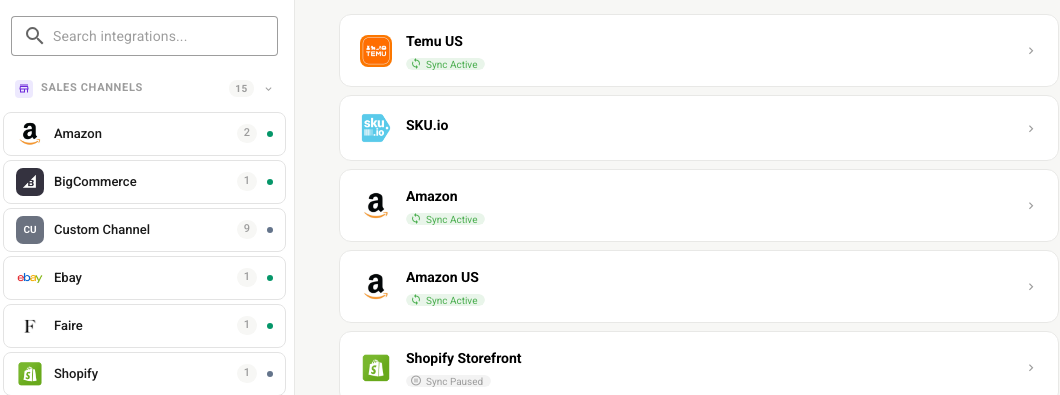
Every Amazon screen has a connection picker at the top of the page:
- On a screen that lists records, the picker reads All Integrations or Filter by Integration. Use Select All or Select None, or tick the connections you want.
- On a settings screen, the picker reads Select Integration, and the page shows No Integration Selected until you pick one, because settings belong to one connection.
If the connection stops working
Open Amazon Settings → Authentication. When the status reads Not Connected, click Reauthorize and approve SKU.io in Seller Central again.