Price your Amazon Canada and Mexico offers
Video chapters
0:00 Open the Marketplaces card · 0:12 Read the Marketplaces card · 0:39 Offers still at the US number · 0:52 Let SKU.io price Amazon.ca · 1:14 Choose how SKU.io prices it · 1:33 Start with a dry run · 1:52 Read the preview · 2:09 Change the rule and guardrails · 2:32 Hand a marketplace back to BIL · 2:49 Compare prices across marketplaces · 3:07 Filter the list · 3:22 Restore overwritten offers
When you sell on Amazon.com, Amazon can offer the same listings on Amazon.ca and Amazon.com.mx. By default those offers are priced by Amazon's Build International Listings (BIL), a Seller Central tool that converts your US price by a flat rule. BIL never sees your costs, and each marketplace charges its own referral and fulfillment fees, so the margin you earn in Canada and Mexico drifts away from your US margin.
The Marketplaces card lets you choose, for each marketplace, who owns the price: Amazon BIL or SKU.io. When SKU.io owns it, SKU.io converts your price at your own exchange rates and can keep a target margin after that marketplace's fees. The International tab of the channel's Pricing page then shows what every marketplace charges and the margin at that price.
Before you begin
- Your Amazon connection is set up with SKU.io as its Master of Price. See Sync prices with your sales channels.
- The connection sells in more than one marketplace of its region, for example Amazon.com, Amazon.ca and Amazon.com.mx. See Connect Amazon and choose your marketplaces. If it sells in your home marketplace only, the card says so and there is nothing to set.
- An exchange rate for each marketplace's currency (CAD, MXN) under Settings › Currencies, refreshed within the last three days.
- Products with an average cost, if you want SKU.io to price by margin.
- Access to Seller Central, where you turn off BIL's price sync. SKU.io can't do that step for you: Amazon gives apps no way to read or change BIL.
- The Integrations → Edit permission, to change the channel's settings.
Let SKU.io price a marketplace
-
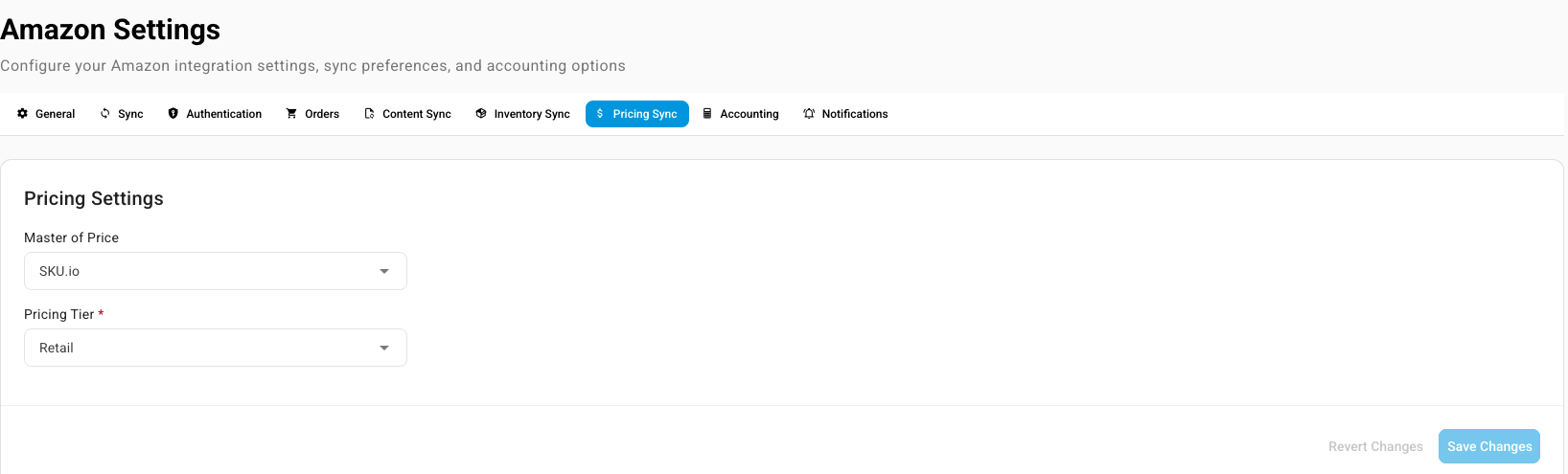
Go to Apps & Integrations, open your Amazon channel, then open Amazon Settings and the Pricing Sync tab.
-
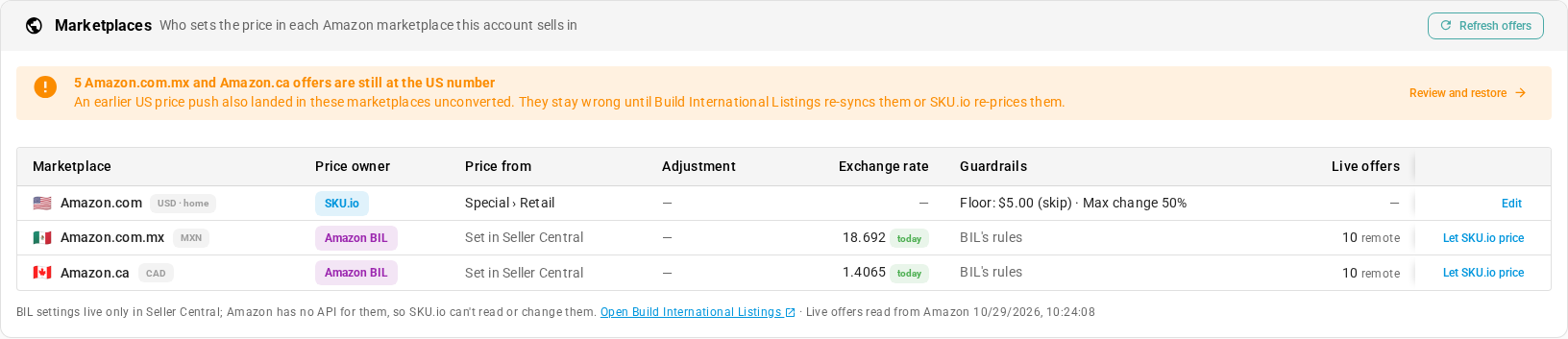
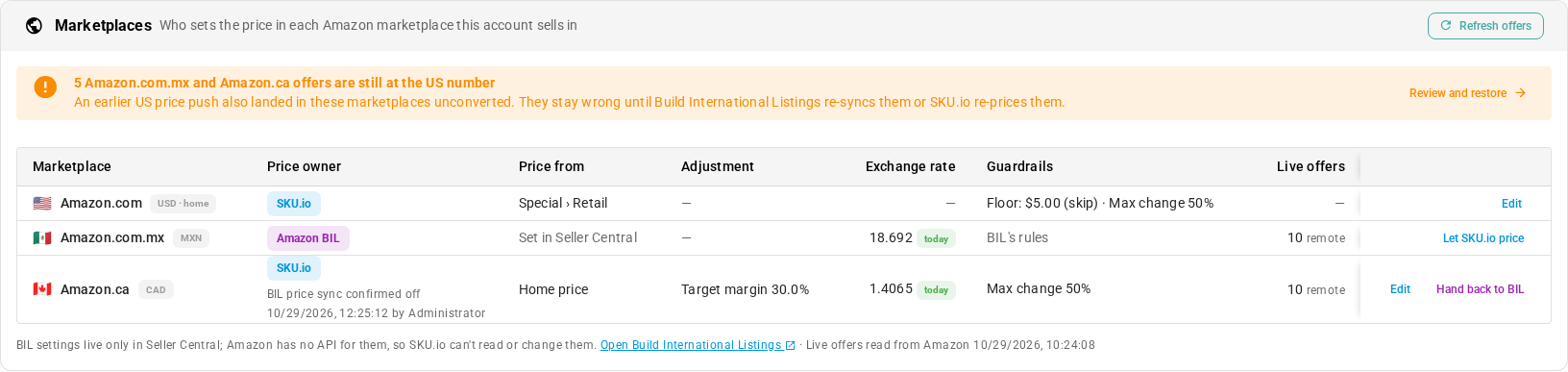
Scroll down past Push prices to Amazon to the Marketplaces card. It has one row for each marketplace the connection sells in, with your home marketplace marked home. See Read the Marketplaces card for every column.
-
On the row of the marketplace you want SKU.io to price, click Let SKU.io price.
-
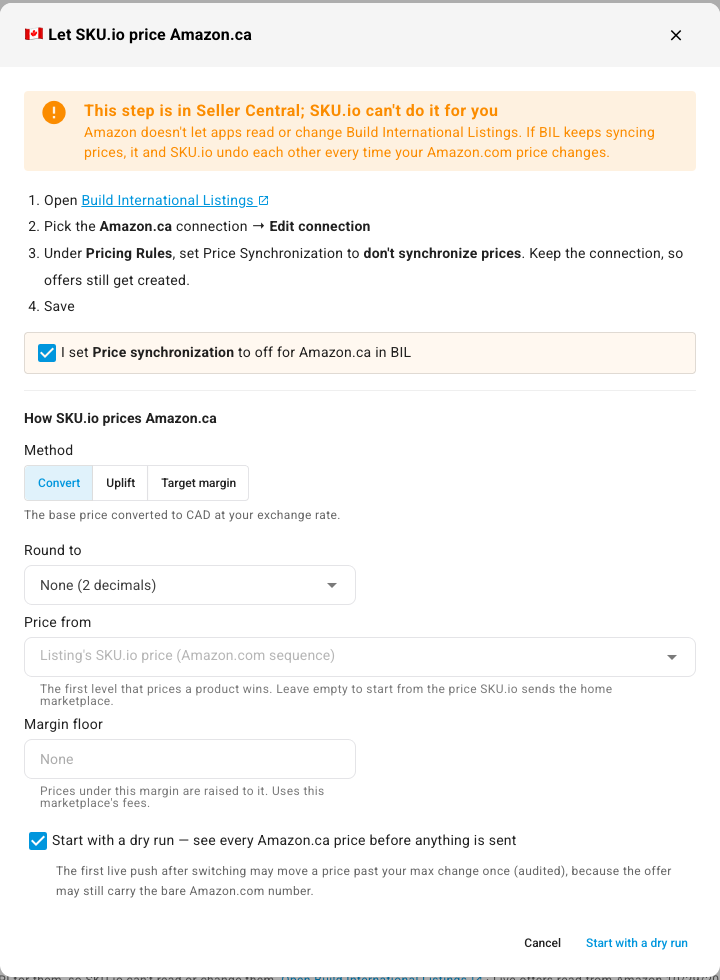
In Seller Central, turn off BIL's price sync for that marketplace. The dialog links to it: open Build International Listings, pick the marketplace's connection, click Edit connection, and under Pricing Rules set Price Synchronization to don't synchronize prices. Keep the connection itself, so Amazon still creates the offers, and save. If BIL keeps syncing prices, BIL and SKU.io undo each other every time your US price changes.
-
Back in SKU.io, tick I set Price synchronization to off for Amazon.ca in BIL (the label names your marketplace). The confirm button stays disabled until you do, and SKU.io records who ticked it and when.
-
Under How SKU.io prices Amazon.ca, choose a Method:
Method The price SKU.io sends Convert The base price converted to the marketplace's currency at your exchange rate. Uplift The base price plus a percentage (from −50% to 300%), then converted. Target margin The price that keeps your Target margin (0% to 80%) after that marketplace's referral and fulfillment fees and the product's average cost. Never below the converted price. 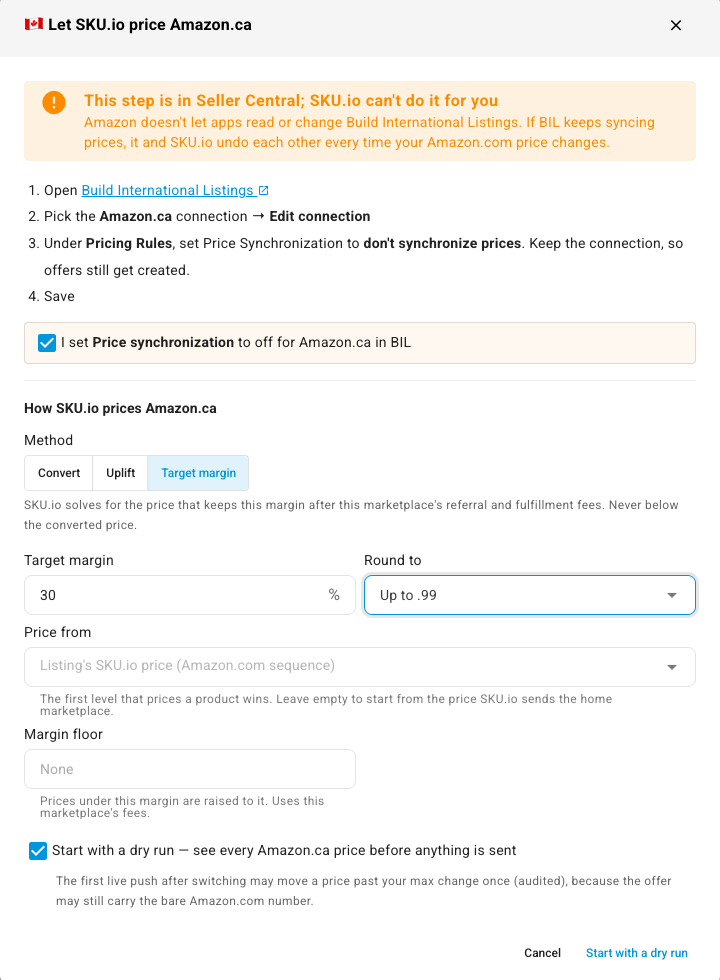
-
Under Round to, pick how prices round. Price from and Margin floor are optional; Rule options explains them.
-
Leave Start with a dry run ticked, and click Start with a dry run. SKU.io works out every price for that marketplace in the background and sends nothing. (Untick it and the button reads Let SKU.io price Amazon.ca instead, and the next push sends prices.)
The row now shows SKU.io as the Price owner, the method under Adjustment, and the date BIL's price sync was confirmed off.
An offer still at the bare US number can need a big change to reach the right price (CA$24.99 to CA$35.99 is +44%). The first live push after you switch may move a price past your Maximum change once, and that push is recorded. After that, the limit applies as usual.
Rule options
- Round to: Up to .99, Up to .95, Up to .49, or None (2 decimals). Rounding happens before the guardrails, so a floor still wins.
- Price from: the price levels to start from, in order. The first level that has a price for the product wins. Leave it empty to start from the price SKU.io sends to your home marketplace. A level already in the marketplace's currency (a CAD price level for Amazon.ca, say) isn't converted.
- Margin floor: a price under this margin is raised to it, using the marketplace's own fees.
Read the Marketplaces card
| Column | What it shows |
|---|---|
| Marketplace | The marketplace and its currency. |
| Price owner | SKU.io or Amazon BIL. Once SKU.io owns a marketplace, the row also says who confirmed BIL's price sync was off, and when. |
| Price from | Where SKU.io's price starts. For a BIL marketplace it reads Set in Seller Central. |
| Adjustment | The method SKU.io uses, such as Target margin 30.0%. |
| Exchange rate | The rate SKU.io converts with, from your home currency, and how old it is: today, N days old or no rate. Hover the tag to see when the rate was fetched. |
| Guardrails | A summary of the floor, ceiling and maximum change. For a BIL marketplace it reads BIL's rules. |
| Live offers | How many offers SKU.io found in that marketplace. remote offers are your home listings offered there by Amazon; a CA-only (or MX-only) count is a listing you created in that marketplace yourself. |
The home row's Edit takes you to Push prices to Amazon above, where the home marketplace is set. Under the table, Open Build International Listings opens BIL in Seller Central, and Live offers read from Amazon shows when SKU.io last read the offers. SKU.io reads them every night. Refresh offers reads them again now, as a background job you can follow in the job tray.
A listing you created in Amazon.ca or Amazon.com.mx yourself (not one BIL created) is priced by SKU.io whenever SKU.io is the connection's master of price, whatever the marketplace's owner says. BIL doesn't create or price those listings.
Read the preview
- Scroll up to Push prices to Amazon and click View history.
- On the run whose Mode is Preview, click Details.
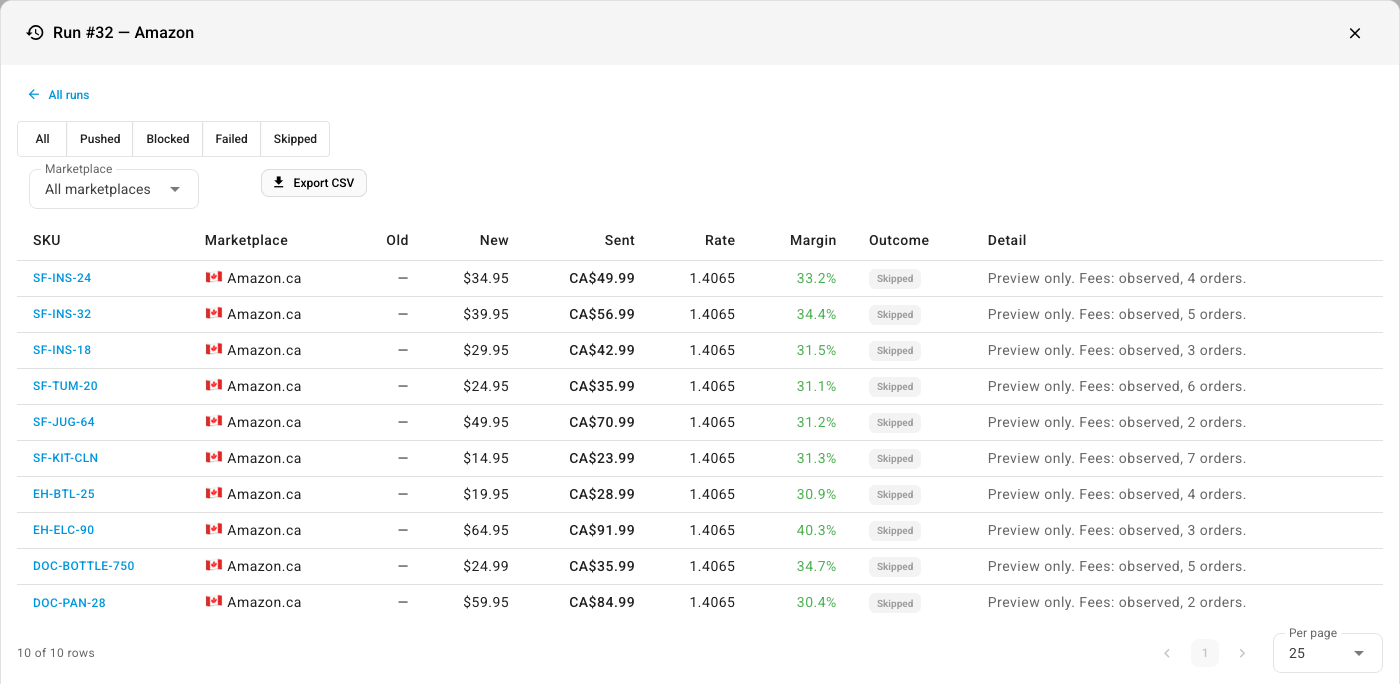
Each line is one offer:
| Column | What it shows |
|---|---|
| Marketplace | Which marketplace the price is for. Use the Marketplace filter to see one marketplace's lines. |
| New | The base price, in your home currency. |
| Sent | The price SKU.io sends (or, in a preview, would send), in the marketplace's currency. |
| Rate | The exchange rate used. |
| Margin | The margin at the sent price, after that marketplace's fees and the product's average cost. |
| Detail | Preview only on a dry run, and where the fees came from: observed from your settled orders in that marketplace (with the order count), or Amazon's estimate. |
When the prices look right, use Push prices now on the Push prices to Amazon card, or let the next scheduled push send them. Every push after that prices the home marketplace first, then each marketplace SKU.io owns, in that marketplace's currency. A marketplace BIL owns is never sent a price.
Change the rule and guardrails
-
On the marketplace's row, click Edit.
-
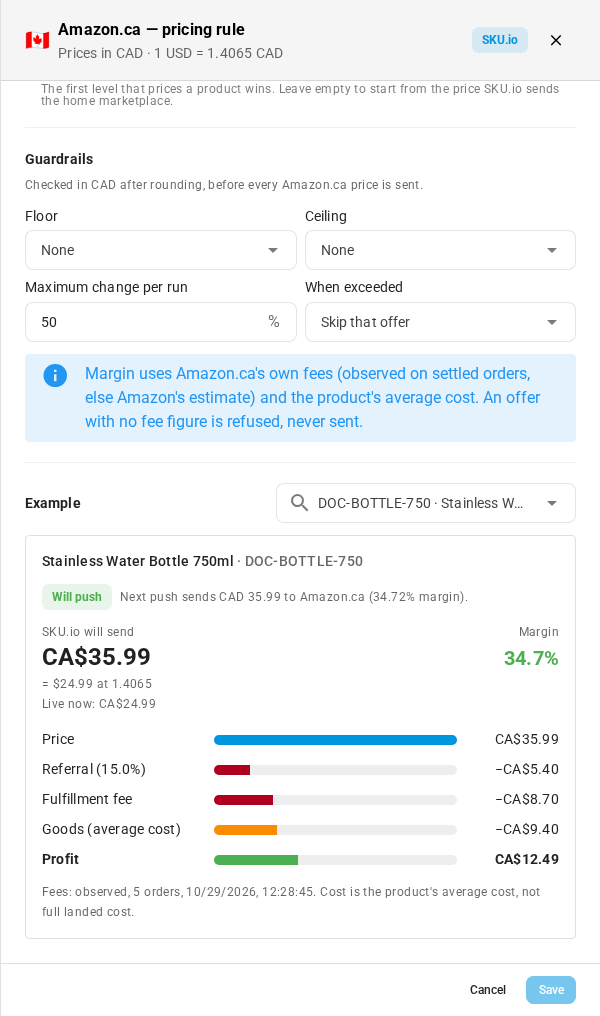
Under Pricing rule, change the Method, Target margin or Uplift, Round to and Price from, as in the dialog.
-
Under Guardrails, set the limits SKU.io checks after rounding, before every price is sent to this marketplace. Amounts are in the marketplace's own currency.
- Floor: None, Fixed amount, Margin % or Pricing level, and what happens to a price below it: Raise the price to the floor or Skip the offer.
- Ceiling: None, Fixed amount or Pricing level, and Lower the price to the ceiling or Skip the offer.
- Maximum change per run: the largest move, in percent, from the last price SKU.io sent. When exceeded, skip that offer or block the whole run.
-
Check the Example. Pick a product, and SKU.io shows the price it would send, what that is in your home currency, the live price now, and whether the next push sends it. The bars break that price into the referral fee, the fulfillment fee, the product's average cost and the profit.
-
Click Save.
The example's footnote says where the fees came from. Observed fees, from your own settled orders in that marketplace over the last 90 days, are used first, because a Canadian or Mexican fulfillment fee is often higher than Amazon's estimate. When there are none, SKU.io uses Amazon's fee estimate for that marketplace.
Hand a marketplace back to BIL
- On the marketplace's row, click Hand back to BIL.
- Read the message, and click Hand back to BIL.
SKU.io stops sending prices to that marketplace straight away and leaves the current prices as they are. Turn BIL's price sync back on in Seller Central, or the offers keep their last SKU.io price.
Compare prices across marketplaces
-
At the top of the channel's pages, open Pricing, then the International tab.
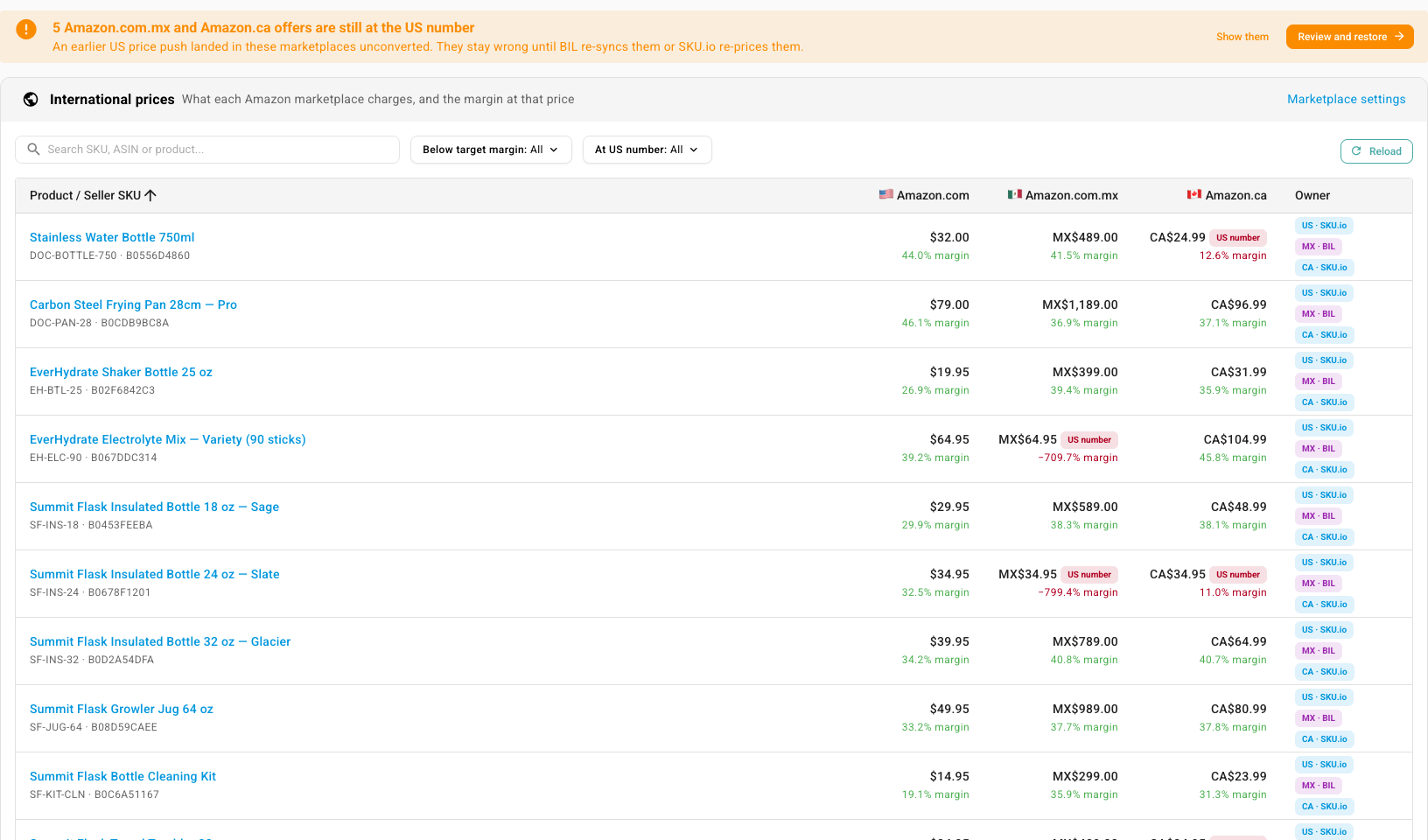
Each row is one product, with a column for each marketplace showing the live price in that marketplace's currency and the margin at that price. A red US number tag marks an offer still at the bare US figure. Owner shows who prices each marketplace for that product. A margin is green when it meets the marketplace's target, amber when it's under it, and red when it's more than 5 points under or negative.
-
Use the filters to narrow the list:
- At US number: Yes shows only products with an offer at the bare US figure.
- Below target margin: Yes shows products with an offer earning less than its marketplace's target margin. Where the marketplace has no target margin, its margin floor is the target; with neither, it shows offers losing money.
- The search box matches a SKU, an ASIN or a product name.
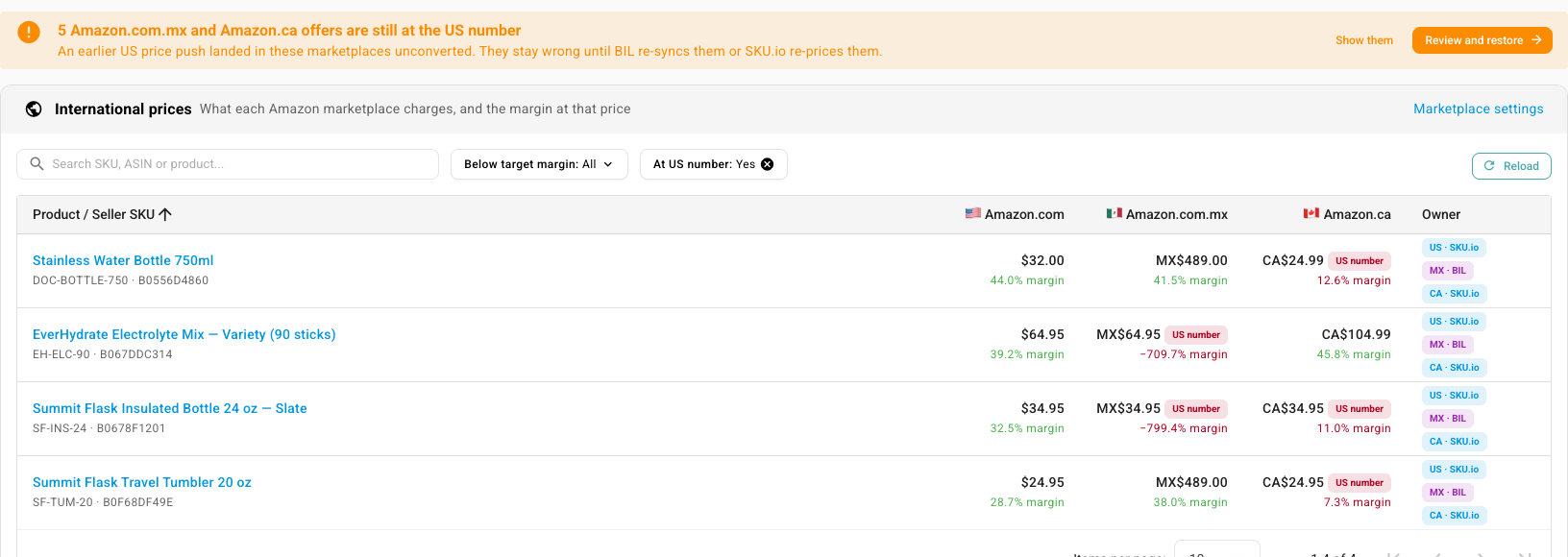
Marketplace settings opens the Marketplaces card.
Restore offers still at the US number
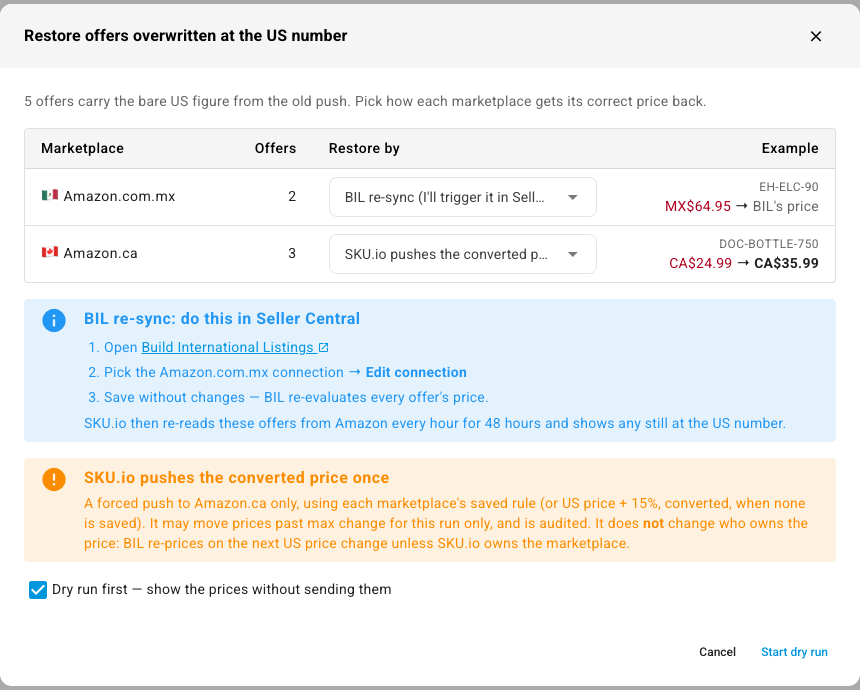
Before SKU.io priced each marketplace separately, a US price push could also land in Amazon.ca and Amazon.com.mx without being converted, so an offer could sit at CA$24.99 for a US$24.99 product. The warning on the Marketplaces card and the International tab counts the offers still like that. Show them sets the At US number filter.
-
On the warning, click Review and restore.
-
For each marketplace, choose Restore by:
- BIL re-sync: you trigger it in Seller Central. Open Build International Listings, pick the marketplace's connection, click Edit connection, and save it without changes, so BIL re-evaluates every offer's price. SKU.io then re-reads those offers from Amazon every hour for 48 hours and shows any still at the US number.
- SKU.io pushes the converted price once: a one-off push to that marketplace only, using its saved rule (or the US price plus 15%, converted, when it has none). It may move prices past your maximum change for this run only, and the run is recorded. It doesn't change who owns the price, so unless SKU.io owns the marketplace, BIL re-prices those offers on your next US price change.
The Example column shows one offer's price now and what it becomes.
-
Keep Dry run first ticked to see the prices without sending them, and click Start dry run. Untick it to restore for real.
When SKU.io refuses a price
SKU.io doesn't send a marketplace price it can't stand behind. The offer is skipped, and the run's line says why, when:
- The marketplace's exchange rate is missing or more than three days old. The row's tag turns red, and the card says that marketplace's prices are paused until the rate refreshes in Settings › Currencies. Your home marketplace keeps pushing.
- The method or the margin floor needs fees, and SKU.io has neither observed fees nor an Amazon estimate for that offer.
- There is no base price for the product.
- The offer is inactive, or has gone from Amazon. An offer SKU.io stops seeing for three nightly reads in a row is marked gone.
If an offer's live price moves away from SKU.io's last push within a day, the row's Live offers shows a changed outside SKU.io tag. That usually means BIL's price sync is still on for that marketplace.
Next steps
- Sync prices with your sales channels: the home marketplace's price levels, guardrails, preview and push.
- Price Amazon MFN listings differently: separate price levels for the listings you ship yourself.
- Amazon settings reference: every control on the Pricing Sync tab and the other tabs.
Video transcript
Your US listings can also sell in Canada and Mexico. To choose who prices each of those marketplaces, open the channel's settings tab, then Pricing Sync.
Scroll down to the Marketplaces card. It has one row per marketplace, home first. Price owner shows who sets each price today. Amazon BIL, short for Build International Listings, prices these offers by default. BIL converts your US price by a flat rule, and never sees your costs. The exchange rate column shows the conversion rate, tagged with its age. The last column counts each marketplace's live offers.
The warning above the table counts offers still at the bare US number. An earlier US price push sent the same figure to every marketplace, unconverted. You can fix those later from the Pricing page.
To take over a marketplace, click Let SKU.io price on its row. First, turn off price synchronization for that marketplace in BIL. SKU.io can't do this for you, because Amazon gives apps no access to BIL. The dialog lists the steps, with a link to Build International Listings. When it's done, tick the confirmation box.
Next, pick a pricing method. Convert uses your exchange rate, and Uplift adds a percentage first. Target margin finds the price that keeps your margin after that marketplace's fees. Choose Target margin, and enter the margin you want. Then choose how each price rounds, from the Round to list.
Leave Start with a dry run ticked, so you see every price before anything is sent. Click Start with a dry run, and SKU.io works out the prices in the background. The row now shows SKU.io as the price owner, with your target margin. SKU.io also records who confirmed BIL was off, and when.
To read the preview, scroll up to the push card and click View history. Then find the run marked Preview, and click its Details link. Each line shows the price SKU.io would send in Canadian dollars, the rate, and the margin. Preview only means nothing reached Amazon.
When you have read it, dismiss the run history dialog. To change the rule later, scroll back down and click Edit on the marketplace's row. This drawer holds the method, the rounding, and the guardrails. Floors and ceilings are in that marketplace's own currency. The example breaks one product's price into fees, cost and profit. Then click Cancel to close the drawer.
To let BIL price a marketplace again, click Hand back to BIL. SKU.io then stops sending prices to that marketplace. Turn BIL price sync back on in Seller Central, or the offers keep their last SKU.io price. We'll keep SKU.io in charge, so click Cancel.
To compare marketplaces, open the channel's Pricing page at the top, then the International tab. Each row is one product, with its price and margin in every marketplace. A US number tag marks an offer still at the bare US figure. Owner shows who prices each marketplace.
Use the filters to narrow the list. Click At US number, then choose Yes. The list now holds only products with an offer at the bare US figure. Below target margin finds offers earning under their target, so you can fix those first.
To fix those offers, click Review and restore. For each marketplace, choose whether BIL prices it again, or SKU.io pushes the converted price once. You trigger BIL in Seller Central, then SKU.io re-checks those offers for two days. Keep Dry run first ticked to preview the prices before anything is sent.