Send stock to WFS
A WFS inbound shipment moves stock from one of your warehouses, or straight from a supplier, into Walmart's fulfillment centers. SKU.io suggests what to send, creates the inbound order on Walmart, holds the stock at the source, and ships it out of your stock when Walmart reports the shipment on its way.
Before you begin
- WFS is turned on for the Walmart channel. See Set up Walmart Fulfillment Services.
- The products you send are listings you ship yourself on Walmart, with a GTIN.
Choose what to send
-
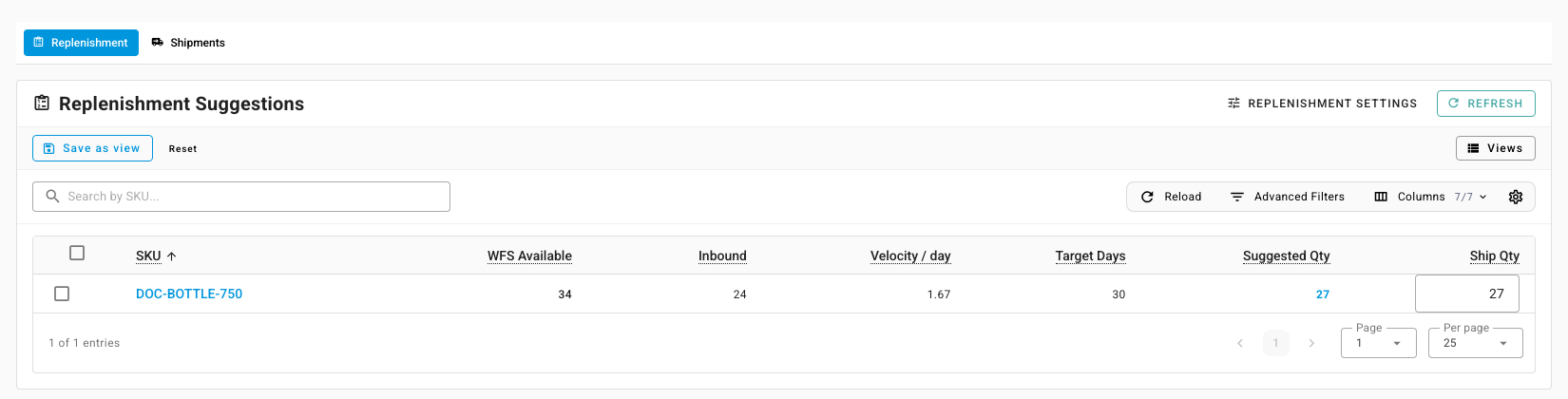
Go to Apps & Integrations, open your Walmart channel, then open WFS Inbound. The Replenishment view lists each SKU's WFS Available, Inbound, Velocity / day, Target Days and Suggested Qty. Velocity / day counts the SKU's Walmart sales through WFS plus, unless you turned it off, the Walmart orders you ship yourself. See Set up Walmart Fulfillment Services.
-
Adjust Ship Qty where you want to send a different amount, and tick the rows to send. The bar at the bottom counts the SKUs and units in your cart.
-
Click Send to WFS. Create WFS Inbound Shipment opens with the cart filled in.
You can also start empty: open Shipments and click Create Inbound.
If you plan WFS together with your other fulfillment networks, start from the Send Planner instead; the Replenishment view links to it with Open Send Planner. It creates a pre-filled draft of this page for you. See Shipment drafts from the Send Planner.
Create the inbound shipment
-
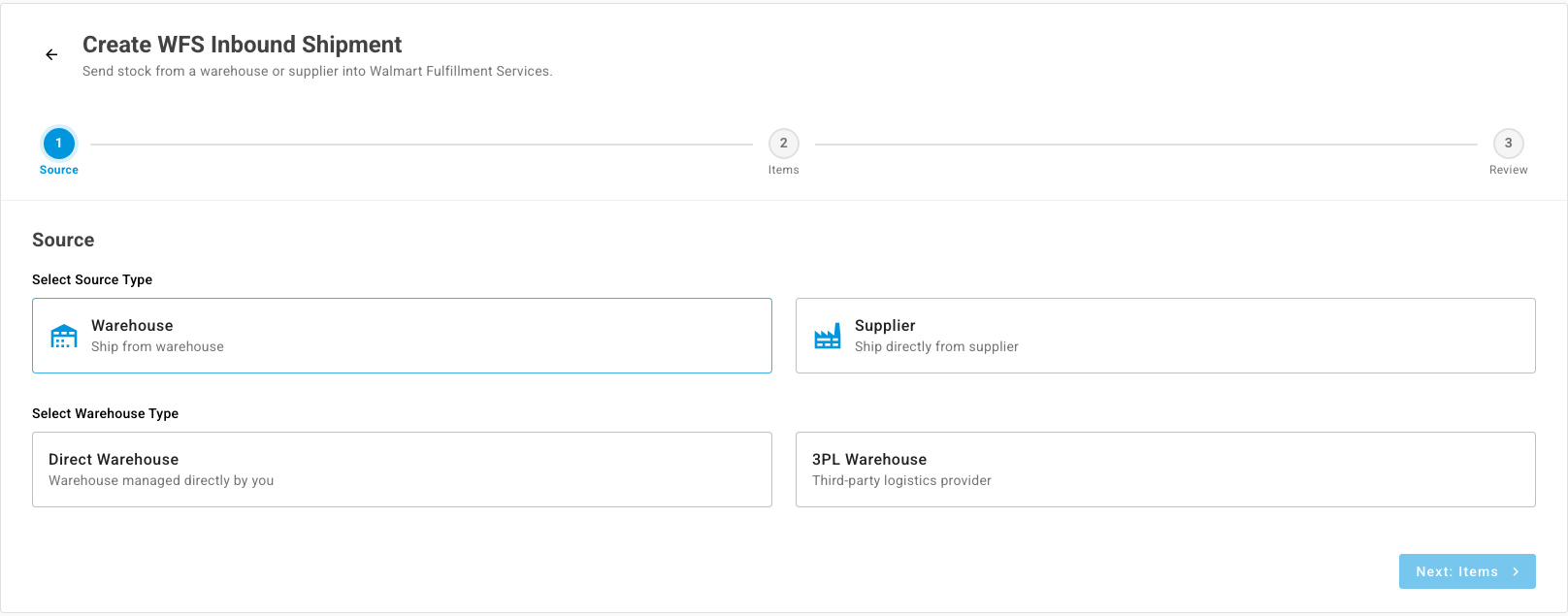
On Source, choose Warehouse or Supplier. For a warehouse, choose Direct Warehouse or 3PL Warehouse, then pick it. Click Next: Items.
-
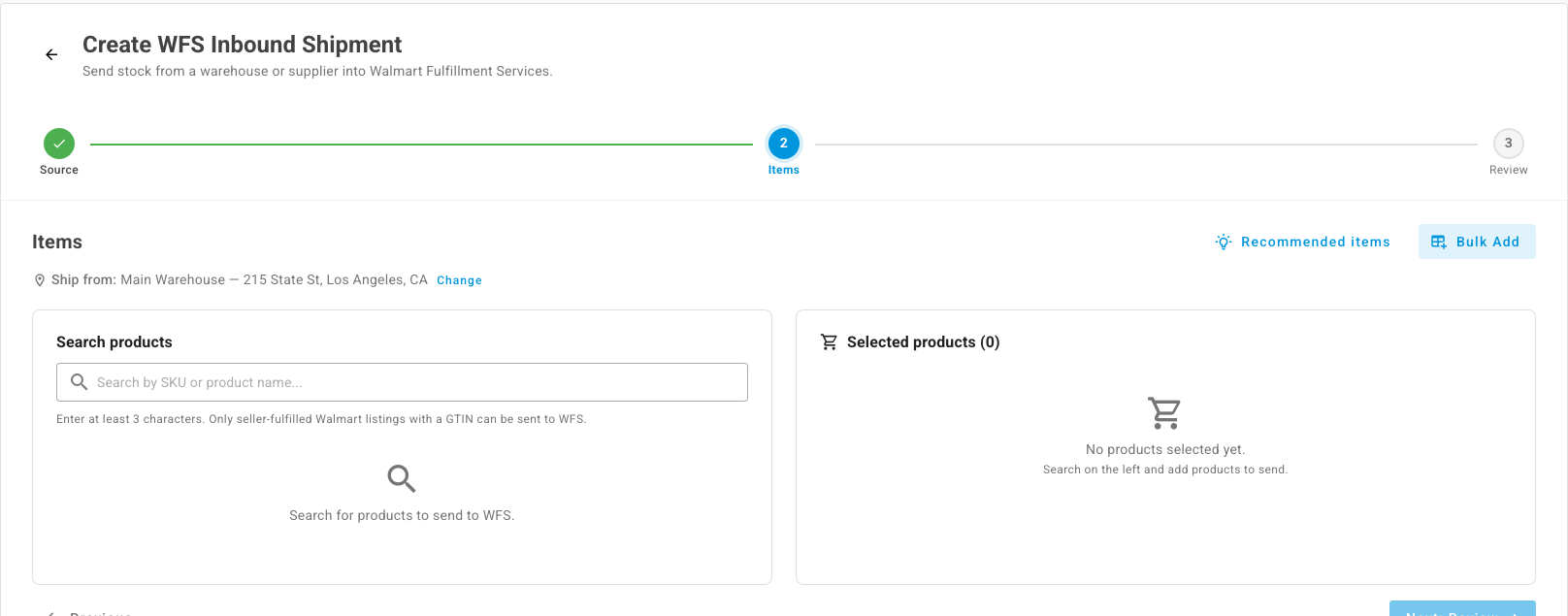
On Items, add products: search by SKU or name and click Add, use Recommended items to add Walmart's own restock recommendations, or use Bulk Add to paste or upload SKUs, UPC codes or GTIN codes with quantities.
-
For each product under Selected products, set:
- Send quantity. For a warehouse source, it can't be more than the warehouse has available. A component-built kit is checked against its components.
- Packing setup: Individual or Case-packed, with Units per master case. A case-packed quantity must fill whole cases.
- Item prep: WFS Prep Services, where Walmart bags and labels items for a fee, or Do it myself. You can't change prep once the order is submitted.
- For a kit, Kit fulfilment: Ship kit stock or Assemble from components.
-
Click Next: Review. Check the totals and the Expected delivery date. To see where Walmart is likely to send the units and what it may charge, click Preview placement & charges.
-
Click Submit to Walmart. If any line is flagged, Review before you submit lists why; fix the lines, or click Submit anyway. A line that's short at the source can't be submitted anyway: lower its quantity or restock the warehouse first.
SKU.io refuses an inbound that asks for more than the source warehouse has, before anything reaches Walmart. The message names each short SKU, for example "Not enough stock at Main Warehouse for this inbound: SKU-1 needs 40 but only 25 are available (15 short)." Stock the Send Planner already allocated to this draft counts as available. A supplier source isn't checked, because it holds none of your stock.
Walmart picks the fulfillment centers and may split the order into several shipments. SKU.io holds the stock at your source warehouse and creates a warehouse transfer to the WFS warehouse. For a supplier, it creates a purchase order instead.
Shipment drafts from the Send Planner
When you create shipment drafts in the Send Planner, each WFS draft opens Create WFS Inbound Shipment with the source and items already filled in, and this notice at the top: Planned by Send Planner — quantities come from send plan #, followed by the plan's number. Check the lines, change anything you need, and submit as above. Nothing is sent to Walmart until you click Submit to Walmart.
If you allocated the source stock in the planner:
- Creating the inbound hands the planner's allocation over to this shipment.
- If you won't send it, click Discard draft to release the allocated stock straight away. Discarding needs the Send Planner draft permission.
- A draft you never open is discarded automatically once the planner's allocation time runs out (Release unused allocations after (hours) on the planner's Network rules tab).
If the draft was already used or discarded, the page says WFS draft #… was already …, so nothing was pre-filled. Go back to the Send Planner and create a fresh draft. See Allocate stock for a send.
Book the carrier and print labels
-
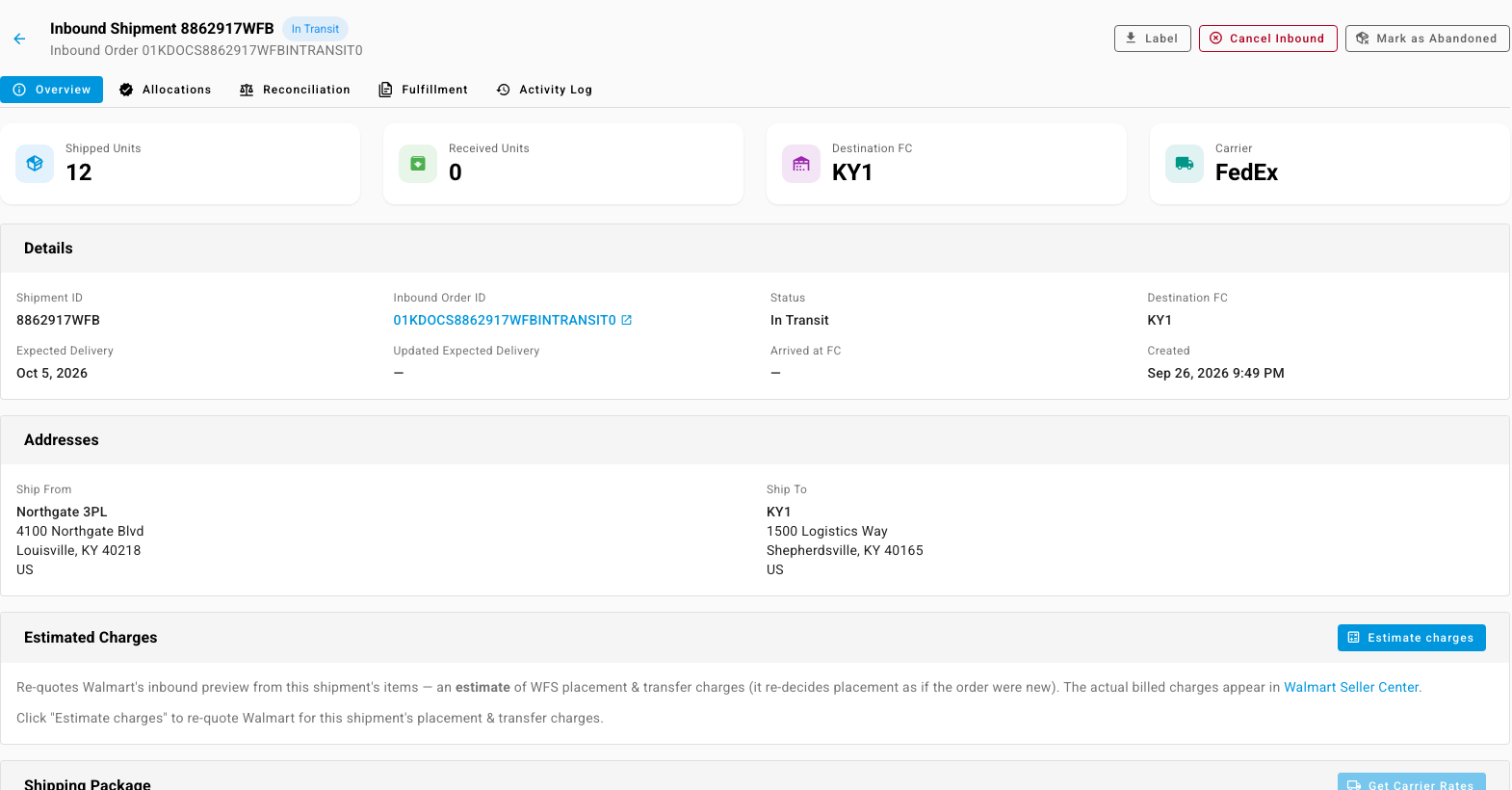
Open Shipments and click the shipment. Overview shows the shipped and received units, the destination fulfillment center, and the carrier.
-
Under Estimated Charges, click Estimate charges to re-quote Walmart's placement and transfer charge. It's an estimate; Walmart Seller Center shows the billed amount.
-
To use Walmart's preferred carrier, enter the package Weight and dimensions under Shipping Package, click Get Carrier Rates, and Book a rate. Then click Print carrier label. You can void the booking only while Walmart allows it.
-
To use your own carrier, enter the tracking numbers under Carrier & Tracking and submit them to Walmart.
-
Click Label for the box (receiving) label, and Item labels under Items for GTIN labels on a letter sheet or a thermal printer.
A shipment that's created on Walmart but still needs a shipping label or tracking information reads Pending Shipment Details. Point to the status to see why. Its stock stays at the source and its units count as inbound. To list these shipments, use the status filter on Shipments.
SKU.io ships the warehouse transfer, and the stock leaves your source warehouse, the first time Walmart reports that the shipment has departed or is being received. It leaves once, however often Walmart reports it. Walmart's Receiving in progress shows as Receiving. When Walmart reports the shipment received or closed, the transfer closes. See Where the cost sits.
To stop a shipment before it ships, click Cancel Inbound; this cancels every shipment under the same inbound order. If the shipment is cancelled in Walmart Seller Center instead, SKU.io undoes the transfer or purchase order and releases the stock in the same way on the next refresh. If the stock had already left your warehouse, including when Walmart reports a cancel after it started receiving, the transfer stays and you reconcile it yourself. If Walmart won't cancel it any more, see Mark a WFS inbound shipment as abandoned.
Where the cost sits
For a shipment from one of your warehouses, the value of the stock sits in Inventory In Transit from the moment it leaves the source until Walmart reports the shipment received or closed. The transfer then closes and the whole value is written off to Receiving Discrepancies, dated that day. The write-off needs an account mapped to Receiving Discrepancies. If you have no accounting start date and the books are locked between the stock leaving and the close, no write-off is posted. The same rule applies to any transfer.
When Walmart no longer lists a shipment
Walmart's shipment list can drop a shipment that's still open. When its stock has already left your source, SKU.io asks Walmart for it by its ID every few hours, for 120 days from when it was first missing. If Walmart doesn't answer for it, or the 120 days are over, the shipment shows a Not listed by Walmart chip and the notice Walmart no longer lists this shipment. The notice says since when, and until when SKU.io keeps asking. Walmart has answered for a finished shipment it no longer lists. It may not for an open one.
The notice changes no stock, and SKU.io doesn't close the shipment by itself. If Walmart answers, the shipment carries on as usual. Otherwise, check it in Walmart Seller Center.
If Walmart refuses to show the shipment, the chip reads Walmart refuses and the notice Walmart refuses to show this shipment: SKU.io can't tell whether it arrived, so it leaves the stock as it is and doesn't close it. Check the Walmart connection under Settings → Authentication, and reconnect it if it lost access. Then check the shipment in Seller Center. If Walmart keeps refusing, contact SKU.io support.
Close a shipment Walmart no longer lists
When a shipment's goods left one of your warehouses, Walmart no longer lists it, and its transfer is still
open, the shipment page offers Close Shipment.
You need the Warehouse Transfers Receive permission (warehouse_transfers.receive). It works once SKU.io's 120 days of asking are over, and Walmart hasn't
answered for the shipment for at least a day. Until then, point at the button to see why it's off.
- Open the shipment and click Close Shipment.
- Close this shipment? shows the Units, the Source and the Write-off: the cost of the units that left the source that no other document accounts for, the same amount Walmart's own close would write off. It lists what happens.
- Click Close and write off with the amount.
SKU.io asks Walmart for the shipment once more. If Walmart now reports it, nothing is closed and the shipment is updated from Walmart. If Walmart refuses to show it, nothing is closed either. Otherwise SKU.io:
- Closes the transfer from the source.
- Writes the amount off to Receiving Discrepancies, dated today.
- Stops counting the shipment as inbound. Walmart's status stays as it last reported it.
The shipment shows Closed in SKU.io, with who closed it, when, and the amount. Nothing is sent to Walmart. If the amount changed by the time you confirm, nothing is done and you see the new amount.
A close can't be undone. If Walmart reports the shipment later, its counts are recorded and a claim is raised when it comes up short, but nothing is shipped, closed or written off again. If the goods come back, see Put a wrong close or restore right.
When the books refuse a write-off
Close Shipment and a restore that writes off are refused when:
- no account is mapped to Receiving Discrepancies (map it under Settings → Accounting → Nominal Code Mappings), or
- the books are locked through today.
The write-off is dated today in your account's time zone. With no accounting start date, units that left before the books open are left out, and the dialog says how many. In a time zone ahead of UTC, a write-off on the day the books open can wait until a set hour, and the dialog says when.
Where the write-off shows in your books
- Accounting → Journals: set Type to Receiving Discrepancy. The reference reads like "Main Warehouse->WFS: Receiving discrepancy for WH-0001", and the source document is the warehouse transfer. Each product has a line that debits Receiving Discrepancies and credits its Inventory In Transit account. A restore also has a Warehouse Transfer Shipment entry for the units it shipped, with a reference like "Main Warehouse->WFS: WH-0001: Shipment 312".
- The account pages of Receiving Discrepancies and Inventory In Transit list each line, with a link to the entry and, under Source, to the transfer.
- In the month-end close's Report pack, the Trial Balance shows it inside those two accounts' totals for the month.
- Accounting → Reconciliation → Inventory: in your Inventory In Transit account's row for the month, the write-off is under Purchase receipts.
- The close's No transfers stuck in transit check leaves out transfers to Walmart WFS, Amazon FBA and AWD, and TikTok FBT.
A Receiving Discrepancy entry reaches QuickBooks or Xero only if your sync settings send that type. Check Accounting → Settings → Automatic Sync by Transaction Type, row Receiving Discrepancy.
Put a wrong close or restore right
A close or a restore can't be undone. If the goods are back at the source warehouse:
- Work out the unit cost: the write-off amount on the shipment page, divided by the units.
- Go to Inventory → Adjustments and click Add Adjustment. Choose the product and the source warehouse, set Adjustment Type to Increase, enter the units in Increase By and the unit cost in Cost, and leave Reason empty. Add the Walmart shipment ID in Notes. Make one adjustment for each product. With no reason, it debits inventory and credits Cost of Goods Sold.
- If the write-off reached your accounting system, add a journal there for the same amount: debit the Cost of Goods Sold account the adjustment credited, and credit Receiving Discrepancies.
Stock and its value are then back, and Cost of Goods Sold and Receiving Discrepancies are where they were. Inventory In Transit isn't touched. If a period is locked, date both in the first open period. The shipment keeps its record of who closed or restored it, when, and the amount. If a claim the restore raised no longer applies, close it by hand.
Hand the shipment to a 3PL or supplier
For a shipment that a 3PL or supplier packs, open its Fulfillment tab:
- Choose Communicate via Email or Portal, tick whether kits are assembled at the 3PL or supplier, and adjust the Prep instructions.
- Click Build Fulfilment Packet. SKU.io collects the box and carrier labels, prep instructions, any kitting work order, and the purchase order.
- Share the Portal link with Send email or Copy. On the portal, they build any kits, print labels, and click Confirm ready. Click Send shipping details once the carrier is booked.
The packet only includes a WFS carrier label when you booked Walmart's preferred carrier. If you entered your own carrier's tracking, the instructions tell them the freight isn't prepaid through Walmart and to ship with the carrier and postage you arranged.
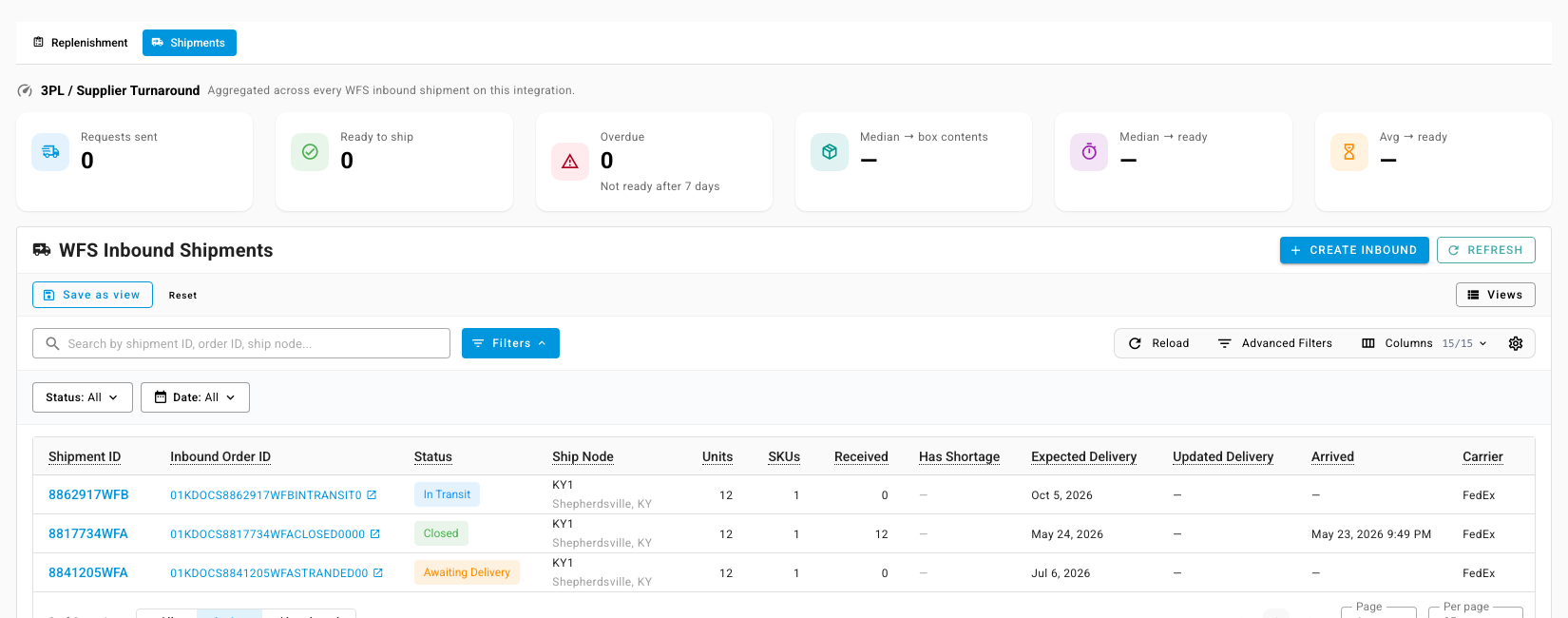
The 3PL / Supplier Turnaround tiles on Shipments show how many requests are out, how many are ready to ship, and how many are overdue.
SKU.io can remind them while a request is outstanding:
- Suppliers always get reminders 3, 7 and 14 days after you send the request.
- 3PLs get reminders only if you opt in. Open the 3PL warehouse under Inventory → Warehouses and, in its settings, turn on WFS Inbound Reminders. Set the Reminder schedule (days after sending), or leave it blank for the default of 3, 7 and 14 days.
- After the last reminder, SKU.io alerts the person who created the shipment that it's overdue.
- Reminders stop once they confirm, once the portal link expires, once you mark the shipment abandoned, or once Walmart reports it cancelled, received or closed.
Check what Walmart received
Open the shipment's Reconciliation tab. For each SKU it shows Sent, Received and the Variance, with a status. Switch on Mark investigated once you've dealt with a difference. The Has Shortage column on Shipments flags shipments that came up short.
Received is Walmart's own count for each SKU. Walmart can change it after it first reports the shipment received, and SKU.io keeps reading it for 120 days after delivery. That includes finished shipments Walmart no longer lists, if the stock left your source and you didn't mark the shipment abandoned. For those, if Walmart's counts per SKU don't add up to the shipment's total, SKU.io keeps the receipt open and reads it again about every 6 hours. The transfer itself closes on Walmart's status.