Create shipment drafts
When the plan looks right, Draft shipments turns it into real shipments. The planner groups the lines into one shipment draft per network and ship-from warehouse, allocates their stock, and creates each draft in that network's own inbound flow: an FBA draft inbound plan, an AWD draft order, a WFS inbound shipment draft, an FBT inbound plan, or a draft warehouse transfer. You then finish and submit each draft in the network. You can draft the whole plan at once or only the SKUs you select.
Before you begin
- You need the Send Planner → Draft permission. Marketplace drafts (FBA, AWD, WFS, FBT) also need Integrations → Edit, and drafts to your own warehouses and 3PLs need Warehouse Transfers → Create. Allocating the stock needs Warehouse Transfers → Create too. See Send Planner permissions.
- Work on the working plan. Scenarios never create drafts: "Scenarios never create drafts. Promote the scenario first."
- Check the freshness chip next to the Send Planner title. Drafts can't be created from a plan calculated more than 3 days ago; see If the plan is too old.
- If you're previewing changes in Tune plan, click Apply & recalculate or Discard first. Drafts use the saved plan, not the preview.
Draft the whole plan
-
Go to Inventory → Send Planner. The Plan tab opens.
-
Without selecting any SKUs, click Draft shipments · N units at the top right. The Draft shipments to the networks dialog opens with every draft the plan needs.

-
Review and create the drafts as described in Review the drafts and create them.
Draft only selected SKUs
-
On the Plan tab, tick the checkbox at the start of each SKU row you want to send. The selection bar appears at the bottom of the page, and the header button changes to the units in the selection.
-
Check the selection bar: the number of products and units, the estimated cost, cases, weight, volume and pallets, and one chip per network.

-
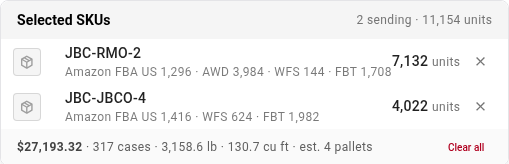
To check which SKUs are in the selection, click the summary on the left (N products · N units). The list shows each SKU's units per network. Click × next to a SKU to remove it.
-
To draft every SKU instead of only the ticked ones, click All N in the selection bar (All matching N when filters are on).
-
Click Draft shipments in the selection bar. The Draft shipments to the networks dialog opens with only the drafts these SKUs need.
While SKUs are selected, the header's Draft shipments · N units button counts and drafts the same SKUs as the selection bar: the ticked SKUs, or every matching SKU once you've clicked All N. Clicking either button opens the same drafts.
Review the drafts and create them
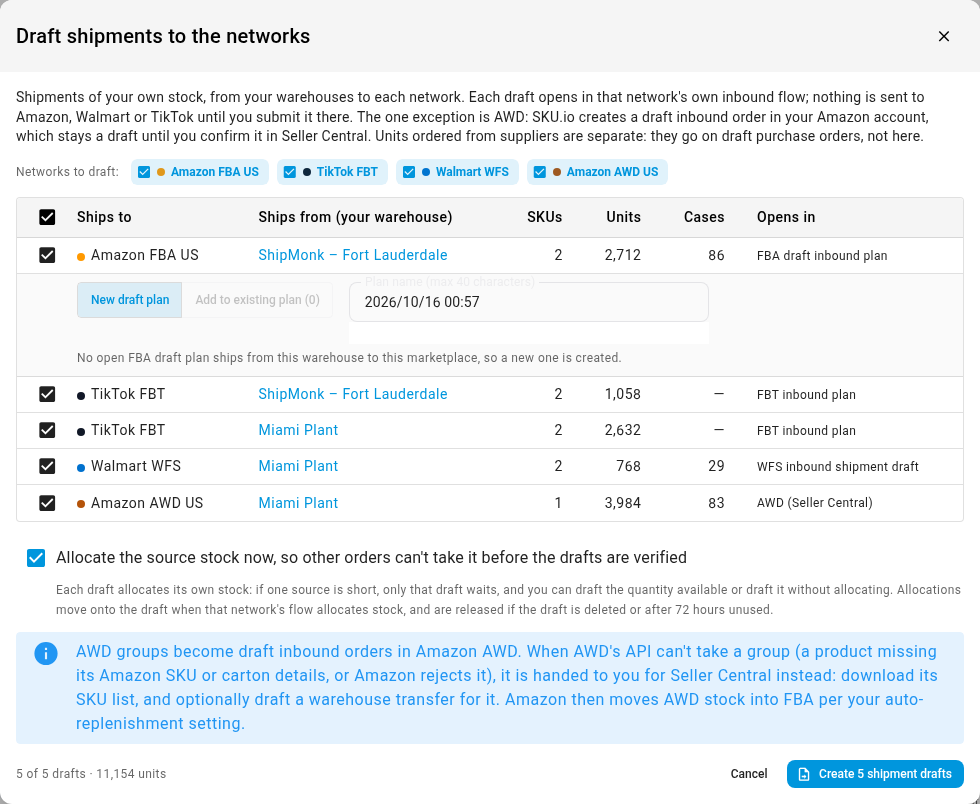
The dialog lists one row per draft: Ships to, Ships from (your warehouse), SKUs, Units, Cases and Opens in, which names the draft the network gets.
-
Under Networks to draft, click a network's chip to tick or untick all of its drafts. Untick a single row with its checkbox. All networks ticks everything again. The chips appear only when the drafts go to more than one network.
-
For each Amazon FBA row, choose how the draft plan is created:
- New draft plan: keep or change the Plan name (max 40 characters). The name starts as the FBA wizard's default: today's date and time in your account's timezone, such as "2026/10/15 23:15".
- Add to existing plan (N): pick an open FBA draft plan from the same warehouse to the same marketplace in Add to draft plan. If none exists, the option is greyed out and the row says "No open FBA draft plan ships from this warehouse to this marketplace, so a new one is created."

-
If an FBA row says N products have more than one Amazon listing · best MSKU preselected, click it to choose the merchant SKU each product sends under. The listing with the most fulfillable FBA stock is preselected and marked (recommended).
-
Leave Allocate the source stock now, so other orders can't take it before the drafts are verified ticked, unless you want the drafts without setting stock aside. See Allocate stock for a send.
-
Check the count at the bottom left (N of N drafts · N units).
-
Click Create N shipment drafts.
The dialog shows Creating N drafts… while the drafts are created in the background. You can close it: the work carries on, it's tracked in the job tray as Send Plan Drafts: #N, and every draft stays listed under Shipments on the plan. See Follow background jobs.
If every draft's source turns out short when you click Create, nothing is queued and you see "No draft could allocate its stock. Draft the available quantity, or draft without allocating." Each row then offers both actions; see When a source is short.
When it finishes, the dialog shows the result, for example "Created 4 of 4 drafts and allocated 7,170 units." If some drafts didn't go through, it adds "N need attention below." or "N must be entered in the network's own portal.", and each draft's row shows its status and what to do. Click Retry all failed to retry every failed draft at once, or Done to close. Follow up on shipment drafts explains each status.
After drafting, the selection is cleared and the drafted lines can no longer be edited on the grid ("Already drafted — change it in the network's draft").
What goes into the drafts
- One draft per network and ship-from warehouse. A network fed from two warehouses gets two drafts.
- Only units ready to ship. Lines already being drafted aren't drafted again. Units the plan sends from incoming supply that hasn't arrived yet are left out; the dialog says "N units ship from incoming supply and can be drafted once it is received."
- Not supplier-direct units. Units a supplier ships straight to a network go on draft purchase orders; see Order from suppliers that ship straight to a network.
- Nothing submitted. Nothing is sent to Amazon, Walmart or TikTok until you submit each draft there. The one exception is AWD: SKU.io creates a draft inbound order in your Amazon account, which stays a draft until you confirm it in Seller Central. See How sends reach each network.
When the grid is filtered to a network
If the grid is filtered to one network (with the Network filter, or by clicking a network under Where it goes), only that network's drafts start ticked. The dialog says "Only network is ticked because the grid is filtered to it. Tick other networks to draft them too."
How the selection works
- Selected or All. The toggle in the selection bar decides what every action in the bar covers: the ticked SKUs (N selected), or All N / All matching N. With filters on, All matching covers every matching row on every page; without filters, it's the whole plan. If a page of rows fails to load, nothing is changed: "Could not load every matching row, so nothing was changed. Try again."
- Kept while you work. Your selection is remembered for this plan in this browser tab, so it survives a refresh or moving to another page and back. The quantities are refreshed to the current plan.
- Cleared for you. The selection is cleared when the plan is recalculated, after drafts are created, and when you click a summary signal or a network under Where it goes.
- Clear. Click Clear in the selection bar, or Clear all in the preview, then confirm Clear the selection? Nothing in the plan changes: quantities, edits and allocations stay as they are.
How the estimates are worked out
| Estimate | How it's worked out |
|---|---|
| Cost | Units × average cost. Products without an average cost are left out, and a warning icon says how many. |
| Cases | Units ÷ units per case, rounded up per product and network. |
| Weight | Full-case weight × cases, or unit weight × units, for products with weight data. |
| Volume | Case volume × cases where case dimensions exist, otherwise unit volume × units. Products estimated from loose units are counted under loose-estimated, and products with no dimensions at all are left out (missing dims). |
| Pallets | Estimated per network, because each network ships on its own, then added up. (weight) means weight, not volume, sets the count. |
Hover over a network chip to see that network's own products, units, cost, cases, weight, volume and pallets (N ships on its own).
On a phone or tablet
The selection bar is a slim strip with the summary and Draft shipments. Tap the summary to open Cart preview, which has the N selected / All N toggle, the Cost, Cases, Weight, Volume and Pallets figures, Each network ships on its own, the SKU list, and every action under Actions, each with the reason it can't run. The footer button reads Draft shipments · N units.
When Draft shipments is greyed out
Hover over the button to see why.
| Message | What to do |
|---|---|
| You need the Send Planner draft permission | Ask an admin for Send Planner → Draft. |
| Calculate a plan first | Calculate the first plan. See Set up the Send Planner. |
| Scenarios never create drafts. Promote the scenario first. | Switch to the working plan, or promote the scenario. See Compare and promote a scenario. |
| The plan is not ready yet | Wait for the calculation to finish. |
| Apply & recalculate or Discard the tuning preview first: drafts use the saved plan, not the preview | Apply or discard your Tune plan changes. |
| Nothing to send in this plan | Every line is 0, or already drafted. |
Inside the dialog, Create N shipment drafts can also be blocked:
| Message | What to do |
|---|---|
| Creating marketplace drafts also needs the "Integrations → Edit" permission | Ask an admin for Integrations → Edit, or untick the marketplace drafts. |
| Creating warehouse transfer drafts also needs the "Warehouse Transfers → Create" permission | Ask an admin for Warehouse Transfers → Create, or untick the transfer drafts. |
| Loading the drafts… | Wait a moment. |
| The drafts could not be loaded — try again | Click Try again next to the error. |
| Nothing to draft | The selected lines have no units to send ("Nothing to draft: the selected lines have no units to send."). |
| Tick at least one draft to create | Tick a row or a network. |
| network: Name the plan / At most 40 characters / Pick the draft plan to add these items to | Fix the FBA options on that row. |
If the plan is too old
The freshness chip is green (Up to date) for under 24 hours, amber (Calculated N ago) up to 3 days, and red (Out of date) after that. Drafting from a plan older than 3 days is refused with "This plan is more than 3 days old. Recalculate before creating drafts." Click Recalculate, wait for the new plan, then draft again. Recalculating releases any allocations on lines you hadn't drafted, so leave Allocate the source stock now ticked in the Draft shipments dialog; see What a recalculation releases. See Recalculate the plan and fix calculation problems.
If the plan is recalculated while the dialog is open
If you opened the dialog for selected SKUs and the plan is recalculated meanwhile, the dialog says "The plan was recalculated while this was open. Close this and select the SKUs again from the updated plan." and Create stays blocked, because the lines you selected belong to the old plan. Close the dialog and select the SKUs again.
If you opened it for the whole plan, the dialog reloads the new plan's drafts by itself. The supplier purchase order dialog also reloads its preview when the plan changes, and Review AI plan refuses to approve numbers that changed since you reviewed them; see Approve the AI send plan.
Next steps
- Follow up on shipment drafts
- How sends reach each network
- Allocate stock for a send
- Send stock to FBA with an inbound plan
Video transcript
To create shipment drafts from your send plan, go to Inventory, then choose Send Planner. The Plan tab shows the working plan. Draft shipments, at the top right, drafts the whole plan. To send only some SKUs, select them first. Scroll down to the SKUs in this plan. Click the checkbox at the start of each row you want to send, such as these two. The selection bar appears at the bottom of the page. It shows the units, cost, cases, weight and pallets. Each network also gets its own chip. To check the selection, click the summary on the left. The list shows each SKU's units per network. Click Draft shipments in the selection bar. The dialog lists one row per network and ship-from warehouse. Opens in names the draft each row becomes. Under Networks to draft, each chip ticks every row for that network. Untick Amazon AWD US to leave it for later. For Amazon FBA, keep New draft plan. Its plan name starts as today's date and time. Add to existing plan adds the items to a draft you already started. Leave Allocate the source stock now ticked. That way, no other order takes this stock first. Check the totals at the bottom left, then click Create shipment drafts. The work runs in the background, so you can close the dialog. When it finishes, the dialog shows how many were created and the units allocated. Each row links to its draft, such as an FBT plan. Finish and submit each one in its network. When you've read the result, click Done to close the dialog and return to the plan. Your drafts stay listed under Shipments, next to Draft shipments.