Mark a WFS inbound shipment as abandoned
The dialog in the video says SKU.io clears the mark automatically if the shipment turns up. It now stays abandoned until someone restores it.
Sometimes a shipment you booked into Walmart Fulfillment Services (WFS) never leaves your warehouse. Your 3PL cancels it, or the units go out on a different shipment. If you cancel it on Walmart straight away, nothing else is needed. But Walmart only accepts a cancel for a short time after the shipment is booked, and its carrier quote can only be voided within 24 hours. After that, Walmart keeps the shipment at Awaiting Delivery indefinitely, and Walmart Seller Support can't close it either.
Until something closes it, Walmart keeps counting the shipment's units as inbound. Your WFS replenishment then thinks those units are on their way and suggests sending too few. Mark as Abandoned records in SKU.io that the shipment will never arrive, so it stops counting as inbound everywhere in SKU.io.
Before you begin
- WFS is turned on for your Walmart channel.
- Try Cancel Inbound on the shipment first. Mark a shipment as abandoned only when Walmart won't cancel it.
- The shipment hasn't reached Walmart. You can abandon a shipment while Walmart shows it as Created, Pending Shipment Details, Awaiting Delivery, Shipped, or In Transit, with no units received and no delivery date.
- If the stock already left your source warehouse on a shipped transfer, SKU.io can't release it automatically. Reconcile that transfer by hand first.
Mark the shipment as abandoned
-
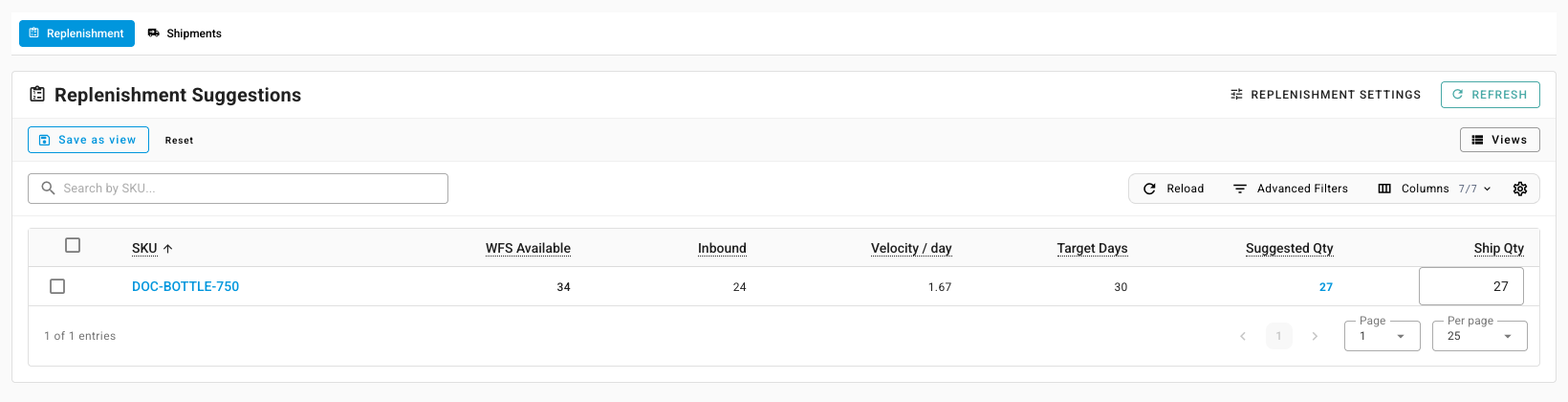
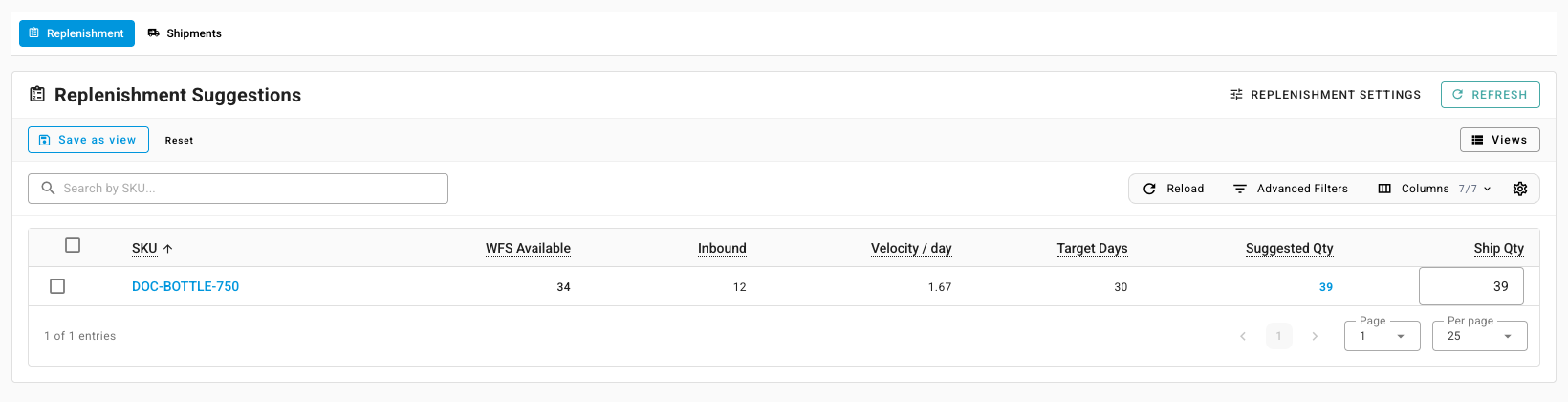
Go to Apps & Integrations, open your Walmart channel, then open the WFS Inbound tab. The Replenishment view opens first. Its Inbound column is Walmart's count, so a shipment that will never arrive keeps the suggested quantity too low.
-
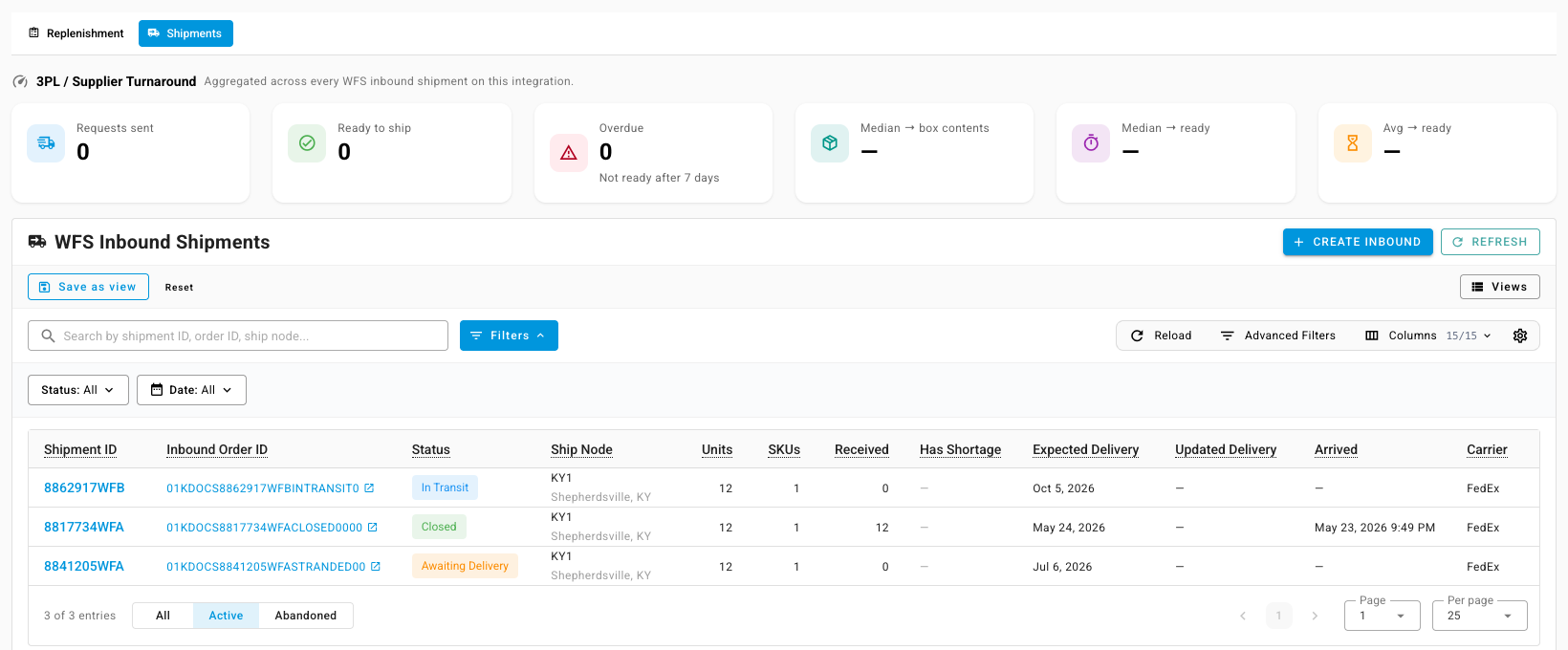
Click Shipments, then click the shipment that never shipped. A stranded shipment usually still shows Awaiting Delivery long after its expected delivery date.
-
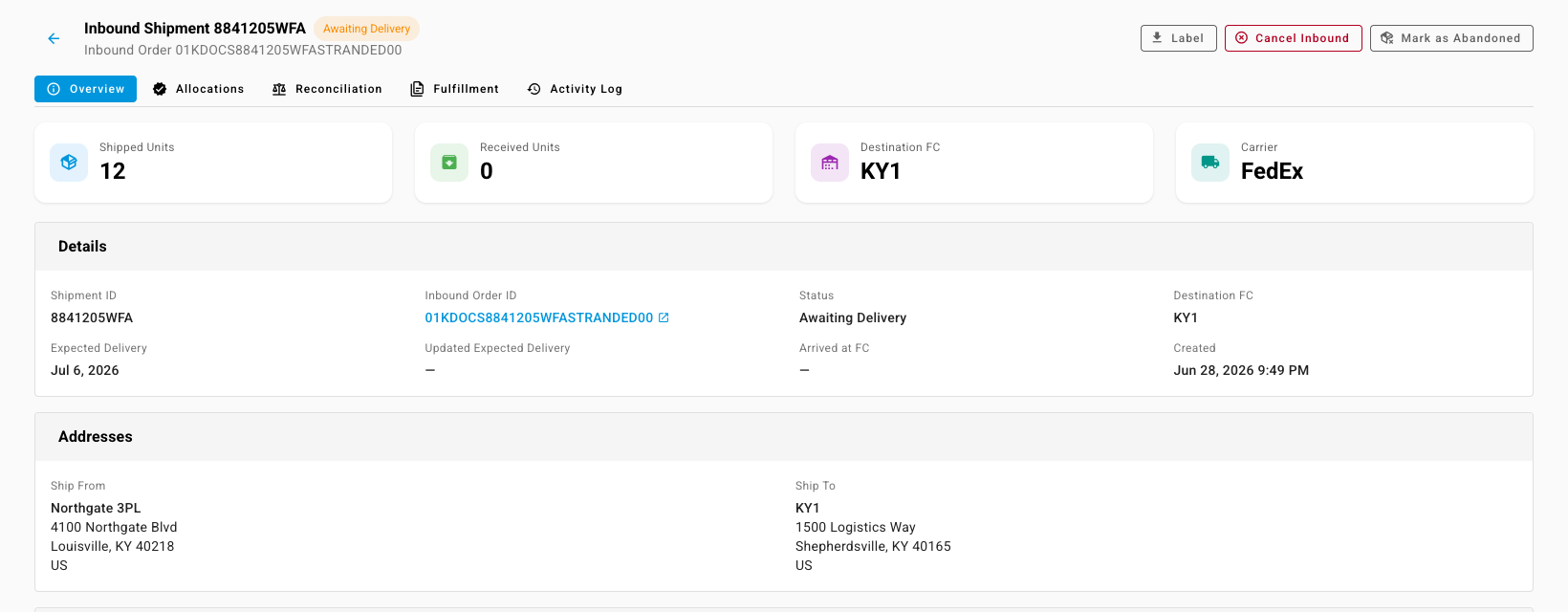
Check the shipment's Created date and Received Units. A shipment created months ago with nothing received is the case this is for.
-
Click Mark as Abandoned. The dialog lists what changes in SKU.io.
-
In What happened?, say why the shipment will never arrive, for example "Our 3PL never shipped it, and the units went on another shipment. Walmart can't cancel it." The note is required, and it stays on the shipment for anyone who opens it later.
-
Click Mark as abandoned.
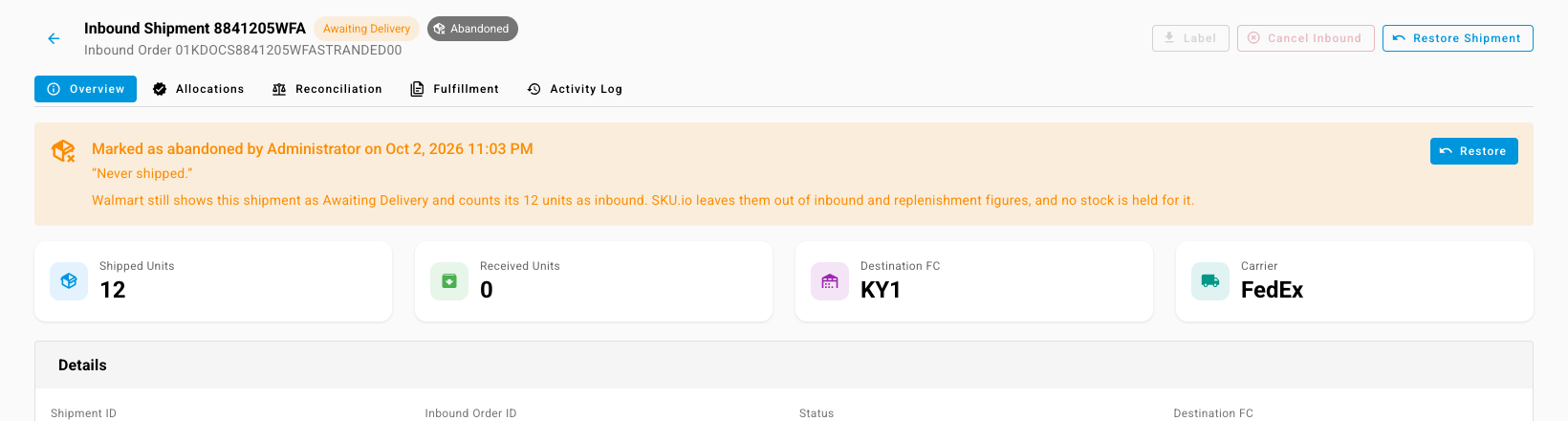
The shipment now carries an Abandoned chip beside Walmart's status, and a banner shows who marked it, when, and the note. Label and Cancel Inbound are turned off while the shipment is abandoned.
What changes, and what doesn't
| After you mark a shipment as abandoned | |
|---|---|
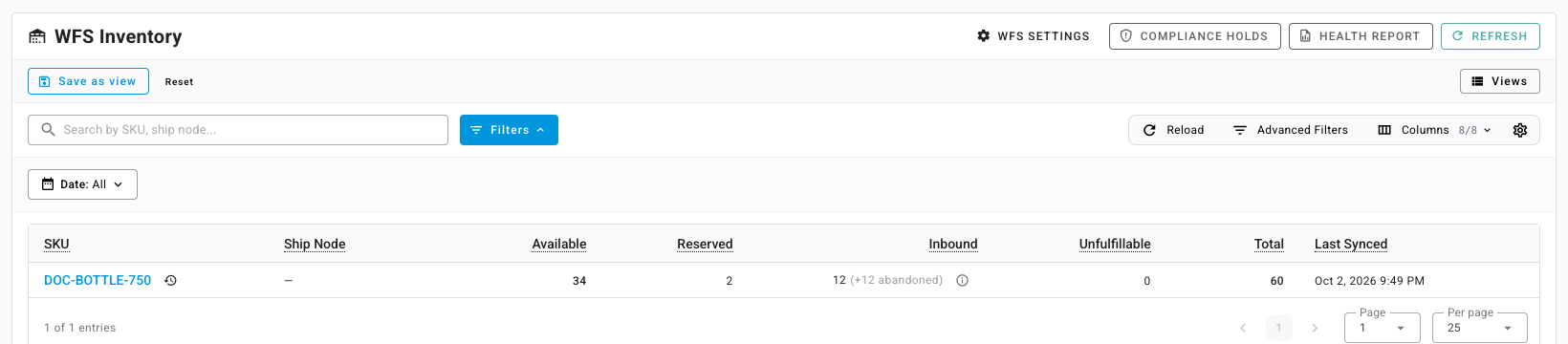
| WFS Inventory | The Inbound figure leaves out the shipment's units and shows them beside it, for example 12 (+12 abandoned). Open the icon next to the figure to see which shipments they came from. |
| Replenishment | Counts only the units still on their way, so the suggested quantity goes up to match. |
| Stock at your source warehouse | The stock held for the shipment is released and can be sold or shipped again. The shipment's warehouse transfer is removed. |
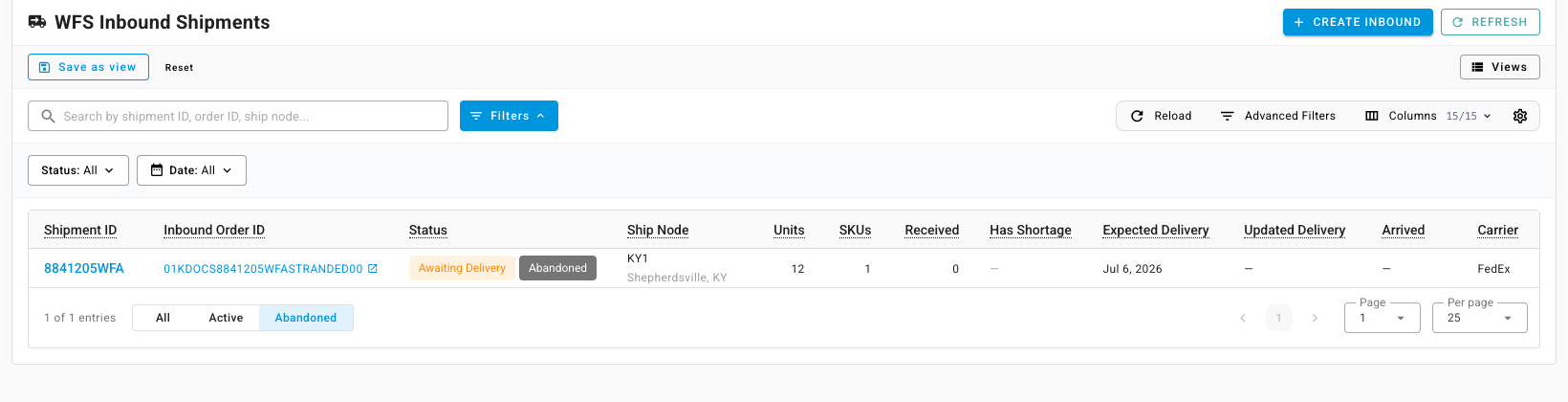
| Inbound shipments list | The shipment is hidden, unless Walmart reports goods for it. Choose Abandoned or All at the bottom of the list to see it. |
| Shortage claims | SKU.io raises no shortage claim for the shipment while it's abandoned. |
| Reminders | SKU.io stops sending turnaround reminders about the shipment to your 3PL or supplier. |
| Walmart | Nothing changes. SKU.io doesn't contact Walmart. The shipment keeps Walmart's status, and Walmart Seller Center still counts its units as inbound. |
Find an abandoned shipment again
Abandoned shipments are hidden from Shipments by default, except the ones marked Abandoned: review. At the bottom of the list, choose Abandoned to see only abandoned shipments, or All to see every shipment. To filter by when shipments were abandoned, use Advanced Filters → Abandoned At.
If the shipment turns up after all
An abandoned shipment stays abandoned until someone restores it, whatever Walmart reports.
When Walmart reports it delivered or receiving, reports received units, or reports a delivery date under any status, the shipment comes back to the default Shipments list with the chip Abandoned: review. Its banner says "Walmart reports goods for this shipment, which you marked as abandoned." Restore it if the goods were sent. Otherwise, leave it. A shipment that Walmart closes with nothing received and no delivery date stays hidden.
Restore a shipment
- Open the shipment and click Restore Shipment, or Restore in the banner.
- If Walmart already reports it on its way or at Walmart, Restore and ship this shipment? opens. It names the units and the source. To ship that stock straight away, click Restore and ship. From a supplier, SKU.io creates the purchase order and records the units as sent to Walmart.
The shipment counts as inbound again. If Walmart doesn't report it on its way yet, SKU.io holds the stock for it at the source again. If a kit on the shipment is still to be assembled, nothing ships until it's built. Restoring changes nothing at Walmart.
A restore that ships stock fails, with the reason, and the shipment stays abandoned when:
| Reason | What to do |
|---|---|
| The source warehouse no longer has enough stock | Add or adjust the stock, then restore it. |
| A SKU on the shipment isn't matched to a product | Map the SKUs the message lists, then restore it. |
| No source is set, so there's nothing to ship | Set where it ships from, then restore it. |
| Walmart didn't return the shipment's contents | Try again later. |
Restore a shipment Walmart has received or closed
You can restore an abandoned shipment that Walmart has already received or closed, when it left one of your
warehouses. You need the Warehouse Transfers Receive permission (warehouse_transfers.receive).
- Click Restore Shipment. Restore, ship and write off? shows the Units, the Source and the Write-off: the units at the cost of the stock the source warehouse would use next.
- Click Restore and write off with the amount.
SKU.io then, all at once, creates the transfer from the source warehouse, ships the units from it, closes the transfer, and writes the whole value off to Receiving Discrepancies, dated today, as when Walmart closes a shipment. Walmart's counts are recorded, and a claim is raised when the shipment came up short. If the amount changed by the time you confirm, nothing is done and you see the new amount.
The restore is refused, with the reason, and the shipment stays abandoned when it came from a supplier, it has no source, a SKU on it isn't matched to a product, a kit on it is still to be built, the source warehouse doesn't have enough stock, Walmart didn't return its contents, or the books refuse the write-off. See When the books refuse a write-off.
A restore can't be undone. To put a wrong one right, see Put a wrong close or restore right. For where the entries show, see Where the write-off shows in your books.
Why you can't abandon a shipment
When Mark as Abandoned is turned off, point at it to see why:
- Walmart has already received or delivered part of this shipment. The units are at Walmart, so let Walmart finish receiving it.
- This shipment is already closed on Walmart. A cancelled, received, or closed shipment no longer counts as inbound, so there is nothing to abandon.
Next steps
- Recalculate the plan and fix calculation problems — the Send Planner also counts WFS inbound as cover, so a shipment that never arrives lowers its WFS send until you mark it abandoned.
- How transfers work — what the warehouse transfer behind an inbound shipment does to your stock.
- Manage a connected app — the controls every channel connection shares.
Video transcript
Start on your Walmart channel, under Apps and Integrations. Then open the WFS Inbound tab, in the row of tabs near the top. The Replenishment view opens first, with one row for each product you send to Walmart.
This Inbound figure is Walmart's own number. A shipment that never left your warehouse stays in it for good. Walmart only accepts a cancel shortly after booking. So the suggested quantity stays too low.
Open Shipments, and find the shipment that never left. This one has sat at Awaiting Delivery for three months. Click it to open its details.
It was created months ago, and nothing has been received. This action exists for exactly this case. Click Mark as Abandoned, in the top right corner of the shipment page.
The dialog explains what changes. Walmart keeps showing the shipment, but SKU.io stops counting its units. Under What happened, say why it will never arrive, then click Mark as abandoned to save. Saving takes a moment, while SKU.io releases the stock held for the shipment.
The shipment is now marked Abandoned, with who marked it, when, and why. Walmart's own status stays unchanged. If the shipment turns up after all, click Restore Shipment.
Open WFS Inventory. Walmart's inbound count still includes the shipment. SKU.io shows those units as abandoned, and leaves them out of the figure.
Back on WFS Inbound, replenishment now counts only the units really on their way. The suggestion goes up to match.
For one last check, open Shipments again from the tabs above. The shipment you abandoned is gone from the list. To see it, choose Abandoned at the bottom. There it is, still flagged.