Connect Walmart
Connect your Walmart Marketplace seller account to bring Walmart orders, listings and inventory into SKU.io. The quickest way is Connect with Walmart, which signs you in to your Walmart Seller account through SKU.io's approved Solution Provider app, so you don't need API keys. If you'd rather, you can use API credentials you create in Walmart instead.
Before you begin
- You need a Walmart Seller Center login with permission to authorize apps, and permission to connect integrations in SKU.io.
- Decide which SKU.io store the Walmart orders belong to.
- Check your inventory start date under Settings → Inventory. The Walmart start date can't be earlier.
Start a new connection
-
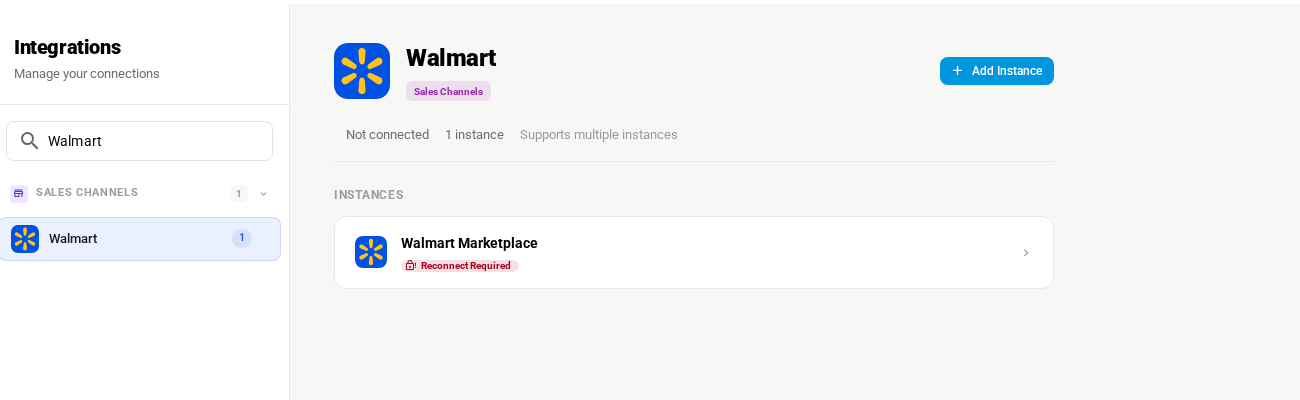
Go to Apps & Integrations, search for Walmart, and choose Walmart.
-
Click Add Instance. The New Walmart Integration page opens.
Fill in the details
-
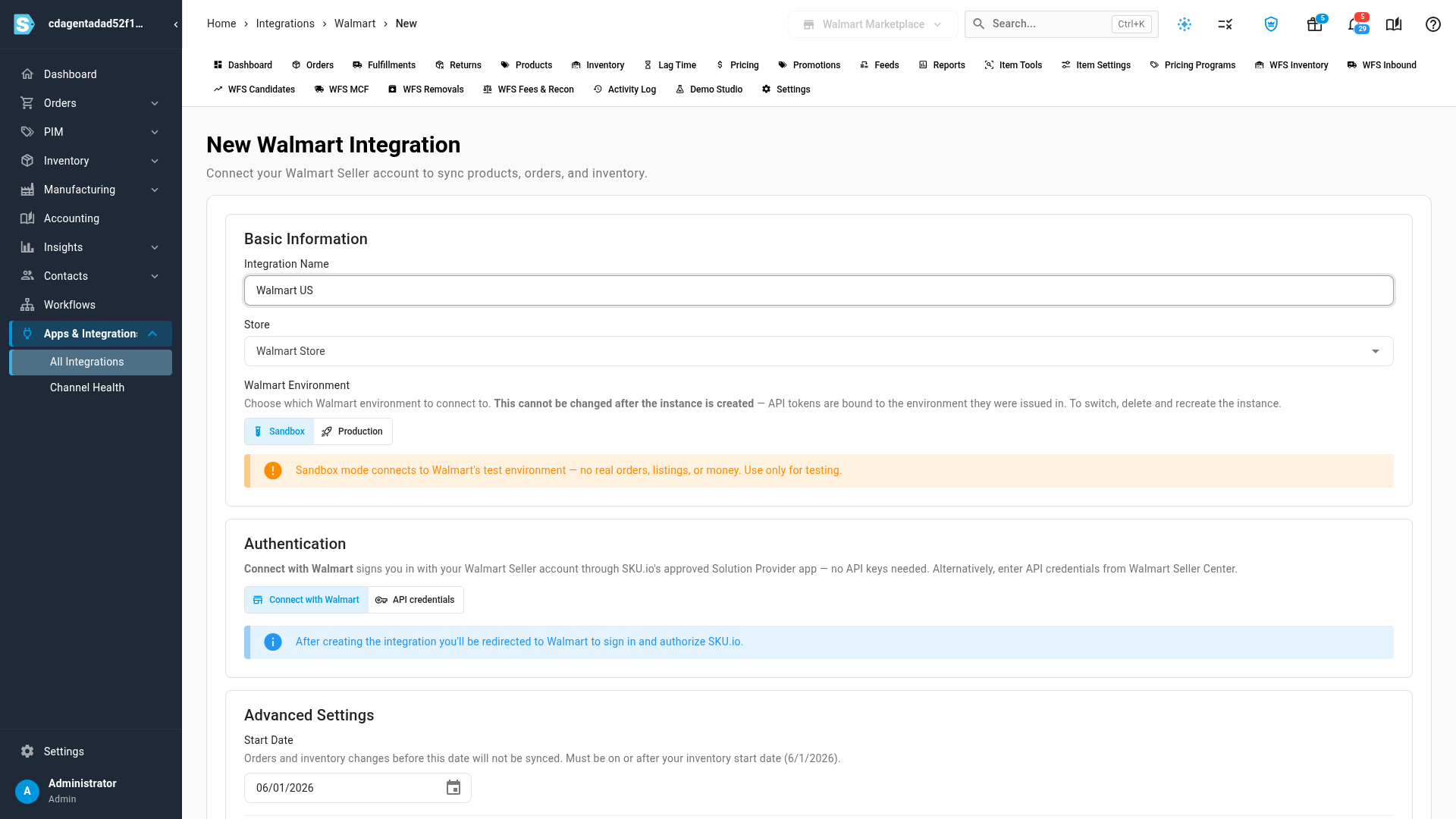
Under Basic Information, type an Integration Name, such as the name of your Walmart store, and pick the Store.
-
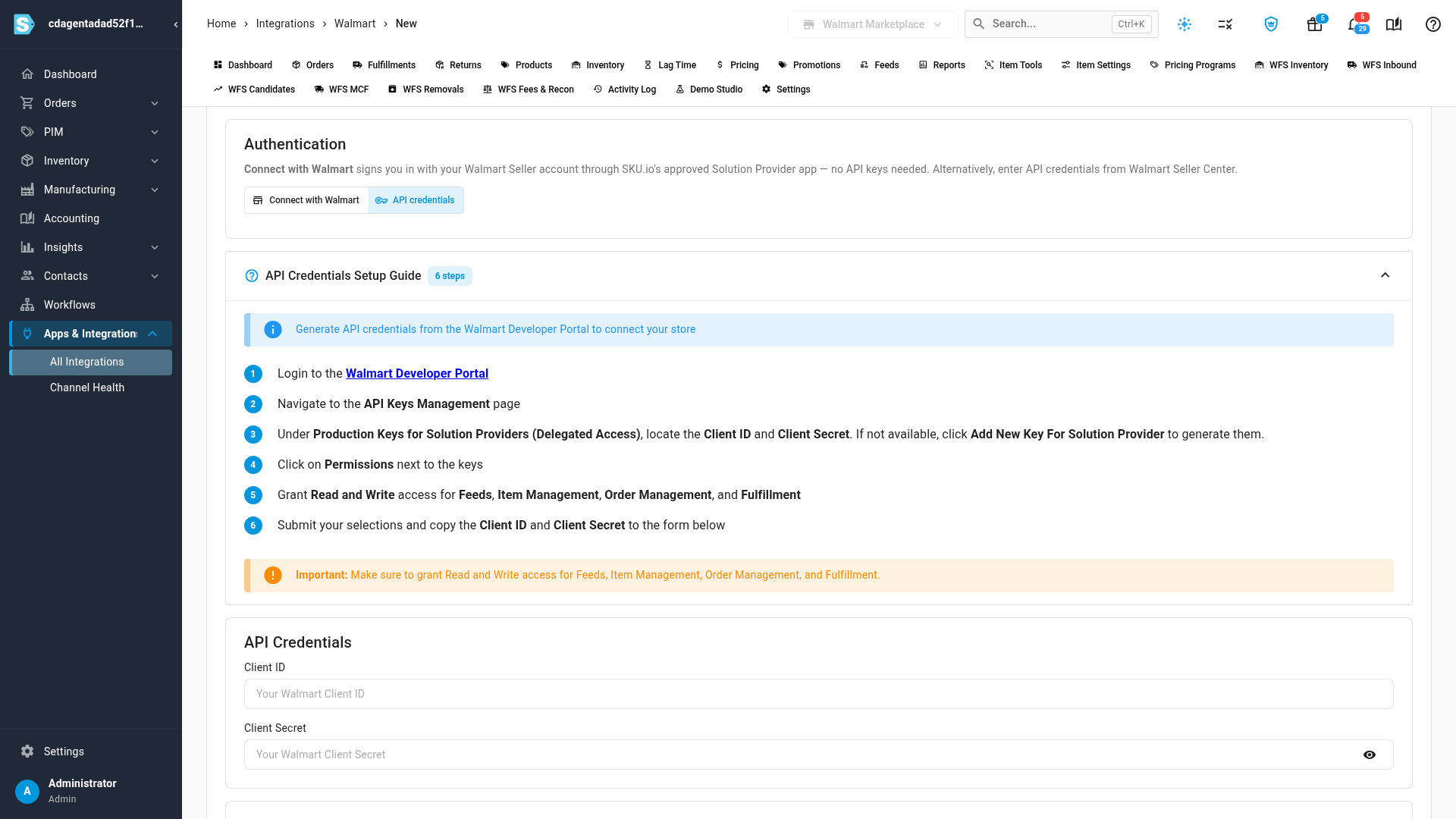
Under Authentication, choose how to sign in:
- Connect with Walmart (the default): no keys needed. You sign in on Walmart's site after you click connect.
- API credentials: the API Credentials Setup Guide appears, with the steps to create keys in the Walmart Developer Portal. Grant Read and Write access for Feeds, Item Management, Order Management and Fulfillment, then paste the Client ID and Client Secret under API Credentials.
-
Under Advanced Settings, set the Start Date. Orders and inventory changes before it aren't synced.
-
Choose the product and sync options:
Option What it does Auto Link Products Links each Walmart listing to the SKU.io product with the same SKU Auto Create Products Creates an SKU.io product for each Walmart listing that doesn't match one Automatic Sync Starts syncing on a schedule as soon as you connect 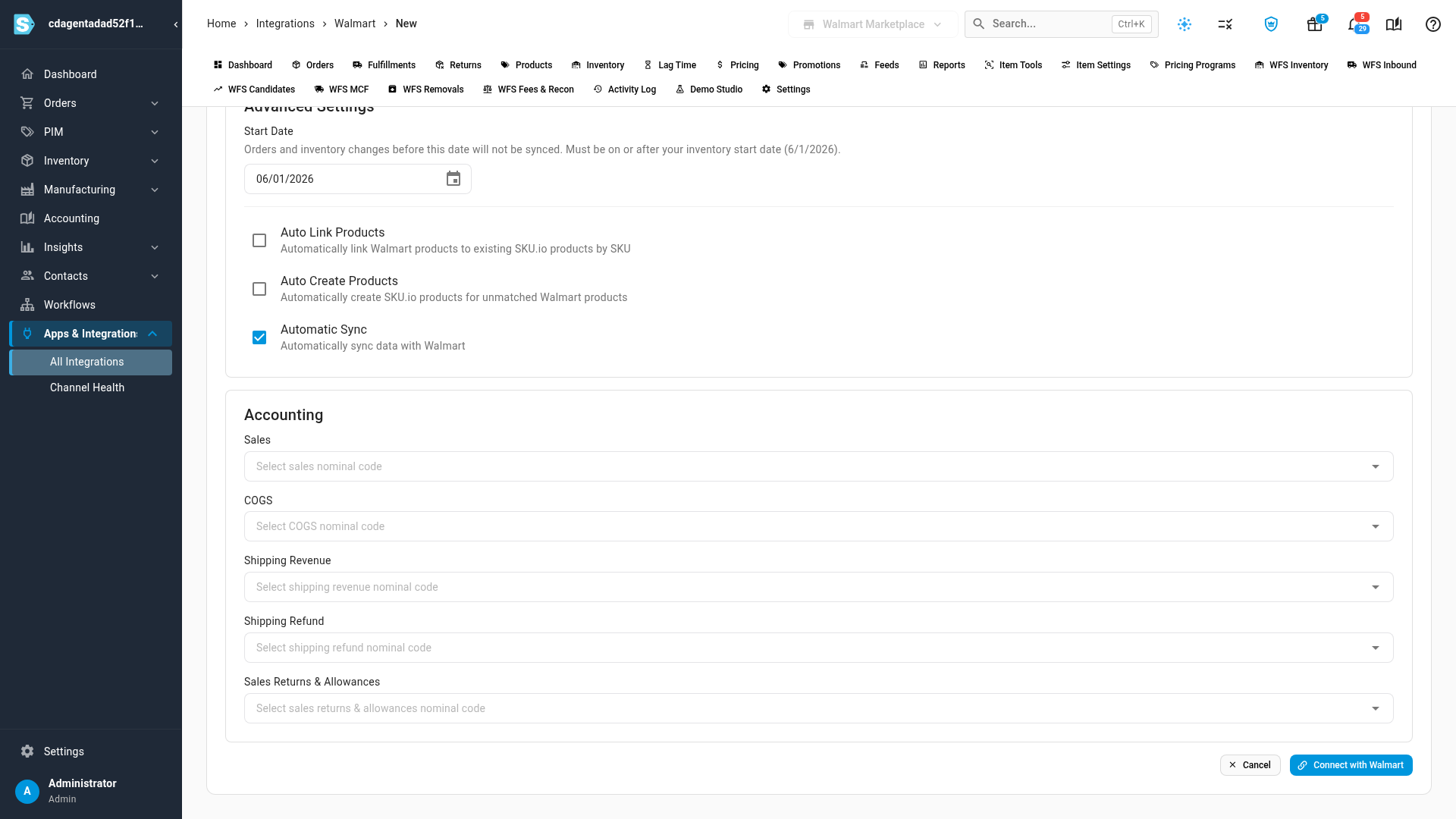
-
Optionally pick this channel's Sales, COGS, Shipping Revenue, Shipping Refund and Sales Returns & Allowances accounts under Accounting. You can change them later under Channel Accounting.
Connect
- Click Connect with Walmart. The button stays greyed out until the name and store are set, and, with API credentials, both keys are filled in.
- With Connect with Walmart, Walmart opens. Sign in to your Walmart Seller account and approve SKU.io. Walmart sends you back to the connection's settings.
- With API credentials, SKU.io checks the keys and opens the Walmart dashboard.
If the Walmart sign-in didn't start, SKU.io creates the connection anyway and says so. Finish signing in from Settings → Authentication, which is also where you reconnect if the connection shows Reconnect Required later.
Choose what syncs
Open the Settings tab on the Walmart page, then Sync.
- Sync Schedule: Active runs Walmart's scheduled sync. Paused stops it for this connection. Sync Now still works while paused.
- What syncs: switch each direction on or off, under Import from Walmart (orders, creating SKU.io sales orders, products, inventory) and Send to Walmart (tracking, inventory and more).
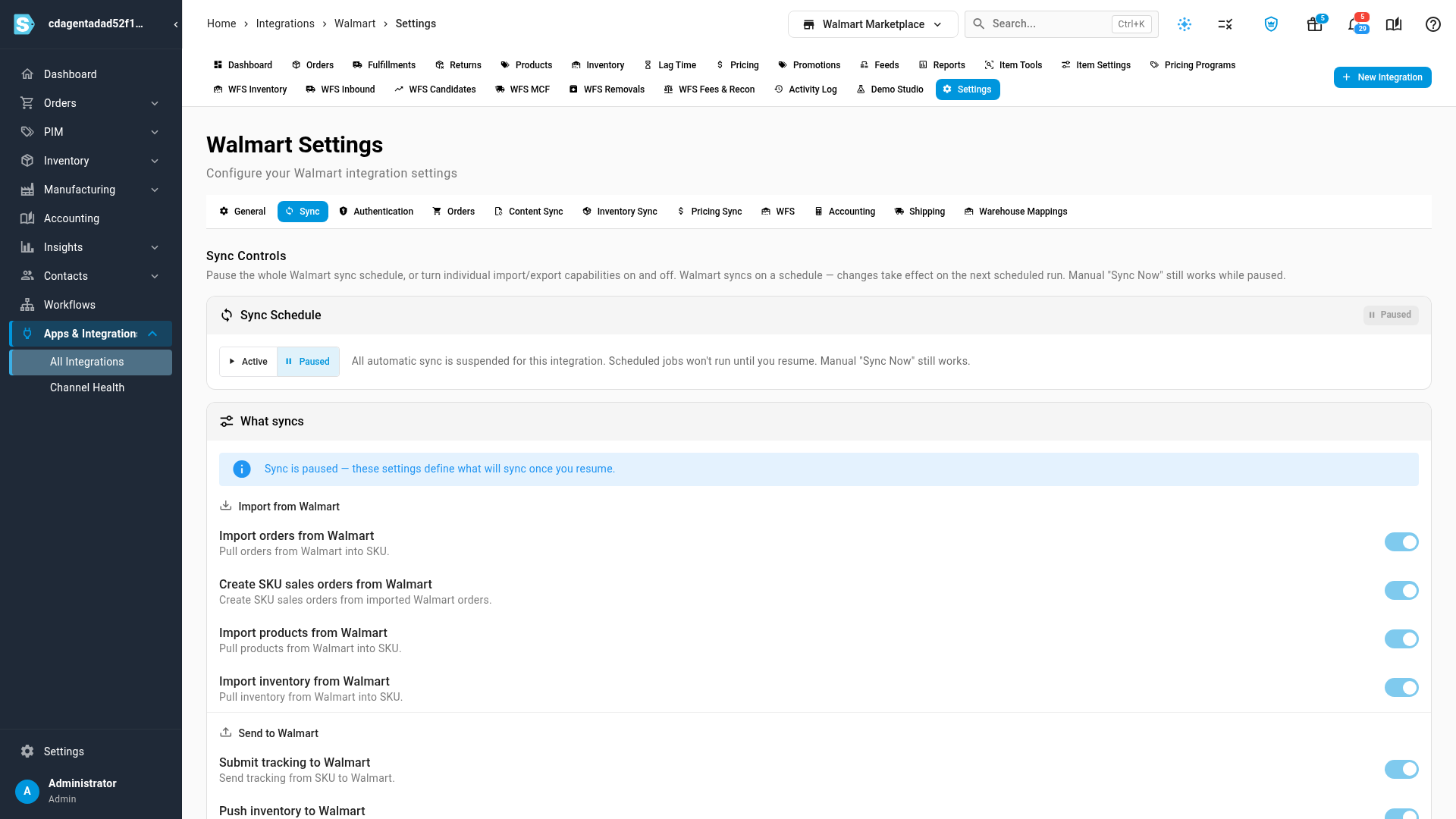
Changes apply from the next scheduled run.
Review the other settings
| Settings tab | What to check |
|---|---|
| General | The name, the store, Auto Create Products, and Enable Communication with Customer |
| Authentication | How the connection signs in to Walmart, and reconnecting |
| Orders | Order import options |
| Content Sync | Whether SKU.io watches your products for content changes. See Content Sync |
| Inventory Sync | How stock is sent to Walmart |
| Pricing Sync | How prices are sent to Walmart. See Sync prices with your sales channels |
| WFS | Walmart Fulfillment Services. See Set up Walmart Fulfillment Services |
| Accounting | The Marketplace Cost % used to estimate profit on each order |
| Shipping | Carrier routing for the tracking you send. See Route the carrier Walmart receives |
| Warehouse Mappings | Which SKU.io warehouses ship and supply stock to Walmart |
Next steps
- Set up Walmart Fulfillment Services: send and sell stock from Walmart's warehouses.
- Route the carrier Walmart receives: map carriers and methods for the tracking you send.
- Integration Basics: the controls every channel shares.
Video transcript
To connect Walmart, open Apps and Integrations from the menu on the left.
Type Walmart into the search box to find it.
Choose Walmart from the results, and its page opens.
Then click Add Instance to start a new connection.
The New Walmart Integration page opens.
Under Basic Information, give the connection a name.
Then pick the store for its orders.
Under Authentication, Connect with Walmart is the easiest choice.
You sign in to your Walmart Seller account, and no keys are needed.
If you'd rather use API credentials, choose API credentials instead of signing in.
The setup guide shows where to create them, and you paste the Client ID and Client Secret below.
For this example, we'll switch back and stay with Connect with Walmart.
Further down the page, under Advanced Settings, set the start date.
Orders and stock changes before it aren't synced.
Choose Auto Link Products or Auto Create Products, and if syncing should start right away.
Under Accounting, you can also pick this channel's accounts, such as Shipping Revenue.
When everything looks right, click Connect with Walmart at the bottom.
Signing in and approving SKU happens on Walmart's own site.
Once you're connected, cancel out of this page, and open the Settings tab of your Walmart connection.
Then choose the Sync tab, the second one along the top of the settings.
The Sync Schedule pauses or resumes all automatic syncing for this connection.
What syncs has a switch for each direction, starting with Import orders from Walmart.
The other tabs cover orders, inventory, pricing, shipping and Warehouse Mappings.