Set up Walmart Fulfillment Services
WFS is Walmart's fulfillment service: you send stock to Walmart's fulfillment centers, and Walmart ships your Walmart orders from there. Turning WFS on in SKU.io gives your Walmart channel a WFS stock location, syncs the stock Walmart holds, imports the orders Walmart fulfills and routes them to it, and opens the WFS tabs for sending stock in, removing it and reconciling it.
Before you begin
- Your Walmart seller account is enrolled in WFS. The switch in SKU.io doesn't enroll you. If you aren't enrolled, Walmart refuses inbound shipments and stock syncs with "Program Eligibility is not enabled."
- The Walmart channel is connected under Apps & Integrations, with its Import inventory sync turned on.
- You have permission to change integrations.
Turn on WFS
-
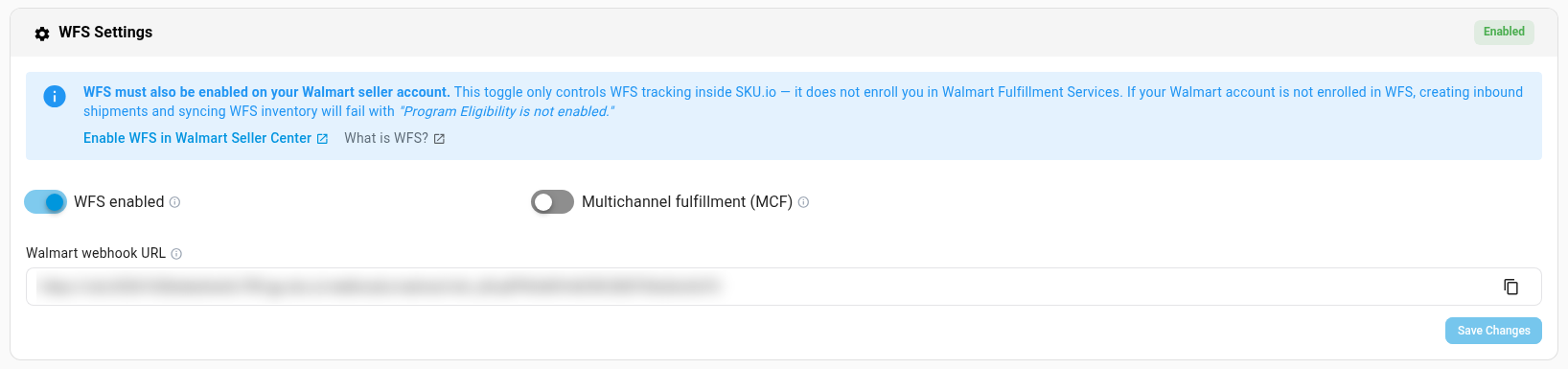
Go to Apps & Integrations, open your Walmart channel, then open Settings and the WFS tab.
-
Turn on WFS enabled and click Save Changes. The chip changes to Enabled.
-
Optionally, copy the Walmart webhook URL and register it in your Walmart notification settings. Walmart then tells SKU.io about inbound, stock and return changes as they happen. Keep the URL private. Without it, SKU.io still checks Walmart every few minutes.
SKU.io creates a warehouse named WFS with your channel's name, of type Walmart WFS. Automatic order routing never picks it for other channels' orders; to ship those from WFS, use multichannel fulfillment. Walmart, not SKU.io, counts its stock, so fulfilling an order from it writes no stock movements in SKU.io.
Set the replenishment targets
Further down the WFS tab, Replenishment & Candidate Settings drive the suggestions on WFS Inbound and WFS Candidates.

| Field | What it sets |
|---|---|
| Target Days | How many days of demand to keep covered at WFS. |
| Buffer Days | Extra safety days on top of the target. |
| Lead Time | Days between sending stock and it becoming sellable at WFS. |
| Case Pack | Units per case. Suggestions round up to whole cases. |
| Velocity Window | How many days of past sales set the daily sales rate. |
| Candidate Min Units | How many Walmart units a listing you ship yourself must sell in the window to count as a WFS candidate. |
Below the fields, Count seller-fulfilled Walmart sales as WFS demand is on by default. It adds a product's Walmart orders that you ship yourself to its WFS sales, so a product that hasn't sold through WFS yet still gets a suggested quantity, on WFS Inbound and in the Send Planner. Walmart fills an item's orders from WFS while it has stock there and falls back to you when it runs out, so those sales are demand WFS will take over. Turn it off to plan WFS from WFS sales alone.
Click Save Settings.
See the stock Walmart holds
Open WFS Inventory. Each SKU shows Walmart's Available, Reserved, Inbound, Unfulfillable and Total figures, as of Last Synced. Click Refresh to pull them now.
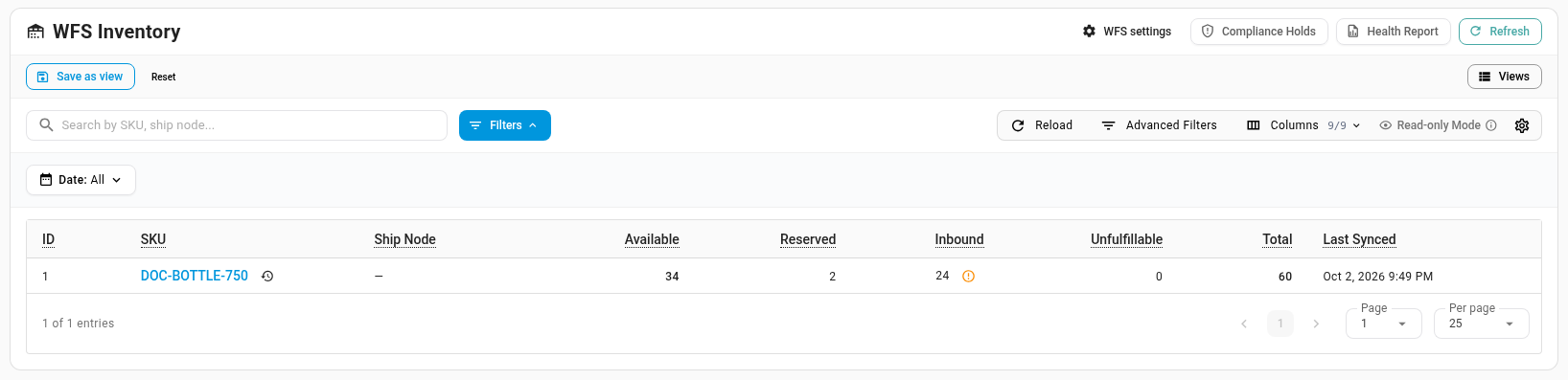
- Click the icon beside an Inbound figure to see the shipments behind it. See Check the shipments behind the Inbound figure.
- Use the row's movement log to see the stock changes Walmart reported for the SKU.
- Compliance Holds lists items Walmart has put on hold, for example for hazmat review.
- Health Report downloads Walmart's inventory health report.
Check the shipments behind the Inbound figure
Inbound is Walmart's own count of units on their way to WFS. When SKU.io knows of open inbound shipments for the SKU, or the two counts disagree, an icon sits next to the figure. It turns orange when a shipment is overdue or the counts don't match.
- Click the icon next to the Inbound figure. Inbound for the SKU opens.
- Read the summary line. It compares what Walmart reports with the units on SKU.io's open shipments.
- Check each open shipment: its units, Walmart's status, and how many days it has been open. A shipment marked overdue is past its expected delivery date with no delivery from Walmart yet. Click its ID to open it.

When the two counts disagree, a warning says a booking exists on one side only. Usually an inbound order is still open at Walmart that SKU.io no longer tracks, or the reverse. Look the SKU up in Walmart Seller Center under WFS → Shipping Plans. Shipments you marked as abandoned are listed apart under Abandoned (not counted). See Mark a WFS inbound shipment as abandoned.
Find listings worth sending to WFS
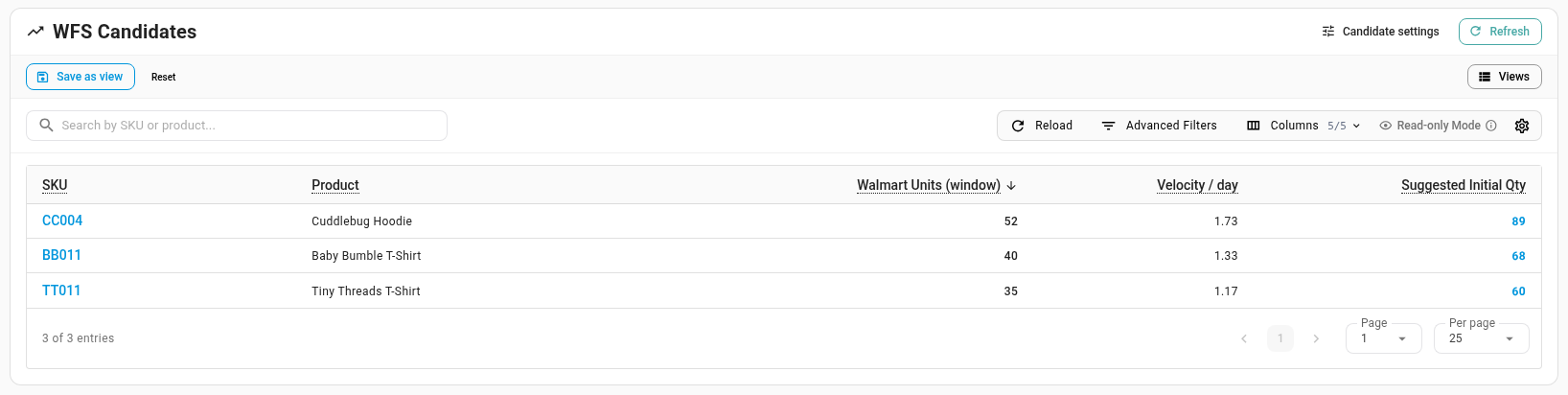
Open WFS Candidates. It lists listings you ship yourself that sold at least Candidate Min Units on Walmart within the velocity window, with their Velocity / day and a Suggested Initial Qty.
Moving a listing to WFS doesn't stop you shipping it yourself. Walmart fills its orders from WFS while WFS has stock, and from you when WFS runs out. To move them, see Set listings up for WFS.
Set listings up for WFS
You set listings up for WFS from the Send Planner, without going to Walmart Seller Center. A listing set up for WFS keeps its seller-fulfilled offer: Walmart ships from WFS while it has stock there and sends orders to you when WFS runs out. Keep your own stock on the listing so that fallback always has something to sell.
-
Go to Planning → Send Planner. When seller-fulfilled Walmart listings sell well enough, the WFS row under Where it goes says how many, with Set up for WFS.
-
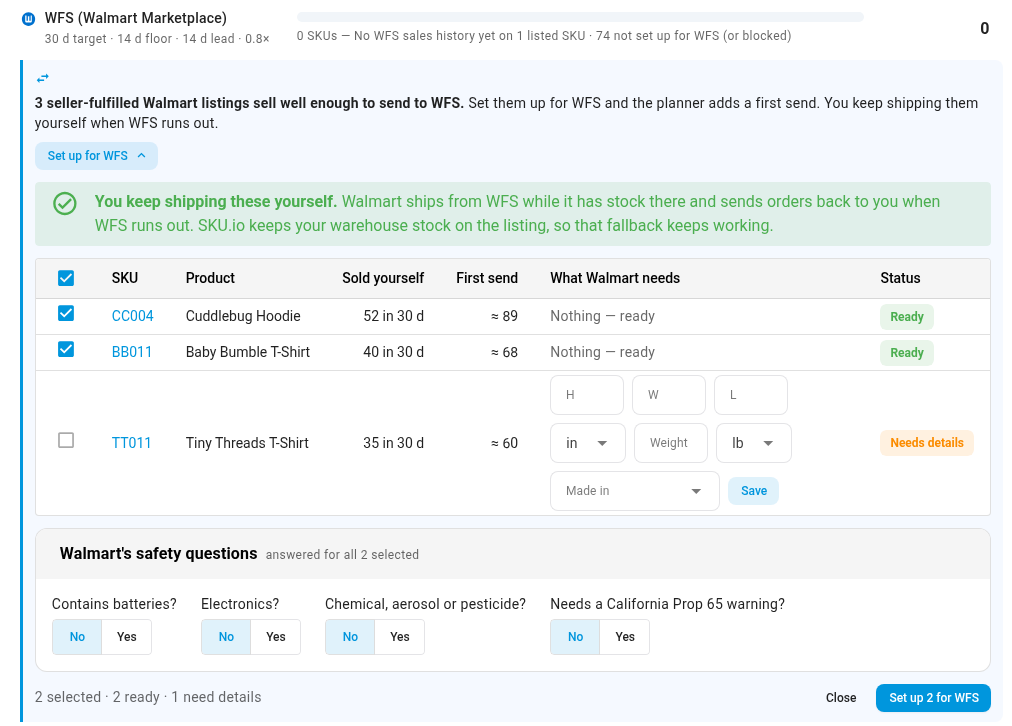
Click Set up for WFS. The panel lists each listing with what it Sold yourself, its suggested First send, and What Walmart needs. Listings with nothing missing are ticked.
-
For a listing marked Needs details, fill in what's missing in its row: height, width and length with their unit, the weight and its unit, the country it's Made in, and the barcode if it has none. Click Save. The details are saved to the product, and the listing turns Ready.
-
Anything the panel can't fill, such as a main image or the brand, shows as Also needs with a link to the product. Add it there, then come back.
-
Answer Walmart's safety questions once for all the selected listings: Contains batteries?, Electronics?, Chemical, aerosol or pesticide? and Needs a California Prop 65 warning? (enter the warning text when it does).
-
Click Set up N for WFS.
Walmart reviews each listing, usually within minutes. Its Status shows Walmart reviewing, then On WFS + your fulfillment, or Walmart rejected with Walmart's reason. Once a listing is on WFS, the next plan you calculate suggests its first WFS send.
Walmart needs a safety data sheet and label images for items with batteries, chemicals, aerosols or pesticides, and it only takes them in Seller Center. If you answer Yes to either of those questions, the panel points you there instead of sending the listings.
To set up a single listing, open the product, go to its Listings tab and pick your Walmart channel. The WFS column shows On WFS, or Set up for WFS, which opens the same panel for that listing.
How WFS orders flow
While WFS is on, SKU.io imports the orders Walmart fulfills as well as the ones you ship. Each automatic check fetches your own orders first, then the WFS orders placed in the last 14 days. To see them, open the Orders tab and filter Ship Node Type to WFS Fulfilled.
- Warehouse: every line goes to the WFS warehouse. WFS orders never reserve, backorder or deduct your own stock, and write no stock movements.
- Status: it follows Walmart's. The lines count as fulfilled by Walmart from the moment they're imported, so there's nothing for you to ship, and the order closes once Walmart has shipped it.
- Nothing is sent to Walmart: SKU.io doesn't acknowledge WFS orders, dispatch them or send them to multichannel fulfillment.
- No ship-by date: Walmart ships them, so they have none.
- Cancellations: units Walmart cancels never count as shipped. An order you cancel in SKU.io stays cancelled.
- Bundles: each component's shipped quantity is the bundles shipped times the quantity per bundle.
SKU.io updates a WFS order from these checks, so a change Walmart makes more than 14 days after the order was placed isn't picked up. To fetch older WFS orders, use a dated option in Refresh Walmart orders. With WFS turned off, SKU.io doesn't import WFS orders.
Turn WFS off
Turn off WFS enabled and save. If the WFS warehouse still holds stock, or shipments are still on their way, Disable WFS? asks you to confirm. SKU.io stops syncing WFS, including its orders, and archives the warehouse once it's empty.
Next steps
Video transcript
To set up Walmart Fulfillment Services, start in your Walmart channel: open its Settings, then choose the WFS tab on that page.
Turn on WFS enabled, then click Save Changes, and the status chip at the top changes to Enabled.
From then on, SKU.io syncs the stock Walmart holds in its fulfillment centers.
Further down, Replenishment and Candidate Settings set the targets behind every suggestion: days of stock to keep, buffer days, lead time, and case pack.
Count seller-fulfilled Walmart sales as WFS demand is on by default.
It includes the orders you ship yourself, so a product new to WFS still gets a suggested quantity.
After any change, click Save Settings to apply the new targets.
WFS Inventory shows the stock Walmart holds for each SKU: what's available, what's reserved, and the units still on their way to Walmart.
WFS Candidates lists the seller-fulfilled listings that sell enough on Walmart to be worth sending in, with a suggested first shipment.
You set them up for WFS in a few steps.
To set them up for WFS, open the Planning menu in the sidebar, and then choose Send Planner from its pages.
The WFS row counts the seller-fulfilled listings that sell well enough for WFS.
Click Set up for WFS, and each listing shows the details Walmart still needs.
Fill in what's missing right in the row.
Enter the height, the width and the length, and then the weight.
Then choose the country of origin, which is where the product is manufactured.
Click Save to keep these details, and the listing turns ready.
Below the listings, Walmart's safety questions apply to every listing you selected.
Then click Set up for WFS at the bottom of the panel, which submits your request.
Each listing is reviewed, and once it's accepted, its first send appears in the plan.
You keep shipping these listings yourself whenever WFS runs out.