Send stock to Fulfillment by TikTok
With Fulfillment by TikTok (FBT), TikTok stores your stock and ships your TikTok Shop orders. You send stock in with an inbound plan: you choose where it ships from and what's in it, pack it into cartons, and pick one of TikTok's delivery options. TikTok then turns the plan into one or more inbound orders, the shipments you send.
Before you begin
- Your TikTok seller account is enrolled in FBT, and your TikTok Shop is connected. See Connect TikTok Shop.
- Each product you send is linked to its TikTok product. TikTok needs at least 10 units of each SKU in a plan.
- You need permission to change integrations.
Turn on FBT
- Go to Apps & Integrations, open your TikTok Shop connection, then Settings and the FBT tab.
- Click Enable FBT. SKU.io first checks with TikTok that your account can use FBT. If it can't, a message says why, for example that the account isn't enrolled, or that you need to Re-authorize the connection so SKU.io can use FBT.
- Pick a Default source warehouse, the warehouse plans ship from unless you choose another. Only your own and 3PL warehouses can be picked.
- Set the Compliance warning lead time (days): how many days before a TikTok deadline SKU.io warns you.
- Click Save Changes.

What you'll see: an FBT warehouse named after your connection, and four new tabs: Inbound Plans, Inbound Orders, Appointments, and FBT Inventory. Click Refresh under TikTok Fulfillment Centers to see the fulfillment centers TikTok offers you.
Create an inbound plan
-
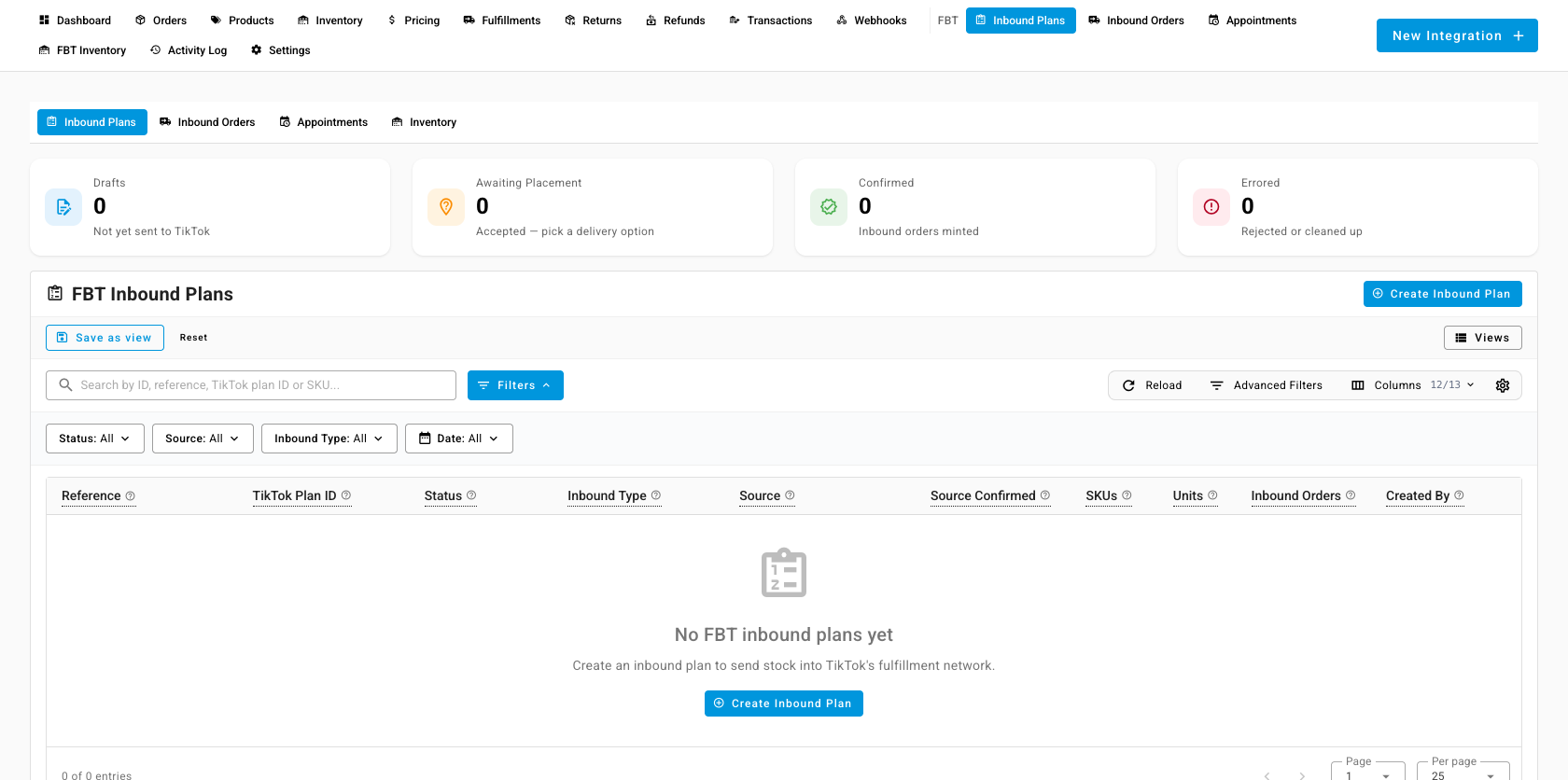
Open Inbound Plans and click Create Inbound Plan.
-
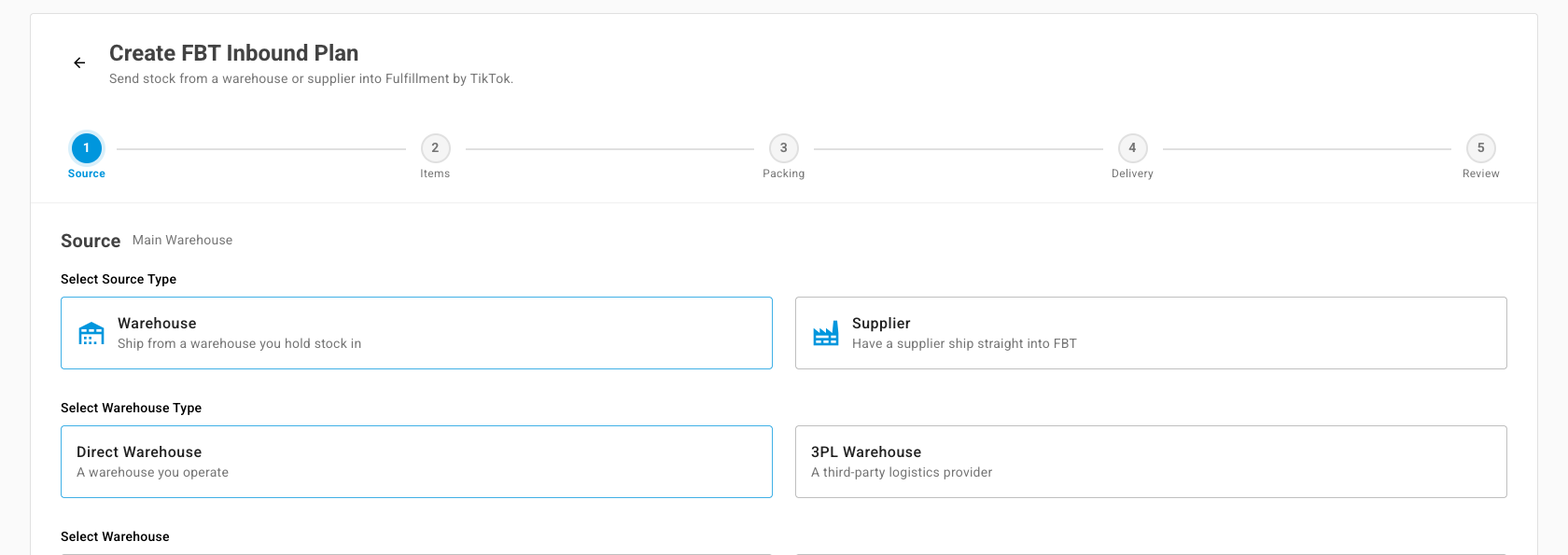
Source: choose Warehouse, then Direct Warehouse or 3PL Warehouse, and pick the warehouse. Or choose Supplier to have a supplier ship straight to TikTok. Click Next: Items.
-
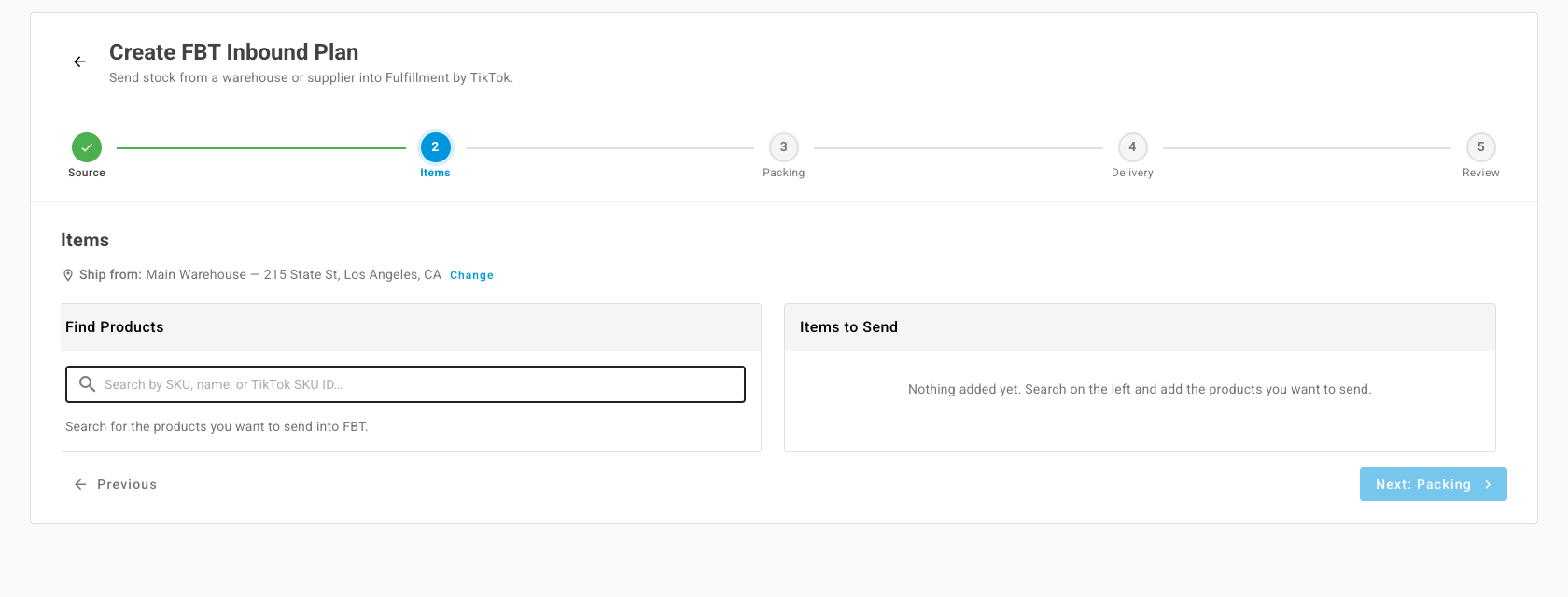
Items: search Find Products by SKU, name, or TikTok SKU ID, and add the products and quantities to send. Click Next: Packing. SKU.io saves the plan as a draft.
-
Packing: click Add Carton, or One carton per SKU. Enter each carton's Weight (kg), Length (cm), Width (cm), and Height (cm), and what's in it. Packed vs Planned must show every unit packed.
-
Delivery: click Submit to TikTok & get delivery options. TikTok quotes delivery windows and fees. Pick one. Click Refresh options to ask again.
-
Review: check the source, delivery, and items, then click Confirm & Create Inbound Orders.
What you'll see: "Inbound plan confirmed", with the number of inbound orders TikTok created. SKU.io holds the stock at your source warehouse, and creates a warehouse transfer for each inbound order, or a purchase order when a supplier ships it.
Hand the packing to a 3PL or supplier
On the plan's Fulfillment tab, click Build handoff packet. SKU.io makes a link where your 3PL or supplier sees the packing list, carton labels, and shipping details without logging in. Send it with Send handoff email, or click Download prep sheet (CSV). Rotate link replaces the link if it was shared by mistake.
Ship each inbound order
- Open Inbound Orders, and open the inbound order.
- Under Carton Labels & Packing List, click Generate labels, then Download ZIP.
- Choose the Freight type, and click Mark as shipped. The stock leaves your source warehouse and shows as in transit.
- Enter the Carrier and Tracking number, or the PRO number for freight, and click Submit tracking.
Each inbound order shows its Delivery Window, for example Closes in 5 days. TikTok closes an inbound order automatically 75 days after it was created. You can cancel an inbound order only before it ships.
Record a dock appointment
TikTok has no appointment booking in its API. Book the dock slot in the FBT Portal or with your carrier, then log it in SKU.io:
- Open Appointments and click Record Appointment.
- Enter the Fulfillment centre, the window, the Appointment reference, the carrier, and the inbound orders delivering in that slot.
- Click Record.
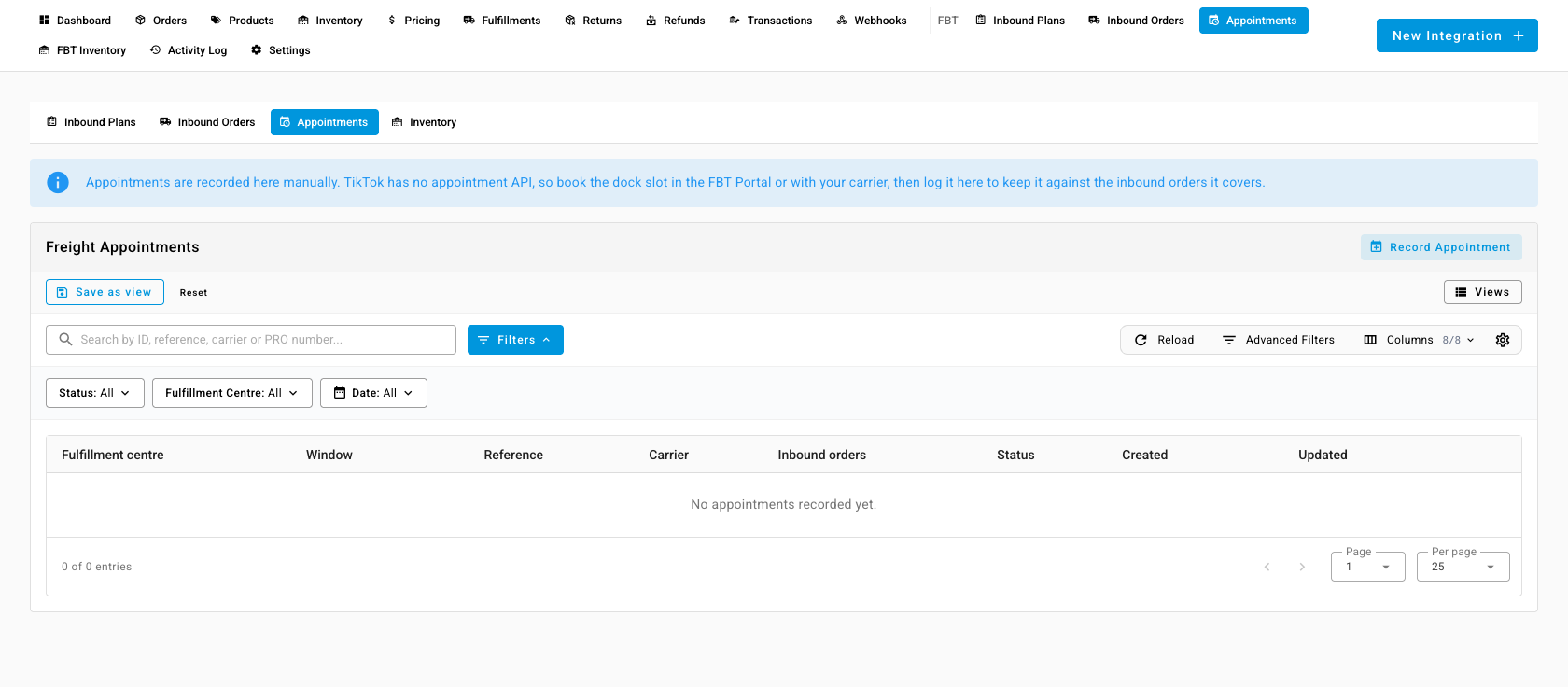
Cancelling an appointment in SKU.io doesn't cancel the slot you booked.
Reconcile what TikTok received
When TikTok receives an inbound order, SKU.io settles it against the units TikTok counted and closes its transfer. Open the inbound order's Reconciliation tab to compare Sent and Received for each product. For a short or over line, click Resolve discrepancy and choose Write off, Returned to source, Supplier credit, Channel corrected, or No action.
See the stock TikTok holds
FBT Inventory shows the stock TikTok holds, with Total, Available, and Reserved for each product. It's read-only: TikTok counts it, and SKU.io never posts stock movements into the FBT warehouse. Click Refresh from TikTok to update it.