Check regional coverage
Units at a fulfillment network only help the buyers they can reach quickly. A thousand units in California do little for a buyer in Ohio. The Send Planner's Coverage tab shows how many of each SKU's buyers sit within an estimated two days of stock, how that changes once the plan's sends land, which regions are thin, and how coverage has moved over time.
Coverage never changes how many units the plan sends. It shows where those units are likely to end up, so you can decide whether to send more somewhere, or choose a different placement when you create the shipment.
Before you begin
- You need the Send Planner → View permission.
- The planner needs a calculated plan. Coverage is measured as part of every calculation. If the tab says Calculate a plan first, click Go to Plan and calculate one. See Set up the Send Planner.
- Coverage needs your buyers' shipping postcodes. Orders without a postcode count by state when the state is known.
Check coverage for a network or a SKU
- Go to Inventory → Send Planner and click the Coverage tab.
- Under Network, choose the network to measure. The tab opens on the first network the plan sends to.
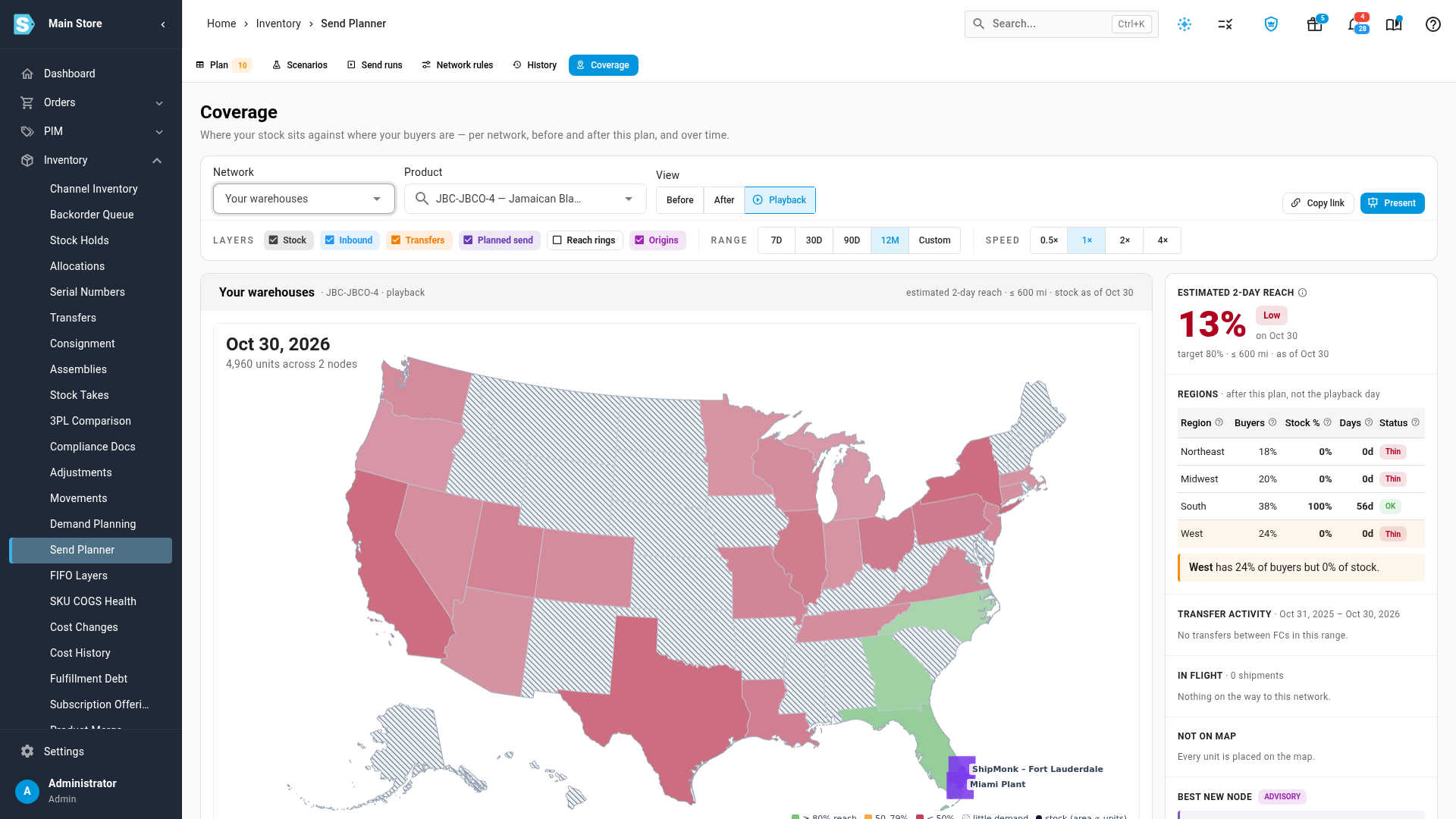
- Read the big number under Estimated 2-day reach: the share of buyers within reach of stock after this plan's sends land. Under it you see the figure before the plan, the target, and the date the stock figures are from.
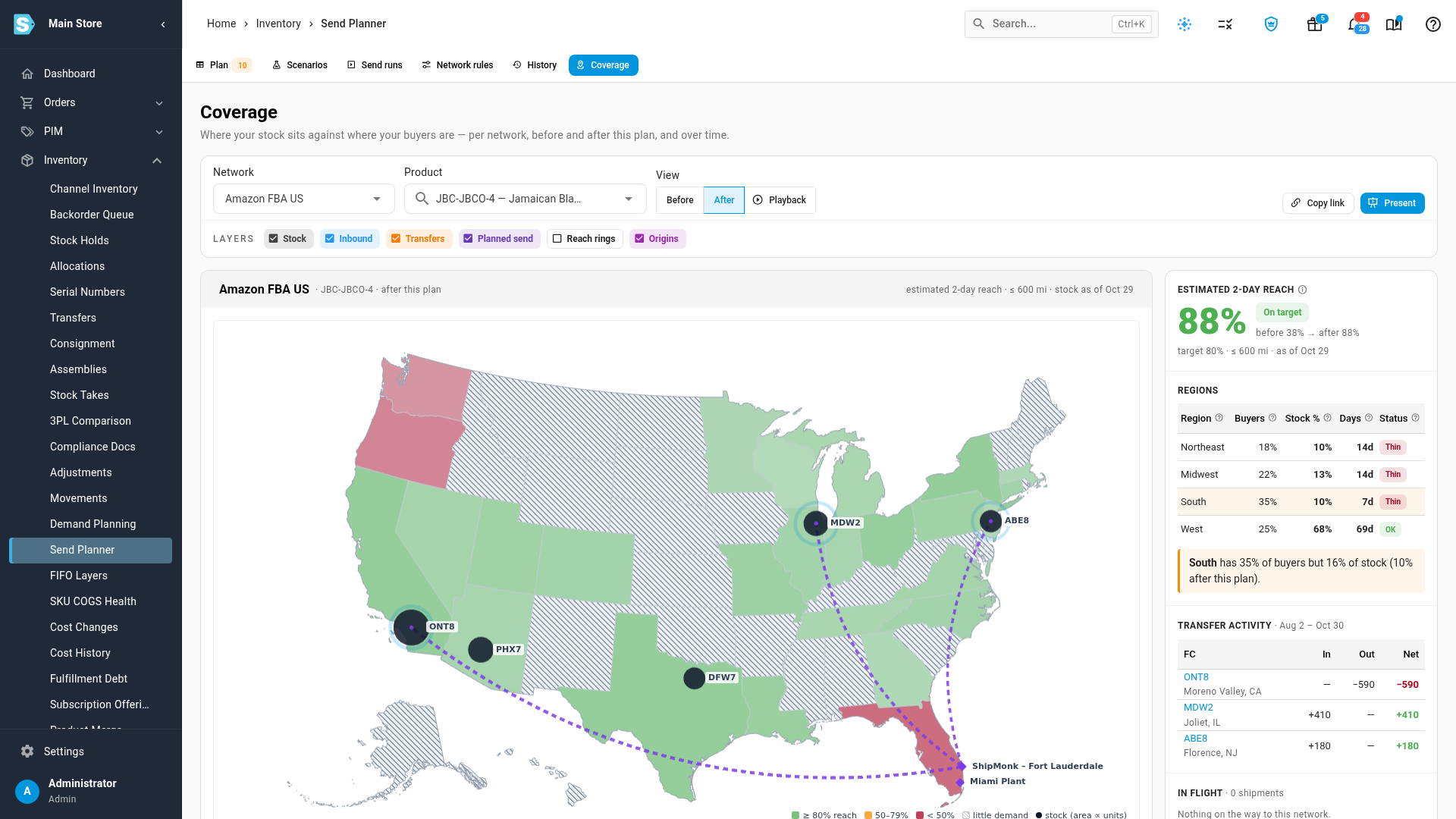
- To check one SKU instead of the whole network, type its SKU or name into Product and pick it from the list. Clear the field to go back to the whole network.
- Under View, click Before to see reach today, then After to see it once the send lands.
- Read the Regions table and the note under it to see where buyers outnumber stock.
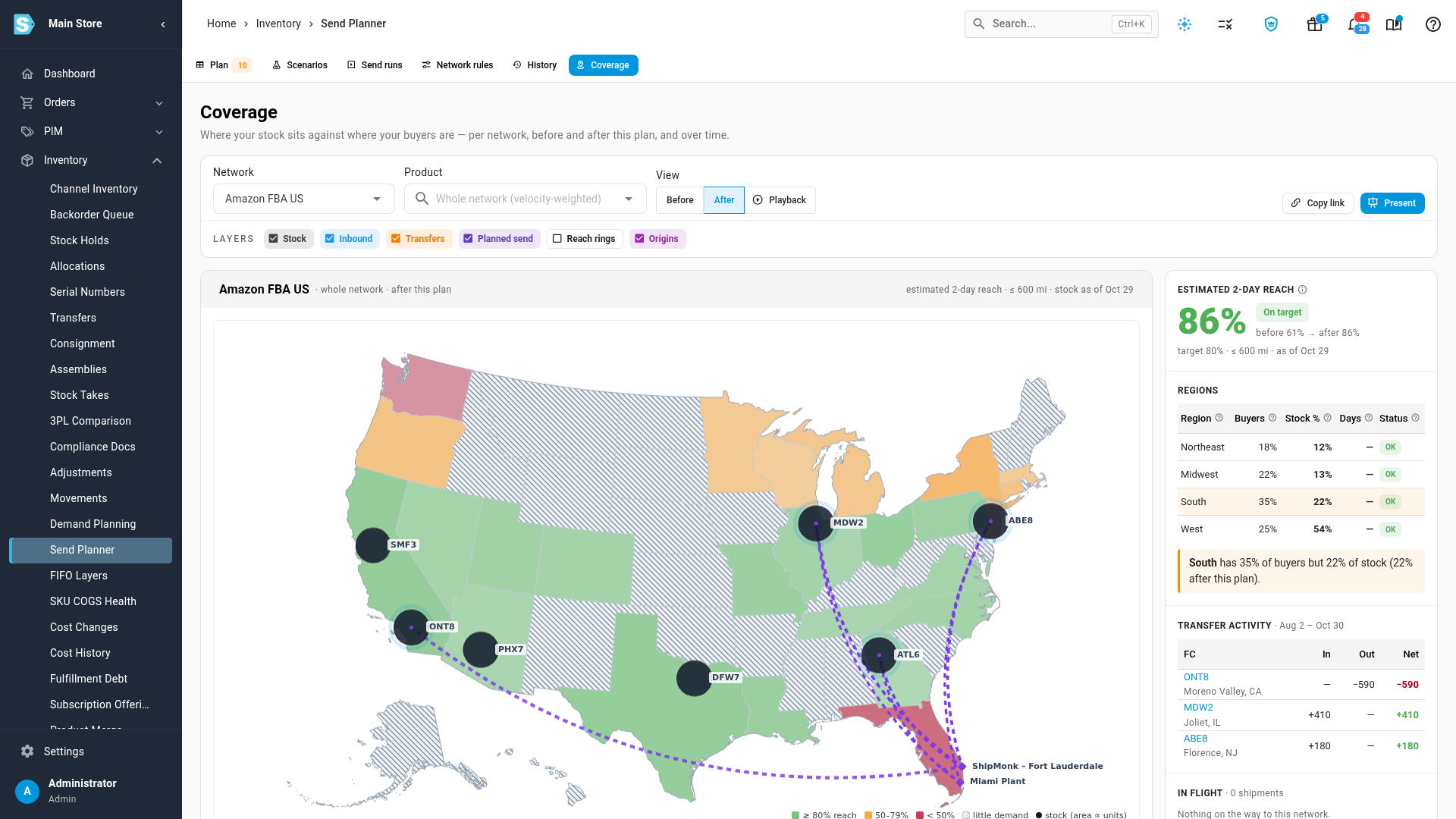
How to read the map
Each state or province is coloured by how many of its buyers are within reach:
| Colour | Meaning |
|---|---|
| Green | 80% or more of the area's buyers are within reach |
| Amber | 50–79% are within reach |
| Red | Under 50% are within reach |
| Hatched | Few or no buyers, so it hardly affects the figure |
Dark circles are fulfillment centers holding the SKU. The bigger the circle, the more units. Diamonds are your own warehouses and 3PLs where sends start. Dotted lines show planned sends and stock moving between fulfillment centers.
Use the Layers chips to show or hide Stock, Inbound, Transfers, Planned send, Reach rings and Origins. Reach rings draws the reach radius around each fulfillment center.
What "2-day reach" means
A buyer counts as within reach when a fulfillment center holding stock is within the reach radius of their postcode: 600 miles by default in the US, about the distance ground parcels cover in two days. The figure is an estimate built from distance. It isn't the marketplace's delivery promise, so the page always says estimated.
- Buyers are the SKU's own buyers from the last 90 days, by shipping postcode. A SKU with few orders is blended with the buyers across your whole store, so a new SKU still gets a sensible figure.
- Before is the stock at each fulfillment center today, as the marketplace last reported it.
- After adds stock already on the way to each fulfillment center, plus this plan's send, placed the way the network has placed this SKU's past shipments. If you've already chosen a placement for the shipment, that placement is used instead. When nothing shows where the network will put a send, for example a SKU's first shipment, After shows —.
Regions and where to send more
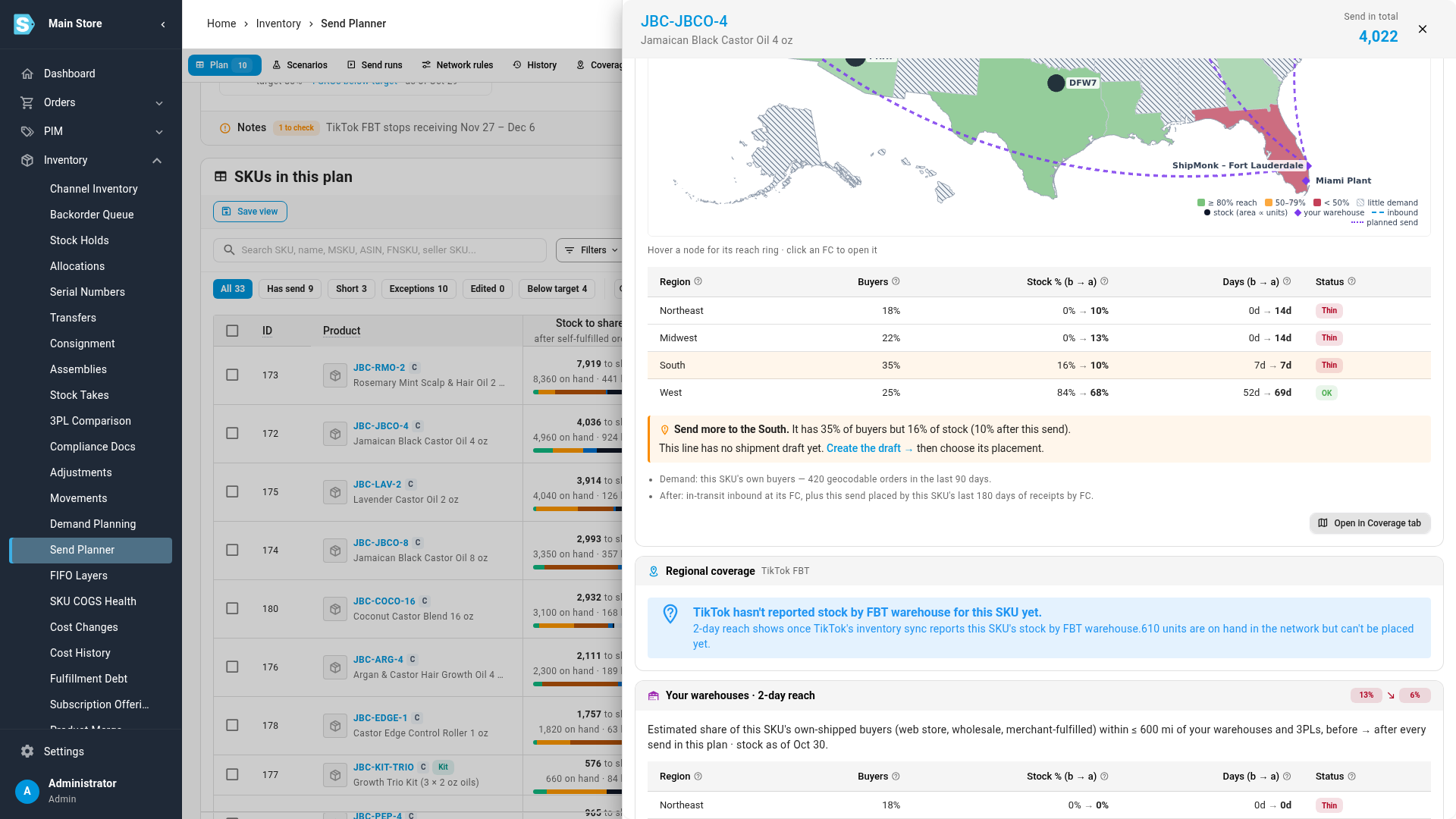
The Regions table compares each region's share of buyers with its share of stock:
| Column | Meaning |
|---|---|
| Buyers | The region's share of the SKU's buyers |
| Stock % | The region's share of the stock, before and after the send |
| Days | How many days of sales that stock covers for the region's buyers |
| Status | Thin: at least 10% of buyers and too few days of cover, or no part of the region within reach. Little demand: under 10% of buyers. OK otherwise |
The note under the table names the region that needs stock most. On a SKU's coverage card on the Plan tab, the same note offers a link to the shipment's placement step, or to create the shipment first.
Play back coverage over time
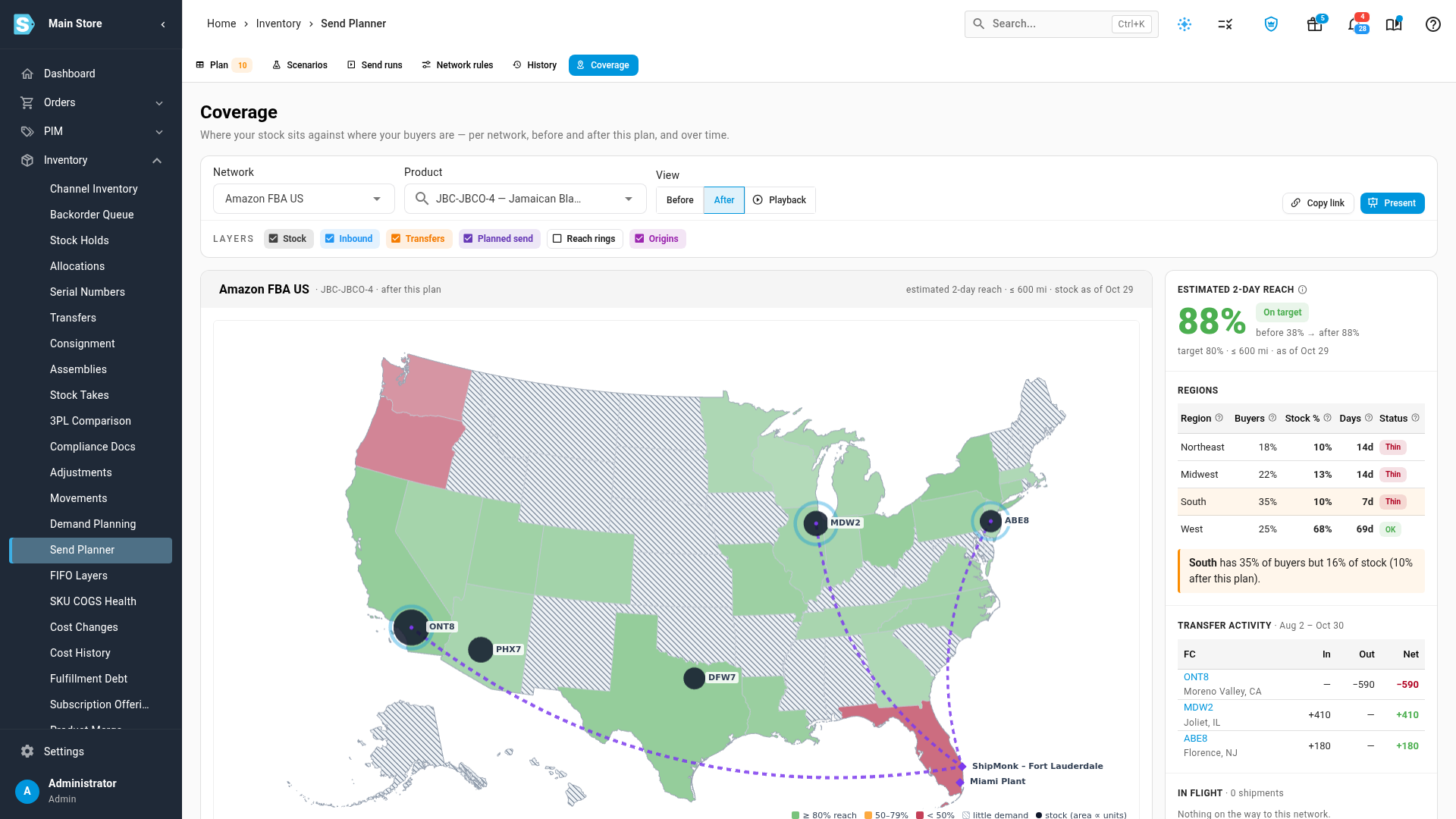
- Under View, click Playback.
- Under Range, choose 7D, 30D, 90D, 12M or Custom. History goes back up to 18 months.
- Click the back-to-start arrow to jump to the first day, then click Play. Use Speed to play faster or slower, or step one day at a time with the arrows.
The map and the big number change day by day as stock arrives, sells down and moves between fulfillment centers. The line under the map tracks reach over the range against a dashed target line. You can also drag along it to jump to a day. Transfer activity lists the stock each fulfillment center sent and received in the range.
Your own warehouses and 3PLs
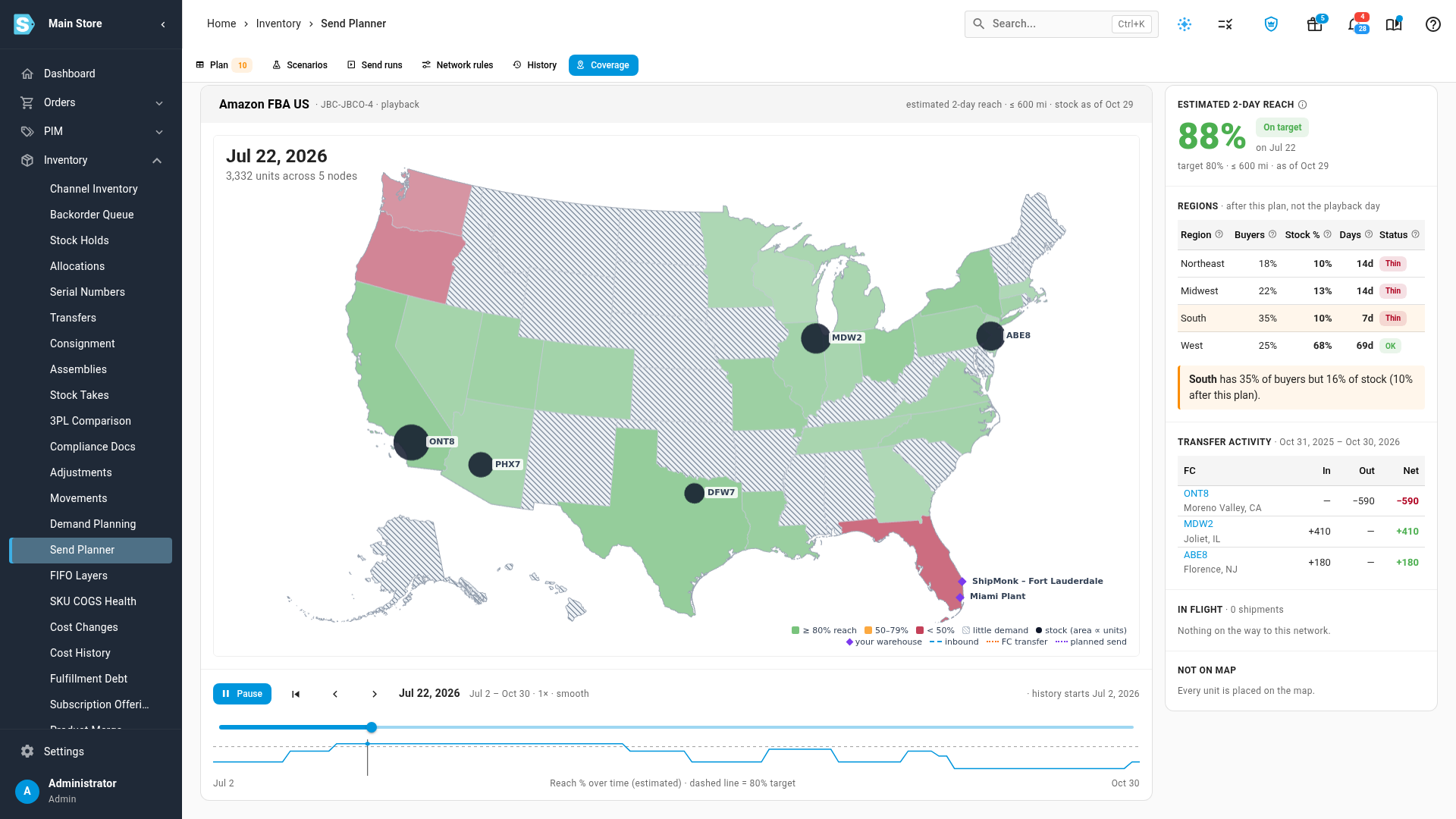
Under Network, choose Your warehouses to measure your own warehouses and 3PLs against the orders you ship yourself: your web store, wholesale and merchant-fulfilled orders.
Sends to the fulfillment networks leave from these warehouses, so this reach can drop after the plan. When a send leaves a region below target, the SKU's Your warehouses card on the Plan tab warns you, and names the warehouse the units leave from. The plan doesn't change on its own; it's for you to decide.
A warehouse without an address can't be placed on the map. It's listed under Not on map with its units and an Add address link.
To see every network's stock on one map, choose All my stock under Network. Each network keeps its own figure. They're never added into one percentage, because an order from one marketplace can't ship from another marketplace's fulfillment center.
Coverage on the Plan tab
You don't need to open the Coverage tab to spot a problem:
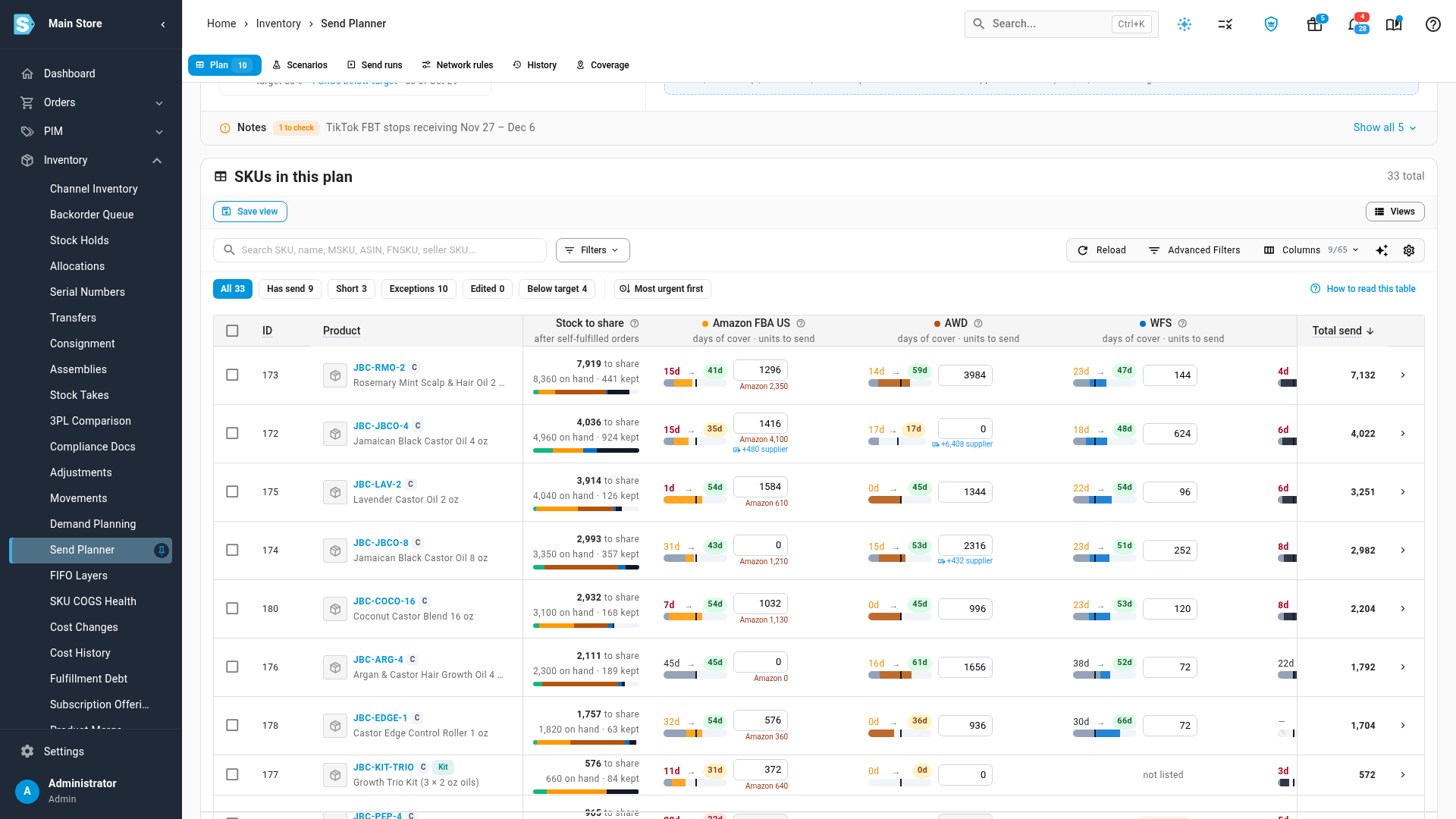
- The 2-day reach tile in the plan summary shows each network's reach before and after the plan, and how many SKUs are below target. Click the count to show those SKUs.
- The Below target quick filter shows the SKUs under target on any network.
- The 2-day reach column shows each SKU's reach before and after, one row per network.
- Open a SKU with the arrow at the end of its row. Its drawer has a coverage card for each network, with the regions table, where to send more, and Open in Coverage tab.
Which networks have coverage
| Network | Coverage |
|---|---|
| Amazon FBA | Yes, from Amazon's daily stock report by fulfillment center |
| TikTok Shop FBT | Yes, once TikTok reports the SKU's stock by FBT warehouse |
| Your warehouses | Yes, from your stock levels and warehouse addresses |
| Walmart WFS | No. Walmart doesn't report stock by fulfillment center |
| Amazon AWD | No. AWD is upstream storage that ships to Amazon's fulfillment centers, not to buyers |
When a marketplace hasn't reported a SKU's stock by fulfillment center yet, the SKU shows a note instead of a figure, never a misleading 0%.
Change the target or the reach radius
Go to the Network rules tab. Each network's card has a Regional coverage section, and so does Planner settings, which covers Your warehouses. In each, you can set:
- Target reach: the share of buyers you want within reach. SKUs below it are flagged. Default 80%.
- 2-day radius: how far counts as within reach. A lower number is stricter. Default 600 miles in the US.
- Minimum units for a node to count: a fulfillment center holding fewer sellable units than this doesn't count for its area. Default 1.
Leave a field empty to use the default. Click Save changes; the next calculation uses the new values. See Set network rules.
Share or present coverage
- Copy link copies a link to exactly what you're looking at: the network, product, view, playback range and speed, and layers.
- Present opens a full-screen view for a meeting, with the history playing automatically. Press Esc to leave it.
Next steps
- Read the send plan: the rest of the Plan tab.
- Change a send quantity: coverage updates when you override a quantity.
- Send stock to FBA with an inbound plan: placement options show the reach each one gives.
- Read FBA stock by state: how much of your Amazon stock is sellable, by fulfillment center.
Video transcript
Regional coverage maps your stock against the location of your buyers. Open the Inventory menu in the sidebar, then choose Send Planner from the list. The Plan tab opens first, so click the Coverage tab at the end of the tab bar. The big number is the estimated share of buyers within two days of your stock. It shows reach after this plan's sends land, with the figure before and the target underneath. On the map, green areas are within reach and red areas are not. To check one SKU instead of the whole network, click Product and start typing its SKU or its name. Then pick it from the list, and the map redraws. Click Before to see reach today, before anything is sent. Red areas have buyers but no stock within two days. Click After to see where this send is expected to land. Here the send lifts reach well above the target. The Regions table compares each region's share of buyers with its share of stock. Thin marks a region with less stock than buyers. The note below names the region that needs more stock. Click Playback to replay the past months day by day. Choose a range above the map, such as twelve months. Below the map, jump back to the first day with the arrow. Then press Play to start the replay. Watch reach fall as stock sells down at the eastern centers. The line under the map tracks reach against the target. To measure your own warehouses and 3PLs, choose Your warehouses under Network. This counts the orders you ship yourself. Sends to the networks drain these warehouses, so reach can drop after the plan. A warehouse without an address can't go on the map. It's listed under Not on map, with a link to add the address. Now click the Plan tab at the start of the tab bar to go back to the plan. The two-day reach tile sums up each network, before and after. Scroll down to the grid, where the Below target filter shows only the SKUs under target. The two-day reach column shows each SKU's reach before and after, network by network. Open a SKU to see its coverage card for each network. Scroll down to its card, which lists every region with its stock before and after the send. When a region is thin, the card names it as the place to send more stock.