Account for TikTok Shop payouts
TikTok Shop settles your sales in daily statements and pays them out to your bank, usually once a week. By default each TikTok Shop order posts to your books as its own invoice, so those invoices never match what reaches your bank. Per Payout accounting posts each payment instead: one sales invoice and one fee bill per payout that add up to the deposit to the cent. TikTok's reserve and negative balance stay in a balance-sheet account, so they never count as revenue or fees. It works like Shopify and eBay payouts and Walmart settlements.
SKU.io reads your payouts from TikTok every day, so there's nothing to type in.
Before you begin
- Connect TikTok Shop.
- Set up the accounts you'll post to under Accounting → Settings → Nominal Codes: sales, sales returns, a fees account, a shipping account, an advertising account if you buy TikTok ads, and a current asset such as "TikTok Shop Clearing" for the reserve and negative balance.
- Choose the date to start from. Payouts dated before it aren't posted, so pick the first deposit your books haven't already recorded.
What a payout is made of
One TikTok payment pays one or more daily statements, and each statement lists its sales, refunds, fees, and adjustments line by line. SKU.io keeps every line and gives each kind of line its own line type, such as Revenue: Subtotal before discount or Fee: Referral fee. You choose the account each line type posts to:
| Line types | Typical account | Document |
|---|---|---|
| Revenue: subtotal, seller discounts and their refunds, and Shipping: Customer paid shipping fee | Sales | TikTok Shop Sales invoice |
| Revenue: Refund subtotal before discount | Sales returns | TikTok Shop Sales invoice |
| Fee: referral, transaction, affiliate commission, campaign and other TikTok fees | Fees | TikTok Shop Fees bill |
| Shipping: TikTok shipping labels, return labels and FBT fees, and Adjustment: Logistics reimbursement | Shipping | TikTok Shop Fees bill |
| Adjustment: GMV payment for TikTok ads | Advertising | TikTok Shop Fees bill |
| Reserve: Collected and Reserve: Released | TikTok Shop Clearing | TikTok Shop Sales invoice |
| Adjustment: Net earnings balance, Net earnings deduction and Bill payment (negative balance) | TikTok Shop Clearing | TikTok Shop Sales invoice |
Sales post in full, even when TikTok held part of the money back. The reserve TikTok keeps is money it still owes you: it goes into your clearing account when TikTok collects it and comes back out when TikTok releases it on a later payout.
When a day's statement ends below zero, TikTok tops it up to zero (Net earnings balance) and takes it back from a later payout (Net earnings deduction or Bill payment). Both sides go to the same clearing account, so they cancel out there and your revenue and fees stay exact.
Map the payout lines
-
Go to Apps & Integrations, open TikTok Shop, and choose your store.
-
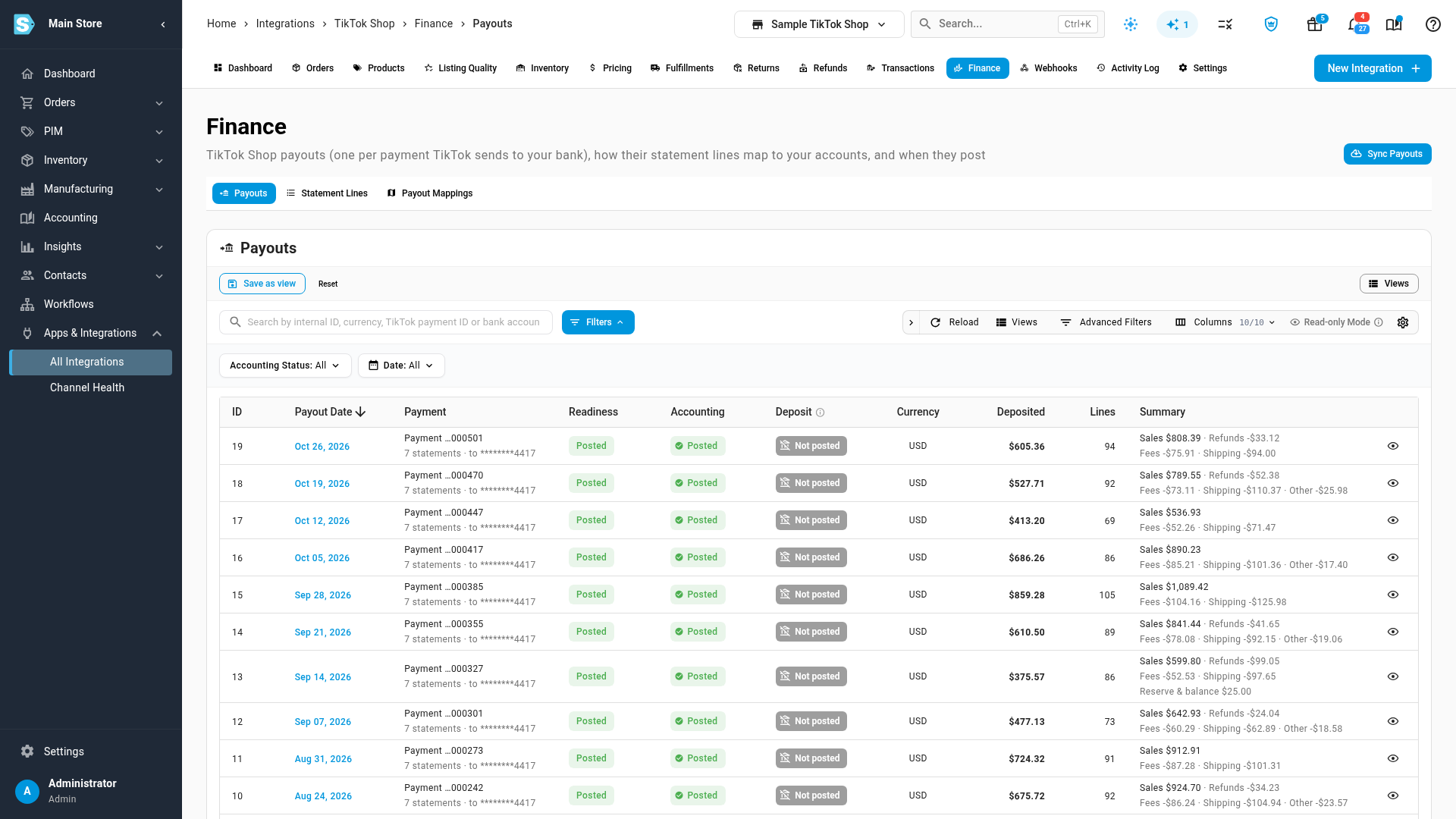
Open the Finance tab. Payouts lists one row per payment: its payout date, its readiness, its Accounting and Deposit status, the amount Deposited, and a summary of its sales, refunds, fees and shipping.
-
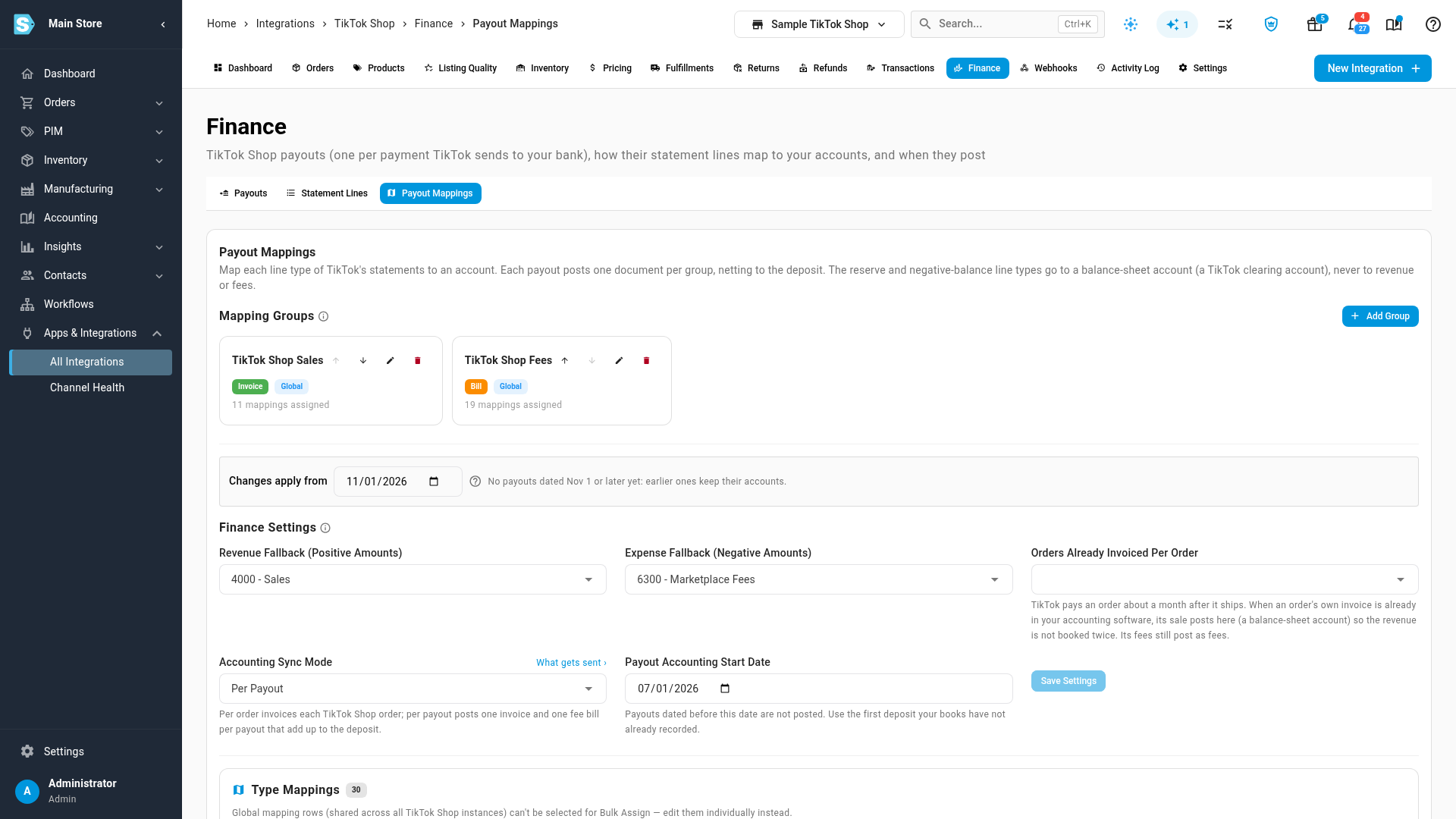
Open Payout Mappings. A new store starts with two Mapping Groups: TikTok Shop Sales, an Invoice, and TikTok Shop Fees, a Bill. Each group becomes one document per payout.
-
Under Type Mappings, give each line type a Nominal Code, following the preceding table. The Mapping Group is already set for every known line type.
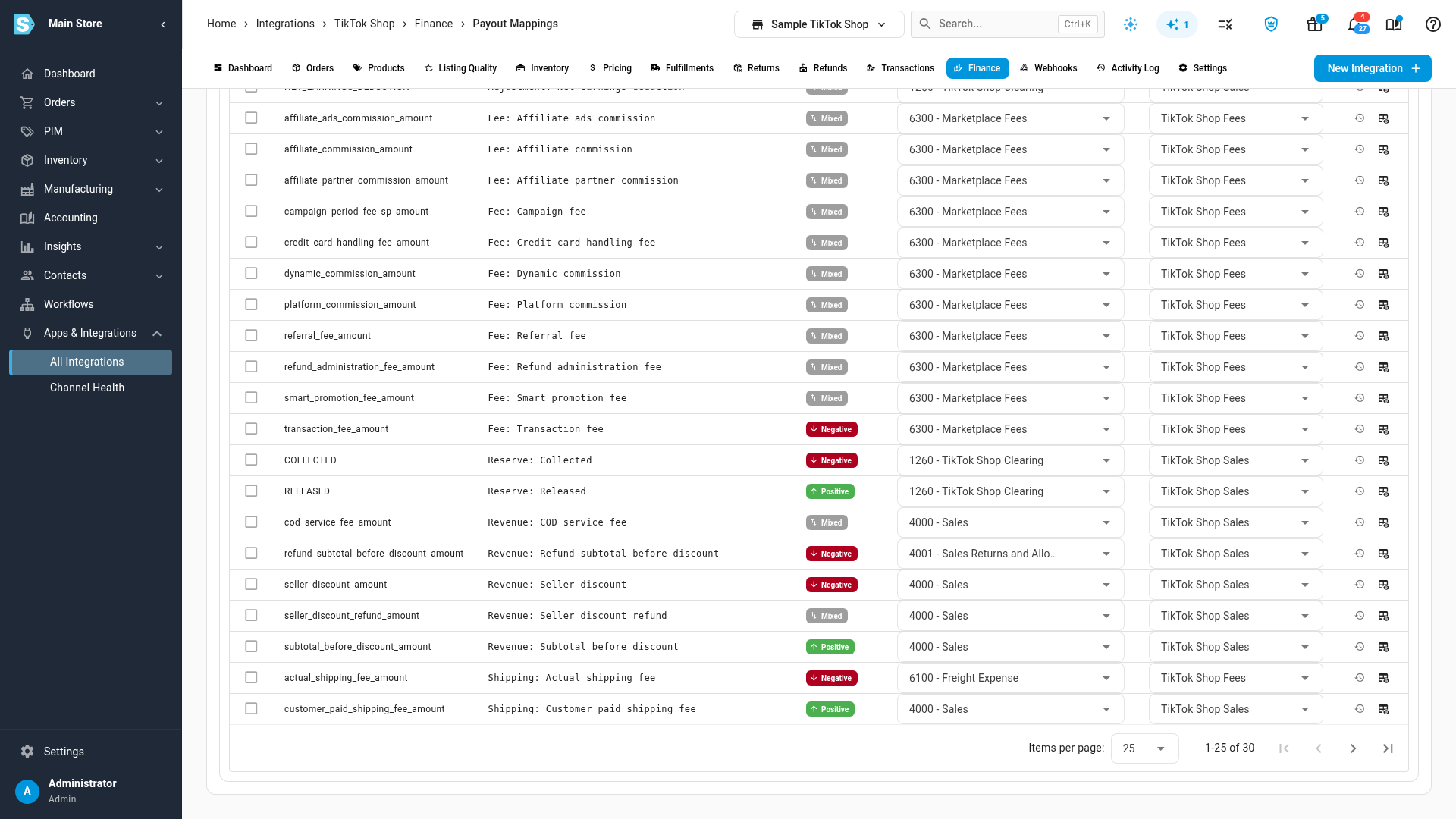
The reserve and negative-balance line types must go to a balance-sheet account, and it must not be Accounts Receivable or Accounts Payable. A payout with one of these lines pointing at a revenue or expense account doesn't post, and these lines never use the fallback accounts.
The Revenue Fallback (Positive Amounts) and Expense Fallback (Negative Amounts) accounts under Finance Settings catch any other line you haven't mapped, so a new kind of TikTok line never holds a payout up.
Changes apply from
Every mapping and fallback change applies to payouts dated on or after the date in Changes apply from, at the top of Finance Settings. Payouts dated earlier keep the accounts they posted with, so moving to a finer chart of accounts never rewrites months you've already closed. The date starts at today. Set an earlier one to rebuild payouts already posted; payouts in a locked period are never rebuilt. Each row's history icon shows its earlier accounts and the dates they applied.
Switch the store to per-payout accounting
-
In Finance Settings, set Payout Accounting Start Date.
-
Change Accounting Sync Mode from Per Order to Per Payout.
-
Click Save Settings, read the warning, and confirm.
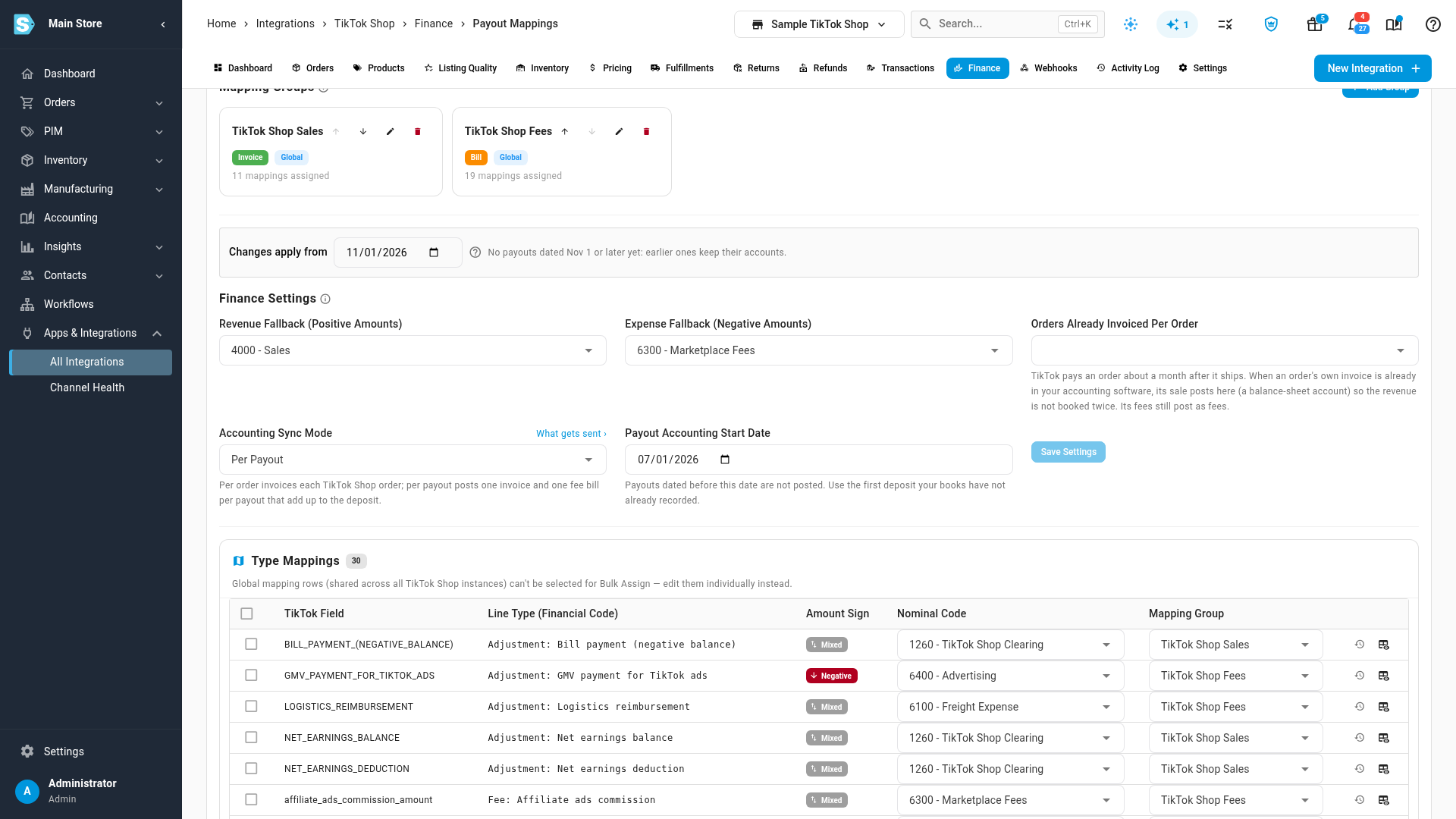
From then on, the store's order invoices and credits stop syncing to your accounting provider, because each payout already carries that revenue. Orders still post inside SKU.io.
Orders you already invoiced per order
TikTok pays an order about a month after it ships. So the first payouts after you switch can pay orders whose own invoice already reached your accounting provider. Set Orders Already Invoiced Per Order to a balance-sheet account, and those orders' sales post there instead of to sales, so their revenue isn't booked twice. Their fees still post as fees. A payout that pays such an order is held until this account is set.
SKU.io doesn't void order invoices that were already sent to your accounting provider. Payouts dated before the start date never post. If you've been coding TikTok deposits by hand, stop from the start date and match each deposit to its payout's documents instead.
Check each payout posts
Each payout's Accounting status shows where it stands:
| Status | What it means |
|---|---|
| Pending | The store isn't in Per Payout mode yet, or the payout is dated before your start date |
| Posted | Its sales invoice and fee bill are in your ledger |
| Held | Something blocks it. Hover the Readiness chip, or open the payout, to see what |
Open a payout to see its Summary (sales, refunds, TikTok fees, shipping, ads and other adjustments,, and the reserve and negative balance, ending in the deposit), every readiness check, the Ledger entries it posted, and its statement lines.
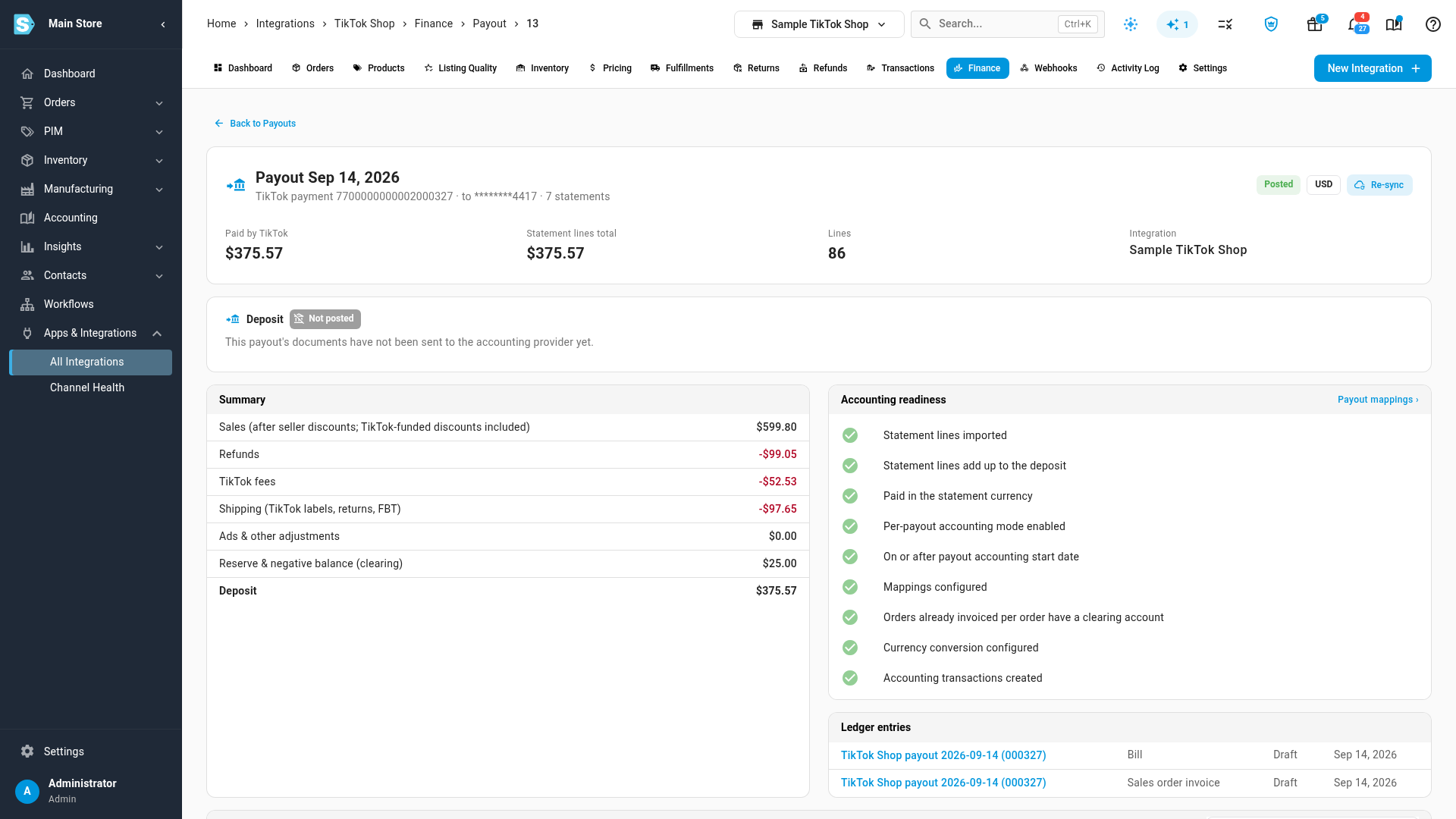
The checks a payout must pass:
| Check | Passes when |
|---|---|
| Statement lines imported | TikTok's statement lines for the payment are in SKU.io |
| Statement lines add up to the deposit | The lines add up exactly to the amount TikTok paid |
| Paid in the statement currency | TikTok paid in the same currency as the statements |
| Per-payout accounting mode enabled | The store is in Per Payout mode |
| On or after payout accounting start date | The payout date is on or after your start date |
| Mappings configured | Every line has an account, or a fallback covers it (never for the reserve and negative-balance lines) |
| Orders already invoiced per order have a clearing account | Every order the payout pays that was already invoiced per order has somewhere to post |
| Currency conversion configured | A payout in another currency has an exchange rate |
Sync Payouts, on the Finance tab, brings in any payment TikTok has made since the last sync. To read one payout again, open it and click Re-sync.
Match the payout to your bank
Once your accounting provider has the invoice and the fee bill, the payout's Deposit status shows whether they're paid and reconciled to the bank. A payout that nets to zero (a negative day that TikTok topped up) still posts its lines, and its deposit status reads Nothing to deposit.
Next steps
- Account for Walmart settlements: the same idea for Walmart.
- Account for Shopify and eBay payouts: the same idea for Shopify Payments and eBay.
- Account for Temu payouts: the same idea for Temu.
Video transcript
TikTok Shop pays you about once a week, and each bank deposit is one payout. On your store's page, choose the Finance tab, just after Transactions. Each row is one payment, with the amount deposited in your bank and its accounting status. Sync Payouts brings in anything paid since the last sync. Next, open the Payout Mappings tab. Each mapping group becomes one document per deposit. TikTok Shop Sales is an invoice for what you earned, and TikTok Shop Fees is a bill for what TikTok keeps. Under Type Mappings, give each kind of line an account. Sales post to your sales account, and TikTok's fees to an expense. Reserve and negative-balance lines belong in a balance-sheet clearing account. Then, under Finance Settings, set the Payout Accounting Start Date to the first deposit your books haven't recorded. Choose Per Payout as the Accounting Sync Mode, and then click Save Settings to apply the change. From then on, each one posts an invoice and a fee bill that add up to the deposit. Back on Payouts, the Accounting column shows where each one stands. Posted means its invoice and bill are in your ledger. Click Payout Date to put the oldest payouts first. Anything older than your start date stays Pending, and never reaches your books. To see what's behind a status, open a payout. Accounting readiness lists every check it has to pass. The summary breaks the deposit into sales, refunds, TikTok's fees and shipping. Ledger entries lists the invoice and the bill it posted.