Process legacy FBA shipments
Amazon retired its old inbound shipment workflow on March 20, 2024. Shipments created before then, and cross-border shipments Amazon's new workflow still doesn't list, live on Legacy Shipments. Everything you send to FBA today goes through an inbound plan instead, see Send stock to FBA with an inbound plan. You still use this page to finish recording older shipments, to look up what one contained, and to bring in a cross-border shipment by its ID.
Processing a shipment records it in SKU.io, so its units leave your stock on the right date and at the right cost:
- When the shipment's Ship From is mapped to one of your warehouses, SKU.io creates a warehouse transfer from that warehouse into your FBA stock location for the country, named after the shipment ID.
- When it's mapped to a supplier that shipped straight to Amazon, SKU.io creates a purchase order from that supplier, delivered to FBA.
Units then arrive in your FBA stock as Amazon reports receiving them.
Before you begin
- FBA tracking is on. See Turn on FBA inventory tracking.
- Each place your shipments came from is mapped under FBA Settings → Ship From Mappings.
- The products on the shipments are mapped to your Amazon listings or FNSKUs. See Map FNSKUs to products.
- You need permission to sync integrations to download or process shipments, and to change integrations to mark or delete them.
Open Legacy Shipments
- Go to Apps & Integrations, open your Amazon channel, and click FBA at the top of the page.
- Open FBA Inbound, then the Legacy Shipments tab.
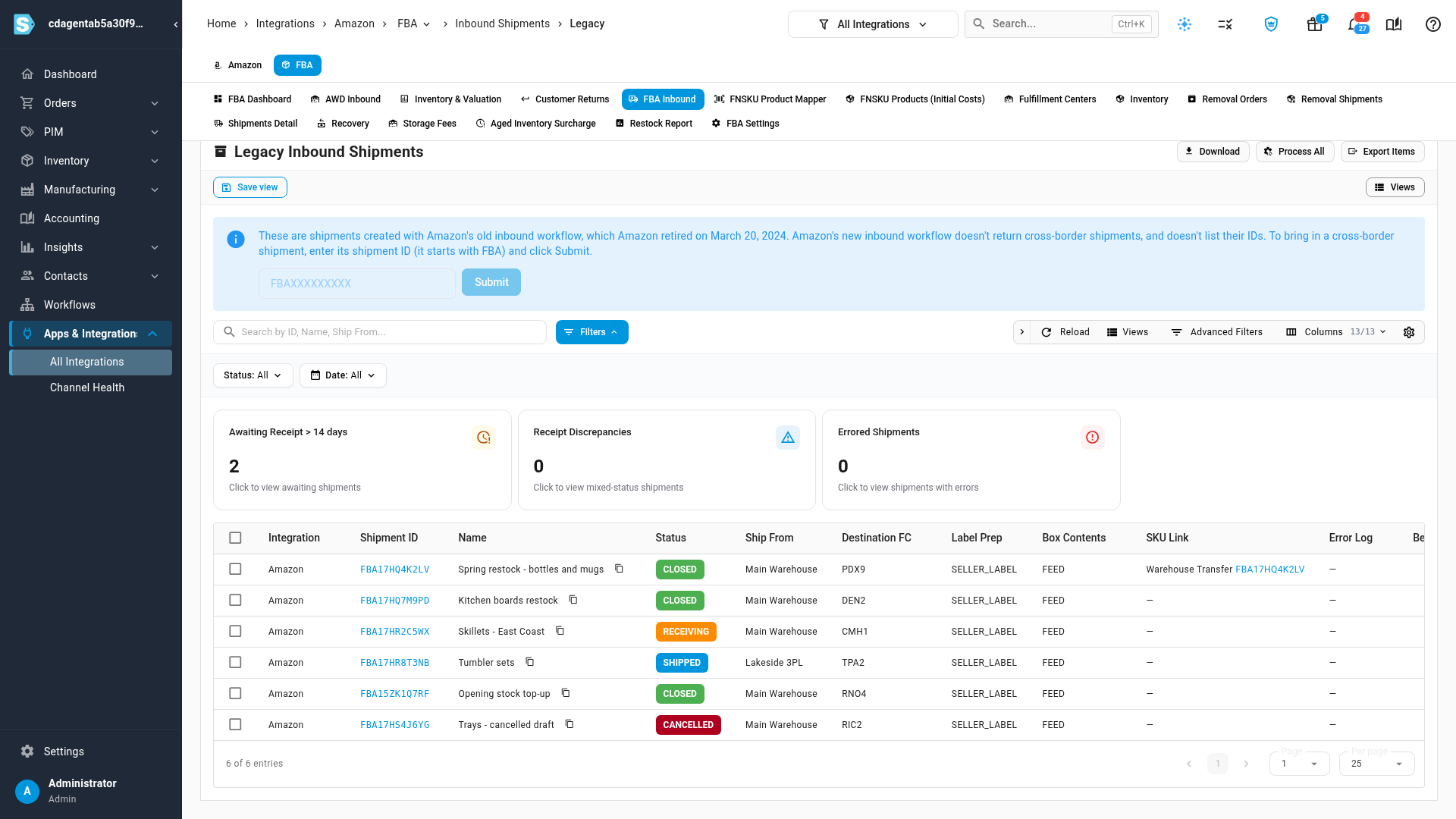
The cards count shipments Awaiting Receipt > 14 days, shipments with Receipt Discrepancies, and Errored Shipments. Click one to filter the list to those shipments.
Each row shows the Shipment ID and Name, Amazon's Status, the Ship From name, the Destination FC, the SKU Link to the warehouse transfer or purchase order it created, the Error Log from its last processing attempt, and whether it's marked Before Initial Count. Click a shipment ID to see its items, its ledger entries and its activity.
Process shipments
- Tick the shipments.
- Click Process in the bar above the table.
The SKU Link of each processed shipment shows its new warehouse transfer or purchase order. You can also right-click a row and choose Process.
To process every waiting shipment at once, click Process All at the top. It runs in the background (follow it in the job tray) and follows your FBA Settings → Inbound switches: it creates warehouse transfers only when Automatically create warehouse transfers from FBA inbound shipments is on, and purchase orders only when Automatically create purchase orders from FBA inbound shipments is on. With those switches on, SKU.io also processes new shipments on its own schedule.
When a shipment can't process
Processing stops on a shipment and its Error Log says why. The usual causes:
| Error Log says | What to do |
|---|---|
| Ship from "…" isn't mapped to a warehouse or supplier | Click Ship From Mappings at the top of the page, map the name to a warehouse or supplier, then process the shipment again. |
| A SKU needs to be mapped before creating this warehouse transfer | Map the product to its Amazon listing or FNSKU, then process again. |
| The shipment status isn't eligible | Amazon cancelled or deleted the shipment, so there's nothing to record. Leave it, or delete it. |
Keep pre-tracking shipments out
A shipment Amazon received before your FBA tracking start date is already part of the opening stock you gave SKU.io. Processing it would count those units twice.
- Tick the shipments.
- Click Mark Sent Before Count.
Their Before Initial Count column shows a tick, and SKU.io never processes them: scheduled processing and Process All skip them, and Process on a marked shipment stops with a note in its Error Log. To undo the mark, tick the shipment and click Unmark Sent Before Count.
Undo or remove a shipment
- Unprocess deletes the warehouse transfer or purchase order processing created, so you can process the shipment again. A purchase order that already has an invoice can't be unprocessed: delete the invoice first.
- Delete removes the shipment from SKU.io only; it changes nothing at Amazon, and Download can bring an active shipment back. A shipment that's linked to a warehouse transfer or purchase order is skipped: click Unprocess first.
Both are in the bar above the table when shipments are ticked, and in a row's right-click menu.
Download, export and cross-border shipments
- Download fetches your legacy shipments and their latest status from Amazon, in the background.
- Export Items downloads a spreadsheet of the items on the listed shipments.
- Amazon's new workflow doesn't list cross-border shipments. To bring one in, enter its shipment ID (it starts with FBA) in the box on the blue notice, choose the Amazon account if you have more than one, and click Submit. If Amazon's old workflow doesn't know the ID, it's a newer shipment: find it under Shipments instead.
Next steps
- Send stock to FBA with an inbound plan: how shipments are created today.
- Reconcile what Amazon received: compare what you sent with what Amazon counted.
- Turn on FBA inventory tracking: the tracking start date and the inbound switches.
Video transcript
Shipments you created in Amazon's old inbound workflow, which has since been retired, have a page of their own. To find them, click FBA, at the top of the channel's pages. Then click FBA Inbound, in the row of tabs below. There, open Legacy Shipments, the last tab in that row. The cards count shipments still awaiting receipt after fourteen days, receipt discrepancies, and errors. Each row shows the shipment's Status, where it shipped from, and its SKU Link. A processed shipment links to the warehouse transfer that moved its stock into FBA. Processing records the shipment in SKU.io, as stock moving from your warehouse into FBA. Tick a shipment's row, and then click Process, in the bar that appears above the table. Its SKU Link now shows the new warehouse transfer. SKU.io needs to know where each shipment came from. If its ship-from isn't mapped to one of your warehouses or suppliers, processing stops, and Error Log says so. Map it with Ship From Mappings, at the top of the page, then process the shipment again. A shipment Amazon received before your FBA tracking start date is already in your opening stock. Processing it would count those units twice. So tick its row, and then click Mark Sent Before Count, in the bar above the table. From then on, processing always skips that shipment. At the top, Download fetches your legacy shipments and their latest status from Amazon. Process All processes every waiting shipment, following your FBA inbound settings. Export Items downloads the items on the listed shipments. The newer workflow doesn't list cross-border shipments. To bring one in, type its shipment ID in this box, and then click Submit.