Set opening stock from Shopify
If you connected a Shopify store and brought in its order history, but never loaded an opening count, SKU.io has only the sales. Every sale took stock out of a warehouse that never had any put in, so on hand reads below zero across the catalog, and stock, weeks of supply and sell-through reports are wrong.
Opening stock from Shopify works out the opening count each product needs on your inventory start date:
Opening count = what Shopify has on hand now − SKU.io's net movement in the warehouse since the start date
SKU.io's net movement is mostly sales out, so in practice that's what Shopify has on hand now, plus what SKU.io has shipped since, minus returns. For example, Shopify holds 76, and SKU.io has shipped 48 and taken back 2 returns since the start date: the opening count is 76 + 48 − 2 = 122. Once it's applied, SKU.io's on hand matches Shopify's today, and every sale since the start date draws on stock that was there.
The preview only reads. Nothing changes until you apply it.
Before you begin
- Set your inventory start date. The opening count is dated to it, and the preview won't run without it.
- Map the store's locations to warehouses. Only locations linked to a warehouse count. See Map Shopify locations to warehouses.
- Link the store's listings to your products. See Link a channel listing to a product.
- If you want the opening valued at your own costs, fill Default Cost from Shopify first, or set it on your products.
- You need the Integrations Sync permission (
integrations.sync) to preview, and the Count inventory permission (inventory.count) to apply.
Preview the opening count
-
Go to Apps & Integrations, open Shopify, pick your store from the selector at the top, and open Inventory.
-
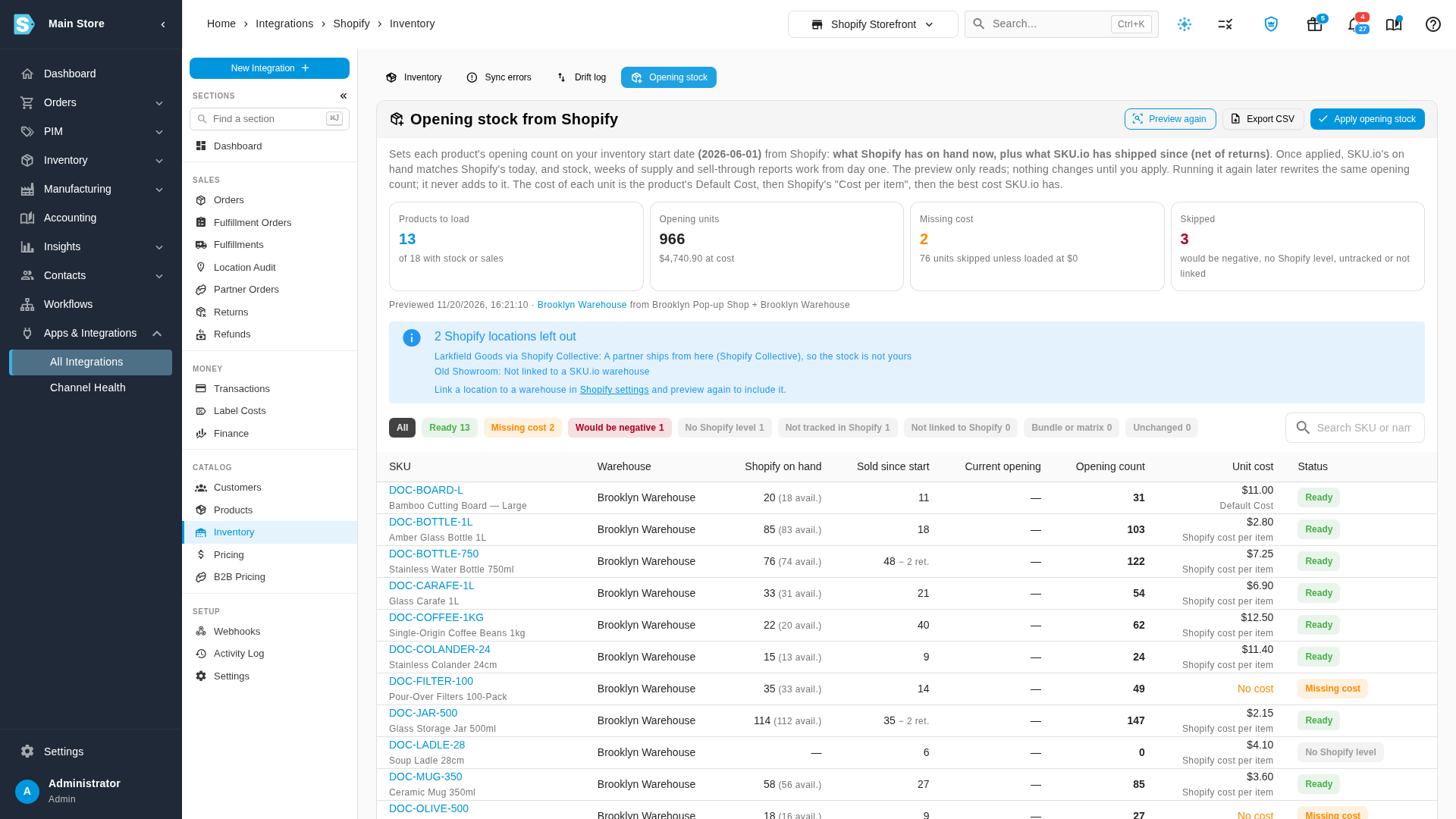
Click Opening stock, the last of the buttons above the page (Inventory, Sync errors, Drift log, Opening stock).
-
Click Preview opening stock. SKU.io reads every linked variant from Shopify, which takes a few minutes for a large store. Follow it in the job tray, where it shows as Opening Stock Preview and your store's name. The page fills in when it's done.
Review it
The cards total what applying would write:
| Card | What it shows |
|---|---|
| Products to load | Products with a count ready to write, out of every product with stock or sales. |
| Opening units | The units to load, and their value at cost. |
| Missing cost | Products with no cost anywhere. They're skipped unless you choose to load them at $0. |
| Skipped | Products that won't load: Would be negative, No Shopify level, Not tracked in Shopify or Not linked to Shopify. |
Under the cards, a line names each warehouse and the Shopify locations that feed it. When several locations are linked to one warehouse, their quantities are added up.
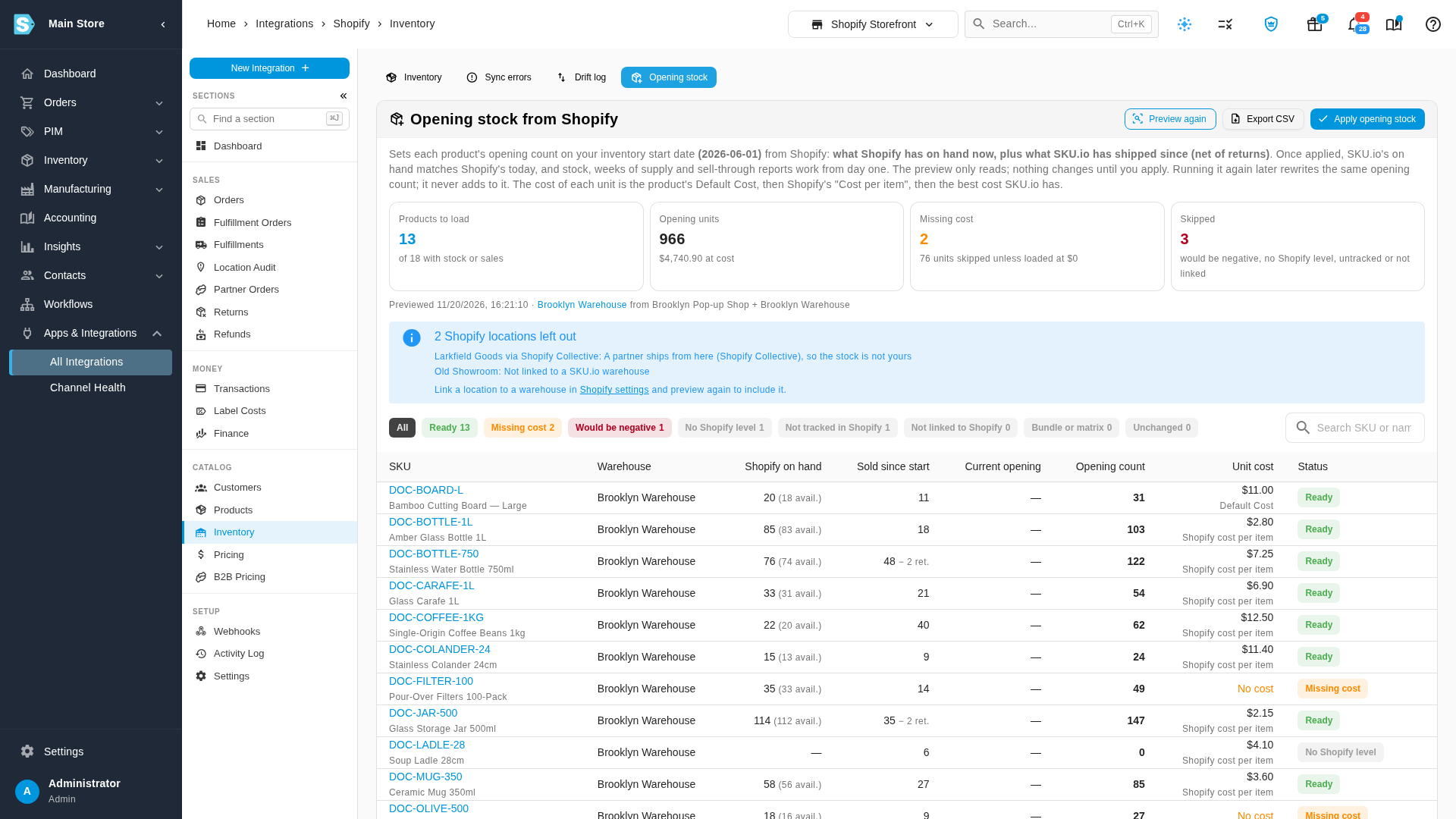
A blue box lists the Shopify locations that are left out, and why:
- Not linked to a SKU.io warehouse. Link it in the store's settings and preview again to include it.
- A partner ships from here (Shopify Collective), so the stock is not yours. Partner stock never counts towards your opening.
- Its SKU.io warehouse no longer exists, or is archived.
Each row is one product in one warehouse:
| Column | What it shows |
|---|---|
| SKU | The product, with its name. Click it to open the product. |
| Warehouse | The warehouse the count is for. |
| Shopify on hand | What Shopify has on hand at that warehouse's locations, with what's available in brackets when it differs. |
| Sold since start | Units SKU.io has shipped from the warehouse, then the returns (ret.) and any other movements (other), such as adjustments. |
| Current opening | The opening count the warehouse already has for the product, or a dash. |
| Opening count | The count that applying writes. Red when it's below zero. |
| Unit cost | The cost each unit is loaded at, and where it came from. |
| Status | What happens to the row, below. |
Unit cost comes from the first of these that has a cost:
- current opening: the cost on the opening count the warehouse already has.
- Default Cost: the product's own Default Cost.
- Shopify cost per item: the variant's Cost per item in Shopify.
- best available: the best cost SKU.io has for the product, such as a purchase cost.
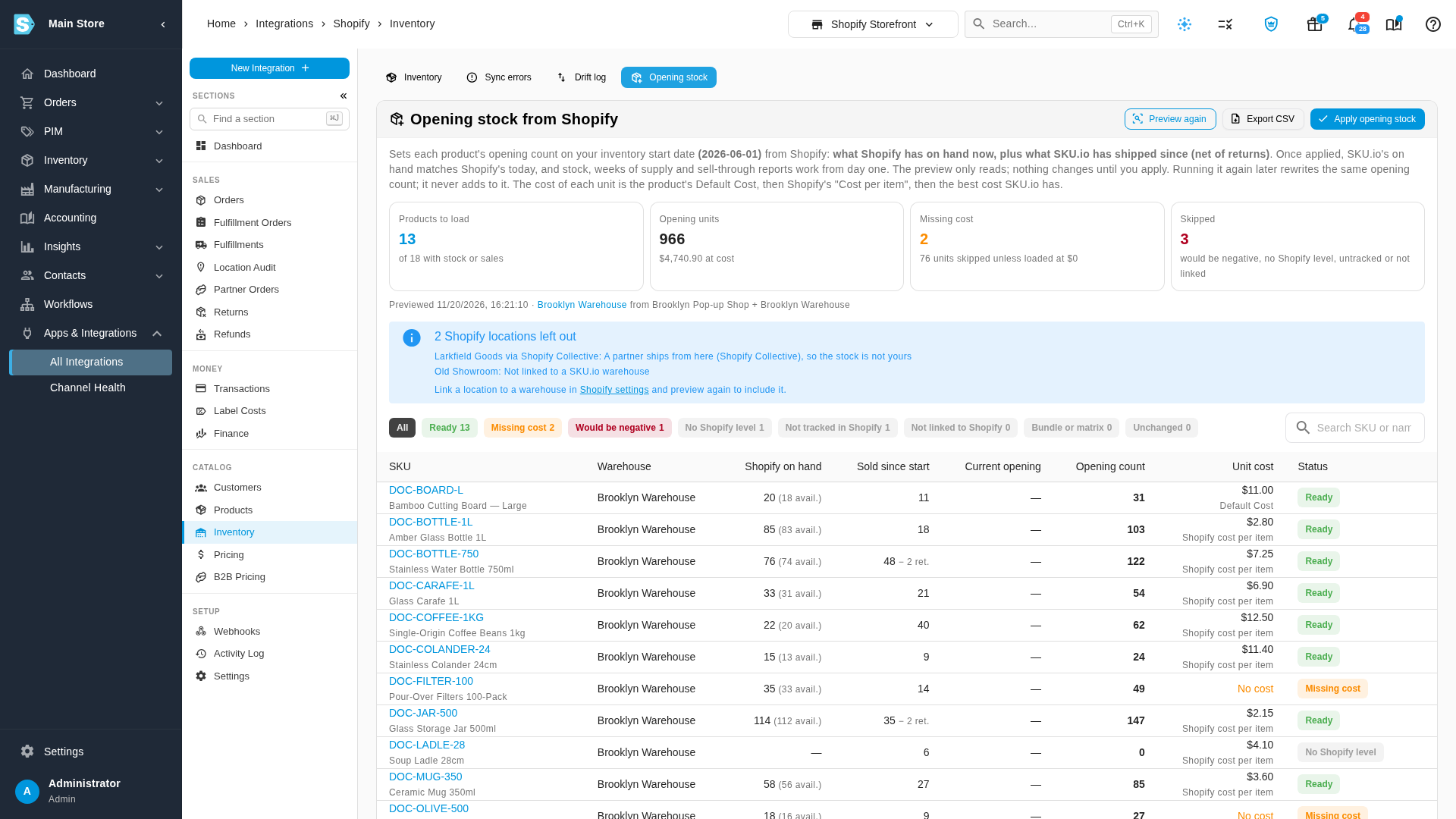
Click a status chip above the table to show only those rows, or search by SKU or name:
| Status | What it means |
|---|---|
| Ready | The count is written with this quantity and cost. |
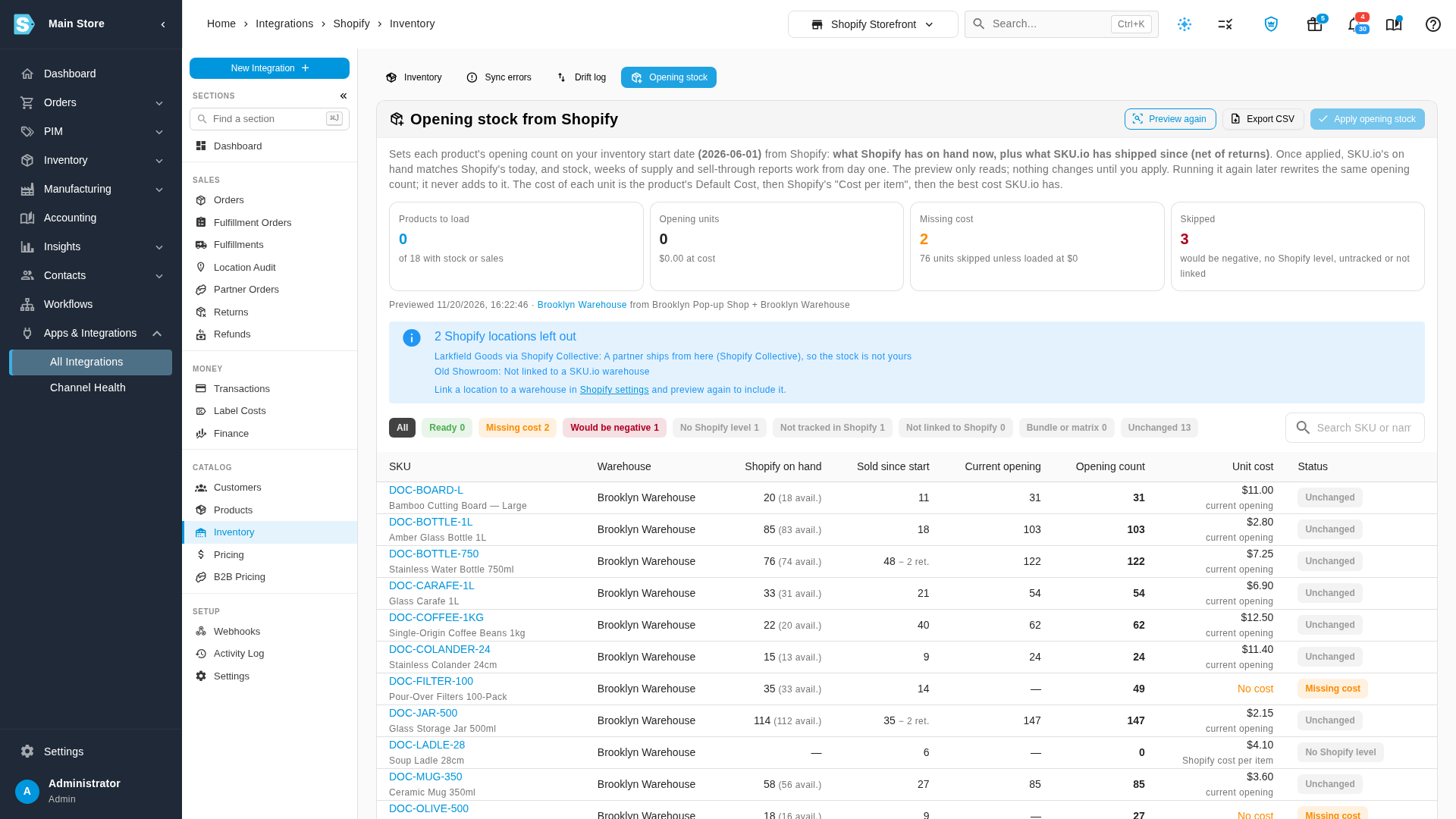
| Unchanged | The opening count already holds this quantity. Nothing to write. |
| Missing cost | There's no cost anywhere. Skipped, unless you load it at $0 when you apply. |
| Would be negative | SKU.io already holds more in the warehouse than Shopify has, for example from a receipt or an adjustment, so the opening would be below zero. Skipped. Check the product's movements and count it. |
| No Shopify level | Shopify has no stock record for the variant at the warehouse's locations. Skipped. |
| Not tracked in Shopify | Shopify doesn't track inventory for the variant, so its quantity means nothing. Skipped. |
| Not linked to Shopify | Stock moved in SKU.io for a product no Shopify variant is linked to. Skipped. |
| Bundle or matrix | A bundle or matrix parent holds no stock of its own. Skipped. |
Export the preview
Click Export CSV to download every row. The file has one row per product per warehouse:
| Column | What it holds |
|---|---|
warehouse | The warehouse name. |
sku, name | The SKU.io product. |
shopify_sku | The SKU of the Shopify variant or variants linked to it. |
status | The row's status, as on screen, such as Ready or Missing cost. |
shopify_on_hand, shopify_available | Shopify's quantities at the warehouse's locations. |
units_sold, units_returned, other_movements | SKU.io's movements in the warehouse, the opening count left out. |
sku_on_hand_without_opening | What SKU.io would hold with no opening count at all. |
current_opening | The opening count the warehouse has now. |
opening_quantity | The opening count the preview works out. |
quantity_to_load | The quantity applying would write: the opening count, or 0 when it's below zero. Only rows with a Ready status are written (and Missing cost rows, if you load them at $0). |
unit_cost, cost_source | The cost and where it came from: opening_count, default_cost, shopify_cost_per_item, or best_available: followed by where that cost came from, such as best_available:purchase_order_line. |
The file is for review only. You can't upload it back: to change a count by hand, edit the warehouse's opening count after you apply. See Load a warehouse's opening stock.
Apply it
- Click Apply opening stock. The Apply opening stock? dialog sums up what it writes: the number of products and units, and the date, your inventory start date.
- If some products have no cost, tick Also load the N products with no cost (… units) at $0 to load them too, and fix their cost on the opening count afterwards. Leave it unticked to skip them.
- Click Apply. The count is written in the background, as Apply Opening Stock in the job tray. A large store takes a few minutes.
When it's done, the page shows Applied with the date and time.
What applying writes
- Each warehouse gets its initial count, the same opening count you'd load by hand, dated to your inventory start date. If the warehouse already has one, the products are updated on it.
- Every unit is stocked at its unit cost, as the oldest stock in the warehouse.
- Units shipped before there was any stock are repaid from the opening, so their cost of goods is worked out again at the opening cost.
- SKU.io's on hand now matches Shopify's on hand for every product that loaded.
If your approval rules need an approval for opening stock changes once stock has moved in the warehouse, only an approver can apply. If your opening stock is locked after go-live, the preview and the apply are refused until it's unlocked.
Run it again
Running it again is safe. The opening count is left out of the formula, so a second run works out the same count and rewrites it in place. It never adds to it. A product shows Unchanged when nothing moved, and an apply of the same preview twice writes nothing the second time.
Run it again when Shopify's stock was off, for example after a recount in Shopify. Click Preview again first: applying an old preview uses old Shopify quantities.
Products that are negative in Shopify
If Shopify lets a product oversell, its Shopify on hand is below zero. The opening count can still be above zero, because the sales are added back. But after you apply, SKU.io matches Shopify exactly, so the product stays below zero in SKU.io too.
This tool can't fix those. Count the products, then either correct the stock in Shopify and preview again, or record the count in SKU.io with a stock take.
How it affects your books
The opening count is dated to your inventory start date, so it changes the past:
- Every sale since that date now uses stock at the opening cost, so the cost of goods for those sales is restated. Until now it was worked out without stock behind it.
- The opening stock's value at cost, shown on the Opening units card, becomes your opening inventory value on that date.
If your accounting system is connected and already holds entries for those months, those entries change too. Check with whoever closes your books before you apply. To stop anyone changing the opening counts once your books are live, lock opening stock after go-live.
If something goes wrong
- Shopify did not return inventory levels: Shopify didn't answer for some variants. Click Preview again.
- The Apply opening stock button is greyed out while a preview or an apply is running, or when there's nothing to load.
- If an apply is stopped partway, the warehouse's opening count stays locked for up to a few hours, the same as during a CSV opening stock import, and a second apply is refused until then.
Related
- Load a warehouse's opening stock: enter or upload opening counts yourself.
- Set your inventory start date
- Check Shopify stock on the Inventory tab
- Fill Default Cost from Shopify
Video transcript
If you connected Shopify with your order history but never loaded an opening count, SKU.io's stock runs below zero. Opening stock from Shopify works out the missing opening count. In your Shopify store, open the Inventory page. Then click the Opening stock tab, at the end of the row of views. Click Preview opening stock. The preview runs in the background, and a large store takes a few minutes. It reads what Shopify has on hand now, at every location linked to a warehouse. Then it adds back what SKU.io has shipped since your inventory start date, net of returns. Nothing changes until you apply the count. The cards total the products and units to load, and their value at cost. Below them are the warehouse and the Shopify locations that feed that warehouse. Partner locations, such as Shopify Collective, are left out, because that stock isn't yours. Each unit's cost comes from Default Cost first, then Shopify cost per item, then the best cost SKU.io has. Use the status chips to check the rows that won't load. Would be negative means SKU.io already holds more than Shopify has. Check that product's movements, and count it by hand. Next, click Missing cost. These products have no cost anywhere. They are skipped, unless you choose to load them at zero when you apply. To work through the list in a spreadsheet, use Export CSV. When it looks right, click Apply opening stock. The dialog sums up what will be written, dated to your inventory start date. Tick the box to load the products with no cost at zero, or leave them out. Click Apply, and the count is written in the background. You can leave the page while it runs, because the job tray shows its progress. A large store takes a few minutes, and the page shows Applied when the count is done. Your stock in SKU.io now matches Shopify's on hand. To check the result, click Preview again. It reads Shopify once more, which takes a moment. Running it again rewrites the same count, and never adds more stock. So every product that loaded now shows Unchanged.