Require approval for stock takes and adjustments
A count that writes off a few dollars of stock can go straight to the books. A count that writes off hundreds should be checked by someone other than the person who counted, and it should say why the stock is missing. The Stock takes & adjustments approval policy does both: above an amount you choose, a person's count or manual write-off waits for an approver before it posts. A separate setting makes every large variance carry a reason, and the Count Variance by Reason report shows which products keep coming up short.
Everything here is off until you turn it on.
Before you begin
| Requirement | Why it's needed |
|---|---|
The Approval Policies Edit rules permission (approval_policies.manage) | To turn the policy on and choose its approvers. |
The Count inventory permission (inventory.count) | To request approval for a count and to finalize it. |
| At least one other person who can approve | With Self-approval set to Never, nobody approves their own count. |
Turn on the policy
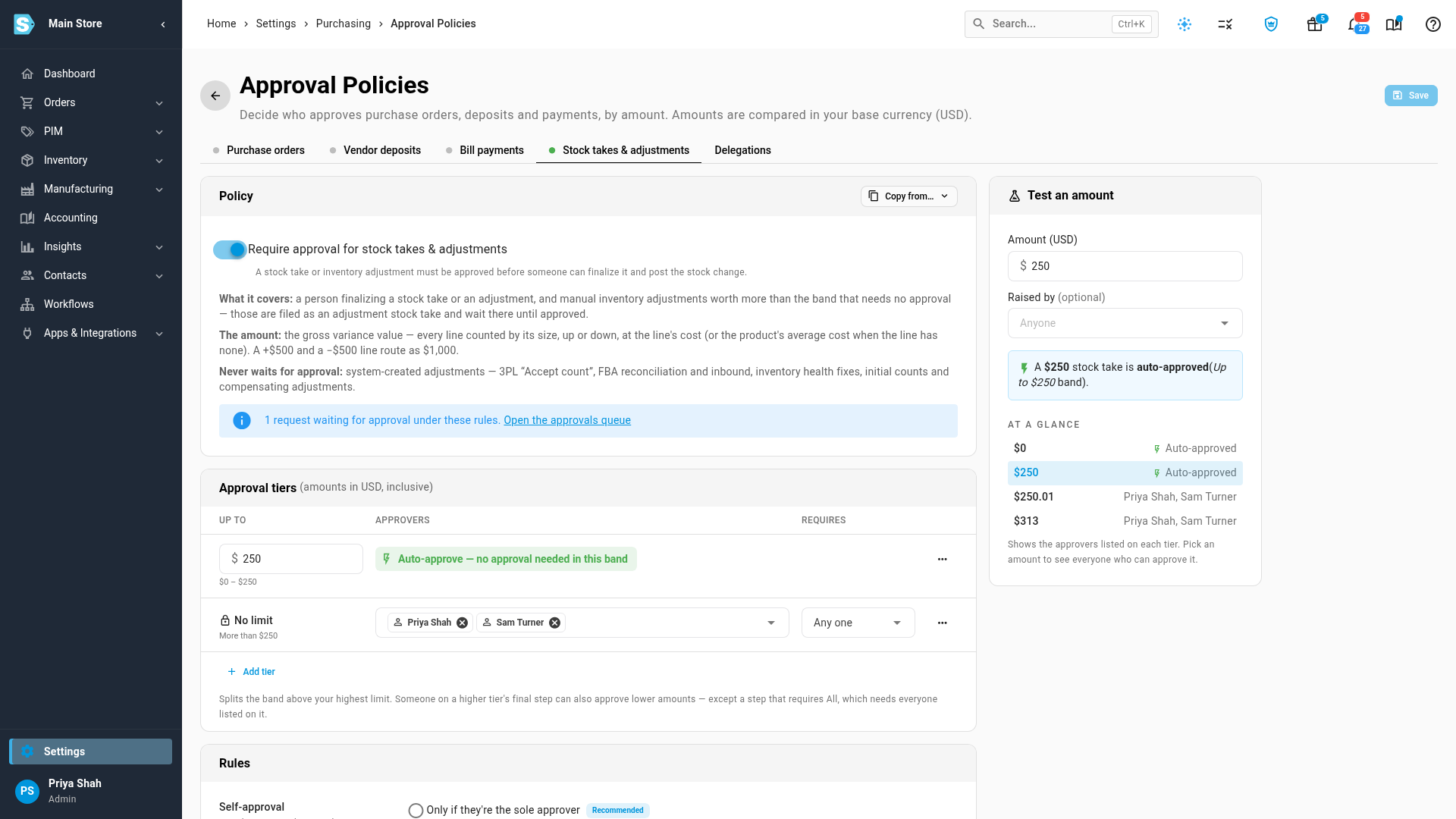
- Go to Settings → Purchasing → Approval Policies and open the Stock takes & adjustments tab.
- Turn the policy on and set its tiers. Each tier covers an amount of variance and says who approves it. A tier that doesn't require approval lets counts in that range go through on their own.
- Under Self-approval, choose Never if the person who counted should never approve their own count.
- Click Save.
The amount a count is checked against is its gross variance: every line counts at its full size, so a take that finds $500 of one product and loses $500 of another is a $1,000 count, not a $0 one. Stock that's found is valued at the cost it will post at; stock that's written off is valued at the product's average cost.
What the policy covers, and what never waits
The policy covers what a person does:
- finalizing a stock take or an adjustment, including Finalize & Reconcile;
- entering a manual adjustment from Inventory → Adjustments, a product's Adjust Inventory, or the API, including an AI assistant connected to your account;
- editing or deleting a posted adjustment (one at a time or in bulk), changing a finalized count, correcting its costs, or reversing or deleting it (one at a time or in bulk).
Counts that SKU.io makes for you never wait for approval: accepting a 3PL's count, adjustments your 3PL sends through its connection, reconciling or receiving FBA inventory, and inventory health fixes. They run on their own, so a sync is never held up.
Two more follow the policy in their own way:
- Automation workflows. A workflow step that adjusts inventory posts as usual when the change is within the no-approval limit. Above it, the step files the adjustment for approval instead, naming the workflow that sent it, and nothing changes in stock until it's approved and finalized. When a step sets stock to a quantity, its latest run decides: a run asking for the same change keeps the request that's already waiting, and a run asking for a different one replaces it. Setting up a workflow doesn't need approval.
- Opening stock. Creating a warehouse's opening count and loading its initial inventory never wait while you're setting up. Once stock has moved in that warehouse for anything else, such as a sale, a receipt or an adjustment, your books are live there and its opening stock is history. From then on, only someone who can override approval policies can change it: editing the opening count's lines, loading initial inventory again, or adding a new opening count. Anyone else records the difference as an adjustment, which follows the policy's limit. A locked accounting period still blocks the change either way.
Request approval for a count
- Go to Inventory → Stock Takes and open the count.
- When its variance is over the policy's limit, the Approval card says so and Finalize Adjustment (or Finalize & Reconcile) is locked. Hover the button to see why.
- Add a note for the approver if you like, and click Request approval. The card shows Awaiting approval and who it's waiting on.
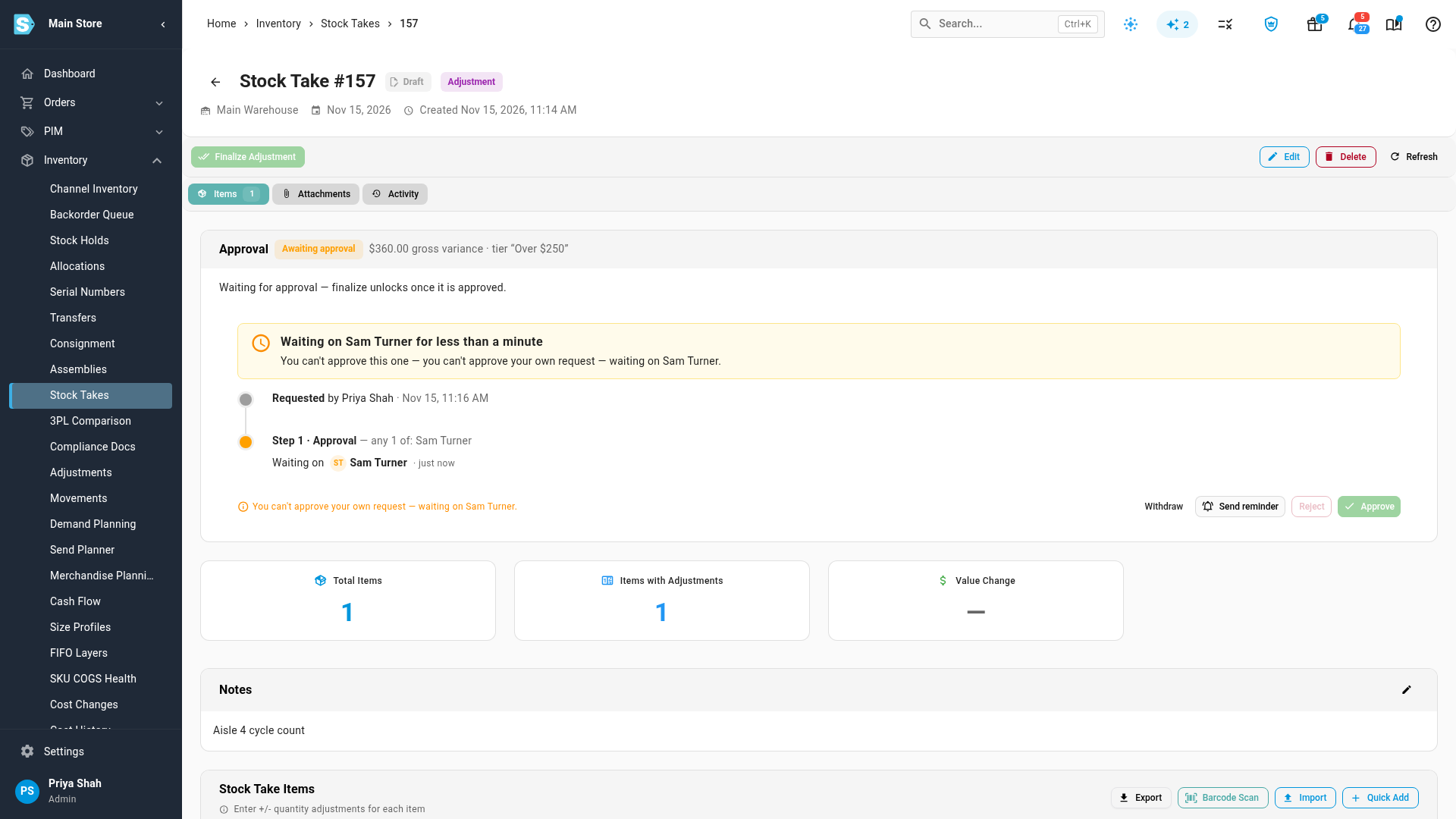
If the counts change after the request (a recount, a new line, a different reason, a new warehouse or date), the approval no longer covers the count. That's true whether the request was already approved or still waiting: the card says the counts changed, and Request approval again replaces the old request with a new one.
Approve a teammate's count
- Open the count from Inventory → Stock Takes, or from Orders → Approvals where every request waiting on you is listed.
- Read the requester's note on the Approval card and check the lines.
- Click Approve, add a note if you like, and confirm. To send it back instead, click Reject and say what needs fixing.
Finalize once approved
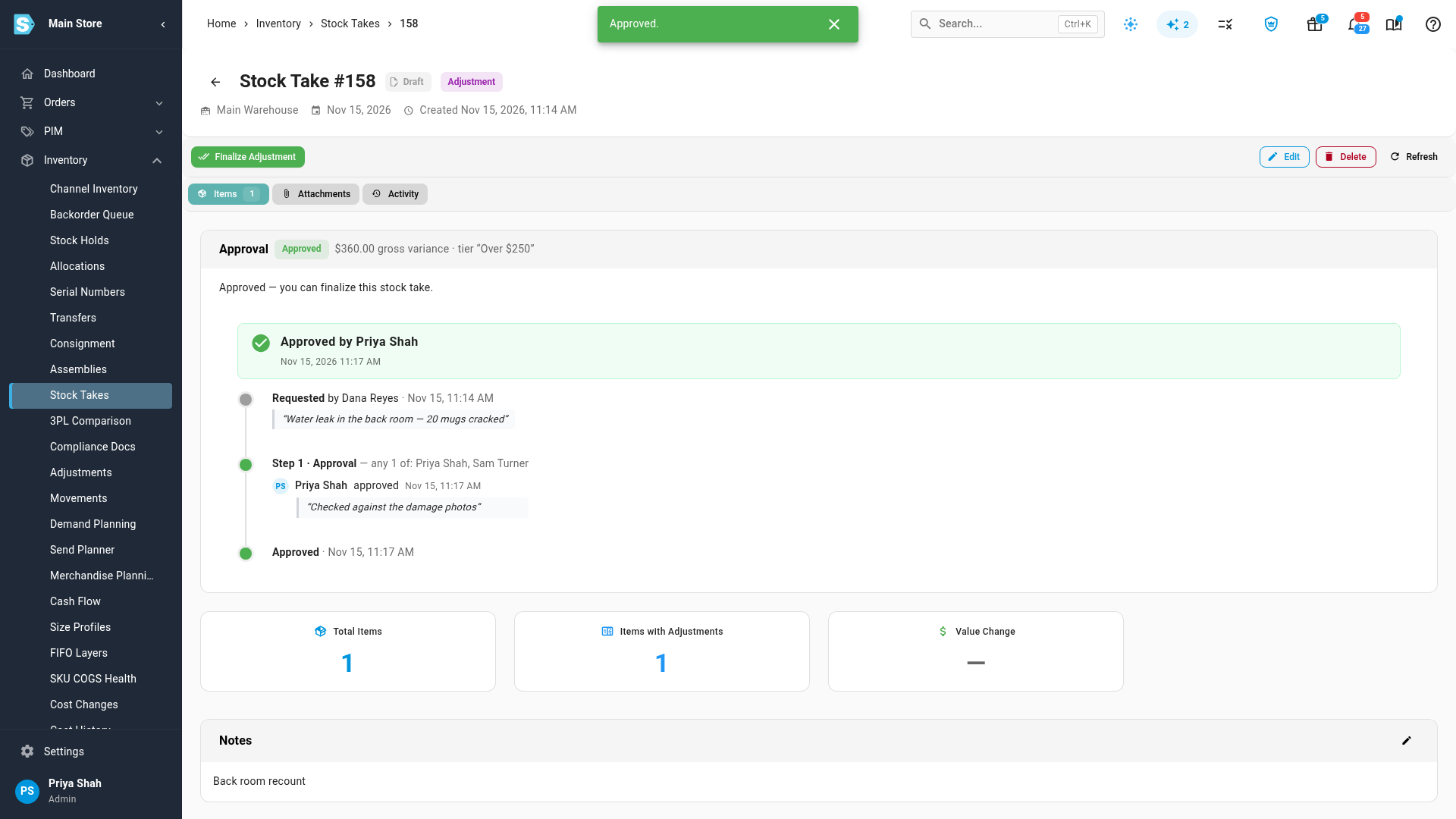
Once the count is approved, Finalize Adjustment (or Finalize & Reconcile) unlocks. Finalize it as usual — see Finalize & reconcile a stock take. The write-off posts to stock at cost.
While the policy is on, Finalize & Reconcile can't change the counts it finalizes: adjusting a count to what's available, removing a line, sending orders to backorder, or cancelling a fulfillment all change the variance after it was approved. Make those changes first (cancel the fulfillment, or save the corrected count), request approval for the result, then finalize.
Submit a large write-off for approval
- Go to Inventory → Adjustments and click Add Adjustment.
- Choose the product, choose Decrease, and enter the units you lost. Pick a Reason.
- Click Decrease Inventory. When the write-off is over the policy's limit, nothing posts: a message says it needs approval.
- Click Submit for approval. The write-off is filed as an adjustment stock take that waits for sign-off. Follow the link to it, and it posts once it's approved and finalized.
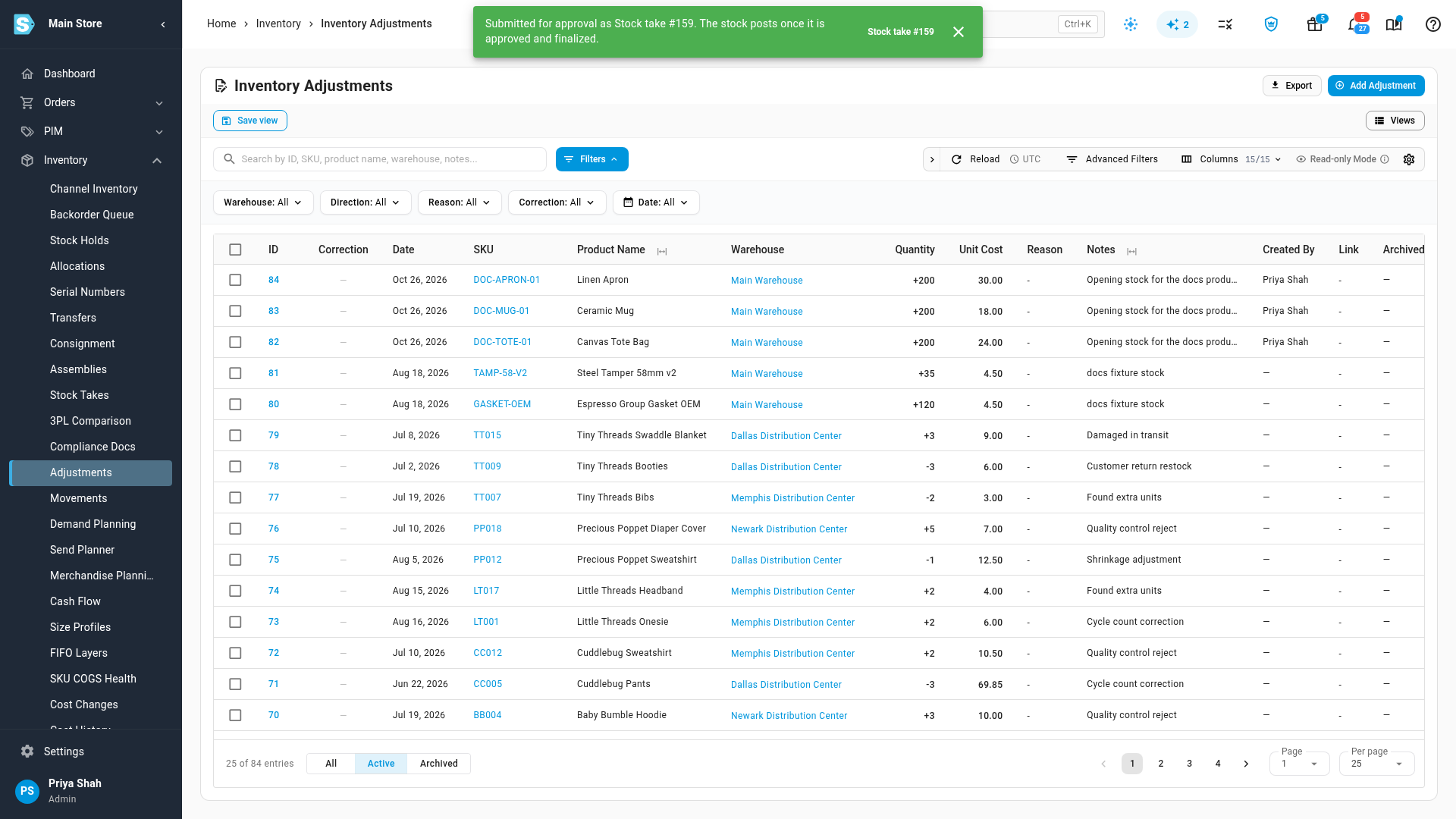
A filed write-off behaves like the adjustment it stands in for: it's recorded as an adjustment, not a stock count, and it keeps one line per product. Once approved, it takes stock from the same bin the adjustment would have. If that bin is short and the warehouse doesn't allow a bin to go below zero, finalizing stops and names the bin: choose another bin or move stock into it first.
Editing or deleting a posted adjustment, and correcting the cost of a finalized count, have no approval request of their own. Above the limit, only someone who can override approval policies can make those changes. Record the difference as a new adjustment and submit it instead.
Require a reason for large variances
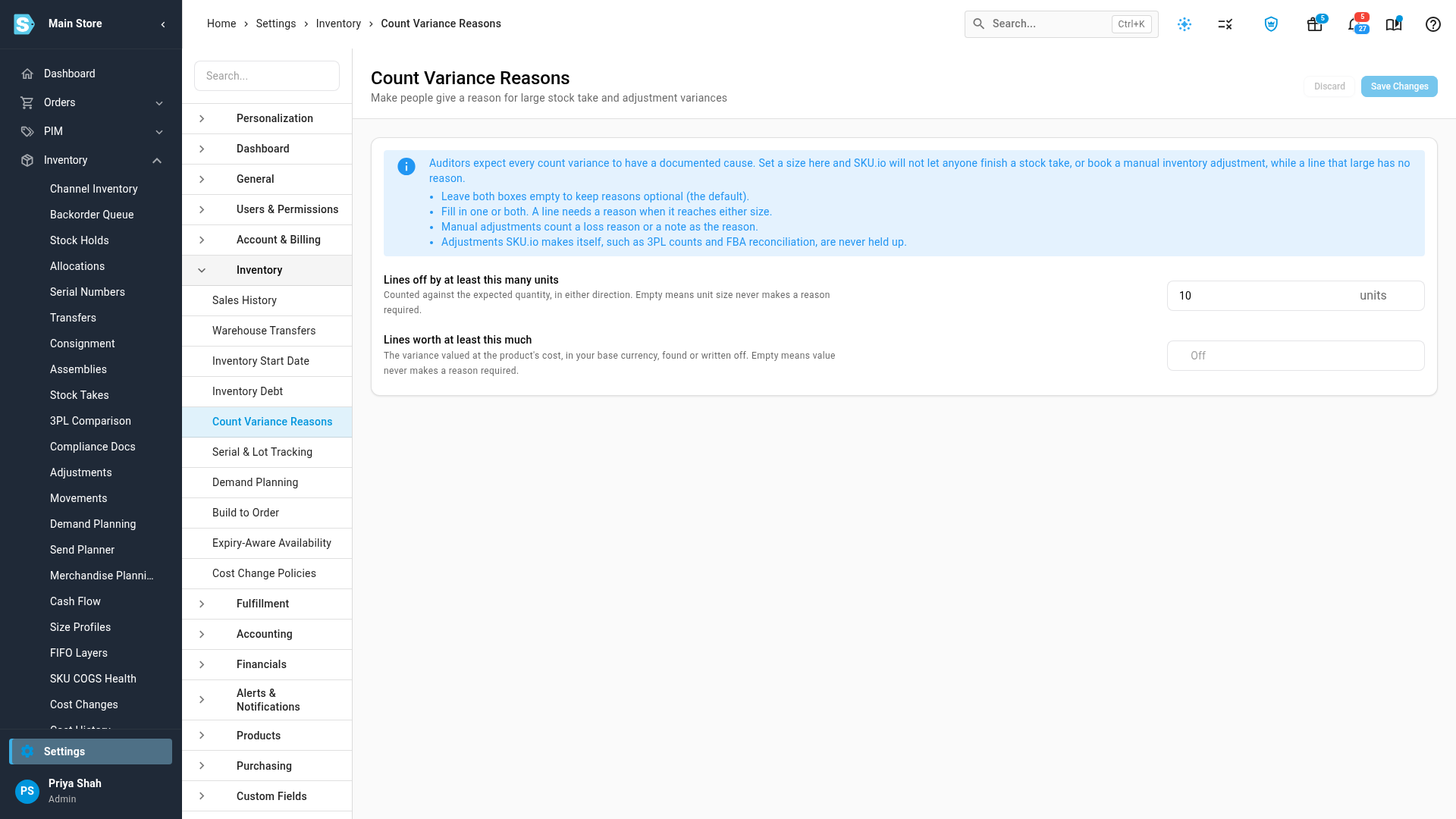
- Go to Settings → Inventory → Count Variance Reasons.
- Enter Lines off by at least a number of units, or Lines worth at least an amount, or both. Leave both empty to turn the rule off.
- Save.
Any line over either threshold then needs a variance reason before anyone can finalize it or submit it for approval. A manual adjustment that size needs a loss reason or a note saying what happened. Counts that SKU.io makes for you aren't held to the rule.
Finalize & Reconcile can change a line's variance after the check: adjusting a count, sending orders to backorder, or cancelling a fulfillment that shipped during the count. While the rule is on, a line it changes needs a variance reason first. A line you remove posts nothing, so it doesn't need one.
Find products that keep coming up short
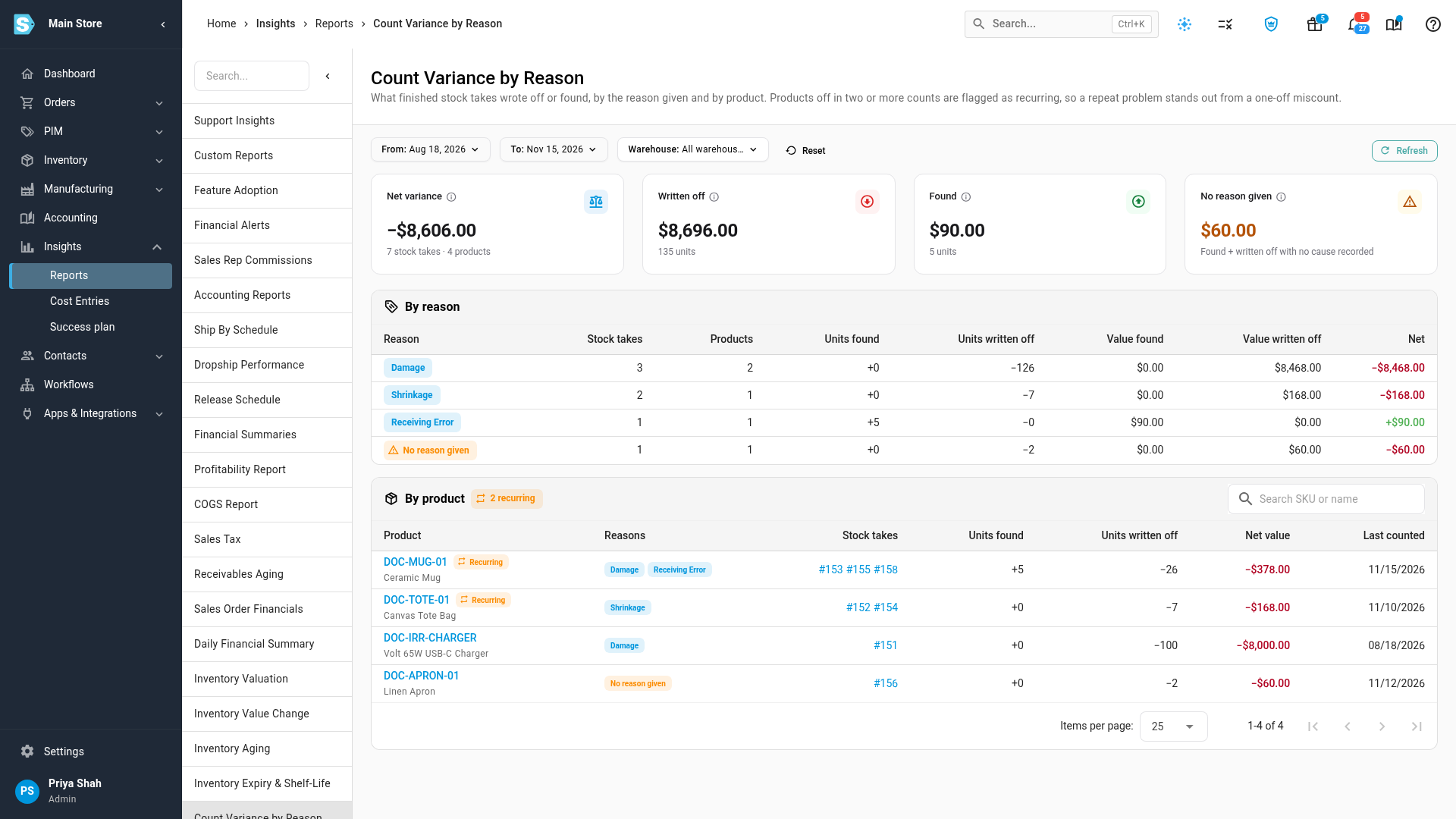
Go to Insights → Reports → Count Variance by Reason. Pick a date range, and optionally a warehouse.
- The cards show the net variance, the value written off, the value found, and the value booked with No reason given.
- By reason totals each cause.
- By product lists every product that was off, with its reasons and the stock takes it came from. Products off in two or more counts are marked Recurring, so you can fix the cause rather than keep recording it.
Next steps
- How approvals work
- Set approval rules
- Finalize & reconcile a stock take
- Stock take statuses, fields & list
Video transcript
The Stock takes and adjustments approval policy decides when a count or a write-off needs a second person's sign-off. Each tier covers an amount of variance, and every line counts at its full size, so gains and losses both add up. In this policy, anything up to two hundred fifty dollars goes through on its own, and anything above it needs one of two approvers. With Self-approval set to Never, nobody can approve their own count. Counts that SKU.io makes for you, like accepting a 3PL's count or reconciling FBA, never wait for approval. Open Inventory, then Stock Takes, and in the list of counts, open the one you want to finalize. This adjustment wrote off fifteen tote bags, which is three hundred sixty dollars at cost. That's over the limit, so Finalize Adjustment is locked, and the Approval card says why. Click Request approval to send it to the approvers. The card now says it's waiting, and lists the approvers. When a teammate's count is waiting on you, open it from Stock Takes, or from the Approvals page in Orders. Either way, you land on the same count. Its Approval card shows the note they left with the request. Check the lines on the count and the reasons given. When everything looks right, click Approve to record your decision. In the dialog, add a note for the record, like what you checked. Then click Approve to confirm the decision. The card now shows the count as approved. Once the count is approved, Finalize Adjustment unlocks. Click it, and check the preview of what will post. Then click Finalize Adjustment again, at the bottom of the preview. The write-off posts to stock at cost, and the count closes, with its approval kept in the history. The same rule covers a write-off you enter by hand. Open Inventory, then Adjustments, and click the Add Adjustment button at the top of the list, and the Adjust Inventory dialog opens. Search for the product you lost stock of by its name or SKU, and choose it from the list of matches. Choose Decrease, and enter the number of units you lost. Here, that's forty. Pick the reason, so the loss lands in the right account in your books. Then click Decrease Inventory, at the bottom of the dialog. Because this write-off is over the limit, nothing posts, and the dialog says why. Click Submit for approval. It's filed as an adjustment that waits for sign-off, just like a count does, and nothing changes in stock until it's approved. To make every big variance carry a cause, open Settings, at the bottom of the sidebar. Choose the Inventory section, and then Count Variance Reasons from its list of settings. Each setting there explains what it does before you make a change. Set the number of units, or the amount, that makes a reason required. Here, any line off by ten units or more needs a reason before anyone can finalize the count. To see where stock keeps going missing, open the Insights section in the sidebar, and choose the Reports page. On the Reports page, find the inventory reports, and choose Count Variance by Reason from the list. It opens on the last ninety days, and you can pick another range, or a single warehouse. It shows what your counts wrote off and what they found, by cause and by product. No reason given shows the value booked without a cause, and products that were off in two or more counts are marked Recurring, so you can fix the cause, not just record the loss.