Lock opening stock after go-live
A warehouse's initial count is its opening stock, and your opening balance in Xero or QuickBooks was built from it. Every later sale takes its cost from that count. So once your books are live, changing it re-costs sales your accountant has already reviewed. Turn on the opening-stock lock to make initial counts read-only from go-live on. After that, you record corrections with an adjustment or a stock take, dated today.
Before you begin
- Changing the lock needs the Manage Settings permission under Accounting (
accounting.manage_settings), in Settings → Users & Permissions → Roles. - Your books count as live once accounting entries are turned on, or once any entry exists. Before that, the lock changes nothing, even when it's on.
- Every account that existed before the lock arrived starts with it off, live or not, so nothing changed for any of them until someone turns it on. Accounts created after that start with it on.
See whether your opening stock is locked
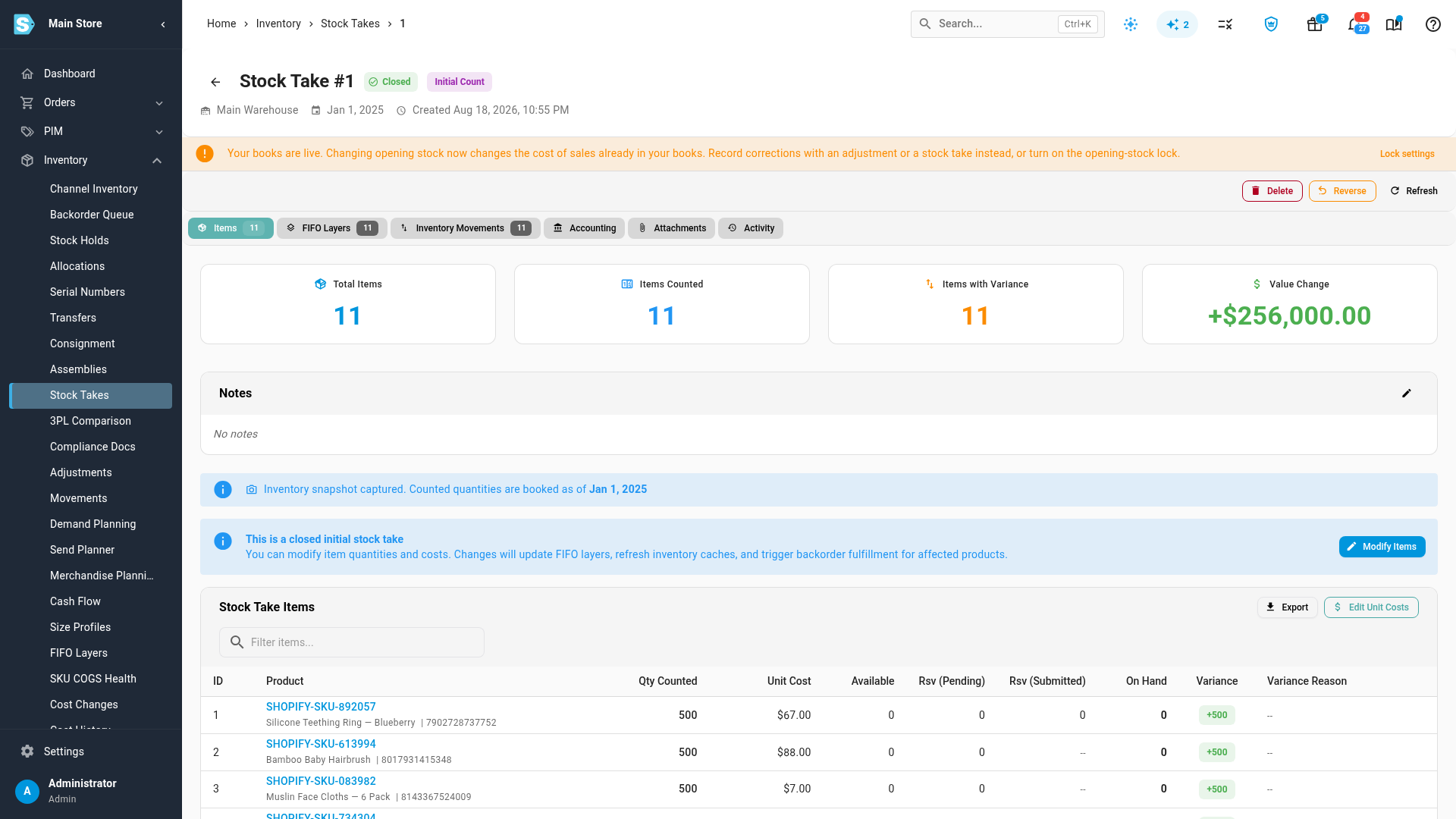
Open your initial count under Inventory → Stock Takes. If your books are live and the lock is off, a warning at the top says that changing opening stock now changes the cost of sales already in your books. If your books aren't live yet and the lock is off, a note at the top suggests turning it on before go-live.
Turn on the lock
-
On the warning, select Lock settings (on the note before go-live, Turn on the lock). It opens Accounting → Settings → Go-live readiness.
-
Under Opening stock, turn on Lock opening stock once the books are live.
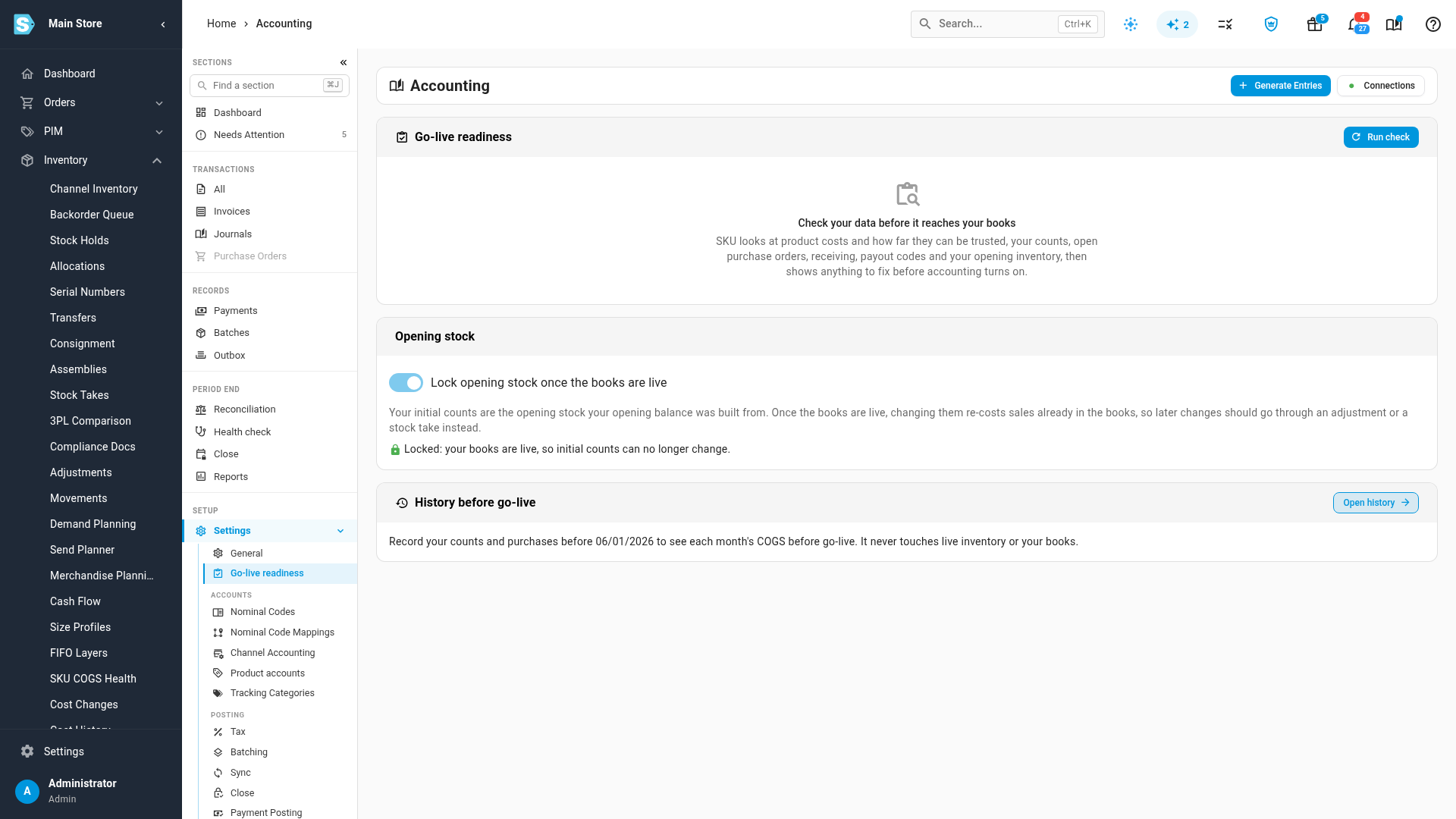
The line under the switch tells you what it means right now. Locked means your books are live, so your initial counts can no longer change. If your books aren't live yet, it says the counts stay editable until go-live and then lock.
To turn the lock off again, turn the same switch off. Do that only for a correction your accountant has agreed to, then turn it back on.
What a locked initial count looks like
Back on the initial count, a banner says opening stock is locked.
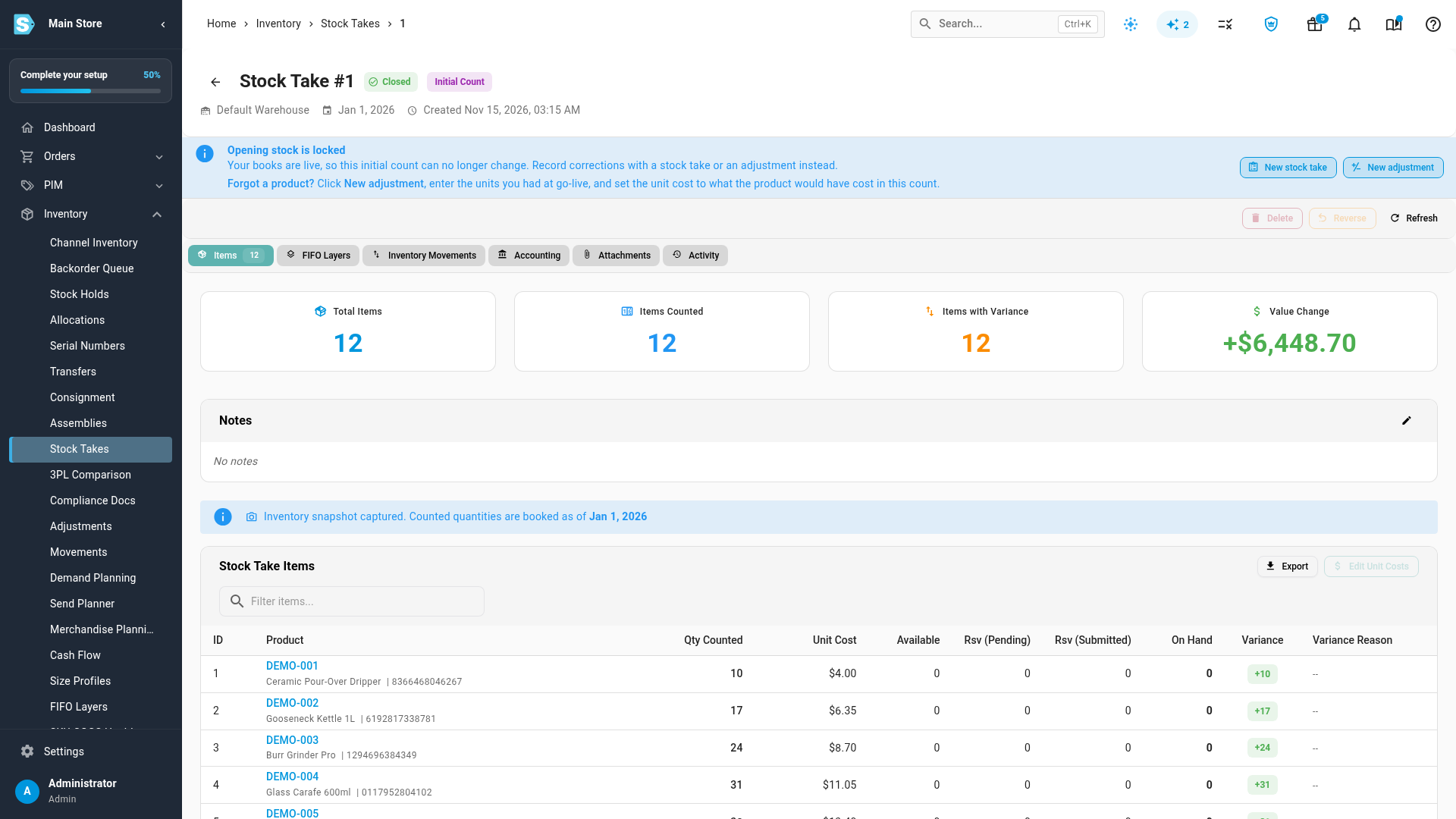
- Modify Items no longer appears, and Edit Unit Costs, Delete and Reverse are unavailable. Hover over one to see why.
- You can still edit the count's notes.
- Loading opening stock from a CSV into that warehouse is refused, and so is creating a new initial count for any warehouse.
Record a correction
-
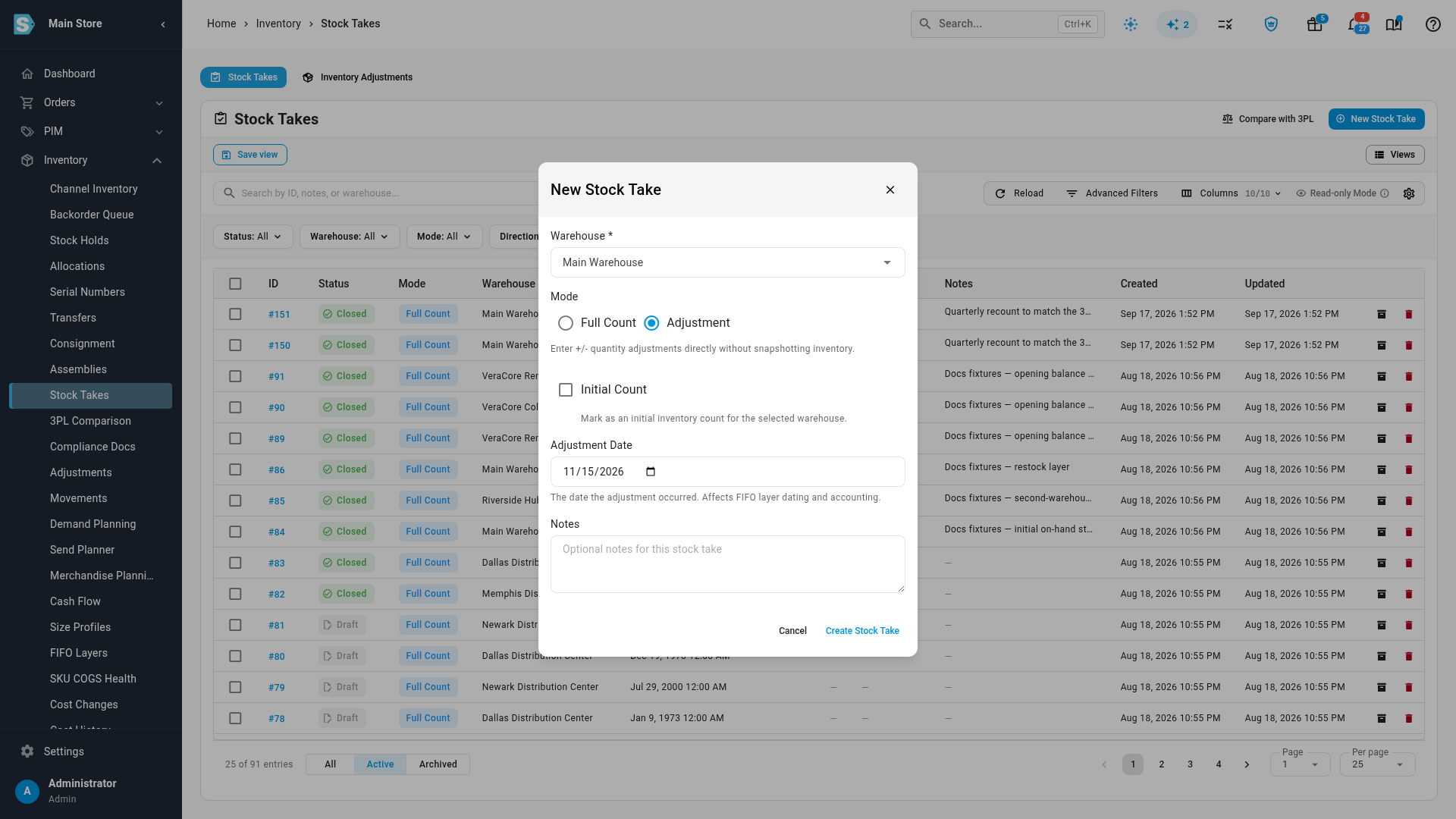
On the locked initial count, select New adjustment. Or select New stock take to count the warehouse again.
-
The new stock take opens with Adjustment selected and the same warehouse already chosen.
-
Enter the quantity change for each product and create the stock take. The change is recorded as of its own date, today by default, so the periods your accountant has already reviewed stay as they were. See Create a stock take & add items.
I forgot a product in my opening count
If a product was in the warehouse at go-live but never made it into the initial count, add it with an adjustment at that warehouse. Don't add it to the initial count, even by turning the lock off: that changes your opening balance and re-costs sales already in your books. The locked banner says the same thing under Forgot a product?, and the API's refusal message does too.
- On the locked initial count, select New adjustment. It opens with Adjustment selected and the same warehouse already chosen.
- Leave Adjustment Date as today and select Create Stock Take.
- Select Quick Add and search for the product. In Adjustment Qty (+/-), enter the units you had at go-live, for example
12. - In Unit Cost, enter what the product would have cost in the opening count, on the same basis as the other products in it. If a cost is already filled in, check it. Select Add & Close.
- Select Finalize Adjustment.
The units and their value are recorded as of today, so the periods your accountant has already reviewed stay as they were.
Finalizing the adjustment posts one journal, dated today: a debit to your inventory account and a credit to Cost of Goods Sold. That is the account mapped as Cost of Goods Sold under Accounting → Settings → Nominal Code Mappings, or the product's own COGS account if you've set up product accounts with rules. It does not go to opening balance equity. Tell your accountant about it: the credit lowers this period's cost of goods sold. If they'd rather have the value in your opening balance, they can move it from Cost of Goods Sold to opening balance equity with a manual journal.
Next steps
- Load a warehouse's opening stock: enter the initial count before you go live.
- Check your data before you turn on accounting: the rest of Go-live readiness.
- Check your books against Xero or QuickBooks: use the Parallel run bands while you run the old and new systems side by side.
Video transcript
An initial count records a warehouse's opening stock. Your books start from this count. Once you're live, changing it alters the cost of sales you've already posted. Until you lock it, this warning appears. Select Lock settings on the warning, and Go-live readiness opens in your accounting settings. Under Opening stock, turn on Lock opening stock once the books are live. Your books are already live, so the status underneath now reads Locked. Back on the initial count, a banner says opening stock is locked. Modify Items is gone, and Delete and Reverse are unavailable. Hover over them to see why. To make a correction now, select New adjustment. The form starts in Adjustment mode, with the same warehouse chosen. Enter the change there, and it's recorded as of today.