Set up automatic Walmart lag time
Walmart shows buyers a ship date for each listing, worked out from the listing's lag time: the number of working days between an order and its shipment. When the same product sits in a fast warehouse and a slower one, a single fixed lag time is either too slow for the fast stock or too optimistic for the slow stock.
Automatic lag time solves that. SKU.io gives each Walmart listing the lag time of the fastest warehouse that has stock for it. When the fast stock sells out, Walmart is told the slower lag time before more orders are promised the fast date. It never sends more than the lag time Walmart has approved for your store.
Before you begin
- Your Walmart channel is connected under Apps & Integrations.
- The warehouses that supply Walmart are chosen as Stock Warehouses for each Walmart ship node, under your Walmart channel's Settings → Inventory Sync.
- You need permission to update integrations.
- Walmart only accepts a lag time of more than 1 day for item categories with an approved lag-time exemption. Sending more without one can cause item setup failures and account action, including suspension. See Walmart's lag-time exemption policy.
How SKU.io picks a listing's lag time
For each listing, SKU.io looks at the stock warehouses of the listing's ship node and takes the lag time of the fastest warehouse that has stock. A warehouse's lag time comes from the first of these that is set:
- The lag time you enter for that warehouse on the ship node, under Inventory Sync.
- The warehouse's own Default Handling Days.
- The ship node's Baseline lag time.
The result is never more than Highest lag time Walmart has approved. A listing that needs more is held at that maximum, and its slower-warehouse stock isn't advertised to Walmart until you raise the maximum.
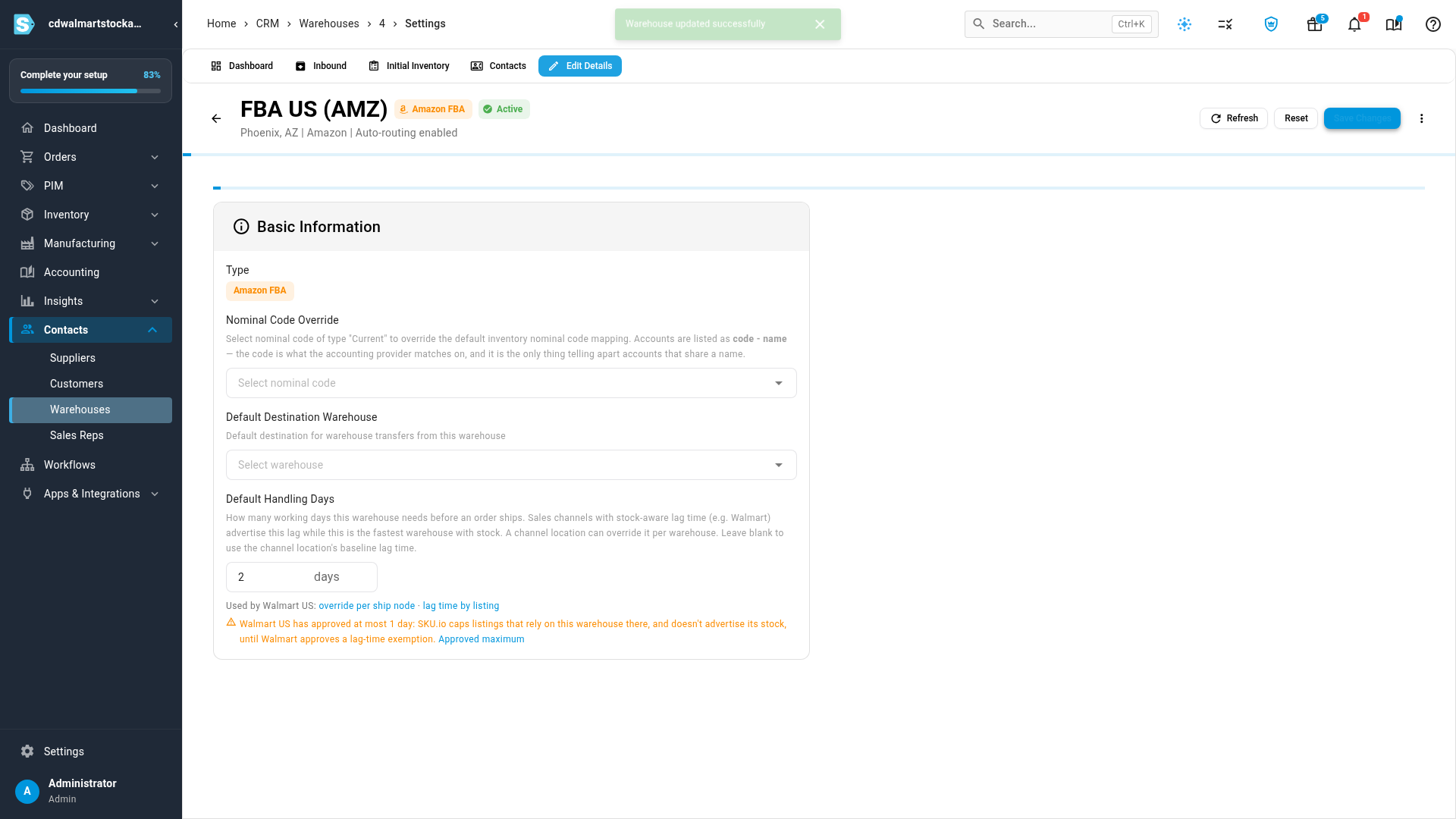
Set each warehouse's handling days
- Go to Contacts → Warehouses and open the warehouse.
- Click Edit Details.
- In Default Handling Days, enter how many working days the warehouse needs before an order ships. Leave it blank to use the ship node's baseline lag time.
- Click Save Changes.
Repeat this for each warehouse that supplies Walmart. Under the field, SKU.io lists the Walmart channels that use this value, with links to their settings. If the value is above what one of those channels has approved, a warning says so.
Check each ship node
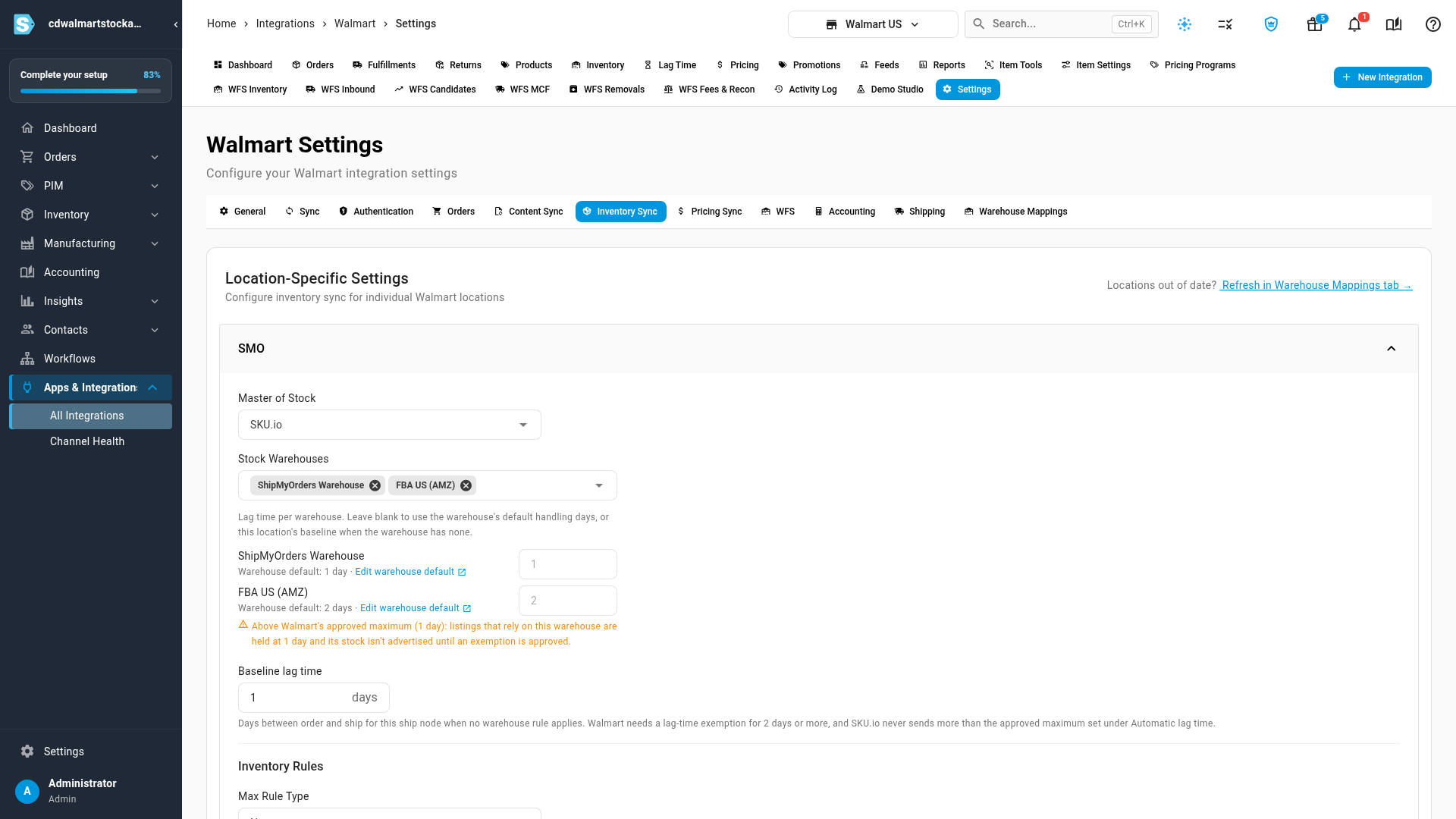
- Open your Walmart channel, then Settings → Inventory Sync. From a warehouse, you can also click override per ship node.
- Under each ship node, the warehouses listed under Stock Warehouses each show their lag time and where it comes from (Warehouse default: 2 days, for example).
- To give a warehouse a different lag time for this ship node only, enter it in that warehouse's box. Leave the box blank to use the warehouse's default.
- Baseline lag time applies when a warehouse has no lag time of its own.
Turn on automatic lag time
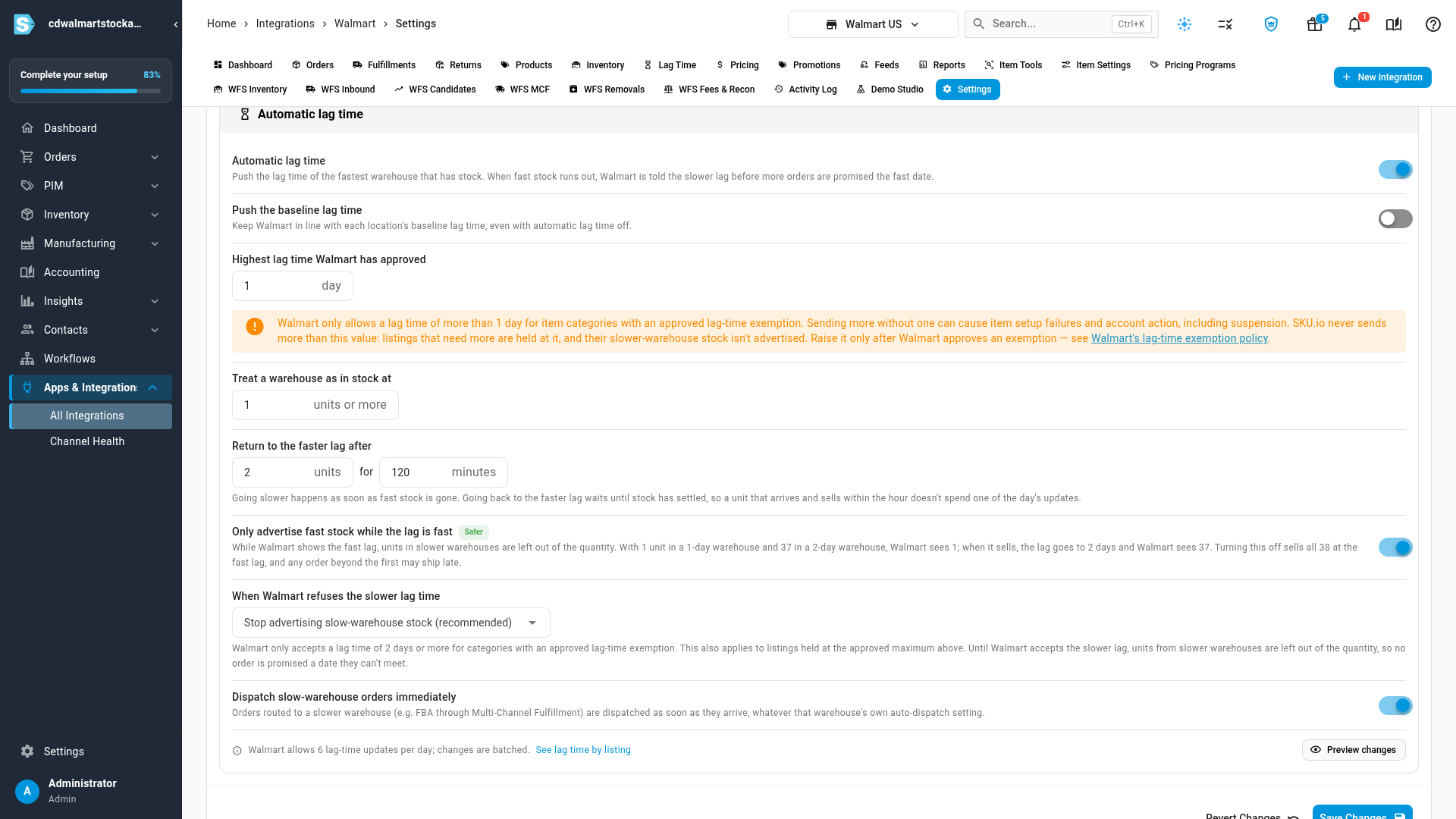
- On the same Inventory Sync tab, scroll to Automatic lag time and turn it on.
- Leave Highest lag time Walmart has approved at 1 day unless Walmart has approved an exemption for your item categories. Raise it only after Walmart approves one.
- Review the rest of the settings (see the table below). The defaults are the safer choices.
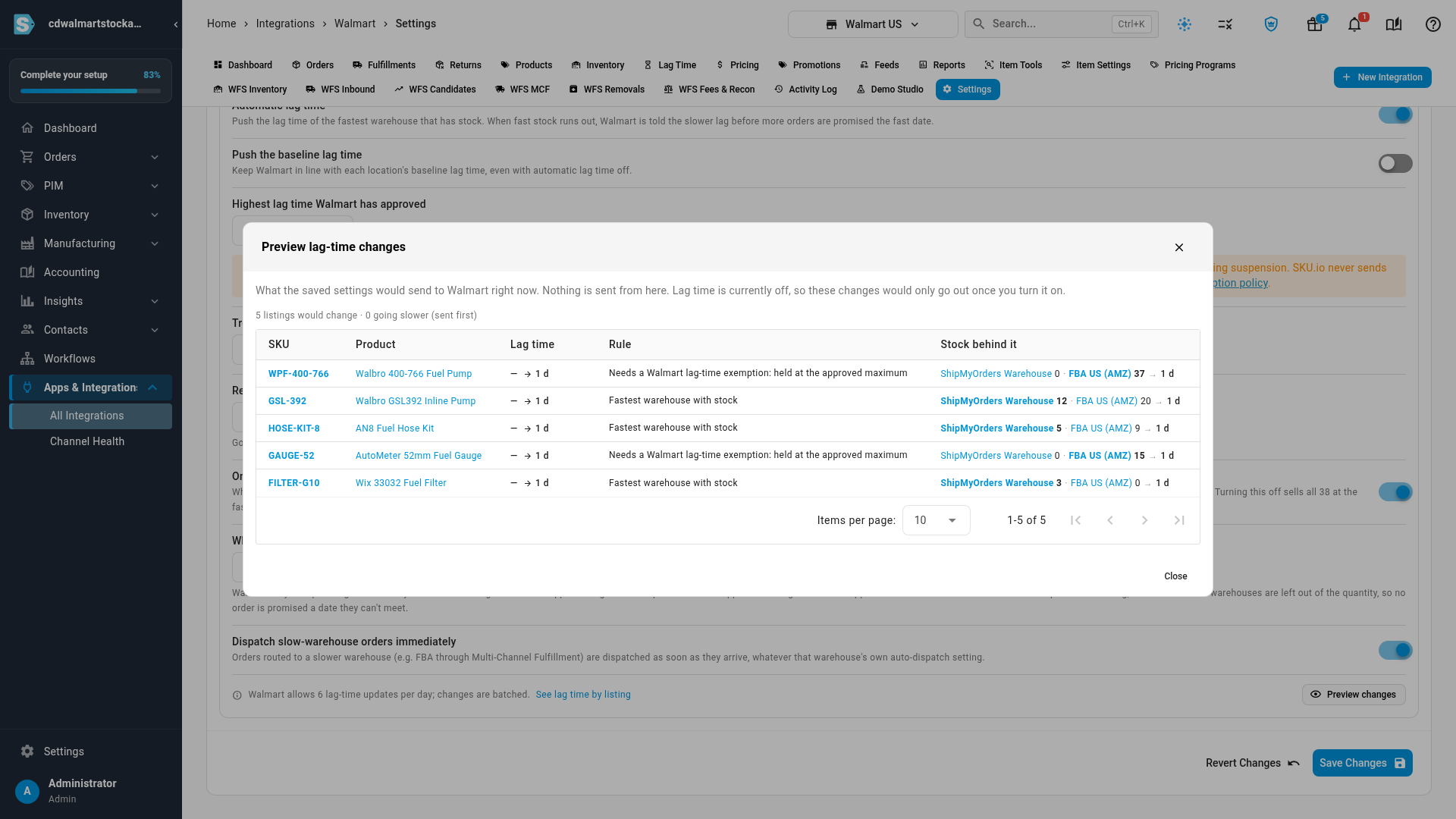
- Click Preview changes to see what each listing would get, and why. Nothing is sent from the preview.
- Click Save Changes.
When you first turn it on, SKU.io reads each listing's current lag time from Walmart before it sends anything. After that, changes go out in batches.
The automatic lag time settings
| Setting | What it does |
|---|---|
| Automatic lag time | Turns the whole feature on. SKU.io sends the lag time of the fastest warehouse that has stock. |
| Push the baseline lag time | Keeps Walmart in line with each ship node's baseline lag time, even with automatic lag time off. |
| Highest lag time Walmart has approved | The most SKU.io ever sends. Listings that need more are held at it, and their slower-warehouse stock isn't advertised. Default: 1 day. |
| Treat a warehouse as in stock at | How many units a warehouse needs before it counts as having stock. |
| Return to the faster lag after | Going slower happens as soon as fast stock is gone. Going back to the faster lag waits until the fast warehouse has this many units for this many minutes, so a unit that arrives and sells within the hour doesn't use one of the day's updates. |
| Only advertise fast stock while the lag is fast | While Walmart shows the fast lag time, units in slower warehouses are left out of the quantity, so no order is promised a date it can't make. Turning it off sells all your stock at the fast lag time, and some orders may ship late. On by default. |
| When Walmart refuses the slower lag time | Stop advertising slow-warehouse stock (recommended) leaves the slower units out of the quantity until Walmart accepts the slower lag time. Keep selling at the accepted lag time keeps every unit on sale. Orders filled from a slower warehouse are then flagged as ship-by risks and dispatched with a faster shipping speed where possible. |
| Dispatch slow-warehouse orders immediately | Orders routed to a slower warehouse, such as Amazon FBA through Multi-Channel Fulfillment, are dispatched as soon as they arrive, whatever that warehouse's own auto-dispatch setting. |
Walmart allows 6 lag-time updates per day, so SKU.io batches changes. Changes that make a listing slower go first.
Next steps
Video transcript
Walmart shows buyers a ship date based on each listing's lag time. SKU.io can set that lag time from the warehouses that hold stock. First, set how fast each warehouse ships. Open Contacts, then Warehouses, to list everywhere you keep stock. Each warehouse has its own handling days. Open the warehouse you want to set, then select Edit Details to see its settings. In Default Handling Days, enter how many working days it needs before an order ships. Orders sent through Amazon take longer, so this warehouse gets two days. SKU.io warns you that Walmart has approved only one day for this store. Select Save Changes to keep the new value. The text under the field links to the Walmart settings that use this value. Select override per ship node. Each Walmart ship node lists its stock warehouses and their lag times. Leave a box blank to use the warehouse default, or enter a number for this ship node only. Scroll down, and turn on Automatic lag time. SKU.io then sends the lag time of the fastest warehouse that has stock. When that stock runs out, Walmart gets the slower lag before more orders arrive. Highest lag time Walmart has approved starts at one day. Walmart needs an approved exemption before it accepts more. Listings that need more are held at one day, and their slower stock isn't advertised. Raise this number only after Walmart approves an exemption. Only advertise fast stock while the lag is fast is the safer choice. Walmart then only sees units that can ship within the lag it shows. Dispatch slow-warehouse orders immediately sends those orders straight to the slower warehouse. Select Preview changes to see each listing's new lag time, and why. Listings that need more than Walmart has approved are flagged in the Rule column. Close the preview once you have checked the list. Then select Save Changes to keep your settings. SKU.io first reads your current lag times from Walmart, then starts sending updates.