Buy a Ship With Walmart label
Ship With Walmart (SWW) lets you buy a shipping label from Walmart at Walmart's negotiated rates instead of your own carrier account. You buy it from the Walmart order in SKU.io: enter the package size, compare Walmart's rate estimates, and buy.
Before you begin
- Your Walmart seller account is enrolled in Ship With Walmart. In Seller Center, go to Settings › Shipping Profile › Ship with Walmart, and pick the fulfillment center that is your ship-from address.
- The order ships from that fulfillment center. SKU.io uses the fulfillment center that matches the order's Walmart ship node; you don't pick it.
- The order has a shipping address from Walmart and isn't cancelled.
- You need the Fulfill sales orders permission to buy or void a label. Without it, the dialog says so, and you can still view and download the order's labels.
Check your Ship With Walmart setup
Open your Walmart channel, then Settings, the Shipping tab, and Ship With Walmart. The tab reads your setup live from Walmart: its Carriers, Shipping Templates, and Fulfillment Centers. You change these in Seller Center. Click Manage or enrol in Seller Center to go there, then Refresh from Walmart to see the change.

Buy a label
-
Open the Walmart order from your Walmart channel's Orders tab.
-
In the Ship With Walmart card, click Ship With Walmart.

-
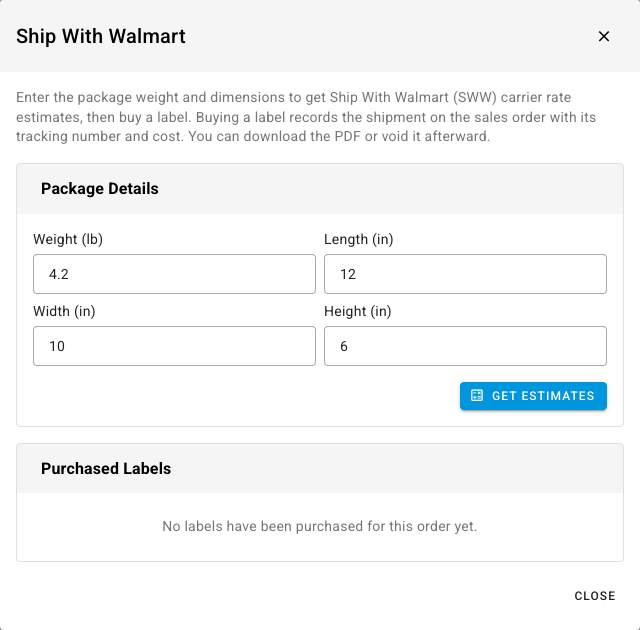
Under Package Details, enter the Weight (lb), Length (in), Width (in), and Height (in). All four must be above zero.
-
Click Get Estimates. Rate Estimates lists each carrier and service, when it delivers by, and its cost.
-
Click Buy on the rate you want.
What you'll see: "Label purchased", with its tracking number, and "The shipment was recorded on the sales order." The label appears under Purchased Labels.
What buying a label records
Buying a label ships the order in SKU.io, the same as any other shipment. On the sales order's open fulfillment order, SKU.io records the tracking number, carrier, service and the label's cost, marks it fulfilled, and sends the tracking to Walmart.
That only happens when the order has a SKU.io sales order with exactly one open fulfillment order. Otherwise the label is still bought, but nothing is recorded, and a yellow note in the dialog says why:
| Note | What to do |
|---|---|
| "This Walmart order has no SKU.io sales order yet, so the shipment was not recorded." | Once the sales order exists, record the shipment on it by hand with the label's tracking number. |
| "The sales order has no open fulfillment order, so the shipment was not recorded." | Check the sales order. If it still needs shipping, create a fulfillment and enter the tracking number. |
| "The sales order has several open fulfillment orders — record the shipment on the one this label is for." | Record the shipment by hand on the right fulfillment order. |
| "This order is already fully shipped in SKU.io, so no new shipment was recorded." | Nothing to record. Void the label if you bought it by mistake. |
Download or void a label
Under Purchased Labels, click Download to open the label's PDF, or Void to cancel it. Void asks you to confirm first: Walmart cancels the label, and it can no longer be used to ship. A shipment already recorded in SKU.io isn't removed, so cancel or correct that fulfillment yourself if the order won't ship on this label.
The label list is read from Walmart each time you open the dialog.
If you can't get rates
| Message | What to do |
|---|---|
| "This order ships from Walmart node … which is not in your fulfillment centers" | Add that ship node in Seller Center under Settings › Shipping Profile, then try again. |
| "This order has no shipping address on file from Walmart" | Refresh the order from Walmart, then try again. |
| "Enter a … greater than zero" | Fill in every package field. |