Mark a WFS inbound shipment as abandoned
Sometimes a shipment you booked into Walmart Fulfillment Services (WFS) never leaves your warehouse. Your 3PL cancels it, or the units go out on a different shipment. If you cancel it on Walmart straight away, nothing else is needed. But Walmart only accepts a cancel for a short time after the shipment is booked, and its carrier quote can only be voided within 24 hours. After that, Walmart keeps the shipment at Awaiting Delivery indefinitely, and Walmart Seller Support can't close it either.
Until something closes it, Walmart keeps counting the shipment's units as inbound. Your WFS replenishment then thinks those units are on their way and suggests sending too few. Mark as Abandoned records in SKU.io that the shipment will never arrive, so it stops counting as inbound everywhere in SKU.io.
Before you begin
- WFS is turned on for your Walmart channel.
- Try Cancel Inbound on the shipment first. Mark a shipment as abandoned only when Walmart won't cancel it.
- The shipment hasn't reached Walmart. You can abandon a shipment while Walmart shows it as Created, Awaiting Delivery, Shipped, or In Transit, with no units received and no delivery date. Once Walmart is receiving it, the units are real and Walmart's receipt settles the shipment.
- If the stock already left your source warehouse on a shipped transfer, SKU.io can't release it automatically. Reconcile that transfer by hand first.
Mark the shipment as abandoned
-
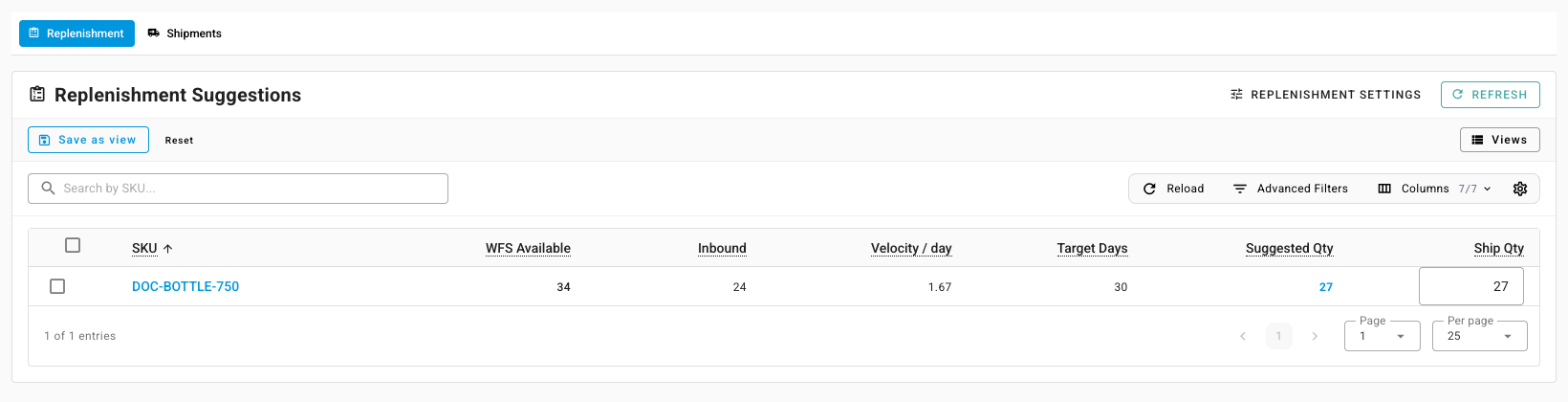
Go to Apps & Integrations, open your Walmart channel, then open the WFS Inbound tab. The Replenishment view opens first. Its Inbound column is Walmart's count, so a shipment that will never arrive keeps the suggested quantity too low.
-
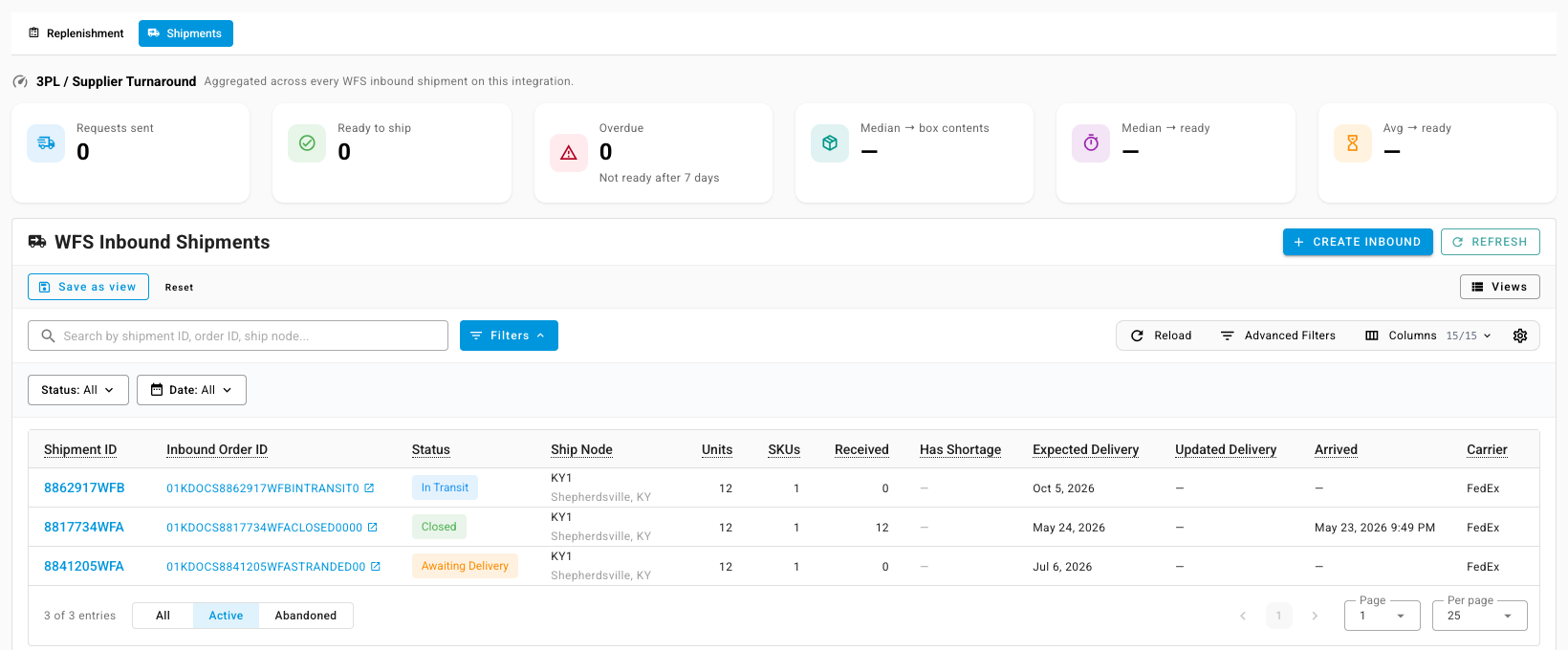
Click Shipments, then click the shipment that never shipped. A stranded shipment usually still shows Awaiting Delivery long after its expected delivery date.
-
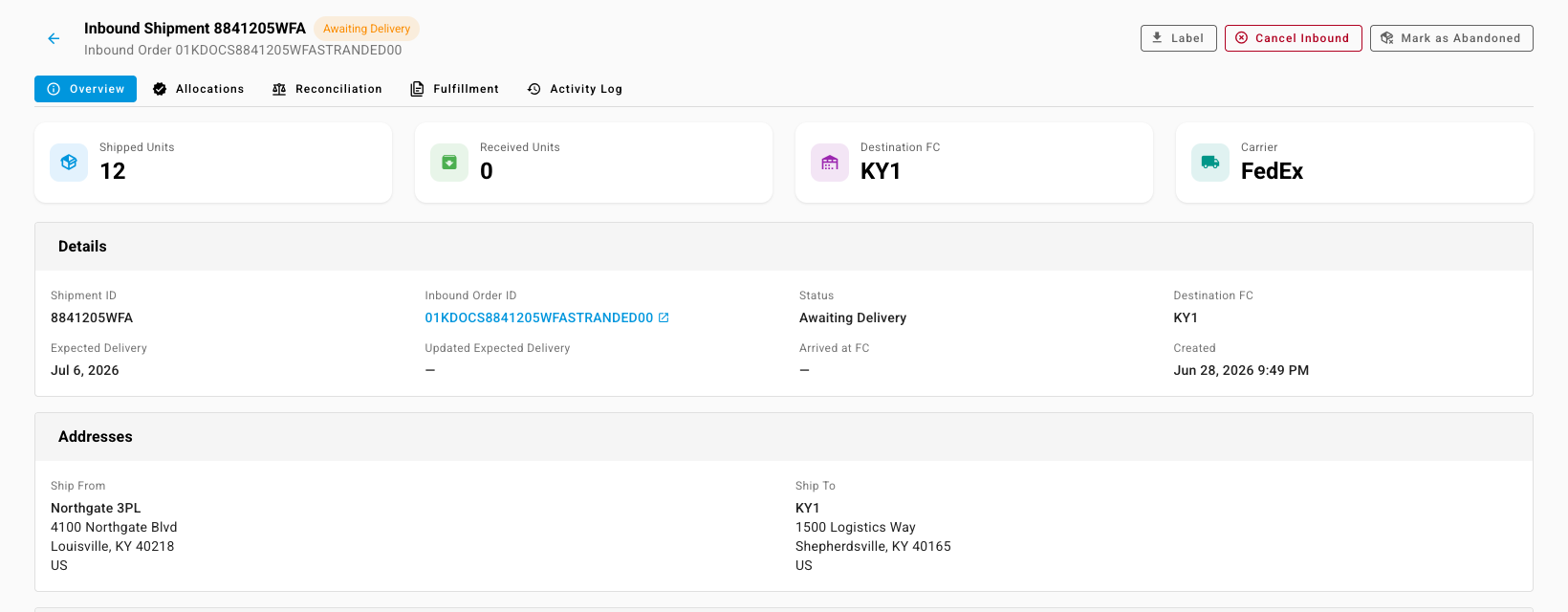
Check the shipment's Created date and Received Units. A shipment created months ago with nothing received is the case this is for.
-
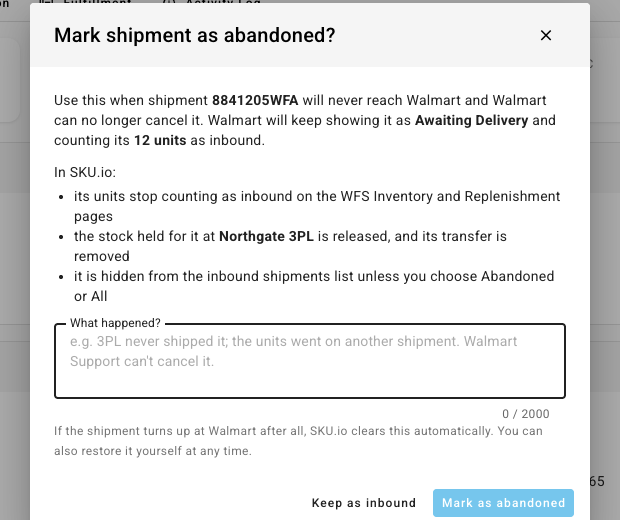
Click Mark as Abandoned. The dialog lists what changes in SKU.io.
-
In What happened?, say why the shipment will never arrive, for example "Our 3PL never shipped it, and the units went on another shipment. Walmart can't cancel it." The note is required, and it stays on the shipment for anyone who opens it later.
-
Click Mark as abandoned.
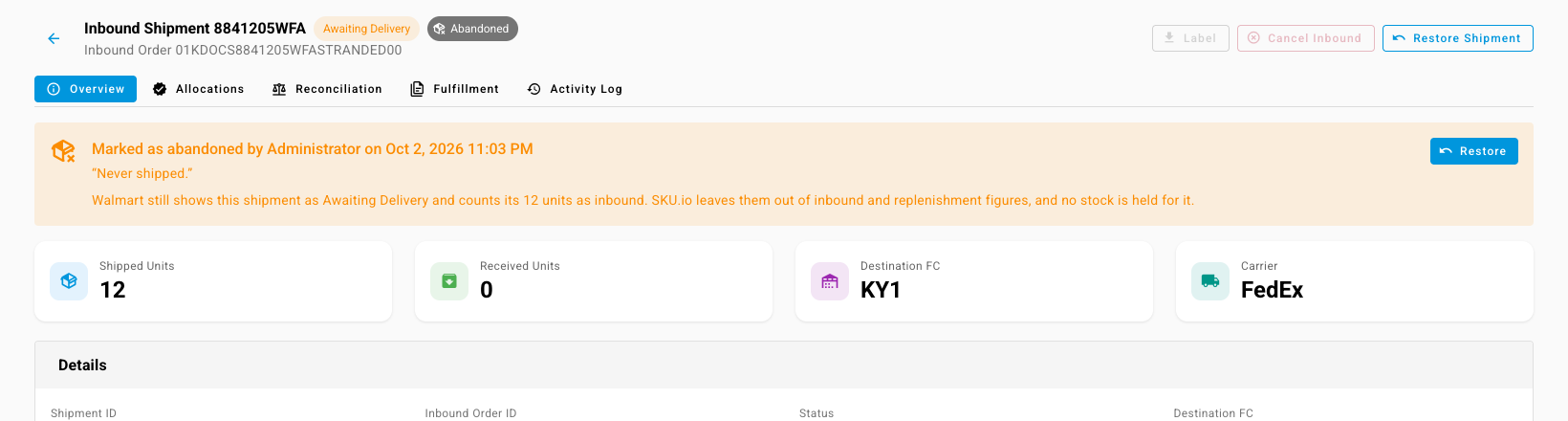
The shipment now carries an Abandoned chip beside Walmart's status, and a banner shows who marked it, when, and the note. Label and Cancel Inbound are turned off while the shipment is abandoned.
What changes, and what doesn't
| After you mark a shipment as abandoned | |
|---|---|
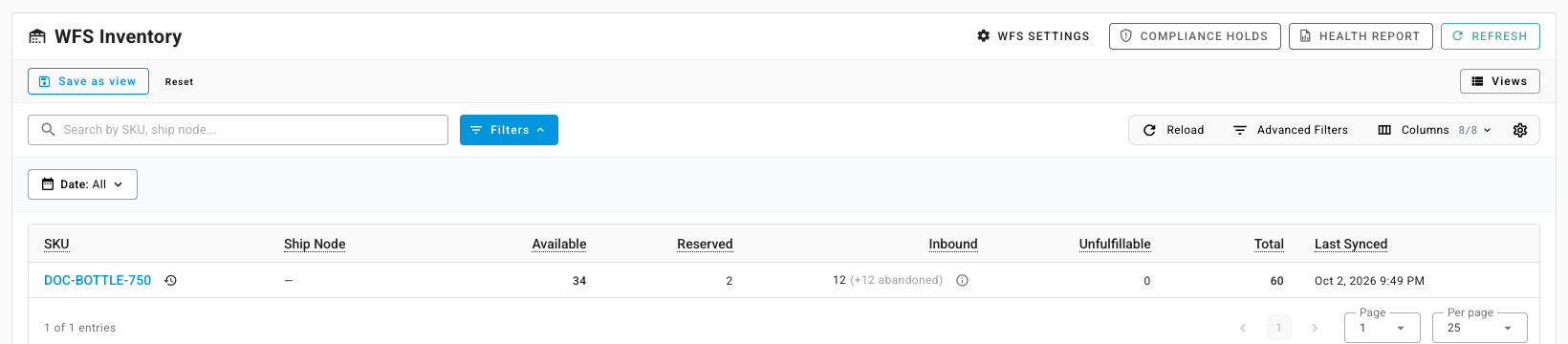
| WFS Inventory | The Inbound figure leaves out the shipment's units and shows them beside it, for example 12 (+12 abandoned). Open the icon next to the figure to see which shipments they came from. |
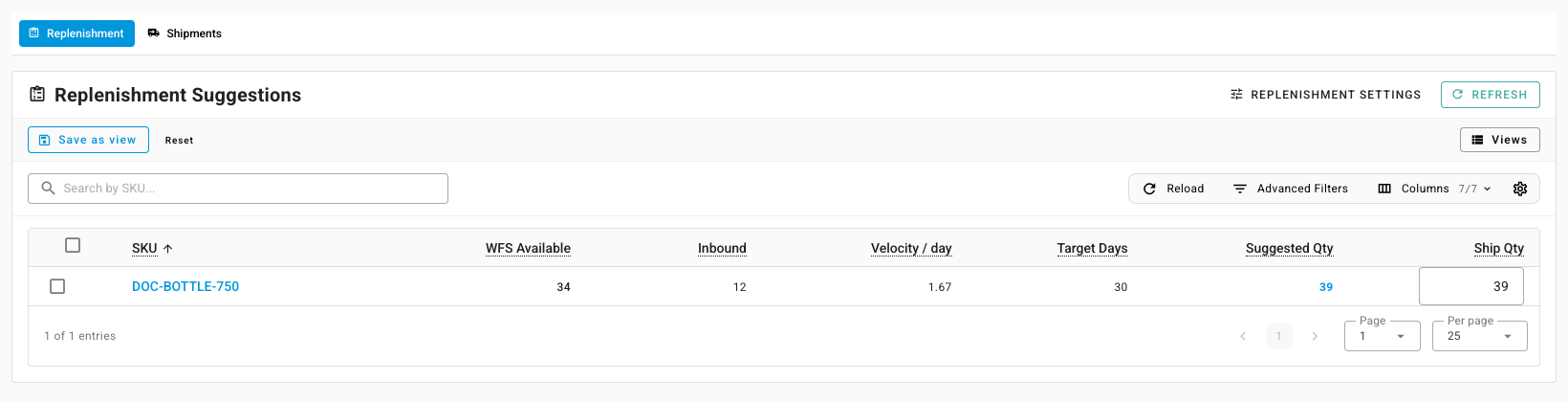
| Replenishment | Counts only the units still on their way, so the suggested quantity goes up to match. |
| Stock at your source warehouse | The stock held for the shipment is released and can be sold or shipped again. The shipment's warehouse transfer is removed. |
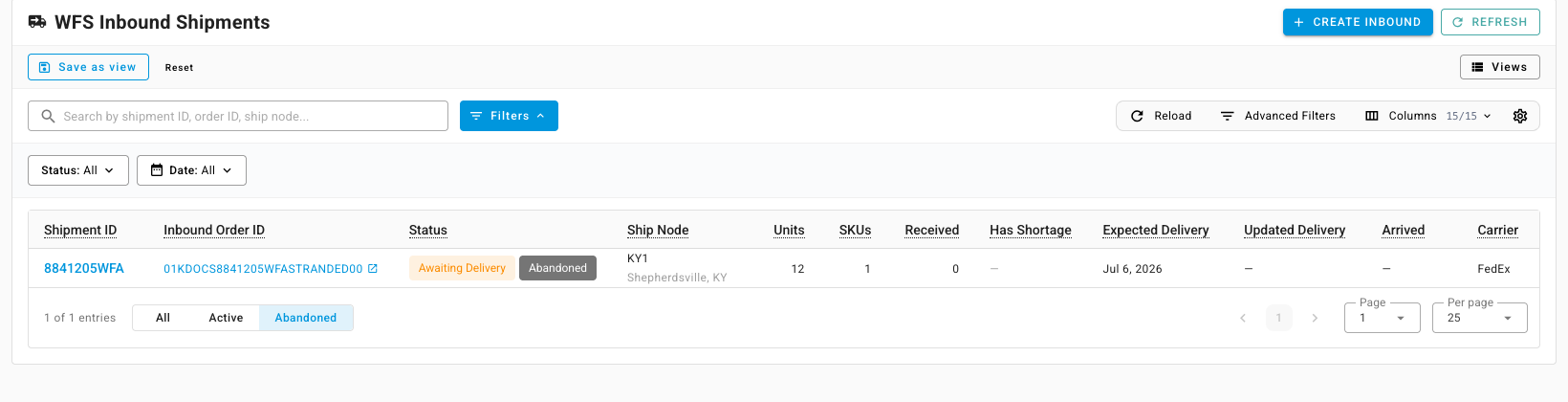
| Inbound shipments list | The shipment is hidden. Choose Abandoned or All at the bottom of the list to see it. |
| Reminders | SKU.io stops sending turnaround reminders about the shipment to your 3PL or supplier. |
| Walmart | Nothing changes. SKU.io doesn't contact Walmart. The shipment keeps Walmart's status, and Walmart Seller Center still counts its units as inbound. |
Find an abandoned shipment again
Abandoned shipments are hidden from Shipments by default. At the bottom of the list, choose Abandoned to see only abandoned shipments, or All to see every shipment. To filter by when shipments were abandoned, use Advanced Filters → Abandoned At.
If the shipment turns up after all
- Walmart reports it delivered or receiving. SKU.io clears the abandoned mark automatically on its next sync with Walmart, because the units are real after all. The shipment counts as inbound again, and the change is kept in its Activity Log.
- You change your mind. Open the shipment and click Restore Shipment (or Restore in the banner). The shipment counts as inbound again, and SKU.io holds the stock for it at the source warehouse again.
Why you can't abandon a shipment
When Mark as Abandoned is turned off, point at it to see why:
- Walmart has already received or delivered part of this shipment. The units are at Walmart, so let Walmart finish receiving it.
- This shipment is already closed on Walmart. A cancelled, received, or closed shipment no longer counts as inbound, so there is nothing to abandon.
Next steps
- How transfers work — what the warehouse transfer behind an inbound shipment does to your stock.
- Manage a connected app — the controls every channel connection shares.
Video transcript
Start on your Walmart channel, under Apps and Integrations. Then open the WFS Inbound tab, in the row of tabs near the top. The Replenishment view opens first, with one row for each product you send to Walmart.
This Inbound figure is Walmart's own number. A shipment that never left your warehouse stays in it for good. Walmart only accepts a cancel shortly after booking. So the suggested quantity stays too low.
Open Shipments, and find the shipment that never left. This one has sat at Awaiting Delivery for three months. Click it to open its details.
It was created months ago, and nothing has been received. This action exists for exactly this case. Click Mark as Abandoned, in the top right corner of the shipment page.
The dialog explains what changes. Walmart keeps showing the shipment, but SKU.io stops counting its units. Under What happened, say why it will never arrive, then click Mark as abandoned to save. Saving takes a moment, while SKU.io releases the stock held for the shipment.
The shipment is now marked Abandoned, with who marked it, when, and why. Walmart's own status stays unchanged. If the shipment turns up after all, click Restore Shipment.
Open WFS Inventory. Walmart's inbound count still includes the shipment. SKU.io shows those units as abandoned, and leaves them out of the figure.
Back on WFS Inbound, replenishment now counts only the units really on their way. The suggestion goes up to match.
For one last check, open Shipments again from the tabs above. The shipment you abandoned is gone from the list. To see it, choose Abandoned at the bottom. There it is, still flagged.