Route the carrier Walmart receives
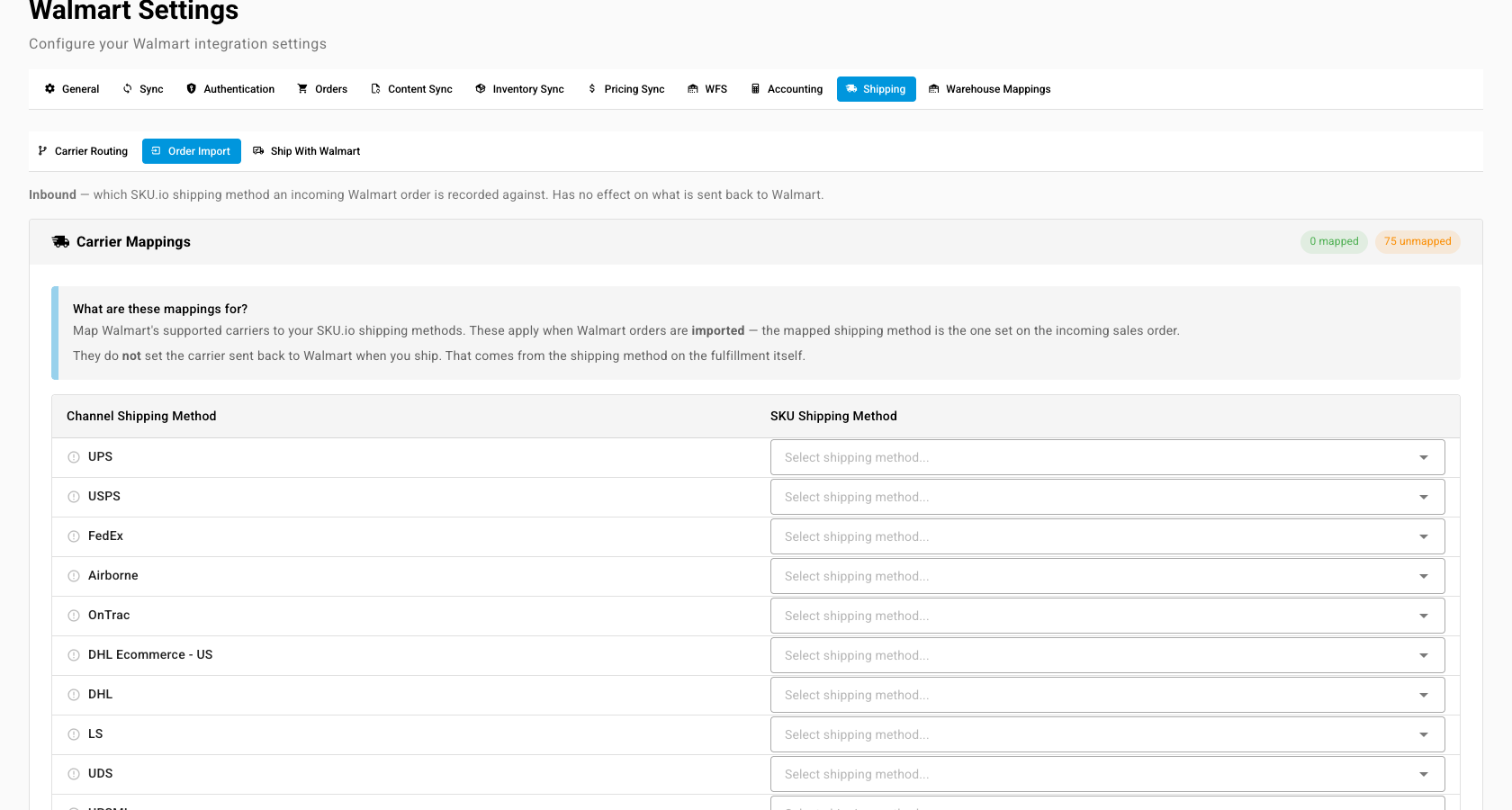
When you ship a Walmart order, SKU.io reports the tracking to Walmart under one of the carriers Walmart accepts. A shipment whose carrier Walmart doesn't recognise either goes out as unvalidated free text or, with nothing to send, fails to report at all. Carrier Routing decides which Walmart carrier each shipment is reported under. Order Import is the separate, inbound side: which of your shipping methods an incoming Walmart order is recorded with.
Before you begin
- Your Walmart channel is connected under Apps & Integrations.
- Your shipping methods exist under Settings → General → Shipping Methods.
- You need permission to update integrations to change the routing.
How a shipment picks its Walmart carrier
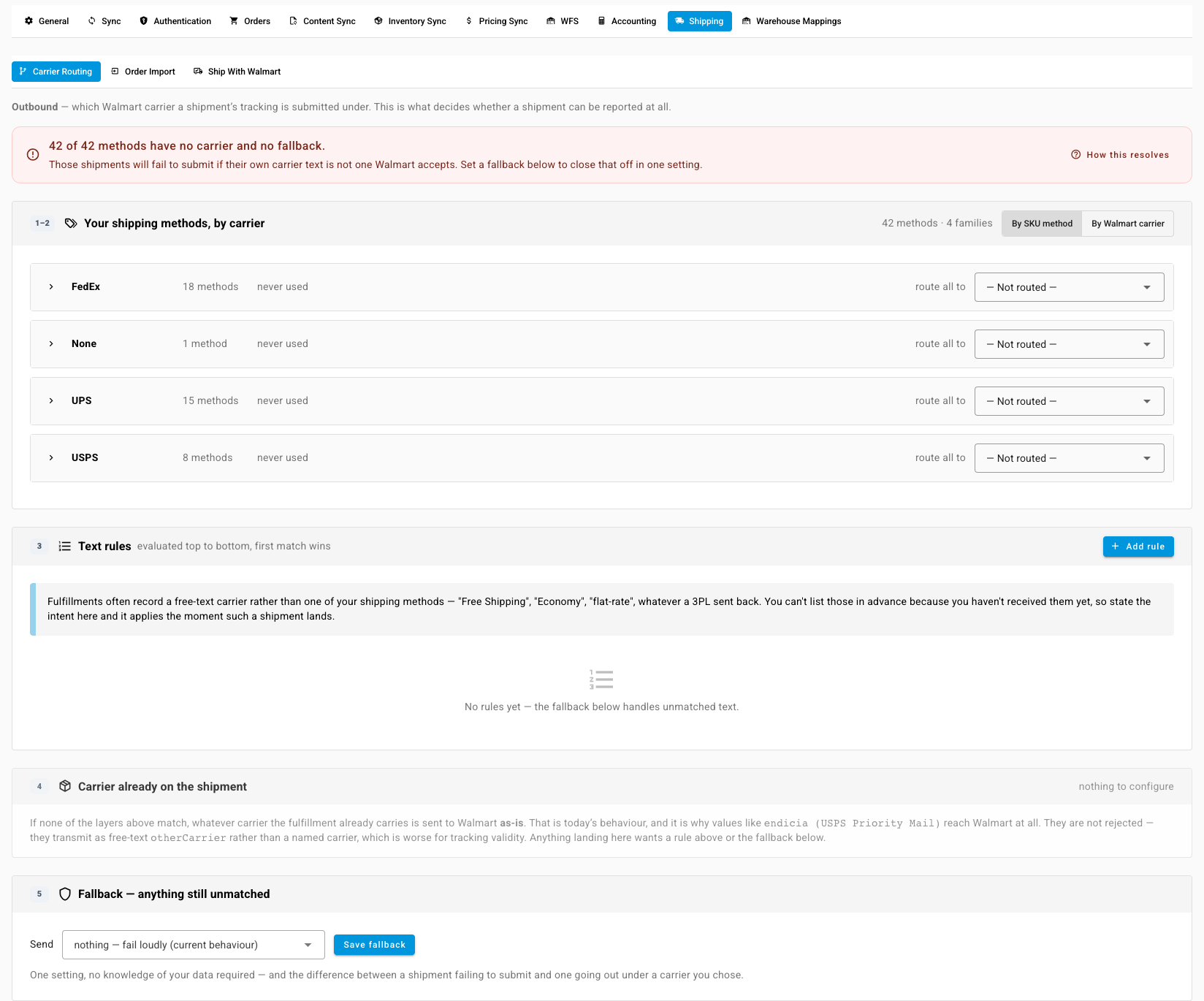
Open your Walmart channel, then Settings, the Shipping tab, and Carrier Routing. SKU.io checks five layers in order, and the first match wins. Click How this resolves to see them on screen.
- Method override: a Walmart carrier set on one of your shipping methods. Beats everything below.
- Carrier family: a default for every shipping method of one carrier, such as all your UPS methods.
- Text rules: your ordered rules over the carrier text on the shipment, for values that aren't one of your shipping methods, such as "Free Shipping" from a 3PL.
- Carrier already on the shipment: whatever carrier the shipment carries is sent as it is. There's nothing to set here.
- Fallback: the catch-all when nothing above matched.
The banner at the top counts the shipping methods that would fall through with no carrier and no fallback.
Set up the routing
- Under Your shipping methods, by carrier, choose a Walmart carrier in route all to for each carrier family. Choosing one clears any overrides on that family's methods.
- Expand a family to give a single method its own Override. Methods you leave alone show Inherit family. Will send shows the result for each one.
- Under Text rules, click Add rule. Choose contains, starts with, or is exactly, enter the text (for example
Free Shipping), and pick the Walmart carrier to send, or Send no carrier. Matching ignores case. Click Add rule. - Under Fallback — anything still unmatched, choose what to Send: a carrier I choose, then pick it, or no carrier at all. Click Save fallback.
Every change saves straight away. Text rules run top to bottom; use the arrows to reorder them. The bin removes a rule after you confirm with Delete. To see the same routing from Walmart's side, click By Walmart carrier.
When shipments start arriving with carrier text, Carrier text arriving on shipments lists each value from the last 180 days, what it will send, and which layer decides it. Fix any line that sends a carrier Walmart doesn't recognise.
Choose what the fallback does
| Fallback | What happens to a shipment nothing else matched |
|---|---|
| nothing — fail loudly (current behaviour) | The tracking isn't sent. The fulfillment shows an error asking you to set its shipping method or carrier. |
| a carrier I choose | The tracking is sent under that carrier. |
| no carrier at all | The tracking is sent without a carrier, which Walmart accepts. |
Map Walmart's methods for imported orders
Order Import only sets the shipping method on the sales order SKU.io creates. It has no effect on what goes back to Walmart.
- Click Order Import.
- Under Carrier Mappings, pick a SKU Shipping Method for each Walmart carrier you see on orders, then click Save Changes.
- Under Walmart Shipping Methods, pick a SKU.io Shipping Method for each Walmart method found on your imported orders, then click Save Mappings. The list fills in once orders have been imported.