Review Walmart lag times and pushes
The Lag Time tab of your Walmart channel shows the lag time every listing has, why SKU.io chose it, and whether Walmart has it yet. Push runs lists every batch of lag-time changes SKU.io has sent to Walmart. Use it to check that automatic lag time is doing what you expect, and to act on listings that need you.
Before you begin
- Automatic lag time is set up for your Walmart channel, or you have set a fixed lag time for some listings.
- You need permission to update integrations to send changes or set lag times.
Open the Lag Time tab
- Go to Apps & Integrations, open your Walmart channel, and click Lag Time.
- If you have more than one Walmart channel, choose it in the selector at the top.
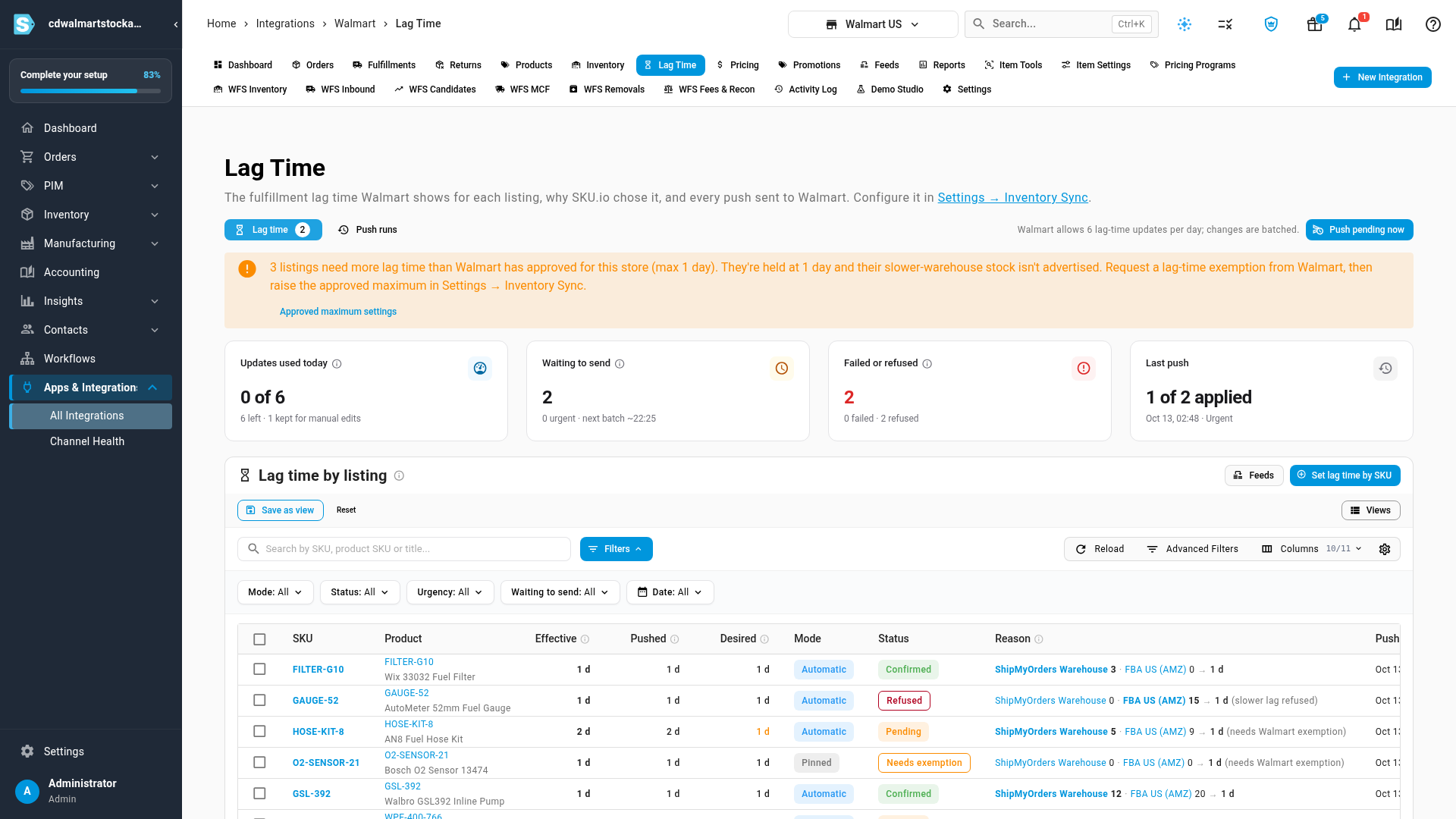
The cards along the top summarise the day:
| Card | What it shows |
|---|---|
| Updates used today | Walmart allows 6 lag-time updates per day. One is always kept back for changes you make by hand. |
| Waiting to send | Listings whose new lag time hasn't gone to Walmart yet, and when the next batch is due. Urgent changes (going slower) go first. |
| Failed or refused | Listings Walmart refused a lag time for, or whose push failed. |
| Last push | How many listings the last batch applied, when it ran, and what started it. |
If listings need more lag time than Walmart has approved for your store, a banner says how many. They're held at the approved maximum, and their slower-warehouse stock isn't advertised. To release them, request a lag-time exemption from Walmart, then raise Highest lag time Walmart has approved in Settings → Inventory Sync. Approved maximum settings in the banner takes you there.
Read a listing's row
| Column | What it means |
|---|---|
| Effective | The lag time Walmart has. Before the first push, the lag time SKU.io wants. |
| Pushed | The last lag time SKU.io sent to Walmart. |
| Desired | The lag time SKU.io wants now. When it differs from Pushed, the change is waiting to send. |
| Mode | Automatic (chosen from stock), Pinned (set by hand), or Baseline (the ship node's baseline lag time). |
| Status | Where the listing's lag time stands with Walmart (see below). |
| Reason | Each stock warehouse with its units and lag time, the warehouse that decided the value, and the rule behind it. Click a warehouse to open its settings. |
| Pushed at and Feed | When the lag time was last sent, and the Walmart feed it went in. |
| Status | What it means | What to do |
|---|---|---|
| Pending | A new lag time is waiting for the next batch. | Nothing. Click Push pending now if it can't wait. |
| Submitted | Sent to Walmart; waiting for Walmart to confirm. | Nothing. |
| Confirmed | Walmart has the lag time. | Nothing. |
| Failed | The push didn't go through. | Open the feed to see Walmart's error. |
| Refused | Walmart refused the slower lag time, usually because the item's category has no lag-time exemption. | Request an exemption, then select the listing and click Retry slower. |
| Held | A pinned lag time that can't be sent because the listing is archived, unlinked, or fulfilled by Walmart. | Nothing. It goes out with the next batch once the listing can be sent again. |
| Needs exemption | The listing needs more than Highest lag time Walmart has approved, so it's held at that maximum. | Request an exemption from Walmart, then raise the approved maximum. |
The rules in Reason are:
- Fastest warehouse with stock: the usual case.
- Settling before going faster: fast stock is back, but SKU.io waits for it to settle before going faster, so a unit that arrives and sells straight away doesn't use one of the day's updates.
- No stock, value kept: no warehouse has stock, so the last value is kept.
- Pinned: someone set the lag time by hand.
- Baseline: the ship node's baseline lag time.
- Slower lag refused: Walmart refused the slower lag time.
- Needs Walmart exemption: held at the approved maximum.
Use Mode, Status, Urgency and Waiting to send above the table to narrow the list.
Act on listings
Select one or more listings with the checkboxes, then:
- Set lag time pins the listings to a lag time you choose. See Set a fixed lag time for specific Walmart SKUs.
- Return to automatic removes a pin, so the listing's lag time follows its stock again.
- Retry slower sends a refused slower lag time again, once Walmart has approved an exemption. It doesn't release listings held at the approved maximum. Raise the maximum instead.
To send every pending change now instead of waiting for the next batch, click Push pending now and confirm. It uses one of the day's updates, and its progress shows in the job tray.
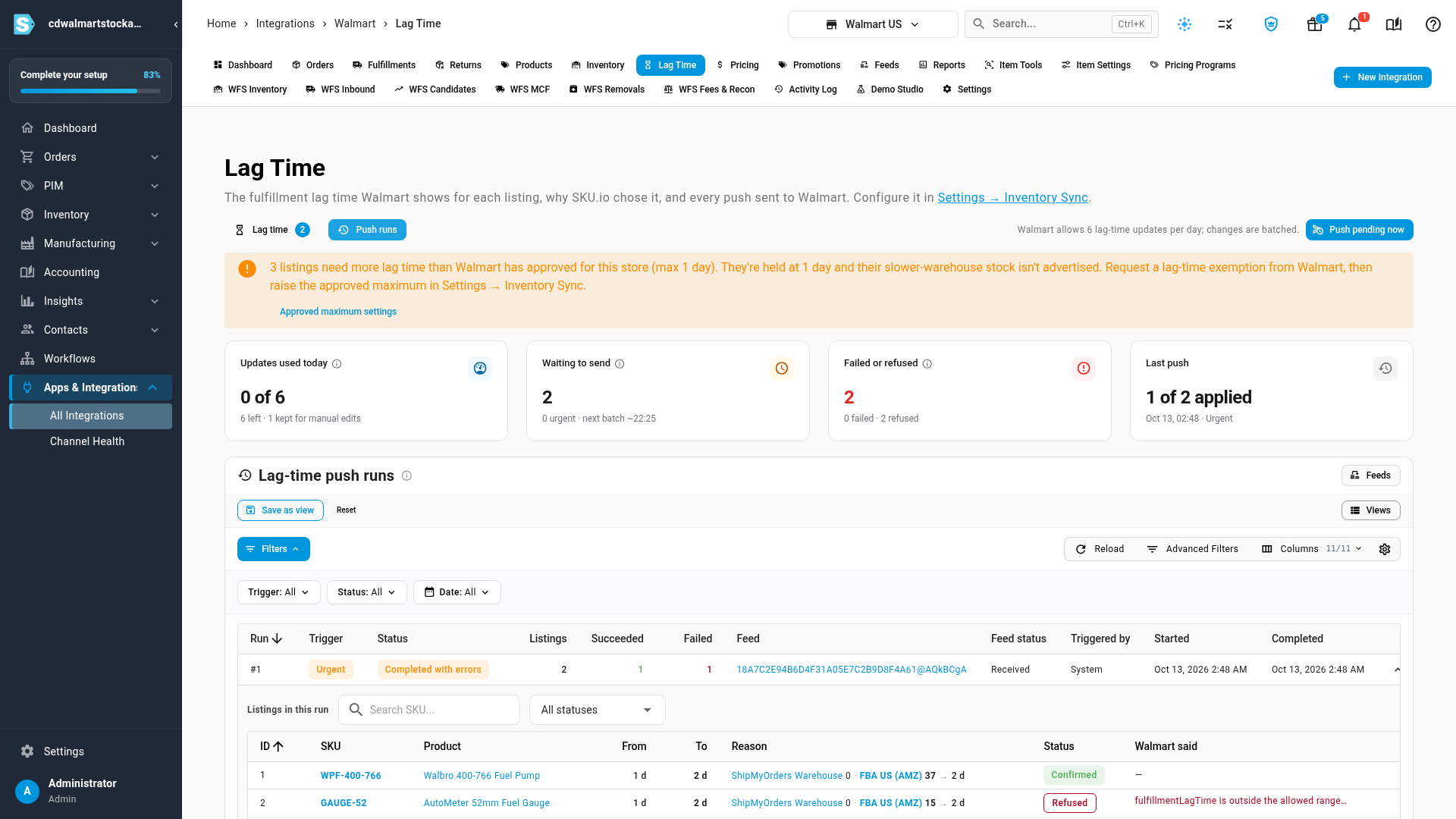
Review push runs
Click Push runs to see every batch SKU.io has sent: what started it (Scheduled, Urgent, Manual or Retry), its status, how many listings it carried, how many succeeded and failed, and the Walmart feed. Click a run to see each listing it carried, with the old and new lag time and any error from Walmart.
Next steps
Video transcript
Open your Walmart channel, then select the Lag Time tab. It shows every Walmart listing's lag time, and why SKU.io chose it. The cards show today's updates, what's waiting to send, and anything Walmart refused. Walmart allows six lag-time updates a day, so SKU.io sends changes in batches. This banner counts listings that need more lag time than Walmart has approved. They stay at one day until Walmart approves an exemption and you raise the maximum. Each row shows the lag time Walmart has, the last one sent, and the one SKU.io wants. Reason lists each warehouse's stock, and the warehouse that decided the lag time. Status shows where each listing stands with Walmart. Pending is waiting for the next batch, and Refused means Walmart turned the lag time down. Needs exemption means the listing is held at the approved maximum. Select Push runs to see every batch of changes sent to Walmart. Each run shows what started it, and how many listings it carried. Expand a run with the arrow at the end of its row. It lists each listing the run carried, and what Walmart said about it. To send every waiting change straight away, select Push pending now. That uses one of the day's six updates, and its progress shows in the job tray.