Remove stock from WFS
To get stock back from Walmart Fulfillment Services, or have Walmart dispose of it, you place a removal order. Walmart offers no way for other software to create removal orders, so the work is split: you prepare the removal in SKU.io from the stock you hold at WFS, submit the same removal in Walmart Seller Center, and record its progress in SKU.io. When returned units arrive, SKU.io moves them from the WFS warehouse to yours.
Before you begin
- WFS is turned on. See Set up Walmart Fulfillment Services.
- You have permission to change integrations.
- Walmart charges a fee per unit removed.
Prepare the removal
-
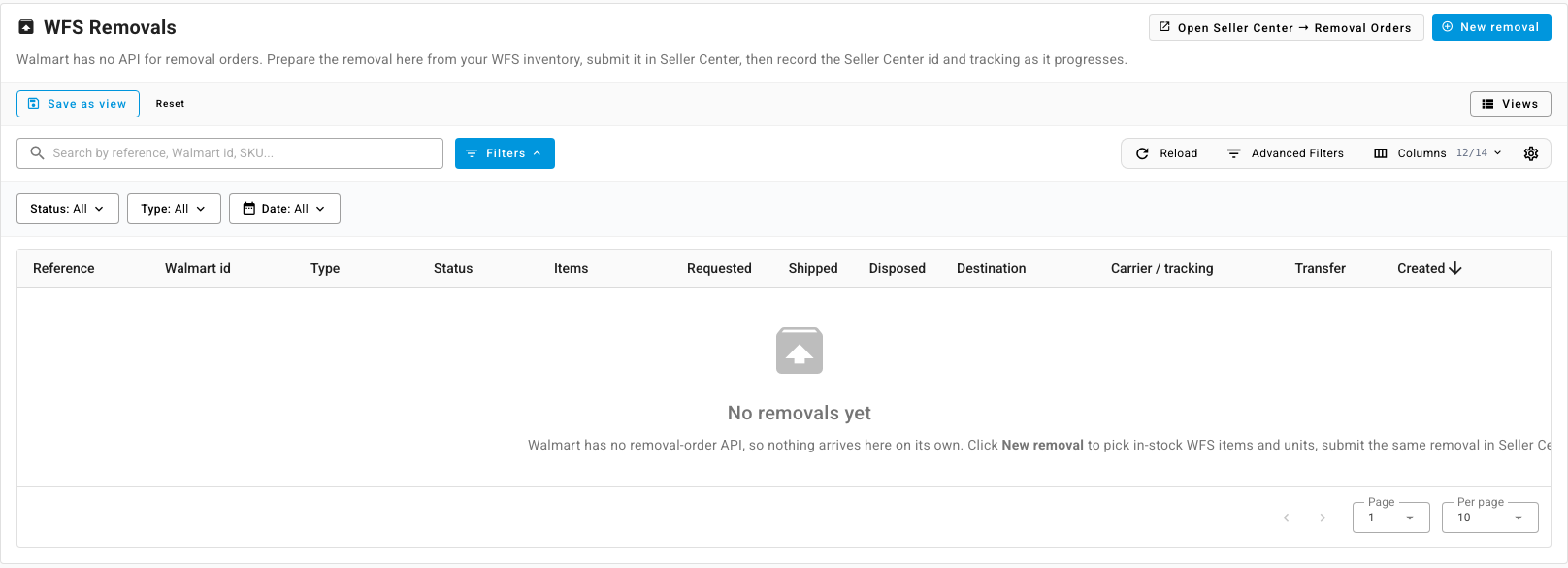
Go to Apps & Integrations, open your Walmart channel, then open WFS Removals.
-
Click New removal.
-
On Pick items, choose the SKUs to remove from the stock Walmart holds.
-
On Units & method, enter the units for each SKU and choose Ship inventory back to me or Dispose of inventory. For a return, choose the warehouse under Ship to (seller warehouse). Add a Note if you like.
-
On Review, click Create removal. The removal is saved in SKU.io as Draft.
Submit it in Seller Center
- Click Open Seller Center → Removal Orders and create the same removal there.
- Back in SKU.io, choose Mark submitted in Seller Center on the removal and enter the Walmart removal order id Walmart gave it. The status becomes Submitted.
You can also enter the id straight after creating the removal, or choose Do this later.
Record what happens
- Return to seller: when Walmart ships it, choose Record shipment and enter the Carrier, Tracking number and the quantity shipped per line. The status becomes Shipped.
- Disposal: when Walmart confirms it, choose Mark disposed. The status becomes Disposed.
- To drop a draft you won't submit, choose Cancel removal.
Bring returned stock back
When the shipped units reach your warehouse, choose Materialize inbound transfer and click Create transfer. SKU.io creates one warehouse transfer from the WFS warehouse to the seller warehouse for the shipped units, and the removal becomes Materialized. Receive the transfer as usual to put the units into stock. See Receive a transfer.
Recording a removal doesn't move stock in SKU.io by itself; only the transfer does.