Set a fixed lag time for specific Walmart SKUs
Automatic lag time sets each listing's lag time from the warehouses that have stock. Some items don't fit that rule: an item made to order, a bulky item that always takes longer to pack, or an item you want to promise faster than its warehouse suggests. Pinning a listing gives it a fixed lag time that automatic lag time leaves alone until you return it to automatic.
Before you begin
- Your Walmart channel is connected under Apps & Integrations.
- You need permission to update integrations.
- You can't pin a lag time above Highest lag time Walmart has approved (under your Walmart channel's Settings → Inventory Sync). Walmart only accepts more than 1 day for item categories with an approved lag-time exemption, so SKU.io refuses a higher value instead of sending it.
Pin listings from the Lag Time tab
- Go to Apps & Integrations, open your Walmart channel, and click Lag Time.
- Find the listings to pin. Search by SKU, product SKU or title, or use the filters.
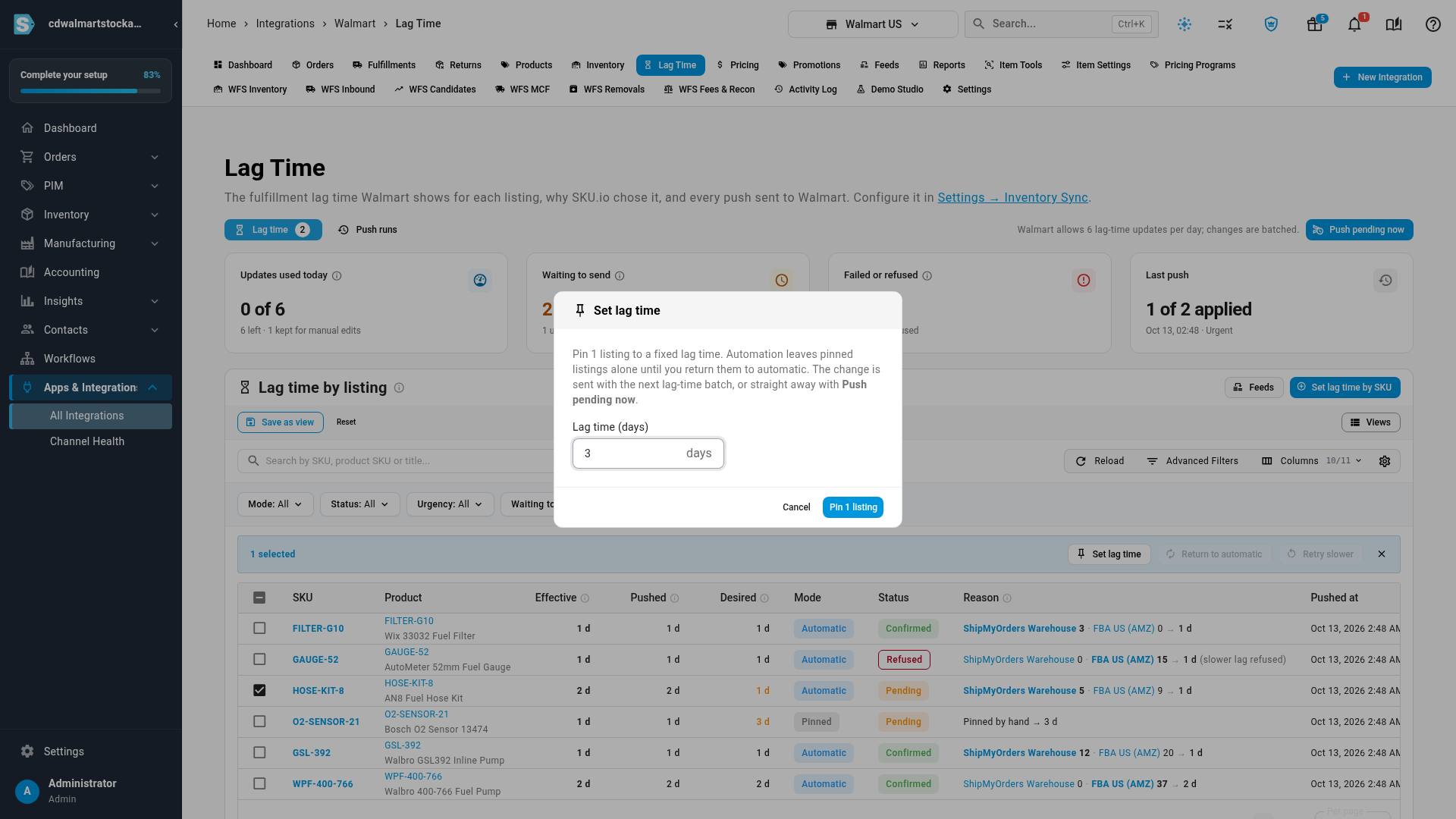
- Select them with the checkboxes, then click Set lag time.
- Enter the Lag time (days). If it's above what Walmart has approved for your store, a warning explains why it can't be saved.
- Click Pin. The button names how many listings you selected, for example Pin 1 listing.
The listings show Pinned under Mode. The new lag time goes out with the next batch of lag-time changes, or straight away when you click Push pending now.
Pin a list of SKUs
To pin many SKUs at once, paste them in:
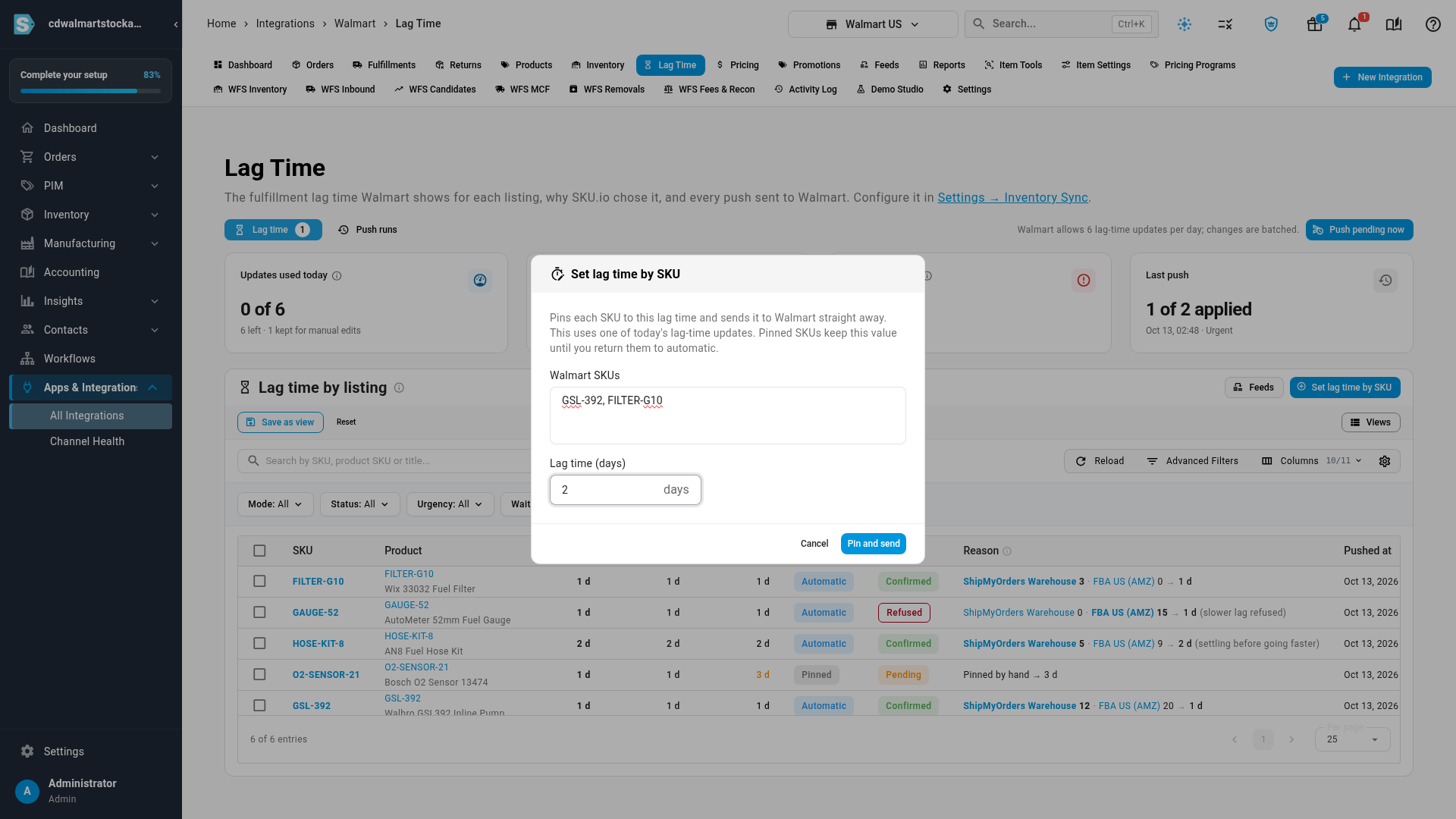
- On the Lag Time tab, or under Item Settings → Fulfillment Lag Time, click Set lag time by SKU.
- In Walmart SKUs, enter the SKUs, one per line or separated by commas.
- Enter the Lag time (days).
- Click Pin and send.
Unlike pinning from the table, Pin and send sends the lag times to Walmart straight away, and uses one of the day's 6 lag-time updates. SKUs that aren't on this Walmart channel are listed in a warning and skipped.
Return listings to automatic
- On the Lag Time tab, select the pinned listings.
- Click Return to automatic.
SKU.io works out each listing's lag time from its stock again, and sends any change with the next batch.
Next steps
Video transcript
Some items always take longer to ship, whatever stock you hold. You can give those listings a fixed lag time of their own. Open your Walmart channel, then select the Lag Time tab at the top of the page. Find the listing you want to fix, and select its checkbox. Here, the fuel hose kit is made to order. Then select Set lag time, in the bar that appears above the table once a listing is selected. Enter the lag time in days. This store has a Walmart exemption for up to three days. Enter five, and a warning explains why it can't be saved. Change it to three days instead. Select Pin 1 listing to save the fixed lag time. The listing now shows Pinned, and automatic lag time leaves it alone. The new lag time goes out with the next batch, or Push pending now sends it straight to Walmart. To undo a pin, tick the listing's checkbox again. Choose Return to automatic in the bar above the table. Confirm, and its lag time follows its stock once more. To pin many listings at once, select Set lag time by SKU. Paste the Walmart SKUs, one per line or separated by commas, and enter the lag time. Pin and send then sends them to Walmart straight away, and that uses one of the day's six lag-time updates.