Send stock to WFS
A WFS inbound shipment moves stock from one of your warehouses, or straight from a supplier, into Walmart's fulfillment centers. SKU.io suggests what to send, creates the inbound order on Walmart, holds the stock at the source, and ships it out of your stock when Walmart reports the shipment on its way.
Before you begin
- WFS is turned on for the Walmart channel. See Set up Walmart Fulfillment Services.
- The products you send are listings you ship yourself on Walmart, with a GTIN.
Choose what to send
-
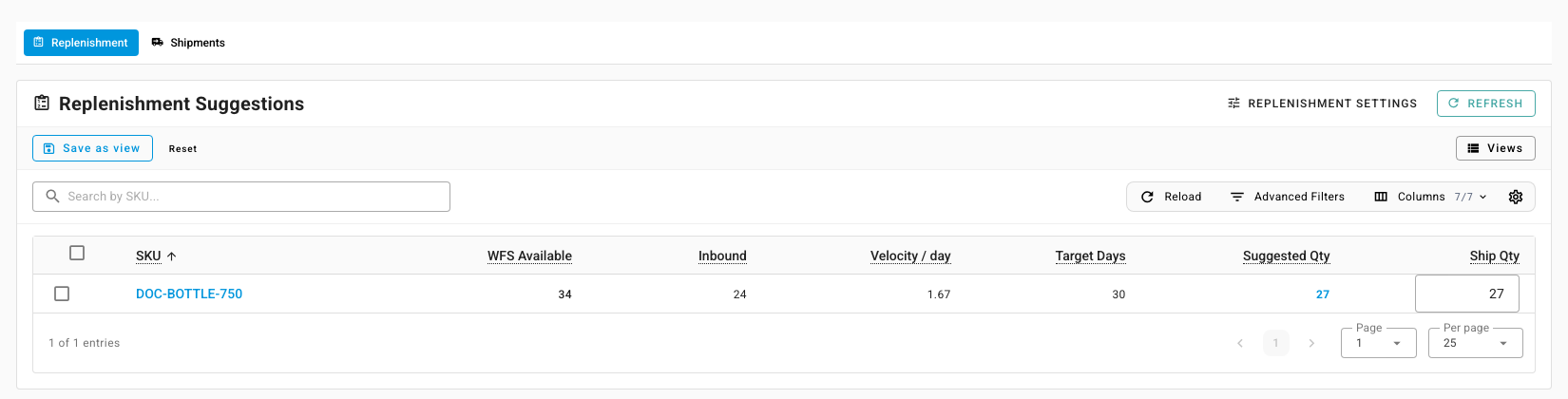
Go to Apps & Integrations, open your Walmart channel, then open WFS Inbound. The Replenishment view lists each SKU's WFS Available, Inbound, Velocity / day, Target Days and Suggested Qty.
-
Adjust Ship Qty where you want to send a different amount, and tick the rows to send. The bar at the bottom counts the SKUs and units in your cart.
-
Click Send to WFS. Create WFS Inbound Shipment opens with the cart filled in.
You can also start empty: open Shipments and click Create Inbound.
Create the inbound shipment
-
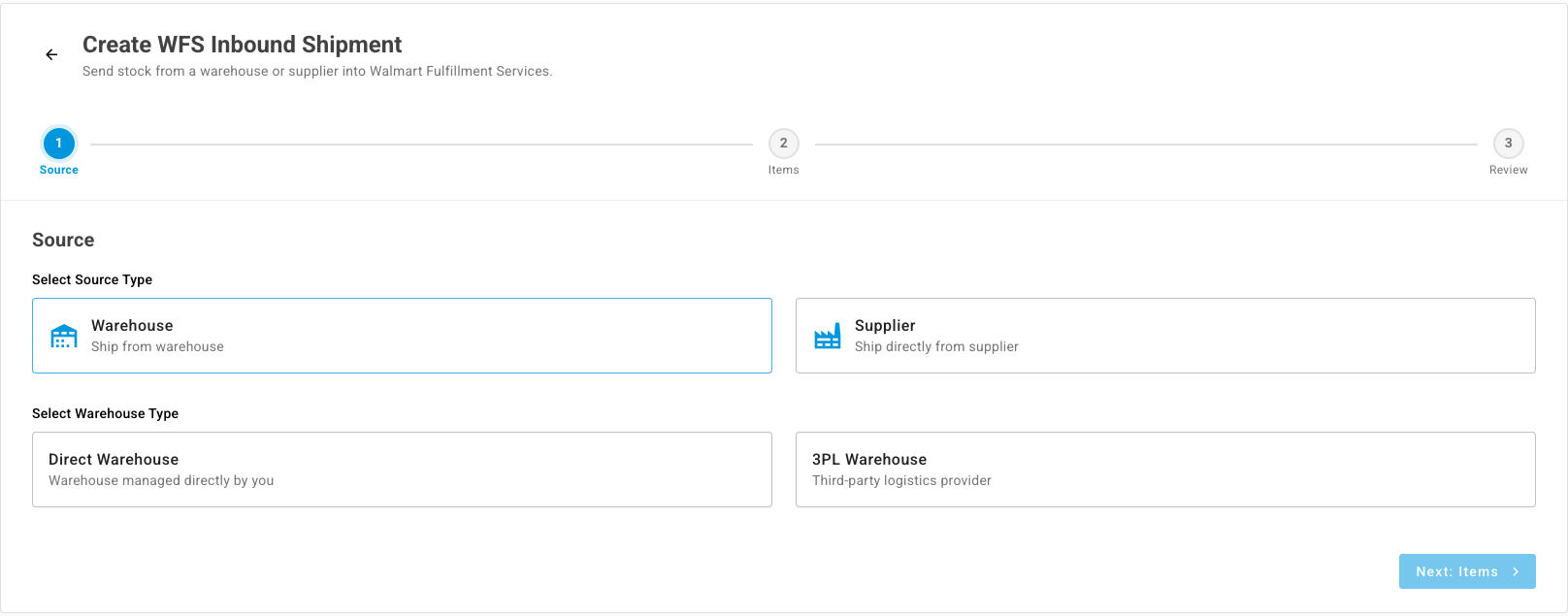
On Source, choose Warehouse or Supplier. For a warehouse, choose Direct Warehouse or 3PL Warehouse, then pick it. Click Next: Items.
-
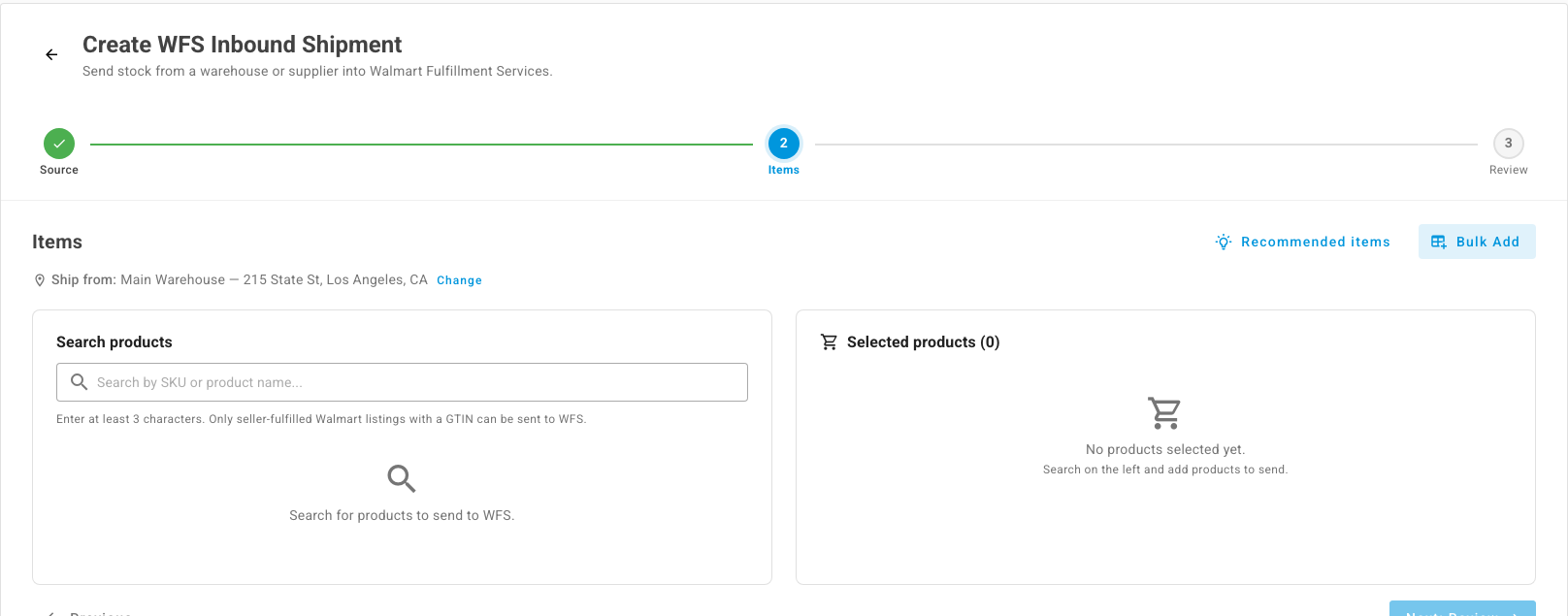
On Items, add products: search by SKU or name and click Add, use Recommended items to add Walmart's own restock recommendations, or use Bulk Add to paste or upload SKUs, UPC codes or GTIN codes with quantities.
-
For each product under Selected products, set:
- Send quantity. SKU.io warns you when it's more than the source has.
- Packing setup: Individual or Case-packed, with Units per master case. A case-packed quantity must fill whole cases.
- Item prep: WFS Prep Services, where Walmart bags and labels items for a fee, or Do it myself. You can't change prep once the order is submitted.
- For a kit, Kit fulfilment: Ship kit stock or Assemble from components.
-
Click Next: Review. Check the totals and the Expected delivery date. To see where Walmart is likely to send the units and what it may charge, click Preview placement & charges.
-
Click Submit to Walmart. If any line is flagged, Review before you submit lists why; fix the lines, or click Submit anyway.
Walmart picks the fulfillment centers and may split the order into several shipments. SKU.io holds the stock at your source warehouse and creates a warehouse transfer to the WFS warehouse. For a supplier, it creates a purchase order instead.
Book the carrier and print labels
-
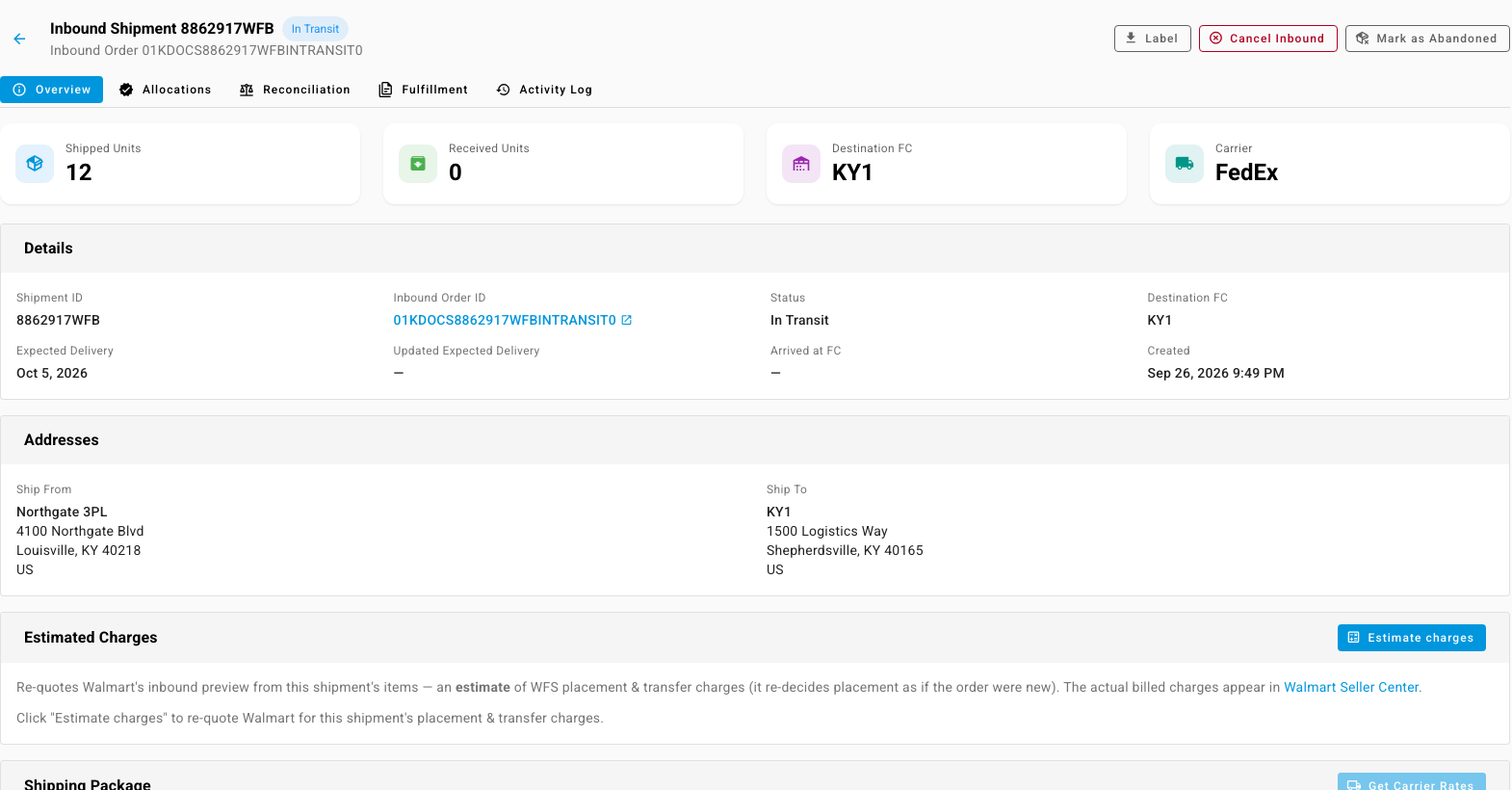
Open Shipments and click the shipment. Overview shows the shipped and received units, the destination fulfillment center, and the carrier.
-
Under Estimated Charges, click Estimate charges to re-quote Walmart's placement and transfer charge. It's an estimate; Walmart Seller Center shows the billed amount.
-
To use Walmart's preferred carrier, enter the package Weight and dimensions under Shipping Package, click Get Carrier Rates, and Book a rate. Then click Print carrier label. You can void the booking only while Walmart allows it.
-
To use your own carrier, enter the tracking numbers under Carrier & Tracking and submit them to Walmart.
-
Click Label for the box (receiving) label, and Item labels under Items for GTIN labels on a letter sheet or a thermal printer.
When Walmart reports the shipment shipped, SKU.io ships the warehouse transfer and the stock leaves your source warehouse. When Walmart reports it received or closed, the transfer closes. To stop a shipment before it ships, click Cancel Inbound; this cancels every shipment under the same inbound order. If Walmart won't cancel it any more, see Mark a WFS inbound shipment as abandoned.
Hand the shipment to a 3PL or supplier
For a shipment that a 3PL or supplier packs, open its Fulfillment tab:
- Choose Communicate via Email or Portal, tick whether kits are assembled at the 3PL or supplier, and adjust the Prep instructions.
- Click Build Fulfilment Packet. SKU.io collects the box and carrier labels, prep instructions, any kitting work order, and the purchase order.
- Share the Portal link with Send email or Copy. On the portal, they build any kits, print labels, and click Confirm ready. Click Send shipping details once the carrier is booked.
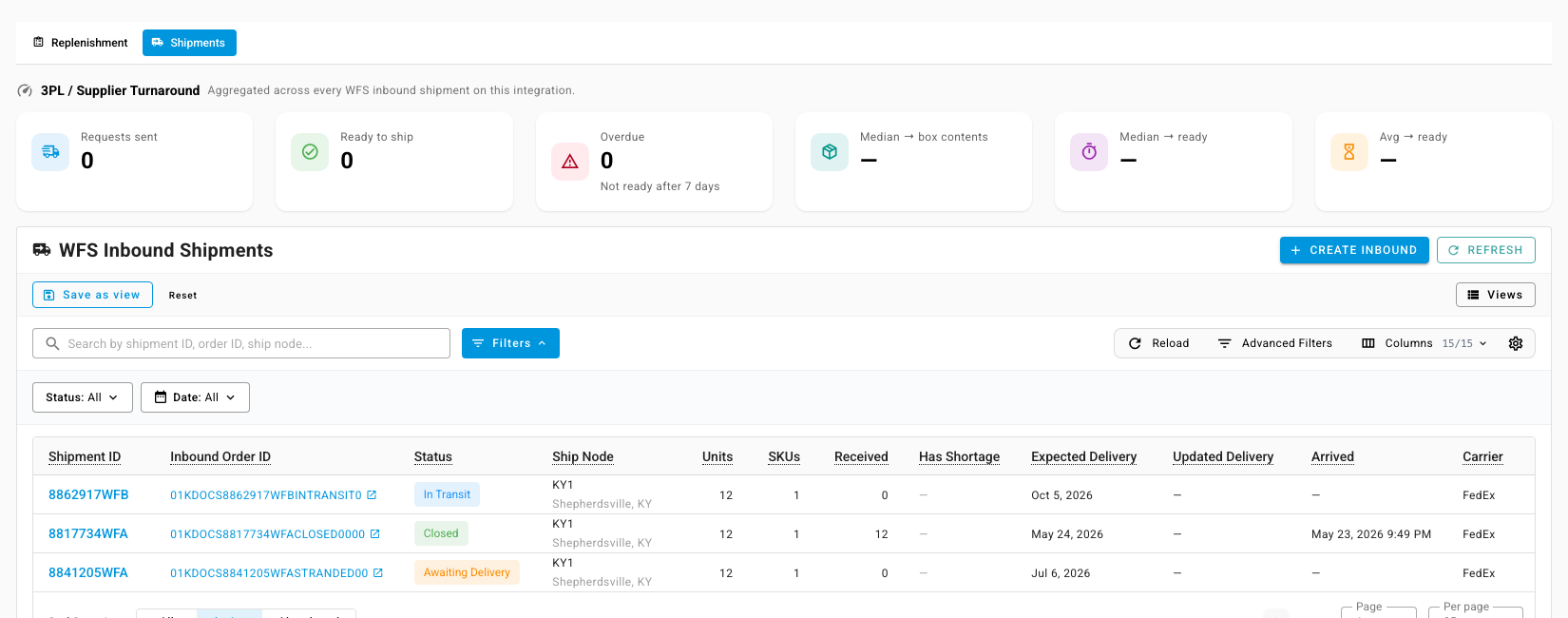
The 3PL / Supplier Turnaround tiles on Shipments show how many requests are out, how many are ready to ship, and how many are overdue. SKU.io sends reminders to them every day until they confirm.
Check what Walmart received
Open the shipment's Reconciliation tab. For each SKU it shows Sent, Received and the Variance, with a status. Switch on Mark investigated once you've dealt with a difference. The Has Shortage column on Shipments flags shipments that came up short.