Run Walmart promotions
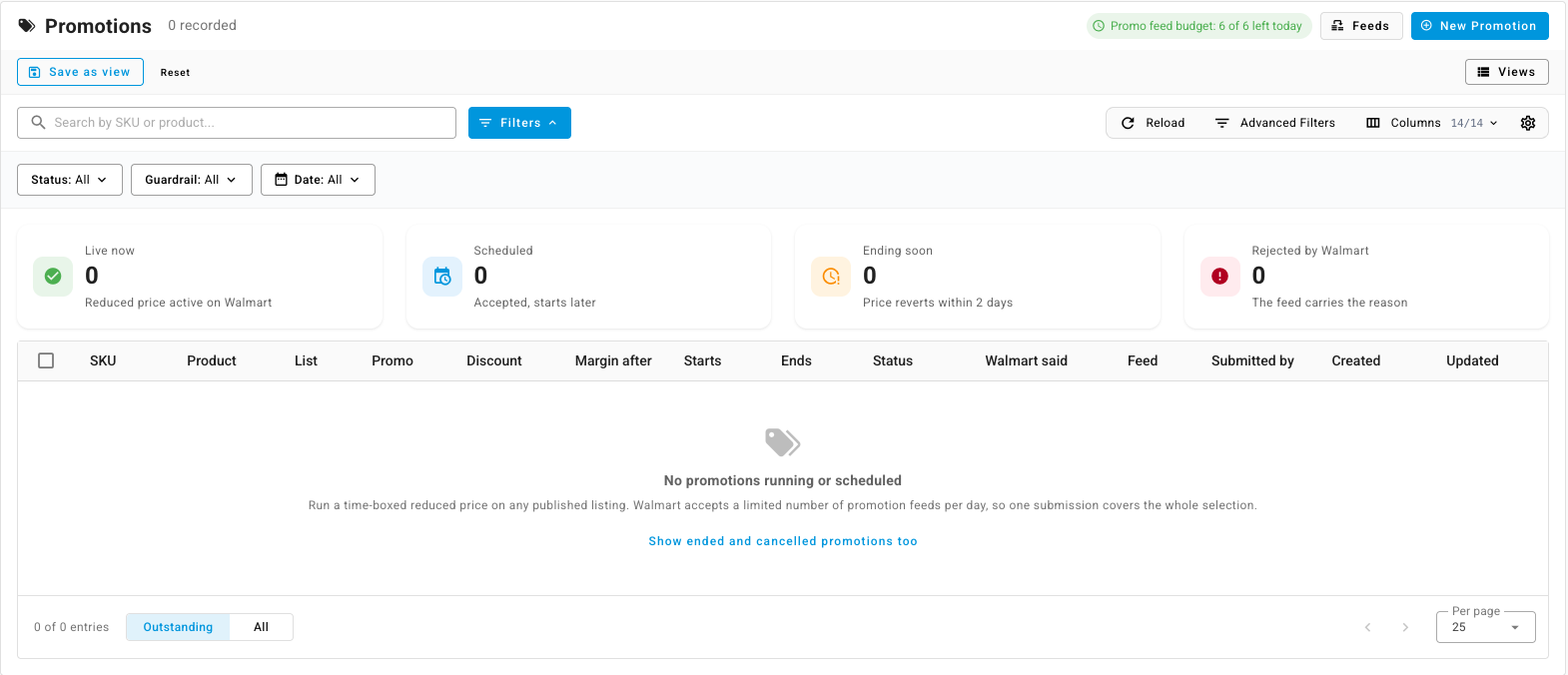
A Walmart promotion shows a reduced price on a listing for a set window, then the price returns to normal on its own. The Promotions tab on your Walmart channel lets you set one up for many listings at once, see the price and margin each one ends up at before anything is sent, and follow what Walmart did with it.
Before you begin
- The listings must be published on Walmart. Listings that aren't, or have no Walmart SKU, are left out of the submission, and the preview says how many.
- Walmart limits how many promotion feeds you can send per day. The chip at the top of the tab, such as Promo feed budget: 6 of 6 left today, shows what's left. One submission covers every listing you select, however many, so promote listings in batches rather than one at a time.
- Promotional prices are checked against the same price guardrails as your normal price pushes. See Sync prices with your sales channels.
Create a promotion
-
Go to Apps & Integrations, open your Walmart channel, and choose Promotions.
-
Click New Promotion.
-
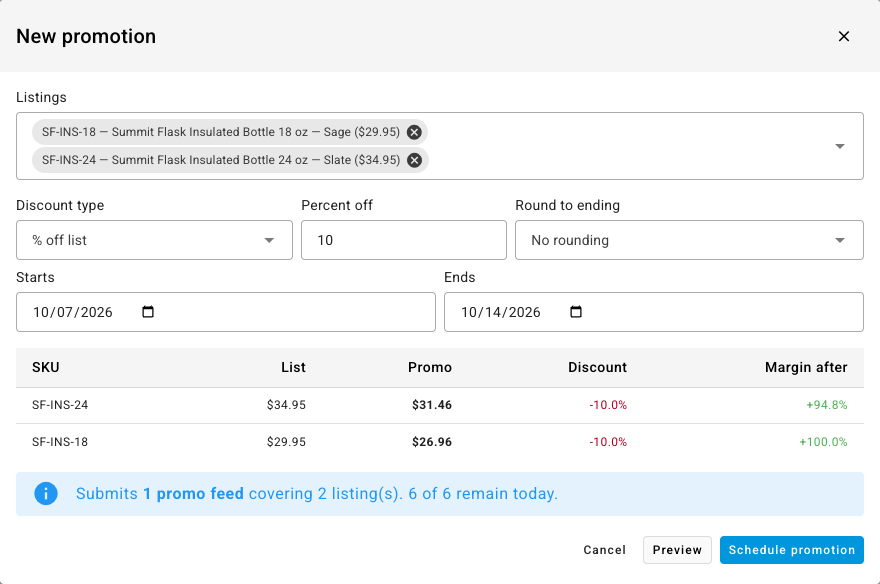
Under Listings, search by Walmart SKU or product name and pick every listing to include. Each option shows the listing's current price.
-
Choose the Discount type:
Discount type You enter % off list Percent off, such as 10 $ off list Amount off ($) Target price Target price ($), the promotional price itself -
Optionally pick Round to ending so promotional prices end in .95, .99 or .49. The default is No rounding.
-
Set Starts and Ends. The end date must be after the start date.
-
Click Preview. A table shows each listing's List price, its Promo price, the Discount, and the Margin after the discount. Below it, SKU.io says what the submission costs, for example "Submits 1 promo feed covering 2 listing(s). 6 of 6 remain today."
-
Read any warnings above the table:
- Listings that break their price guardrail at this discount. To send them anyway, tick Send the breaching listings anyway. Otherwise narrow the discount and preview again.
- Listings that already have a promotion in this window. Walmart keeps the last feed it accepts, so the new promotion replaces the old one.
- Listings that can't be promoted, because they aren't published on Walmart or have no Walmart SKU. They're left out.
-
Click Schedule promotion.
If Schedule promotion is greyed out, point at it to see why. Common reasons are that no listing is chosen, the discount is zero, the end date isn't after the start date, a guardrail breach hasn't been confirmed, or today's feed budget is used up. In that last case the message says when the next feed can go.
Follow your promotions
The four cards at the top count your promotions by state:
| Card | Meaning |
|---|---|
| Live now | The reduced price is active on Walmart |
| Scheduled | Walmart accepted it and it starts later |
| Ending soon | The price returns to normal within 2 days |
| Rejected by Walmart | Walmart refused it. The Walmart said column carries the reason. |
Each row shows the listing's SKU and Product, the List and Promo prices, the Discount, the Margin after, the Starts and Ends dates, the Status, the Feed it went out in, who it was Submitted by, and when it was Created and Updated. A promotion sent despite a guardrail breach carries an extra chip naming the guardrail it breaks.
Filter by Status (Live, Scheduled, Ending soon, Submitting, Rejected, Ended or Cancelled), by Guardrail (Below the price floor, Above the price ceiling or Exceeds the maximum change), or by Date. The table shows outstanding promotions by default. Switch the footer toggle to All to include ended and cancelled ones.
End or extend a promotion
Each change submits one promotion feed, so it uses today's budget.
- End one now: open the row's menu and choose End promotion now. Confirm, and the listing returns to its list price once Walmart processes the feed.
- End several now: tick the rows and click End promotion now in the bar above the table.
- Change the end date: tick the rows, click Change end date, enter the New end date, and confirm.
The row menu also has View listing, View product and View feed. Click Feeds at the top of the tab to see every feed sent to Walmart.
Next steps
- Use Walmart repricer strategies and pricing programs: automatic repricing and Walmart's own programs.
- Sync prices with your sales channels: the guardrails promotions are checked against.