Track FBT inbound orders and what TikTok received
Once an inbound order ships, SKU.io follows it until TikTok checks it in at the fulfillment center. Then it compares what you sent with what TikTok counted, and holds any line TikTok didn't count until it has a number.
Before you begin
- Fulfillment by TikTok (FBT) is on for your TikTok Shop connection, and you have shipped inbound orders. See Send stock to Fulfillment by TikTok.
- To settle or resolve a line, you need permission to change integrations.
Steps
-
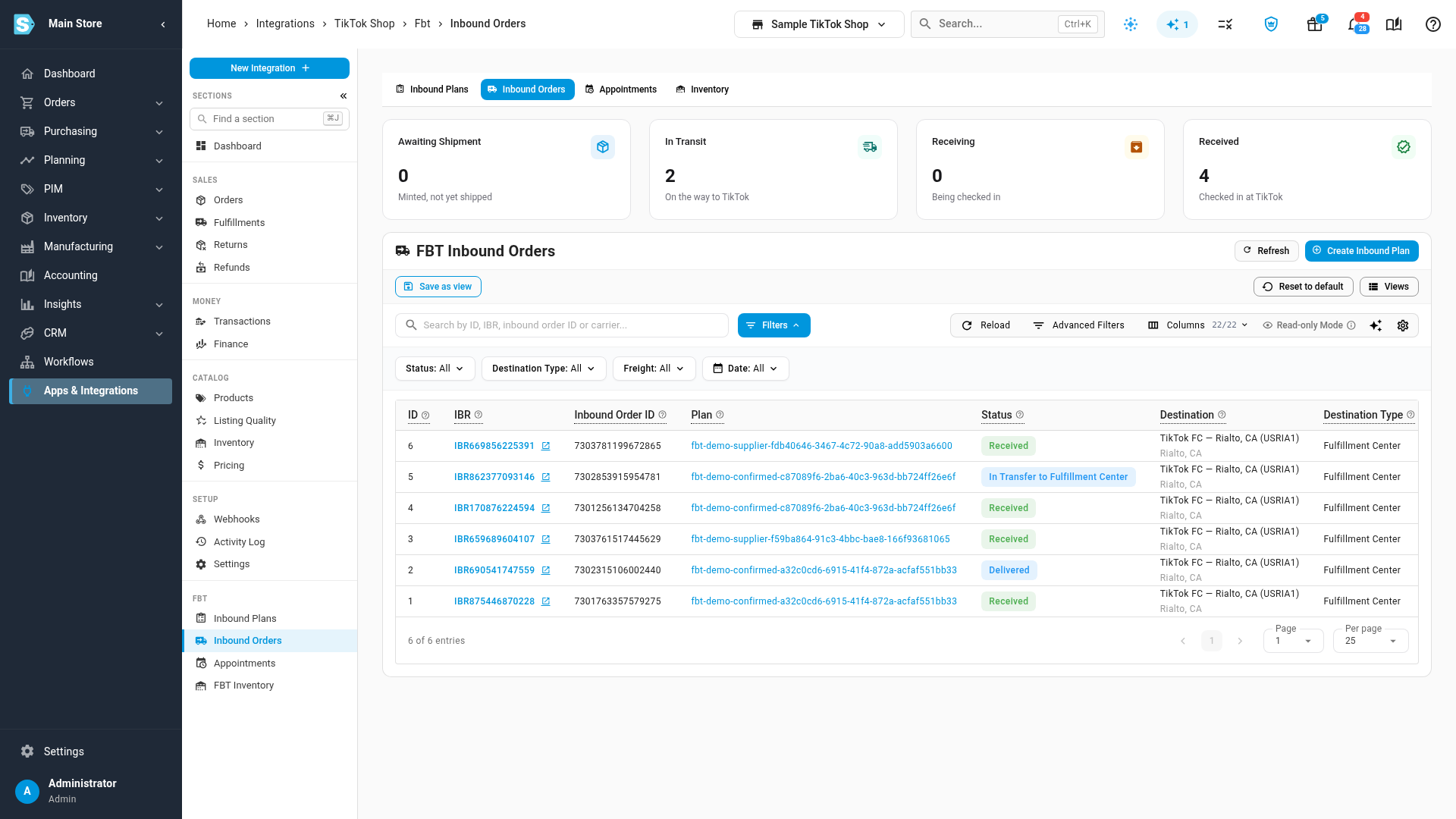
Go to Apps & Integrations, open your TikTok Shop connection, then Inbound Orders. The Status column shows where each shipment is.
-
Click Refresh to read TikTok's latest status for every shipment that's still on its way, or received but not yet settled.
-
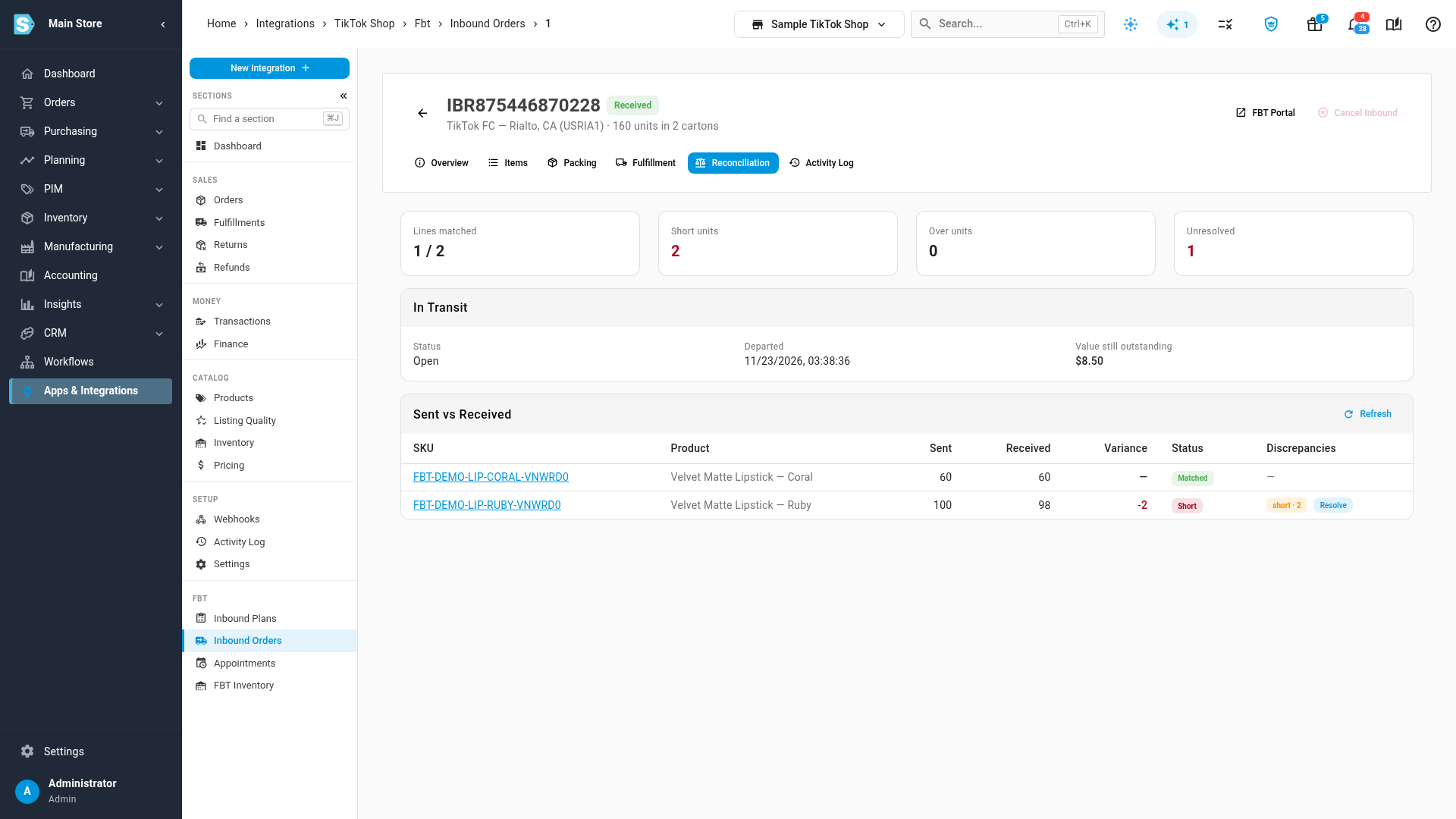
To see what TikTok counted, open a received shipment, then click the Reconciliation tab.
-
For a Short or Over line, click Resolve and choose how to settle it. See Reconcile what TikTok received.
-
For a line marked Not reported, check what arrived against TikTok Seller Center, then settle it:
- Click Received in full if every unit arrived.
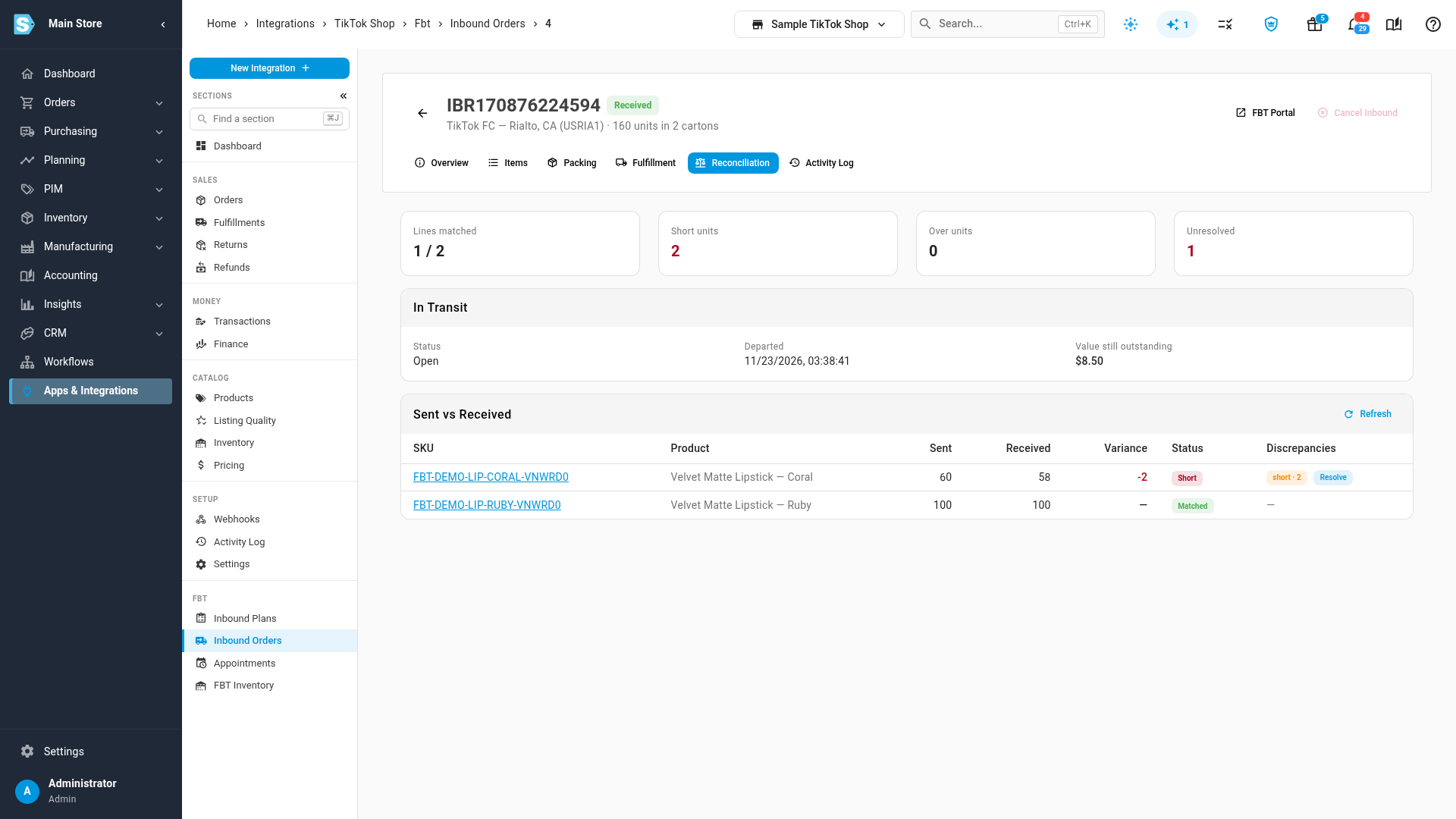
- Click Short…, enter the Units short, and click Record short if some didn't. You can't enter more units than you sent. The short opens a discrepancy: click Resolve and choose how to settle it, for example Write off, or Returned to source when the stock shipped from your own or a 3PL warehouse.
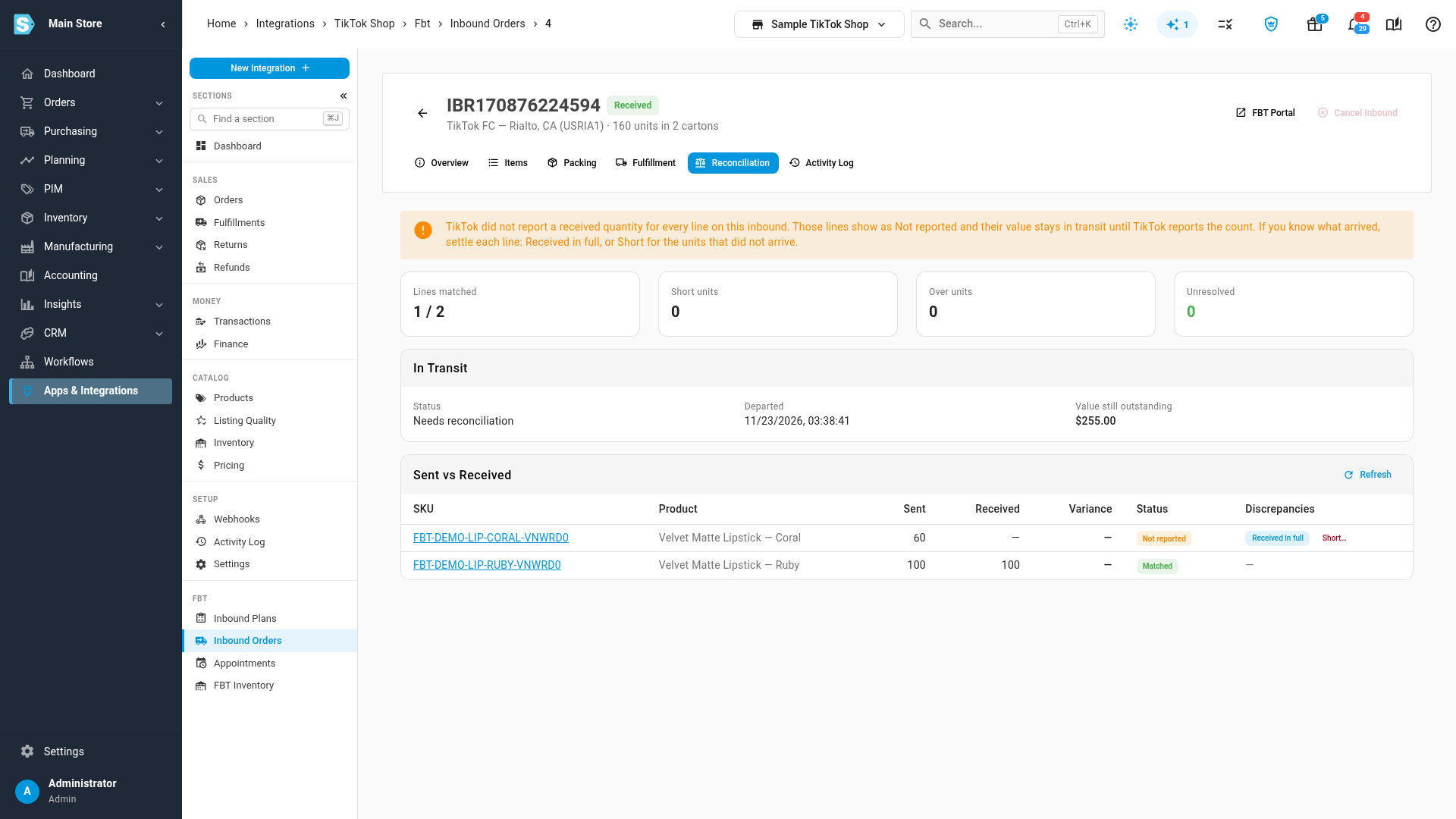
What you'll see: once no line is left uncounted, the warning goes away. When no discrepancy is open either, the shipment is settled.
Inbound order statuses
TikTok's answer for an inbound order has no status field. SKU.io reads the newest step in TikTok's status log instead.
| Status | Meaning |
|---|---|
| Planned | Created, not shipped yet. TikTok's own steps before the goods leave (Working, Ready to ship) show as Planned too. |
| Shipped | You marked it shipped. |
| To Be Received | On its way to TikTok. |
| Arrived at Hub | At a TikTok hub. |
| In Transfer to Fulfillment Center | TikTok is moving the goods from a hub to the fulfillment center. |
| Delivered | At the fulfillment center, not checked in yet. |
| Receiving / Partially Received | TikTok is checking it in. |
| Received | TikTok finished checking it in. |
| Cancelled | Cancelled at TikTok. |
The cards above the list count shipments by stage. In Transit counts Shipped, To Be Received, Arrived at Hub, In Transfer to Fulfillment Center and Delivered.
If TikTok's log shows a step TikTok doesn't document, the status stays as it was.
A status never moves back
TikTok's log can lag behind, and it keeps at most 200 changes. So a status read from it never takes a shipment back to an earlier step, and never out of Received or Cancelled. A refresh that finds an older step changes nothing.
The same goes for a cancellation you asked for that TikTok hasn't confirmed yet. It isn't marked as failed just because TikTok's log hasn't reached it. It's marked as not taken only once TikTok has started receiving the shipment.
How SKU.io reads TikTok's counts
- Received counts come only from the receipt list TikTok reports for each product, lot and expiration date: normal units, defective units and their total. Defective units count as received.
- A shortage or overage TikTok counted opens a discrepancy for you to resolve.
- The tab lists only the products this shipment carried. When a plan is split across shipments, each shipment shows its own products.
Lines TikTok didn't count
TikTok sometimes marks a shipment received without a count for every product. That line shows Not reported, with "—" for Received and Variance: never zero, and never the quantity you sent.
- Its units and value stay in transit: Value still outstanding shows what's still on the way.
- The shipment shows Needs reconciliation under In Transit, and a warning above the counts says why.
- The Inbound Orders list doesn't show a held shipment as short, because its missing units aren't counted yet.
- A received shipment that arrives with no receipt list at all is held the same way.
The line settles in one of two ways:
- TikTok reports the count later. Refresh, and the hourly refresh, keep asking TikTok about a received shipment that isn't settled, for 90 days after it arrived. The count settles the line with no click.
- You settle it with Received in full or Short….
If you settled a line and TikTok counts it differently within those 90 days, the shipment reopens with a Short or Over to resolve. For example, you recorded 2 units short and returned them to source, and TikTok then counts them as arrived. A count that matches yours only confirms it. A count TikTok made itself is final.
Next steps
Video transcript
Inbound Orders lists each shipment you send to Fulfillment by TikTok.
Its status comes from the newest step in TikTok's status history.
In Transfer to Fulfillment Center means the goods are moving from a hub to the warehouse that will store your stock.
Delivered means the goods are there, waiting for check-in.
Both count as In Transit.
Click Refresh to ask TikTok again.
Its history can lag behind, but a status never moves back a step.
So this shipment stays Delivered.
To check the counts, open a shipment that's already received.
Then click its Reconciliation tab.
Here you see only the products this shipment carried, with the numbers TikTok reported.
Defective units count as received.
A shortage TikTok found opens a discrepancy, which you resolve as a write off or returned to source.
When you have finished here, go back to the list of Inbound Orders.
Then open a shipment where TikTok left one of the lines uncounted.
And open its Reconciliation tab, as before.
That line shows Not reported, with no received quantity: never zero, and never the quantity sent.
Its units and value stay in transit.
And the whole shipment is held for reconciliation.
If you know what arrived, settle the line yourself.
Received in full counts every unit.
Click Short when some units never came.
A small window asks for the number.
Enter how many units are missing.
This shipment is short by two units.
Then click Record short.
Now it's a discrepancy to resolve, and the hold is lifted.
And if the count arrives later instead, a Refresh settles the line, with no click needed.