Book Storefront Stripe payouts and PayPal fees
Your store takes cards through Stripe, and Stripe pays you every few days, after its fees. By default each store order posts its own invoice and payment, so your books never show the amount that actually reached the bank. Per payout booking posts each Stripe payout instead: one sales invoice and one Stripe fee bill that add up to the bank deposit to the cent, with each sale dated the day the buyer paid. It works like Shopify and eBay payouts.
PayPal is different. Your PayPal balance is a bank account in your books, and each PayPal order lands in it as its own deposit, so PayPal orders always stay per order. What SKU.io adds is the fee: the fee PayPal keeps on each payment posts as its own entry, so your PayPal account matches PayPal's balance.
SKU.io never asks for your Stripe or PayPal keys. Your store reads its payouts from Stripe and passes them on.
Before you begin
- Your store is connected. See Connect a Storefront store.
- The accounts you'll post to exist under Accounting → Settings → Nominal Codes: your sales account, a merchant fee account for Stripe and PayPal fees, and the bank account Stripe pays into.
- Your store's Stripe key can read payouts. If the store uses a restricted key, it needs Balance: Read and Payouts: Read.
- Pick the day to switch over, and be ready to turn off, on that same day, the bank rule in Xero or QuickBooks that codes this store's Stripe deposits.
Set up per-payout booking for Stripe
-
Go to Apps & Integrations → All Integrations, open Storefront, and pick your store.
-
In the store's sections, open Settings, then Accounting under Money. The same page opens from Finish setup on the Payouts page.
-
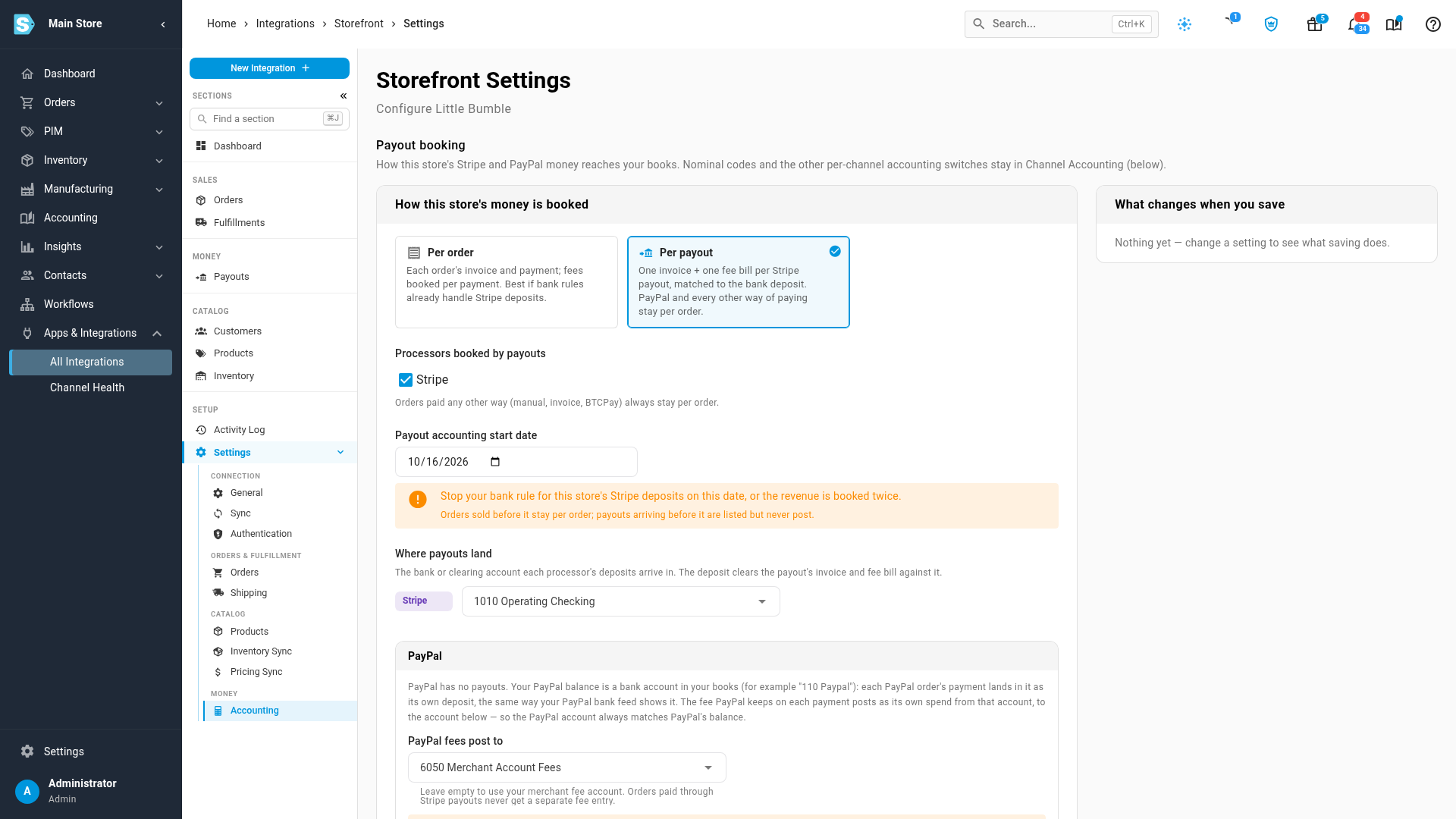
Under How this store's money is booked, choose Per payout. Stripe is ticked under Processors booked by payouts. Orders paid any other way, including PayPal, bank transfer, invoice and BTCPay, always stay per order.
-
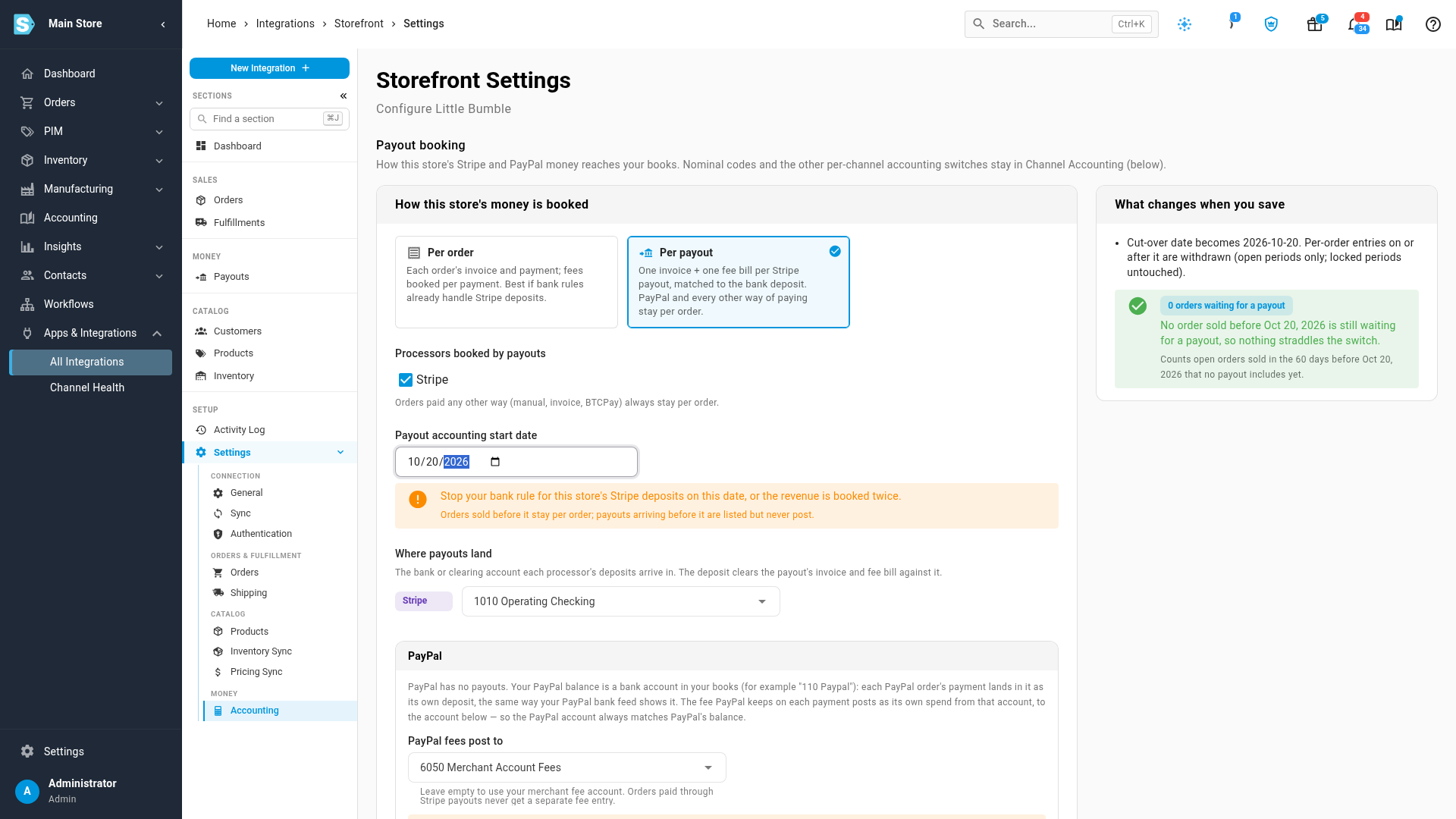
Set Payout accounting start date to your cut-over day. Stripe orders sold from that day on are booked by their payouts. Orders sold before it stay per order, and payouts that arrive before it are listed but never post.
-
Under Where payouts land, choose the bank account Stripe pays into. Each payout's deposit clears its invoice and fee bill against that account.
-
Read What changes when you save. It lists what saving does, such as which orders stop posting their own invoice and payment, and checks for orders sold before the start date that are still waiting for a payout.
-
Click Save. If Save is greyed out, hover it: it names the step that's still missing.
If a bank rule in Xero or QuickBooks codes this store's Stripe deposits, turn it off from the start date. Otherwise the rule books each deposit as revenue, and the payout's invoice books it again. From the start date on, match each Stripe deposit to its payout's invoice and fee bill instead.
Per-payout entries replace the per-order invoice and payment entries of orders sold on or after the start date, in open periods only. A locked period is never touched, and you can't pick a start date inside one.
When two stores share one Stripe account
If another Storefront store reports the same Stripe account, Accounting asks Which store books Stripe account for that account. Pick the store whose connection books its payouts. Each payout is booked once, and lines still match orders from either store. Until you pick, that account's payouts are held.
Book PayPal fees
PayPal orders stay per order: each one posts its invoice, and its payment posts to your PayPal bank account. The fee PayPal keeps posts beside the payment as its own entry, debiting your fee account and crediting your PayPal account. It goes to your accounting provider as a Spend Money from your PayPal bank account in Xero, or a Purchase in QuickBooks, to match the fee line on your PayPal bank feed.
-
On the same Accounting page, find the PayPal card.
-
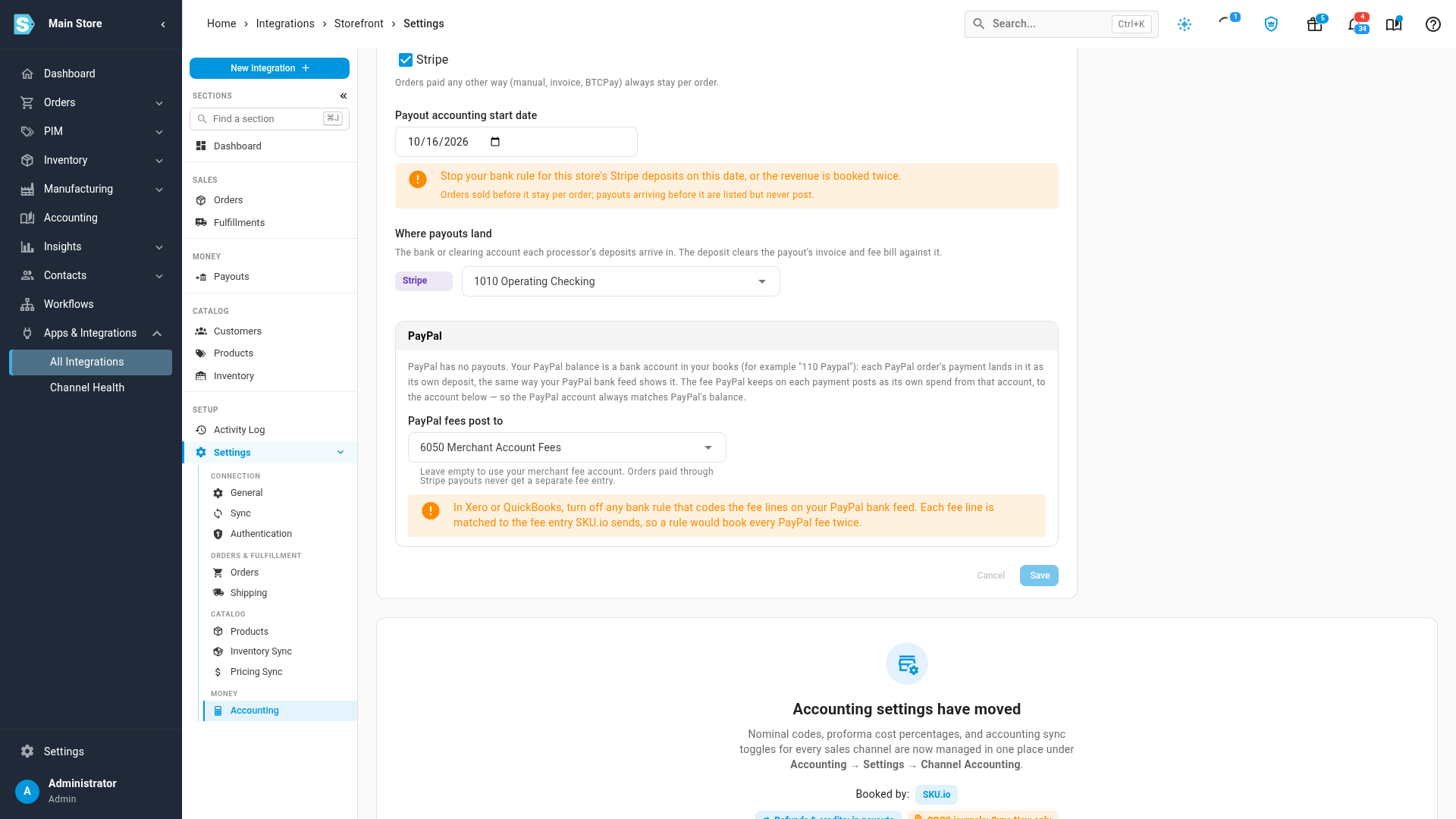
Under PayPal fees post to, choose your fee account, or leave it empty to use your merchant fee account.
-
Click Save. Fee entries that haven't posted yet move to the new account.
If a bank rule in Xero or QuickBooks codes the fee lines on your PayPal bank feed, turn it off before you rely on these entries. Each fee line on the feed is matched to the entry SKU.io sends, so a rule would book every PayPal fee twice.
The fee entry follows the order's payment. It needs payments to be posting (see Sync payments with your accounting provider), your PayPal payment type mapped to your PayPal bank account (see Manage payment types), and it's sent to your accounting provider when the store's invoices are. Orders paid through Stripe payouts never get a separate fee entry, because the payout's fee bill already carries their fees.
Check your payouts
Open Payouts, under Money in your store's sections.
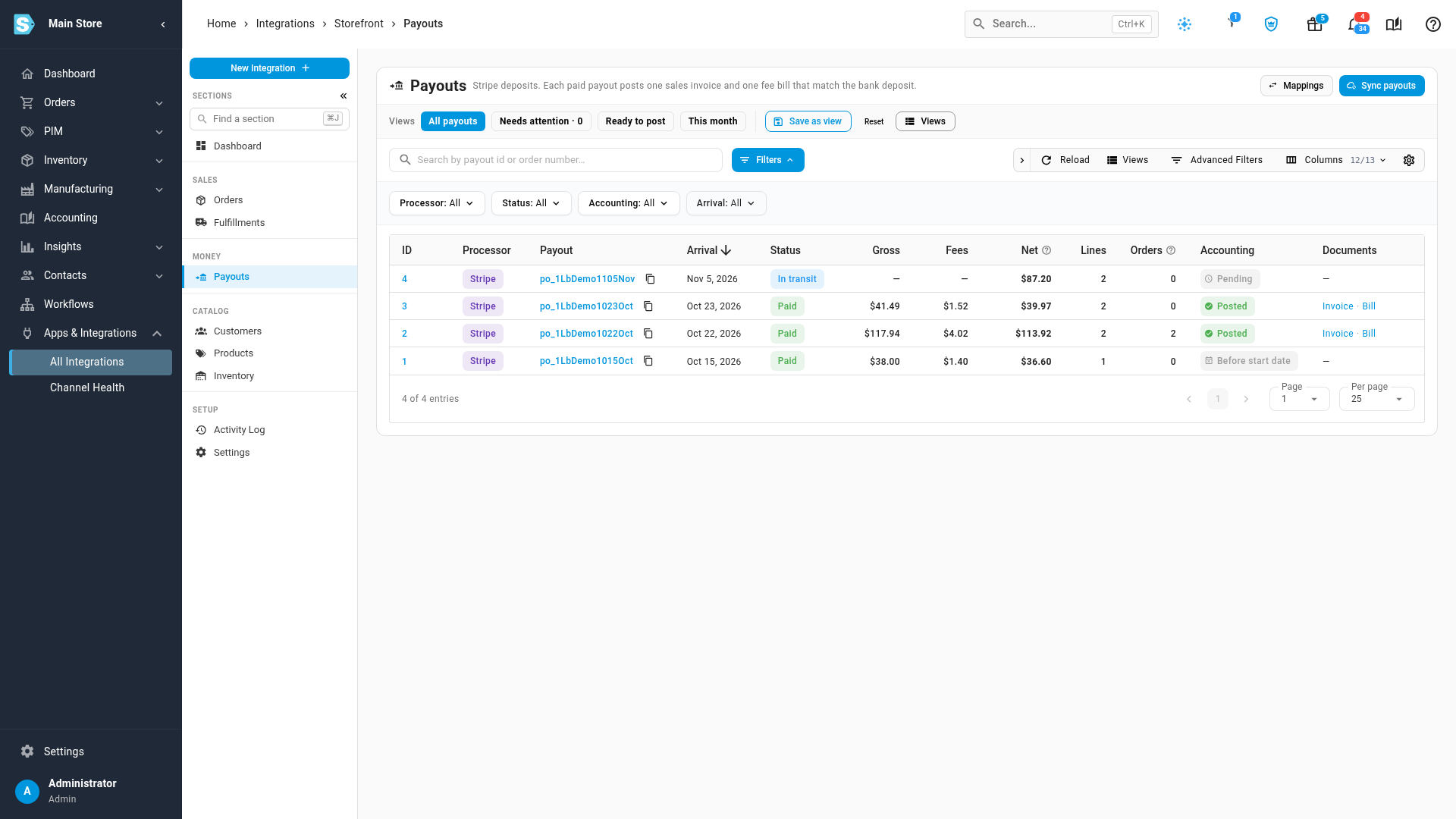
Until setup is done, a Set up payout booking checklist sits above the list with its four steps: Mode, Processors, Deposit accounts and Start date. Once you save the last one, SKU.io reads your payouts from a week before the start date, and then checks every hour. Click Sync payouts to read new payouts right away; the job tray shows its progress.
Each row is one Stripe payout:
| Column | What it shows |
|---|---|
| Payout | Stripe's payout ID. The copy icon copies it |
| Arrival | The day Stripe pays it into your bank |
| Status | Pending, In transit, Paid, Failed or Canceled, as Stripe reports it |
| Gross, Fees, Net | What buyers paid, what Stripe kept, and the bank deposit |
| Lines, Orders | How many lines the payout has, and how many SKU.io sales orders they matched |
| Accounting | Where it stands in your books (see the next table) |
| Documents | The invoice and bill it posted. Each opens its ledger entry |
| Accounting status | What it means |
|---|---|
| Pending | Not ready yet, usually because Stripe hasn't paid it. Lines are read once it's Paid |
| Ready | Every check passes, and it posts shortly |
| Posted | Its sales invoice and fee bill are in your ledger |
| Held | A check fails. Open the payout to see which one, and how to fix it |
| Error | Posting failed. Open the payout to see why |
| Before start date | It arrived before your start date. It's listed but never posts |
Use the views to narrow the list: All payouts, Needs attention (held or with an error), Ready to post and This month. Filter by Processor, Status, Accounting and Arrival, or search by payout ID or by order number.
Inside a payout
Click a payout to open it beside the list, or click Open page for its own page.
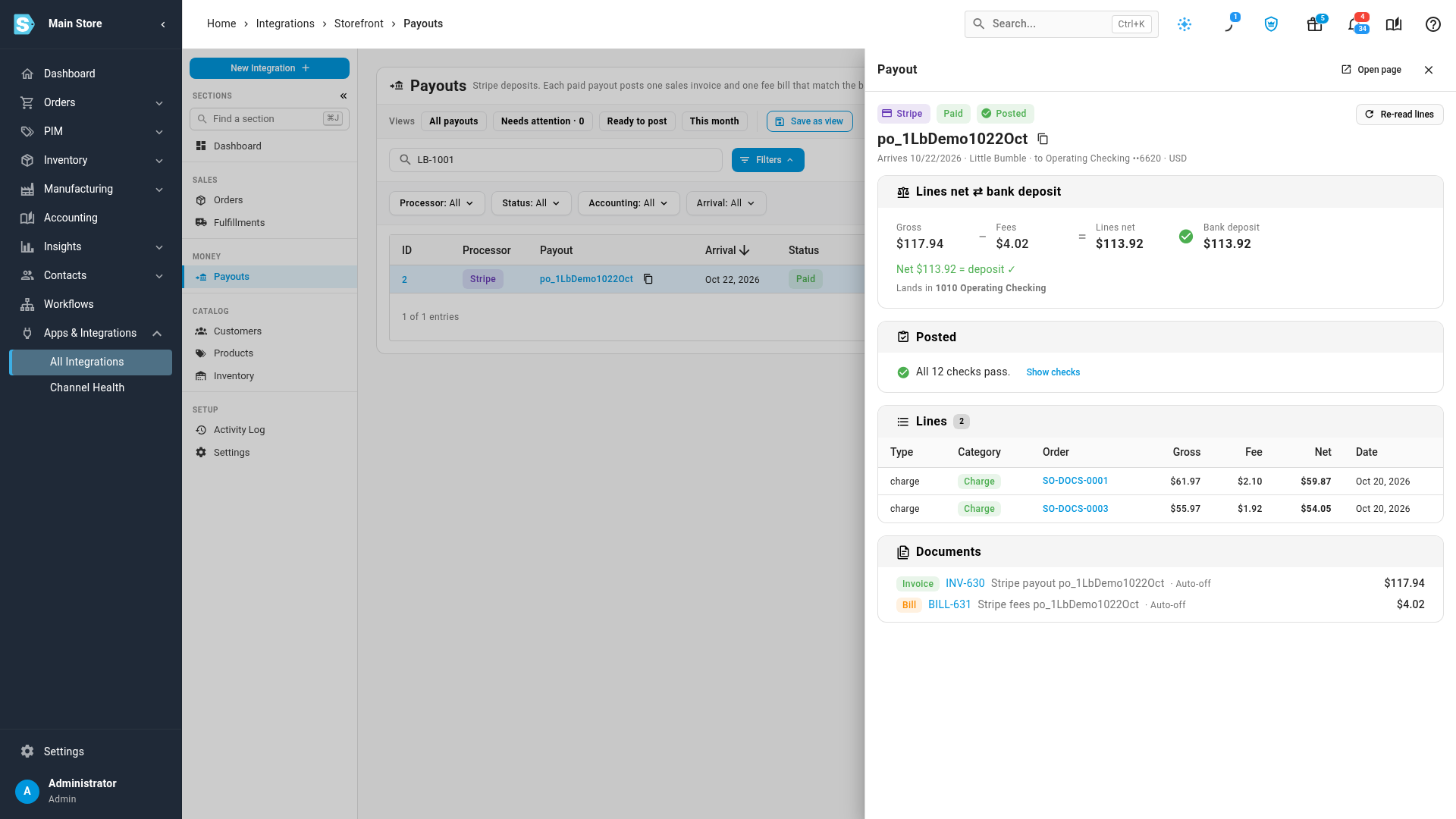
- Lines net ⇄ bank deposit does the math: Gross minus Fees gives Lines net, which must equal Bank deposit. Lands in names the account the deposit posts to.
- The checks card lists every check the payout must pass, such as Lines add up to the deposit, Every line has an account, Booked by one store and Deposit account set. A failing check says why and has a Fix link.
- Lines lists each charge, refund, dispute or fee, with the sales order it paid. A line that matched no sales order shows Unmatched, and still posts to its mapping. A standalone Stripe fee, such as Radar screening, is its own line with a negative gross, and posts on the fee bill.
- Documents lists the sales invoice and the fee bill, each linked to its ledger entry.
Re-read lines reads the payout's lines from your store again.
Choose where each line posts
On Payouts, click Mappings.
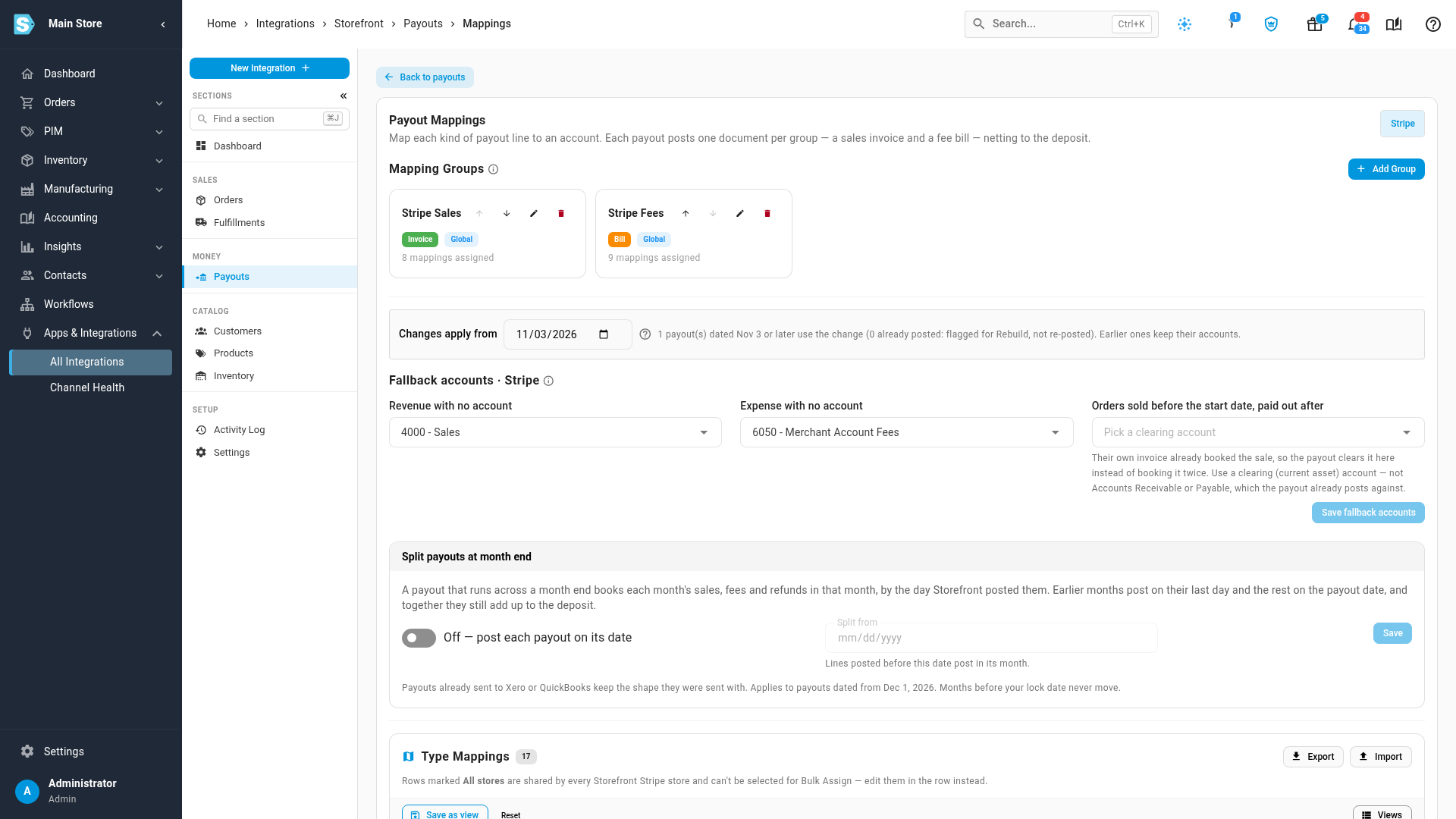
- Mapping Groups: each group becomes one document per payout. Stripe Sales is an Invoice, and Stripe Fees is a Bill. Click Add Group to add another.
- Type Mappings: every kind of line, such as
stripe:chargeandstripe:charge:fee, gets a Nominal Code and a Mapping Group. Charges, disputes and their reversals usually post to sales, refunds to sales returns, and every fee to your merchant fee account. - Fallback accounts: Revenue with no account and Expense with no account catch any line you haven't mapped, so a new kind of line never holds a payout up.
- Orders sold before the start date, paid out after: a clearing account. Those orders' own invoices already booked the sale, so their payout lines clear here instead of booking it twice.
- Changes apply from dates a mapping change. See Change payout mappings from a date.
- Split payouts at month end posts each month's share of a payout in that month. See Split settlements and payouts at month end.
What a Stripe payout posts
Say a payout of $496.88 pays two orders: $170.78 on October 27 and $341.55 on October 28, with $15.45 of Stripe fees.
| Document | Account | Debit | Credit |
|---|---|---|---|
| Invoice Stripe payout po_EXAMPLE123, contact Stripe | Accounts Receivable | 512.33 | |
| Sales, first order (October 27) | 170.78 | ||
| Sales, second order (October 28) | 341.55 | ||
| Bill Stripe fees po_EXAMPLE123, contact Stripe | Merchant Account Fees | 15.45 | |
| Accounts Payable | 15.45 | ||
| Deposit (in SKU.io's ledger only) | Your Stripe bank account | 496.88 | |
| Accounts Payable | 15.45 | ||
| Accounts Receivable | 512.33 |
The invoice (512.33) minus the bill (15.45) is 496.88, the deposit. In Xero or QuickBooks, match the bank line to the invoice and the bill together. Sales tax and shipping on an order post to their own accounts, split from the order's own figures.
Troubleshoot
| What you see | What to do |
|---|---|
| A banner says Stripe needs Balance: Read and Payouts: Read | In the Stripe Dashboard, go to Developers → API keys, edit your store's restricted key, set Balance and Payouts to Read, and save. Then click Sync payouts |
| Held with Lines add up to the deposit failing | Click Re-read lines. If it's still off, the gap is shown on the check |
| Held with Booked by one store failing | Pick which store books the shared Stripe account under Settings → Accounting |
| Held with Deposit account set failing | Choose the account under Where payouts land |
Next steps
- How Storefront orders import: what each store order becomes in SKU.io.
- Payout channels and order invoices: what happens to an order's own invoice when payouts book its revenue.
- Account for Shopify and eBay payouts: the same idea for Shopify Payments and eBay.
Video transcript
Card payments to your store reach your bank in batches, every few days and after fees. Per payout booking turns each of those deposits into one sales invoice and one fee bill. In your store's sections, under Money, open Payouts. Each row here is one Stripe payout. Gross is what buyers paid, Fees is what Stripe kept, and Net is the bank deposit. Accounting shows where each payout stands. Documents links to its invoice and its bill. A payout that arrived before your start date shows Before start date, and never posts. A payout still in transit posts once Stripe marks it paid. You set this up in the store's Settings. Open Accounting, the last item under Money. This page decides how the store's card money reaches your books. Choose Per payout to book Stripe orders by their payouts. Anything paid another way, PayPal included, stays per order. The payout accounting start date is your cut-over day. Stripe orders sold from that day on are booked by their payouts. On that same day, stop the bank rule that codes this store's Stripe deposits. Otherwise the revenue is booked twice. Where payouts land is the bank account Stripe pays into. Change a setting, and the panel on the right shows the effect of saving. Here, a later start date moves the cut-over, and the panel checks for orders caught in between. Cancel puts everything back. Until then, your settings stay as they were. PayPal works differently. Your PayPal balance is a bank account in your books, so PayPal orders are always booked per order. The fee PayPal keeps on each payment posts as its own entry. Choose the account for that fee. Before you rely on it, turn off any bank rule that codes those fee lines. Back on Payouts, search by payout ID or by order number. Here, an order number finds the payout that paid that order. Open the payout, and the top card does the math. Gross minus fees gives the lines net, and that matches the bank deposit. Below it are the checks a payout must pass before it posts. Each line links to the sales order it paid. Documents shows the sales invoice and the Stripe fee bill this payout posted. Together they add up to the deposit, and each one opens its ledger entry. SKU.io reads new payouts from your store every hour. Sync payouts reads them on demand. Mappings decides where each kind of line posts. Stripe Sales becomes the invoice, and Stripe Fees becomes the bill. Under Type Mappings, give each kind of line an account. Charges post to your sales account, and every Stripe fee to your merchant fee account. A line with no account posts to the fallback accounts above.