Connect a Storefront store
You connect a Storefront store by entering its address in SKU.io and approving the connection in the store, signed in as its owner. The store then issues SKU.io a key of its own. Nothing is pasted, and you never see the key.
Before you begin
- The store needs an owner account to approve SKU.io. No owner yet? Use a Store API key.
- The store must be live at an
https://address. - You need permission to connect integrations in SKU.io.
- Decide which SKU.io Store record these sales orders belong to, and the date to start importing orders from.
Start the connection
There's no test environment. SKU.io works with whatever store the address names, and its orders and stock are real. To try things out, connect a store you deployed for testing.
-
Go to Apps & Integrations → All Integrations, and choose Storefront in the Sales Channels list.
-
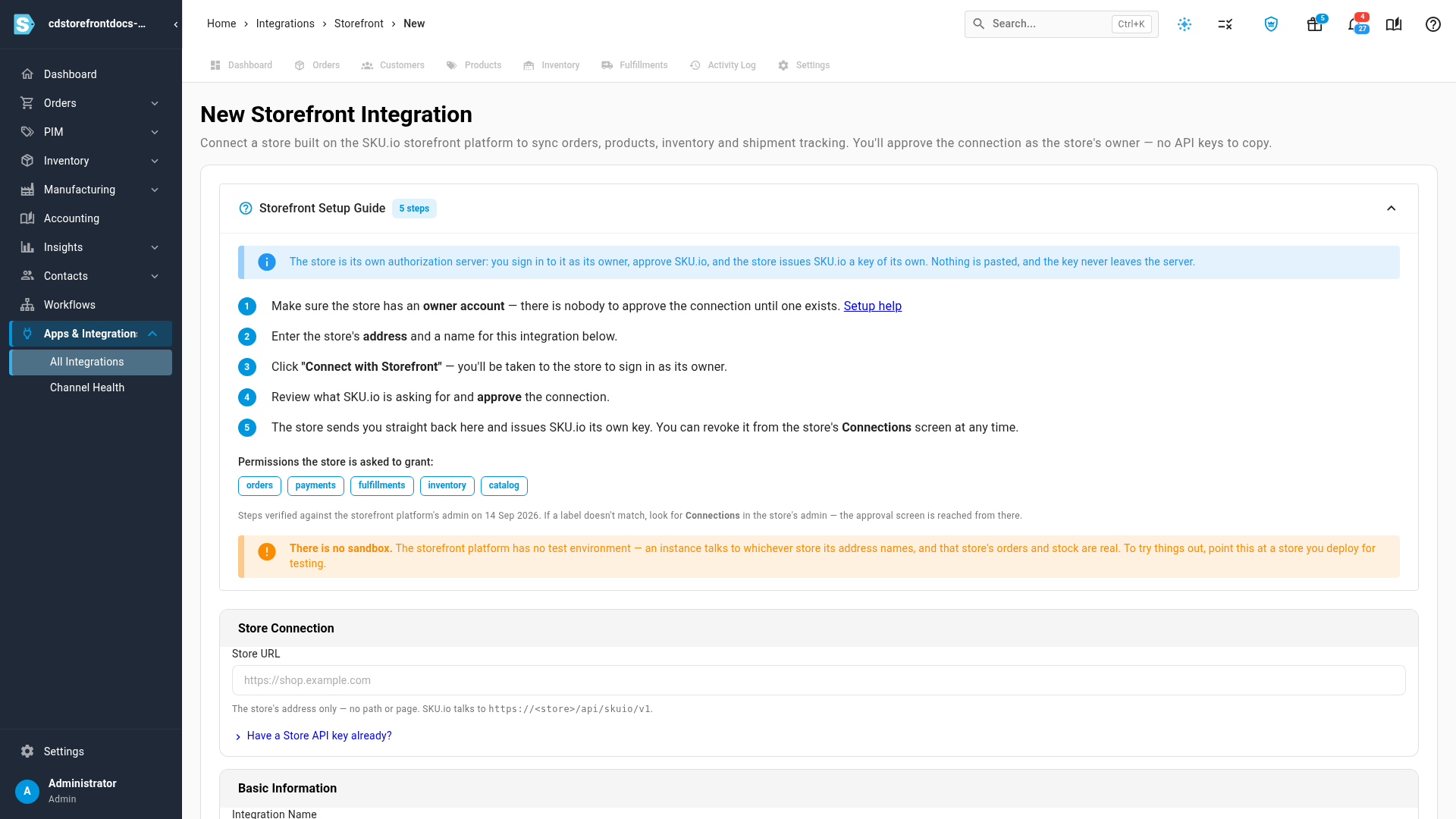
Click Connect Storefront. The New Storefront Integration page opens with the Storefront Setup Guide.
-
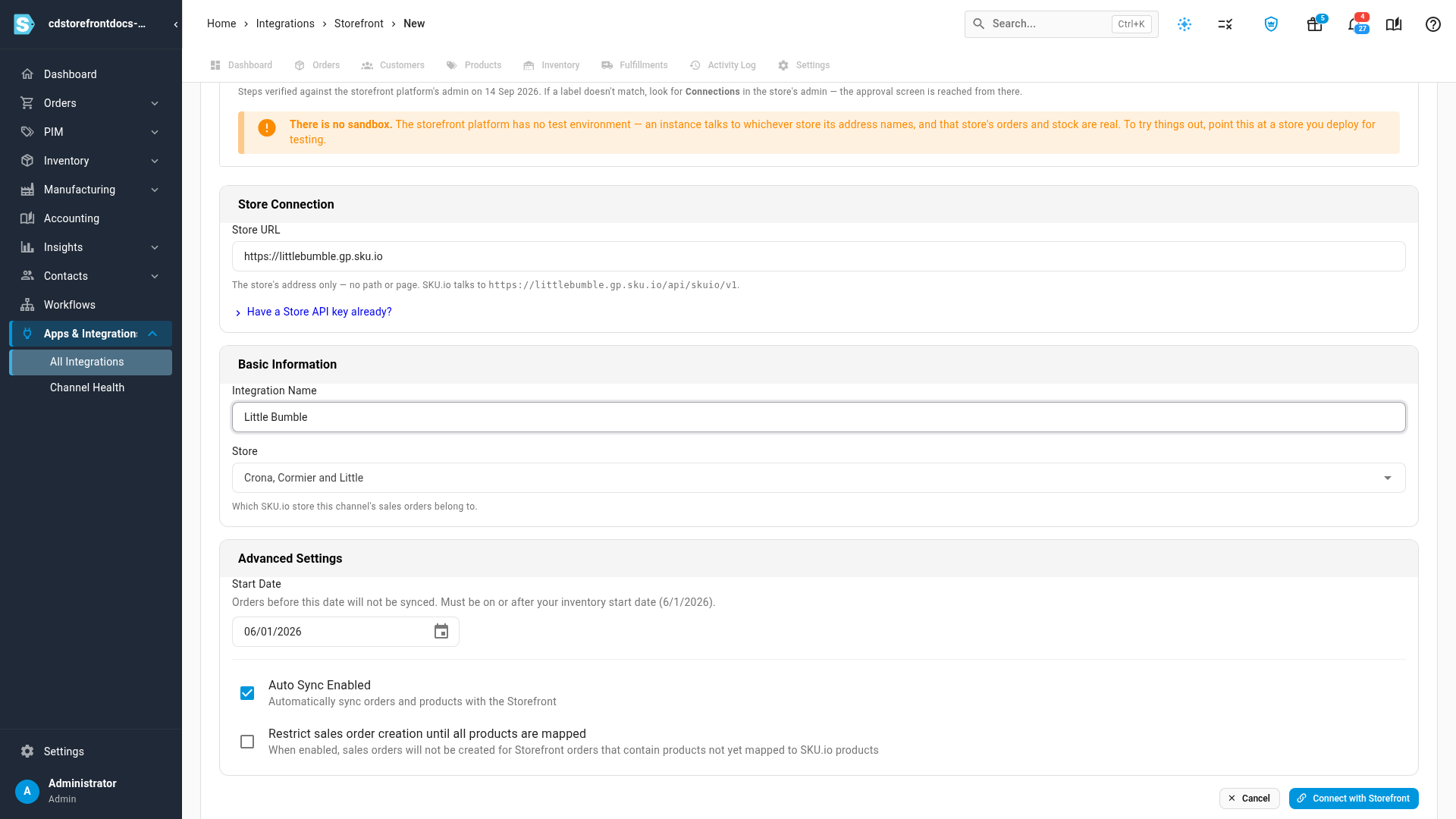
Under Store Connection, type the store's address in Store URL, for example
https://shop.example.com. Use the address only, with no page, path or query. If you include one, an error appears under the field. -
Under Basic Information, type an Integration Name and pick the SKU.io Store (the store record in SKU.io, not your website) that these sales orders belong to.
-
Under Advanced Settings, check the Start Date. Orders placed before it are never imported. It starts at your inventory start date, or today if you don't have one, and it can't be earlier than your inventory start date.
-
Leave Auto Sync Enabled on, so orders come in every five minutes.
-
Turn on Restrict sales order creation until all products are mapped to hold any order with a product SKU.io can't match yet. See Orders held for mapping.
Approve SKU.io in the store
-
Click Connect with Storefront. The store's admin opens in the same tab.
-
Sign in with the store owner's email and password, if the store asks.
-
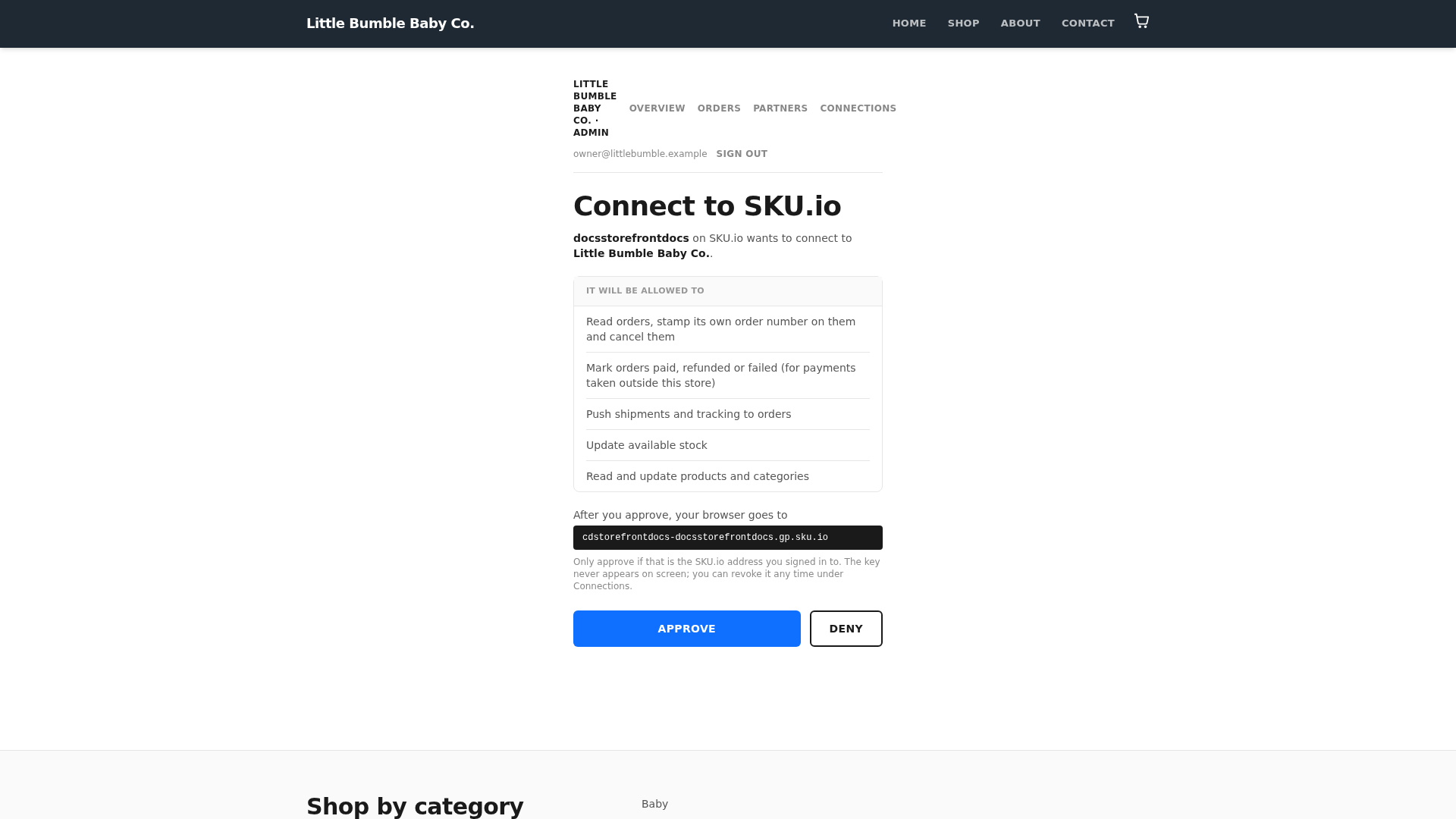
Read the request. The store lists what SKU.io will be allowed to do, and the address your browser returns to.
-
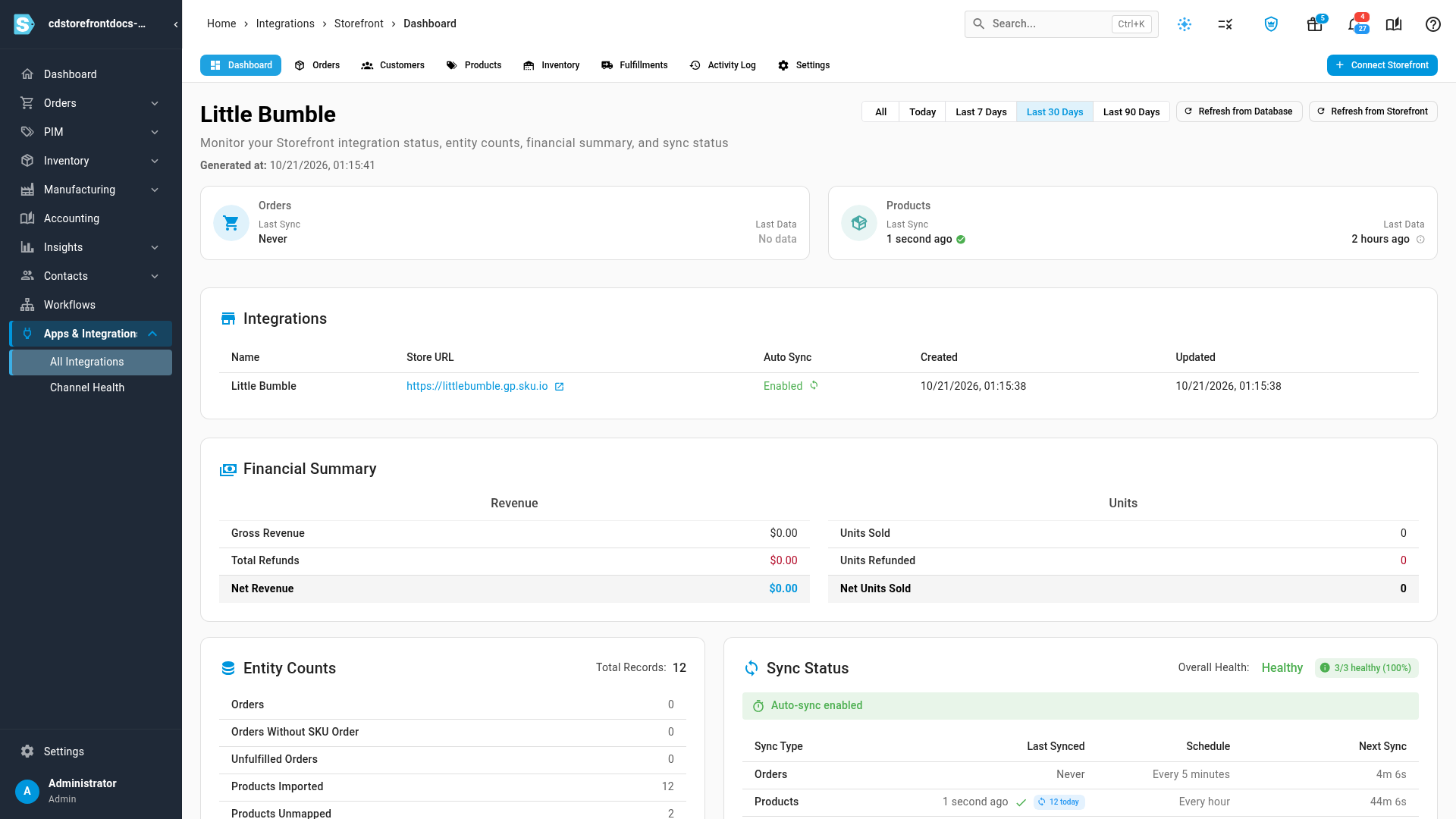
Click Approve. The store sends you back to the SKU.io dashboard for the new connection, and a message confirms it's connected.
SKU.io imports the store's catalog straight away and matches each product to the SKU.io product with the same SKU. Orders arrive on the next five-minute check.
What SKU.io asks the store for
| The store says SKU.io will be allowed to | Why |
|---|---|
| Read orders, stamp its own order number on them and cancel them | Import orders, write the SKU.io order number back, and pass on a cancellation |
| Mark orders paid, refunded or failed | Pass on a payment you record in SKU.io for an order paid outside the store |
| Push shipments and tracking to orders | Send tracking when you ship |
| Update available stock | Keep the store's stock in step with SKU.io |
| Read and update products and categories | Import the catalog, and push products if you turn that on |
If the connection doesn't go through
| You see | What to do |
|---|---|
| Enter the store's address only, e.g. https://shop.example.com — no path or query, and it must start with https://. | Remove everything after the domain name, and start with https://. |
| We could not find a store at … | The address doesn't lead to a Storefront store. Check it in your browser. |
| The store owner declined the connection. | Someone clicked Deny in the store. Start again and click Approve. |
| Invalid or expired authorization state. Please try again. | The approval took longer than 15 minutes, or the page was reused. Click Connect with Storefront again. |
| An integration named "…" already exists. | Pick another Integration Name and connect again. |
Use a Store API key instead
Use this only when the store has no owner account yet.
- Under Store Connection, click Have a Store API key already?.
- Paste the store's API key into the key field.
- Click Test connection to check SKU.io can reach the store with it.
- Click Connect with key.
When the store has an owner, switch to an owner-approved key: on the connection's Settings → Authentication tab, click Connect through the store (the button that reads Reconnect on an owner-approved connection).
Next steps
- Choose what syncs with Storefront: stock warehouses, prices and the product push.
- Map Storefront products: match anything the import couldn't match by SKU.
- Connect more than one store or account.
Video transcript
To connect a store built on the SKU.io storefront kit, go to Apps and Integrations. In the Sales Channels list, pick Storefront, and then click Connect Storefront on its panel. You approve the connection inside your shop, signed in as its owner. That's why there are no keys to copy. The guide lists the permissions SKU.io will ask for. Scroll down to the Store Connection card. Type the shop's address in Store URL, with nothing after the domain. Then give this integration a name you'll recognize later. Pick which SKU.io store receives the sales orders. The Start Date decides how far back orders are imported. Auto Sync is switched on already. You can also hold back any order until all its products are mapped. When the details are ready, click Connect with Storefront. The shop's admin opens in the same tab, and asks for the owner's email and password. Next, it lists every permission SKU.io is asking for. It also shows the address your browser returns to after you approve. Check that everything in the request looks right. Then click the Approve button. Behind the scenes, the store hands SKU.io a key of its own, and sends your browser back. A message on the dashboard confirms the connection. The catalog starts importing at once, and new orders follow on the next five-minute check.