Sync payments with your accounting provider
When you record a payment against a sales order or a supplier bill in SKU.io, SKU.io sends it to Xero or QuickBooks as a payment against the matching invoice or bill. The document is then marked paid on both sides, and you never key the same payment twice. It works the other way too: a payment you apply in your accounting provider comes back to SKU.io. This page shows where to watch payments sync and what to do when one doesn't.
Before you begin
- Connect Xero or QuickBooks Online. For Xero, see Connect Xero.
- The invoice or bill the payment belongs to must already be in your provider. A payment can only be applied to a document that exists there, so SKU.io waits until its invoice or bill has synced.
Record the payment in SKU.io
Record the payment where you always do:
- On a sales order: see Record payments and apply store credit.
- On a supplier bill: see Track & pay purchase invoices.
You don't need to do anything else. Within a few minutes SKU.io creates the payment in your provider and applies it to the invoice or bill. If something delays it, SKU.io retries on its own every 15 minutes. Editing or deleting the payment in SKU.io updates or removes it in your provider too.
Check a payment's sync status
-
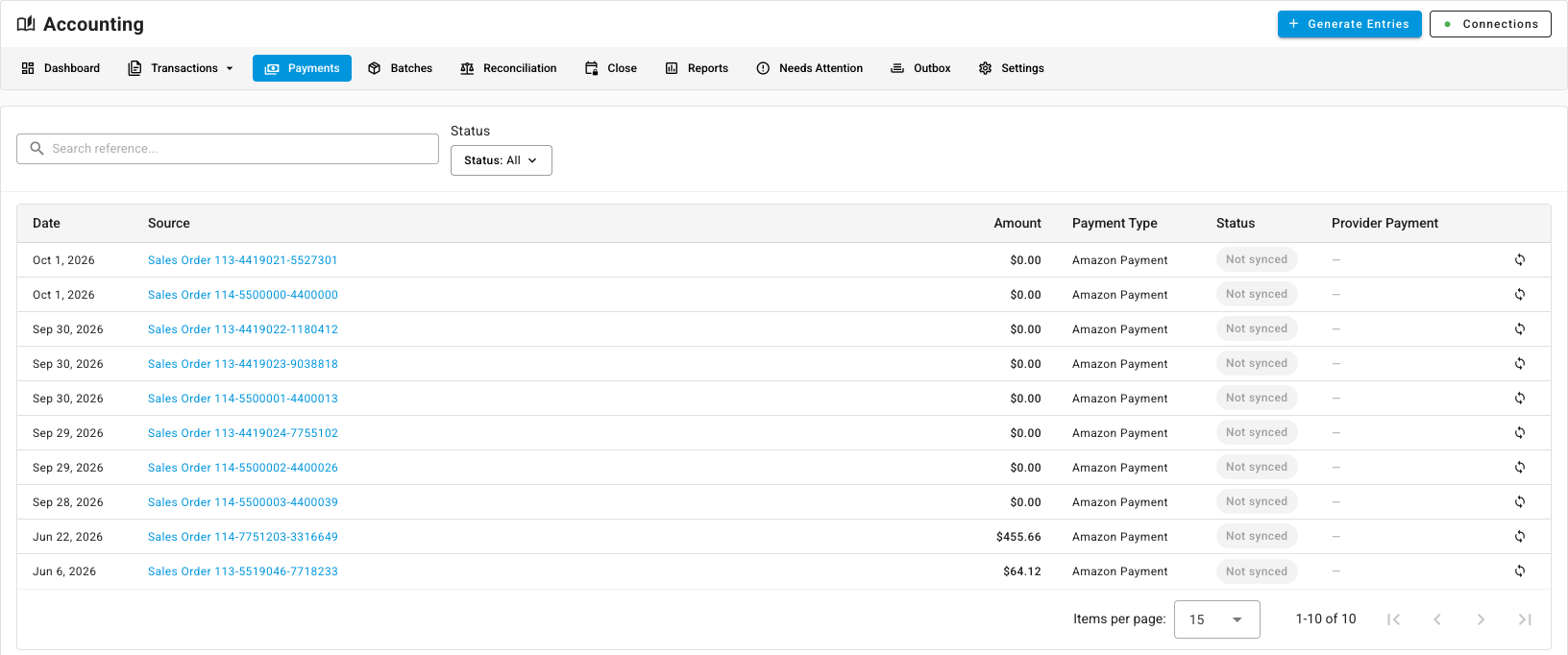
Go to Accounting → Payments. Each row is one payment recorded in SKU.io.
-
To find one payment, type its reference in Search reference, or set Status to Synced or Not synced.
-
Read the row:
Column What it shows Date The payment date. Source The sales order or bill the payment belongs to. Click it to open that document. Amount The amount paid, in the document's currency. Payment Type How it was paid, such as a card, a bank transfer or a marketplace payment. Status Synced, Not synced or Error. Provider Payment A link to the matching payment in Xero or QuickBooks once it has synced. -
To push a payment that hasn't synced yet, click the sync icon at the end of its row (Sync this payment to the accounting provider now).
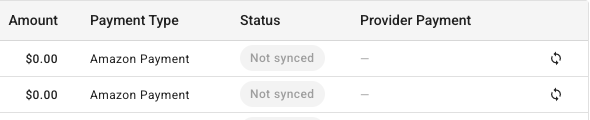
A payment stays Not synced while its invoice or bill hasn't reached your provider yet. Fix the document first. See See why entries haven't reached your provider.
Payments you record in Xero or QuickBooks
If you apply a payment in your provider to an invoice or bill that SKU.io sent, SKU.io picks it up through the provider's change feed. It records the payment on the original sales order or bill and updates its paid status. Deleting the payment in your provider removes it from SKU.io.
To check for provider payments that haven't come back yet:
-
Go to Accounting → Reconciliation and open the Documents lane.
-
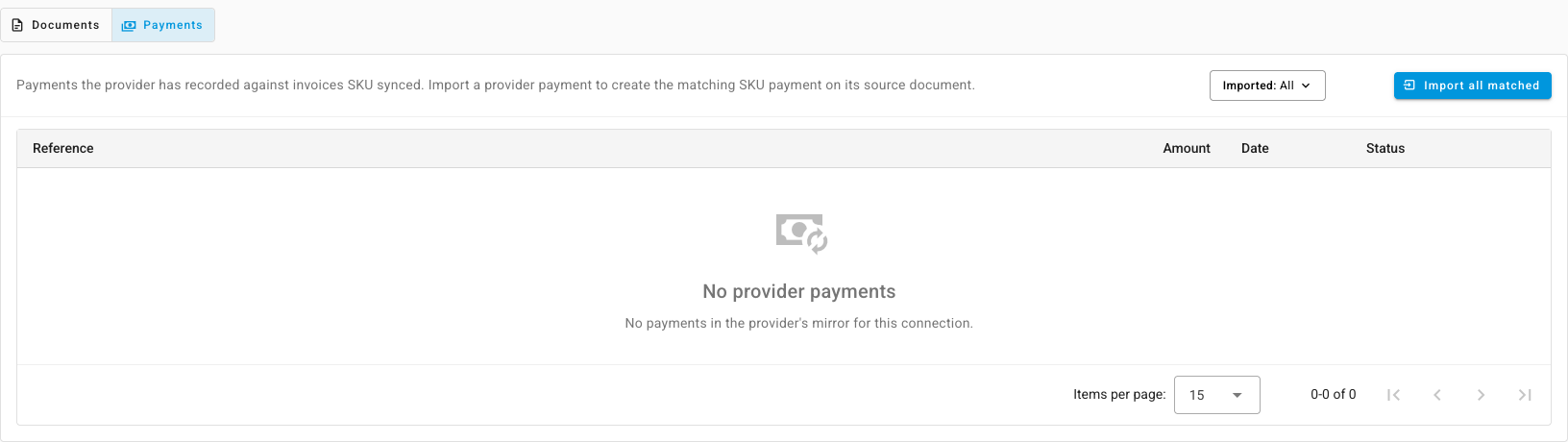
Switch the toggle from Documents to Payments. The list shows payments your provider has recorded against invoices SKU.io synced.
-
Click Import on a row to create the matching payment in SKU.io, or click Import all matched to import every payment that matches a document.
SKU.io doesn't send provider payments back to the provider, and it doesn't send bookkeeping-only payments, such as applying a credit, as new payments. If you change a payment's amount in your provider, SKU.io doesn't copy the new amount. Edit the payment in SKU.io instead, so both sides stay the same.
Next steps
- Read the accounting dashboard: see what's waiting to sync.
- Match bank statement lines: tie the deposits in your bank to the documents they settle.