Set up dropship for a retailer
This page is about shipping your retailers' orders to their customers. If your supplier ships orders for you, see Create a dropship request.
Turn on dropship for a retailer (one of your wholesale customers) so it can send you its own customers' orders, and you ship them blind under the retailer's brand. You do it all on one tab of the retailer's portal account, working down six cards and saving once at the end. Every field is described in the Dropship settings reference.
Before you begin
| Requirement | Why it's needed |
|---|---|
| Permission to administer the B2B customer portal | The Dropship tab is part of portal account administration. |
| The retailer is a portal account | Dropship is set up per portal account. See Invite buyers to the Customer Portal. |
| A Default Sales Rep with an email on the retailer's customer record (customer → Settings) | When the retailer asks to cancel an order your warehouse has already started, that rep is emailed. Without one, your admins get the email instead. See Manage sales reps. |
| At least one warehouse that can ship blind, holding the retailer's products | Dropship lines ship only from these. See Which warehouses can ship blind. |
| The retailer's logo, as a PNG, JPG or SVG file of 1 MB or less (optional) | It prints at the top of every blind slip. |
| For a consolidated statement: the customer's Consolidated invoicing set to Weekly or Monthly (customer → Settings) | The dropship tab has no schedule of its own and won't save a consolidated statement while that setting is Off. |
| To charge the actual label cost: Freight & order-level charges set to Prorate by product value or All on the last invoice (Settings → Sales invoices) | Actual cost shipping stays greyed out otherwise. |
The examples use the retailer Trailhead Outfitters.
Turn on dropship
-
Go to Contacts → Customers and click the Portal tab. The Accounts list opens.
-
Click the retailer, Trailhead Outfitters.
-
Click the Dropship tab.
While dropship is off, the tab reads Dropship is off for Trailhead Outfitters.

You can also reach it from the account's Dealer hub tab: in What this dealer sees, click Set up on the Dropship row.
-
Click Enable dropship.
The tab opens the full form, with Not saved yet under the title. Nothing is saved until you click Save dropship profile.
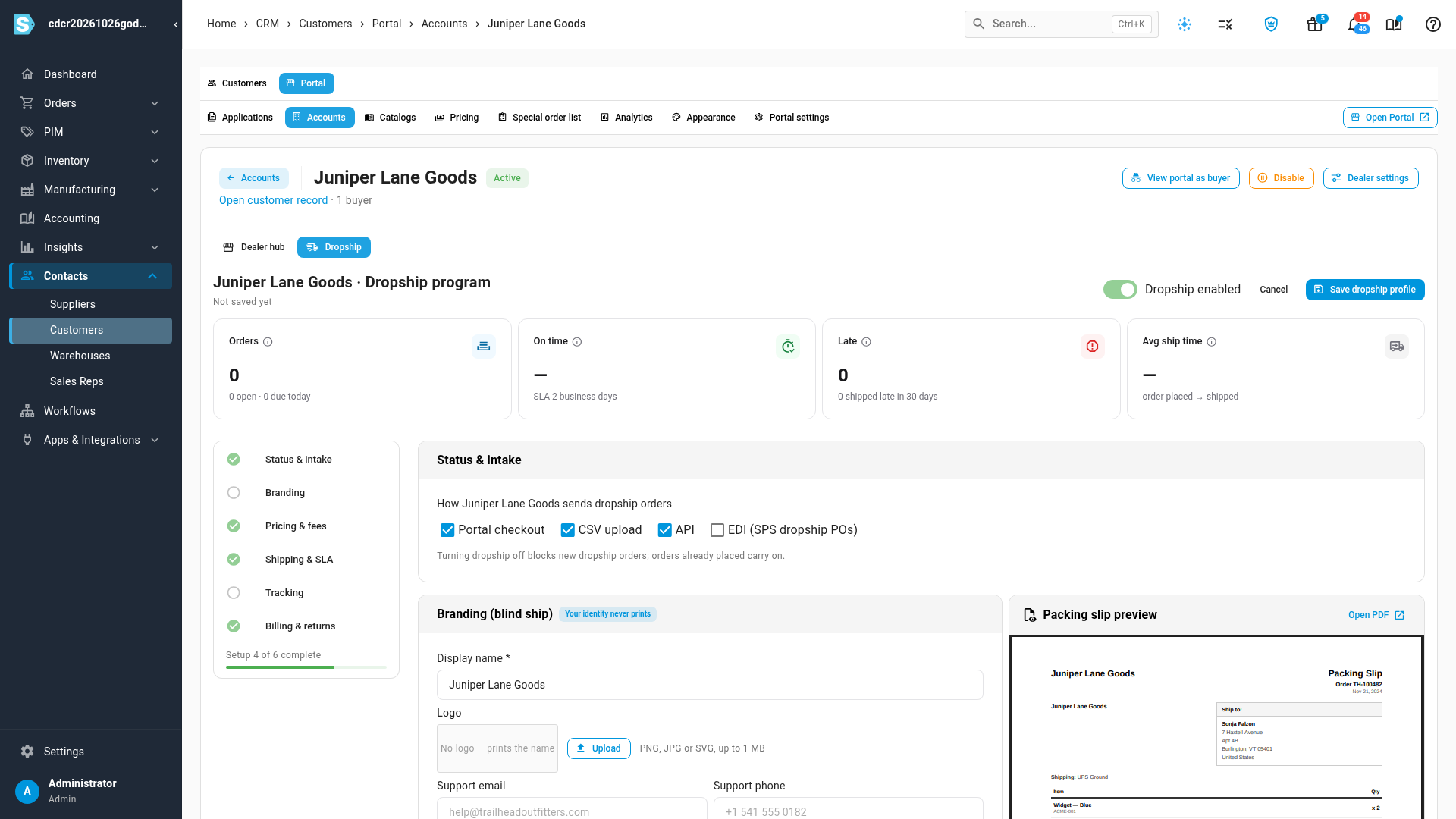
The checklist on the left shows your progress through the six cards, and Setup X of 6 complete under it. Click an entry to jump to its card.
Choose how the retailer sends orders
-
Under Status & intake, leave ticked each route the retailer may use, and untick the rest: Portal checkout, CSV upload, API and EDI (SPS dropship POs). All four may be ticked to start with.
Keep EDI ticked only once the retailer's SPS Commerce trading partner is mapped to this customer. See Status and intake.
Set the retailer's branding
- Under Branding (blind ship), check the Display name. It prints on every slip and defaults to the customer's name.
- Click Upload and choose the retailer's logo. The logo saves straight away.
- Fill in Support email, Support phone and an optional Slip message.
- To print a return address on the slip, tick Print a return address on the slip, then fill in the address.
- Check the Packing slip preview on the right. It redraws a moment after each edit and shows a sample order with the retailer's branding and no prices. Click Open PDF to see it full size.
- Decide who maintains the branding. To let the retailer's Company Admins change it on the portal, tick Let Trailhead Outfitters edit this branding from its portal (company admins). They can never change fees, shipping or the SLA.
Each field is in Branding (blind ship).
Set what the retailer pays
- Under Pricing & fees, choose a Price tier and Dropship catalog, or leave them blank to use the account's own.
- Enter the Fee per order and Fee per unit you charge, such as 4.00 per order.
- Leave Exempt dropship orders from the order minimums ticked, so single-unit orders can go through.
- Check the What Trailhead Outfitters pays · worked examples table. It updates as you type.
See Pricing and fees.
Set shipping and the ship-by SLA
- Under Shipping & SLA, pick the Allowed services and a Default service.
- Under Shipping charge, click None, Flat, By service or Actual cost, then fill in its fields. For example, click Flat and enter 7.95, free over 150.00.
- Set Ship within (business days), such as 2, and the Daily cut-off, such as 2:00 PM.
- Leave Allow international dropship off unless you ship abroad for this retailer. When on, each international order needs the recipient's phone number.
- Optionally set Feed safety stock (units / SKU), the units held back from the retailer's inventory feed for each product.
See Shipping and SLA.
Set how tracking reaches the retailer
-
Under Tracking & notifications, enter the retailer's Tracking email.
-
Under Send tracking, choose An email per shipped order, A daily digest, or Don't email tracking.
-
Under Emails to the retailer's customer, leave Off — the retailer tells its own customer, or choose Send a shipped email in the retailer's name.
The shipped email goes only when the order includes the customer's email address, so ask the retailer to send it with each order.
To send updates to the retailer's own system as well, add a webhook after you save. See Send dropship updates to a retailer's system.
Set billing and returns
-
Under Billing & returns, choose Invoicing for dropship orders. Same as the customer follows the customer's own invoicing.
If you choose Consolidated statement while the customer's Consolidated invoicing is Off, the card shows an error and you can't save. Set the customer to Weekly or Monthly first, or choose another option.
-
Enter the Restocking fee on returns, such as 15 %.
-
Under Returns go to, keep the warehouse that shipped the order (addressed to the retailer, so it stays blind), or choose The retailer's own address and fill it in.
See Billing and returns.
Save
-
Click Save dropship profile.
You see Dropship profile saved, and Saved with the date and your name appears under the title. If the button is greyed out, hover over it: the tooltip names the first field to fix.
If you leave the tab or switch to Dealer hub with unsaved edits, SKU.io asks Discard unsaved changes?. Click Keep editing and save. Only the logo saves on its own.
The retailer can now send dropship orders on the routes you ticked. The account's Dealer hub shows On in the Dropship row, with a one-line summary of your terms.
Turn dropship off
To stop a retailer's dropship orders, switch Dropship enabled off and click Save dropship profile. New orders on every route are refused. Orders already placed carry on and ship as normal. Your settings are kept, so switching it back on restores them.
Next steps
- Send dropship updates to a retailer's system
- Work dropship orders
- Send the retailer Dropship on the portal, so its buyers know how to send orders.
- How dropship for retailers works
Video transcript
To set up dropship for a retailer, open Contacts, then Customers. Click the Portal tab to see your portal accounts. Then open the retailer's account. Click the Dropship tab. While dropship is off, the tab says so, and explains what it gives the retailer. Click Enable dropship to open the full form. Nothing is saved until you save the profile at the end. The checklist on the left tracks the six sections. Under Status and intake, tick each way the retailer may send orders. Leave EDI unticked until the retailer's SPS trading partner is mapped to this customer. Under Branding, check the display name, and add a support email. Click Upload to add the retailer's logo. The packing slip preview shows the retailer's brand, never yours, and no prices. Under Pricing and fees, enter the fee you charge per order, or per unit. The worked examples below show what the retailer pays. Under Shipping and SLA, choose how shipping is charged, such as a flat charge. You can make it free over an order value. Then set how many business days you have to ship, and the daily cut-off. Each order gets its ship-by date from these settings. Under Tracking and notifications, enter the email that gets tracking for each shipped order. Choose whether the retailer's customer also gets a shipped email, in the retailer's name. Under Billing and returns, choose how dropship orders are invoiced. Set any restocking fee on returns, and where returns go. When every section is done, scroll back to the top, and click Save dropship profile. A message confirms the save, and the checklist shows all six sections done. The retailer can now send you dropship orders, on the routes you ticked.