Work dropship orders
This page is about shipping your retailers' orders to their customers. If your supplier ships orders for you, see Create a dropship request.
A retailer's dropship orders arrive in Sales Orders next to your other orders. Each one has a ship-by date from the moment it arrives, so the daily work is: find them, approve them, ship them before their date, and deal with the few that get held. On this page the retailer is your wholesale customer and the retailer's customer is the person the parcel ships to.
Before you begin
| Requirement | Why it's needed |
|---|---|
| The Sales Orders → Approve permission | Every dropship order arrives as a Draft that you approve. |
| Dropship set up for at least one retailer | See Set up dropship for a retailer. |
| Permission to update returns | Only for including the dropship fee in a return's suggested credit. |
The examples use orders from Trailhead Outfitters.
Find dropship orders
-
Go to Orders → Sales Orders.
Dropship orders carry an indigo chip next to the order number, with the retailer's display name: Dropship · Trailhead Outfitters. Hover over it to see the retailer's order number. The orange truck icon Has supplier dropship items is a different feature, supplier dropship.
-
If the quick filters aren't showing above the list, click Filters.
-
In Dropship for customer, choose Any retailer, or one retailer by name.
-
In Dropship SLA, choose Late, Due today or On track.
-
To work the most urgent first, sort by the SLA column. It sorts by ship-by date.
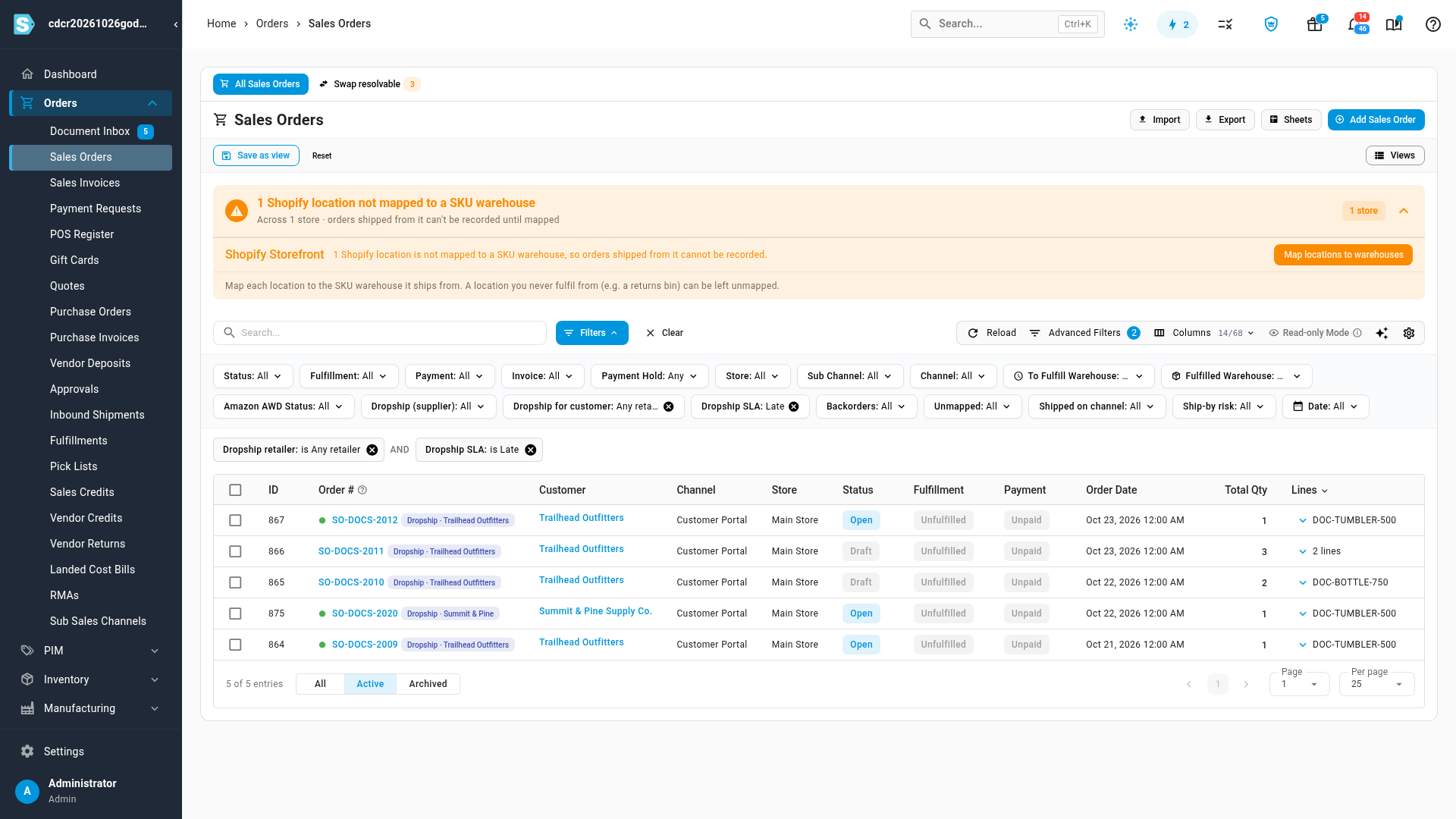
The SLA column shows On track, Due today or Late for unshipped dropship orders, and — for everything else. The Ship By Date column is hidden by default; turn it on with the column selector. Under Advanced Filters you'll also find Dropship for customer (Yes/No), Dropship retailer and Dropship SLA. Don't confuse them with Dropship (supplier), which finds supplier dropship orders.
What the SLA statuses mean: SLA statuses.
Save your daily queues
SKU.io doesn't come with ready-made dropship views, so save your own:
- Set Dropship for customer to Any retailer and Dropship SLA to Due today.
- Save the view as "Dropship — due today", and pin it.
- Repeat with Dropship SLA set to Late, saved as "Dropship — late".
Approve dropship orders
Every dropship order arrives as a Draft sales order on the Customer Portal channel, whichever route it came by. The customer is the retailer, Customer PO# is the retailer's order number, and the ship-to is the retailer's customer.
The ship-by date is set when the order arrives, not when you approve it. A draft you haven't approved still turns Due today and then Late. Approve dropship drafts first thing each day.
-
Filter the list to dropship orders, as above.
-
Open a Draft order.
The Dropship for customer card reminds you that the clock is already running.
-
Click Approve in the order header.
The order opens, allocates stock at a warehouse that can ship blind, and joins your normal fulfillment queue. To approve several at once, select them and use the list's bulk Approve. See Approve, reserve, and allocate stock.
Read the Dropship for customer card
Every dropship order shows a Dropship for customer card, with the order's SLA status in its title bar.

| Row | Shows |
|---|---|
| Retailer | The retailer, linked to its customer record. |
| Retailer order # | The retailer's own order number, also shown as Customer PO#. |
| Ships by | The ship-by date and the SLA, such as "Tue Oct 27, 2026 · 2 business days". |
| Gift message | The gift message for the retailer's customer, or None. It prints on the blind slip. |
| Webhook | The last webhook delivery for the order, such as Delivered Order created · HTTP 200, or No webhook deliveries for this order. |
| Branding on the packing slip | The logo (or initial), display name and support email saved on this order. Click Preview blind slip to open the slip as it will print. |
The branding here is the copy saved when the order was placed. A change on the retailer's Dropship tab doesn't reach orders already placed, and they can't be reprinted with the new branding. See Branding is fixed when the order is placed.
Clear the "No blind-capable warehouse has stock" hold
A dropship order must ship from a warehouse that can hide your brand. When a line's only stock is in a warehouse that can't, such as Amazon FBA, SKU.io keeps the order's stock allocated but puts the order on hold. The same happens when a line is short at its blind-capable warehouse and the missing units sit only in such a warehouse, or when a line was pinned to one. A line that is out of stock everywhere isn't held; it's a normal backorder.
You see:
- on the list, the chip On hold: no blind-capable stock,
- on the order, the banner On hold: no blind-capable warehouse has stock, with the time it was held,
- in the order's notes, the SKUs that have no blind-capable stock.
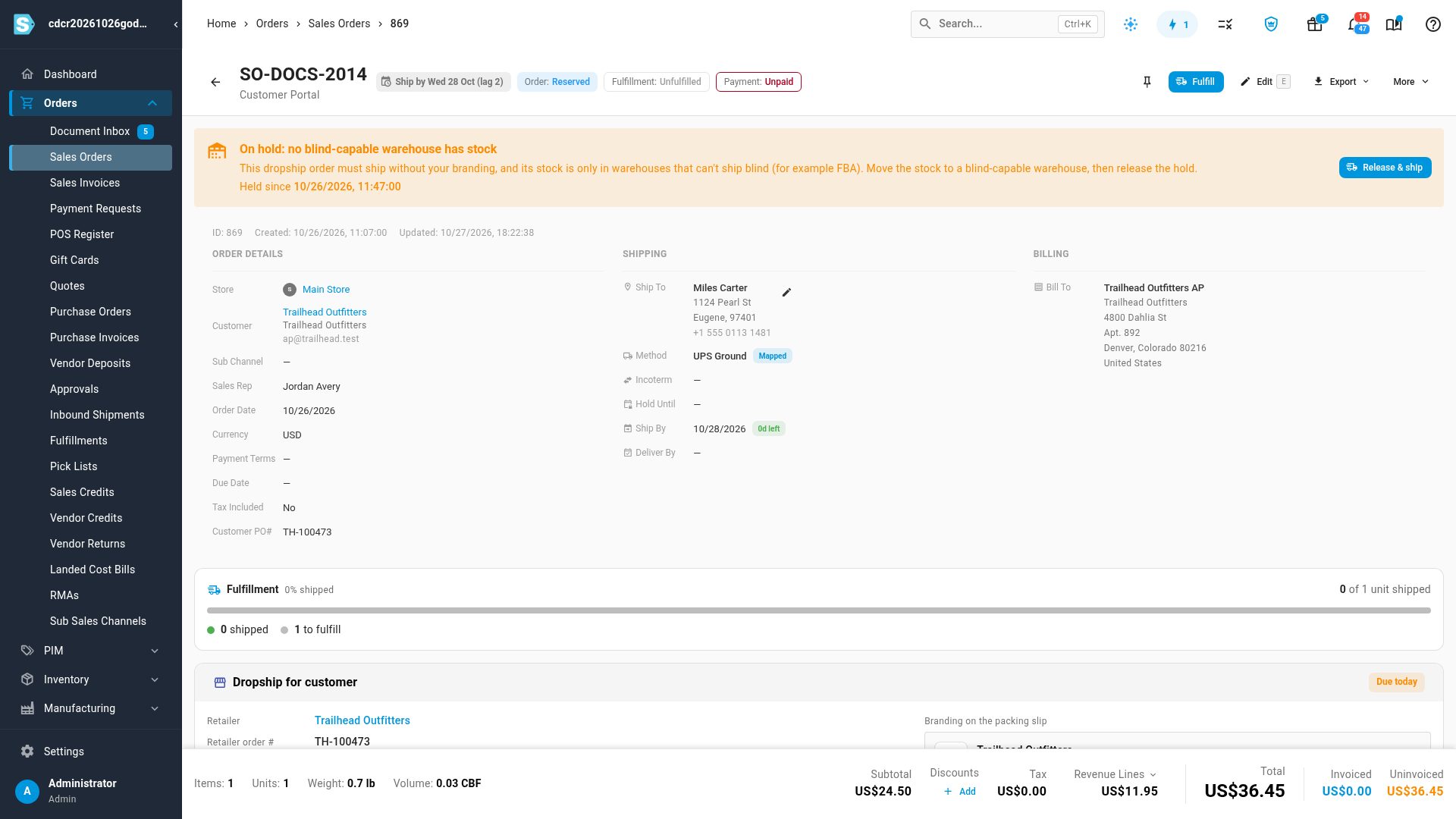
The retailer sees the order as On hold, "On hold — waiting for stock at a warehouse that can ship it.", and its webhook gets an On hold event.
To clear it:
-
Move stock of the SKUs named in the note to a warehouse that can ship blind, with a transfer or a receipt. Or change the line's warehouse to one that has blind-capable stock. Which warehouses can: Which warehouses can ship blind.
-
Open the order and click Release & ship on the banner.
-
Click Release & ship again to confirm.
The order opens and goes to your shipping provider.
SKU.io checks again every time the order is sent to a warehouse. If you release the hold before the stock has moved, the order goes straight back on hold.
Clear an "Awaiting shipping cost" invoice
When a retailer pays the actual label cost (Actual cost shipping), its invoice can't be finished until the label cost is known.
- An invoice raised before then stays a draft, marked "Awaiting shipping cost — this dropship order bills shipping at label cost, and no label cost has been recorded yet. Left as a draft."
- The order gets the note "Billing hold: awaiting shipping cost. The shipment invoice stays a draft until the label cost is recorded."
- Trying to issue it is refused: "Awaiting shipping cost — order … bills shipping at label cost and a shipment on this invoice has no label cost recorded yet. Record the shipment cost (a $0 label counts) before issuing."
- The retailer sees "Billing hold — your supplier is checking the charges."
The cost arrives on its own when you buy the label in SKU.io (ShipStation, Shippo, EasyPost) or when a 3PL's cost report records it. SKU.io then reprices the Shipping — billed at label cost line (it notes, for example, "Dropship shipping billed at label cost: 9.20 (cost 8.00 + 15% markup)."), rebuilds the draft invoice, and clears the hold. An order with several parcels bills every parcel. A cost in another currency is converted.
Some 3PLs and manual warehouses never report a label cost. SKU.io doesn't alert you or time out: the invoice simply stays on hold. Check for dropship invoices still in draft, and enter the shipment's cost by hand (a $0 label counts). See Set a shipment's shipping cost.
If the only shipment with a cost is voided or cancelled, the shipping line resets to 0.00 and the order waits for a cost again. Deposits are never held. On a consolidated statement, the order waits for the next statement run.
Merging dropship orders
You can merge a dropship order only with other dropship orders for the same retailer. Never with your ordinary orders, never with another retailer's, and never when the order bills shipping at the actual label cost. Merge suggestions only offer orders that qualify. Otherwise you see "A dropship order can only be merged with other dropship orders for the same retailer — not with ordinary orders or another retailer's orders — and never when it bills shipping at label cost." See Merge fulfillment orders across different orders.
Handle a late cancel request
A retailer can cancel its own dropship order until your warehouse starts on it (for example, once the packing slip is printed). After that, its cancel becomes a request to you:
- The order gets the note "Dropship cancel requested by Trailhead Outfitters for TH-… after the warehouse had started — stop it by hand if it can still be stopped."
- The retailer's default sales rep is emailed "Cancel requested: SO-… (TH-…)". When the retailer has no default sales rep with an email, your admins get the email instead, with a line asking you to set one.
To act on it:
- Open the order from the email or the note.
- If the parcel hasn't left, stop the shipment and cancel the order as usual.
- If it has already shipped, let the retailer know; its customer can return it.
Credit a dropship return
When the retailer starts a return for a dropship order, the return (RMA) shows a Dropship return card with a suggested credit.
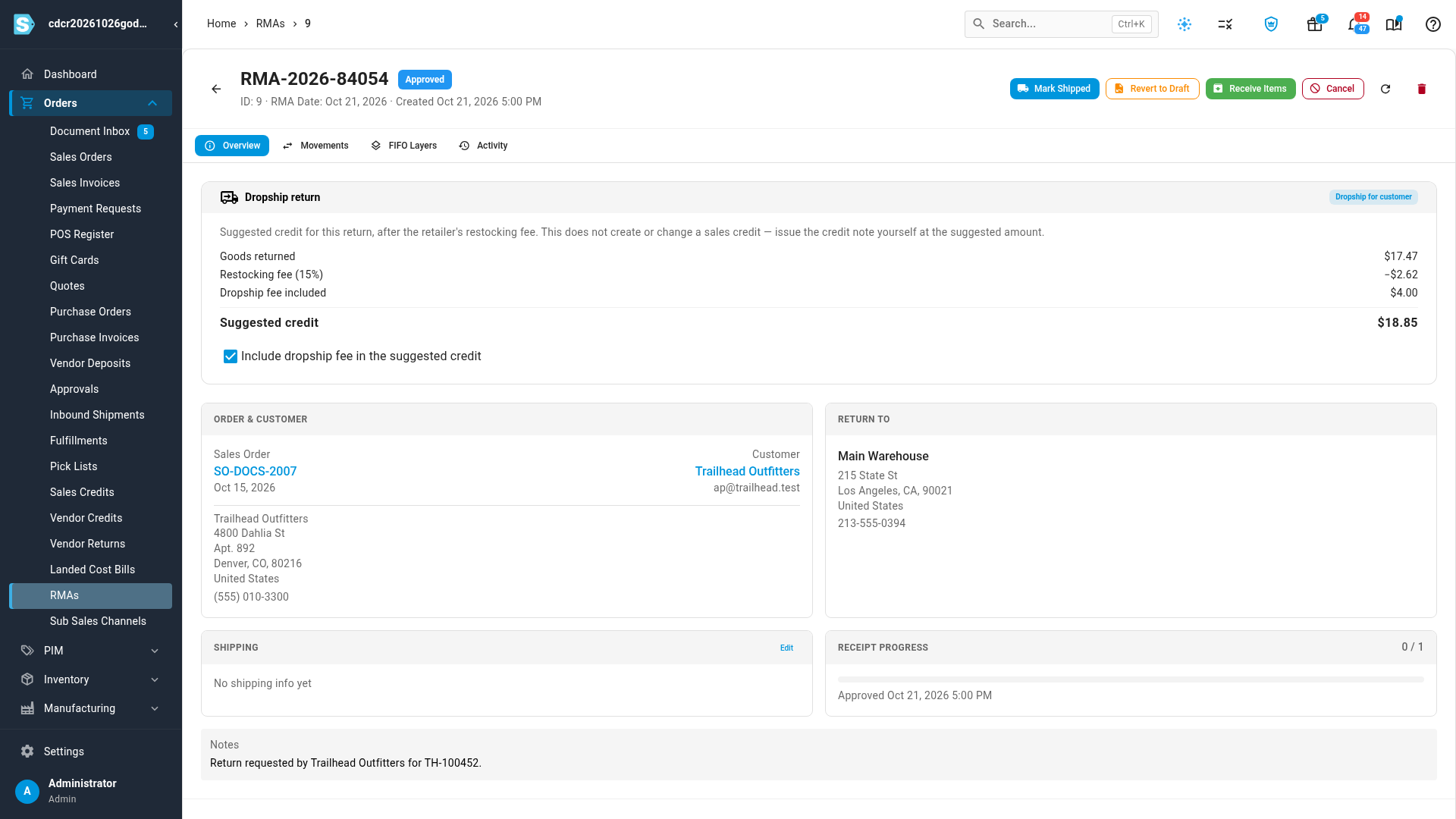
| Row | Meaning |
|---|---|
| Goods returned | The value of the returned items. |
| Restocking fee (N%) | The retailer's restocking fee, from its Dropship tab, taken off. |
| Dropship fee included | The dropship fee given back. Zero unless you tick the box below. |
| Suggested credit | What to credit the retailer. |
- Go to Orders → RMAs, click the RMAs tab, and open the return.
- To give the dropship fee back as well, tick Include dropship fee in the suggested credit. It saves at once, and the return's activity records the change.
- Create the sales credit for the retailer at the Suggested credit amount.
The card is advice only: it doesn't create or change a sales credit. See Create and allocate a sales credit and Process a customer return.
Next steps
Video transcript
To find your retailers' dropship orders, open Orders, then Sales Orders. Each one carries a Dropship chip with the retailer's name. Under Dropship for customer, choose Any retailer. Then under Dropship SLA, choose the one you want, such as Late. Save the filters as a view, to come back to this list every day. Open a draft order from the list, such as this late one. Every dropship order arrives as a draft, but its ship-by clock is already running. The Dropship for customer card shows the retailer, its order number, and the ship-by date. Check it, and click Approve. When an order's stock is only in warehouses that can't ship blind, such as FBA, it goes on hold. The banner says why. Move the stock to a warehouse that can ship blind first. Then click the button on the right of the banner, to release the hold and ship. On a dropship return, the Dropship return card suggests the credit, after the retailer's restocking fee. Tick the box to give the dropship fee back as well. The card never issues the credit for you, so create the sales credit at this amount.