Connect ShipHero
Connect ShipHero with its API login, then map ShipHero's warehouses to yours. Orders only go to ShipHero from a warehouse you've mapped.
Before you begin
- You need permission to connect integrations.
- Get the API username (an email address) and password for your ShipHero account. Your 3PL can issue them.
- You can connect one ShipHero account.
Create the connection
-
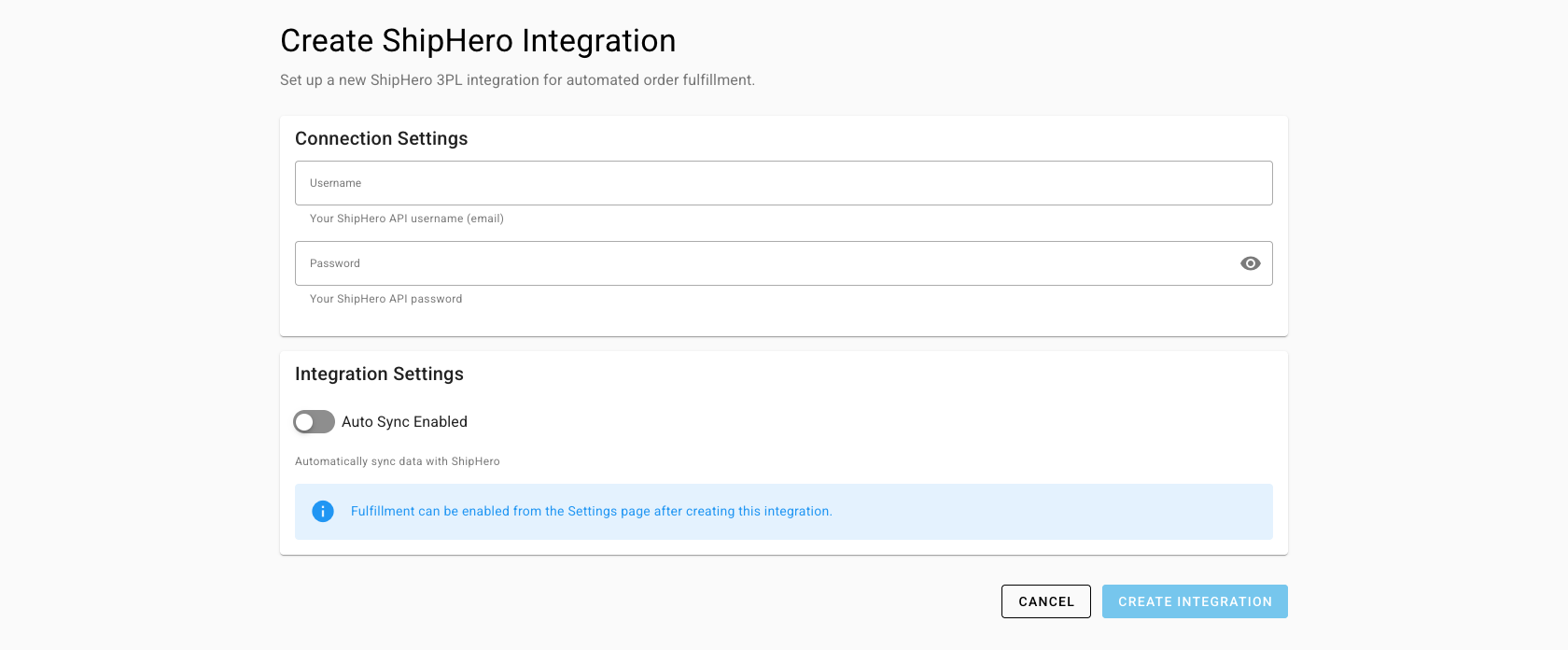
Go to Apps & Integrations, open Shipping & Fulfillment, and choose Shiphero. The Create ShipHero Integration page opens.
-
Enter the Username and Password.
-
Turn Auto Sync Enabled on.
-
Click Create Integration.
What you'll see: the Dashboard opens, and SKU.io registers for ShipHero's notifications and downloads your ShipHero warehouses.
Auto Sync Enabled starts off. While it's off, SKU.io doesn't send orders to ShipHero or pull tracking back. If you created the connection with it off, open Settings → Sync, set the Sync Schedule to Active, and turn on both switches under What syncs.
Map warehouses
-
Open the Warehouses tab and click Download Warehouses if the list is empty.
-
For each ShipHero warehouse, pick the Local Warehouse it stands for.
-
Click Save Mappings.
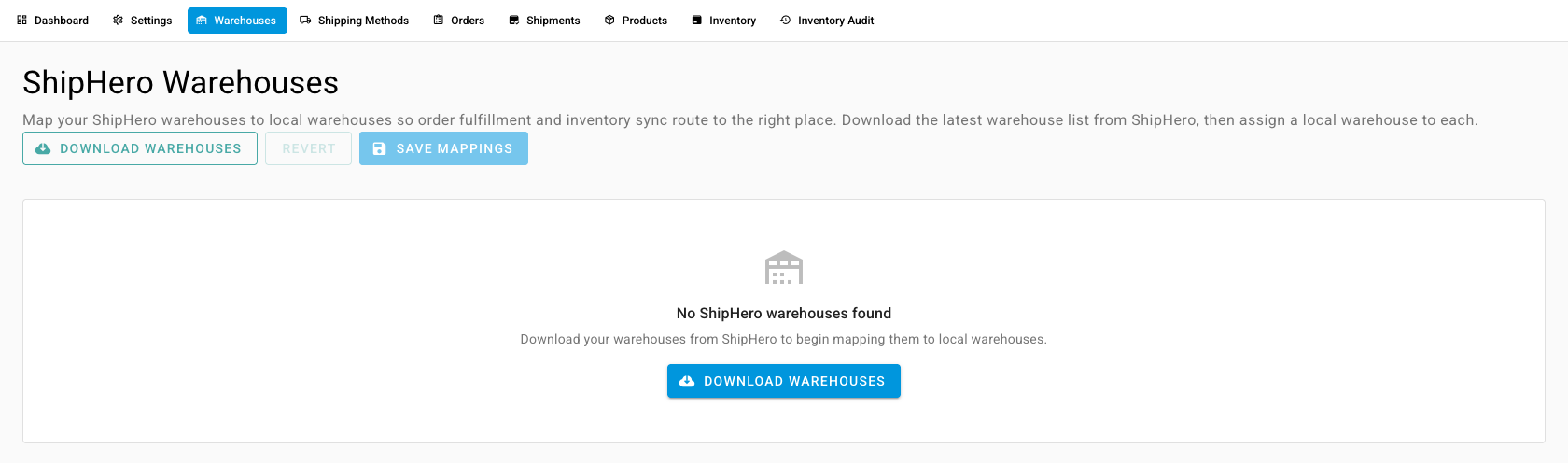
What you'll see: the chosen SKU.io warehouse becomes a 3PL warehouse that ships through ShipHero. Removing the mapping later doesn't change it back. An order from a warehouse with no mapping is refused with "Sku Warehouse not mapped to Shiphero Warehouse".
Map products
SKU.io matches ShipHero SKUs to your products by barcode, then SKU, every time it refreshes inventory. To fix one:
- Open the Products tab and filter to the rows that show Needs Review or no product.
- Open the row's actions and choose Map SKU Product (or Re-map SKU Product).
- Search for the SKU.io product, select it, and save.
The ShipHero SKU you map is the one SKU.io sends on orders.
Map shipping labels
The Shipping Methods tab works on what comes back: the shipping label ShipHero reports on each shipment, and which SKU.io shipping method it means. On orders going out, SKU.io sends your shipping method's name as text.
- Open Shipping Methods. Each ShipHero value shows how many shipments used it and what it resolves to.
- Pick a SKU.io method under Map to, or leave it as free text.
- To cover many labels at once, click Add Rule under Text rules, choose a Match type (Contains, Starts with, or Is exactly), enter the Match value, and pick the Shipping method. Rules run in order, and the first match wins.
Set what syncs
Settings → Sync has a Sync Schedule (Active or Paused) and two switches under What syncs:
| Switch | What it controls |
|---|---|
| Import tracking from ShipHero | Pulling shipments and tracking back, every 10 minutes |
| Push orders to ShipHero | Sending orders. With it off, an order is refused with "ShipHero order push is turned off in Sync settings", and it goes again automatically once you turn the switch back on. |