Send sales channel labels to ShipHero
Some sales channels buy the shipping label themselves. A TikTok Shop order shipped on TikTok's own label is one: the warehouse must ship on TikTok's label, not buy its own. SKU.io stores that label on the sales order, and the Sales Channel Shipping Labels settings on your ShipHero connection decide how it reaches the warehouse.
Until the label has reached the warehouse, SKU.io doesn't send the order to ShipHero. For how the label is obtained and why those orders wait, see Ship TikTok Shipping orders through a 3PL.
Before you begin
- Connect ShipHero and map its warehouses.
- You need permission to change integrations.
- To email labels, the warehouse needs an email address on its address in SKU.io.
Choose how labels reach the warehouse
-
Go to Apps & Integrations, open Shipping & Fulfillment, choose Shiphero, and open Settings.
-
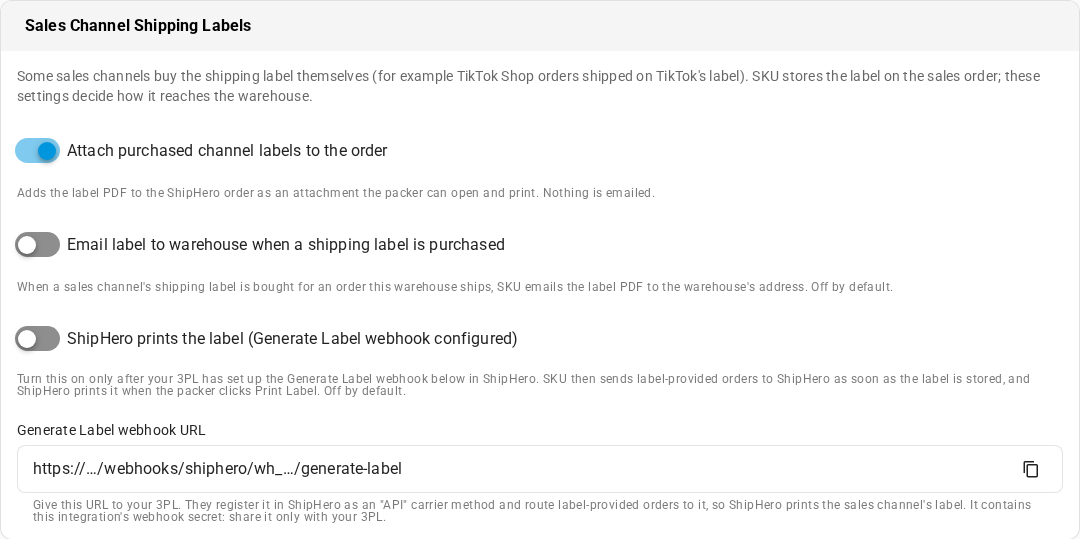
On the General tab, find the Sales Channel Shipping Labels card.
-
Set the switches:
Switch Default What it does Attach purchased channel labels to the order On Adds the label PDF to the ShipHero order as an attachment the packer can open and print. Nothing is emailed. Email label to warehouse when a shipping label is purchased Off When a sales channel's label is bought for an order this warehouse ships, SKU.io emails the PDF to the warehouse's email address. It works for labels from any sales channel. ShipHero prints the label (Generate Label webhook configured) Off Turn on only after your 3PL has set up the Generate Label webhook. See Let ShipHero print the label. -
Click Save Settings.
What each choice does
| Attach | ShipHero prints | What happens to an order shipped on a channel's label | |
|---|---|---|---|
| On | Either | Either | As soon as the label is stored, SKU.io sends the order to ShipHero and attaches the label to it. Nothing is emailed. |
| Off | On | Either | As soon as the label is stored, SKU.io sends the order to ShipHero, which prints the label when the packer clicks Print Label. Nothing is emailed. |
| Off | Off | On | SKU.io emails the label to the warehouse once, then sends the order to ShipHero. |
| Off | Off | Off | The order stays held. Its hold reason says to download the label from the sales order and send it to the warehouse. When you Submit the fulfillment order, that counts as the hand-off and the order goes to ShipHero. |
Each hand-off adds a note to the sales order: that the label was attached, emailed (with the address it went to), or marked as sent by your submit.
The email's subject is "TikTok Shop shipping label for order … - ship on this label". It lists the order number, the TikTok order and package, the tracking number, the carrier, and the items to pack, with the label attached. Each label is emailed at most once, from the same sender as your store's other emails.
With email on, a warehouse that has no email address can't be sent the label. The order stays held, with a reason that says so. Add an email to the warehouse's address, or download the label and send it yourself.
Let ShipHero print the label (for 3PL admins)
ShipHero can also print a channel's label itself, when the packer clicks Print Label, through ShipHero's Generate Label webhook. ShipHero then asks SKU.io for the order's label and prints it with its tracking number, so the packer never opens an attachment.
Only the 3PL can set this up, because it's a carrier set up in the 3PL's ShipHero account:
- On the Sales Channel Shipping Labels card, copy the Generate Label webhook URL with its copy button. It's unique to your ShipHero connection. You see it only if you have permission to change integrations.
- Give the URL to your 3PL. In ShipHero, they register an API carrier method whose label endpoint is that URL, and route the shipping method these orders arrive with to it.
- Once the 3PL confirms it's set up, turn on ShipHero prints the label (Generate Label webhook configured) and click Save Settings.
The Generate Label webhook URL contains your connection's webhook secret. Anyone who has it can request your sales channel labels from SKU.io.
When the packer prints, ShipHero receives a link to the label PDF and its tracking number. If SKU.io has no channel label for the order, the print fails with "SKU.io has no sales channel label for this order. Print the label the order's sales channel provided, or contact the merchant."
You can keep Attach purchased channel labels to the order on as well, so the packer can still open the label from the order. Don't turn on ShipHero prints the label before the webhook works: SKU.io would then release orders to ShipHero that it can't print a label for.