Send purchase orders to your ShipHero 3PL
When your 3PL runs ShipHero, SKU.io can create each purchase order straight in ShipHero, instead of emailing the warehouse a spreadsheet. In ShipHero, that purchase order is the ASN: it tells the warehouse what's coming so it can receive it. SKU.io then keeps it up to date as you edit the purchase order, and shows you what the warehouse has counted.
Video chapters
- 0:03 Open the ASN settings
- 0:29 Turn on ASNs
- 0:48 Add a backup spreadsheet
- 1:14 Choose what goes on the ShipHero PO
- 1:39 Decide what happens after sending
- 1:58 Open a purchase order
- 2:14 Preview it
- 2:35 Send it to ShipHero
- 2:54 Follow it from the purchase order
- 3:12 The ShipHero PO page
- 3:33 Every ShipHero PO in one list
- 3:44 When a product isn't in ShipHero
- 4:03 Send it, and see it held
- 4:22 Re-check and send
- 4:39 Push changes
- 5:04 Follow receiving
- 5:14 Read the warehouse's counts
Before you begin
- Connect ShipHero and map the ShipHero warehouse to the SKU.io warehouse your purchase orders are delivered to.
- Agree with your 3PL that it receives purchase orders this way, and ask what it needs: a PO-number prefix, whether to send prices, and whether it wants its usual spreadsheet for the first few.
- Every product on a purchase order must exist in ShipHero. A purchase order with a product ShipHero doesn't have is held, not sent.
- The destination warehouse needs an email address in SKU.io. That's where SKU.io emails the 3PL.
- You need permission to change integrations to set this up, and permission to update purchase orders to send them.
Turn on ASNs
-
Go to Apps & Integrations → All Integrations, and open your ShipHero connection.
-
Click the Settings tab, then the ASNs tab. It has three sub-tabs, Sending, Content and After sending, and opens on Sending.
-
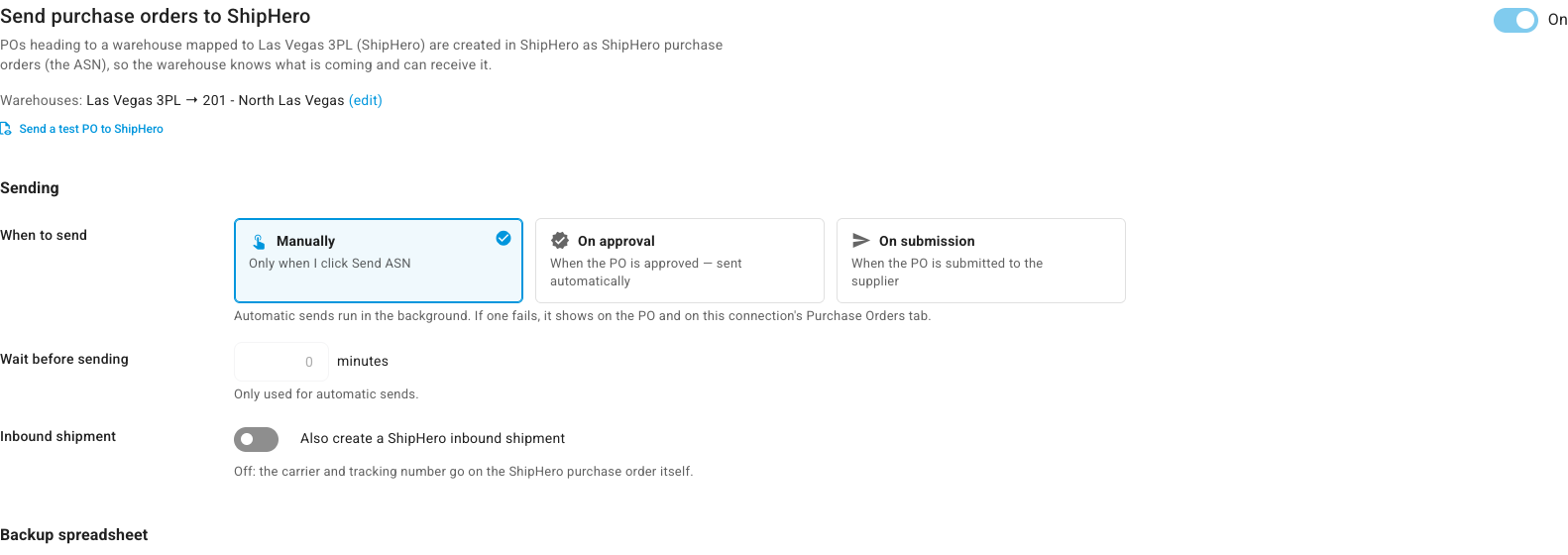
Switch on Send purchase orders to ShipHero. The Warehouses line under it shows each SKU.io warehouse it covers and the ShipHero warehouse it goes to. While the switch is off, purchase orders to these warehouses are emailed to the 3PL as an ASN spreadsheet instead.
-
Under When to send, keep Manually to send each purchase order yourself, or choose On approval or On submission to send them automatically. Start with Manually for your first few.
-
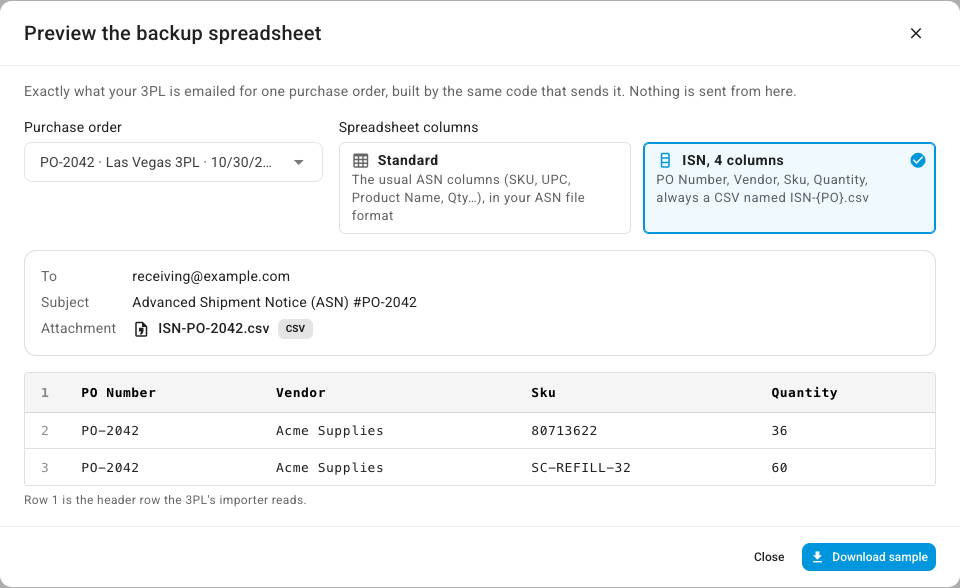
If your 3PL wants its usual spreadsheet as well for a while, choose With each PO, required under Email the spreadsheet, enter how many purchase orders under For the next (leave it empty for every purchase order), and pick the Spreadsheet columns your 3PL asked for.
-
To check the spreadsheet, click Preview spreadsheet. It shows the email, the attachment and its rows for a purchase order, exactly as your 3PL gets them. Nothing is sent from here. Click Close.
-
Click Save Changes.
What you'll see: the message "Settings saved." From now on, Send ASN on a purchase order to this warehouse creates it in ShipHero.
Choose what goes on the ShipHero purchase order
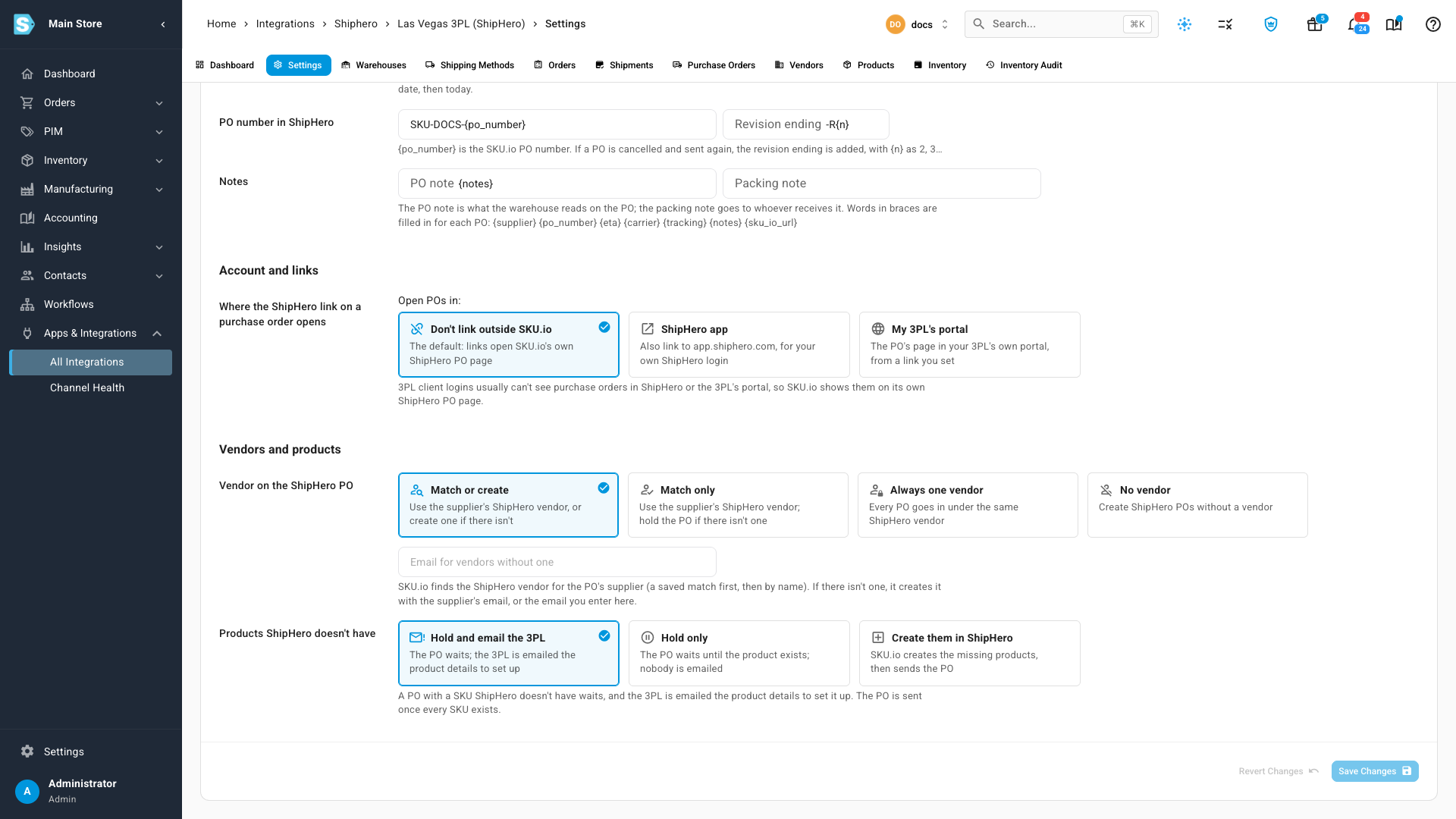
On the ASNs tab, open Content. The defaults suit most 3PLs, so check these with yours:
- Product name sent: names are cut at a word to the length your 3PL allows (70 characters by default).
- Prices: lines go at $0.00 unless you switch on Send unit costs.
- PO number in ShipHero: add a prefix or suffix around
{po_number}if your 3PL wants one. - Vendor on the ShipHero PO: how the supplier is matched to a ShipHero vendor.
- Products ShipHero doesn't have: hold the purchase order and email the 3PL the product details (the default), hold it without an email, or create the products in ShipHero.
Click Save Changes if you changed anything. Every option is explained in ShipHero ASN settings and statuses.
Decide what happens after sending
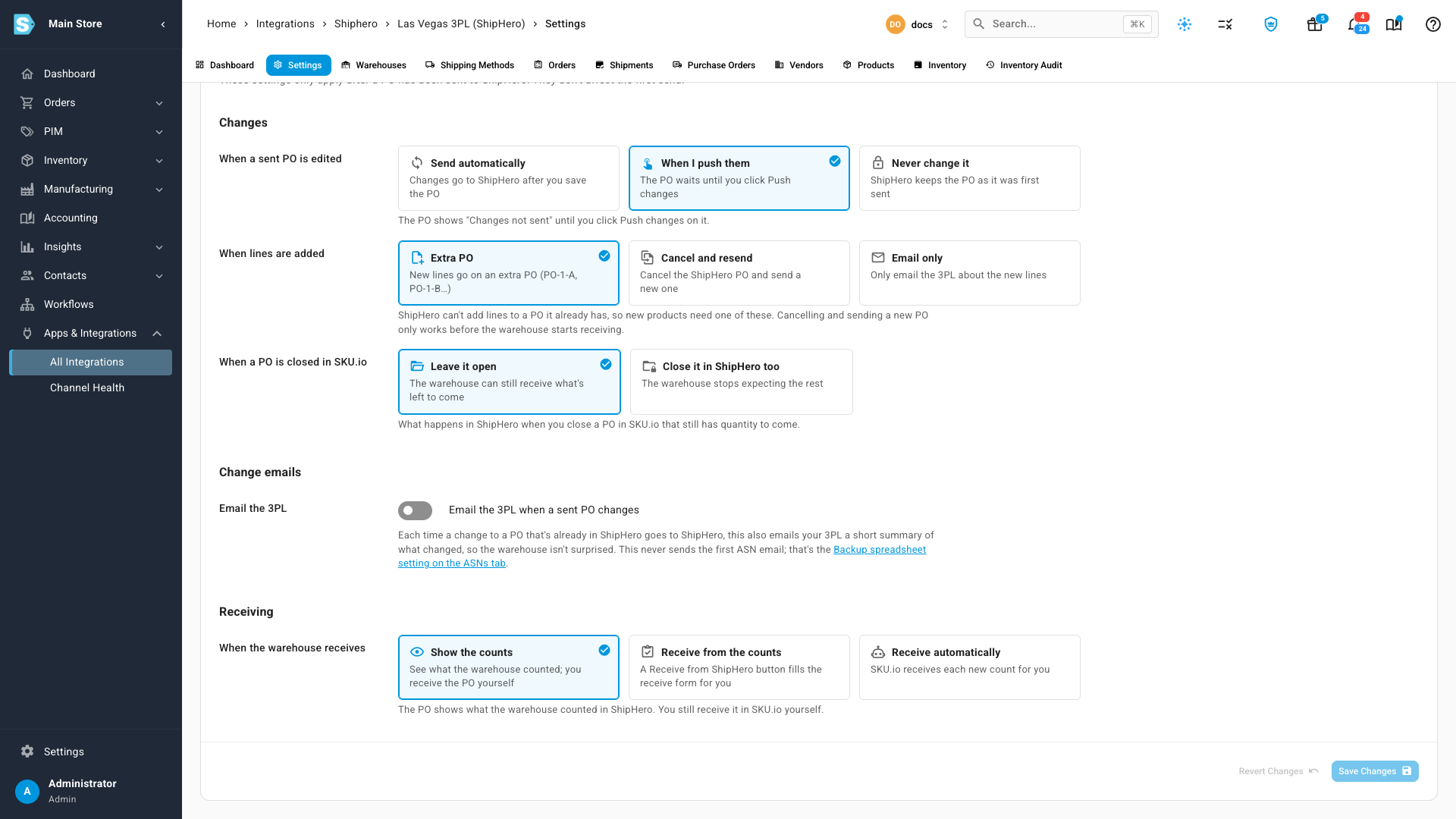
On the ASNs tab, open After sending:
- When a sent PO is edited: send changes to ShipHero automatically, wait until you click Push changes, or never change the ShipHero purchase order.
- When lines are added: ShipHero can't add lines to a purchase order it already has, so new lines go on an extra purchase order by default (
PO-1-A,PO-1-Band so on). - When the warehouse receives: show the warehouse's counts only, fill the receive form from them, or receive automatically.
Click Save Changes if you changed anything.
Preview and send a purchase order
-
Go to Orders → Purchase Orders, and open a purchase order that's going to the mapped warehouse.
-
Click More, and choose Preview ShipHero PO. The preview shows the PO number, warehouse, vendor, date and tracking ShipHero will get, and each line's SKU, name, quantity, price and weight. Problems that stop the send show in red, and warnings in amber. Nothing is sent yet.
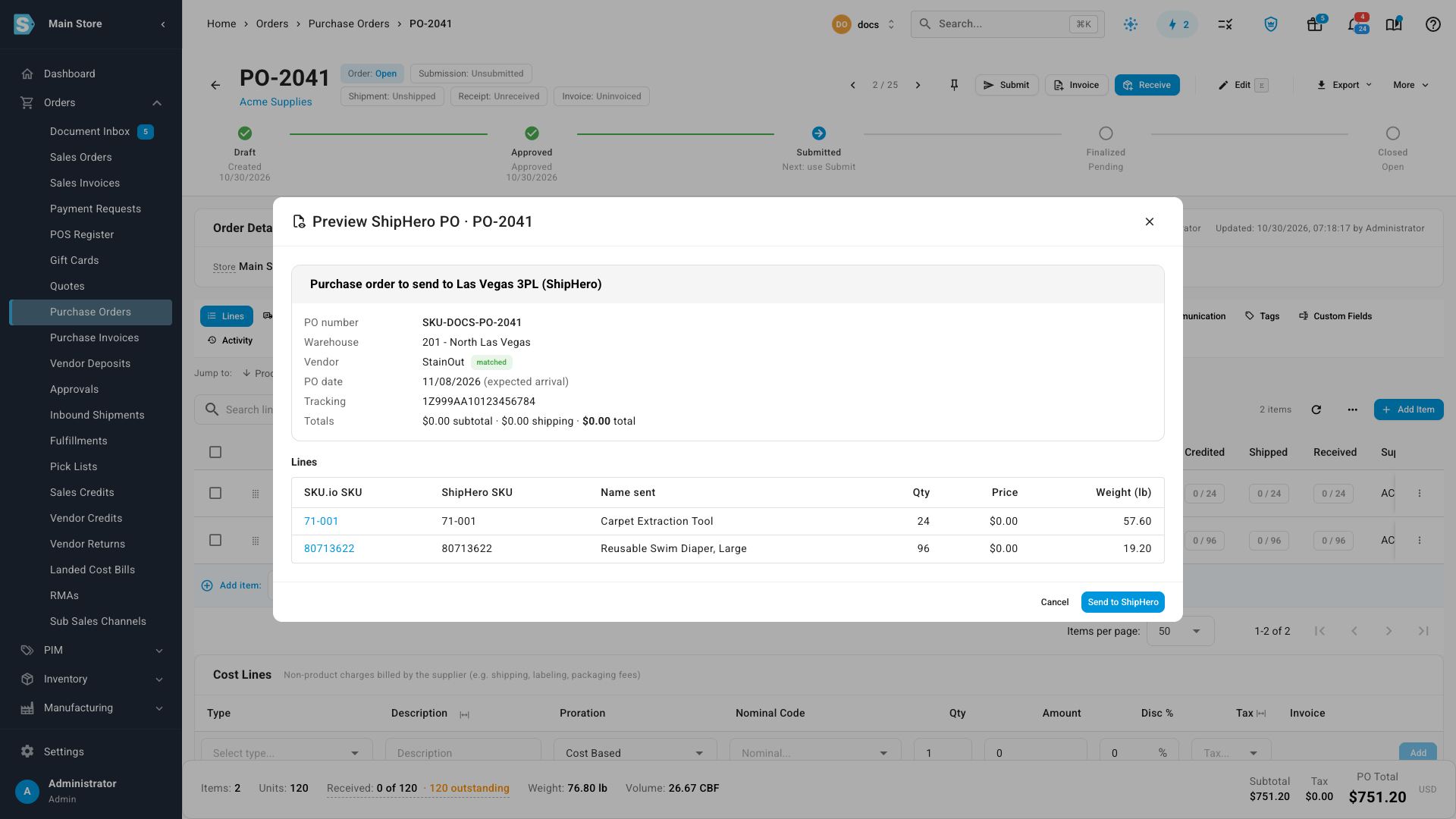
-
Click Send to ShipHero.
What you'll see: a message confirming the send, and a chip next to the purchase order's status reading ShipHero: Sent · PO and ShipHero's PO number.
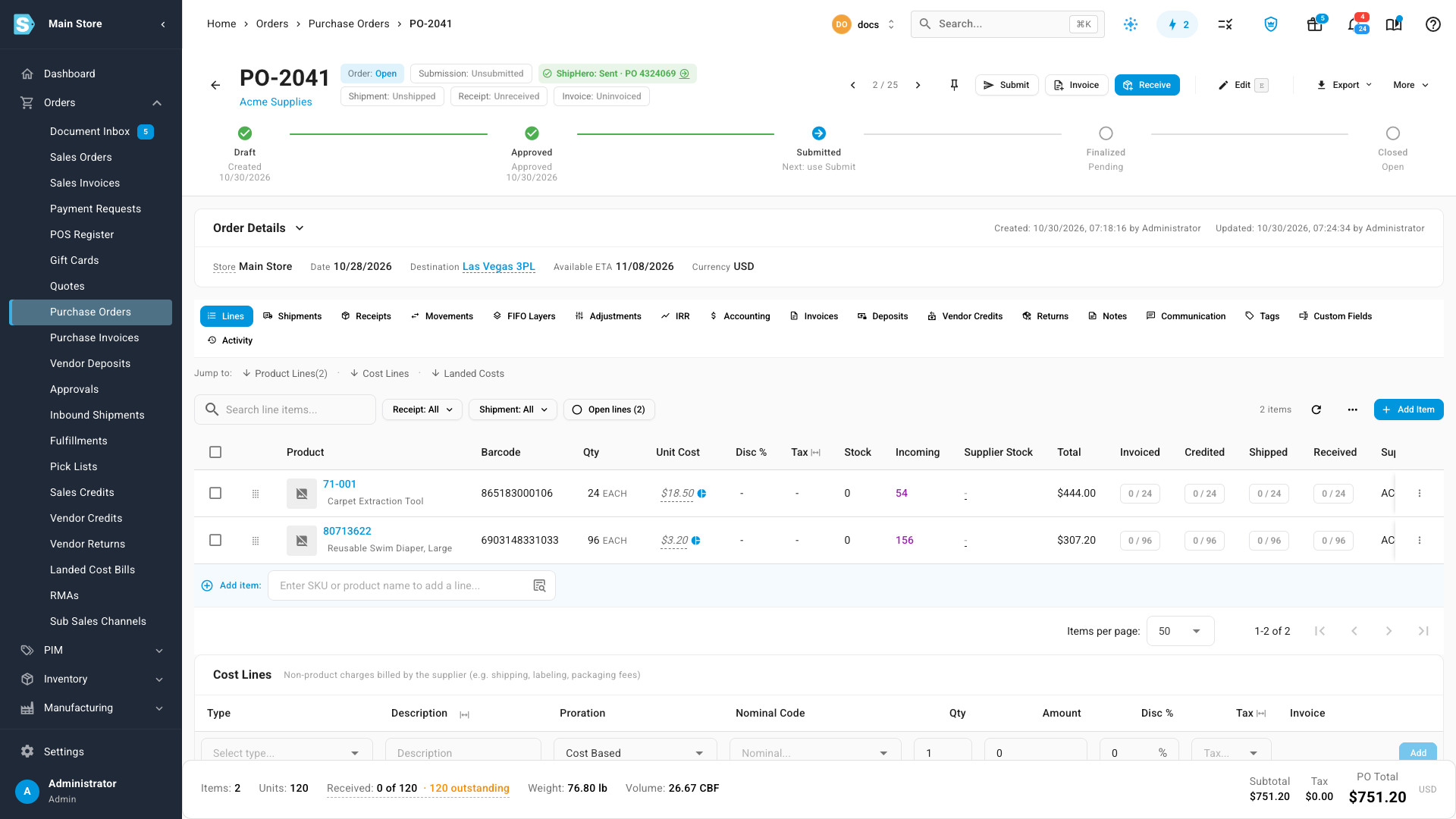
To send without previewing, choose Send ASN to and your connection's name from More. To send several at once, tick them on the Purchase Orders list and choose Send ASN from the bulk actions. That runs in the background, and you can follow it in the job tray.
Follow a sent purchase order
-
On the purchase order: click the chip to open the ShipHero panel. It lists each SKU with what was Ordered, what's In ShipHero, and what's Received, with Preview ShipHero PO and Refresh from ShipHero.
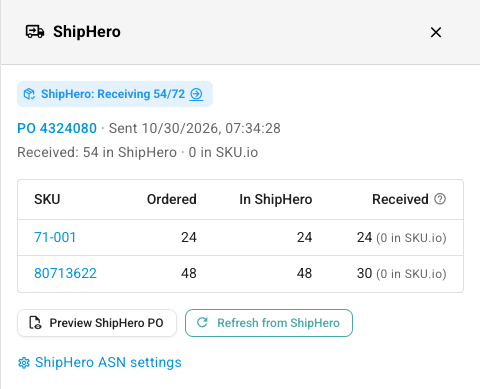
-
On the ShipHero PO page: click the PO number in the panel (or the arrow on the chip). The page shows ShipHero's PO number, what's been received, when it was sent, pushed and last read from ShipHero, the vendor and warehouse, and each line as it was sent. The Timeline tab shows when it was sent, held, pushed, received and last read from ShipHero.
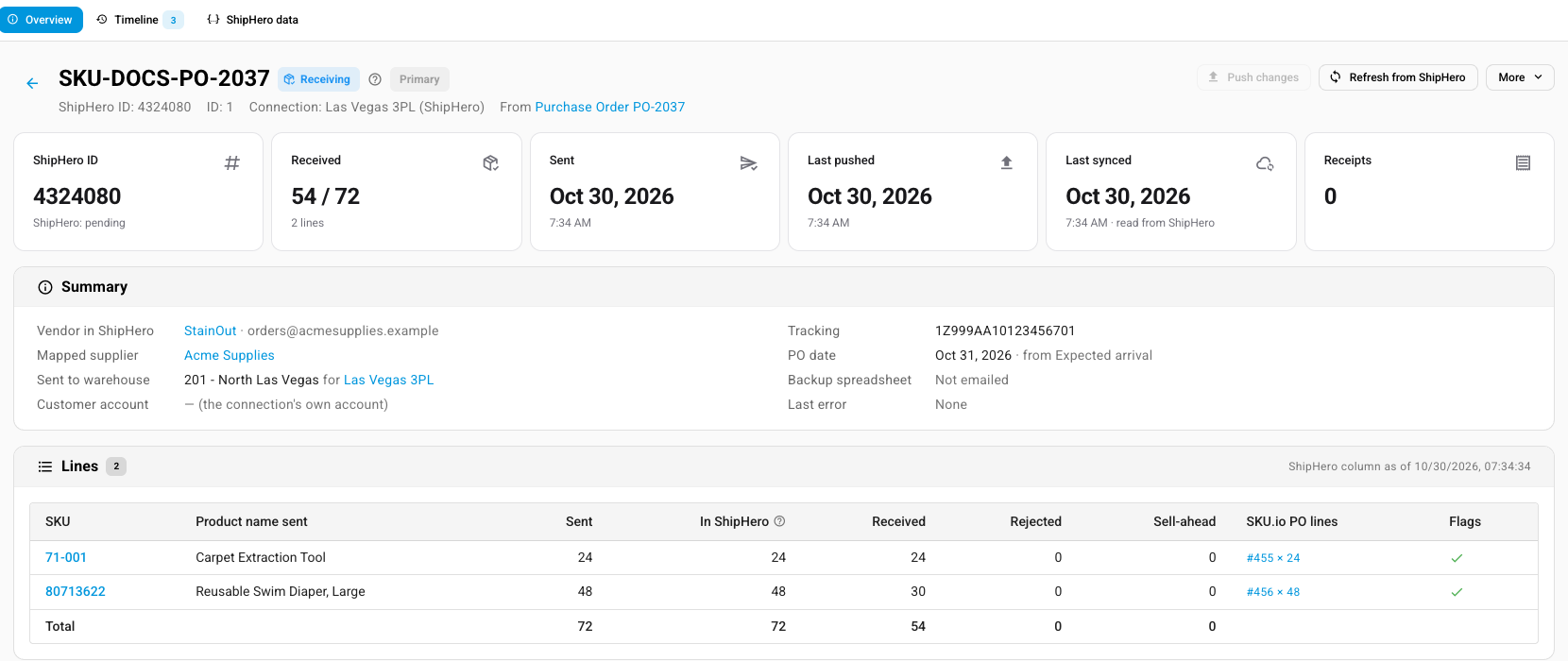
-
On the connection's Purchase Orders tab: every purchase order sent to this connection, with its status. Use the Status filter to find the ones that need you.
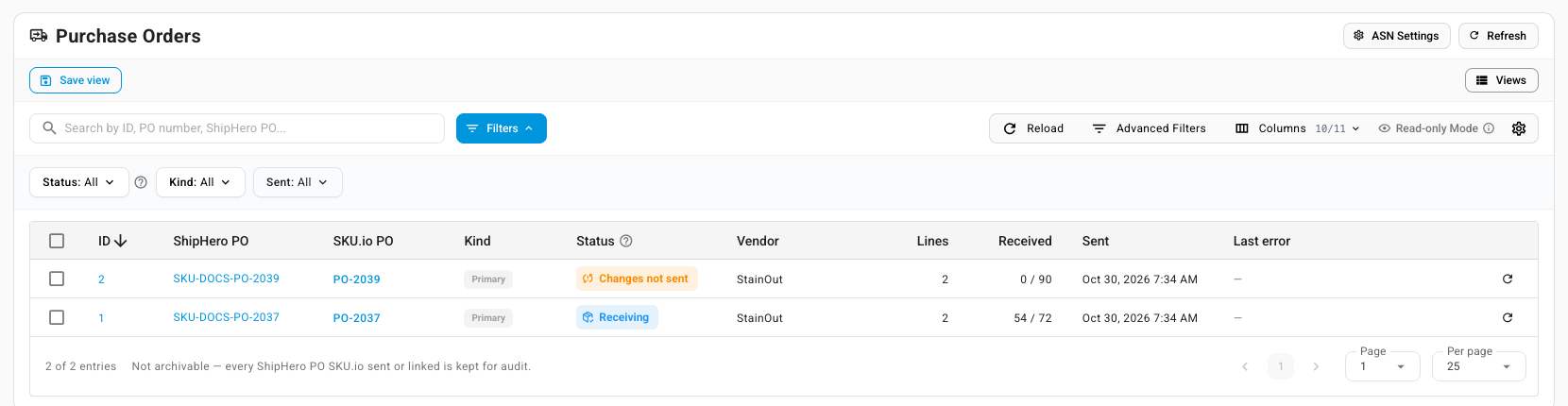
-
On the Purchase Orders list: filter by ASN status, or show the ASN Status column from Columns.
What each status means is in ShipHero ASN settings and statuses.
When a product isn't in ShipHero
If a product on the purchase order isn't set up in ShipHero, SKU.io holds the purchase order instead of sending part of it. The chip reads ShipHero: Held, and a banner names the missing product. With the default setting, SKU.io emails your 3PL that product's details to set up, once.
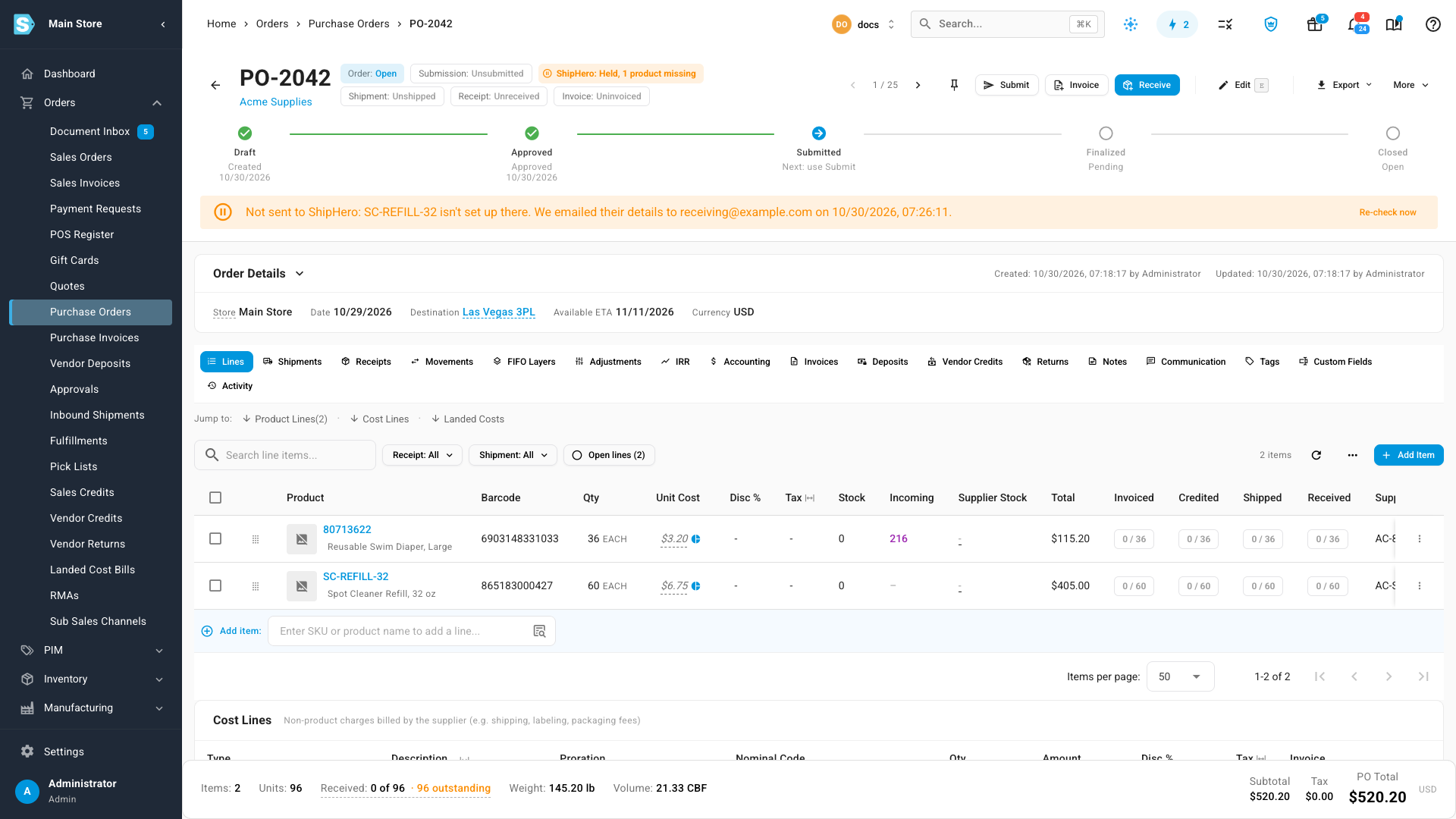
Once your 3PL has set the product up, click More and choose Re-check & send (or click Re-check now on the banner). SKU.io checks ShipHero again and sends the purchase order. If the product still isn't there, the purchase order stays held. A purchase order that was going to be sent automatically is re-checked and sent by itself.
Push changes
When you edit a purchase order after it's sent, and changes wait for you, the chip reads ShipHero: Changes not sent, and a banner lists what changed.
- To find these, filter the Purchase Orders list by ASN status → Changes not sent, and open one.
- To check what will change first, click Preview changes.
- Click Push changes.
What you'll see: ShipHero's purchase order is updated, and the chip goes back to ShipHero: Sent.

SKU.io never lowers a quantity below what the warehouse has already received.
Follow receiving
As the warehouse counts the delivery in ShipHero, the counts come back to SKU.io. The chip shows units received out of units ordered, for example ShipHero: Receiving 54/72, and the panel shows each SKU's count. To read the latest counts right away, click Refresh from ShipHero.

With the default setting, you still receive the purchase order in SKU.io yourself. To have SKU.io fill in the receive form, or receive for you, change When the warehouse receives under ASNs → After sending.
Next steps
- ShipHero ASN settings and statuses: every option and status.
- Connect ShipHero: map warehouses and products.
- Reconcile ShipHero inventory: compare ShipHero's stock with SKU.io's.
Video transcript
When your 3PL runs ShipHero, SKU.io can create each purchase order straight in ShipHero, instead of emailing a spreadsheet. To set it up, go to Apps & Integrations, and choose All Integrations. Under Quick Access, open your ShipHero connection, and give its dashboard a moment to load. Then click the Settings tab, near the top of the page. Now open the ASNs tab, where sending purchase orders is switched on and off. Switch on Send purchase orders to ShipHero. While it's off, purchase orders to this warehouse are emailed as a spreadsheet instead. The warehouses it covers are listed underneath. Under When to send, keep Manually to send each one yourself. Or send them automatically when a purchase order is approved or submitted. Some 3PLs still want their usual spreadsheet emailed for the first few purchase orders. If yours does, choose when to email it, and pick the columns your 3PL needs. To check the file before anything goes out, click Preview spreadsheet. The preview shows the email and the attachment exactly as your 3PL receives the file. When you're happy with it, close the preview, and click Save Changes at the bottom of the tab. Now scroll back up, and open the ASN Content tab, which sets what each ShipHero purchase order carries. Product names are cut to the length your 3PL allows. Lines go at zero dollars unless you turn on Send unit costs. If your 3PL wants a prefix on the PO number, add it here. Further down, choose how vendors are matched to your suppliers, and what happens when ShipHero doesn't have a product yet. The After Sending tab covers purchase orders you edit once they're sent. Edits can reach the warehouse automatically, or wait until you push them yourself. New lines go on an extra purchase order, because ShipHero can't add lines to an existing order. Further down, Show the counts is the default when the warehouse receives. Now send a purchase order that's headed to that warehouse. Go to Orders in the sidebar, and choose Purchase Orders from the menu that opens. The list shows every purchase order, with its status and destination. In the list, open the purchase order you want to send. Click More at the top right of the page, and choose Preview ShipHero PO from the menu. The preview shows the PO number, the warehouse, the vendor, and the date ShipHero will get. Below that, each line shows the SKU, the name sent, the quantity and the weight. Nothing has been sent yet, so you can still go back and change the purchase order. When everything looks right, click Send to ShipHero at the bottom of the preview. It takes a few seconds, while each product is checked and the purchase order is created in ShipHero. When it's done, a message confirms the send. A chip next to the status now reads Sent, with the PO number from ShipHero. Click the chip, and the ShipHero panel slides in from the right. It lists each SKU, with what was ordered, what's in ShipHero, and what's received. From here, you can preview again or refresh from ShipHero. Click the ShipHero PO number to open its own page. It can take a moment to load. This page is SKU.io's record of the ShipHero purchase order. Across the top, it shows how much was received, and when it was sent and last read from ShipHero. Below that are the vendor and warehouse, and each line as it was sent. To see every purchase order sent to this connection, click the Purchase Orders tab at the top of the page. The list shows where each purchase order stands. Here, one is being received, and another has changes not sent yet. Use the Status filter to find the purchase orders that need your attention. Next, see what happens when a product is missing from the warehouse. Go back to Orders in the sidebar, and choose Purchase Orders from the menu. In that case, the purchase order is held, and never sent in part to the warehouse. This next order has one product that's new to the warehouse. Open it from the Purchase Orders list. On the purchase order, click More at the top right of the page. Then choose Send ASN to your ShipHero connection. SKU.io checks every product in ShipHero first, which takes a moment. Because one is missing, it holds the purchase order, and emails your 3PL that product's details to set up. Once your 3PL has set the product up, click More, and choose Re-check & send. SKU.io checks ShipHero again, and sends the purchase order once every product is there. Here, the product still isn't set up, so the purchase order stays held and names the missing product. When you edit a purchase order after it's sent, it shows Changes not sent. To find these, filter the Purchase Orders list by ASN status, and pick Changes not sent. Open one from the filtered list, and the banner at the top lists exactly what changed since you sent it. Then click Push changes in that banner, and ShipHero's copy of the purchase order is updated to match. After a moment, the chip reads Sent again. As the warehouse counts the delivery, ShipHero's counts come back automatically. From the Purchase Orders list, open a purchase order the warehouse has started receiving. On the purchase order, the chip next to its status shows how much the warehouse has received so far. Click the chip, and the panel shows what each line has received. You still receive the purchase order yourself, unless you change that setting.