Pay a bill with Mercury
Pay a supplier's bill straight from your Mercury account without retyping anything in your bank. You choose the amount, the account and the method; once the payment is approved and Mercury sends it, SKU.io records it on the bill for you. This works for purchase invoices (a supplier's invoice for a purchase order) and landed-cost bills (freight, duty and other service charges).
Before you begin
- Connect Mercury and set up Mercury payments.
- You need the Send payments permission (under Mercury Bill Pay in Settings → Roles).
- The bill must be in US dollars and have something left to pay.
- A purchase invoice must be approved for payment first. Its Payment Authorization card shows Approved. If you use a bill payment approval policy, the policy decides how much you can pay.
- The supplier needs a Mercury recipient. If they don't have one linked yet, you can link or invite them in the dialog.
Open the Pay dialog
- Open the purchase invoice (Orders → Purchase Invoices) or the landed-cost bill (Orders → Landed Cost Bills).
- Click Add Payment. On a purchase invoice, it's at the top of the page and on the Payment Authorization card.
- Click the Pay with Mercury tab, if the dialog didn't open on it.
The top of the dialog shows the Open balance, how much is already paid, and when the bill is due.
Link the supplier the first time
If the supplier isn't linked to a Mercury recipient yet, Pay to says so:
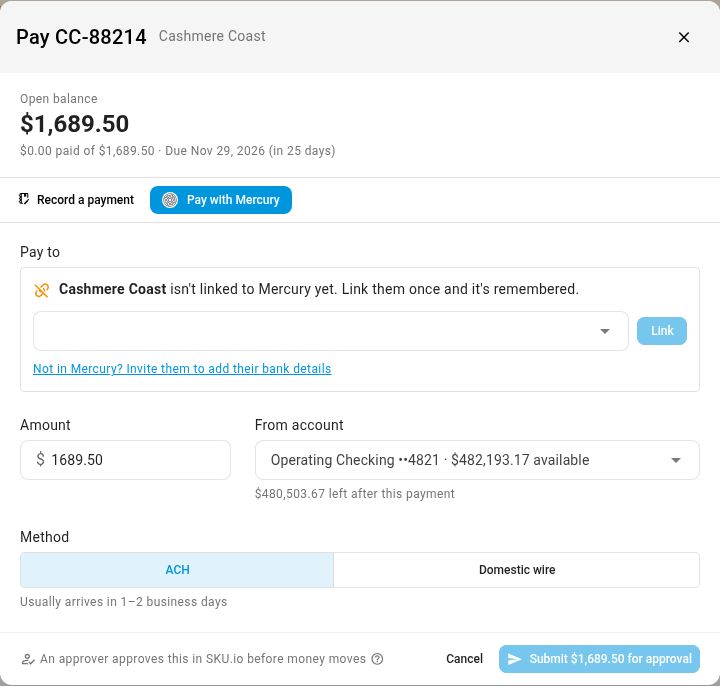
- Click the recipient search box and pick the supplier's recipient.
- Click Link. Pay to now shows the recipient with Linked.
If the supplier isn't in Mercury, click Not in Mercury? Invite them to add their bank details, then Send invite. Mercury emails the supplier a secure form. You can pay them once they've filled it in.
Send the payment
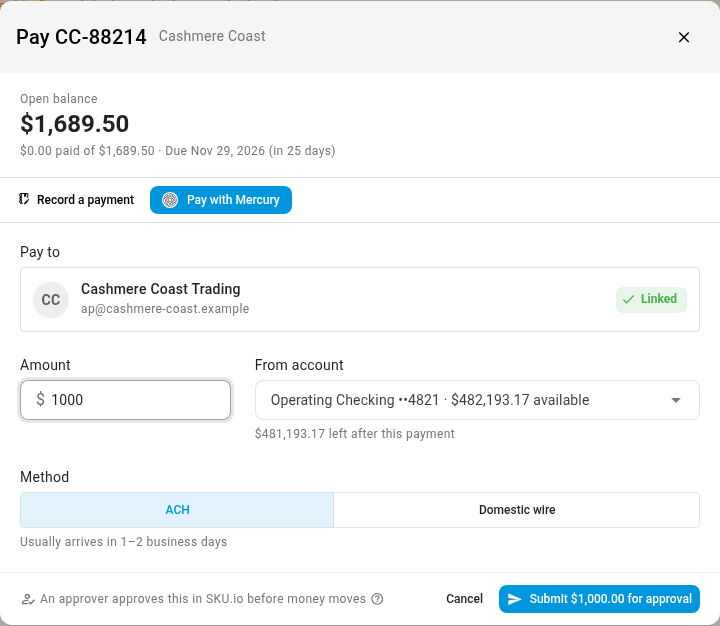
- Check Amount. It starts at the open balance (or what your approval policy approved, if that's less). Lower it to pay part of the bill.
- If the bill has an early-payment discount that hasn't expired, click Use early-pay discount to pay the discounted amount.
- Check From account. It starts on your default account and shows how much is left after this payment.
- Choose the Method: ACH, Domestic wire or Check, whichever your settings allow.
- Click the send button. Its label says what happens next:
- Submit $… for approval when payments are approved in SKU.io.
- Send $… to Mercury when payments are approved in Mercury.
- Send $… when your bill payment approval policy already approved this payment.
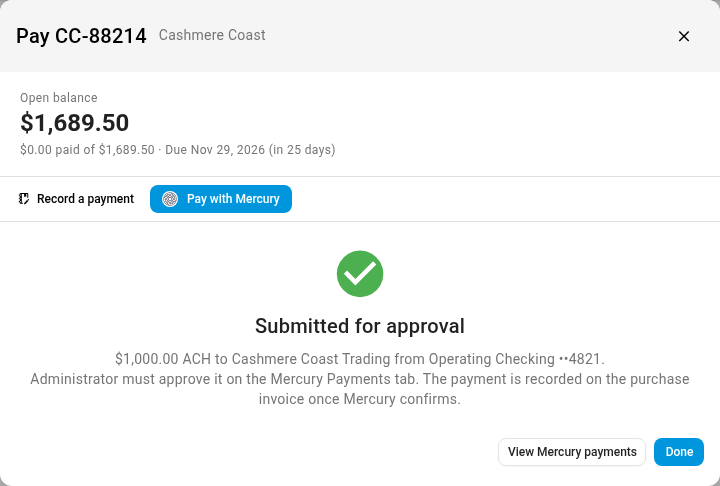
The confirmation says who has to approve it and where. Click View Mercury payments to see it on the Payments tab, or Done.
The send button stays unavailable, and pointing at it tells you why, until everything is in order: the supplier is linked, an account is chosen, the amount is more than zero and no more than the open balance (or what your approval policy approved), and the account has enough available balance.
What happens next
- Approval. Someone approves the payment, on the Payments tab or in Mercury. See Approve or decline Mercury payments.
- Mercury sends the money.
- SKU.io records it. When Mercury confirms, the payment appears on the bill's Payments, dated on the bank date, and the bill becomes Paid, or Partially Paid if you paid part of it. The payment then syncs to QuickBooks or Xero like any other.
If the payment is declined, the bill stays unpaid and you can pay it again. If Mercury reports that the payment failed or was returned after it was recorded, SKU.io removes it, the bill reopens, and the person who sent it gets an alert.
A payment that's already in progress
A bill can have only one Mercury payment in progress, so it can never be paid twice. If you open Pay with Mercury while one is waiting, the dialog shows that payment instead of the form: its amount, method and status, and how far it has got (Created, Approval, Sent by Mercury, Paid). Click Open Mercury payments to approve or decline it.
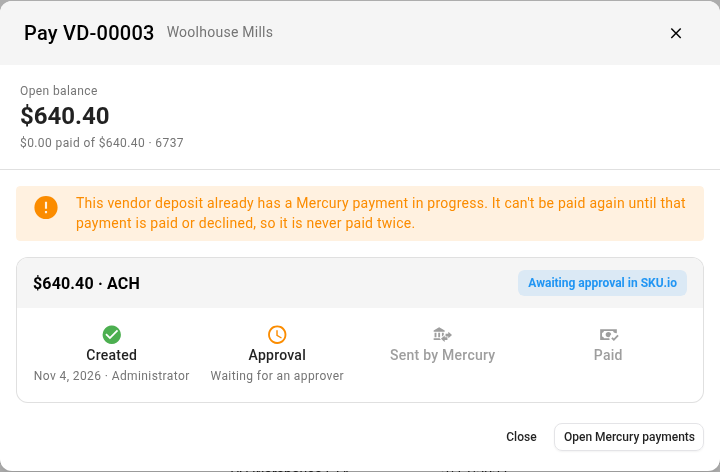
You can pay again once that payment is paid or declined. For example, after paying $1,000 of a $1,689.50 invoice and getting it approved, the invoice shows Partially Paid with $689.50 open, and you can pay the rest the same way.
Next steps
- Approve or decline Mercury payments
- Pay a vendor deposit with Mercury
- Track and pay purchase invoices
Video transcript
To pay a bill straight from your bank, start with the bill itself. Open Orders, then Purchase Invoices, and find the one you're paying in the list of supplier invoices. Click its invoice number, and the invoice opens on its own page. Its Payment Authorization card says the payment is approved, so it's ready to pay.
Click Add Payment on the Payment Authorization card. The Pay dialog opens on the Pay with Mercury tab, because that's this account's default way to pay. At the top, you can see the open balance, how much is paid, and when it's due.
This supplier isn't linked to a Mercury recipient yet, so the dialog asks for a link. Click the list below, and pick the one that belongs to them. Then click Link, and after a moment the dialog shows it as Linked, with its email address. SKU.io remembers this, so next time you skip the step.
The Amount starts at the open balance, but you can pay part of the bill. Click the field, select it, and type what you want to pay, here one thousand dollars. Next, check the account the money comes from, under From account. Below it, you can see what's left after this payment. Then choose the Method, ACH or domestic wire.
The button you need sits at the bottom of the dialog. When everything looks right, click Submit for approval to send the payment request. Nothing reaches the supplier yet. The confirmation says Submitted for approval, and names who must approve it, and where.
On the Mercury Payments tab, this payment is waiting for an approver. Its status says Awaiting approval in SKU.io. Click Approve and send, at the end of its row. Confirm in the popup, and the money goes to the supplier. SKU.io sends it from your Mercury account, waits for the bank, and then records it on the bill. Once that's done, the status here changes to Paid.
To see it on the bill, click the invoice in the Paying column. The payment is recorded on it, dated on the bank date. It's now Partially Paid, and the rest of the balance is still due.