Approve or decline Mercury payments
Every Mercury payment is approved before any money moves. Where that happens depends on your connection's setting: in SKU.io, on the Mercury Payments tab, or in Mercury's own app. This page covers both, and how to follow a payment until it's paid.
Before you begin
- To approve in SKU.io, you need the Approve payments permission (under Mercury Bill Pay in Settings → Roles). Anyone with it can approve, including the person who sent the payment.
- To decline, you need Approve payments, or Send payments to withdraw a payment you sent yourself.
- To check where your payments are approved, see Set up Mercury payments.
Find payments waiting for you
When someone sends a payment that's approved in SKU.io, everyone else who can approve gets a Mercury Payment Awaiting Approval alert, with a Review & approve link to the Payments tab. The person who sent it doesn't get the alert.
- Go to Apps & Integrations → All Integrations, choose Mercury under Bill Payments, and open your connection.
- Click the Payments tab.
- To see only what's waiting, set Status to Awaiting approval in SKU.io.
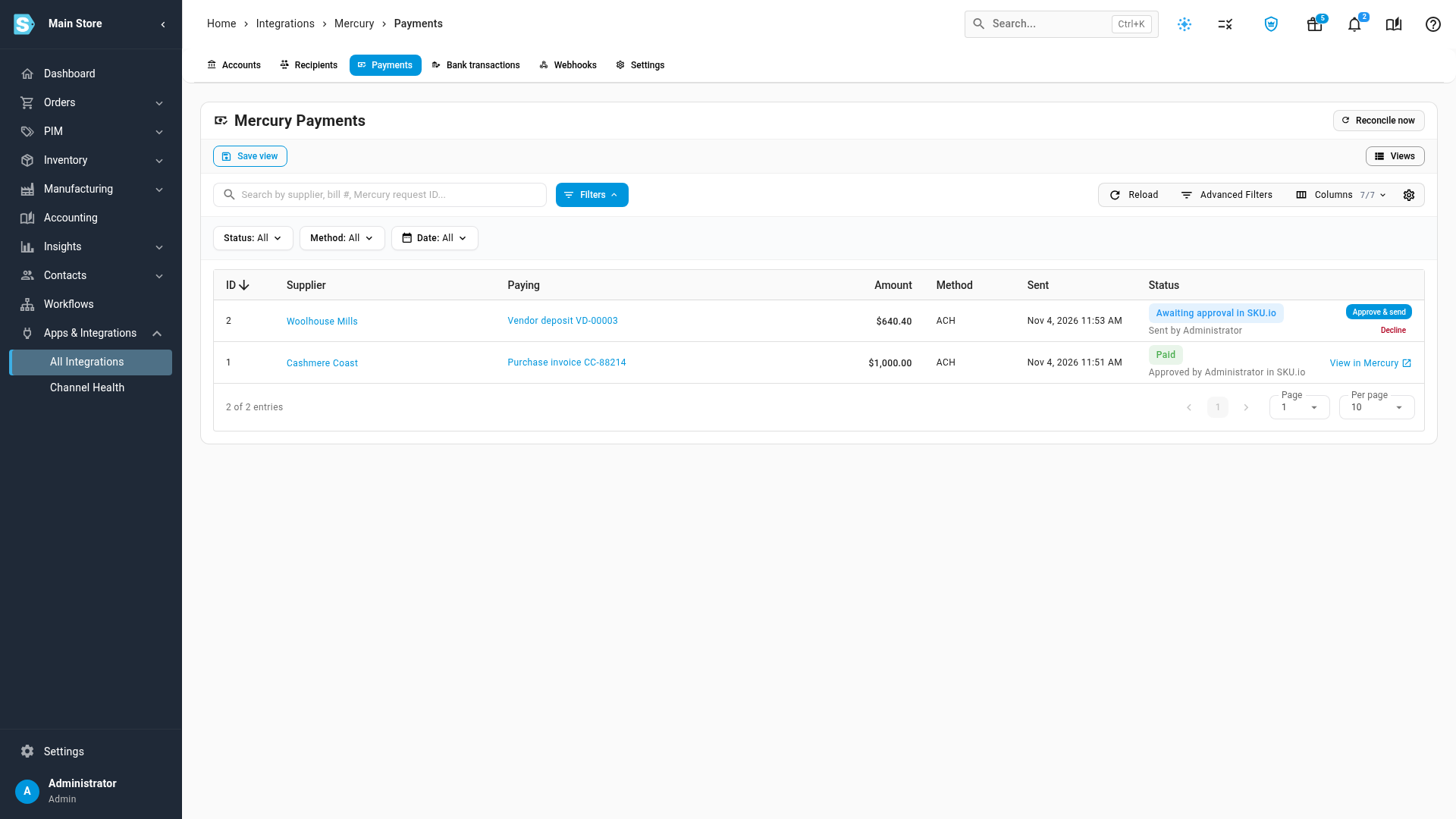
Each row is one payment: the Supplier, what it's Paying (each bill or deposit links to its page), the Amount, Method, when it was Sent, and its Status. Under the status, you see who sent it. Pointing at the status lists who can approve it.
Approve and send a payment
-
On the payment's row, click Approve & send.
-
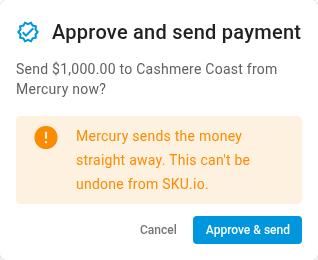
Check the amount and supplier in the confirmation. Mercury sends the money straight away, and you can't undo it from SKU.io.
-
Click Approve & send.
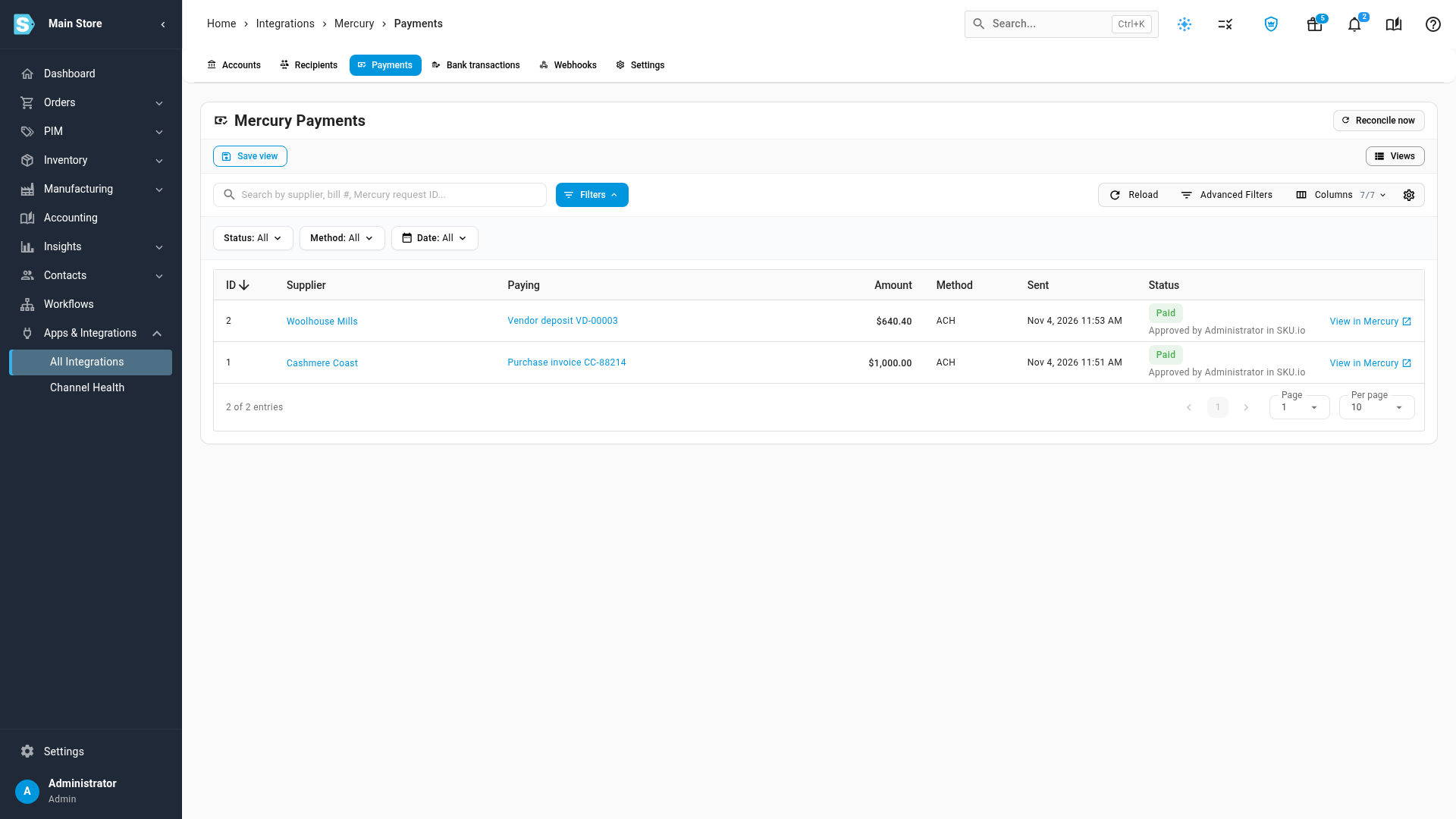
The status changes to Approved — processing while Mercury sends it, then to Paid once SKU.io has recorded the payment on the bill or deposit. The person who sent it gets a Mercury Payment Update alert.
If Mercury refuses the payment (for example, the token isn't allowed to send money directly, or Mercury sees a duplicate), you see Mercury's reason and the payment stays waiting, so you can fix the cause and try again or decline it.
If Approve & send is missing, you don't have the Approve payments permission. An admin can give your role Approve payments (Mercury Bill Pay) in Settings → Roles.
Decline a payment
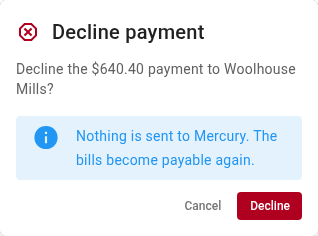
- On the payment's row, click Decline.
- Click Decline in the confirmation.
Nothing is sent to Mercury. The status changes to Not approved, the bills or deposits it was paying become payable again, and the person who sent it gets an alert.
Payments approved in Mercury
When payments are approved In Mercury, a new payment shows Awaiting Mercury approval. There's nothing to do in SKU.io:
- An admin opens Mercury's approvals and approves or declines the payment there. Open in Mercury in the row's menu takes you to it.
- SKU.io picks up the decision on its regular check, at least once an hour. To check sooner, click Reconcile now at the top of the Payments tab and follow it in the job tray.
- The person who sent it gets an alert saying it was approved or declined in Mercury.
Mercury requires the approver to be a different Mercury user from the one who connected SKU.io (or created its API token). If the only Mercury admin is that person, payments can't be approved there; switch to approving in SKU.io, or add another admin in Mercury.