Link suppliers to Mercury recipients
Mercury pays recipients, the payees saved in your Mercury account. Before you can pay a supplier with Mercury, link the supplier to its recipient. You link a supplier once and SKU.io remembers it for every later payment. You can also link a supplier from the Pay with Mercury dialog the first time you pay them.
SKU.io never sees or stores your suppliers' bank account numbers. The bank details live in Mercury.
Before you begin
- Connect Mercury.
- You need Integrations → Sync to sync recipients, and Integrations → Edit to link, unlink or invite.
See your recipients
- Go to Apps & Integrations → All Integrations, choose Mercury under Bill Payments, and open your connection.
- Click the Recipients tab.
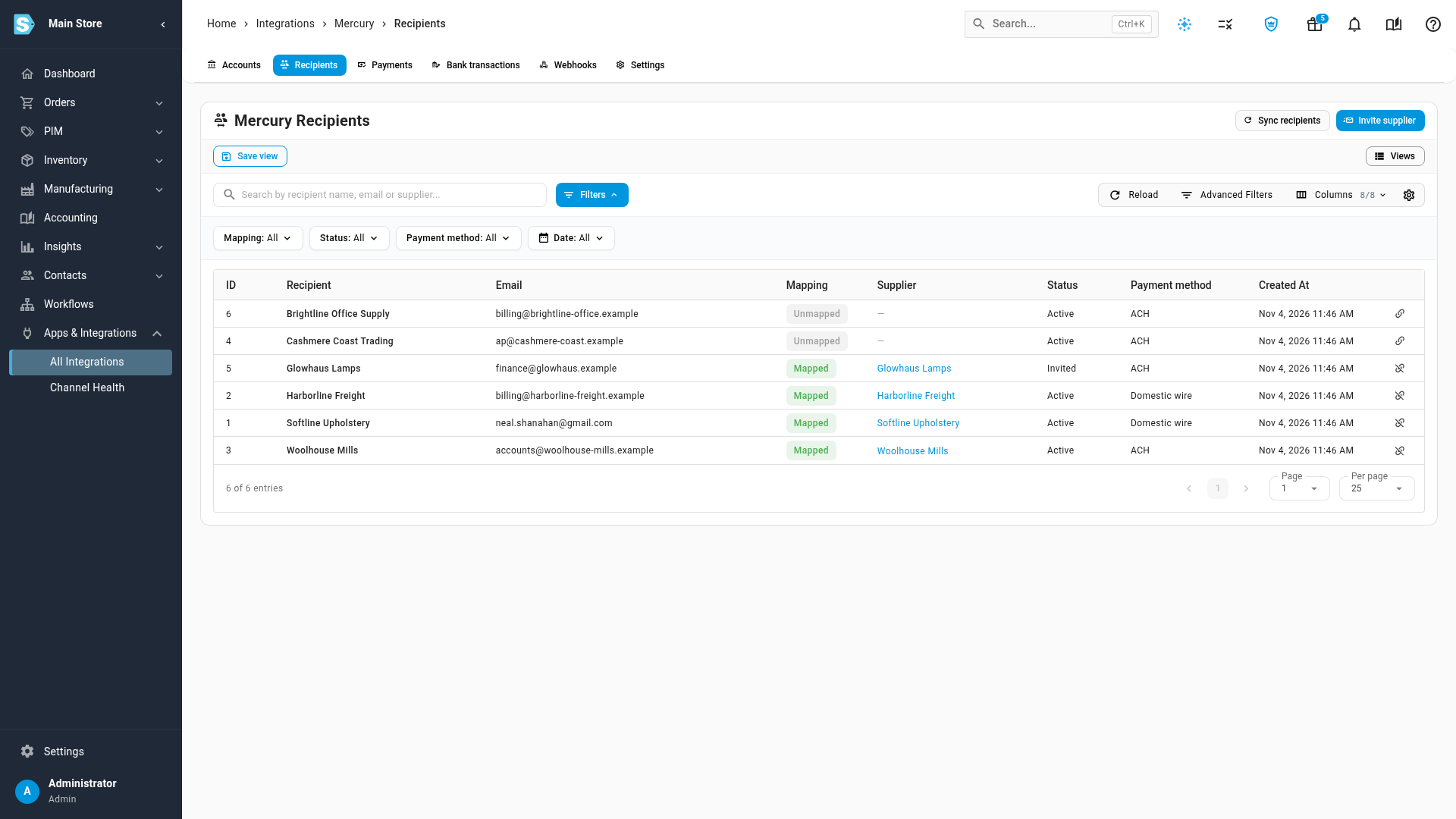
Each row is one Mercury recipient. Mapping says whether it's linked to a supplier (Mapped or Unmapped), and Supplier links to the supplier it pays. Status comes from Mercury: Active, Invited (the supplier hasn't added their bank details yet) or Deleted. Payment method is the recipient's default in Mercury.
Use the Mapping, Status and Payment method filters to narrow the list, for example Mapping: Unmapped to see who still needs linking.
Sync recipients from Mercury
- Click Sync recipients.
SKU.io copies every recipient from Mercury in the background; follow it in the job tray. While a sync runs, the button is unavailable. During a sync, a recipient whose name matches a supplier exactly is linked to that supplier for you. Check the result, and fix any wrong match.
Add a new recipient in Mercury first, then sync, and it appears here.
Link a recipient to a supplier
- On an Unmapped row, click the link icon (Match to a SKU.io supplier).
- Choose the supplier.
- Click Match. You see Recipient matched to supplier.
To undo a link, click the unlink icon on a Mapped row (Unlink from the supplier) and confirm. The supplier can't be paid with Mercury until it's linked again.
Invite a supplier who isn't in Mercury yet
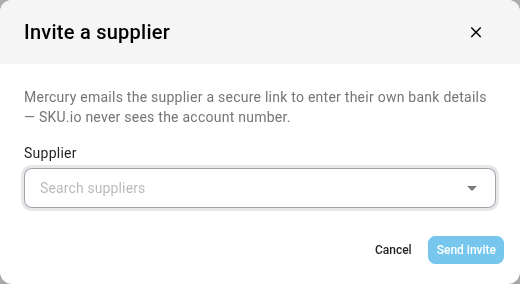
If a supplier has no recipient in Mercury, invite them. Mercury emails the supplier a secure link to enter their own bank details.
-
Click Invite supplier.
-
Choose the supplier.
-
Click Send invite. You see Invite sent — Mercury emailed the supplier.
The new recipient is Mapped to the supplier straight away, with the status Invited. Mercury uses the email address on the supplier's record, so check it first. You can pay the supplier once they've entered their bank details in Mercury.
Link a supplier while you pay
The first time you pay a supplier that isn't linked, the Pay with Mercury dialog asks you to link them:
- Pick their recipient from Search Mercury recipients, then click Link, or
- Click Not in Mercury? Invite them to add their bank details, then Send invite.