Review Mercury bank transactions
The Bank transactions tab mirrors every transaction in your Mercury accounts and matches the money going out to your bills, purchase invoices and vendor deposits. Use it to keep your payables and each purchase order's cash flow in step with the bank, including deposits and balances you wired straight from Mercury's own app.
This isn't your accounting bank reconciliation. That still happens in QuickBooks or Xero, against Mercury's bank feed. What you record here reaches your accounting software as ordinary bill payments, which you then match to the bank feed there.
Before you begin
- Connect Mercury.
- You need Send payments (under Mercury Bill Pay in Settings → Roles) to confirm, record, ignore or restore a transaction. Recording creates payments.
Open the tab
- Go to Apps & Integrations → All Integrations, choose Mercury under Bill Payments, and open your connection.
- Click the Bank transactions tab.
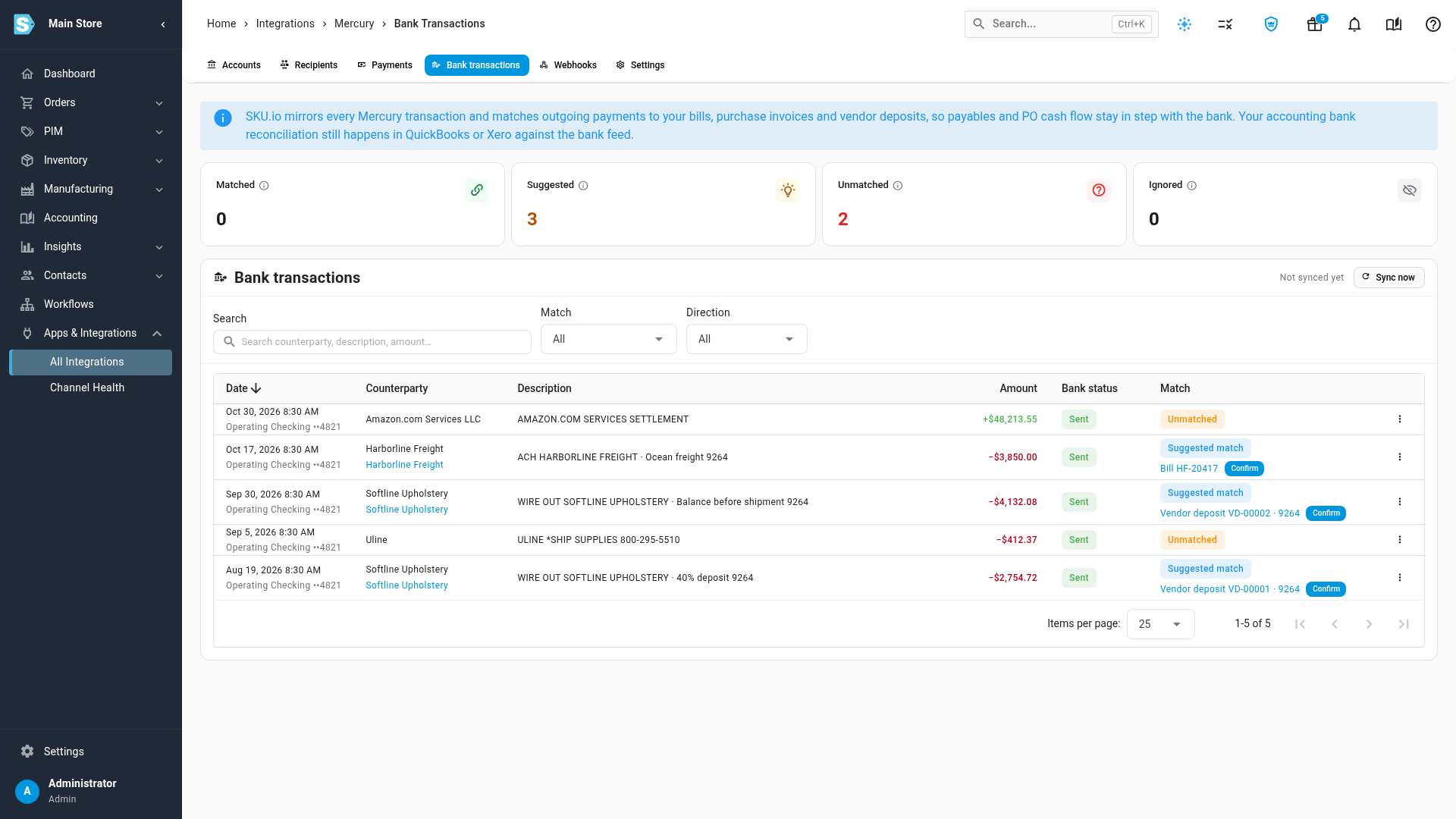
The four counts at the top are Matched, Suggested, Unmatched and Ignored. Click one to show only those transactions; click it again to show all. You can also filter by Match and Direction (Money out or Money in), and search by counterparty, description or amount.
Each row shows the Date and the Mercury account, the Counterparty (and the supplier it belongs to, when SKU.io knows), the transfer's Description, the Amount (outgoing money in red, incoming money in green), Mercury's Bank status, and the Match.
New transactions arrive through Mercury's webhooks and SKU.io's regular sync, at least once an hour. To pull them now, click Sync now and follow it in the job tray.
How transactions are matched
| Match | What it means | What to do |
|---|---|---|
| Matched | Linked to a payment, bill, purchase invoice or vendor deposit in SKU.io. The line under it says how: Paid from SKU.io, Auto-matched or Matched by hand | Nothing |
| Suggested match | SKU.io found a likely bill or deposit. The best suggestion is shown, with +N more when there are others | Confirm it, or record it some other way |
| Unmatched | Nothing in SKU.io fits | Record it, or ignore it |
| Ignored | Not a supplier payment (payroll, transfers, fees), or Mercury reports the transfer didn't go through | Nothing, or restore it |
A payment you sent with Pay with Mercury is matched to its bill automatically. So is a payment already recorded in SKU.io for the same amount, to the same supplier or with the bill's number on the transfer. Anything else is suggested from the open bills and deposits whose unpaid amount equals the transfer, ranked by supplier, by numbers on the transfer (invoice, deposit or purchase order numbers) and by due date. SKU.io never records money on its own; a person confirms every suggestion. A decision you make, a match or an ignore, is never changed by a later sync.
Confirm a suggested match
- On a Suggested match row, click Confirm.
With one suggestion, it's recorded at once and you see Match confirmed. With several, a Confirm match dialog lists them with the reasons for each; choose one and confirm.
Confirming a suggested bill or deposit records the payment on it for the transfer's amount, dated on the bank date. For a vendor deposit, that marks it Paid (or Partially Paid) on the purchase order, on the day the wire left the bank. Confirming a suggested payment that's already recorded links the two, without recording anything new.
Record a transfer as a bill payment
Use this for a payment you made from Mercury that SKU.io didn't suggest.
-
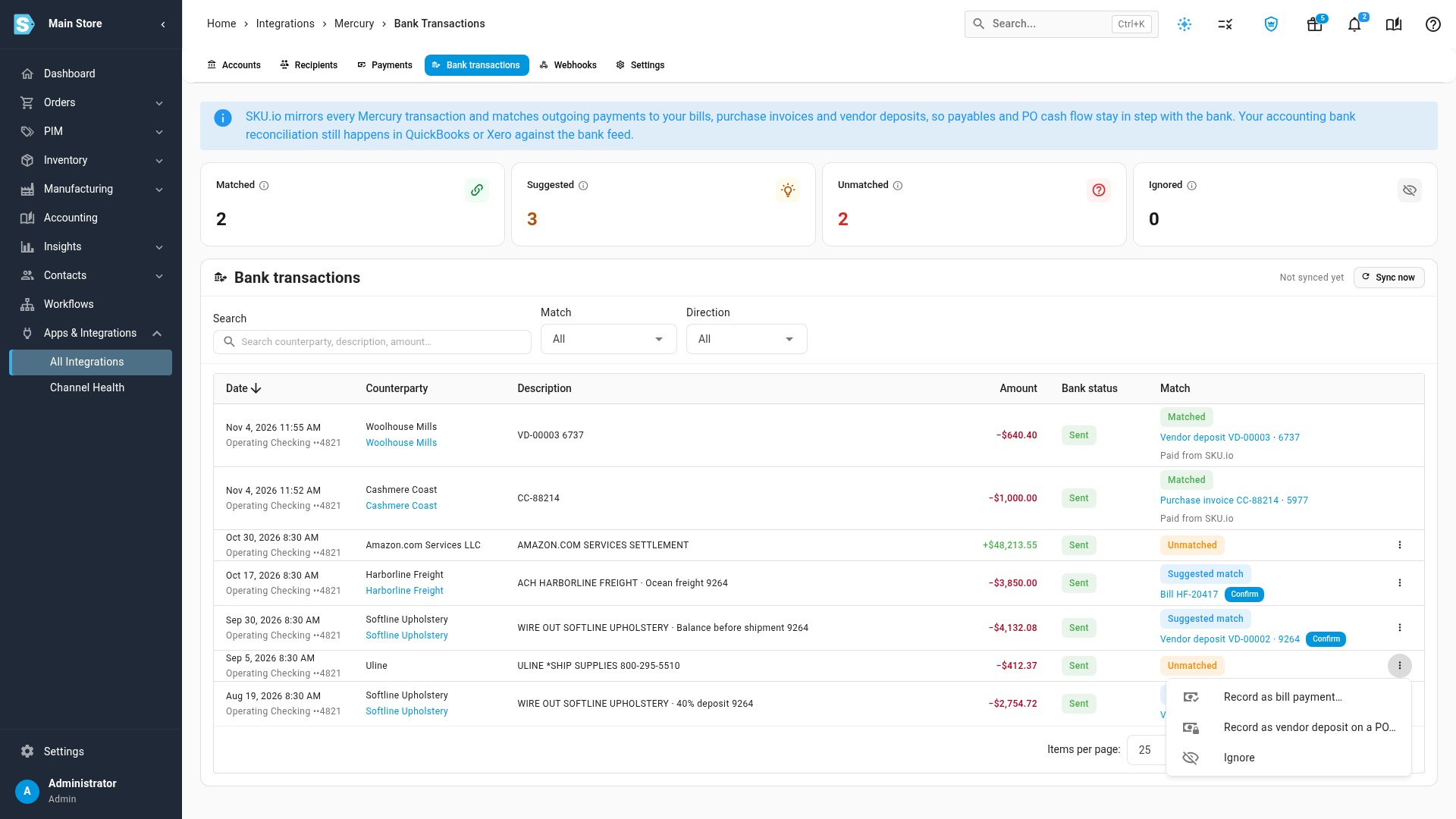
On the row, click ⋮, then Record as bill payment….
-
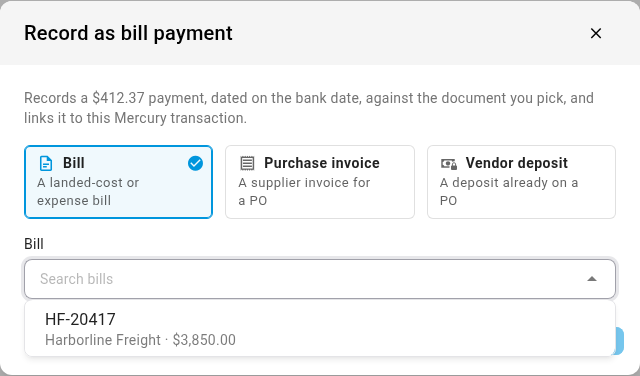
Choose what it paid: Bill (a landed-cost or expense bill), Purchase invoice or Vendor deposit (a deposit already on a PO).
-
Pick the document. The list shows the most recent ones, for the transfer's supplier when SKU.io knows it; type to search.
-
Click Record payment.
SKU.io records a payment for the transfer's amount, dated on the bank date, against the document you picked, and matches the transfer to it. If the transfer is more than the document still has to pay, or the document isn't in US dollars, SKU.io says so and records nothing.
Record a transfer as a vendor deposit on a purchase order
Use this for a deposit or pre-shipment balance you wired straight from Mercury, when there's no deposit for it in SKU.io yet.
-
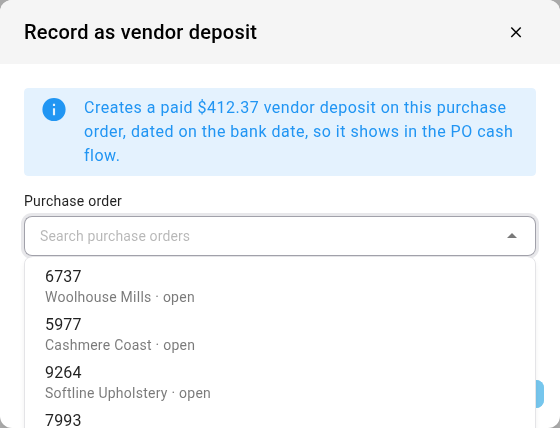
On the row, click ⋮, then Record as vendor deposit on a PO….
-
In Purchase order, search for and choose the purchase order. When SKU.io knows the supplier, it shows that supplier's purchase orders.
-
Optionally, add Notes.
-
Click Create deposit.
If the purchase order already has an approved deposit for exactly this amount, SKU.io pays that one. Otherwise it creates a new deposit on the purchase order, approves it and marks it paid, dated on the bank date, so it shows in the PO's cash flow. If your deposit approval policy needs someone else to approve it, the deposit is created and waits for approval; the transfer stays open with the new deposit suggested, so you can confirm it once it's approved.
Ignore a transaction, or bring it back
-
On the row, click ⋮, then Ignore, and confirm.
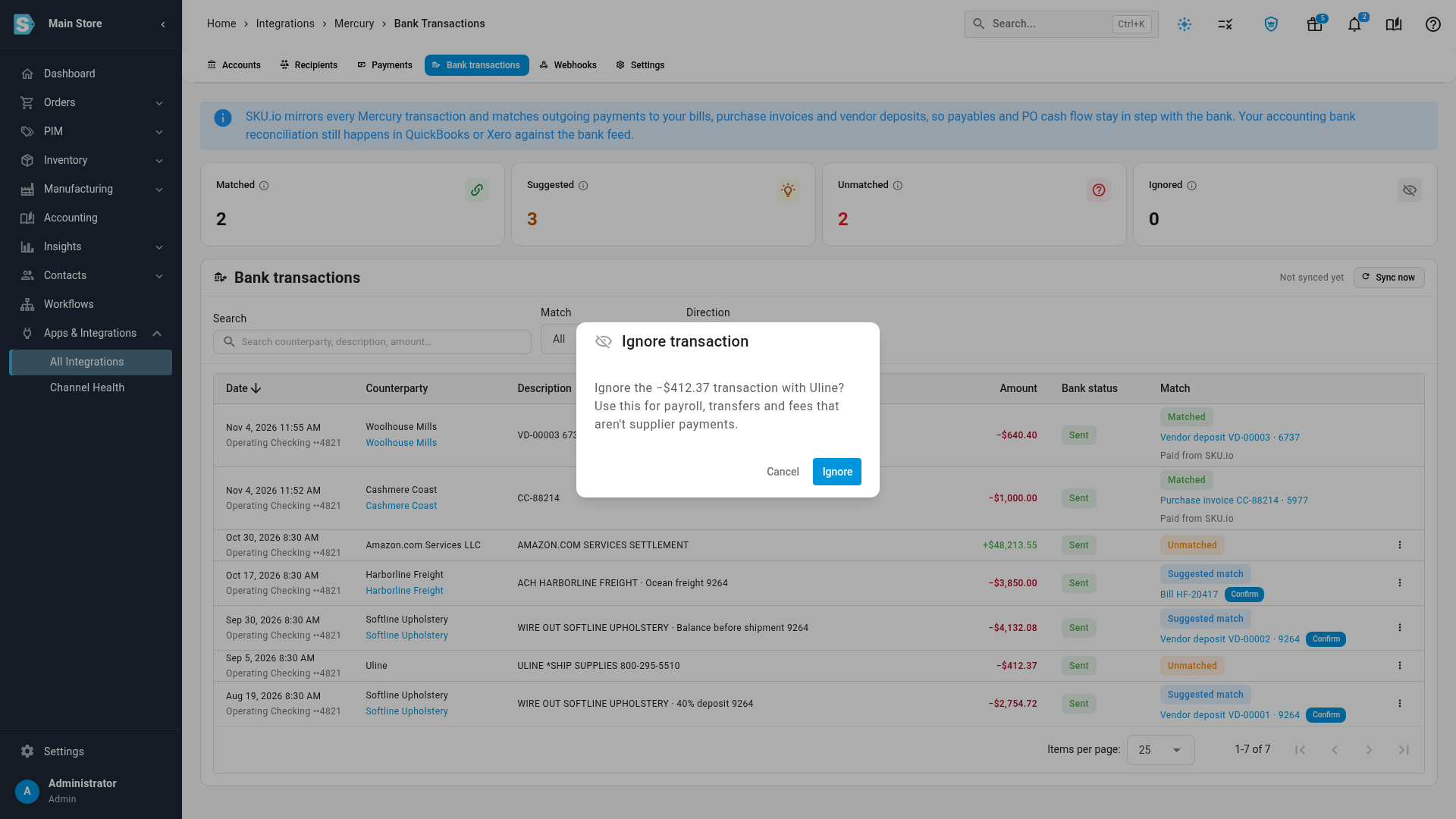
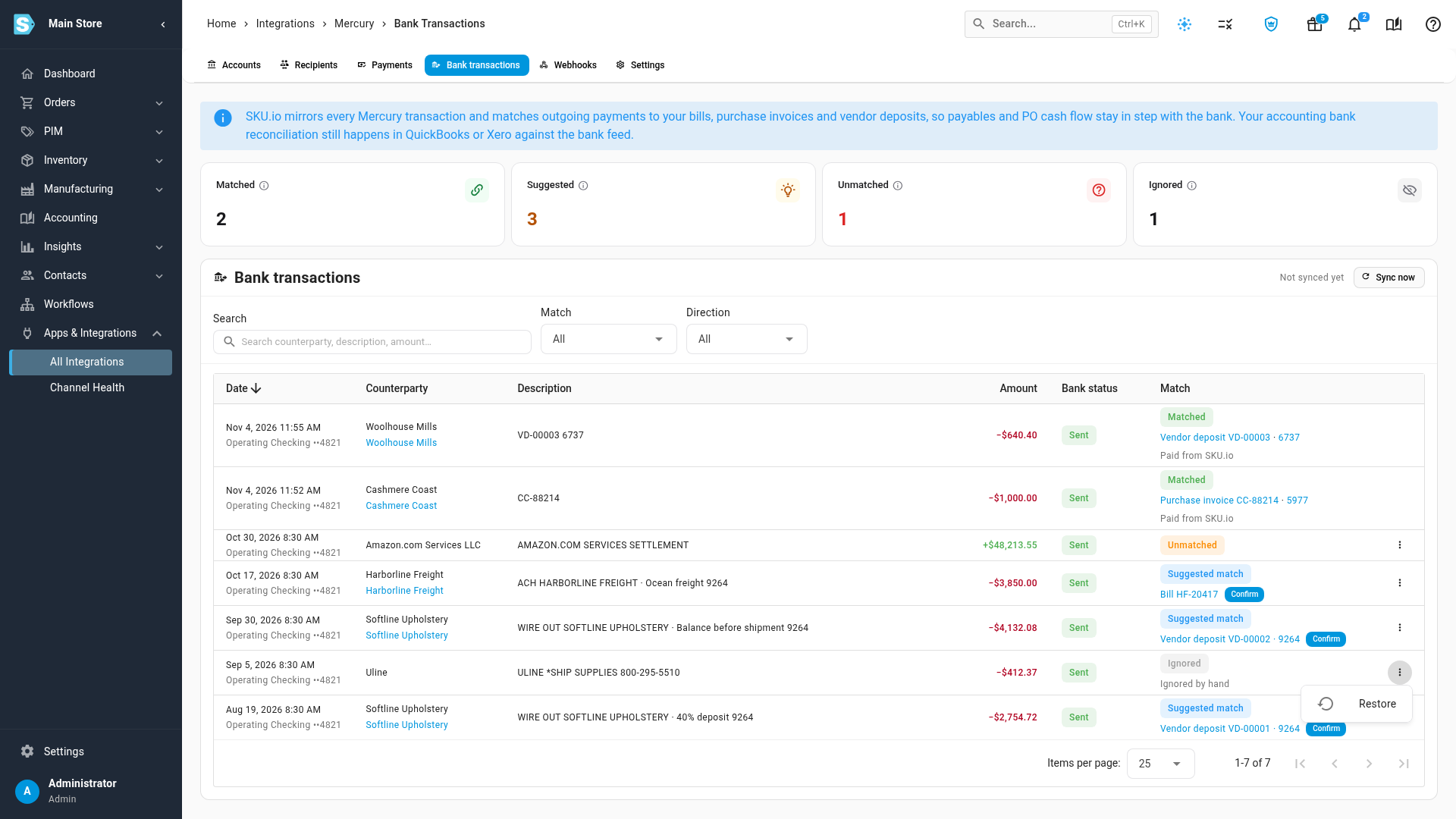
The transaction moves to Ignored, marked Ignored by hand. To bring it back, click ⋮ on the row, then Restore. SKU.io looks for a match again.
Money coming in (marketplace payouts, transfers from other accounts) can't be recorded as a supplier payment, so its menu only offers Ignore. Transactions Mercury reports as failed, cancelled, returned or blocked are ignored for you, because no money moved.
Next steps
Video transcript
SKU.io mirrors every transaction in your Mercury account, and matches the money going out. This is the Mercury page, showing its Accounts tab. Click the Bank transactions tab, which lists every transaction, newest first.
The counts at the top of the page show how many transactions are Matched, Suggested, Unmatched and Ignored. A suggested row is a bill or deposit that fits the transfer, waiting for you to confirm it. This tab isn't your accounting reconciliation. That still happens in your accounting software, against the bank feed.
This wire was sent straight from Mercury, to pay a deposit on a purchase order. SKU.io suggests the vendor deposit it paid. Click Confirm on its row to record the payment against that deposit. SKU.io marks the deposit paid on the bank date, and after a moment the row says Matched by hand, with your name.
Here's the purchase order that wire paid for, on its Deposits tab. The deposit is paid now, dated on the day the wire left the bank, not the day you confirmed it. Its number, beside the deposit on the bank transaction, is a link to this page.
This card payment to Uline isn't a supplier bill. Click the menu button at the end of its row, and when the menu appears, choose Ignore from the list. Then confirm in the popup, and after a moment the row moves to Ignored, marked Ignored by hand. If you change your mind later, the same menu brings it back with Restore.