Set Amazon min/max allowed prices
Video chapters
0:00 Open the Amazon min/max card · 0:15 What the card controls · 0:28 Choose a setting for each limit · 1:00 When a price is outside a Seller Central limit · 1:20 Automate Pricing and save · 1:33 Override in a profile · 1:50 Override one listing
Amazon deactivates a listing whose price is outside the minimum and maximum on its offer, and Amazon Automate Pricing only moves between them. The Amazon min/max allowed price card decides what SKU.io does with those two limits: leave them to Seller Central, publish a value of its own, or remove them. It's Amazon only and never changes the price SKU.io sends. That's the job of your SKU.io price guardrails, which apply to every channel. See Amazon min/max and SKU.io price guardrails.
Before you begin
- SKU.io must be the Master of Price for the Amazon channel. Otherwise SKU.io sends no prices, and these settings only affect what the Amazon min/max tab reports.
- You need permission to edit integrations to change these settings. Anyone who can view the integration can read them.
- The limits are item prices, excluding shipping, the same as on Amazon.
Open the Amazon min/max settings
-
Go to Apps & Integrations, open your Amazon channel, and choose Amazon Settings.
-
Open the Pricing Sync tab.
-
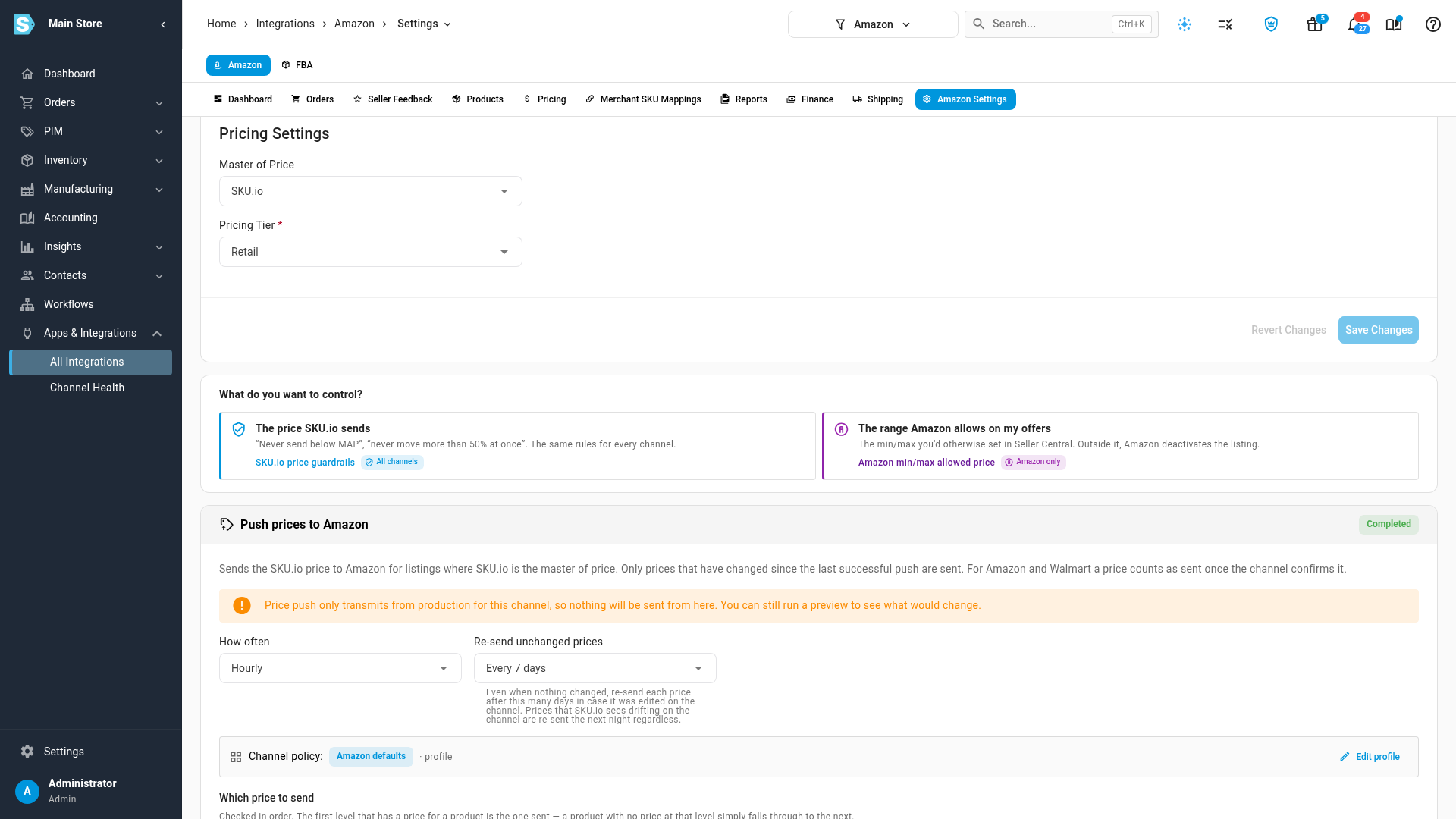
Under What do you want to control?, click The range Amazon allows on my offers. The page scrolls to the Amazon min/max allowed price card, tagged Amazon only.
The other tile, The price SKU.io sends, takes you to the SKU.io price guardrails inside Push prices to Amazon, tagged All channels.
Choose what SKU.io does with each limit
The card has a Minimum and a Maximum, each with its own setting. Each line under the field says, in one sentence, what SKU.io will do on Amazon.
| Setting | What SKU.io publishes for that limit |
|---|---|
| Don't change Amazon's | Nothing. Whatever Seller Central has stays. SKU.io still reads it back and checks every price against it. This is the default. |
| % of the price sent | A share of the price SKU.io sends: 1–100% for the minimum, 100% or more for the maximum. It moves with the price, which suits Automate Pricing. |
| Fixed amount | The same amount on every listing, in the marketplace's currency. |
| Pricing level | The product's price at the level you choose. A product with no price at that level gets no limit on that side. |
| Margin % over cost (minimum only) | The price that keeps this margin over landed cost. A product with no cost gets no minimum. |
| Markup % over cost (maximum only) | Landed cost plus this markup. A product with no cost gets no maximum. |
| Use the SKU.io guardrail floor / ceiling | Copies your guardrail floor into Amazon's minimum, or your ceiling into its maximum. No floor or ceiling means nothing is sent. |
| Remove from Amazon | Deletes that limit on Amazon, then stops sending once Amazon shows it empty. |
- Under Minimum, choose a setting. If it needs a value, a field appears beside it: a percentage, an amount or a pricing level.
- Do the same under Maximum.
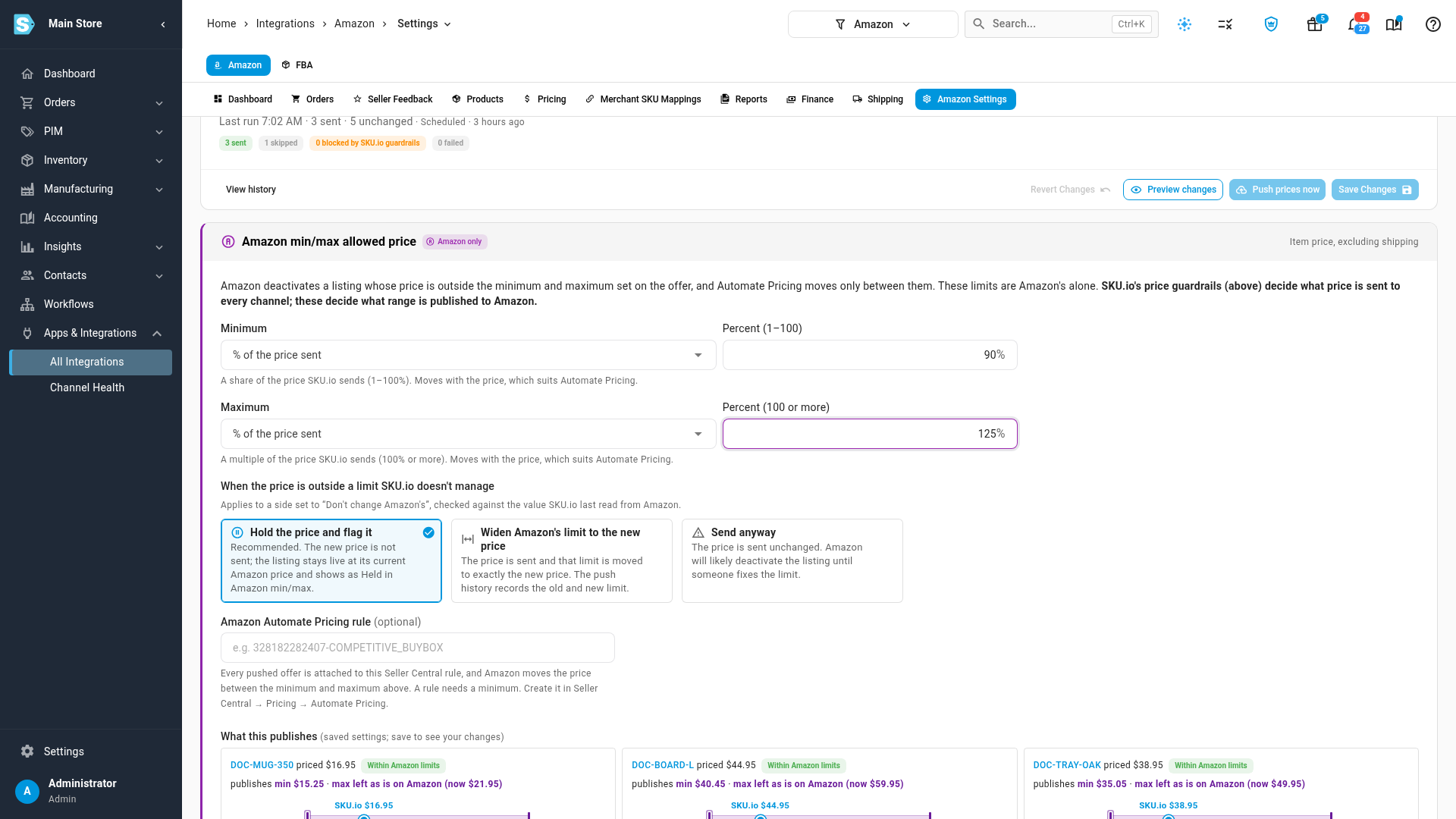
SKU.io never publishes a range that would exclude its own price. If a minimum you set works out above the price being sent, SKU.io lowers it to that price, and a maximum below the price is raised to it. If the minimum still ends up above the maximum, SKU.io sends neither and says so in the push history.
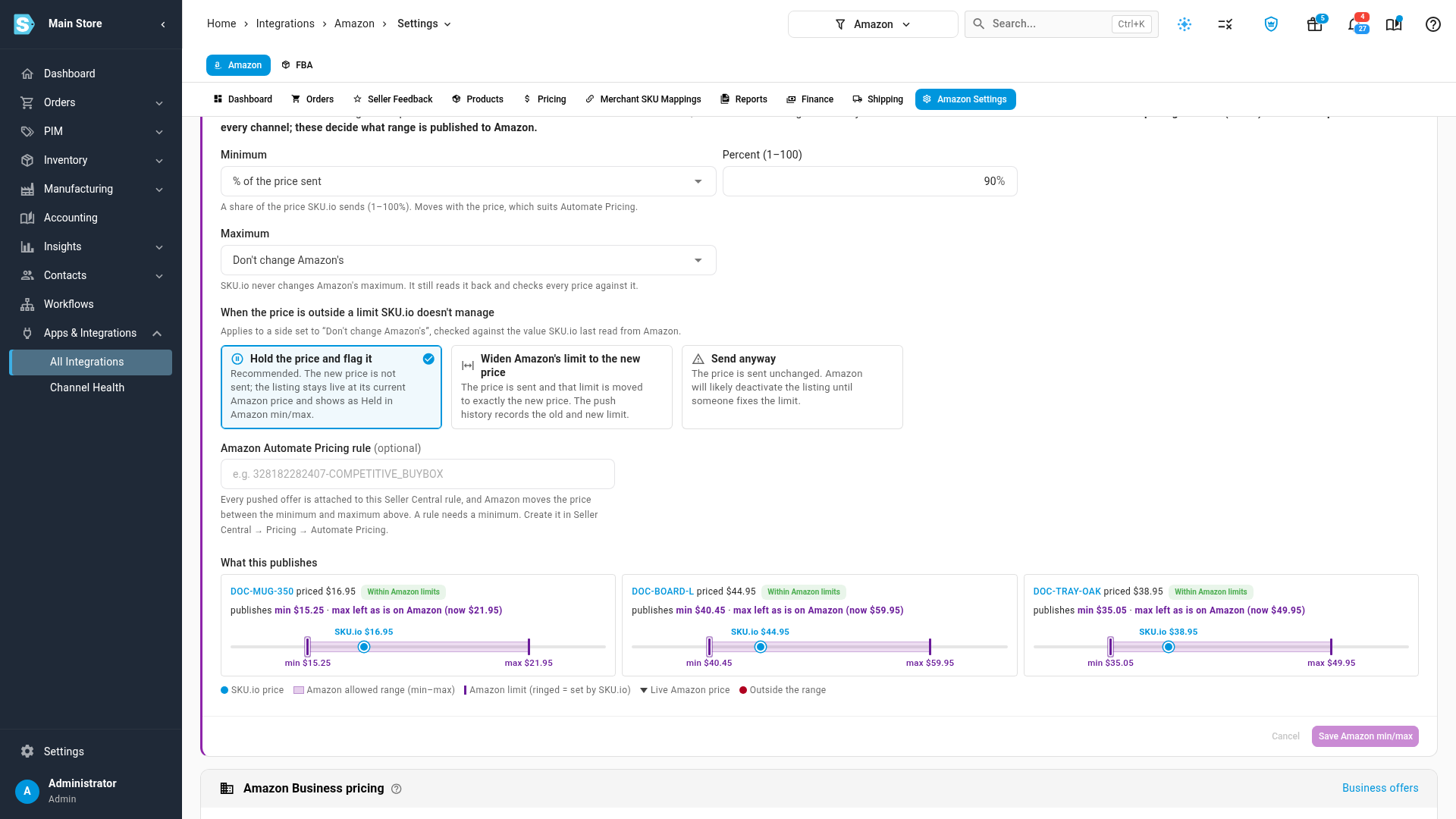
Decide what happens when a price is outside a Seller Central limit
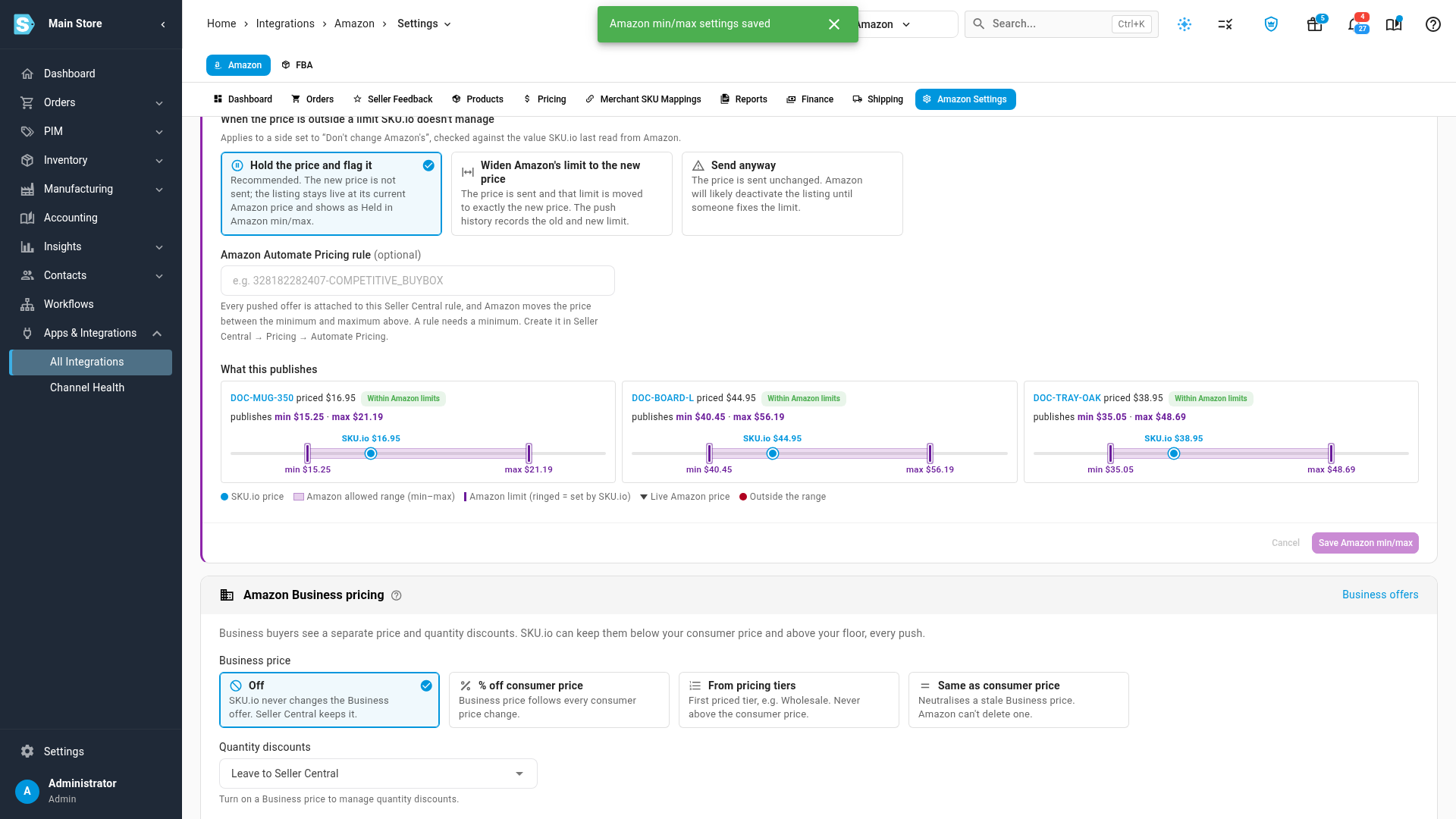
When the price is outside a limit SKU.io doesn't manage applies to a side set to Don't change Amazon's. SKU.io compares the new price with the value it last read from Amazon.
- Hold the price and flag it (recommended): the new price isn't sent. The listing stays live at its current Amazon price and shows as Held on the Amazon min/max tab.
- Widen Amazon's limit to the new price: the price is sent, and that limit moves to exactly the new price. The push history records the old and new limit.
- Send anyway: the price is sent unchanged, and Amazon will likely deactivate the listing until someone fixes the limit. A warning above Save says so.
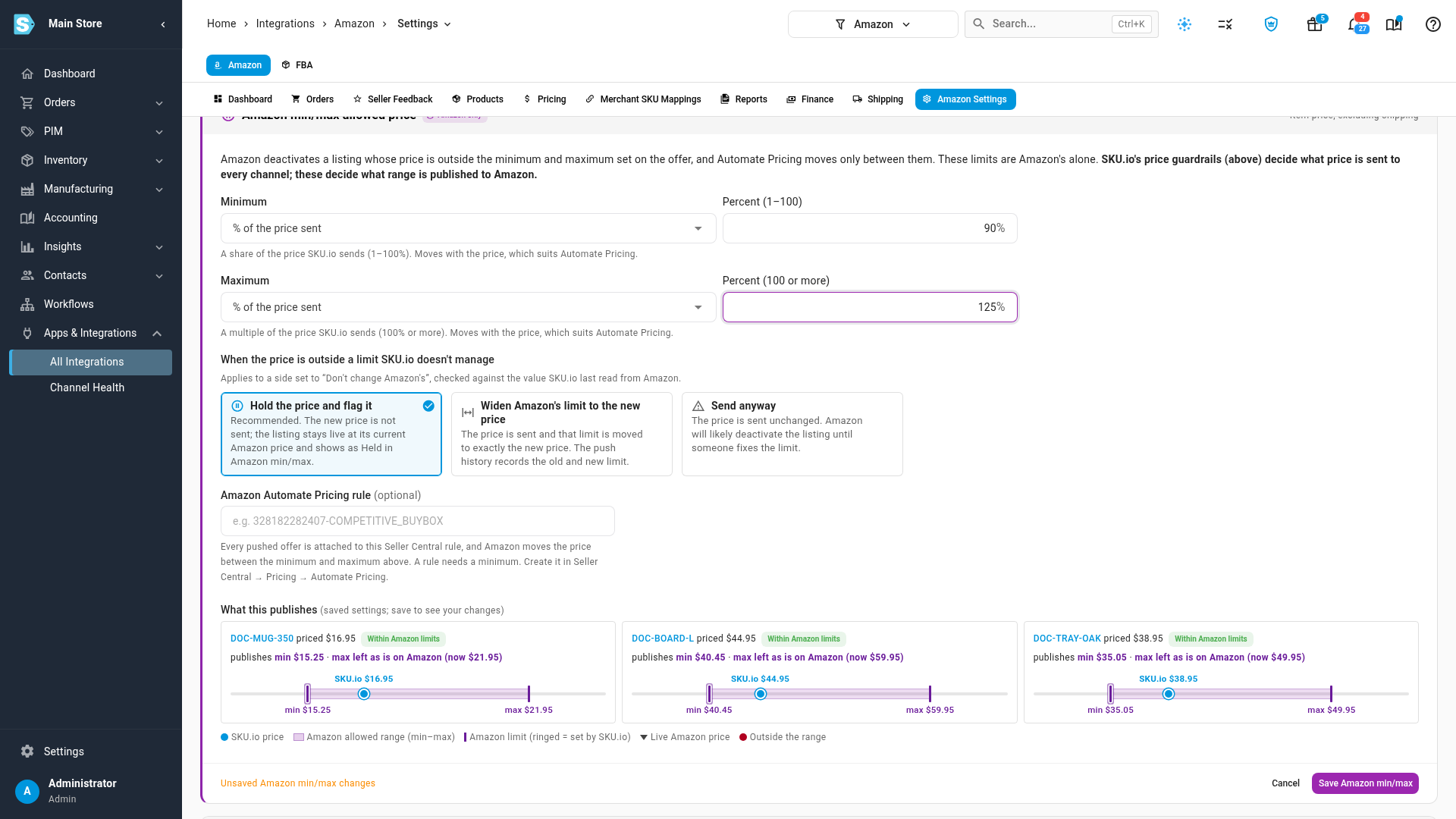
Attach an Automate Pricing rule (optional)
If you use Amazon Automate Pricing, paste the rule's ID into Amazon Automate Pricing rule. Every offer SKU.io pushes is attached to that rule, and Amazon moves the price between the minimum and maximum above. Create the rule in Seller Central first, under Pricing → Automate Pricing.
A rule needs a minimum:
- With the Minimum on Don't change Amazon's, a warning reminds you that listings with no minimum in Seller Central won't be repriced.
- With the Minimum on Remove from Amazon, SKU.io won't save: "Amazon Automate Pricing needs a minimum price. Choose a min, or remove the rule."
Check the examples and save
What this publishes shows what your saved settings publish for up to three of your Amazon listings: the price, the minimum and maximum each would get, and a line showing the price inside Amazon's range. A ringed limit is one SKU.io sets. Listings with their own exception aren't used as examples, because these settings don't govern them.
-
Click Save Amazon min/max. Amazon min/max settings saved confirms it, and the examples update.
To throw away your changes instead, click Cancel.
Override the settings for some listings
The card sets the default for the whole channel. Narrower settings win, one limit at a time, in this order:
| Order | Where | Use it for |
|---|---|---|
| 1 | A listing exception | One listing whose limits are pinned in Seller Central |
| 2 | A product exception | A product that needs its own range on Amazon |
| 3 | The listing's pricing sync profile | A group, such as your used-condition listings |
| 4 | The marketplace settings | Amazon.ca or Amazon.com.mx, in that marketplace's currency |
| 5 | The Amazon min/max allowed price card | Everything else on the channel |
At each level other than the card, every setting starts on Same as …, which passes that limit (or the conflict choice) to the next level. So you can override just the maximum on one listing and keep the channel's minimum.
In a pricing sync profile
- On the Amazon Pricing page, open the Profiles tab and click Edit on a profile.
- Scroll to Amazon min/max allowed price, below the SKU.io price guardrails. Each setting starts on Same as Amazon settings.
- Change what you need, and click Save.
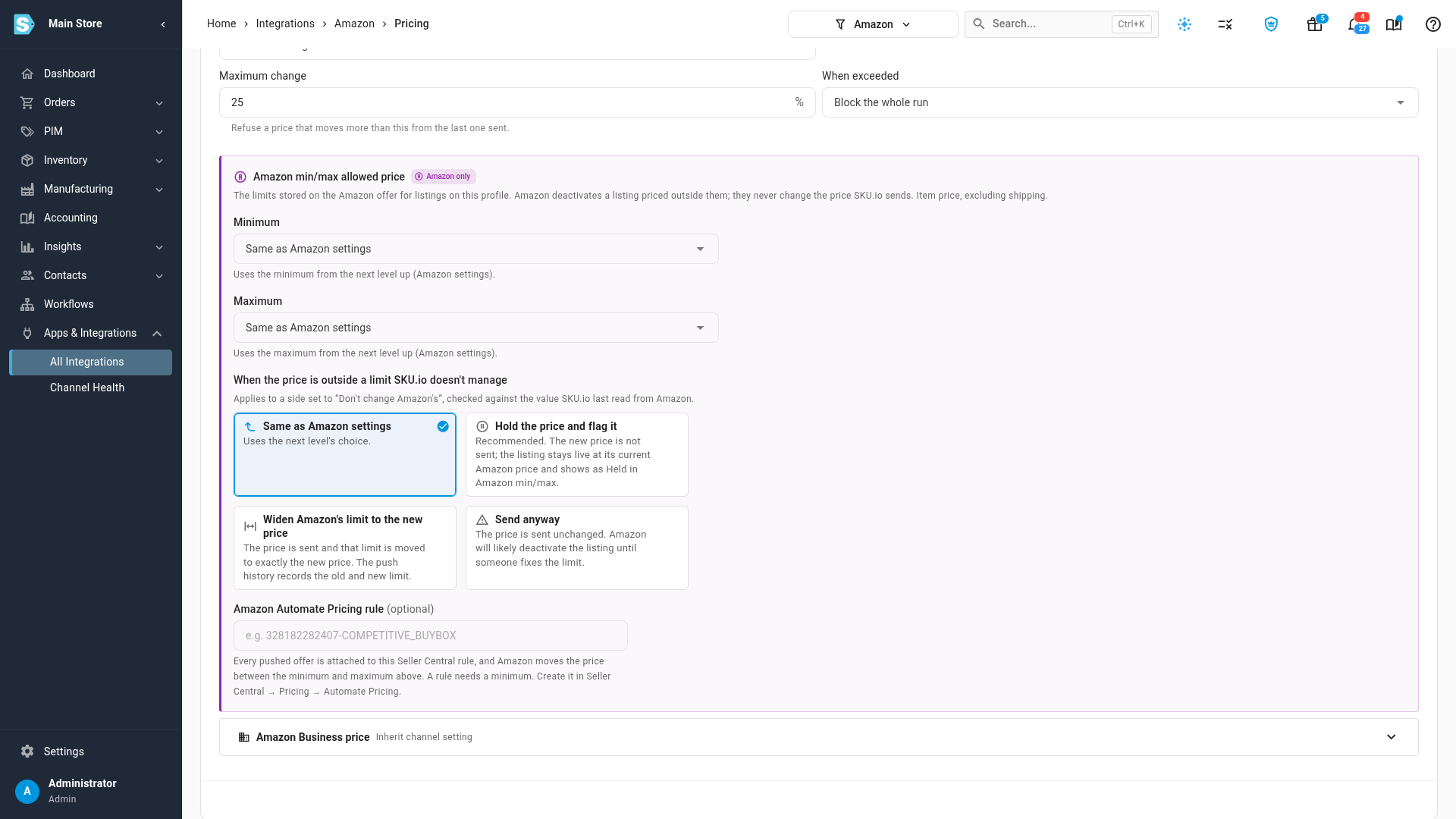
Each profile card shows its Amazon min/max on its own line, for example "Amazon min/max: Same as Amazon settings", under its guardrails.
For another marketplace
When SKU.io prices Amazon.ca or Amazon.com.mx, that marketplace has its own section.
- On the Pricing Sync tab, find the marketplace in the Marketplaces card and click Edit.
- Scroll to Amazon min/max for Amazon.ca (or your marketplace). Each setting starts on Same as Amazon.com (converted): amounts are converted at your exchange rate, a minimum rounded down and a maximum rounded up.
- Change what you need. Amounts you enter here are in that marketplace's currency.
For how SKU.io prices those marketplaces, see Price your Amazon Canada and Mexico offers.
For one listing or product
- Open the listing from the Amazon min/max tab or the Listings page, and on its Amazon min/max allowed price card click Edit Amazon min/max.
- Change the Minimum, the Maximum or the conflict choice. Each starts on Same as profile.
- Click Save override. To go back to the profile's settings, click Remove override.
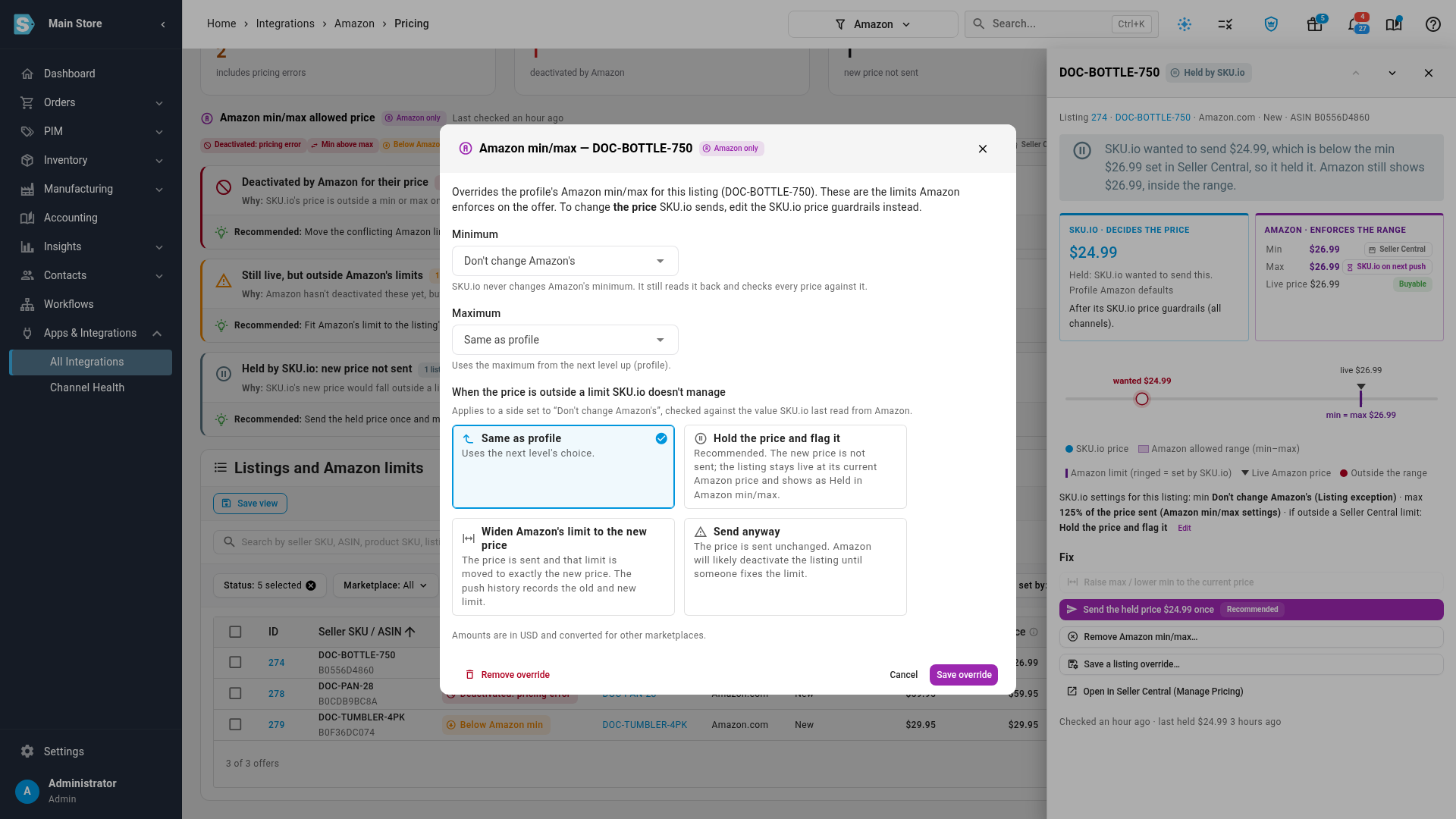
To set the same exception on many listings at once, select them on the Amazon min/max tab and choose Save as override…. See Fix Amazon listings outside their min/max.
Next steps
- Fix Amazon listings outside their min/max
- Amazon min/max and SKU.io price guardrails
- Reuse price push rules with pricing sync profiles
Video transcript
Open the channel's settings first. Then choose the Pricing Sync tab, near the middle of the row. Under What do you want to control, click the tile on the right. The page scrolls to the Amazon min max allowed price card. These are the limits on your Amazon offers, and they're Amazon only. Amazon deactivates a listing priced outside them. They never change the price SKU.io sends. Your price guardrails, above, decide that. The minimum and the maximum each have their own setting. Don't change Amazon's leaves the limit to Seller Central, and SKU.io still checks every price against it. This minimum is ninety percent of the price SKU.io sends, so it moves with the price. Open the maximum's list to see the other choices. The list also offers a fixed amount, a pricing level, a markup over cost, the SKU.io guardrail ceiling, and remove from Amazon. Pick percent of the price sent, and enter the percentage, at least one hundred. Next, decide what happens when a new price falls outside a limit SKU.io doesn't manage. Hold keeps the current Amazon price and flags the listing. This is the recommended choice. The second choice moves Amazon's limit to the new price instead. Send anyway sends it, and Amazon will likely deactivate the listing. If you use Automate Pricing, paste the rule's ID here. A rule needs a minimum. What this publishes shows the limits your saved settings give a few of your listings. Click Save, and the examples update. Narrower settings win, one limit at a time. To give a group of listings its own range, open the Pricing page, then Profiles. Edit a profile, and scroll to its Amazon min max section, below the guardrails. Each setting there starts on Same as Amazon settings. For a single listing, go to the min max tab, and click the listing in the table. Its drawer has an Edit button for the listing's own exception, and clicking it brings up a short form with the same settings as the card. This listing keeps its minimum on Seller Central, and its maximum follows the profile. Save override keeps the change. Remove override drops the exception.