Set a Business price for one product
Video chapters
0:00 Open the Business tab · 0:19 The channel's Business price · 0:32 Open Set Business override · 0:46 A listing or the whole product · 0:58 Pick the Business price · 1:09 Check the unit prices, and save · 1:25 The Override chip · 1:35 Turn Business pricing off for several · 1:54 Count your overrides · 2:08 List every override · 2:21 Check a listing's source · 2:33 Clear an override
Your products don't all earn the same margin, so one Business price rule rarely suits them all. A Business override gives one product, or one listing, its own Amazon Business price: a bigger discount on a product with room in its margin, or no Business price at all on one without.
What an override changes
- Only the Business price and its quantity discounts. The consumer price stays as it is, and so do its floor, ceiling and max change.
- The same limits still apply. The Business price is never above the consumer price or below your floor, and a quantity tier that would fall below the floor is left out.
- It only takes effect where SKU.io sets Business prices. In a marketplace whose Business owner is Seller Central, SKU.io sends nothing, override or not.
Which setting wins
When more than one setting covers a listing, SKU.io uses the first one it finds:
| Order | Setting | Where you set it |
|---|---|---|
| 1 | A listing override | Set Business override… with This listing |
| 2 | A product override, for every listing of the product on that Amazon account | Set Business override… with The whole product |
| 3 | The Amazon Business price section of the listing's pricing sync profile, when Inherit channel setting is off | Pricing sync profiles |
| 4 | The channel's Amazon Business pricing card | Price your Amazon Business offers |
So a listing set to Off keeps Business pricing off, even when its product has an override that turns it on.
Before you begin
- Business pricing set up on your Amazon channel, with SKU.io as the Business owner of the marketplace. See Price your Amazon Business offers.
- The Integrations → Edit permission.
Set an override
-
Go to Apps & Integrations, open your Amazon channel, and open the Pricing tab.
-
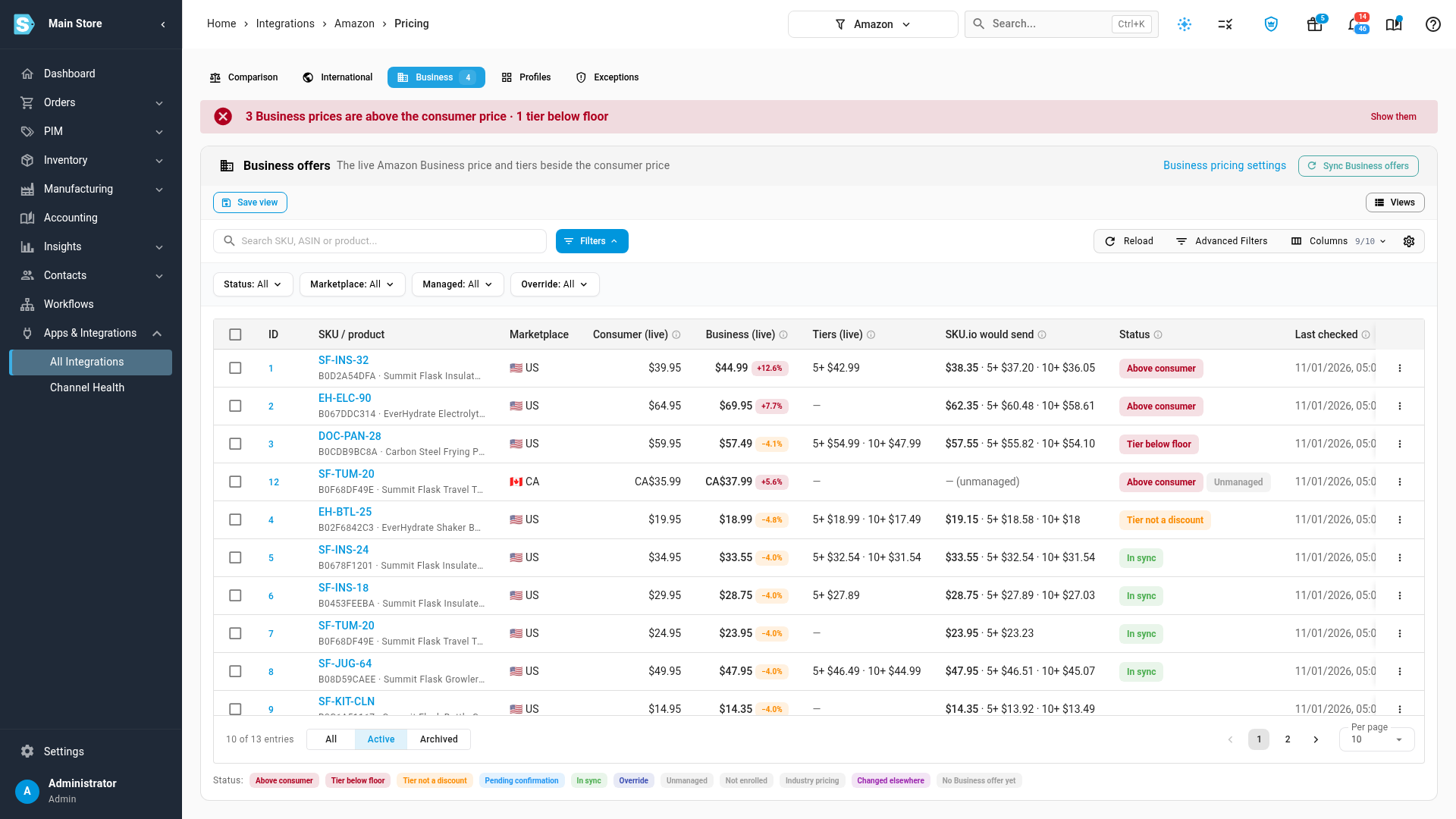
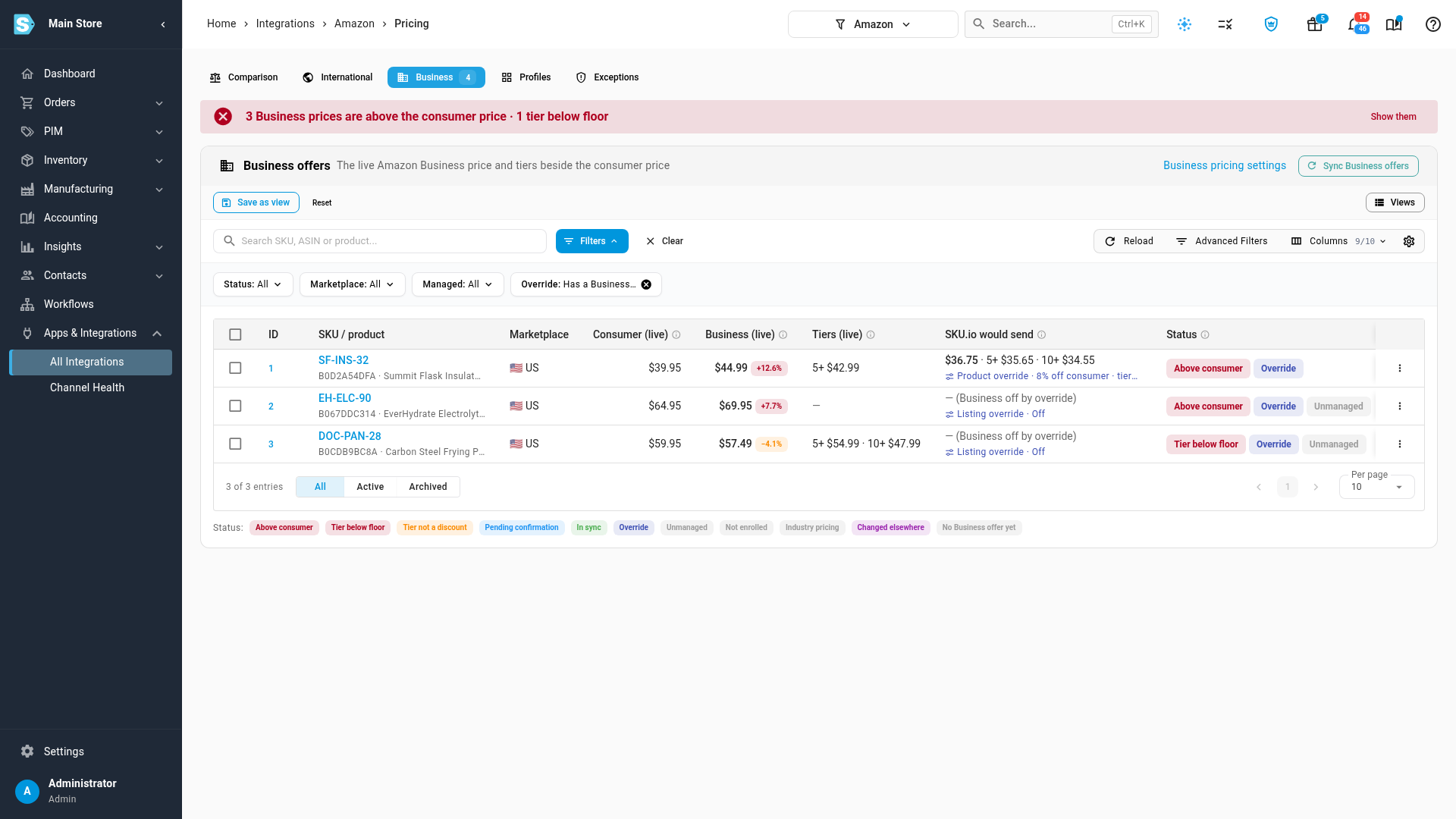
Click the Business tab. The SKU.io would send column shows the Business price, and the unit price for each quantity tier, that each listing gets on the next push.
-
On the listing's row, click the ⋮ menu, then Set Business override…. To set several at once, tick their rows and click Set Business override… in the bar above the table.
-
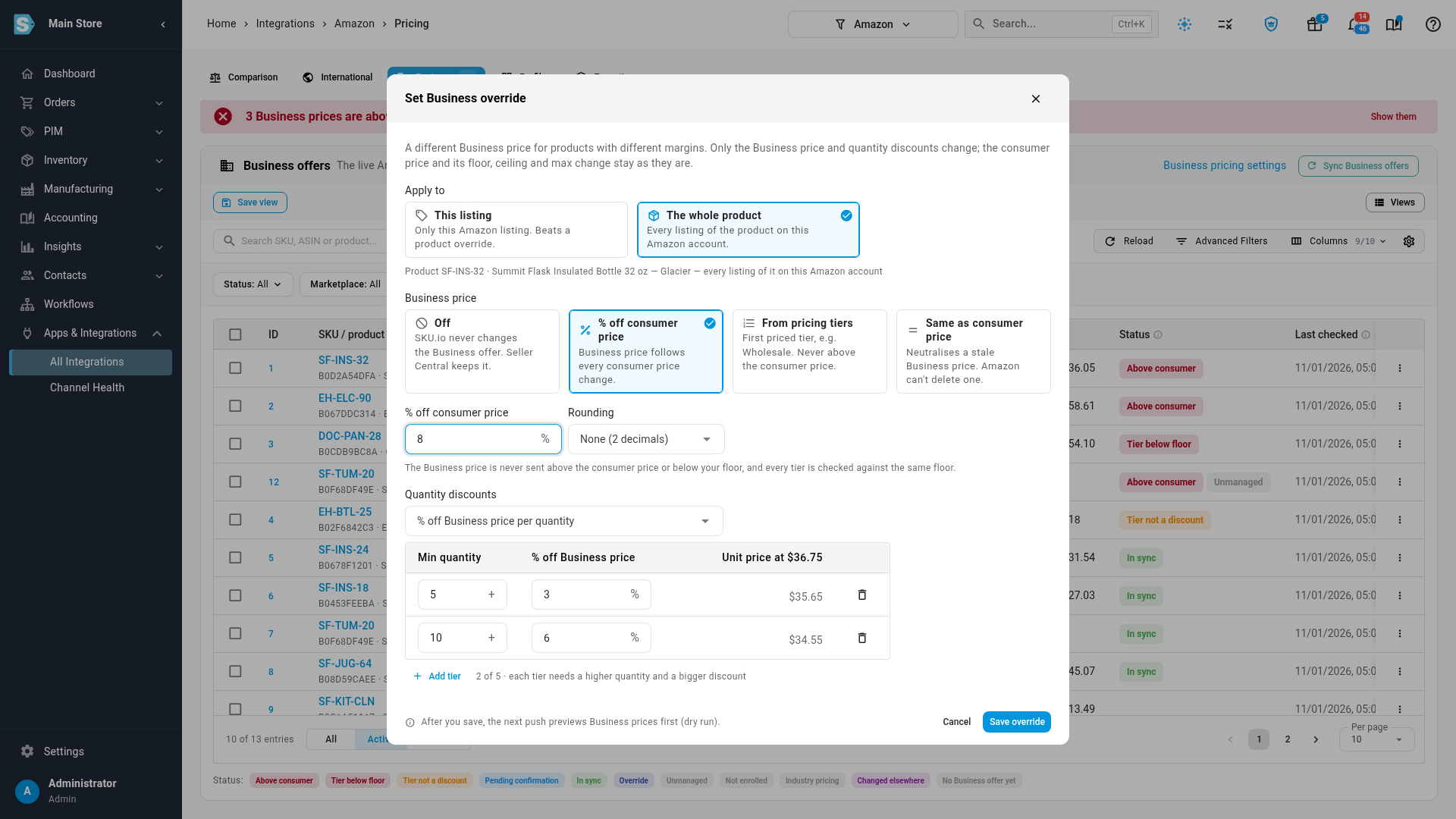
Under Apply to, choose what the override covers:
Option What it covers This listing Only this Amazon listing. It beats a product override. The whole product Every listing of the product on this Amazon account. -
Under Business price, pick the policy for this product:
Option What happens Off SKU.io never changes this item's Business offer. Seller Central keeps it. % off consumer price The consumer price less the percentage you enter. From pricing tiers The price of the first pricing tier you list that prices the product, such as Wholesale. Same as consumer price The consumer price. Use it to clean up a stale Business price. The dialog starts from the channel's setting, so change only what this product needs, for example a bigger % off consumer price. Pick a Rounding if you want one.
-
Under Quantity discounts, keep the channel's tiers or change them. With % off Business price per quantity, the Unit price at column works each tier out from this product's own consumer price, so you see what business buyers pay.
-
Click Save override.
Saving an override that sets a Business price makes the next push a dry run: it records the Business prices SKU.io would send, and sends none of them. Live Business pushes start again once the dry run has completed. An Off override doesn't need one.
Check the result
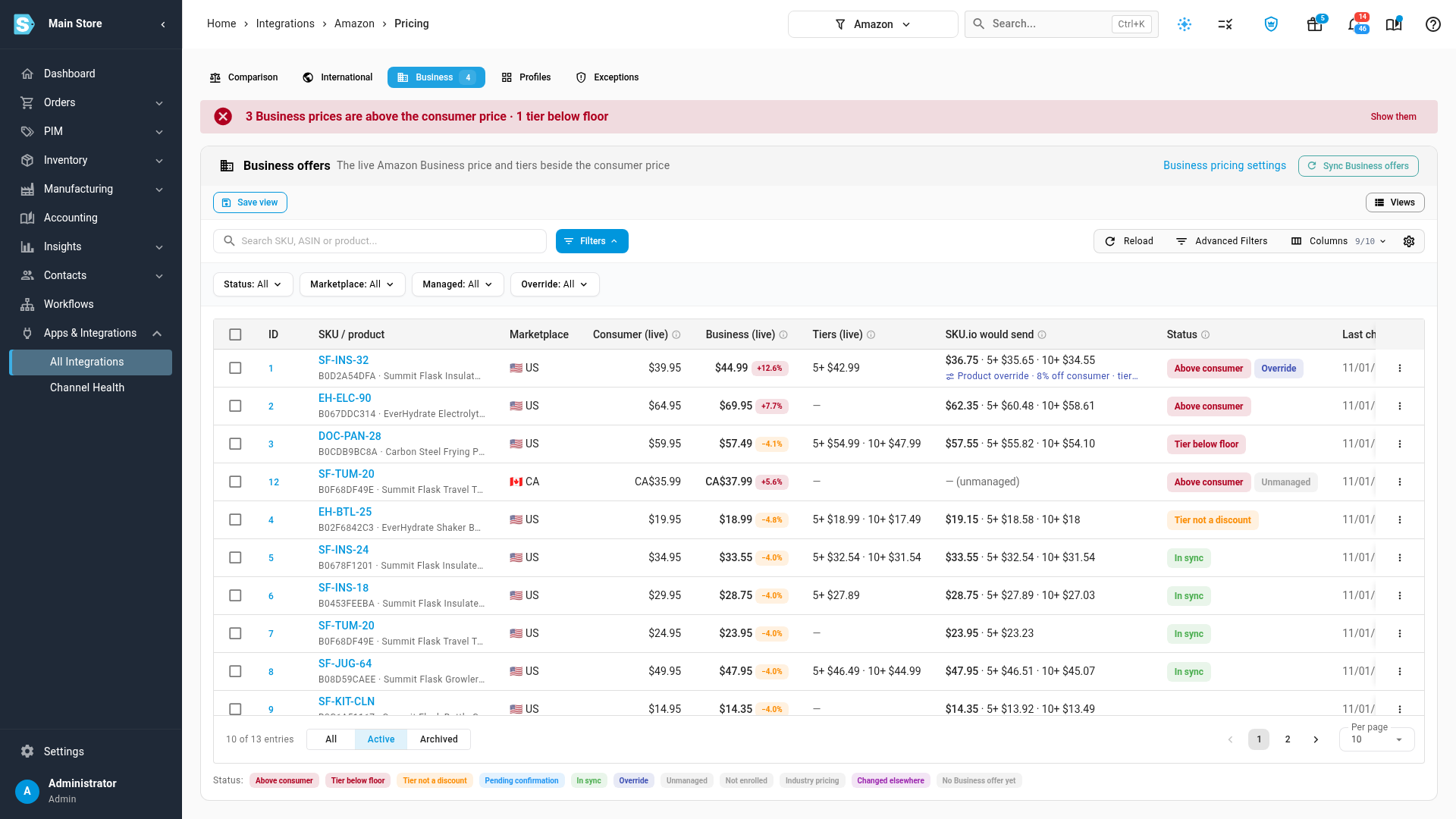
The row now carries an Override chip in the Status column. SKU.io would send shows the new price, and under it the override that set it, such as Product override · 8% off consumer. The Consumer (live) price doesn't change.
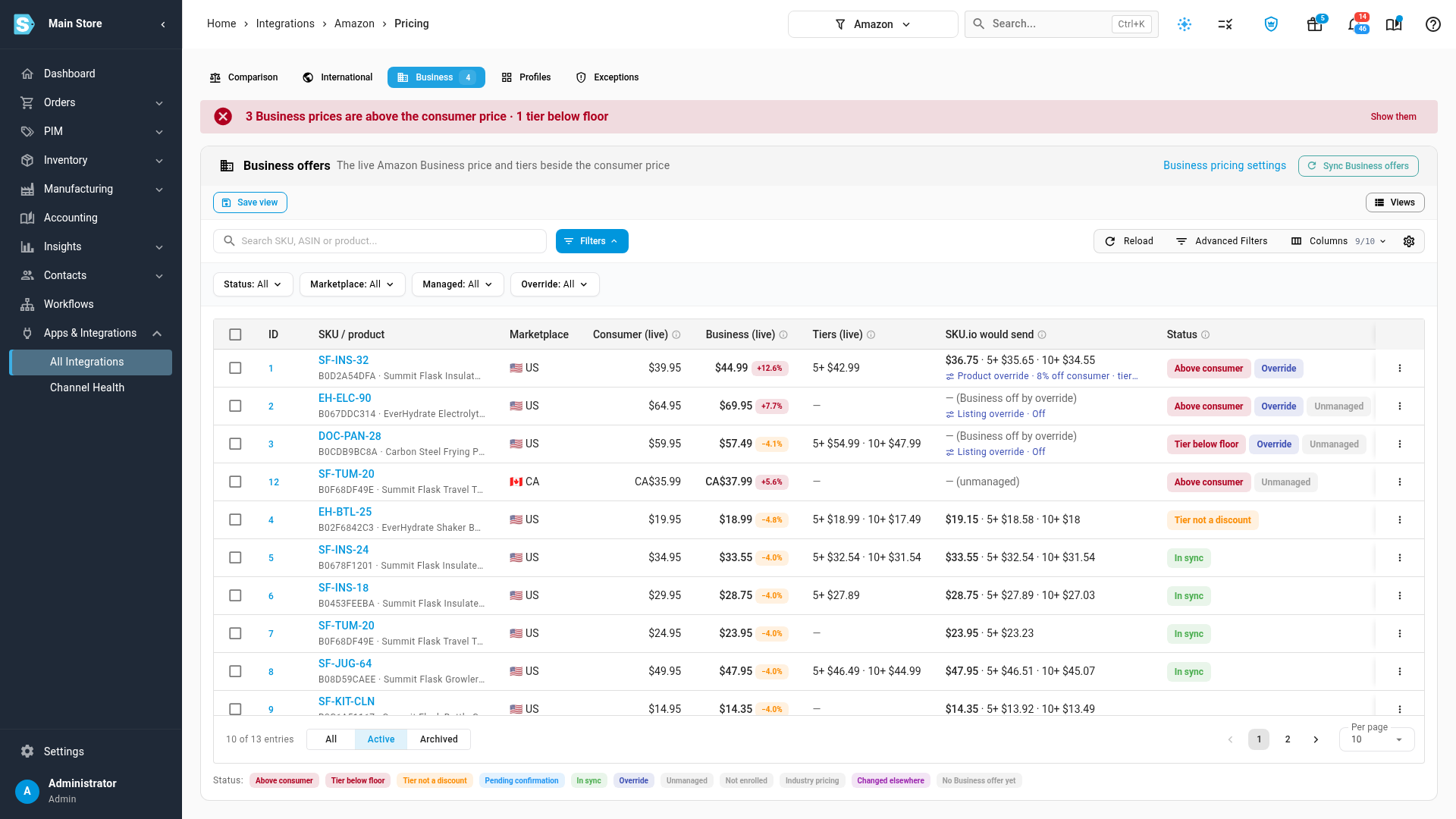
A listing set to Off shows — (Business off by override) instead of a price.
Find every override
- On the Business tab, set the Override filter to Has a Business override. No override shows the rest.
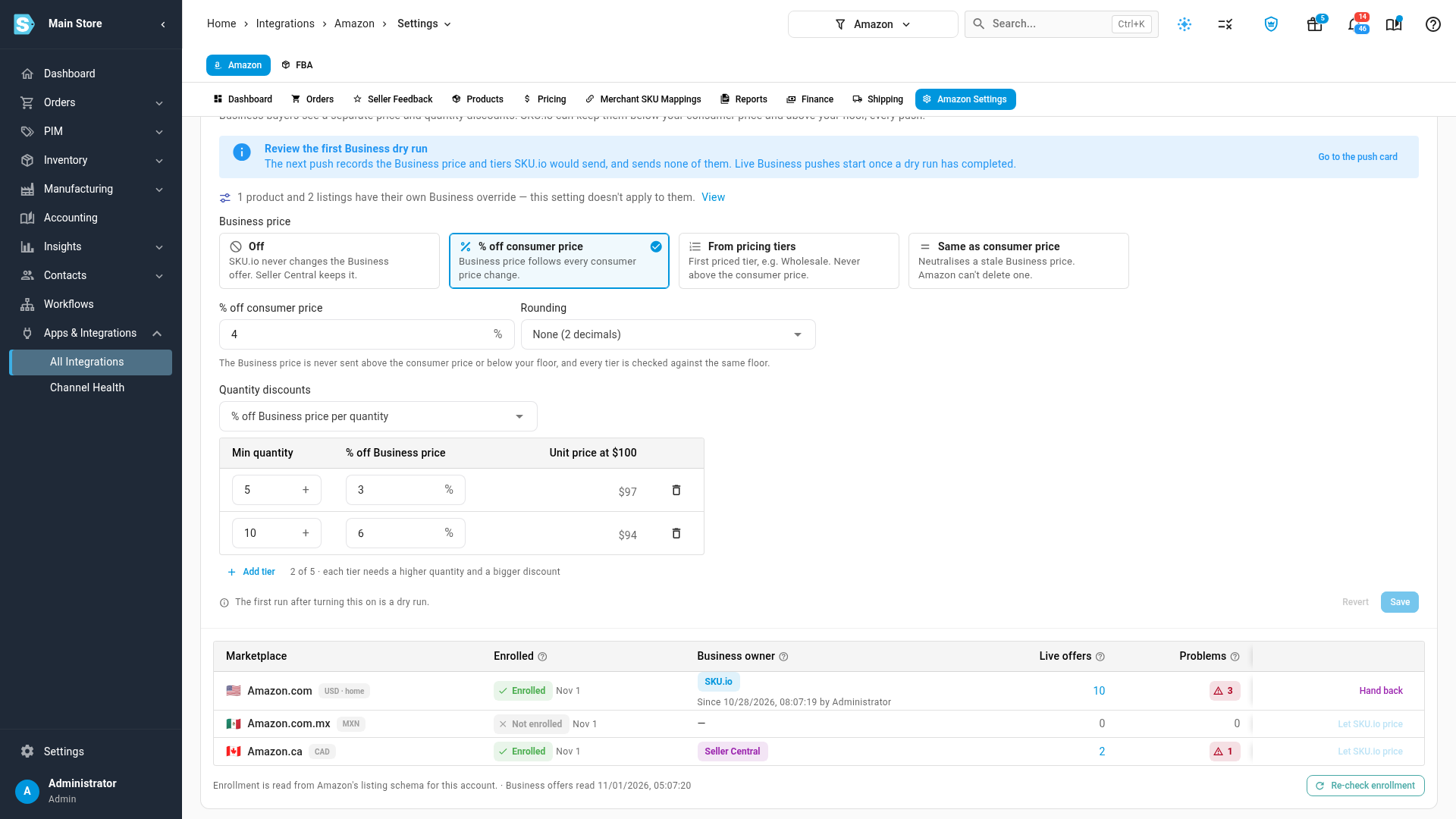
- On the channel's Amazon Business pricing card (click Business pricing settings at the top of the table), a line counts them, for example 1 product and 2 listings have their own Business override — this setting doesn't apply to them. Click View to open them on the Business tab.
See which setting prices a listing
- On the row, click the ⋮ menu, then Preview.
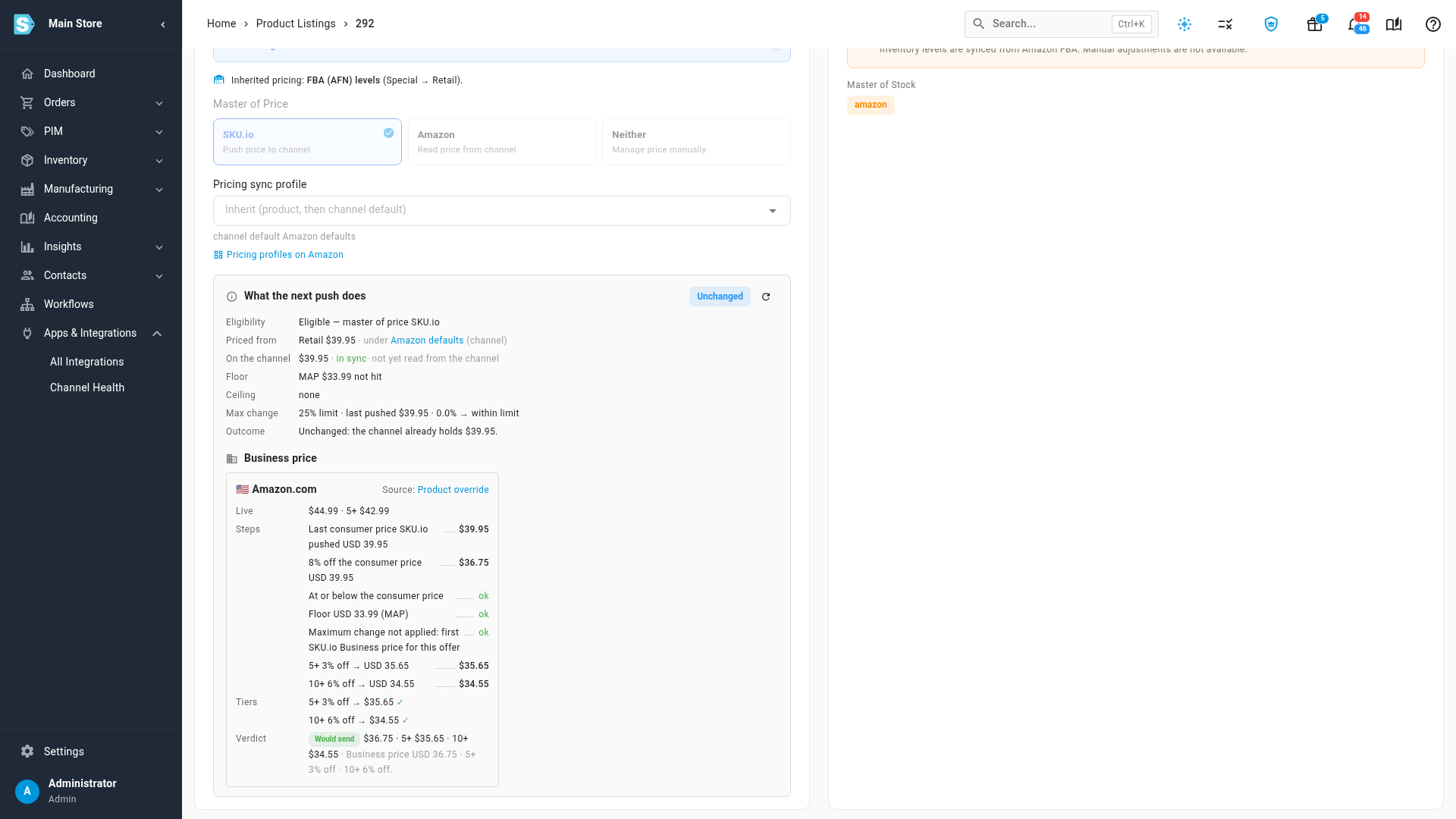
- The listing opens at its Business price card. When an override prices the listing, the card shows Source: Listing override or Source: Product override. Click it to open the listing on the Business tab. Otherwise the card shows Profile: and the pricing sync profile, or channel setting, the listing follows.
Clear an override
On the row, click the ⋮ menu, then Clear Business override. To clear several, tick their rows and click Clear Business override in the bar above the table. The listing goes back to its pricing sync profile's Business price, or the channel's.
Clearing an Off override can turn Business pricing back on for that listing, so the next push is a dry run again.
Next steps
- Price your Amazon Business offers: the channel's Business price, quantity discounts and marketplace owners.
- Fix stale Amazon Business prices: find Business prices above the consumer price, or tiers below your floor.
- Reuse price push rules with pricing sync profiles: give a group of listings their own consumer and Business pricing.
Video transcript
Margins differ from product to product, so one discount rarely suits them all. To give one product its own Business price, open the channel's Pricing tab. Then open the Business tab, which lists your Business offers. Each row is one listing, in one marketplace.
Here, SKU.io sets every Business price at four percent off the consumer price. SKU.io would send shows the price each listing gets on the next push. It includes the quantity discounts, one unit price per tier.
To change it for one product, click the row's menu. Choose Set Business override. An override changes only the Business price and its quantity discounts. The consumer price keeps its floor, ceiling and max change.
Under Apply to, choose This listing, or The whole product. A listing override beats a product override. Choose The whole product, to cover every listing of it on this account.
Then pick the Business price. Off stops Business pricing for this product. Percent off consumer price starts from the channel's setting. Enter a bigger discount for a product with more margin.
The quantity discounts start from the channel's tiers. Each unit price uses this product's real consumer price, so you see what buyers pay. When the prices look right for this product, click Save override. The next push then previews Business prices first, as a dry run.
The row now shows an Override chip. SKU.io would send shows the new price, with the override's name underneath. The consumer price is unchanged.
To set several at once, select the rows of the listings you want to change. Then click Set Business override, in the bar that appears above the table. Choose Off, and click Save override, so the change applies to the whole selection. Their rows now show Business off by override. Each row also names its listing override.
Open Business pricing settings, at the top of the table. Scroll down to the Amazon Business pricing card. Under its heading, it counts the products and listings with their own override. The channel's setting doesn't apply to those listings.
Click View, next to that count. Every override you've set is now listed in one place. The Override filter is set to Has a Business override. Set it back to All to see every row again.
To see which setting prices one listing, click its menu, and choose Preview. The listing opens, scrolled down to its Business price card. The card names its source. Here, that's the product override.
Click the source to go back, filtered to this listing. To remove an override, click the row's menu, and pick Clear Business override. Clear the filters, and the listing is back at the channel's Business price.