Fix stale Amazon Business prices
Video chapters
0:00 Open the Business tab · 0:13 Read the problem banner · 0:26 Compare the prices · 0:51 Read the status chips · 1:15 The legend · 1:37 Filter to the problems · 1:48 Prices SKU.io sets · 2:03 Neutralise one listing · 2:21 Neutralise several at once · 2:39 Keep the tab current · 2:54 Check one listing's Business price
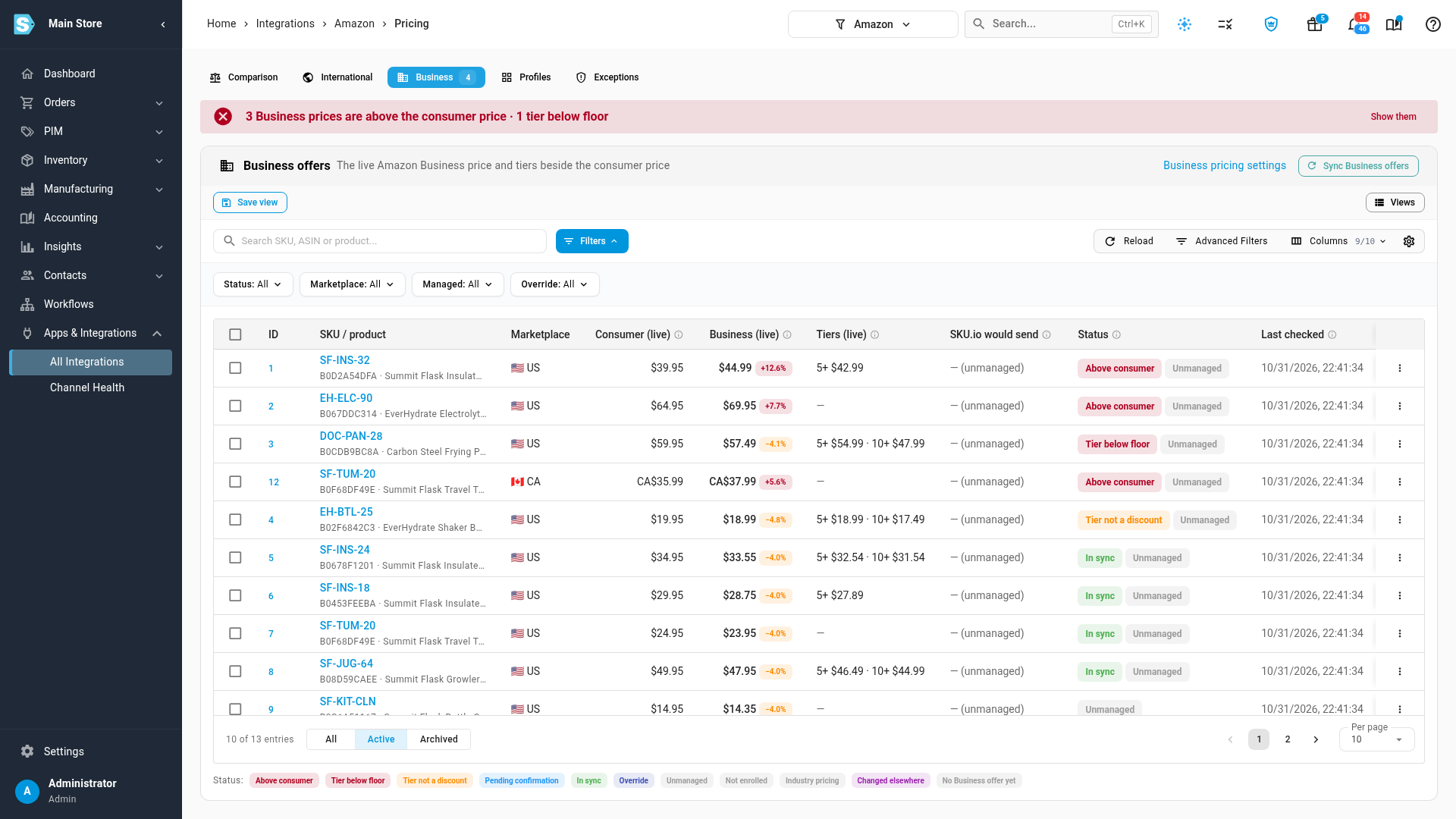
Business prices set by hand in Seller Central drift away from your consumer price. A Business price can end up above the consumer price, so business buyers pay more than everyone else, or a quantity tier can sell below your floor. The Business tab on your Amazon channel's Pricing page lists every Business offer beside its consumer price and flags the ones that need fixing.
Before you begin
- An Amazon channel connected to SKU.io, enrolled in Amazon Business in at least one marketplace.
- SKU.io has read your Business offers from Amazon. It does this every night, and whenever someone clicks Sync Business offers.
- To fix a price, the Integrations → Edit permission, and SKU.io as the listing's Master of Price.
Find the problems
-
Go to Apps & Integrations, open your Amazon channel, and open the Pricing tab.
-
Click the Business tab. Its badge shows how many offers have a problem.
A red banner counts them, for example 3 Business prices are above the consumer price · 1 tier below floor. The rows with a problem sort to the top.
-
To see only those rows, click Show them in the banner. The Status filter now picks Above consumer and Tier below floor.
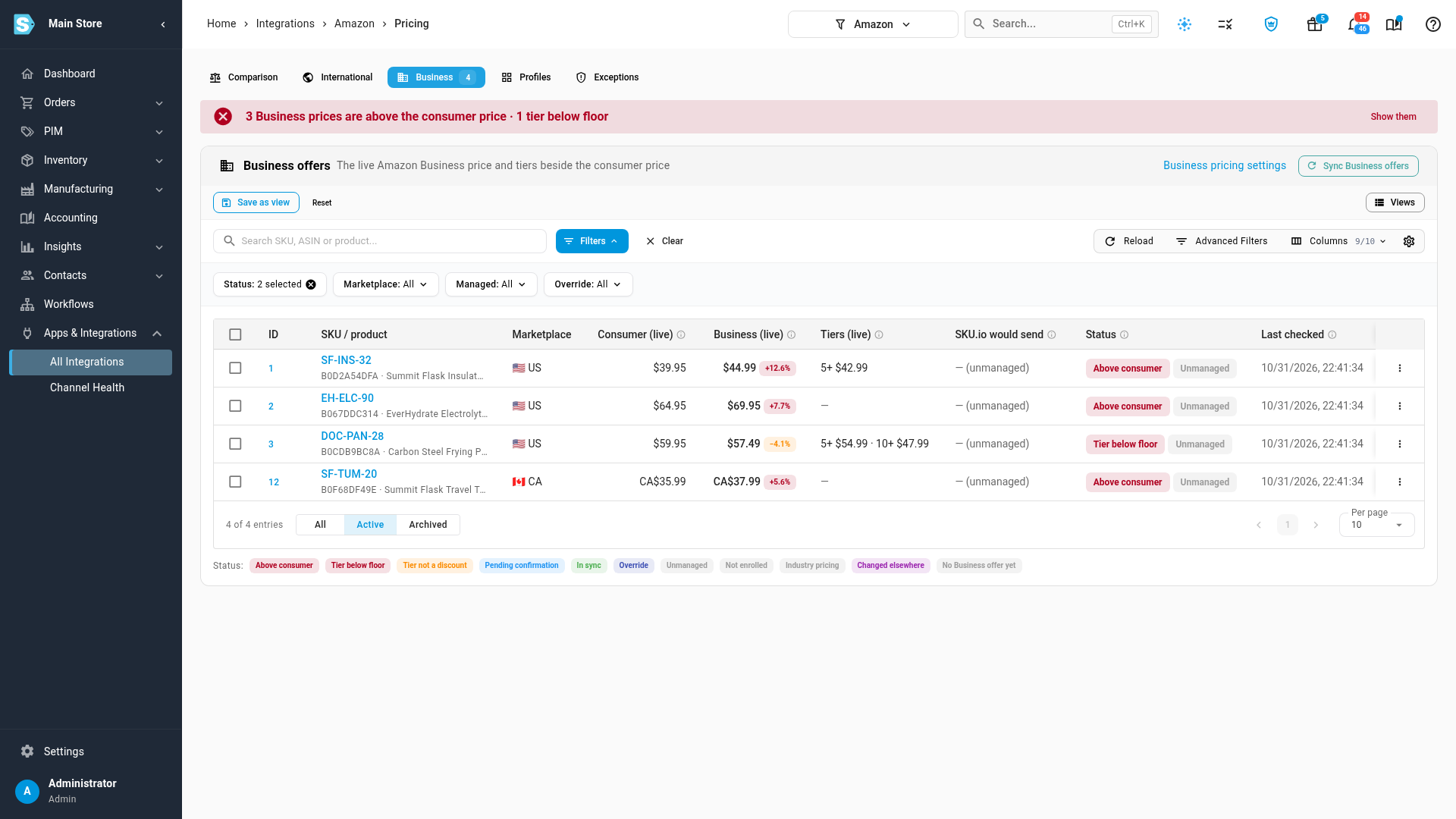
You can also filter the table yourself:
| Filter | What it does |
|---|---|
| Search | Finds an offer by SKU, ASIN or product name. |
| Status | Shows only the offers with the statuses you pick. Pick several to see them together. |
| Marketplace | Shows one or more marketplaces, such as US or CA. |
| Managed | Managed offers have their Business price set by SKU.io: Business pricing is on, and SKU.io owns the marketplace. Unmanaged offers are set in Seller Central. |
| Override | Offers whose listing or product has its own Business price policy. |
| All / Active / Archived | Under the table. Active hides offers whose listing is archived. |
Read the table
Each row is one listing's Business offer in one marketplace.
| Column | What it shows |
|---|---|
| ID | The offer. It links to the listing. |
| SKU / product | The seller SKU, its ASIN and the product. The SKU links to the product. |
| Marketplace | The Amazon marketplace, such as US or CA. |
| Consumer (live) | The price everyone sees on Amazon, from the same read. |
| Business (live) | The price business buyers see. The chip beside it shows how far it sits from the consumer price: red when it's higher, amber when it's less than 5% lower. Amazon's Business Savings badge needs at least 5% below the consumer price. None yet means Amazon shows no Business price. |
| Tiers (live) | The quantity discounts Amazon shows, as the unit price at each minimum quantity. For example, 5+ $42.99 means $42.99 each for 5 or more. |
| SKU.io would send | The Business price and tiers the next push would send. It shows — (unmanaged) when Seller Central owns the marketplace or Business pricing is off. Hover it to see how the price was reached. |
| Status | One or more status chips, explained below. |
| Last checked | When SKU.io last read the offer from Amazon. |
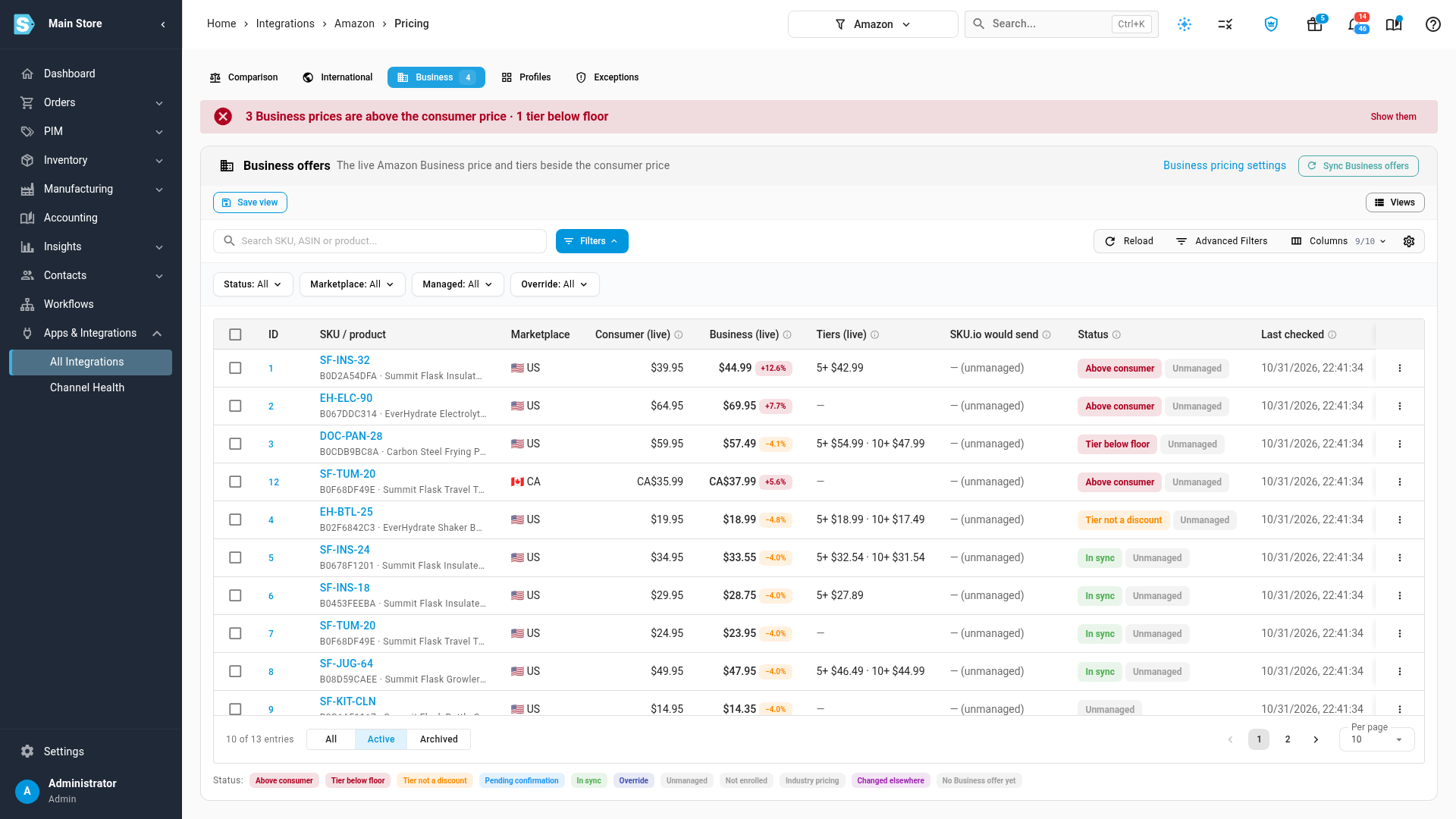
The legend under the table lists every status. Hover any chip to see what it means.
| Status | What it means | What to do |
|---|---|---|
| Above consumer | Business buyers pay more than consumers. Amazon may hide the Business price. | Fix it (see below). |
| Tier below floor | A quantity tier sells below the floor SKU.io enforces on your consumer price, such as your MAP price. | Fix it (see below). |
| Tier not a discount | A tier isn't cheaper than the Business price, or than the tier before it. Amazon hides it. | Change the tier in Seller Central, or let SKU.io price the marketplace. |
| Pending confirmation | SKU.io sent a Business price, and Amazon hasn't confirmed it in a read yet. | Nothing: the next read confirms it. |
| In sync | Amazon shows exactly what SKU.io last sent. | Nothing. |
| Override | The listing or its product has its own Business price policy. | See Set a Business price for one product. |
| Unmanaged | Seller Central owns this marketplace's Business price, or Business pricing is off. | Nothing, unless the offer also has a problem. |
| Not enrolled | The account isn't enrolled in Amazon Business in this marketplace. | Enroll in Seller Central, then re-check enrollment in the Business pricing settings. |
| Industry pricing | A Business price for one industry (such as education) set in Seller Central. SKU.io shows it but never changes it. | Manage it in Seller Central. |
| Changed elsewhere | Amazon showed a different price than SKU.io sent, three reads in a row. | Turn off the Business pricing rules in Seller Central (Automate Pricing Business rules, or Custom Pricing). |
| No Business offer yet | Amazon shows no Business price for this listing. | Nothing. If SKU.io prices the marketplace, it creates one on the next push. |
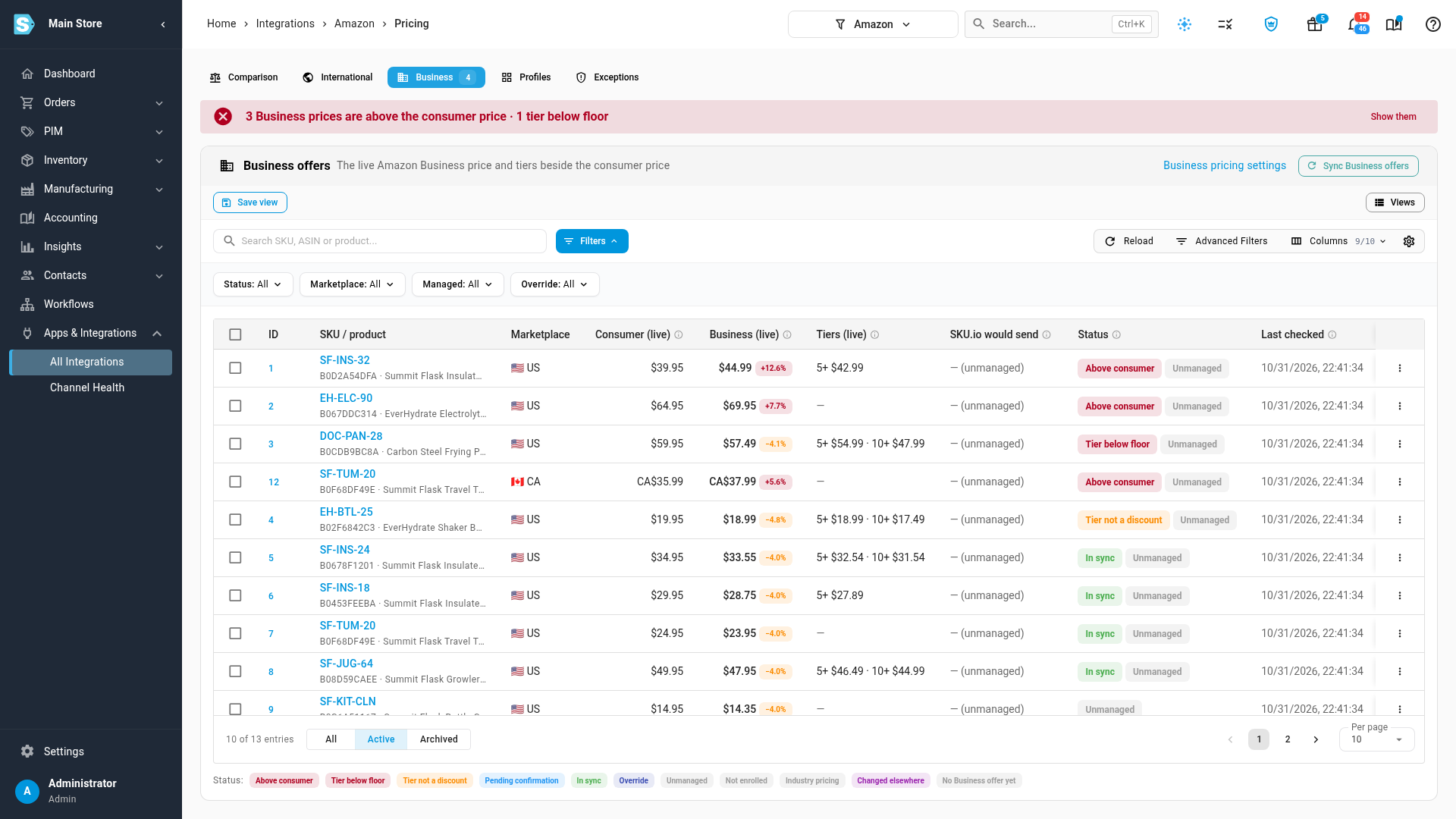
Check how one listing's Business price is worked out
- On the offer's row, click the ⋮ menu, then Preview.
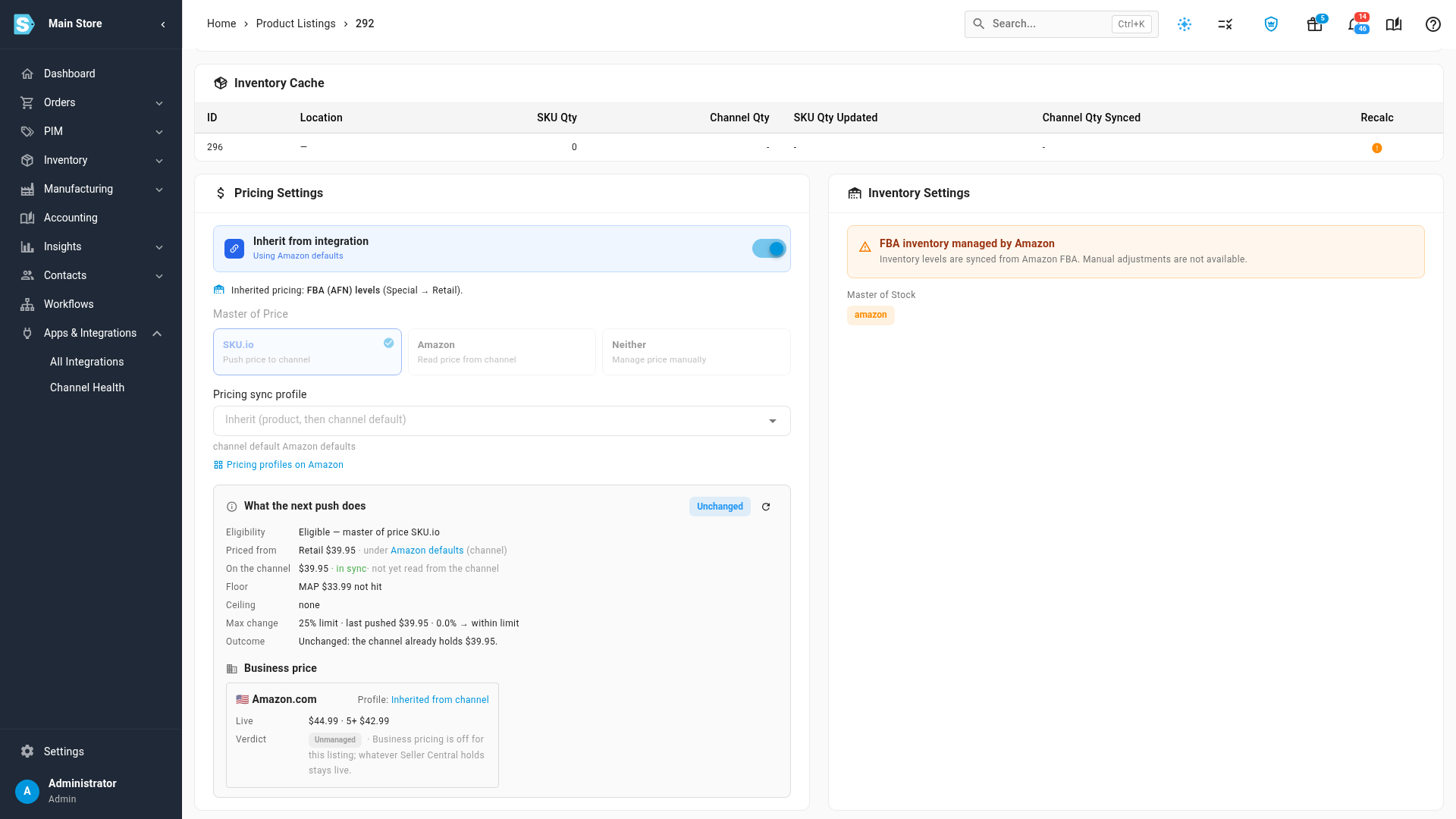
- The listing opens at its Business price card. It shows the Live price and tiers, the steps SKU.io takes to reach its price, which tiers it keeps or drops, and a Verdict, such as Would send or Unmanaged.
Fix prices SKU.io sets
If SKU.io sets the marketplace's Business prices, you don't need to clean anything up: the next push replaces each stale price with the one in SKU.io would send. To hand a marketplace to SKU.io, click Business pricing settings at the top of the table, turn on Business pricing, and click Let SKU.io price on the marketplace's row. See Price your Amazon Business offers.
To send a correction now instead of waiting for the next push, tick the rows and click Push now. It's available only on marketplaces SKU.io owns.
Clean up prices Seller Central owns
Amazon can't delete a Business price, so SKU.io never tries to. Neutralise does the next best thing: it sets the Business price to the consumer price and removes the quantity tiers. It's a one-off. Seller Central still owns the marketplace's Business prices afterwards.
Neutralise is offered on rows that are Unmanaged and Above consumer or Tier below floor. On a marketplace SKU.io owns, it's disabled, because the next push corrects the price.
-
On the row, click the ⋮ menu, then Neutralise…. To clean up several at once, tick their rows and click Neutralise… in the bar above the table.
-
The dialog runs a dry run first. It shows Dry run — nothing sent yet and, for each offer, the price under Business now, the price it Will be, and whether its Quantity tiers are Removed or there are None to remove.
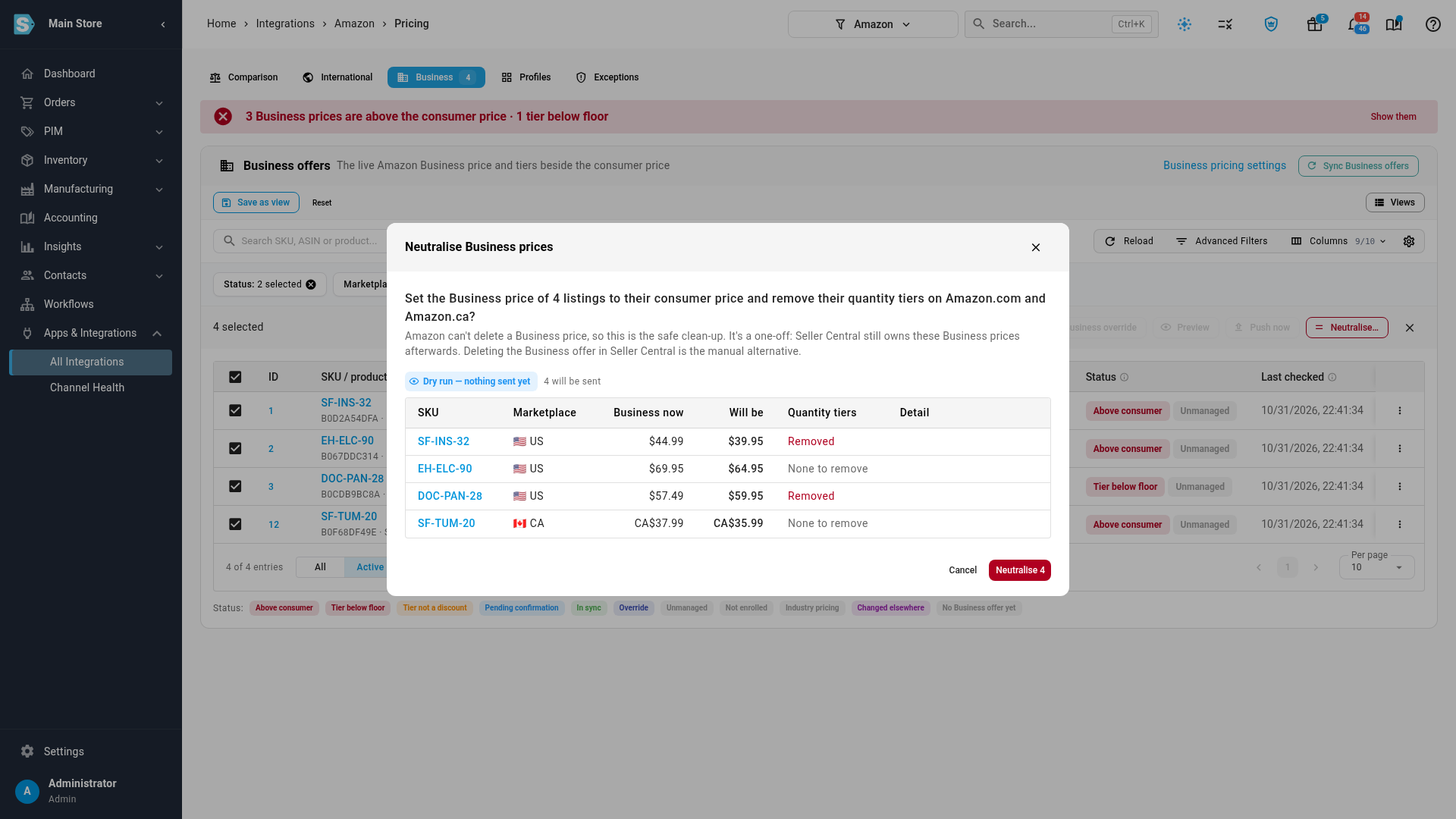
A Business price flagged only for a tier below floor can be below the consumer price, so neutralising it raises it to the consumer price.
-
Nothing reaches Amazon yet. To send the prices, click Neutralise followed by the number of offers, for example Neutralise 4. To leave them as they are, click Cancel.
The dialog then says how many Business prices it sent, and the next read of your Business offers confirms them. More than 50 offers are sent in the background: follow them in the job tray.
If a neutralised price comes back, a Business pricing rule in Seller Central is still changing it. Turn the rule off in Seller Central. To remove a Business offer completely, delete it in Seller Central.
Refresh the tab
SKU.io reads your Business offers from Amazon every night. To read them now, click Sync Business offers at the top of the table. The last result stays on screen until the new read finishes.
Next steps
- Price your Amazon Business offers: let SKU.io set your Business price and quantity discounts.
- Set a Business price for one product: give one product or listing its own Business price.
- Sync prices with your sales channels: the consumer price, guardrails, preview and push.
Video transcript
Business prices set by hand drift away from your consumer price. To find them, open the channel's Pricing tab. Then open the Business tab, which lists every Business offer you have.
The red banner counts every Business price with a problem. It counts prices above the consumer price, and any tier below floor. Below it, the table lists one row per listing and marketplace.
Consumer (live) is the price everyone sees on Amazon. Business (live) is the price business buyers see. The chip beside it shows how far it sits from the consumer price. Tiers (live) lists each quantity discount, as a unit price. SKU.io would send shows the price your next push would set. Here it says unmanaged, because SKU.io doesn't set these prices.
The Status column flags each problem. Above consumer means business buyers pay more than everyone else. Tier below floor means a quantity discount sells under your floor. Tier not a discount means a tier isn't cheaper, so Amazon hides that tier. In sync means Amazon shows exactly what SKU.io sent. Unmanaged means SKU.io doesn't set this Business price.
The legend under the table lists every status. Pending confirmation means SKU.io sent a price, and Amazon hasn't confirmed it yet. Changed elsewhere means Amazon kept showing a different price, three reads in a row. That usually means another Business pricing rule is still running. No Business offer yet means SKU.io creates one on the next push.
To see only the problems, click Show them in the banner. The Status filter now picks Above consumer and Tier below floor. You can change it to any status you want to work through.
When SKU.io prices a marketplace's Business offers, its next push corrects these rows. To hand a marketplace to SKU.io, use the Business pricing settings link. Here, every row is unmanaged, so you clean them up instead.
Amazon can't delete a Business price. Instead, Neutralise sets it to the consumer price, and removes its tiers. Click a row's menu, and pick Neutralise from the list. The dialog runs a dry run first, so nothing is sent yet. It shows Business now, and what it will be after the change.
Nothing reaches Amazon until you confirm with the Neutralise button. We'll click Cancel instead. To clean up several at once, tick their rows, and click Neutralise in the bulk bar. A listing with no tiers says None to remove. A price with a tier below floor moves up to the consumer price.
Click Cancel to close it without sending anything. Sync Business offers reads your offers from Amazon again. SKU.io also reads them every night, so the tab stays current. To check one listing, click a row's menu, and choose Preview.
The listing opens, scrolled down to its Business price card. It shows the live price and tiers, and SKU.io's verdict. Unmanaged means Seller Central keeps this price.