Reuse price push rules with pricing sync profiles
A pricing sync profile is a named set of the rules that decide what price SKU.io sends to a channel: which price levels to send, in what order, and the guardrails (floor, ceiling and maximum change) that every price must pass. Save the rules once as a profile, and you can use them on any channel, make them a channel's default, or give a few products or listings different rules from the rest.
Without profiles, each channel pushes with the settings on its own Pricing Sync tab, as described in Sync prices with your sales channels. Profiles hold exactly the same settings, so you can reuse them instead of copying them by hand.
Before you begin
- Profiles apply to channels SKU.io can send prices to. The Profiles tab appears only on those channels' Pricing page.
- A profile decides what is sent and within which limits. Master of Price still decides whether anything is sent. On a channel whose master isn't SKU.io, only listings set to SKU.io individually are pushed, and the Profiles tab says so at the top.
Which profile governs a listing
Each listing follows exactly one profile, and the narrowest assignment wins:
| Order | Assigned to | Example |
|---|---|---|
| 1 | The listing | One Amazon listing that needs a tighter ceiling |
| 2 | The product | A product that should follow its MAP floor on every channel |
| 3 | The channel, as its default | Everything else on Amazon |
| 4 | Nothing | The channel's own Pricing Sync settings |
The winning profile supplies the whole set of rules. A product profile with no ceiling means no ceiling for that product, not the channel default's ceiling.
Open the Profiles tab
- Go to Apps & Integrations, open the channel, and choose Pricing.
- Open the Profiles tab, next to Comparison and Exceptions.
Each profile is a card. It shows a one-line summary of its rules (for example "Sends Special → Retail · floor $5.00 · 25% block"), how many of this channel's listings it governs, its Floor, Ceiling and Amazon rule, and buttons to Edit it or Make default. The channel's default profile is outlined.
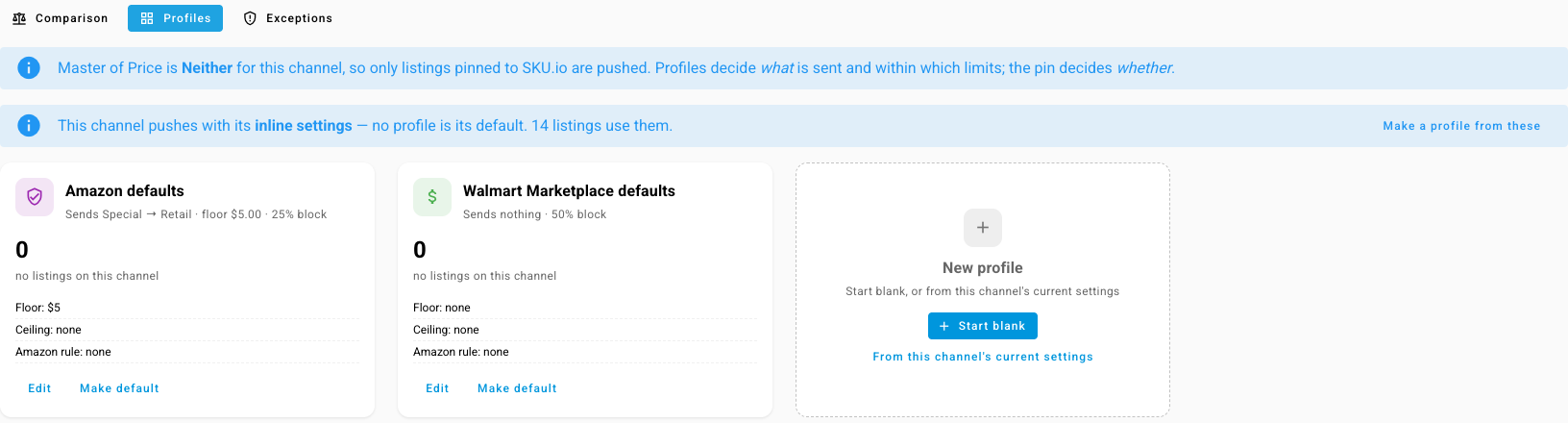
If no profile is the channel's default yet, a note says the channel "pushes with its inline settings", with Make a profile from these to turn them into a profile in one click.
Create a profile
-
On the New profile card, choose:
- Start blank to begin from empty rules, or
- From this channel's current settings to copy the channel's Pricing Sync settings.
-
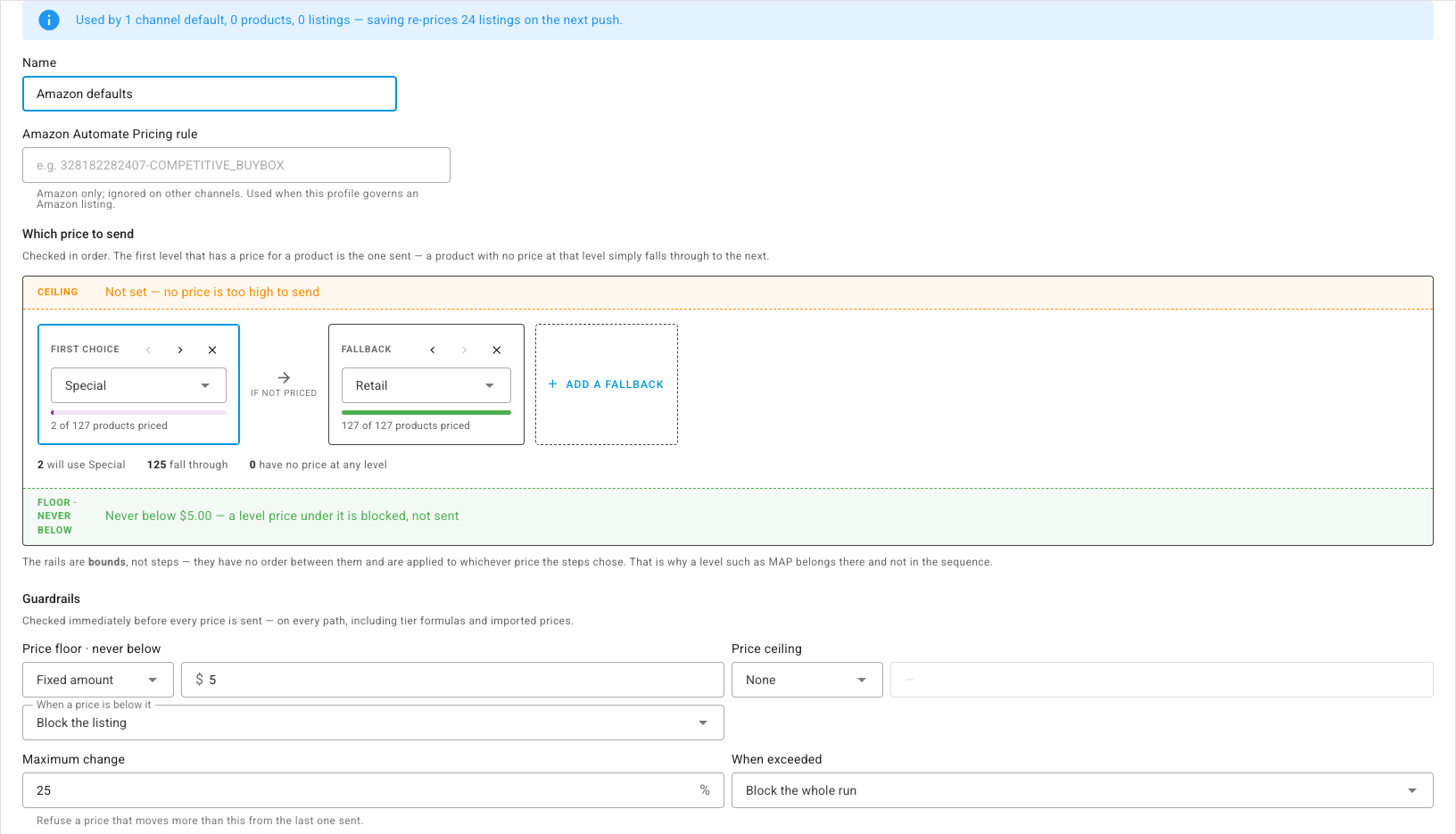
The editor opens under the cards. Give the profile a Name, such as "MAP protected".
-
Set the rules. They're the same as on the Pricing Sync tab:
- Which price to send: your first choice price level, then any fallback levels, in order. Each level shows how many of your products it prices, and the line underneath counts how many will use each level and how many have no price at any level.
- Guardrails: Price floor · never below, Price ceiling, and Maximum change, each with what to do when a price breaks it.
- Amazon Automate Pricing rule, if you use one. It's used only when the profile governs an Amazon listing, and ignored on other channels.
-
Click Save.
When you edit a profile that's already in use, the top of the editor says how far the change reaches before you save, for example "Used by 1 channel default, 0 products, 0 listings — saving re-prices 24 listings on the next push."
For what each setting does, see Sync prices with your sales channels.
Make a profile a channel's default
On the profile's card, click Make default and confirm. Every listing on this channel that has no listing or product profile of its own now follows it.
A profile isn't tied to one channel. The same profile can be the default on Amazon and on Walmart.
Give products or listings their own profile
You can assign a profile from four places.
On the channel's Comparison tab. The Profile column shows which profile governs each row and where it comes from: channel, product or listing. Filter the table by Profile to see a profile's listings.

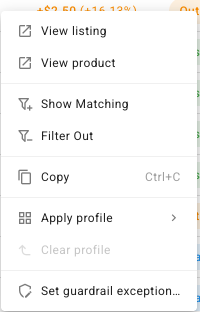
- Right-click a row and choose Apply profile, then the profile. Clear profile removes a listing's own profile, so it falls back to its product's or the channel's.
- Tick several rows and use the same actions on all of them.
- Drag rows by the handle on their left over the Profiles tab. The tab opens while you drag, and you drop the rows on a profile card.
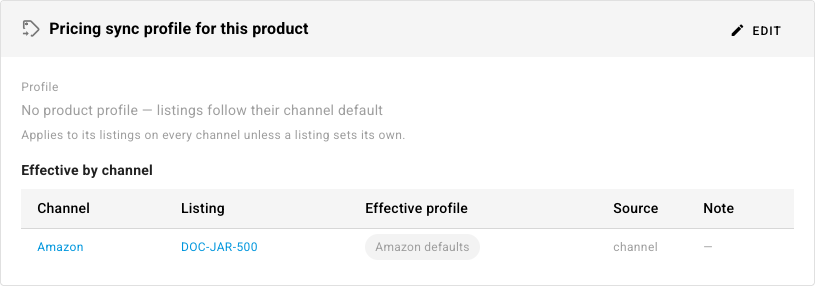
On a product. Open the product, go to Pricing, and edit the Pricing sync profile for this product card. The profile applies to the product's listings on every channel, unless a listing sets its own. Effective by channel shows which profile each of the product's listings actually follows, and why.
On many products at once. On PIM → Products, tick the products and use Set pricing profile in the bulk action bar. Choose a profile, or Clear profile.
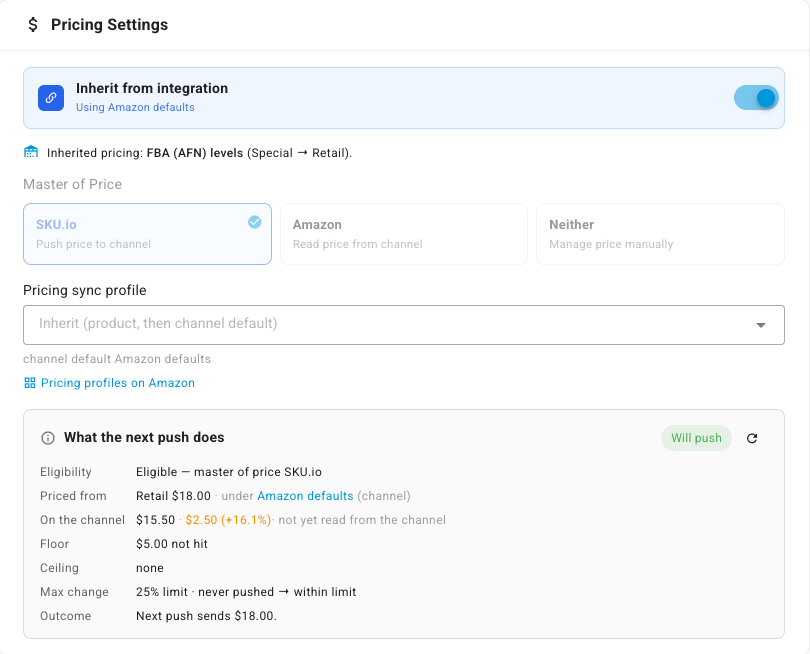
On one listing. Open the listing. In Pricing Settings, pick a profile under Pricing sync profile. Leave it on Inherit (product, then channel default) to follow the product's or the channel's. What the next push does shows the result before you push: which level prices the listing, the floor and ceiling it's checked against, and the price the next push will send.
Retire a profile
To stop using a profile, open it and click Archive profile. An archived profile disappears from every picker, but listings, products and channels that already use it keep following it until you assign something else. Archived profiles that aren't on the current channel's board are listed under Archived profiles, where you can Unarchive them, or Delete one that nothing uses.
Next steps
- Sync prices with your sales channels: master of price, guardrails, previews and run history.
- Set pricing on multiple listings at once: give a selection of listings one pricing rule.