Price your Amazon Business offers
Video chapters
0:00 Open Pricing Sync · 0:15 The Amazon Business pricing card · 0:32 Choose the Business price · 0:54 Add quantity discounts · 1:15 Save, and review the dry run notice · 1:27 Check enrollment per marketplace · 1:42 Let SKU.io price a marketplace · 1:59 Confirm in Seller Central · 2:21 Preview the first Business push · 2:33 Read the Business lines · 2:56 Hand a marketplace back
Amazon shows business buyers a separate Business price, plus up to five quantity discounts that lower the unit price for larger orders. Seller Central sets these by hand, so they drift: a Business price can end up above your consumer price, or a quantity tier below your minimum advertised price. The Amazon Business pricing card lets SKU.io set them from your consumer price on every push instead, one marketplace at a time.
How it works
- The Business price follows your consumer price. You choose a rule once (for example, 4% off the consumer price), and every push works out each listing's Business price from the consumer price SKU.io sends.
- It's never above the consumer price. A Business price that would come out higher is lowered to the consumer price.
- It's never below your floor. The floor is the one your price push already uses, such as a MAP price level. A Business price under it is raised to the floor, or skipped, as your floor setting says.
- Every quantity tier is checked against the same floor. A tier is a percentage off the Business price. A tier whose unit price falls below the floor, or isn't lower than the tier before it, is left out of what SKU.io sends.
- Nothing changes until you hand a marketplace to SKU.io. Seller Central owns every marketplace's Business price until you switch it, and the first push after that is a dry run.
Before you begin
- Your Amazon connection uses SKU.io as its Master of Price, with price push set up. See Sync prices with your sales channels.
- Your Amazon seller account is enrolled in Amazon Business for the marketplaces you want to price.
- Access to Seller Central, to turn off any Business pricing rules you set there (Automate Pricing Business rules, or Custom Pricing).
- To price Amazon.ca or Amazon.com.mx, SKU.io must already price that marketplace's consumer offers. See Price your Amazon Canada and Mexico offers.
- The Integrations → Edit permission, to change the channel's settings.
Set your Business price
-
Go to Apps & Integrations, open your Amazon channel, then open Amazon Settings and the Pricing Sync tab.
-
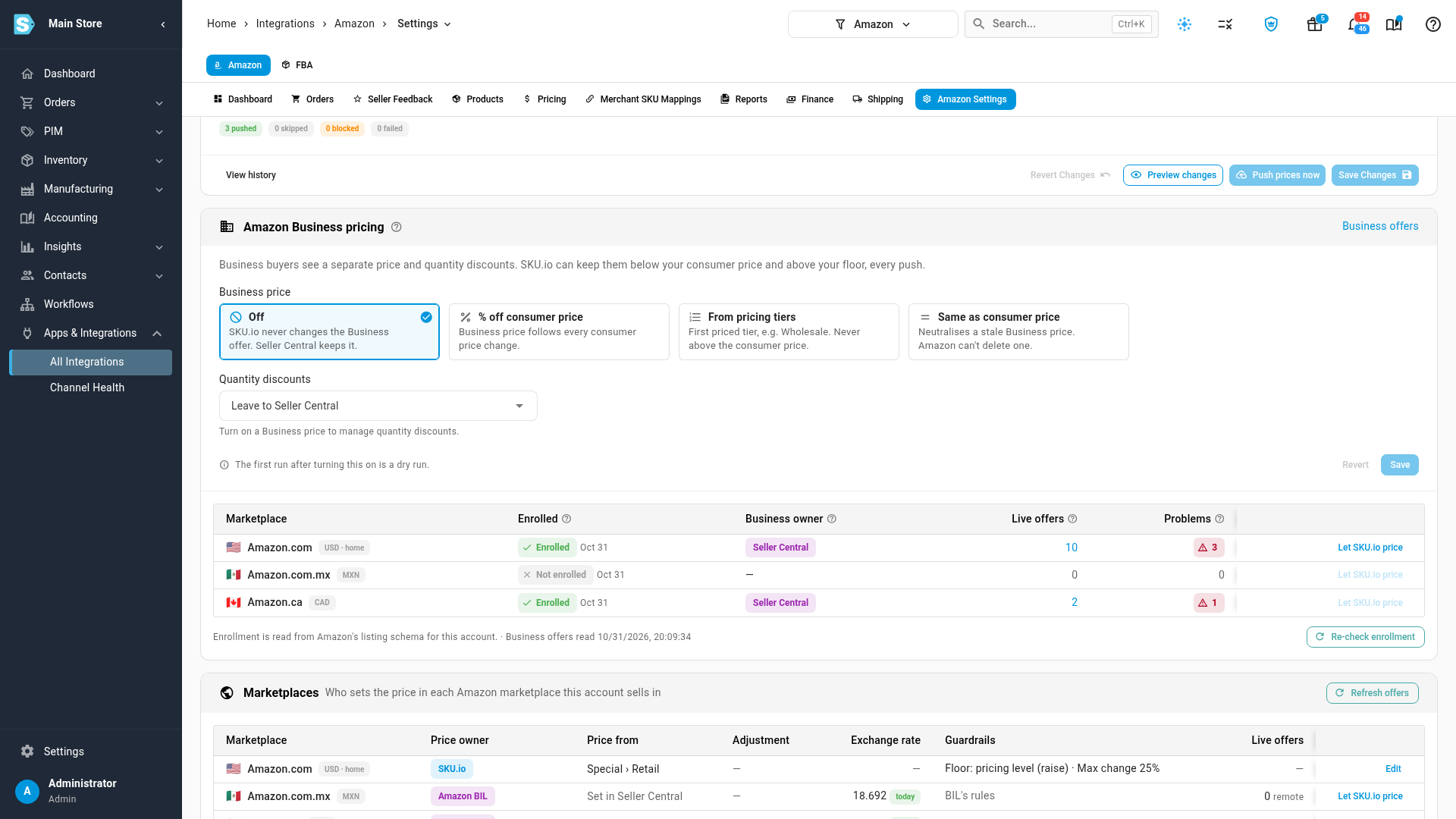
Scroll down to the Amazon Business pricing card. It starts at Off: SKU.io never changes a Business offer, and Seller Central keeps it.
-
Under Business price, choose how SKU.io sets it:
Option The Business price SKU.io sends % off consumer price The consumer price less the percentage you enter (0% to 50%). It follows every consumer price change. From pricing tiers The price of the first pricing tier you list (such as Wholesale) that has a price for the product, converted to the marketplace's currency. With No tier prices the product → use the fallback % off consumer on, a product with no tier price gets the fallback percentage instead. Same as consumer price The consumer price. Use it to clean up a stale Business price, because Amazon can't delete one. -
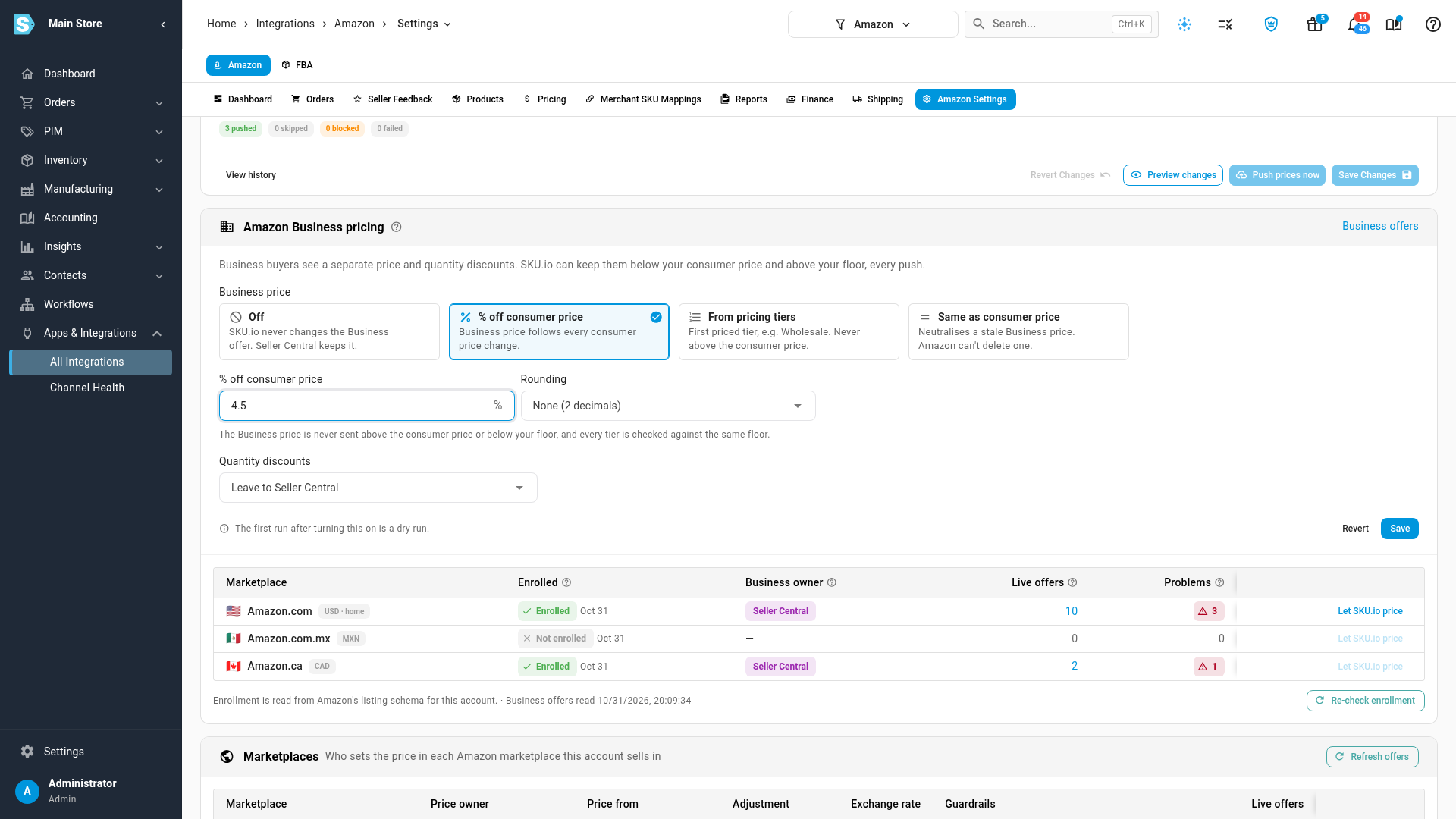
Enter the % off consumer price (or pick the tiers), then choose a Rounding: None (2 decimals), Up to .99, Up to .95 or Up to .49. A rounded price is still never above the consumer price.
-
Under Quantity discounts, choose what SKU.io does with the tiers Amazon shows business buyers:
Option What happens Leave to Seller Central SKU.io never sends quantity discounts. Remove quantity discounts SKU.io clears the tiers Amazon shows. % off Business price per quantity Your own ladder of up to five tiers. From quantity breaks Each product's quantity breaks on the pricing tier you pick, as fixed unit prices. -
For % off Business price per quantity, click Add tier for each step, and enter its Min quantity and % off Business price. Each tier needs a higher quantity (2 or more) and a bigger discount than the one before. The Unit price at $100 column shows what each tier works out to on a $100 Business price.
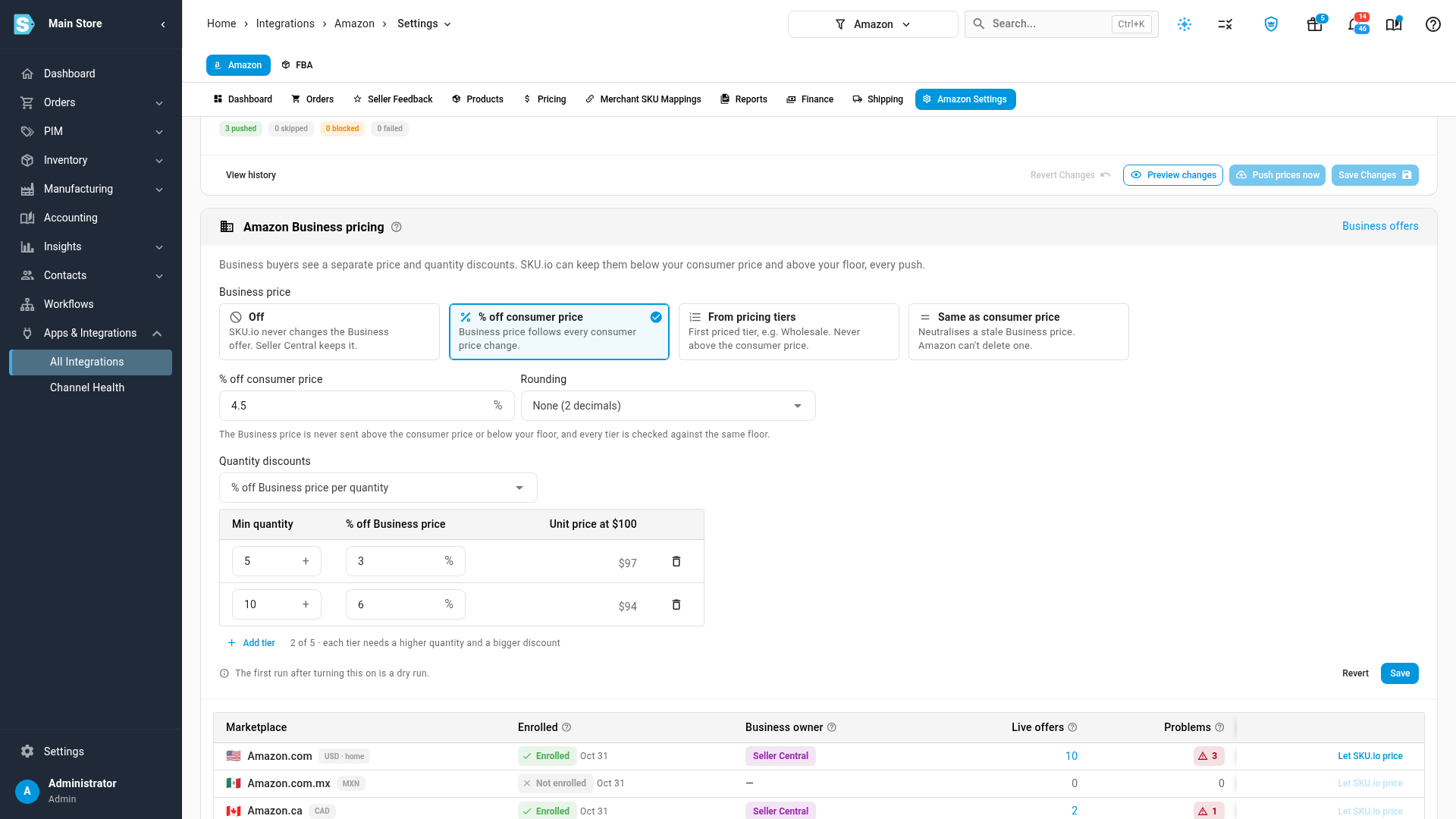
For From quantity breaks, pick the tier under Quantity breaks from tier. A quantity of 1 is the base price and is ignored, and Amazon takes the first five breaks from quantity 2. Turn on A product with no breaks → use the % ladder below to give products without breaks your ladder instead.
-
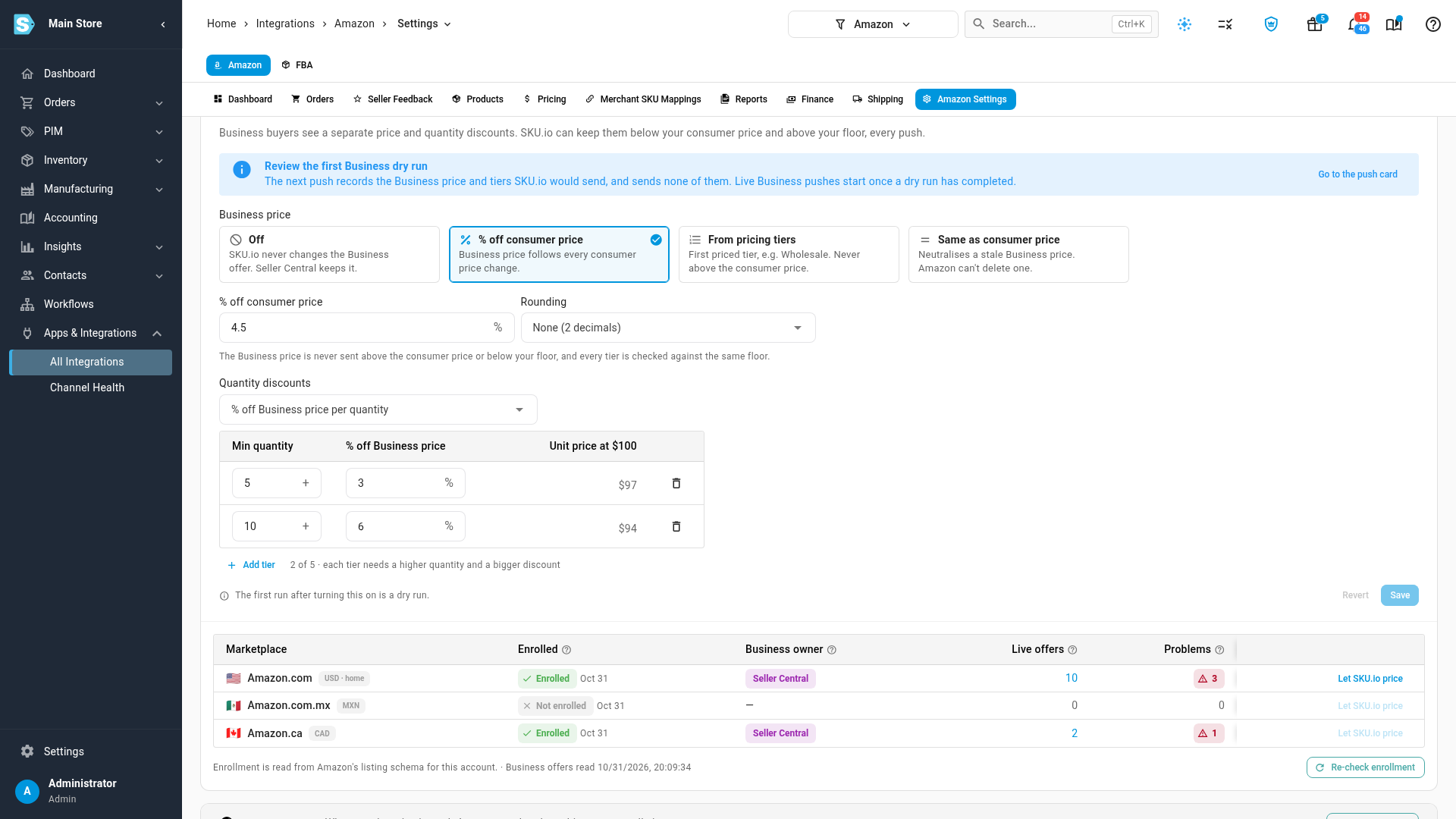
Click Save. The card shows Review the first Business dry run: the next push records the Business price and tiers SKU.io would send, and sends none of them. Live Business pushes start once a dry run has completed.
Let SKU.io price a marketplace
The table under the policy has one row per marketplace your connection sells in.
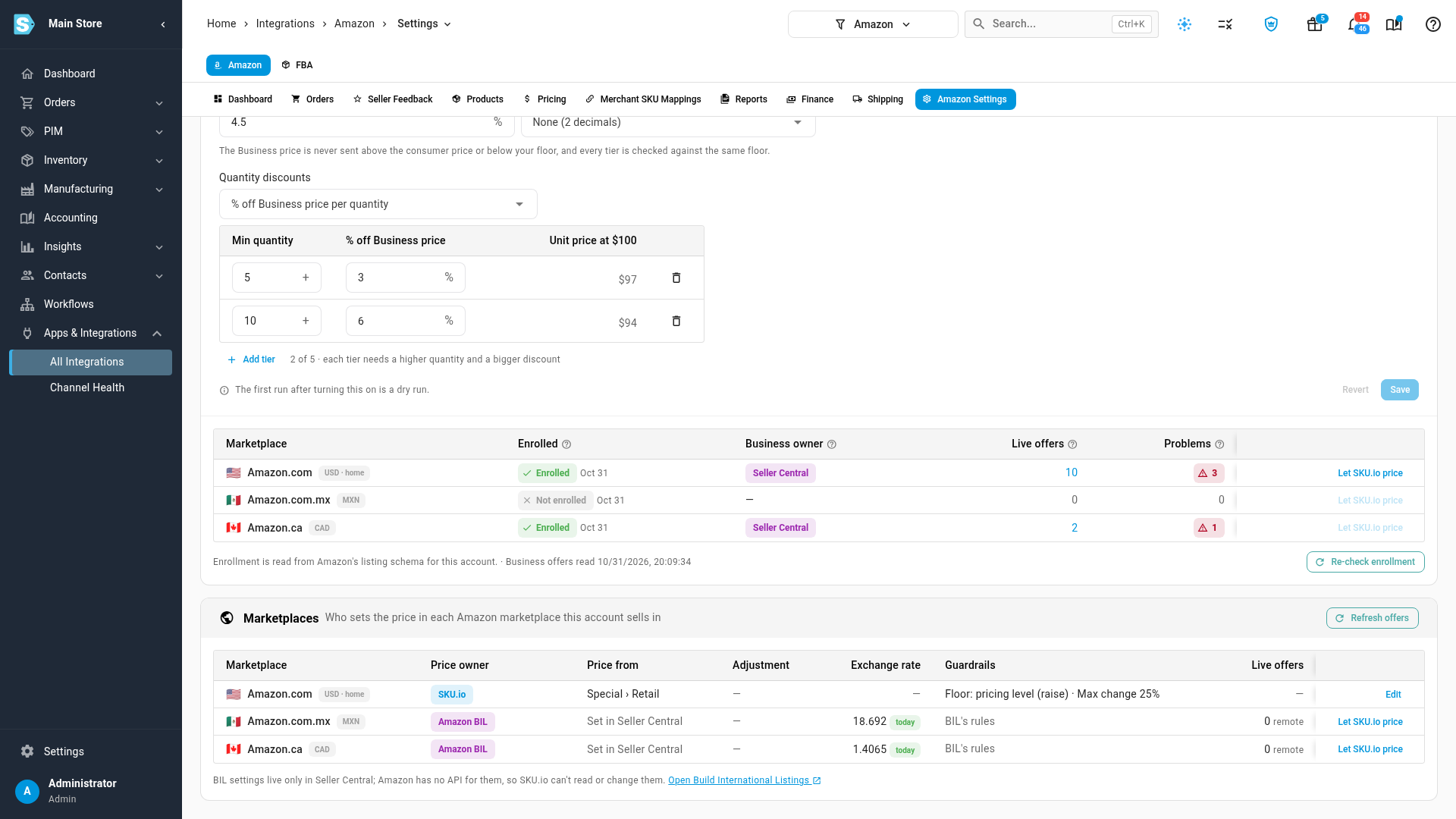
| Column | What it shows |
|---|---|
| Enrolled | Whether Amazon lets this account sell to business buyers in the marketplace, and when SKU.io last checked. A marketplace marked Not enrolled can't get a Business price. |
| Business owner | Seller Central (the default: SKU.io sends nothing) or SKU.io, with when it changed and who changed it. |
| Live offers | The Business offers SKU.io read from Amazon. The number opens them on the channel's Business pricing tab. |
| Problems | Business prices above the consumer price, plus quantity tiers below your floor. The number opens those offers. |
If you enroll a marketplace in Amazon Business later, click Re-check enrollment to ask Amazon again.
-
On the marketplace's row, click Let SKU.io price. The button is disabled, and its tooltip says why, when the marketplace isn't enrolled, or when SKU.io doesn't price that marketplace's consumer offers yet.
-
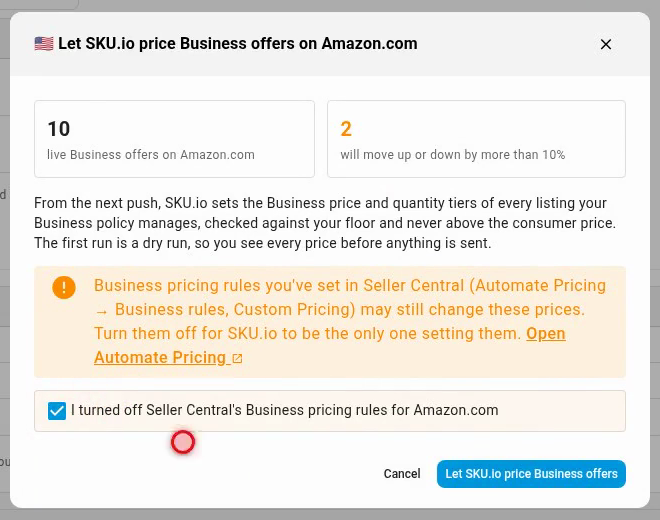
Read the counts: how many live Business offers the marketplace has, and how many will move up or down by more than 10%.
-
In Seller Central, turn off any Business pricing rules you set (Automate Pricing Business rules, or Custom Pricing). If you leave them on, they keep changing the prices SKU.io sends. The dialog's Open Automate Pricing link goes there.
-
Tick I turned off Seller Central's Business pricing rules for Amazon.com (the label names your marketplace), and click Let SKU.io price Business offers.
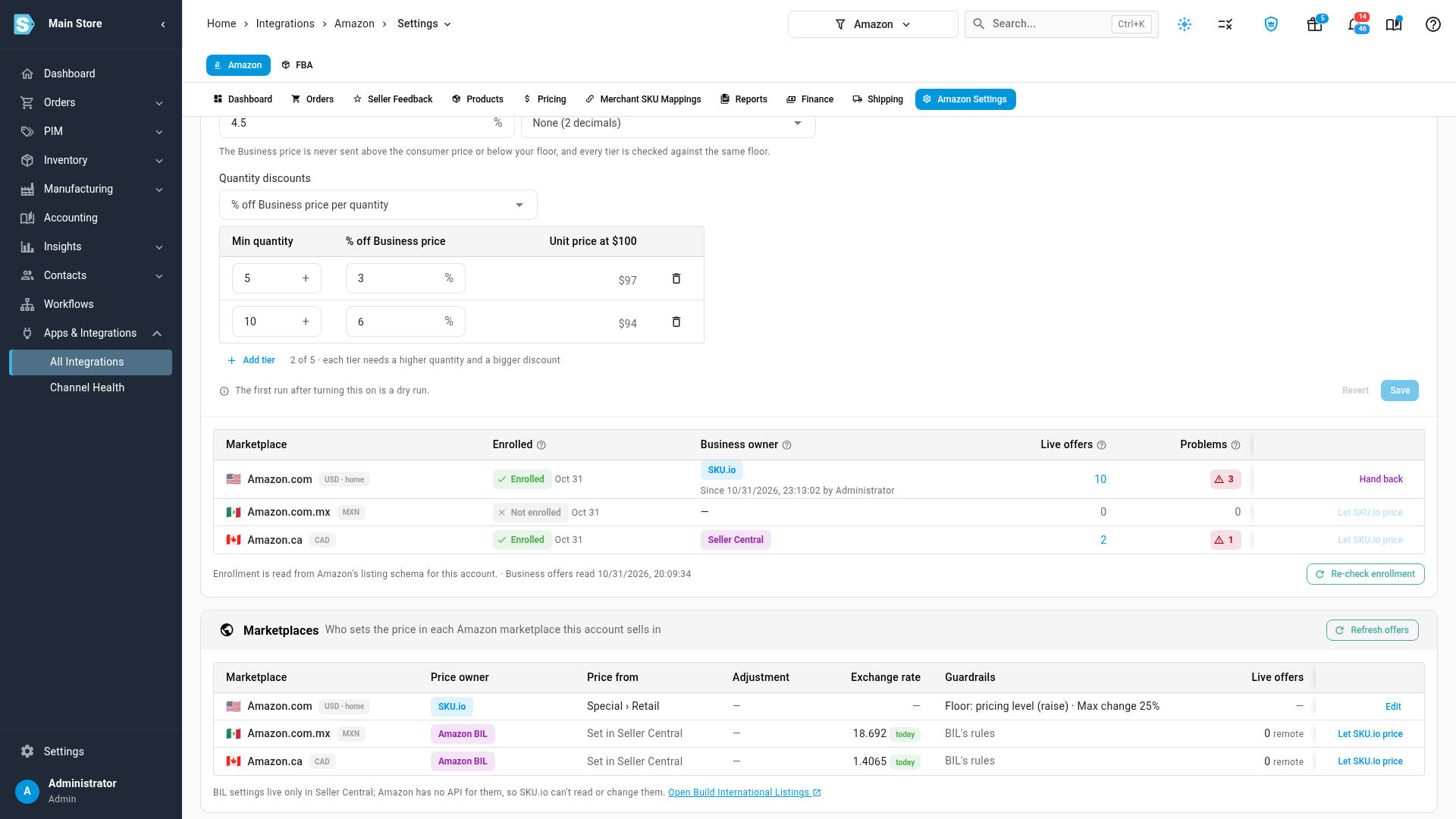
The Business owner is now SKU.io, with the date and the person who handed it over. The next push is a dry run for that marketplace.
Read the first dry run
-
Scroll up to the push card and click Preview changes. SKU.io works out every price and sends nothing. The run opens when it's ready. (Or wait for the next scheduled push, then click View history.)
-
Click Business only to see just the Business lines.
-
Click Blocked to see the quantity tiers that were left out, and why.
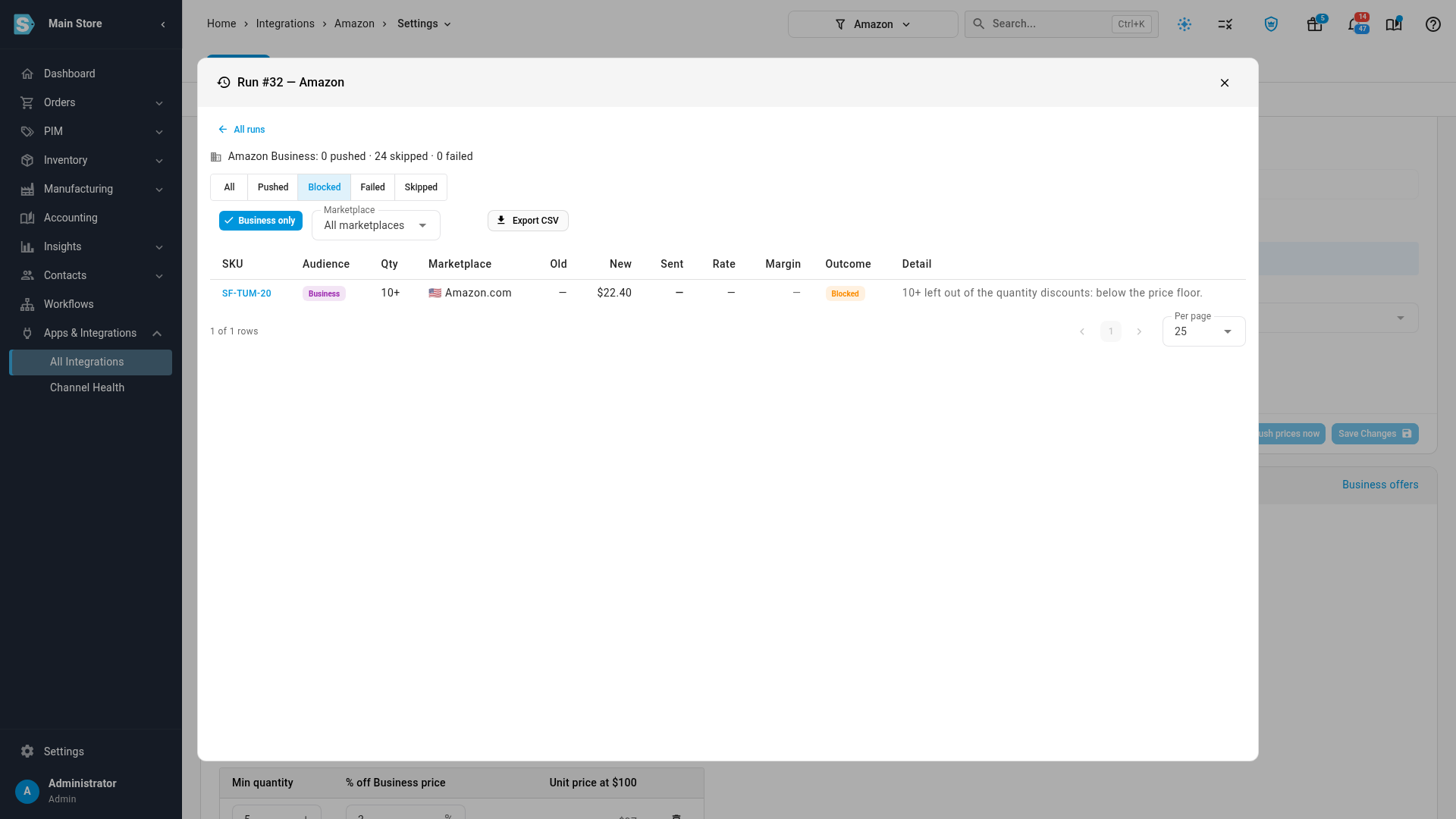
| Column | What it shows |
|---|---|
| Audience | Consumer or Business. |
| Qty | — for the Business price itself, or the tier's minimum quantity, such as 5+. |
| Old / New | The Business price Amazon shows now, and the price SKU.io works out. |
| Sent | The price SKU.io sends, or would send on a dry run. — on a blocked line, because nothing goes. |
| Outcome | Skipped with Preview only on a dry run. Blocked on a tier that was left out. |
| Detail | How the price was reached, or why a tier was left out, for example 10+ left out of the quantity discounts: below the price floor. |
When the prices look right, click Push prices now, or let the next scheduled push send them.
Hand a marketplace back
- On the marketplace's row, click Hand back.
- Click Hand back to Seller Central.
SKU.io stops sending Business prices and quantity tiers to that marketplace. The live Business prices stay where they are, because Amazon can't delete a Business price, and Seller Central controls them again. To clean up a stale one first, see Fix stale Amazon Business prices.
Business pricing for some listings only
- Pricing sync profiles carry an Amazon Business price section. With Inherit channel setting on, a profile's listings use the card above. Turn it off to give the profile its own Business policy, or Off to stop Business pricing for its listings. See Reuse price push rules with pricing sync profiles.
- One product or listing can have its own Business price without changing its consumer pricing. See Set a Business price for one product.
Next steps
- Fix stale Amazon Business prices: find Business prices above the consumer price, or tiers below your floor.
- Sync prices with your sales channels: the consumer price, guardrails, preview and push.
- Price your Amazon Canada and Mexico offers.
Video transcript
Amazon shows business buyers their own price, and up to five quantity discounts. To manage them, start on the channel's page, and open its settings tab. Then open Pricing Sync, where your price push lives.
Scroll down past the push card, to the Amazon Business pricing card. It starts at Off, so Seller Central keeps every Business price. When SKU.io prices them, it keeps them below your consumer price and above your floor. That same floor also checks every quantity tier.
Under Business price, choose how SKU.io sets the price. From pricing tiers uses a tier such as Wholesale. Same as consumer price sets both prices equal. Choose percent off consumer price, so it follows every consumer price change. In the percent field, enter the discount you want to give your business buyers. Then pick a Rounding option that suits your prices.
Next, click the Quantity discounts list. From quantity breaks reuses the breaks you set on a pricing tier. Choose percent off Business price per quantity, to build your own ladder. Click Add tier once for each step you want, up to five tiers. Each tier takes a percentage off the Business price, and shows the unit price that results.
When the policy looks right, click Save at the bottom of the card. The card now asks you to review the first Business dry run. The next push records every Business price, but sends nothing to Amazon.
The table lists every marketplace on this connection. The Enrolled column shows which marketplaces accept Amazon Business offers. A marketplace marked Not enrolled can't get a Business price. If you enroll later, click Re-check enrollment.
Business owner shows who sets each marketplace's Business price. Until you change it, Seller Central does, and SKU.io sends nothing. To hand one to SKU.io, click Let SKU.io price on its row. The dialog counts the live Business offers, and how many will move.
First, turn off any Business pricing rules in Seller Central. If you leave them on, they keep changing these prices. Then tick the box to confirm it's done. Click Let SKU.io price Business offers, and SKU.io takes that marketplace over. The Business owner is now SKU.io. Since shows the date, and the person behind the change.
To see the dry run now, scroll up to the push card, and click Preview changes. SKU.io works out every price in the background, and sends nothing to Amazon. The run opens when it's ready.
Click Business only, to see just the Business lines. In the Audience column, each listing has a Business line, then one line per quantity tier. The Qty column shows the tier's minimum quantity. Preview only means nothing reached Amazon. To see the tiers that were left out, click the Blocked filter. This tier fell below the floor, so SKU.io leaves it out, and says why.
When you're done reading, close the run dialog. To stop SKU.io pricing a marketplace, scroll back down and click Hand back on its row. Amazon can't delete a Business price, so the live prices stay in place. We'll keep SKU.io in charge, so click Cancel.