Map merchant SKUs AWD can't match
Amazon identifies everything in an AWD shipment by its merchant SKU, the SKU you gave the item in Seller Central. Case packs often get their own merchant SKUs, such as one SKU for a 24-pack of bottles and another for a 12-pack. When SKU.io processes an AWD shipment it matches each merchant SKU to a product: first through your Amazon listings, then through the mappings on this page, then by a product with the same SKU. If any merchant SKU on the shipment matches nothing, SKU.io doesn't process the shipment, so no stock moves into AWD, and the SKU appears on Merchant SKU Mappings as Unmapped. Map it once, and every later shipment that carries it goes through.
Before you begin
- You track AWD inventory. See Track AWD inventory.
- The products the merchant SKUs stand for exist in SKU.io.
- You need permission to change integrations to map SKUs, and to sync integrations to process a shipment.
See which SKUs need a product
There are two ways in:
- Go to Apps & Integrations, open your Amazon channel, and click Merchant SKU Mappings in the tabs at the top.
- On FBA → AWD Inbound → Shipments, a shipment that stopped on an unmatched SKU shows an Unmapped SKU chip under SKU Link. Click it to read the message, which names every merchant SKU that needs a product, then click Map Merchant SKU.
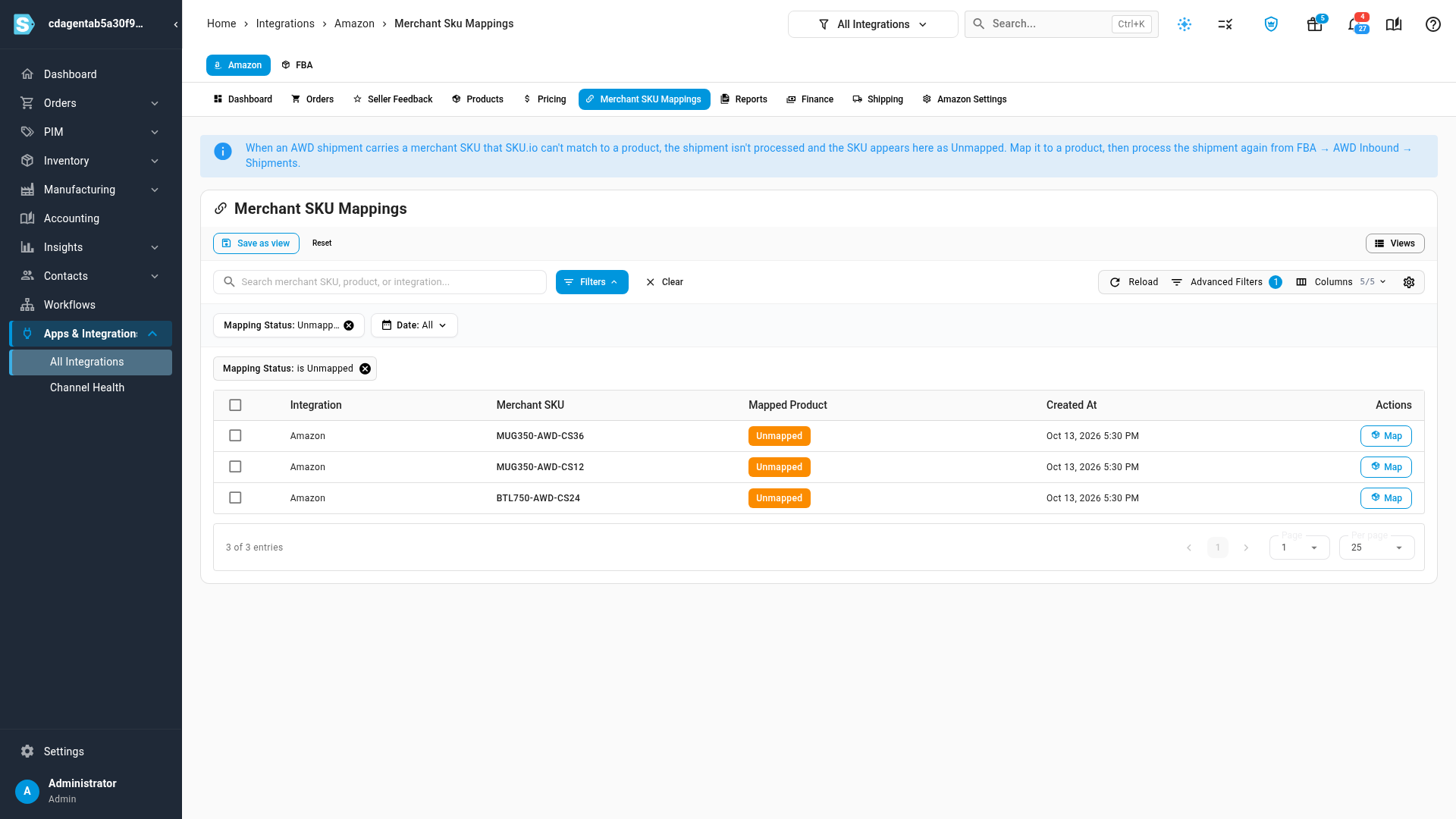
Each row shows the Integration, the Merchant SKU, the Mapped Product (or an Unmapped chip), and when the row was created. To see only the SKUs still waiting, set Mapping Status to Unmapped. Search finds a merchant SKU, a product or an integration.
Map one merchant SKU
- Click Map at the end of the SKU's row.
- In Select Product, search by the product's SKU or name, and pick it from the list.
- Click Save. The row now shows the product's SKU and name.
Map several merchant SKUs to the same product
Use this when several case packs hold the same product.
- Tick the rows.
- Click Set Product in the bar above the table.
- Search for the product and pick it.
- Click Update N Mapping(s). Every ticked SKU now maps to that product.
Change or clear a mapping
- To point a mapped SKU at a different product, click Change on its row and pick the product.
- To remove a mapping, click the cross beside Change and confirm. The SKU goes back to Unmapped, and any shipment that carries it stops again the next time it's processed.
- To clear several at once, tick them and click Clear Mapping in the bar above the table.
A mapping only affects shipments processed after you change it. A shipment that was already processed keeps the warehouse transfer it created; to redo it, click Unprocess on the Shipments tab and process it again.
Process the AWD shipment again
Mapping the SKUs doesn't process the shipment by itself. With AWD sync on, SKU.io retries unprocessed shipments on its scheduled runs; to do it now:
-
Click FBA at the top of the page, open AWD Inbound, then its Shipments tab.
-
Tick the shipment and click Process.
-
SKU Link now shows the warehouse transfer that moves the stock from the warehouse it left into AWD.
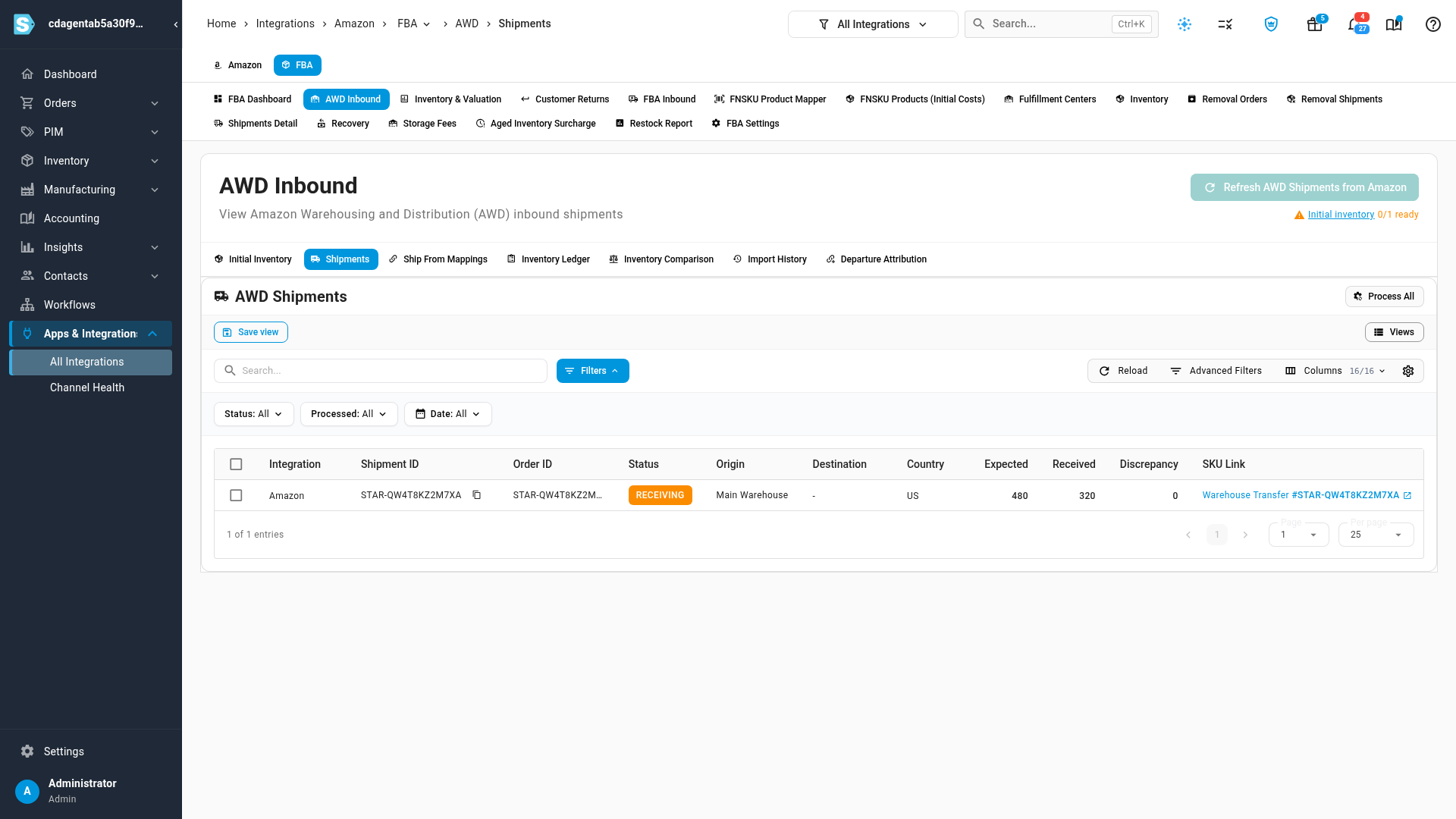
If the shipment still stops, open its SKU Link chip: it names any merchant SKU that's still unmapped, or says what else is missing, such as a ship-from location with no mapping. See Track AWD inventory for ship-from mappings.
Next steps
- Track AWD inventory: set your starting point, process AWD shipments and keep the AWD ledger current.
- Map FNSKUs to products: the FBA counterpart, for the labels Amazon puts on units it stores.
Video transcript
When SKU.io processes a shipment you sent into Amazon's bulk storage, it matches each merchant SKU on it to a product. A SKU it can't match stops the shipment, and lands on Merchant SKU Mappings. Open Merchant SKU Mappings, from the tabs at the top of the channel's pages. Each row is one merchant SKU, the code on Amazon's side. Unmapped rows still need a product before the shipment can go through. To see only those, open the Mapping Status filter above the table, and pick Unmapped from its list. The list now shows the three case packs from the stopped shipment. To map one SKU, click Map at the end of its row. Type part of the product's name or code, and pick it from the list. Then click Save, at the bottom of the dialog. The row now shows its mapped product. Several case packs often hold the same product, like these two mug cartons. To map them together, tick each of their rows, using the boxes at the left of the list. Then click Set Product, in the bar that appears above the table. Search for the one product that every case pack holds, and pick it from the list. Then click the blue Update button, at the bottom of the dialog, to save both mappings at once. To see every mapping again, open the Mapping Status filter, and set it back to All. Change gives a mapped SKU a different product. The cross beside it clears the mapping, so the SKU shows as Unmapped. Now process the shipment again. Click FBA, in the tabs at the top of the channel's pages. Then open AWD Inbound, and pick its Shipments tab, which lists your AWD shipments. In the SKU Link column, this one still shows the error from its failed attempt. Tick the shipment's row, and then click the Process button above the table. SKU Link now shows the warehouse transfer that moves the stock into AWD.