Connect WooCommerce
You connect WooCommerce by entering your store's web address and approving SKU.io in your WordPress admin. There are no keys to copy. Once connected, you choose what syncs each way.
Before you begin
- Your store must be reachable over HTTPS, with the WooCommerce REST API enabled.
- You need an admin login for the store, and permission to connect integrations in SKU.io.
- Decide which SKU.io store this WooCommerce store sells through.
Start the connection
-
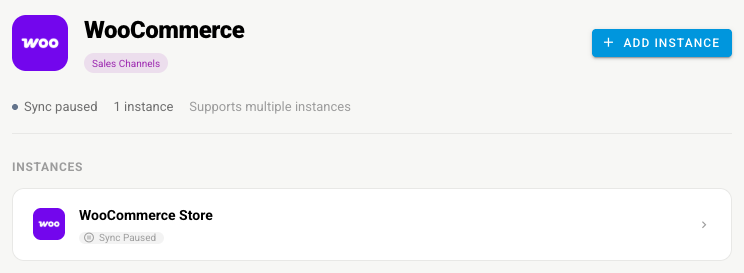
Go to Apps & Integrations, open Sales Channels, and choose WooCommerce.
-
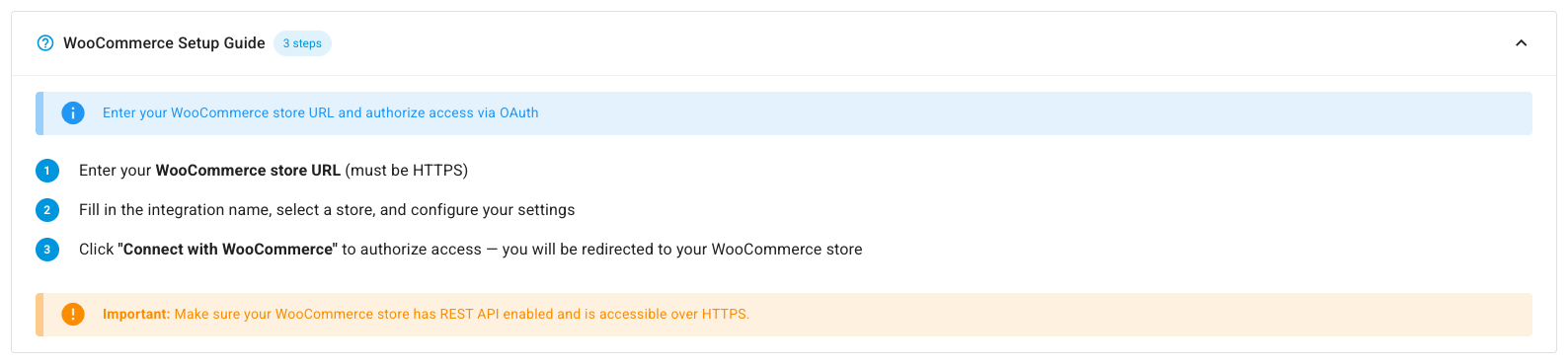
Click Connect WooCommerce, or Add Instance if a store is already connected. The New WooCommerce Integration page opens with a WooCommerce Setup Guide.
Fill in the details
-
Under Store Connection, type your Store URL, starting with
https://.
-
Under Basic Information, type an Integration Name and pick the Store.
-
Under Advanced Settings, set the Start Date, and choose Auto Link Products, Auto Create Products, and Automatic Sync.
-
Optionally pick this channel's accounts under Accounting. You can change them later under Channel Accounting.
Approve SKU.io in WooCommerce
- Click Connect with WooCommerce. Your store's admin opens.
- Sign in if asked, and approve the access request. WooCommerce sends you back to SKU.io, and the store starts syncing.
If you move the store to a new address, update it under Settings → Authentication and click Re-Authorize with WooCommerce.
Choose what syncs
- Open Settings → Sync.
- Under What syncs, turn each capability on or off: importing orders, creating SKU.io sales orders from them, and importing products; and sending tracking, stock, and prices.
Review the other settings
| Settings tab | What to check |
|---|---|
| General | The name, the store, Auto Create Products, and customer emails |
| Orders | The start date and Allow refunds from SKU |
| Inventory Sync | Master of Stock, the Stock Warehouses whose stock WooCommerce sees, and min, max, and buffer rules |
| Pricing Sync | Master of Price, which price to send, and guardrails. See Sync prices with your sales channels |
| Shipping | Which SKU.io shipping method each WooCommerce shipping method becomes. Methods appear once orders import |
| Content Sync | Whether SKU.io watches your products for content changes. See Content Sync |
| Accounting | The Payment Cost % used to estimate profit on each order |
Orders that arrive unpaid, such as bank transfers, follow the store's row under Unpaid Orders.
Next steps
- WooCommerce overview — what moves each way.
- Refund a customer on the sales channel — refund a buyer from the sales order.