Refresh WooCommerce orders
SKU.io checks your WooCommerce store for new and changed orders every few minutes. Refresh by hand when you need an order right now, or when you want to fill a gap in your order history.
Before you begin
- Your WooCommerce store is connected under Apps & Integrations.
- To use From Start Date or Full Re-sync, the integration has a start date. You set it when you connect, and you can change it under the channel's Settings → Orders → Start Date.
Refresh orders
-
Open your WooCommerce channel under Apps & Integrations, then the Orders tab. Next WooCommerce refresh in counts down to the next automatic check.
-
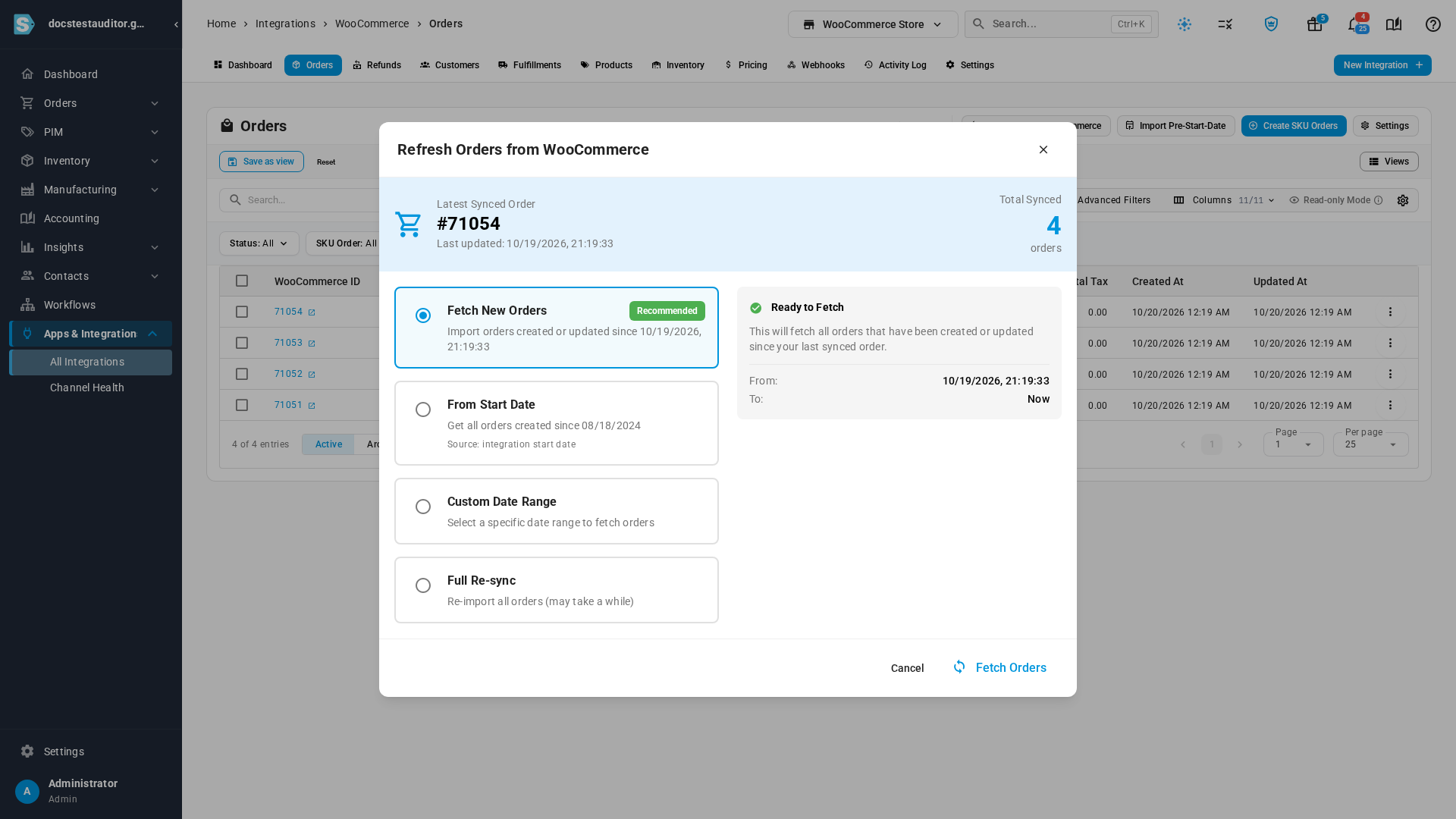
Click Refresh from WooCommerce. The top of the dialog shows the latest order SKU.io holds and how many orders it has.
-
Choose which orders to fetch. See Which option to choose.
-
Click Fetch Orders. The fetch runs in the background; follow it in the job tray.
Which option to choose
| Option | Fetches |
|---|---|
| Fetch New Orders (recommended) | Only the orders created or changed since the last sync. It's the quickest, and it picks up status changes on orders you already have. |
| From Start Date | Every order created since the integration's start date. The option shows the date, and Source: integration start date. |
| Custom Date Range | Every order created from the start of the first day you pick to the end of the last day, in your account's time zone. |
| Full Re-sync | Like From Start Date: every order created since the integration's start date. It can take a while. |
From Start Date, Custom Date Range and Full Re-sync fetch every order in their window, including orders nobody has changed since the last sync. Only Fetch New Orders limits itself to recent changes, so use one of the others to recover orders that never came across.
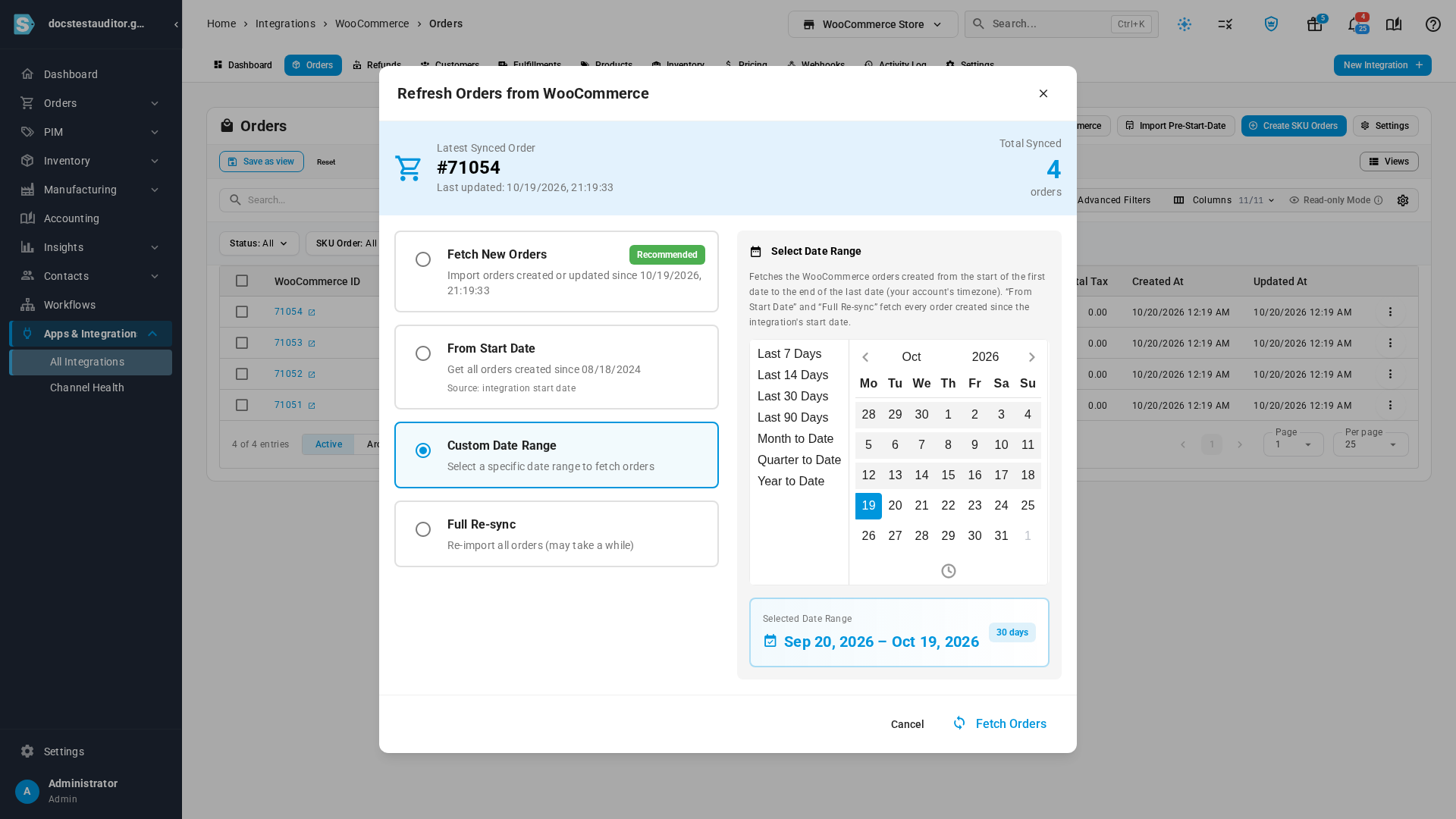
Fetching an order you already have updates it in place; you never get duplicates.
Next steps
- How WooCommerce orders import: what a fetched order becomes in SKU.io.
- Check a connection's sync health: see when orders last synced, and whether a sync is failing.
Video transcript
SKU.io checks your WooCommerce store for new and changed orders every few minutes. The countdown shows when the next check runs. To fetch orders right away, click Refresh from WooCommerce, at the top right of the list. The dialog's header shows your latest order, and how many orders came across. Fetch New Orders is the usual choice. It asks your store only for orders created or changed since the last sync. So it's quick, and it picks up status changes on orders you already have. To fill a gap, choose Custom Date Range, and pick the first and last day. SKU.io fetches every order created on those days, from the start of the first day to the end of the last. The days are in your account's time zone. Orders in the range are fetched even if nobody changed them since the last sync. From Start Date fetches every order created since your WooCommerce integration's start date. Full Re-sync fetches the same orders again, and can take a while. When you've chosen, click Fetch Orders, and follow the progress in the job tray.