Handle unpaid channel orders
Some channel orders arrive before the customer has paid: bank transfers, purchase orders, cash on delivery. On Unpaid Orders you decide what SKU.io does with them, one channel at a time: ship them as if paid, park them as drafts, or reserve their stock until the money arrives.
Before you begin
- You need permission to update integrations.
- Unpaid-order rules work for Shopify, WooCommerce, Magento 2, and Magento 1 connections. Each connected store gets its own row.
- Rules apply to orders imported after you save. Orders already in SKU.io keep their status.
Set the account-wide default
Channels you haven't given a rule follow one account-wide setting.
-
Go to Settings → General → Sales Orders.
-
Turn on Set unpaid orders as Reserved instead of Open to reserve unpaid orders instead of opening them. Leave it off to open them.

Set a rule for one channel
-
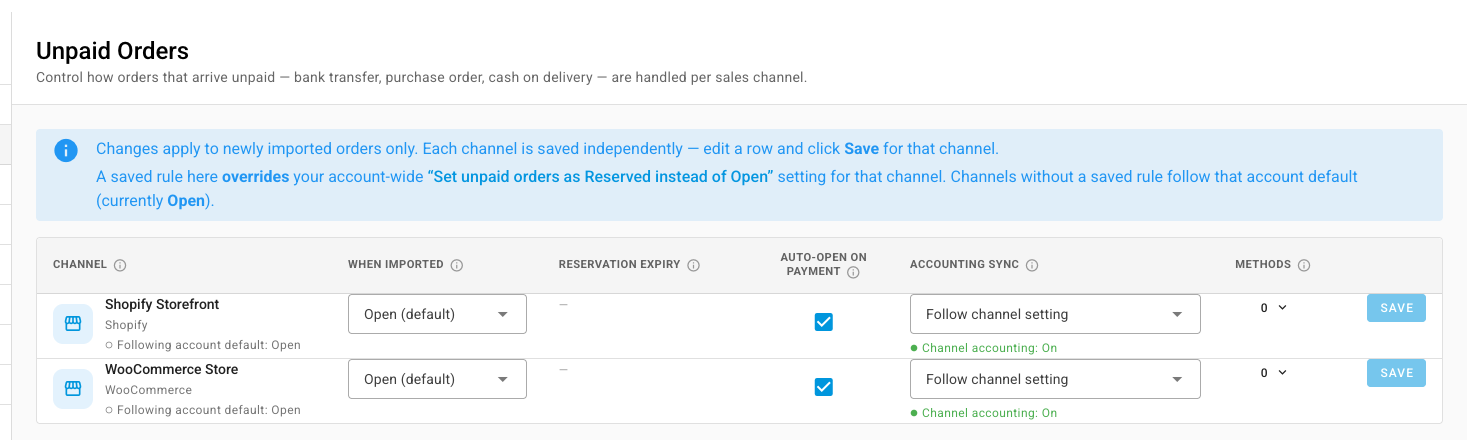
Go to Settings → General → Unpaid Orders. Each connected store has a row. A row reading Following account default has no rule of its own yet.
-
In the store's row, choose When imported:
Option What happens to an unpaid order Open (default) It's treated like a paid order: stock is allocated and it can ship Draft It waits as a draft. No stock is allocated until you approve it, so the stock stays sellable Reserve Stock is allocated and held, but the order doesn't ship. The stock is protected but tied up 
-
If you chose Reserve, set the Reservation Expiry in days, from 1 to 90. A reserved order that's still unpaid after that many days goes back to a draft and releases its stock. Leave it empty to hold the stock until you act.

-
Leave Auto-open on Payment checked to open the order and send it to fulfillment as soon as payment arrives. Clear it to review and approve paid orders yourself.
-
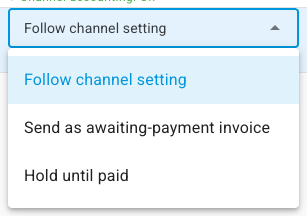
Choose the Accounting Sync for unpaid orders:
- Follow channel setting syncs them the way the channel's accounting is set up. The note under the field shows whether the channel's accounting is on.
- Send as awaiting-payment invoice sends them to your accounting software as invoices you can chase.
- Hold until paid keeps them out of your books until they're paid.
-
Click Save in that row. Each row saves on its own, and the row now reads Overrides account default.
Treat one payment method differently
Within a store, cash on delivery might ship unpaid while bank transfers wait. Methods shows how many payment methods SKU.io has found in that store's orders.
-
Click the number under Methods to open Per-method overrides. Payment methods appear here on their own once orders that use them import.

-
For each method, pick the SKU payment type it records as.
-
To override the store's rule for that method, set Unpaid orders to Open, Draft, or Reserve, and Accounting to either option. Use policy and Inherit follow the store's rule.
-
Click Save in the store's row.
Next steps
- Approve, reserve, and allocate stock — what reserved and open orders do with stock.
- Manage credit holds on sales orders — hold unpaid orders that would go over a customer's credit limit.
- How sales order status works — draft, reserved, and open.