Refund a customer on the sales channel
For an order that came from a sales channel, you can refund the buyer on that channel without leaving SKU.io. You pick the lines and amounts on the sales order, SKU.io sends the refund to the channel, and the channel's refund comes back as a sales credit on the order.
Before you begin
-
You need the Refund permission on sales orders.
-
The order must have come from a connected channel and synced from it.
-
Turn on Allow refunds from SKU in that channel's settings. It's off until you turn it on:
Channel Where the setting is Shopify Settings → Returns eBay, WooCommerce, BigCommerce, Walmart, TikTok Shop Settings → Orders Magento 1 Settings → General 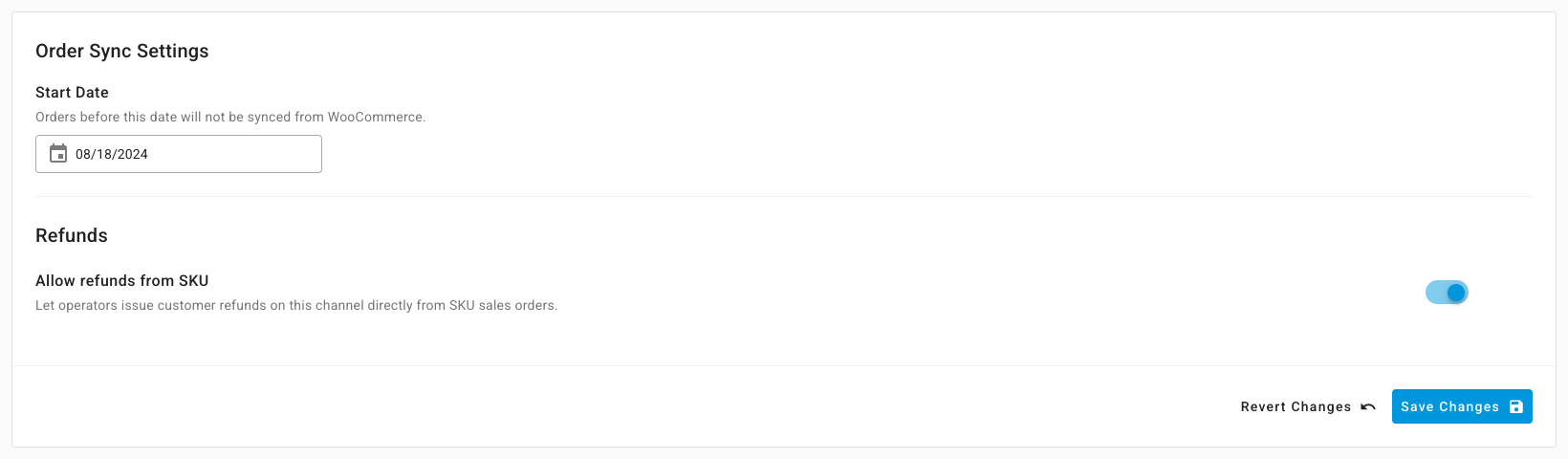
-
eBay also needs Sync Refunds as Sales Credits on, and TikTok Shop needs Import orders from TikTok Shop on, so the refund reaches your books.
Which channels you can refund from SKU.io
| Channel | What happens |
|---|---|
| Shopify, WooCommerce, BigCommerce, eBay, Walmart, TikTok Shop, Magento 1 | You refund from the sales order |
| Amazon, Temu, Faire | The dialog explains the channel doesn't accept refunds from other apps, and Open … refund page takes you to the order on the channel |
| Walmart Fulfillment Services orders | Walmart settles these itself, so they can't be refunded from SKU.io |
| Any other channel, such as Magento 2 and Square | The dialog tells you to issue the refund on the channel |
Refund the buyer
-
Open the sales order and click More.
-
Click Refund on followed by the channel's name, such as Refund on WooCommerce.
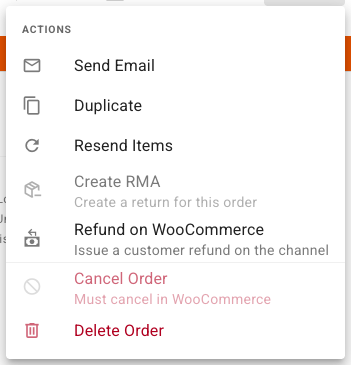
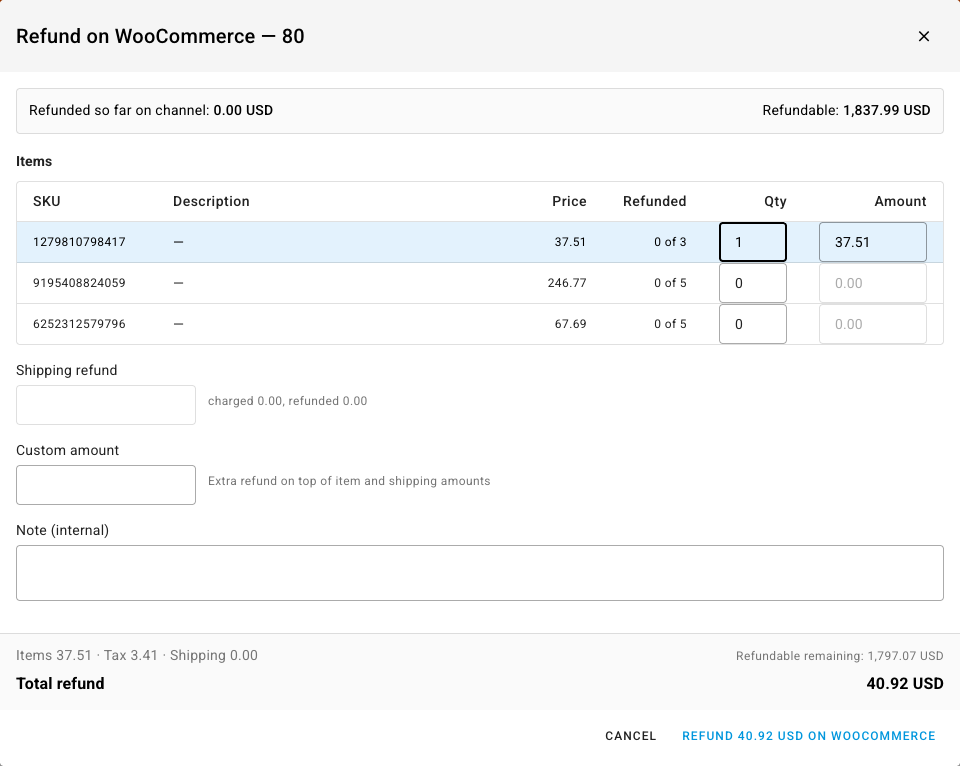
The refund dialog opens. The strip at the top shows what's been refunded on the channel so far and what's still Refundable.
-
Under Items, type the Qty to refund on each line. The Amount fills in from the price the customer paid, and you can lower it. Refunded shows how many of each line were already refunded.
-
Fill in whatever else the channel offers:
- Shipping refund: how much of the shipping charge to give back.
- Custom amount: an extra amount on top of the items and shipping.
- A reason, which eBay, Walmart, and TikTok Shop require.
- Restock and a restock location, on Shopify.
- Notify customer via the channel, on Shopify and Magento 1.
-
Add a Note (internal) if you want a record of why. Only your team sees it.
-
Check Total refund, which adds items, tax, shipping, and any custom amount, then click the Refund … on button.
- TikTok Shop sends a refund request without a return, so the buyer keeps the items. The refund settles once TikTok finishes processing it.
- Magento 1 creates an offline credit memo. The order is marked refunded on the channel, but no money moves, so refund the customer through your payment processor too.
- eBay and TikTok Shop process refunds in the background, so the status updates a little later.
Follow the refund
-
Open the order's Credits tab. Once you've sent a refund, a Channel Refunds list shows each one with its Amount, Requested By, Status, Channel Refund ID, and Sales Credit.
-
Read the status:
Status Meaning Pending SKU.io is sending the refund Submitted The channel accepted it and is processing it Awaiting channel SKU.io is waiting for the channel to confirm. If it never does, the request is marked Failed so you can try again, and you should check the order on the channel first Completed The channel refunded the buyer, and the sales credit is linked Failed The refund didn't go through. Hover over the row for the reason Canceled The request was canceled -
Use the row's actions to Retry this refund request after a failure, or Check status on the channel now to refresh it.
When the refund syncs back from the channel, SKU.io creates the sales credit for it and links it to the request. You don't create the credit yourself.
Next steps
- Returns, credits, and refunds — how sales credits and refunds fit together.
- Record payments and apply store credit — refunds you record by hand.