Book Shopify gift cards as a liability
A gift card your Shopify store sells is money you owe the customer until they spend it. Booked as revenue, it's counted twice: once when the card is sold, and again when the customer spends it on an order. Booked as a liability, selling a card adds to Gift Card Liability, spending it draws that balance down, and the goods the card pays for are your revenue.
Each store chooses the date it starts. A store you connect now starts booking gift cards as a liability from the start of its order history, as long as Gift Card Liability is mapped and the store can use it (see When a store can't switch). A store you connected earlier keeps booking them as revenue until you choose a date.
Before you begin
- Gift Card Liability is mapped under Accounting → Settings → Nominal Code Mappings. The standard chart of accounts calls it 2320 Gift Card Liability. See the chart of accounts reference.
- Find the value of gift cards still unspent on the day you start. Shopify shows it under Products → Gift cards. Cards sold before that day were booked as revenue, so post that amount to Gift Card Liability as an opening balance in your accounting software.
- You can change a store's finance settings.
- Your books are in Xero or kept only in SKU.io, not in QuickBooks Online, and the store, its payouts and your books use one currency. See When a store can't switch.
Steps
-
In the sidebar, open Apps & Integrations, choose your Shopify store, and open Finance → Payout Mappings.
-
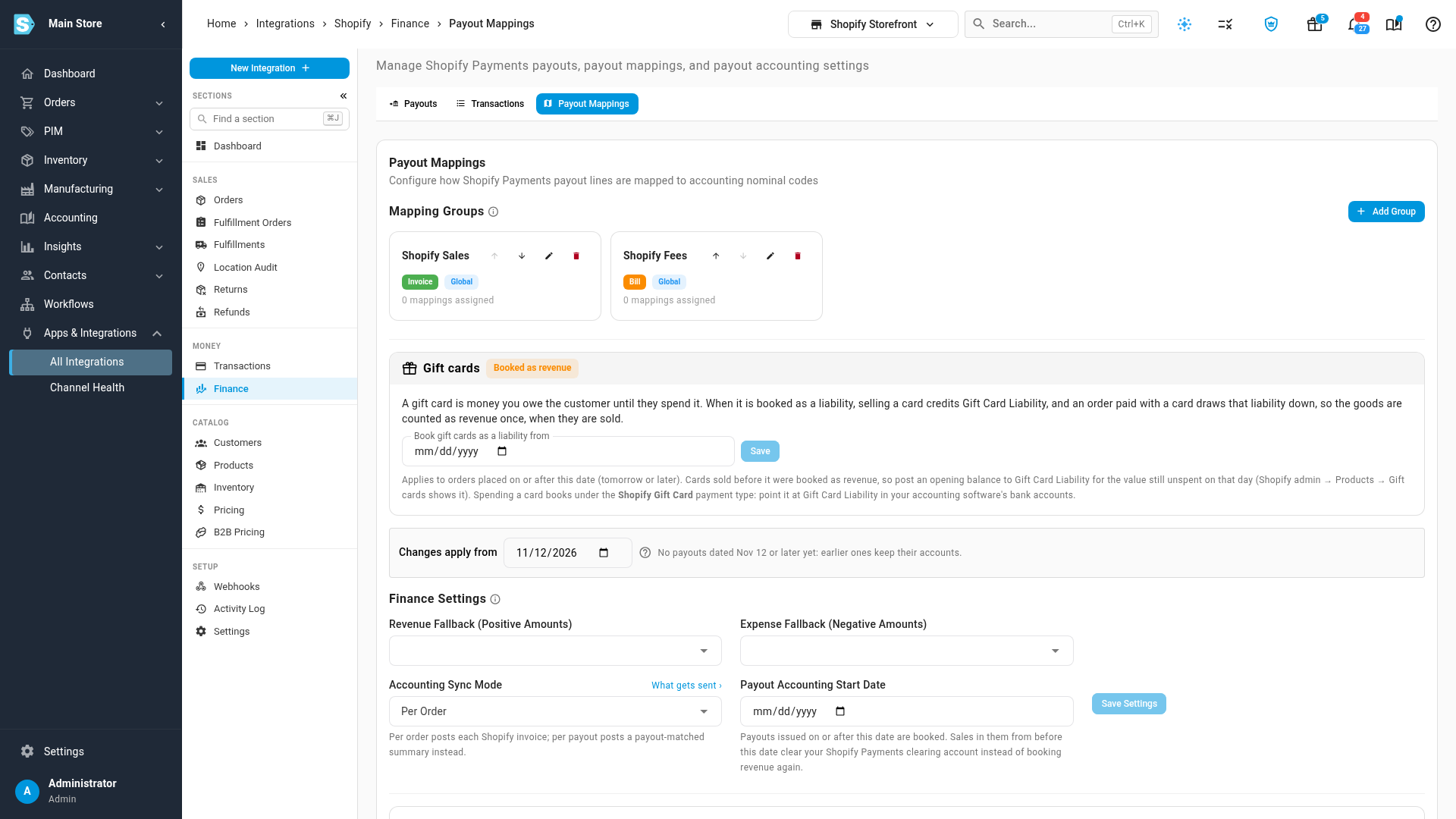
Find the Gift cards card. Its label shows how the store books gift cards today, for example Booked as revenue.
-
In Book gift cards as a liability from, choose the first order date that should book gift cards as a liability. It must be tomorrow or later: orders already in your books keep the treatment they were booked with.
-
Click Save.
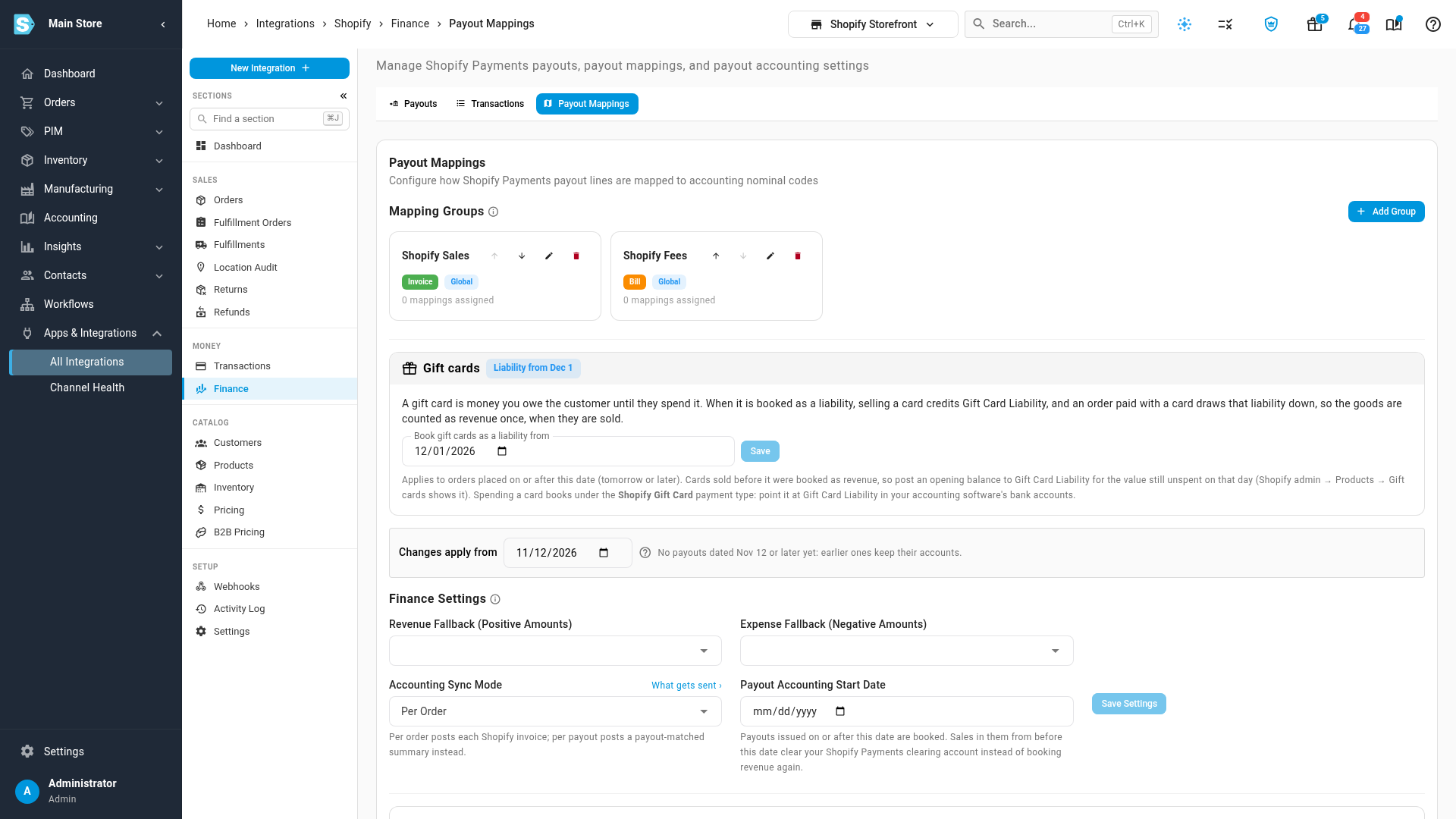
What you'll see: the label changes to Liability from the date you chose. Once that date arrives it reads Booked as a liability, and the date can no longer be changed.
What changes in your books
From the start date, for orders placed on or after it:
- Selling a gift card credits Gift Card Liability, not sales. The card isn't spread over the order's products in your profit reports either.
- An order paid with a gift card books its goods as revenue, as any order does. The gift-card part of the payment is recorded under the Shopify Gift Card payment type, which draws Gift Card Liability down.
- Payouts. In a store that posts one summary per payout, the payout shows a gift card sold line on the liability, and a gift card redeemed line for the share of an order a card paid. The goods are booked at their full value and the payout still matches your bank deposit.
- Refunds. Refunding a gift card's purchase takes it back off the liability. Refunding the goods on an order back to the customer's card or cash doesn't touch the liability.
- Refunds back to a gift card. When you refund an order to a gift card, the customer's balance goes back up, so the liability goes up too. In a store that posts one summary per payout, that money never passes through a payout, so SKU.io books it separately: once a day it posts one journal per month, Refunds back to a gift card, that debits the account your payouts use for refunds and credits Gift Card Liability. If a refund changes later, the next journal posts only the difference. It syncs to your accounting software like your payout summaries, and it is dated today when its month is locked. A store that posts each order separately needs no journal: the order's refund already books it.
In your accounting software, point the Shopify Gift Card payment type at your gift card liability account, so payments made with a card land there too. In Xero, allow payments to that account first.
When a store can't switch
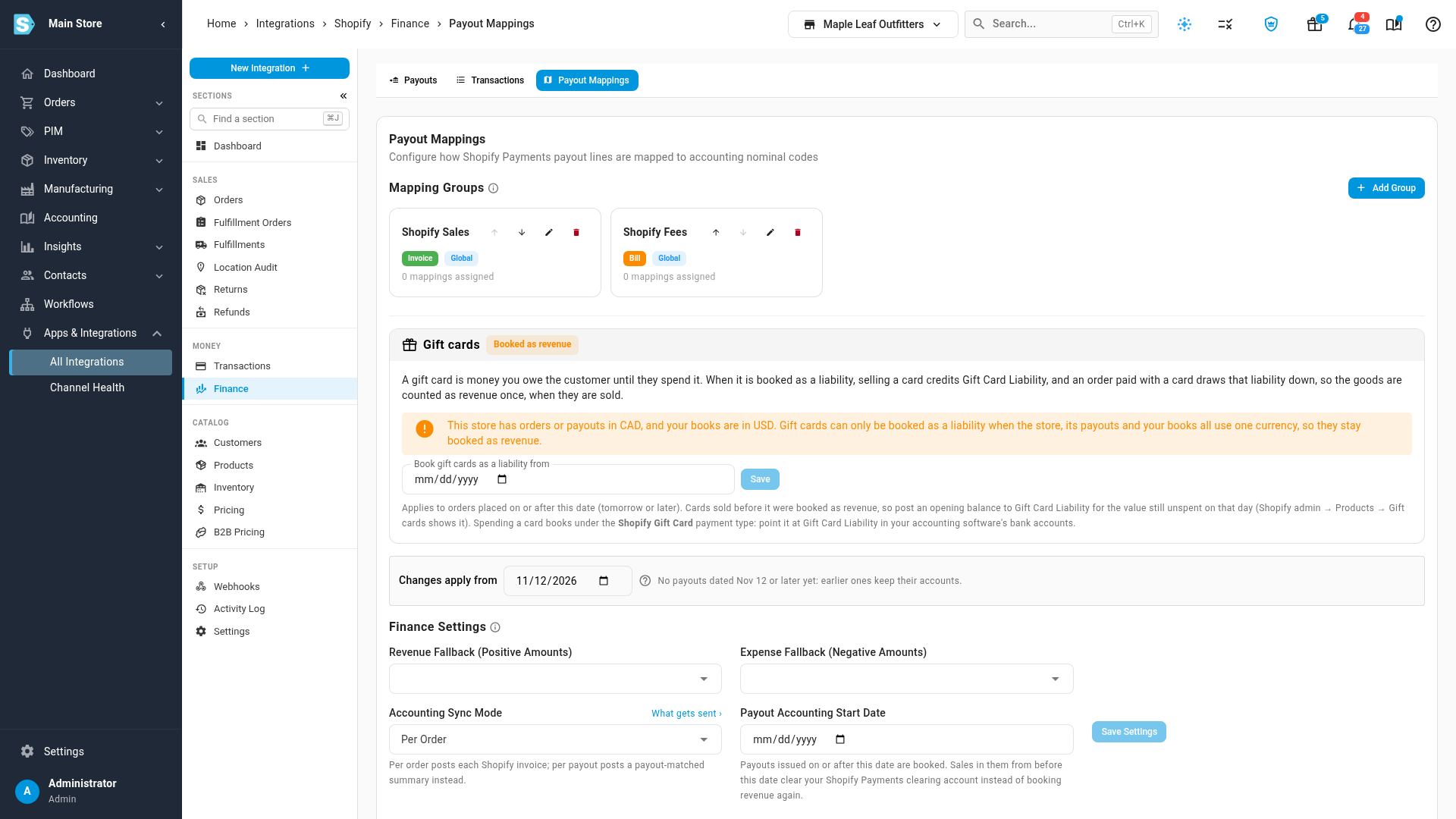
In these cases the Gift cards card shows a warning that says why, the date can't be saved, and the store keeps booking gift cards as revenue, exactly as it does today. Nothing is booked halfway.
| If… | What happens | Why |
|---|---|---|
| Your books are in QuickBooks Online | You can't choose a date, and a store you connect doesn't start on its own. | QuickBooks only takes customer payments into a bank or Undeposited Funds account, so a gift card spent on an order could never reduce Gift Card Liability there. |
| The store has orders or payouts in a currency other than your books' | You can't choose a date. | Gift cards can only be booked as a liability when the store, its payouts and your books all use one currency. |
| The store posts one summary per payout and your revenue is recognized when orders ship | You can't choose a date, including in the same save that switches the store to payout summaries. | A refund back to a gift card on an order that hasn't shipped can't be taken out of revenue that's still waiting for the shipment. |
If a store already books gift cards as a liability and this changes later:
- You move your books to QuickBooks Online. The store keeps its treatment in SKU.io, but payments made with a gift card aren't sent to QuickBooks, because it would book them as cash. The go-live readiness check lists them: journal them from the clearing account to Gift Card Liability in QuickBooks yourself.
- An order arrives in another currency. That order books its gift cards as revenue. A payout that carries a gift card in a currency other than the payout's waits, with the readiness check Gift cards in the payout currency, instead of posting with the gift card on revenue.
- A refund back to a gift card can't be booked, because no payout refund line is mapped and no fallback expense account is set, or because the order's revenue is still waiting for its shipment. Its month is left as it is, and the go-live readiness check says which refunds and why. Map the refund line, or book it by hand.
Write off gift cards that are never spent (breakage)
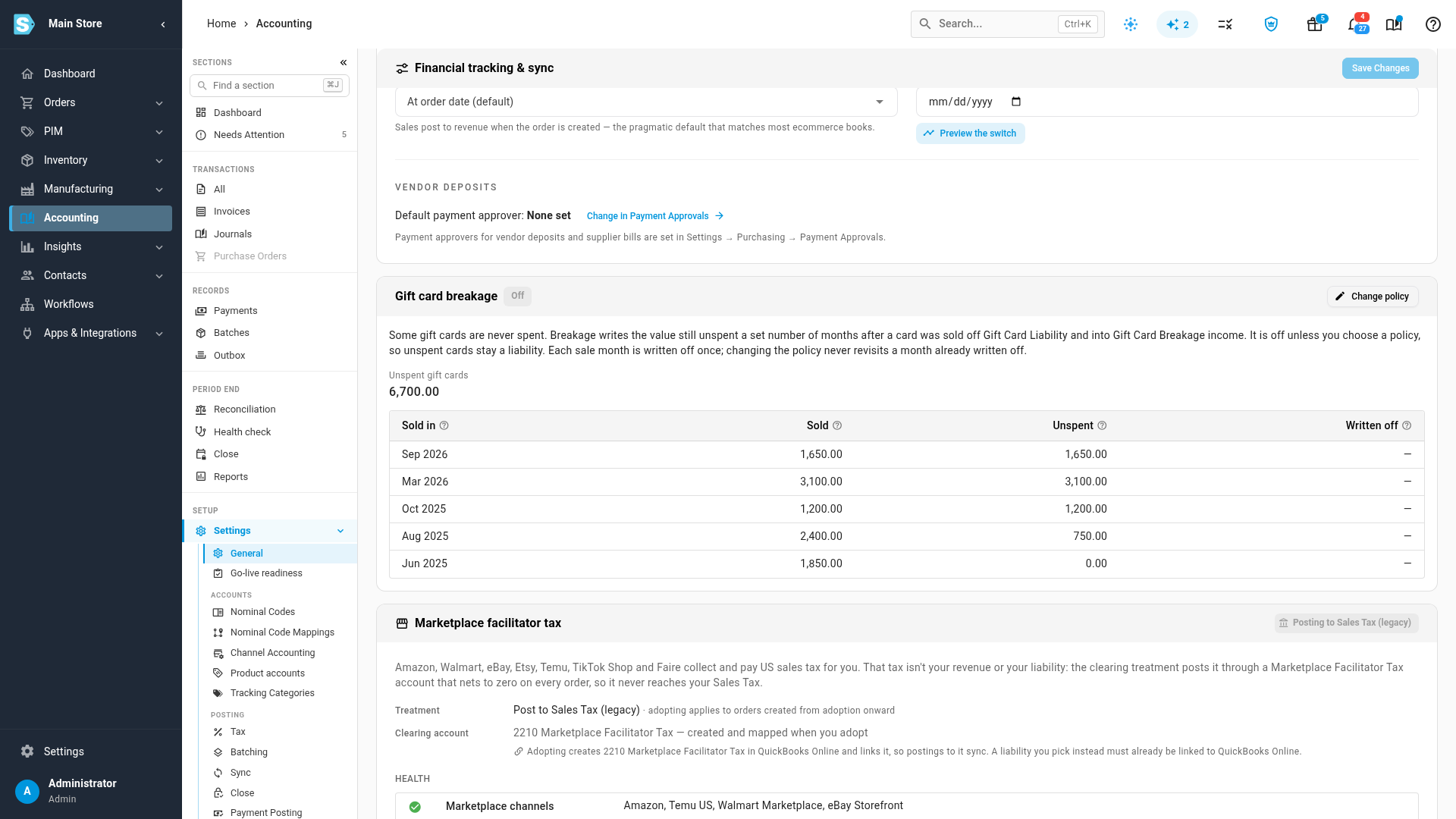
Some gift cards are never spent. Breakage writes the value still unspent a set number of months after a card was sold off Gift Card Liability and into Gift Card Breakage income. It's off until you choose a policy, and it covers every gift card on the liability, including cards sold at your register.
Agree the policy with your accountant: it should match how often your gift cards are actually redeemed.
-
Map Gift Card Breakage under Accounting → Settings → Nominal Code Mappings. The standard chart calls it 4300 Gift Card Breakage.
-
Open Accounting → Settings → General and find the Gift card breakage card. It shows the value of gift cards still unspent.
-
Click Change policy.
-
Turn on Write off gift cards that are never spent.
-
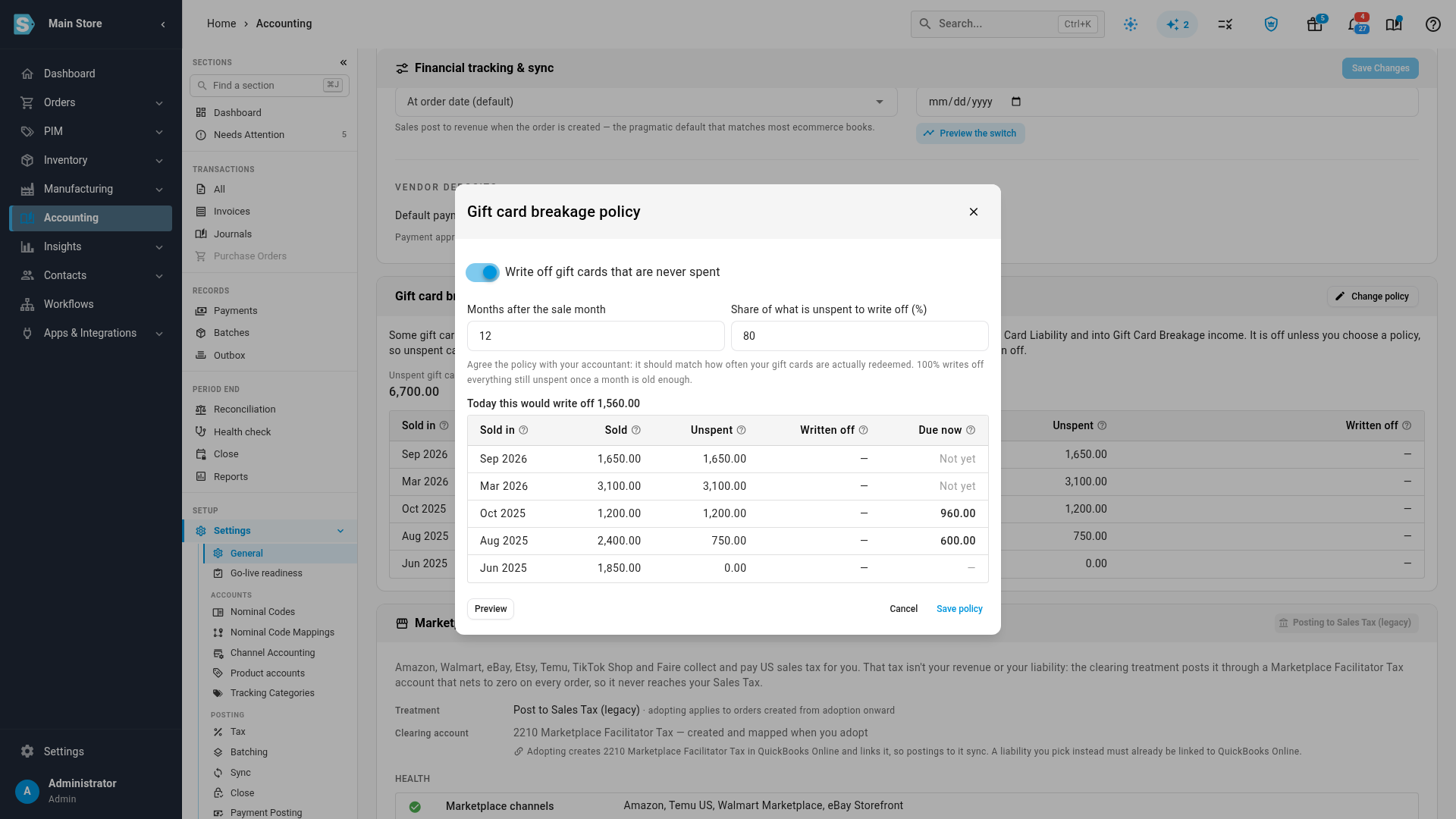
In Months after the sale month, enter how long to wait, for example 12.
-
In Share of what is unspent to write off (%), enter the share, for example 80. 100 writes off everything still unspent once a month is old enough.
-
Click Preview. The table shows each sale month: what was Sold, what is still Unspent (the oldest cards count as spent first), what was already Written off, and what is Due now.
-
Click Save policy.
What you'll see: the card's label shows your policy, for example 80% after 12 months, and Due to write off today shows the amount. Due amounts are written off on the first of each month, dated that day. To write them off now, click Record now.
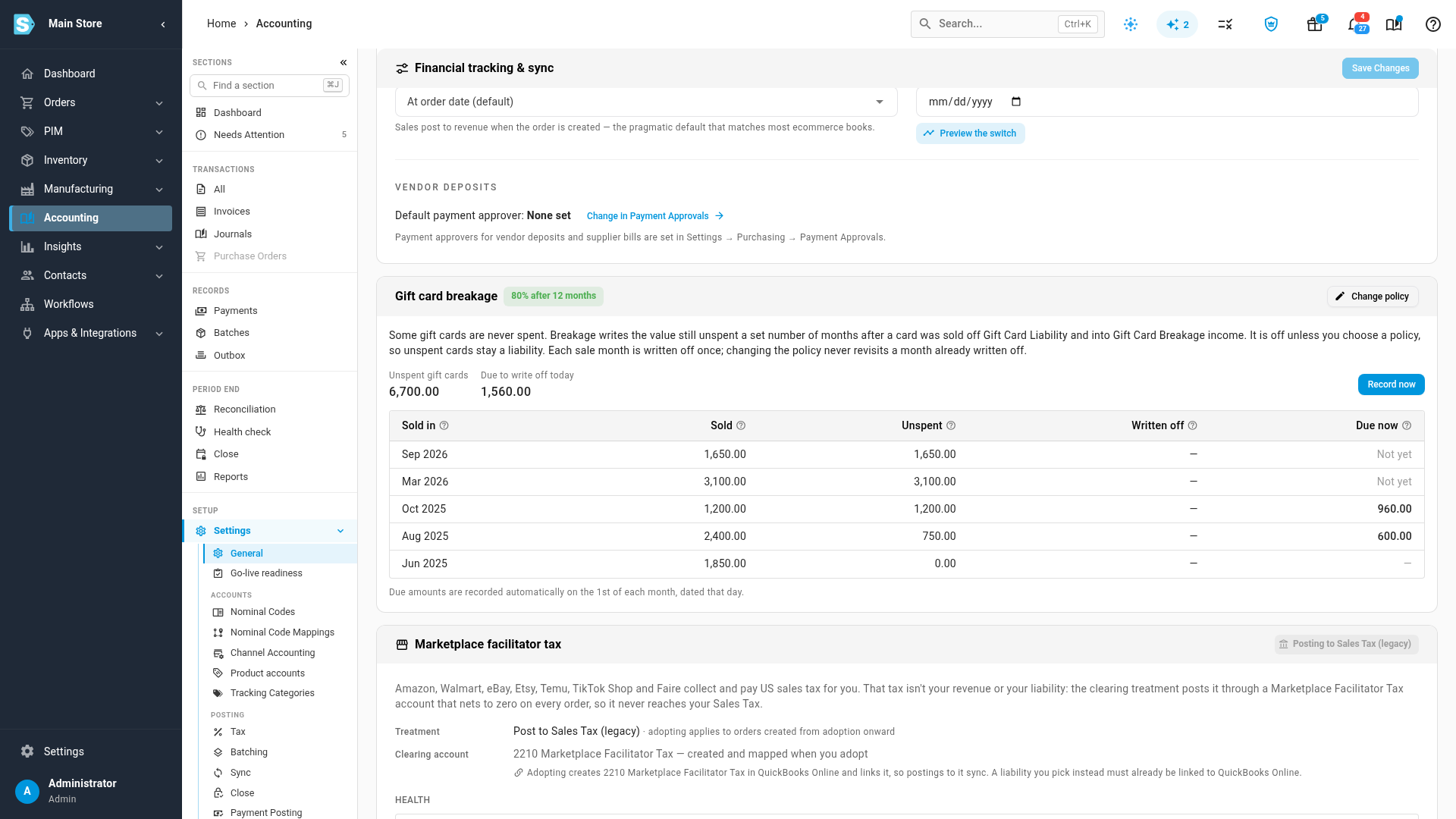
Each write-off is one journal per sale month: it debits Gift Card Liability and credits Gift Card Breakage, and it syncs to your accounting software like any other journal.
Good to know
- Each sale month is written off once. Changing the policy affects only the months not yet written off. To stop writing off, turn the policy off; nothing already written off changes.
- A card spent after its month was written off draws on a younger month's balance instead.
- Start dates are tomorrow or later. A date that has already arrived can't be changed, because the cards sold since then are on the liability.
- The go-live readiness check warns about any Shopify store that sells gift cards but still books them as revenue, whose Shopify Gift Card payment type has no account in your accounting software, or that can no longer book them as a liability.
Next steps
Video transcript
Money a customer pays for your Shopify store's gift card is owed to them until they spend the balance. On each store's Payout Mappings page, the Gift cards card shows that store's treatment. This one still records them as revenue. Choose the first order date for the liability treatment. It has to be tomorrow or later, so earlier sales keep their current entries. Save your choice with the button beside the date. The label on the card now shows when the liability starts. From that date, a gift card sale credits Gift Card Liability instead of sales. When a customer pays with one, the Shopify Gift Card payment type reduces that balance. In your accounting software, map that type to the same liability account. Now open a second store, one that can't switch. This one has orders in a currency other than your books, so its gift cards stay booked as revenue. A warning explains why, and the date can't be saved. Next, open the general accounting settings. Some cards are never spent. Breakage moves their unspent value off the liability and into income. Breakage stays off until you choose a policy for your account. Change policy opens the settings. Turn on Write off gift cards that are never spent. Choose how many months after the sale month to wait, and what share of the unspent value to write off. Preview lists what's due today, counting the oldest cards as spent first. Here, two sale months are old enough, so their unspent value is due. Then save the policy, and the card shows the total that's due to be written off today. Each sale month is written off once, on the first of a month, or right away with Record now. A later change never reopens an earlier write-off.