Run gift cards and loyalty points
Gift cards and loyalty points are the two stored-value programs that work alongside the POS Register. A gift card is a code that holds a balance anyone can spend. Loyalty points belong to one customer, build up on their register sales, and come off a later sale as a discount. This page covers setting both up and looking after them; selling and redeeming happen at the register.
Before you begin
- You need the POS — Manage permission (
pos.manage) to issue, reload, or void gift cards and to change the loyalty program. - The register sells and redeems gift cards whether or not the loyalty program is on. Loyalty points need the program turned on first.
- To let a customer pay later instead, turn on Pay on account for them. See Paying on account at the register.
Gift cards
You can sell a gift card at the register, as part of a sale, or issue one directly from the Gift Cards page, for example as a goodwill gesture or a prize. Every card keeps a ledger of each movement on it.
Open the Gift Cards page
The Gift Cards page isn't in the sidebar. Open it from search: click the Search… box at the top of any page (or press ⌘K), type gift card, and choose Gift Cards.
The list shows each card's Code, Status, Balance, Recipient, Expires date, and Issued date. Search by code, recipient name, or email, and filter by Status: Active, Redeemed, Voided, Expired, or Inactive.
Issue a gift card
-
Click Issue Gift Card.
-
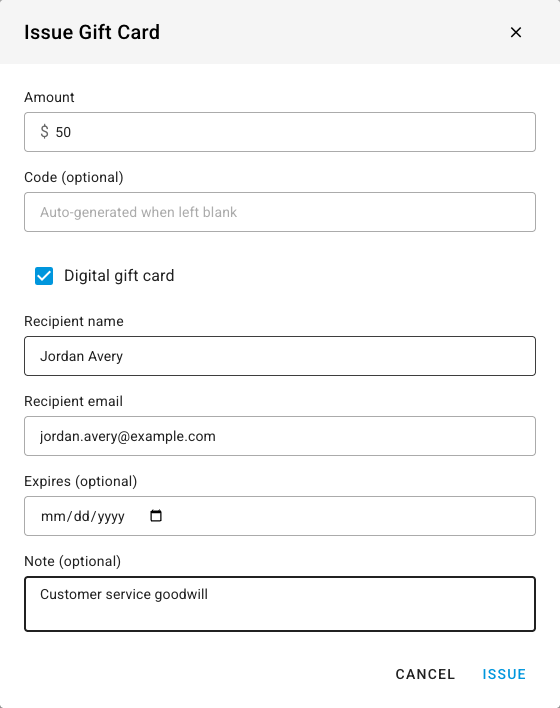
Enter the Amount.
-
Leave Code (optional) blank to have SKU.io generate a code, or type your own, for example one printed on a physical card.
-
For a card you send by email, tick Digital gift card and fill in the Recipient name and Recipient email. SKU.io records them on the card; it doesn't email the card for you, so send the code yourself.
-
Optionally set an Expires (optional) date and a Note (optional), such as why the card was issued.
-
Click Issue. The card appears in the list as Active, with its code and balance.
Reload a gift card
-
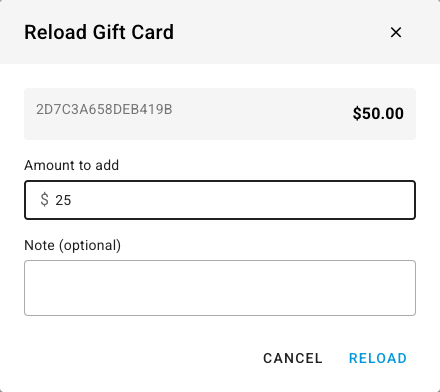
In the card's row, click Reload.
-
Enter the Amount to add, and a Note (optional) if it helps.
-
Click Reload. The new balance shows in the list.
A voided or expired card can't be reloaded.
Read a card's ledger
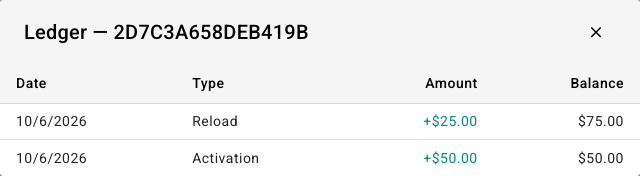
Click History in the card's row. The ledger lists every movement with its Date, Type, Amount, and the Balance after it. Types include Activation (the opening value), Reload, Redemption (spent at the register), Refund, Adjustment, and Void.
Void a gift card
Click Void in the card's row and confirm. Any remaining balance is forfeited and the card can no longer be used. Voiding can't be undone.
Loyalty points
Turn on the loyalty program
-
Go to Settings → Loyalty & Rewards → Loyalty Program.
-
Turn on Enable Loyalty Program. Three more fields appear.
-
Set Points Earned Per Dollar, the points a customer earns for each dollar of the sale's pre-tax subtotal. Part points are dropped.
-
Set Redemption Value Per Point, the discount one point is worth.
0.01means 100 points take $1 off. -
Set Minimum Points To Redeem, the fewest points a customer can redeem in one sale. Leave it at
0for no minimum.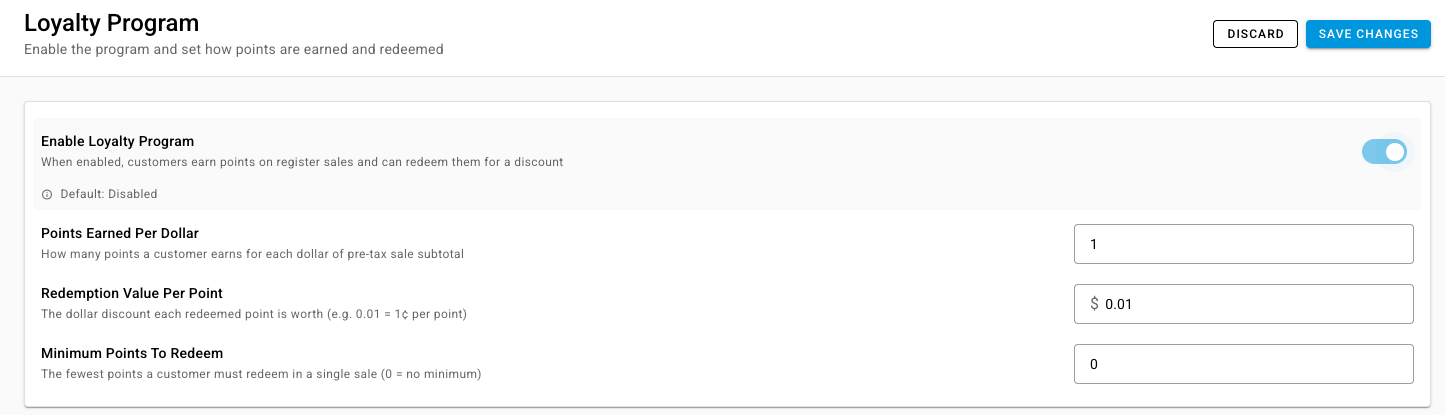
-
Click Save Changes.
With the program on, a customer earns points on every register sale they're attached to, and can spend them on a later sale. Points are only earned and redeemed at the register, not on sales orders.
Redeem points at the register
Attach the customer to the sale, then enter the points to use in Redeem points. The register converts them to a Loyalty discount that comes off the total. The full steps are in Sell at the point of sale.
Next steps
- Sell at the point of sale (POS) — sell a gift card, take one as payment, and redeem points.
- Record payments and store credit — store credit, the customer's own wallet balance.
- Set a customer's payment terms and credit limit — pay on account and on-account charges.