Import Shopify orders with split bundles
Some Shopify stores sell bundles that Shopify, or a bundle app, breaks into their items at checkout. The order then reaches SKU.io as one line per item, and sometimes with an extra line for the bundle itself.
The short answer: you don't need a SKU.io bundle for these orders. Link each item's Shopify listing to its own product, so the items are allocated, picked, and shipped as normal. If the bundle's own line also arrives, map that listing as a revenue line. Don't link it to a product or to a SKU.io bundle, because then the same stock is counted twice.
What SKU.io receives
SKU.io doesn't know that some lines on a Shopify order came from a bundle. It imports each line on its own and matches it through the listing it was sold from, not through the SKU text on the line. What each line becomes depends on how that listing is mapped:
| Line on the Shopify order | What it becomes on the sales order |
|---|---|
| An item whose listing is linked to a product | A product line. Stock is allocated, picked, and shipped. |
| The bundle's own line, with its listing linked to a product or a SKU.io bundle | More product lines. The items are already on the order, so their stock is counted twice. |
| The bundle's own line, with its listing not mapped | A line with no product. Nothing can ship for it, and the order stays on the Unmapped filter. |
| The bundle's own line, with its listing mapped as a revenue line | A line under Revenue Lines. Nothing is picked for it, and it's marked fulfilled in Shopify with the order's last item. |
| A line with no SKU, or one that Shopify says doesn't need shipping | A line under Revenue Lines, typed Non Product Line unless its listing is mapped as a revenue line. |
The order total is the same in every case. Only the stock and the lines change.
Before you begin
- Your Shopify store is connected, and the bundle and its items have synced into the store's Products tab.
- Each item in the bundle exists as a product in SKU.io.
- You have a Revenue financial type for the bundle's own line, for example Bundle Line. To add one, go to Settings → Financials → Financial Types, click Create Financial Type, and choose Revenue as the Classification. See Manage financial line types.
- You need permission to manage the store's products.
Link each item to its product
-
In the sidebar, open Apps & Integrations and choose your Shopify store.
-
Open the Products tab.
-
Search for the items in the bundle. In the SKU Product column, each item should show the product it's linked to.

-
For any item that shows Map, click Map and choose its product. The Shopify SKU doesn't have to match the SKU in SKU.io. See Link a channel listing to a product.
Map the bundle's own line as a revenue line
Do this only if Shopify sends a line for the bundle as well as its items. If the bundle doesn't appear on your orders, there's nothing to map.
-
On the same Products tab, find the bundle's own listing.
-
In its SKU Product column, click Map. The mapping window opens.
-
Under Mapping Mode, click Map as Revenue Line.
-
In Revenue Financial Line Type, choose the type you set up, such as Bundle Line.
-
Click Save Revenue Mapping.
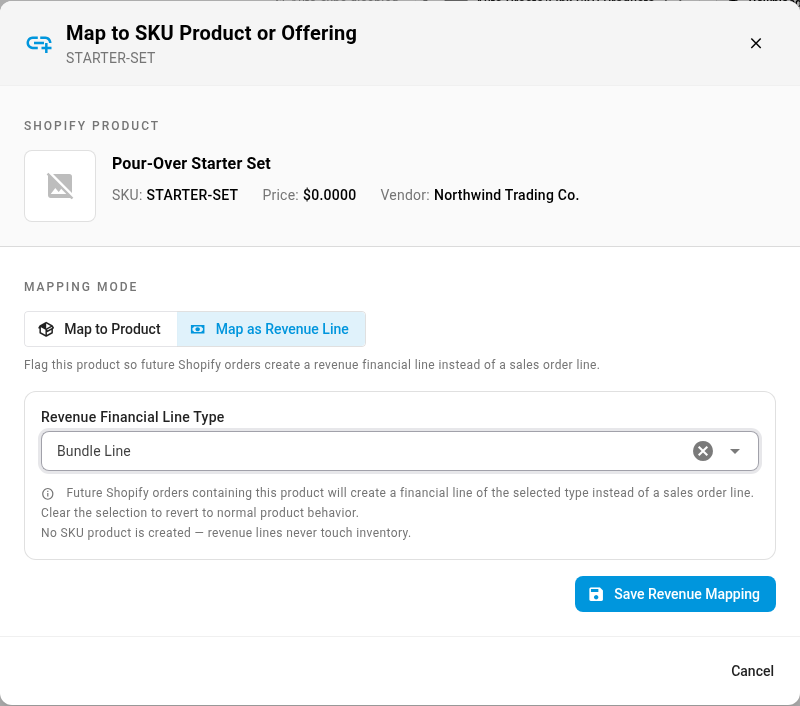
What you'll see: the bundle's SKU Product column now reads Revenue Line, with the type beneath it. The items keep their links to their products.

If the bundle's listing is already linked to a product, open it the same way and click Also book orders as a revenue line. New orders then book the bundle's line as revenue. The listing stays linked to its product, and that product still sets the listing's stock in Shopify.
Check a test order
Place a test order for the bundle in Shopify, or wait for the next real one, then check it:
- Go to Orders → Sales Orders and open the order.
- On the Product Lines tab, check that each item in the bundle appears once, with its own product.
- Under Revenue Lines, check that the bundle's own line appears, under the type you chose.
- Check that the order total matches the Shopify order.
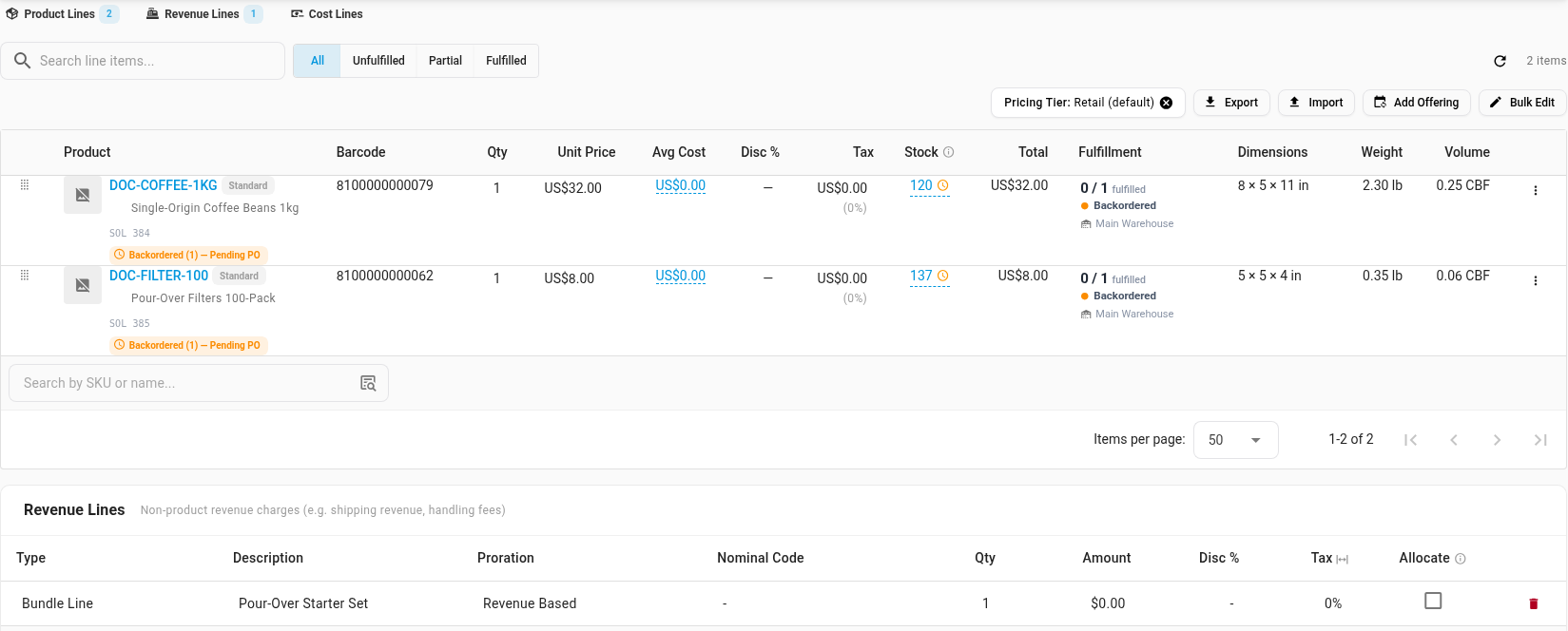
If an item shows twice, or the bundle appears as a product line, check the listing mappings again. To find orders that arrived with a line that has no product, open Orders → Sales Orders and set the Unmapped filter to Has Unmapped.
When a SKU.io bundle is still useful
A bundle in SKU.io splits one order line into its items when the order comes in. Use one in these cases:
- Shopify sends the bundle as one line. If your store doesn't break the bundle up at checkout, build a bundle in SKU.io with the same items, and link the bundle's listing to it. Each order then gets one line per item, with the price shared across them. See Build bundles & kits in the Workshop.
- You want SKU.io to set the bundle's stock in Shopify. SKU.io sends a bundle listing the number of bundles its items' stock can make. To keep that and still book the bundle's own line as revenue, link the bundle's listing to the SKU.io bundle, then click Also book orders as a revenue line. Orders follow the revenue line, and the stock count follows the bundle. See How the stock each channel sees is calculated.
Good to know
- Only new orders change. Orders imported before you mapped a listing keep the lines they arrived with.
- Watch the auto-create switch. If Auto Create/Link SKU Products is on and no product shares the bundle's SKU, a new product is created for the bundle when it syncs. Map the bundle as a revenue line before its first order arrives, or turn the switch off.
- Restricted order creation. If the store's Products settings have Restrict sales order creation until all products are mapped turned on, an order whose bundle line isn't mapped is held until you map it.
- Where the price sits. Bundle apps put the price either on the items or on the bundle's own line. If it's on the bundle's line, the revenue is booked there and the items show $0.00, so product-level sales reports show no revenue for them.
- Fulfillment in Shopify. When SKU.io ships the last of the order's items, it marks the bundle's own line fulfilled in Shopify in the same fulfillment, so the order reads Fulfilled. If only some items have shipped, the bundle's line waits, and Shopify shows the order as Partially fulfilled until the rest ship. When Shopify splits an order across locations, each location's bundle line is marked fulfilled once that location's items ship.
Next steps
- Link a channel listing to a product: connect a Shopify listing to a product whose SKU is different.
- Kits vs bundles: how a SKU.io bundle differs from a kit.
- Bundle pricing & revenue proration: how a SKU.io bundle's price is shared across its items.
- Map a channel product to a revenue line: the same mapping for add-ons on any channel.
Video transcript
To set up a split bundle, go to Apps and Integrations in the sidebar. Then choose your Shopify store from the list. Some bundles are split into their items at checkout, so each item arrives as its own order line. Open the Products tab, where your store's listings appear. Search for the bundle's items, for example by the start of their SKU. The results also include the bundle's own listing, which Shopify sells as one product. Each item is linked to its own product, in the SKU Product column. Those lines are picked and shipped as usual. The bundle itself still shows Map. Don't link it to a product, or its items would be counted twice. Instead, click Map on the bundle's row. Switch the mapping mode to Map as Revenue Line. Its line then books as revenue, with nothing to pick. Click the Revenue Financial Line Type field, and choose the type you set up, such as Bundle Line. Then click Save Revenue Mapping, at the bottom of the window. The bundle now reads Revenue Line, with Bundle Line beneath. Its items keep their links to their products. To check an order, open Orders in the sidebar, and then Sales Orders. This list shows every order that SKU.io has imported. Orders from your store keep their Shopify numbers, so a test order is easy to find. Open a recent order that included the bundle. On the order, the Lines tab lists everything that was sold. Each item appears once, as a product line. The bundle sits under Revenue Lines, out of the warehouse's pick list. The order total still matches Shopify. Orders imported before the mapping keep their original lines. The mapping applies only to new orders.